If you've ever woken up to a "Deceptive site ahead" warning on your own domain, you already know why this guide exists. Securing a website isn't one button you press — it's a stack of small decisions that, taken together, keep your site online, your customers safe, and your search rankings intact. Whether you are running a personal blog or managing a complex enterprise platform, understanding how to secure a website is the cornerstone of long-term digital success.
This is the no-nonsense version of how to secure a website. I'll walk through the 12 steps that actually matter, in the order they matter, with notes from years of cleaning up sites that skipped them. From initial encryption to advanced server hardening, this guide covers the full spectrum of modern cyber defense.
✅ Quick answer
To secure a website, use HTTPS with a valid SSL certificate, keep your CMS and plugins updated, enforce strong passwords and 2FA, limit admin access, back up your site regularly, add a web application firewall, scan for malware, and choose secure hosting with server-level protections and monitoring. Implementing these layers ensures that even if one defense fails, others remain to protect your data.
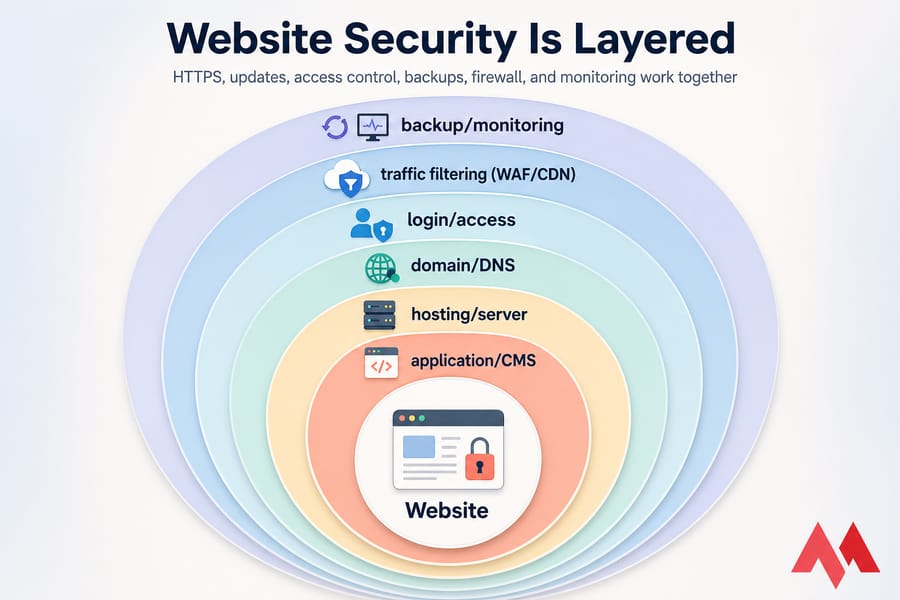
Key takeaway: Website security is layered. HTTPS, updates, access control, backups, a firewall, and monitoring all work together. Skip one and the others compensate less than you'd hope. For businesses, choosing a provider with managed hosting can automate many of these essential tasks.
✅ Before you start
You'll want a few things ready before diving into the technical configurations:
- Access to your hosting dashboard (cPanel, Plesk, or VPS root)
- DNS access at your domain registrar to manage records and what is DNS settings
- Admin credentials for your CMS (WordPress, Joomla, etc.)
- A current backup — take one before you change anything to prevent data loss
- A list of all active users and their current permission levels
🛡️ What is website security and why does it matter
Website security is the practice of protecting your site, its data, and the infrastructure behind it from theft, abuse, and disruption. It runs across four overlapping layers: the application (your CMS or custom code), the server (where your site lives), the accounts that control everything, and the network path between visitors and your site. Each layer requires specific attention to prevent it from becoming the "weakest link."
Why bother? Because the cost of getting hacked is rarely just "the site is down." It's stolen customer data. It's blacklisting in Google. It's your email landing in spam folders for weeks. It's losing months of SEO traffic in a single afternoon. Furthermore, a security breach can lead to your domain being flagged, requiring you to understand why do domains get blacklisted and how to delist them to recover your reputation.
✅ What website security protects
- Customer data — emails, passwords, and sensitive payment info
- Uptime — ensuring your site stays reachable during traffic spikes or attacks
- SEO and reputation — avoiding malware warnings and site defacement
- Conversions — visitors trust the padlock icon and the loading speed
- Your time — recovery and forensic cleaning is far more painful than proactive prevention
✅ The most common risks for website owners
Brute-force login attempts, malicious plugin exploits, malware injection, defacement, phishing pages dropped into your file system, DDoS attacks, and credential theft. Most of this is automated. Bots don't care if you're a Fortune 500 brand or a local bakery — if there's a vulnerability, they'll find it. For more context on the threat landscape, see this rundown of the most common cyber security threats and how to mitigate them. Additionally, understanding specific attacks like cross-site scripting is vital for modern webmasters.
🔍 Why websites get hacked and where vulnerabilities come from
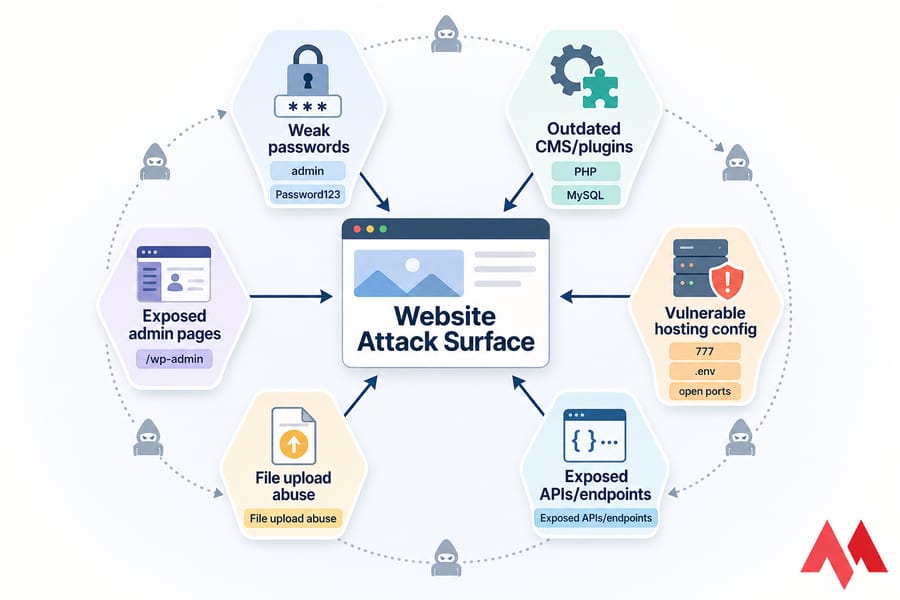
In my experience cleaning up compromised sites, the cause is almost always one of six things. Rarely is it some clever zero-day. It's usually boring stuff that nobody got around to fixing. Cybercriminals often look for the path of least resistance, which is why fundamental hygiene is your best defense.
✅ Weak passwords and exposed admin pages
"admin" / "Password123" is still the most common combo I see in compromised WordPress sites. Combine that with an unprotected /wp-admin URL, and bots will brute-force their way in within hours of your site going live. To mitigate this, many owners choose to increase WordPress security by setting password for wp-admin using server-level authentication.
✅ Outdated CMS, themes, plugins, and server software
Plugin vulnerabilities are the single biggest source of WordPress hacks. The fix usually exists — sometimes for months — but nobody clicked update. The same goes for outdated PHP, old MySQL versions, or a Linux kernel that hasn't been patched in two years. Regular maintenance is not optional; it is a security requirement.
✅ Insecure hosting, file permissions, and misconfigurations
Wrong file permissions (777 on everything, anyone?), exposed .env files, debug pages left online, open database ports, no firewall on the VPS. These aren't sexy issues. They're just the ones attackers love. Correct wordpress file permissions are essential to prevent unauthorized code execution.
And here's the thing: bots scan the entire internet constantly. Even a brand-new site with no traffic will get hit within minutes. Being small isn't a security strategy.
📝 Website security checklist: 12 steps to secure your site
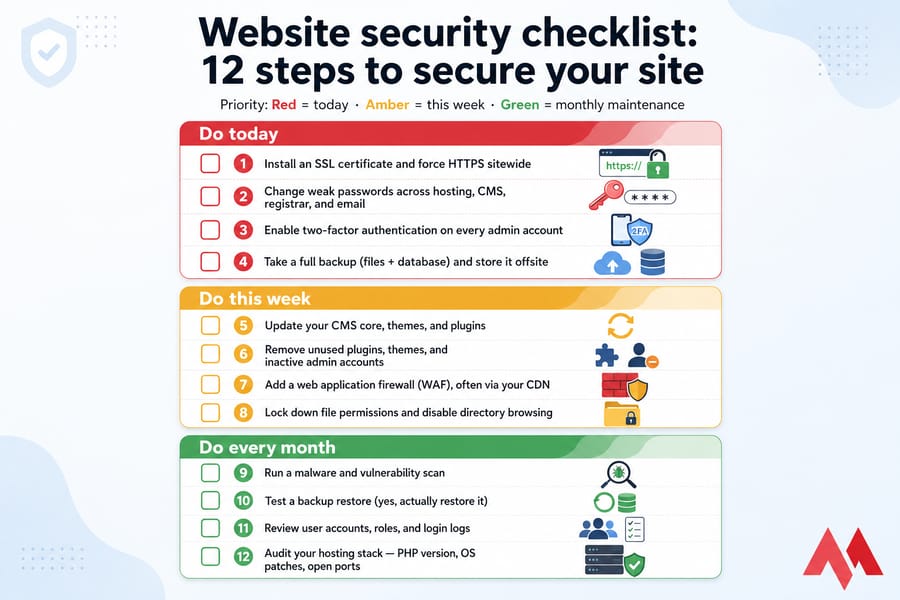
Here's the prioritized list. Don't try to do everything in one afternoon — work through it in waves to ensure each step is implemented correctly without disrupting your site's functionality.
✅ Do today
- Install an SSL certificate and force HTTPS sitewide
- Change weak passwords across hosting, CMS, registrar, and email
- Enable two-factor authentication on every admin account
- Take a full backup (files + database) and store it offsite using how to backup a server or vps methods
✅ Do this week
- Update your CMS core, themes, and plugins
- Remove unused plugins, themes, and inactive admin accounts
- Add a web application firewall (WAF), often via your CDN
- Lock down file permissions and disable directory browsing
✅ Do every month
- Run a malware and vulnerability scan
- Test a backup restore (yes, actually restore it)
- Review user accounts, roles, and login logs
- Audit your hosting stack — PHP version, OS patches, open ports
Want a CMS-specific deep dive? Our guide on WordPress security covers plugin-level controls in more detail.
🔒 Use HTTPS to secure your website with an SSL certificate
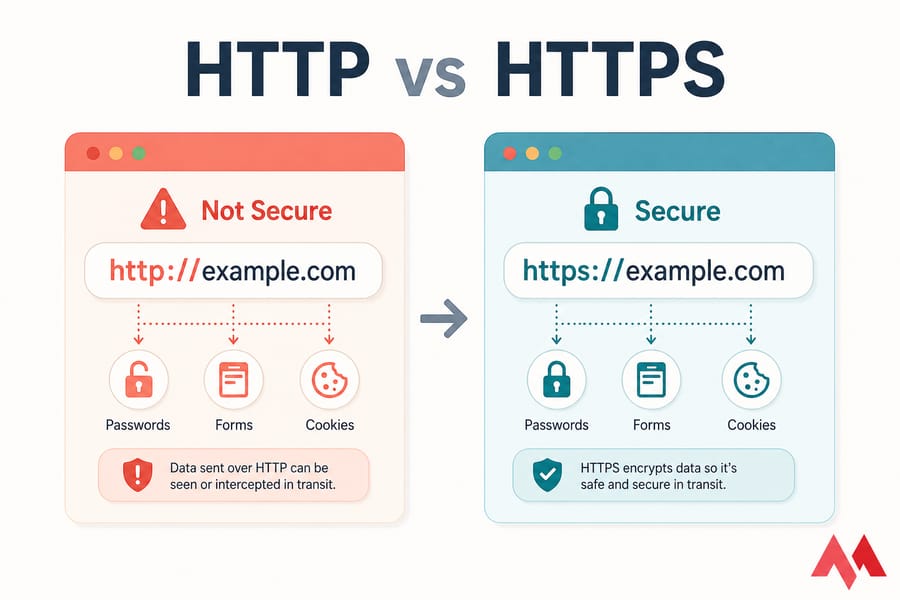
Step one for every site. HTTPS encrypts the connection between your visitors and your server, so passwords, form submissions, and cookies can't be sniffed in transit. Browsers also flag plain HTTP sites as "Not Secure," which kills conversion and hurts SEO.
✅ SSL vs TLS, explained simply
People say "SSL" but they almost always mean TLS. SSL is the older protocol — TLS is the modern, secure version. When you buy an "SSL certificate," what you're actually getting is a TLS certificate. The terminology stuck. Don't worry about it. For a deeper technical look, check out tls vs ssl comparison.
✅ How to force HTTPS and fix mixed content
- Install a certificate. You can buy SSL certificate options from trusted CAs like Sectigo for commercial sites.
- Redirect all HTTP traffic to HTTPS at the server level (via
.htaccess, Nginx config, or your panel). Learn more about redirect http to https configurations. - Update internal links and asset URLs to
https://— mixed content will break the padlock. - Add an HSTS header to tell browsers "always use HTTPS for this domain."
For practical install walkthroughs, see how to install a free SSL certificate on shared hosting, or how to install SSL on a VPS.
✅ When to use standard vs wildcard SSL
Standard certificates cover one domain (and usually www). Wildcard SSL certificates cover unlimited subdomains — useful if you've got shop.example.com, blog.example.com, and app.example.com. Multi-domain (SAN) certs cover several different domains under one certificate.
Warning: SSL encrypts traffic. It does not stop malware, plugin exploits, brute-force attacks, or compromised admin accounts. Don't treat the padlock as "site is secure." It just means the connection is.
🔄 Keep your CMS and plugins updated for better website security
This is the single highest-impact maintenance task. Most successful WordPress hacks I've personally investigated traced back to one outdated plugin. One. Vulnerabilities in outdated software act as open doors for automated scripts.
✅ How often to update WordPress and other CMS platforms
Check weekly at minimum. For critical security patches (the kind that get CVE numbers), update within 24–48 hours. WordPress core security releases should be applied as soon as you can — they're almost always responses to vulnerabilities being actively exploited. If you are on a VPS, remember to perform a how to update ubuntu or your specific OS update regularly.
✅ How to update safely without breaking your site
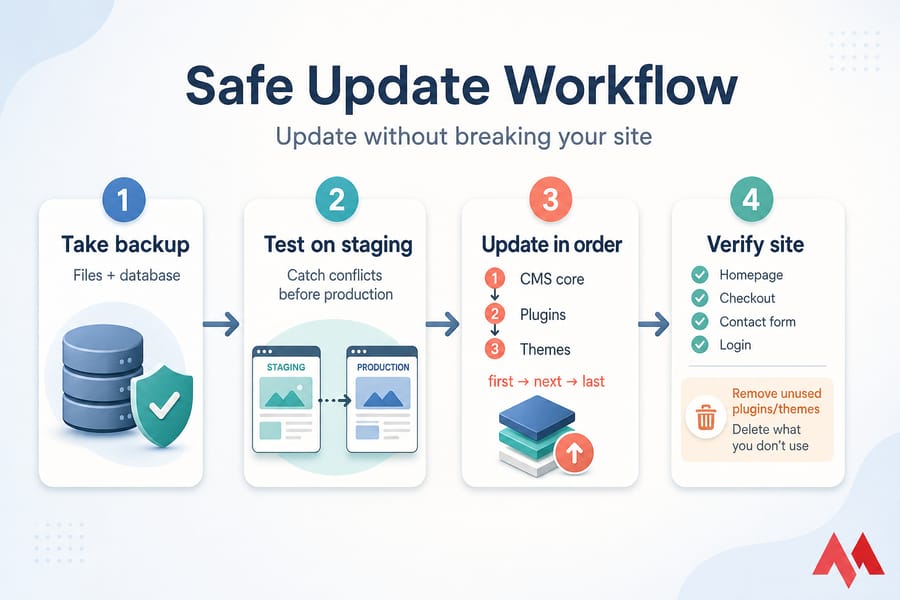
- Back up first. Always. Files and database.
- Test on staging if you have it. A staging clone catches plugin conflicts before they take down production.
- Update in order: CMS core first, then plugins, then themes. Reload the site after each major update.
- Check critical pages: homepage, checkout, contact form, login.
Don't forget the stack underneath. PHP, MySQL/MariaDB, Nginx or Apache, the OS — all need patching. Running PHP 7.4 in 2025? That's a problem. See our guide on how to update PHP in WordPress for a safe migration path.
✅ When to remove abandoned plugins or themes
If a plugin hasn't been updated in 12+ months, treat it as abandoned. Find a maintained alternative or remove it. And here's a pro tip people miss: deactivating a plugin doesn't remove it. The files still sit on your server, vulnerabilities and all. Delete what you don't use to reduce your attack surface.
🔑 Improve website login security with strong passwords and 2FA
Your accounts are the keys to the kingdom. Not just WordPress admin — your hosting panel, your domain registrar, your email, your database, and your SSH access. If any of those gets compromised, the others usually fall too. Centralizing your identity protection is the first step toward a hardened perimeter.
✅ How to protect admin, cPanel, and database logins
- Use a password manager (1Password, Bitwarden, KeePass). Long random passwords for every account, never reused.
- Enable what is 2fa (two-factor authentication) everywhere it's offered. Hosting panel, CMS, registrar, email, GitHub.
- For SSH, use key-based auth and disable password login entirely. Our guide on how to configure secure SSH access walks through it.
- Don't use
adminorrootas a username if you can avoid it.
If you need help building stronger credentials, see how to choose a secure password for professional tips.
✅ Role-based access and least privilege
Not everyone needs admin. A content editor needs Editor permissions. A developer needs SSH but maybe not the registrar password. Give each person the minimum access they need — and remove access the moment they don't need it anymore. This isn't bureaucracy; it's damage control. If one account gets phished, the blast radius stays small. For server-level management, knowing su vs sudo is critical for managing permissions correctly.
✅ How to limit brute-force login attempts
- Rate-limit login attempts (most security plugins or your WAF can do this)
- Use CAPTCHA on login forms. Learn how to add captcha on wordpress to block bots.
- Change default admin URLs where appropriate (e.g., move
/wp-admin) - Enforce account lockout after 5–10 failed attempts
Warning: Don't only protect your CMS admin. Your registrar account is more critical — someone with that access can transfer your domain away entirely. Lock it down with 2FA and registrar lock. Using domain privacy protection also helps keep your contact details out of the hands of social engineers.
🖥️ Choose secure website hosting and harden your server
Your hosting environment is half of your security posture. A perfectly configured WordPress site on a sketchy shared host with no isolation, no firewall, and no patching is still vulnerable. Conversely, a properly hardened VPS makes a lot of attacks irrelevant before they reach your code.
✅ What secure hosting should include
- Account/container isolation between tenants
- Regular OS and stack patching
- Network firewall and ddos protected vps mitigation
- Automated backups with offsite storage
- Free or built-in SSL support
- Malware scanning at the server level
- 24/7 monitoring and support you can actually reach
✅ Shared hosting vs VPS security responsibilities
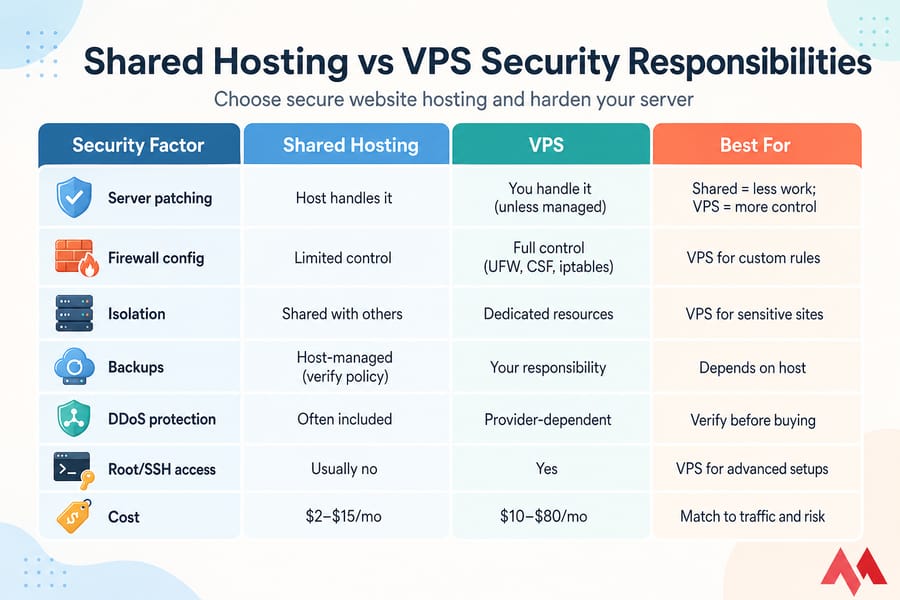
| Security Factor | Shared Hosting | VPS | Best For |
|---|---|---|---|
| Server patching | Host handles it | You handle it (unless managed) | Shared = less work; VPS = more control |
| Firewall config | Limited control | Full control (UFW, CSF, iptables) | VPS for custom rules |
| Isolation | Shared with others | Dedicated resources | VPS for sensitive sites |
| Backups | Host-managed (verify policy) | Your responsibility | Depends on host |
| DDoS protection | Often included | Provider-dependent | Verify before buying |
| Root/SSH access | Usually no | Yes | VPS for advanced setups |
| Cost | $2–$15/mo | $10–$80/mo | Match to traffic and risk |
✅ Basic server hardening for Linux-hosted websites
If you're running a VPS, the absolute minimum:
- Disable root SSH login; use a non-root user with sudo. Check how to create a sudo user on debian for examples.
- Use SSH keys, not passwords. Learn how to create an ssh key for better security.
- Change the default SSH port (mild benefit, reduces noise).
- Configure UFW or CSF to allow only the ports you need (typically 22, 80, 443). Learn how to install and configure csf for advanced filtering.
- Install Fail2Ban to auto-block repeat offenders.
- Keep
apt/yumpackages updated weekly. - Set proper file permissions: 644 for files, 755 for directories, 600 for sensitive configs.
Full walkthroughs: how to secure a Linux VPS and how to secure a Linux server.
✅ Need a more secure hosting foundation?
If your current host makes SSL, backups, or server hardening difficult, switching environments often fixes more problems than any plugin can. MonoVM offers web hosting, managed hosting, and vps server options for sites that need stronger security and control.
🧱 Use a website firewall or WAF to block malicious traffic
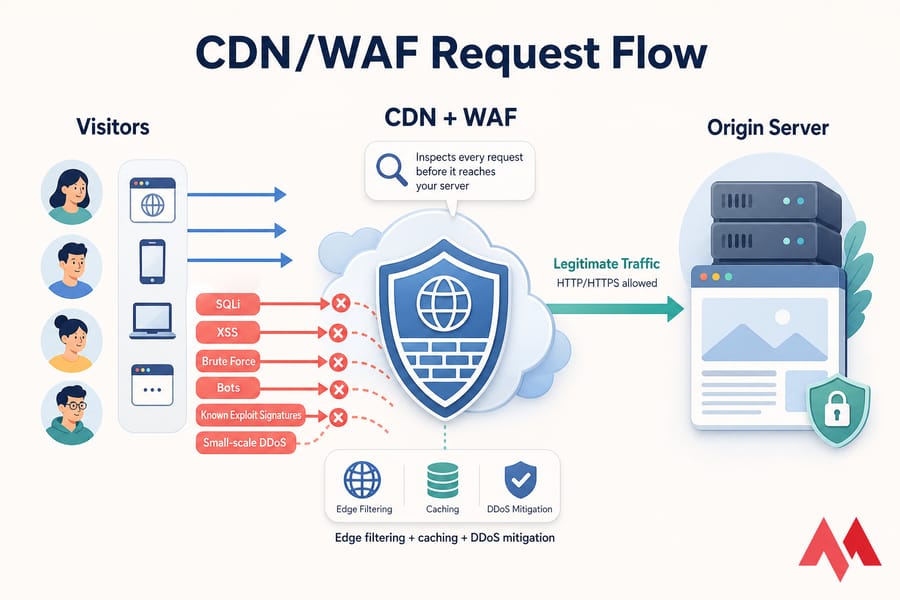
A web application firewall (WAF) sits between your visitors and your site, inspecting every request before it reaches your server. It blocks SQL injection, cross-site scripting, known exploit signatures, malicious bots, and a lot of automated attack noise. It acts as a proactive filter for your incoming traffic.
✅ What a WAF protects against
- OWASP Top 10 attacks (injection, XSS, broken auth, etc.)
- Bot scanners probing for known vulnerabilities
- Brute-force login attempts
- A meaningful chunk of small-scale DDoS
- Zero-day exploits — sometimes — via virtual patching
✅ CDN + WAF vs server firewall
These aren't the same thing, and people mix them up constantly. A comprehensive strategy often uses both in tandem:
| Type | What it does | Where it runs |
|---|---|---|
| Network firewall (UFW, CSF, iptables) | Filters traffic by IP, port, protocol | Your server |
| WAF (Cloudflare, ModSecurity, Sucuri) | Inspects HTTP/HTTPS request content | Edge network or in front of your app |
| CDN with WAF | Caches content + filters requests + DDoS mitigation | Globally distributed edge |
A CDN-based WAF (like Cloudflare's) gives you performance and security in one move. For most sites, this is the easiest win after SSL. For more depth, see our guides on web application firewalls and what a firewall is.
✅ When small websites should still use a firewall
Always. The "I'm too small to be targeted" myth needs to die. Bots scan IP ranges, not businesses. Your tiny WordPress blog gets hit by the same scanners as Fortune 500 properties. A free Cloudflare plan with the WAF enabled blocks a surprising percentage of garbage traffic. For VPS users, setting up a configure uncomplicated firewall on ubuntu (UFW) is a great starting point.
💾 Protect website data with backups, restore points, and encryption
Backups are security. Not just maintenance, not just disaster recovery — security. When ransomware encrypts your files or a hack injects malware into 400 PHP files, a clean backup is the difference between a 30-minute restore and a week of forensic cleanup. Without a backup, you are at the mercy of the attacker.
✅ How often to back up a website
Depends on how often the site changes and the value of your data:
- Active e-commerce / busy blog: daily, sometimes hourly
- Small business brochure site: weekly is usually fine
- Static site that rarely changes: after every change, plus monthly
If you can't afford to lose a day of orders, daily isn't optional. For Windows environments, see windows server backup for specific OS tools.
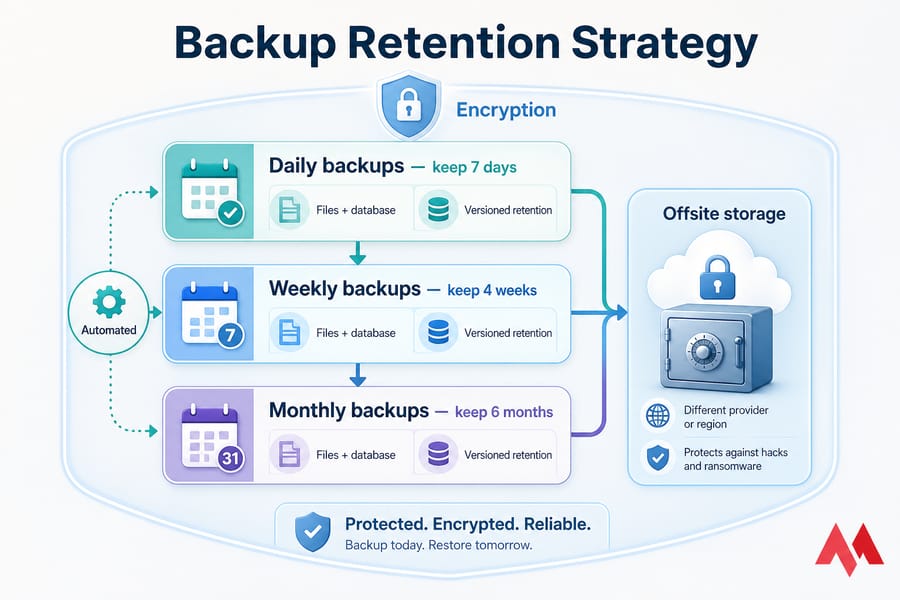
✅ What a good backup strategy includes
- Files and database — both, every time. Learn backup database from phpmyadmin for manual exports.
- Offsite storage — different provider, different region to ensure geographic redundancy.
- Versioned retention — don't overwrite the same backup file (a hack from yesterday gets backed up too).
- Encryption — backups contain customer data; treat them like production assets.
- Automated — manual backups don't happen consistently. They just don't.
Practical guides: how to back up a server or VPS and how to back up a WordPress site.
✅ Why tested restores matter more than backup files alone
I cannot stress this enough. A backup you've never restored is not a backup — it's a hope. I've seen people discover their "daily backups" were corrupt for six months only when they actually needed them. Once a quarter, do a full restore to a staging environment. Verify the database imports and verify the files load. Then sleep better. If you use cPanel, understand how to create and restore backups in cwp for a smoother process.
Quick summary: A backup is only useful if you have tested the restore. Period.
📡 Detect threats with website malware scanning and monitoring
Prevention is the goal. Detection is the safety net for when prevention fails — and over a long enough timeline, prevention always fails somewhere. Continuous monitoring allows you to react to threats before they cause irreversible damage to your SEO or customer trust.
✅ Signs your site may already be compromised
- Strange redirects, especially on mobile devices
- New admin users you didn't create or authorize
- Unknown files in
/wp-content/uploads/or your web root - Sudden traffic spikes from weird countries or non-target regions
- Google Search Console security warnings or manual actions
- Spam pages indexed under your domain (
example.com/cheap-meds) - Site running slow for no obvious reason (CPU spikes)
- Hosting provider sends you abuse notifications regarding your account
✅ Tools for malware scans and uptime alerts
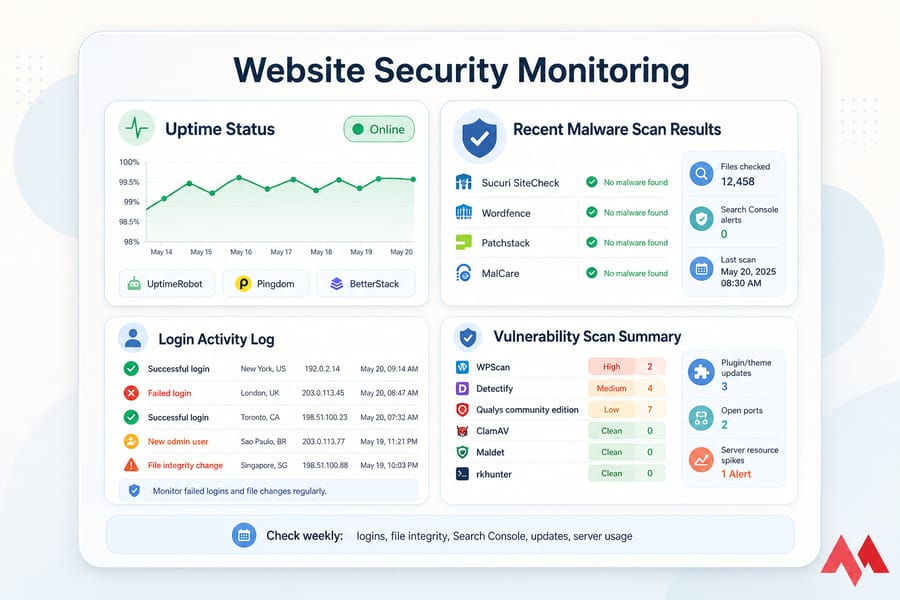
- Malware scanning: Sucuri SiteCheck, Wordfence, Patchstack, MalCare
- Uptime monitoring: UptimeRobot, Pingdom, BetterStack. See vps monitoring tools for server-side options.
- Vulnerability scanning: WPScan, Detectify, Qualys community edition
- Server-level: ClamAV, Maldet, rkhunter on Linux
- Free essentials: Google Search Console — set it up, check it weekly
✅ What to monitor weekly
- Login activity — failed and successful attempts
- File integrity (did core files change without your knowledge?)
- Plugin/theme update notifications
- Search Console security and indexing reports
- Server resource usage (sudden spikes can signal bot abuse or crypto-mining)
Stat callout: The vast majority of attacks against small websites are fully automated. Bots scan continuously for known weaknesses — your defenses don't need to outsmart hackers, they need to make automated exploits fail.
⚠️ Common website security mistakes that leave sites exposed
I see these over and over in the field. Read this section like a checklist of things not to do if you want to maintain a professional and secure online presence. Avoiding these pitfalls is half the battle won.
| Don't do this | Do this instead |
|---|---|
| Treat SSL as "site is secure" | SSL is one layer; combine with WAF, updates, backups, 2FA |
| Leave deactivated plugins installed | Delete what you don't use — deactivation isn't removal |
| Use one admin account for everything | Role-based access, separate accounts for separate humans |
| Skip 2FA because "my password is strong" | 2FA on every admin account, no exceptions |
| Trust that backups exist | Test a restore quarterly to verify integrity |
| Choose hosting only by price | Verify SSL, backups, isolation, support before buying |
| Ignore server logs and warnings | Review weekly; investigate anomalies fast |
| Patch "when there's time" | Schedule weekly maintenance windows for updates |
One more I'd add: assuming the padlock means everything's fine. Browsers will show a perfectly valid padlock on a phishing page. SSL proves the connection is encrypted, not that the site is trustworthy. See why HTTPS alone isn't security for more on that distinction.
📊 How to know if your website is secure enough
"Secure enough" is honest language. Nothing is bulletproof in the digital age. The goal is layered, maintained, and monitored — so when something goes wrong, you catch it fast and recover faster. A high-security site makes it too expensive or time-consuming for an attacker to bother.
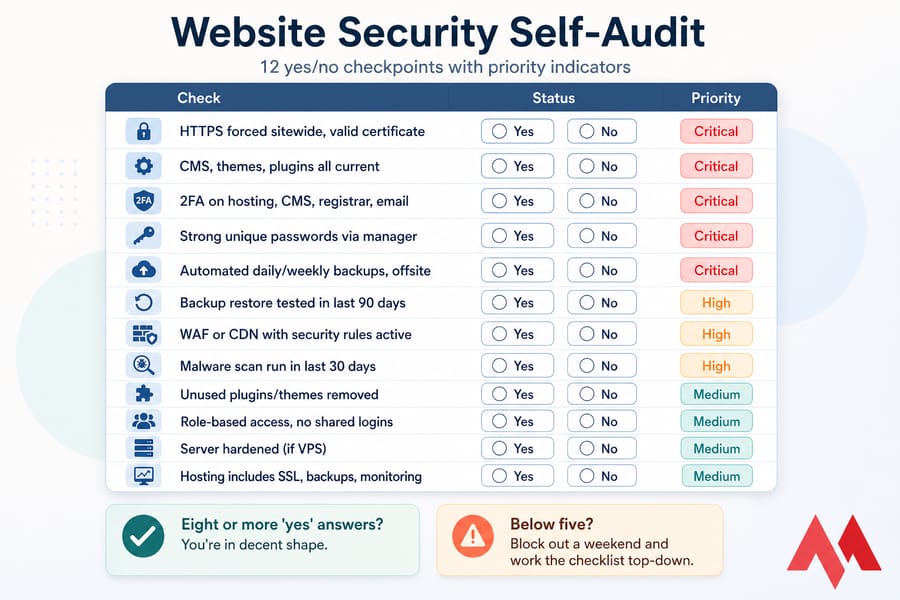
✅ A simple self-audit checklist
| Check | Status | Priority |
|---|---|---|
| HTTPS forced sitewide, valid certificate | Yes / No | Critical |
| CMS, themes, plugins all current | Yes / No | Critical |
| 2FA on hosting, CMS, registrar, email | Yes / No | Critical |
| Strong unique passwords via manager | Yes / No | Critical |
| Automated daily/weekly backups, offsite | Yes / No | Critical |
| Backup restore tested in last 90 days | Yes / No | High |
| WAF or CDN with security rules active | Yes / No | High |
| Malware scan run in last 30 days | Yes / No | High |
| Unused plugins/themes removed | Yes / No | Medium |
| Role-based access, no shared logins | Yes / No | Medium |
| Server hardened (if VPS) | Yes / No | Medium |
| Hosting includes SSL, backups, monitoring | Yes / No | Medium |
Eight or more "yes" answers? You're in decent shape. Below five? Block out a weekend and work the checklist top-down. Security is a journey, not a destination.
✅ When to move to more secure hosting or managed support
Some signs it's time to upgrade your infrastructure:
- You're handling customer logins or payments and you're still on basic shared hosting
- Your site has been compromised more than once in a year
- Updates regularly break things and you have no staging environment to test
- Your host doesn't offer automated backups or you can't get clear answers about security protocols
- You don't have time to manage security yourself and need managed dedicated server options
For sites in those categories, managed hosting takes the operational load off you, while a vps server gives you the control to build exactly what you need.
🚀 Final website security recommendations and next steps
Here's the short version, categorized by site type. Pick the one that matches your situation and start there. Don't let paralysis by analysis stop you from taking the first step today.
✅ If you run a WordPress site
- Get an SSL certificate and force HTTPS using redirect http to https rules.
- Install one reputable security plugin (Wordfence, Patchstack, or Sucuri — pick one, not three to avoid conflicts).
- Enable 2FA, delete unused plugins, and automate backups.
- Consider wordpress hosting or a dedicated vps for wordpress if you've outgrown shared environments.
✅ If you run a small business site on shared hosting
- Verify your host actually does backups — and learn how to restore them.
- Add Cloudflare's free plan with the WAF enabled for basic edge protection.
- Get an SSL certificate, lock down logins, and update monthly.
- Upgrade to better web hosting if support and security feel weak.
✅ If you run a growing site on a VPS
- Harden SSH (key-only auth, non-root user, Fail2Ban). See configure secure ssh vps for details.
- Configure UFW or CSF, and close every port you don't use.
- Automate patches and monitor logs weekly.
- Run a CDN/WAF in front; back up to a second region or use dedicated server for maximum isolation.
✅ Secure your website with the right tools and hosting
Start with HTTPS, updates, 2FA, backups, and a firewall — then make sure your hosting actually supports those protections. Whether you need an SSL certificate, secure web hosting, or a vps server with full control, MonoVM's stack is built for sites that take security seriously. Don't wait for an attack to happen — harden your defenses today.
.jpg)
Co-founder with 13+ years of experience, I have played an integral part in our company's growth and success. Having developed strategic plans, secured funding, and managed teams. My involvement extends to overseeing operations, product development, and industry representation, reflecting my versatile role in the business and commitment to its continued prosperity.