If you've ever watched a production server die at 2 AM — bad update, corrupted disk, ransomware, or a junior admin running rm -rf in the wrong terminal — you already know why this guide exists. Backups aren't optional. And yet, most VPS owners I've worked with treat them like a checkbox: one snapshot a week, maybe, stored on the same provider, never tested. That's not a backup strategy. That's wishful thinking. In the world of VPS server management, resilience is built on the foundation of data redundancy.
This guide walks you through how to backup a server or VPS properly — what to back up, how to back it up on Linux and Windows, how often, where to store it, and most importantly, how to actually restore when things go sideways. Whether you are running a critical business application or a personal project, understanding these protocols is the difference between a minor hiccup and a total business collapse.
⚡ Quick answer
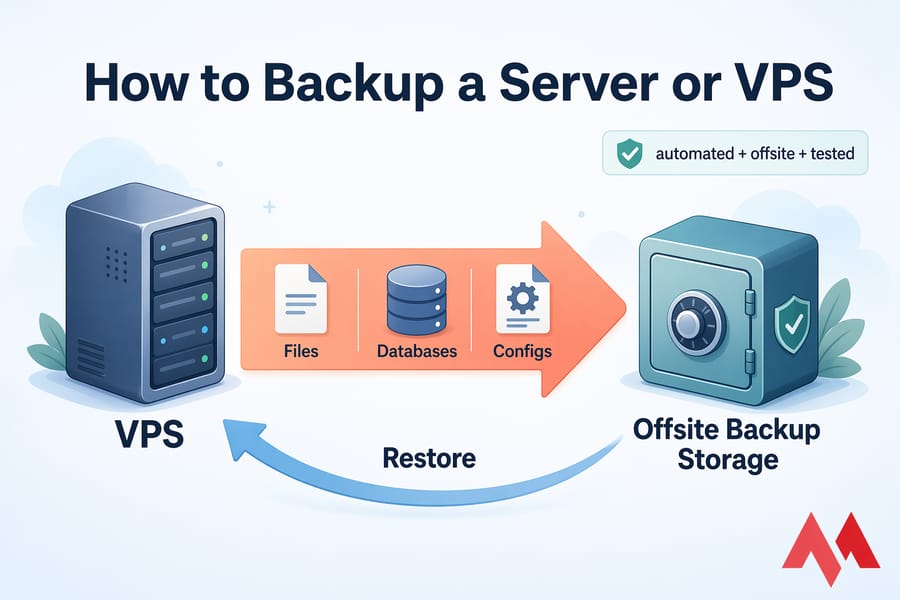
To back up a server or VPS, copy critical files, databases, and system configurations to a separate location, then automate the process with tools like rsync, snapshots, or Windows Server Backup. For best protection, keep offsite backups, use a retention schedule, and test restores regularly. Utilizing a dedicated storage VPS ensures your data remains safe even if your primary host fails.
Key takeaway: A snapshot is useful, but it's not a full backup strategy on its own. Real protection = automated + offsite + tested.
📂 What a server backup should include
A lot of people think "backup" means copying the website folder to a USB stick somewhere. That's not a server backup. That's a file copy, and if your VPS dies tonight, you're still in trouble. A comprehensive backup must account for the environment, the data, and the logic that binds them together.
A proper server backup captures everything needed to bring your VPS back to a working state — not just the visible files, but the invisible glue that makes the whole thing run.
🛠️ Files, databases, and system configuration
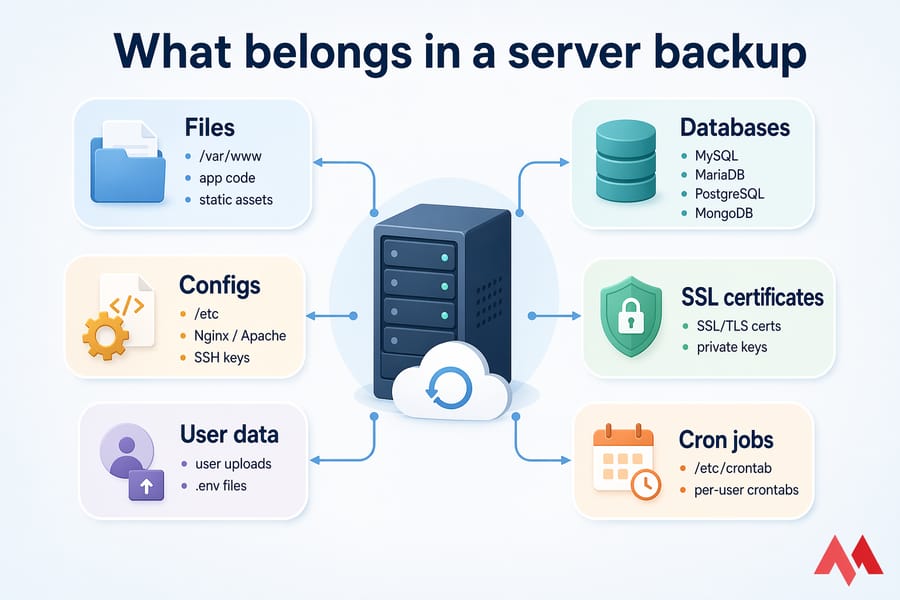
On any server or VPS, there are three broad layers you need to capture:
- Application and website files — your web root (
/var/www), app code, user uploads, static assets. - Databases — MySQL, MariaDB, PostgreSQL, MongoDB. These can't just be copied like regular files while they're running. You need proper dumps or a consistent snapshot. To prevent errors, you might need to optimize databases periodically to keep backup sizes manageable.
- System configuration —
/etc, cron jobs, firewall rules, SSH keys, SSL certificates, Nginx/Apache configs, environment variables, service definitions.
Miss any of these and your "backup" is a half-restore at best. I've seen people restore 50 GB of web files and then spend six hours rebuilding Nginx configs from memory. Don't be that person. In some cases, database replication can serve as a near real-time secondary copy, but it is never a replacement for point-in-time backups.
📦 Application-specific data you should not miss
Beyond the obvious stuff, each application has its own hidden pieces. Running a mail server? You need the mail queue, mailboxes, and Dovecot/Postfix configs. Running Docker? Volumes, compose files, and registry credentials. Running a control panel like cPanel or Plesk? Use their native backup tools because they stash data in weird places the panel expects on restore.
Here's a short list of things people forget more often than they'd admit:
- SSL/TLS certificates and private keys (Let's Encrypt lives under
/etc/letsencrypt) - Cron jobs (
/etc/crontaband per-user crontabs) - User-uploaded files outside the web root
- API keys and
.envfiles - Message queues, Redis dumps, Elasticsearch indices
- Custom systemd service files
🛡️ What a VPS snapshot does and does not protect
Snapshots are block-level images of your disk at a moment in time. Fast, convenient, perfect for rolling back a failed kernel update. However, they are often stored on the same storage cluster. For enterprise-grade safety, migrating data to a dedicated server with local RAID arrays can provide a more robust physical layer of protection.
Snapshots also aren't granular. You can't pull one file out of a snapshot easily on most providers. You restore the whole image, or nothing. So treat snapshots as operational insurance, not your durable backup.
📊 Best VPS backup methods for different use cases
There isn't one "best" backup method. There's the method that fits your workload. A tiny WordPress blog doesn't need the same protection as a payment processing app. Let's match them up.
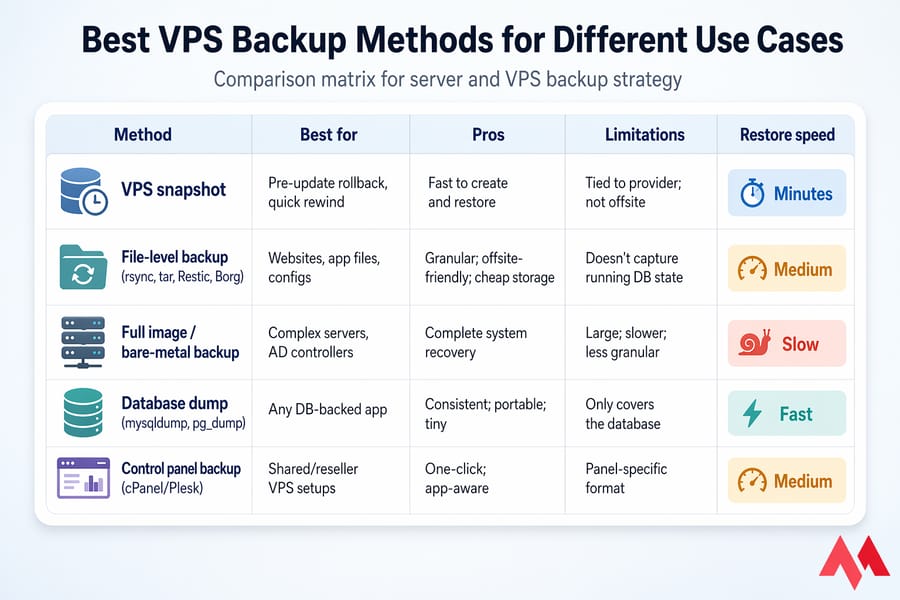
| Method | Best for | Pros | Limitations | Restore speed |
|---|---|---|---|---|
| VPS snapshot | Pre-update rollback, quick rewind | Fast to create and restore | Tied to provider; not offsite | Minutes |
| File-level backup (rsync, tar, Restic, Borg) | Websites, app files, configs | Granular; offsite-friendly; cheap storage | Doesn't capture running DB state | Medium |
| Full image / bare-metal backup | Complex servers, AD controllers | Complete system recovery | Large; slower; less granular | Slow |
| Database dump (mysqldump, pg_dump) | Any DB-backed app | Consistent; portable; tiny | Only covers the database | Fast |
| Control panel backup (cPanel/Plesk) | Shared/reseller VPS setups | One-click; app-aware | Panel-specific format | Medium |
🕒 When a snapshot is enough
Snapshots are fine as the only protection in narrow cases: a staging server you can rebuild from git in 10 minutes, or a dev VPS where losing a day's work isn't a crisis. For anything you'd lose sleep over, snapshots are layer one — not the whole cake.
📂 When you need file-level backups
The moment your VPS holds user uploads, content, or anything you can't regenerate from source control, you need file-level backups. Tools like rsync, Restic, or BorgBackup give you incremental, deduplicated copies you can ship to storage that's completely separate from your VPS provider. If you are using Windows, you can effectively transfer files to and from Windows VPS to maintain secondary local copies.
🔄 When to combine snapshots with offsite backups
For production workloads, the answer is almost always "both." Use snapshots for fast rollbacks (failed deployments, botched updates) and use file-level + database backups stored offsite for real disaster recovery. This is the layered approach, and it's what every serious admin I know runs.
If you're running a database-heavy app, also check out our guide on how to back up your database for the app-level angle. For WordPress specifically, there's a dedicated WordPress backup walkthrough.
📋 Server backup checklist before you begin
Before you run a single backup command, sort out the prerequisites. Skip this and you'll end up with half-configured backups that silently fail for weeks. Proper preparation ensures that your how to backup a server or VPS process is efficient and reliable.
🔑 Access, storage, and retention prerequisites
- Root/admin access via SSH (Linux) or RDP (Windows)
- Enough destination storage for at least 2x your current data (more for retention)
- A backup destination that's not the same VPS (another server, storage VPS, or S3-compatible object storage)
- Permission to schedule tasks via cron jobs or Task Scheduler
- A consistent naming convention, e.g.
hostname-YYYY-MM-DD.tar.gz - Free disk space check — confirm with df -h on Linux before large jobs
🎯 Define your recovery point and recovery time goals
Two acronyms worth knowing, because they drive every backup decision:
- RPO (Recovery Point Objective) — how much data can you afford to lose? One hour? One day? That answer dictates backup frequency.
- RTO (Recovery Time Objective) — how fast do you need to be back online? One hour? Four? That shapes which method you choose.
A small blog might be fine with a 24-hour RPO and 4-hour RTO. An eCommerce store at 30 transactions per hour probably needs a 1-hour RPO and a 30-minute RTO. Different answers, different stacks.
🌐 Choose a backup destination
Your destination matters more than most people realize. Options, in rough order of durability:
- Object storage (S3, B2, Wasabi) — cheap, durable, offsite by default
- A dedicated storage VPS in a different datacenter
- Another VPS you own (same provider is okay, different region better)
- On-premises NAS — fine as a secondary, never the only one
🐧 How to backup a Linux server with rsync and tar
Alright — hands on the keyboard time. Linux has some of the best backup tooling on the planet, and most of it ships with the OS. Let's run through a real workflow.
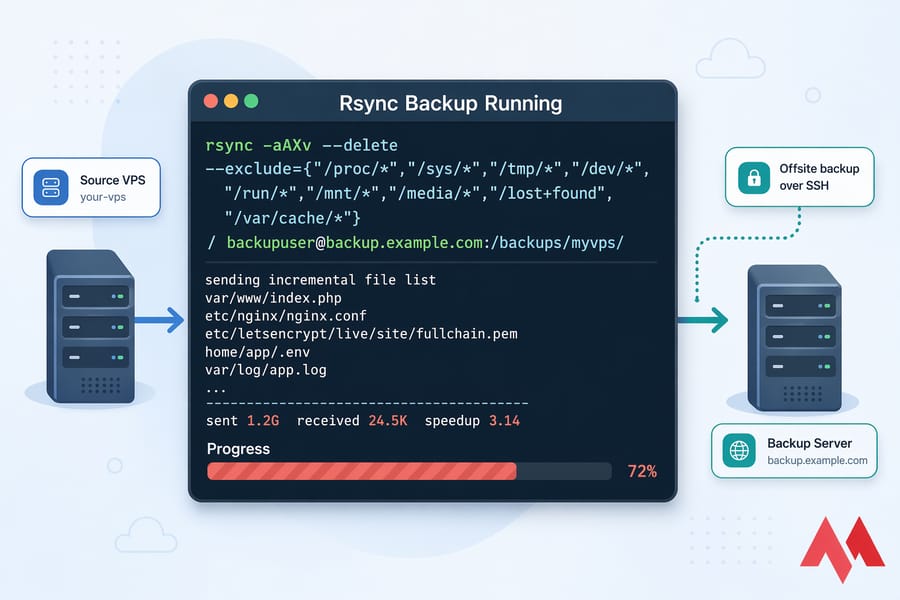
🚀 Create a simple rsync backup to another server
rsync is the workhorse. It copies only what's changed, it's fast over SSH, and it's been battle-tested for decades.
rsync -aAXv --delete \
  --exclude={"/proc/*","/sys/*","/tmp/*","/dev/*","/run/*","/mnt/*","/media/*","/lost+found","/var/cache/*"} \
  / backupuser@backup.example.com:/backups/myvps/
Quick breakdown:
-a— archive mode (preserves permissions, symlinks, timestamps)-A— preserves ACLs-X— preserves extended attributes-v— verbose output--delete— removes files on the destination that no longer exist on the source (mirrors exactly)--exclude— skips volatile directories you don't want
For a deeper dive on flags and patterns, see our rsync command reference and the guide on how to exclude files and directories with rsync. If you want live progress during large syncs, check the rsync progress guide.
Warning: Never keep your only backup on the same VPS. If the disk, hypervisor, or account goes, so does your "backup."
📦 Archive important directories with tar
When you want a single portable file — say, a monthly archive to stash in cold storage — tar is perfect. If you need to zip files in Ubuntu, tar handles the compression seamlessly:
tar -czpf /mnt/backup/myvps-$(date +%F).tar.gz \
  --exclude=/proc --exclude=/sys --exclude=/tmp --exclude=/run \
  /etc /var/www /home /root /var/spool/cron
That gives you a gzipped tarball with your configs, web files, user homes, and crontabs. Add --use-compress-program="pigz" if you want parallel compression on multi-core boxes. For encryption, pipe through gpg or openssl:
tar -cpf - /etc /var/www /home | gzip | gpg -c -o myvps-$(date +%F).tar.gz.gpg🗄️ Back up MySQL and PostgreSQL databases on Linux
Here's where most backups fall apart. Copying /var/lib/mysql while the database is running gives you corrupted, useless data. Always use a proper dump. For those managing complex sites, choosing to managed hosting often includes automated DB maintenance.
MySQL / MariaDB:
mysqldump --single-transaction --quick --routines --triggers \
  --all-databases -u root -p | gzip > /mnt/backup/mysql-$(date +%F).sql.gz
PostgreSQL:
sudo -u postgres pg_dumpall | gzip > /mnt/backup/pgsql-$(date +%F).sql.gzPer-database dumps are often cleaner for restore, so consider looping through database names if you host multiple apps.
Pro tip: Run database dumps before your file sync. That way, the .sql file in your file backup reflects the DB state at the same moment — cleaner app recovery.
📂 Key Linux directories to back up
| Path | Why back it up | Notes |
|---|---|---|
/etc |
System and service configs | Small, high value |
/var/www |
Web content | Adjust if you use custom roots |
/home |
User data and dotfiles | Can get large |
/root |
Root user's scripts and keys | Often forgotten |
/var/spool/cron |
User crontabs | Critical for automation |
/etc/letsencrypt |
SSL certificates | Saves manual reissue pain |
| Database dumps | Consistent DB state | Not the raw data directory |
| App-specific dirs | Docker volumes, Redis dumps, etc. | Know your stack |
⏰ Automate Linux backups with cron
A manual backup is a forgotten backup. Set it and walk away. Edit root's crontab with crontab -e and add:
# Daily DB dump at 2 AM
0 2 * * * /usr/local/bin/backup-db.sh

# Daily file sync at 3 AM
0 3 * * * /usr/local/bin/backup-files.sh

# Weekly full tar on Sunday at 4 AM
0 4 * * 0 /usr/local/bin/backup-weekly.sh
Wrap your commands in small shell scripts so you can add logging, exit-status checks, and email notifications on failure. A backup job that fails silently for three weeks is worse than no backup at all — because you think you're covered. To learn more about the engine behind these tasks, check out our guide on what is cron job.
Looking for a managed Linux VPS to pair with an offsite destination? That's one of the more common MonoVM setups.
🪟 How to backup a Windows Server or Windows VPS
Windows takes a different path. There's no rsync-equivalent baked in, but Windows Server Backup and VSS make things surprisingly reliable — once you know where to click. For high-availability needs, a Windows VPS offers familiar tools for automated recovery.
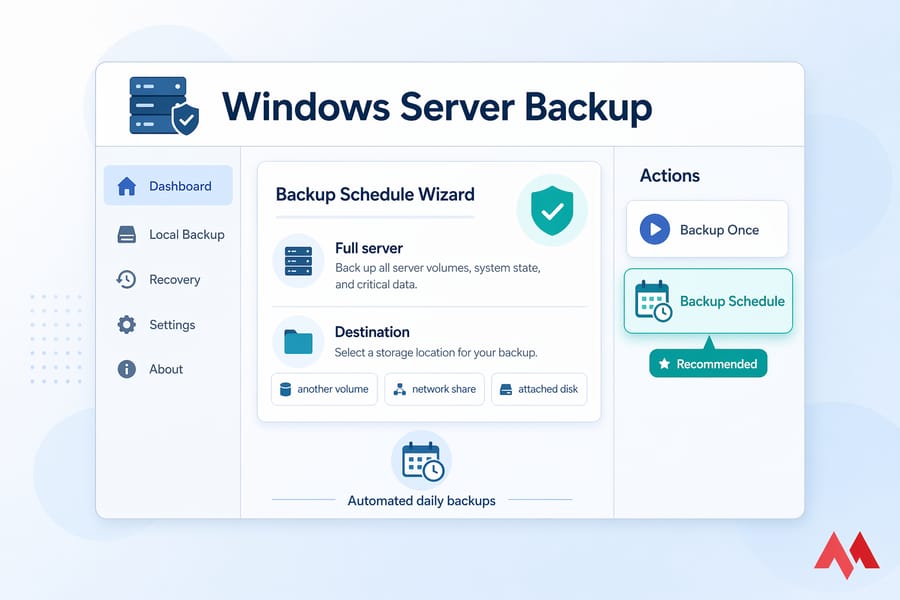
🏗️ Use Windows Server Backup for full-server protection
Windows Server Backup is a built-in feature, but it's not installed by default. Install it first via Server Manager → Add Roles and Features → Features → Windows Server Backup. Or from PowerShell:
Install-WindowsFeature -Name Windows-Server-BackupOnce installed, open it from Administrative Tools. You've got two main options:
- Backup Once — ad-hoc backup, good for pre-update snapshots
- Backup Schedule — automated daily backups
For most VPS owners, the schedule wizard is what you want. Pick "Full server" unless you really need to save space, specify a destination (another volume, network share, or attached disk), and set the time. For a step-by-step walkthrough of the wizard, our dedicated Windows Server Backup guide covers every screen.
🛡️ Export files and application data safely
VSS (Volume Shadow Copy Service) is the magic that makes Windows backups consistent while databases and apps stay running. As long as your application is VSS-aware (SQL Server, Exchange, most modern Windows apps are), the backup captures a consistent state. If you are experiencing stability issues before a backup, check our guide on random service crashes within Windows VPS to stabilize the environment.
For SQL Server specifically, you can also script a direct backup:
sqlcmd -S localhost -Q "BACKUP DATABASE [MyDB] TO DISK='D:\Backups\MyDB.bak' WITH COMPRESSION, INIT"Don't forget application exports that live outside standard folders — IIS config (appcmd add backup), scheduled tasks, and any custom service configurations.
🗓️ Schedule automated backups with Task Scheduler or built-in tools
Windows Server Backup has its own scheduler built in. But if you want custom scripts (PowerShell backups to Azure, S3 uploads, etc.), use Task Scheduler. A simple PowerShell backup command:
wbadmin start backup -backupTarget:E: -include:C: -allCritical -quietWrap that in a .ps1 script, schedule it nightly, and log output to a file you actually read. Once you've got it connected, use our guide on how to connect to Windows Server if you're managing this remotely. You might also want to learn how to run PowerShell as administrator to ensure these commands have the necessary privileges.
Need a Windows VPS built for these workloads? See MonoVM Windows VPS plans.
⚖️ Snapshot vs backup for VPS protection
This is where I see the most confusion, and the most painful post-mortems. Snapshots and backups are not the same thing. They solve different problems. Understanding the difference between VM and VPS can also help in choosing the right virtualization-level backup strategy.
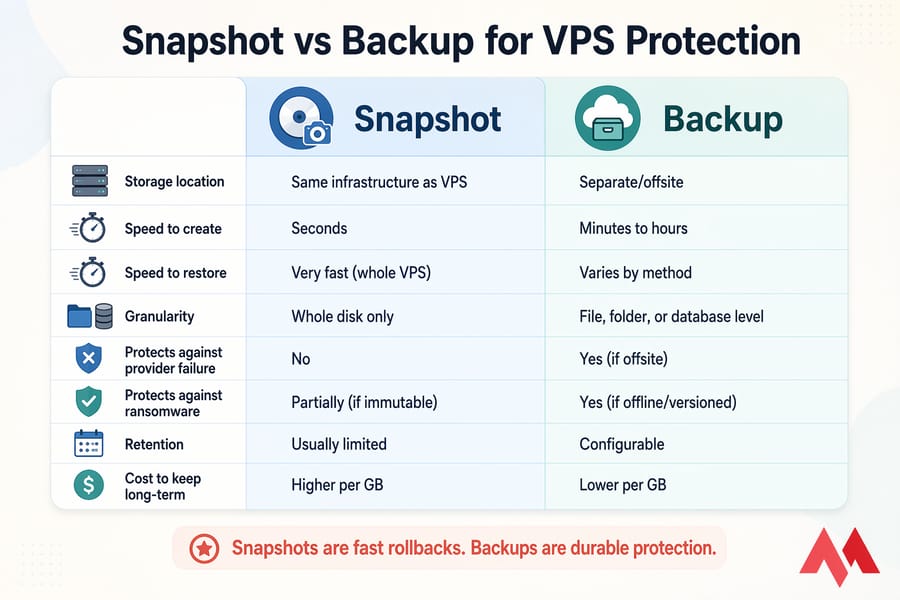
| Feature | Snapshot | Backup |
|---|---|---|
| Storage location | Same infrastructure as VPS | Separate/offsite |
| Speed to create | Seconds | Minutes to hours |
| Speed to restore | Very fast (whole VPS) | Varies by method |
| Granularity | Whole disk only | File, folder, or database level |
| Protects against provider failure | No | Yes (if offsite) |
| Protects against ransomware | Partially (if immutable) | Yes (if offline/versioned) |
| Retention | Usually limited | Configurable |
| Cost to keep long-term | Higher per GB | Lower per GB |
🚩 Why snapshots should not be your only backup
Think about what happens if your VPS provider has a billing issue and your account gets suspended. Or a rogue API call deletes your instance. Or the entire region has an outage. Your snapshots live there too. They're gone with the VPS. This is why many admins choose a storage dedicated server to keep data physically isolated from their compute instances.
Snapshots are a seatbelt, not a parachute.
🏆 Best practice backup stack for production VPS environments
The setup I recommend for any production workload:
- Snapshot before every risky change (updates, migrations, config edits)
- Database dumps — hourly or daily depending on RPO
- File-level incremental backup nightly to offsite storage
- Weekly full backup retained for a month
- Monthly archival kept for 6–12 months in cold storage
See VPS management tools for help orchestrating this without losing your mind.
🤖 Automated server backups and offsite storage strategy
Creating a backup is only half the job. Making it run reliably, offsite, encrypted, and monitored — that's the real strategy. For high-traffic sites, using a DDoS protected VPS ensures that your backup operations aren't interrupted by malicious traffic.
📉 How often to run full, incremental, and database backups
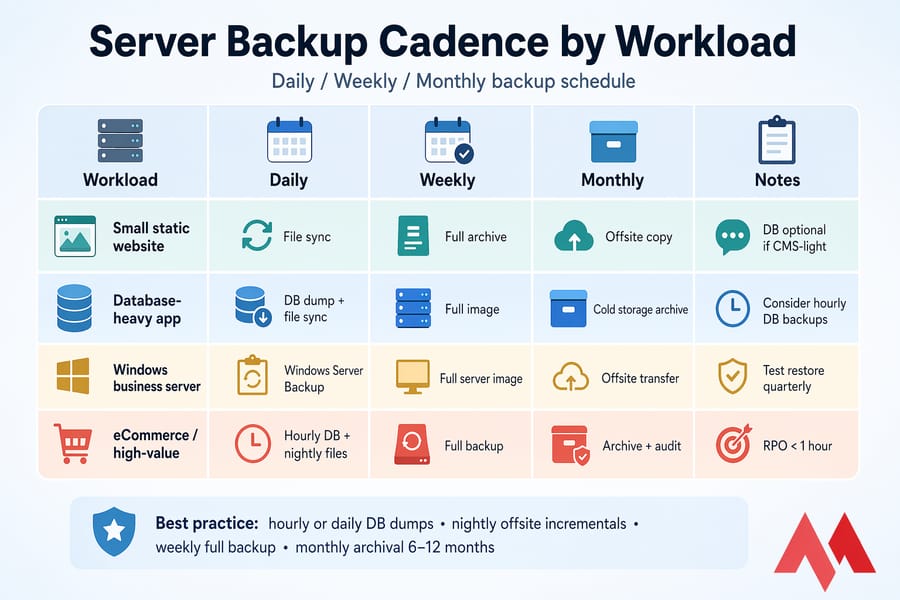
| Workload | Daily | Weekly | Monthly | Notes |
|---|---|---|---|---|
| Small static website | File sync | Full archive | Offsite copy | DB optional if CMS-light |
| Database-heavy app | DB dump + file sync | Full image | Cold storage archive | Consider hourly DB backups |
| Windows business server | Windows Server Backup | Full server image | Offsite transfer | Test restore quarterly |
| eCommerce / high-value | Hourly DB + nightly files | Full backup | Archive + audit | RPO < 1 hour |
📐 Follow the 3-2-1 backup rule
Old rule, still the best:
- 3 copies of your data (Production, Backup 1, Backup 2)
- On 2 different types of media or storage (SSD, HDD, Object Storage)
- With 1 copy offsite (Different datacenter or region)
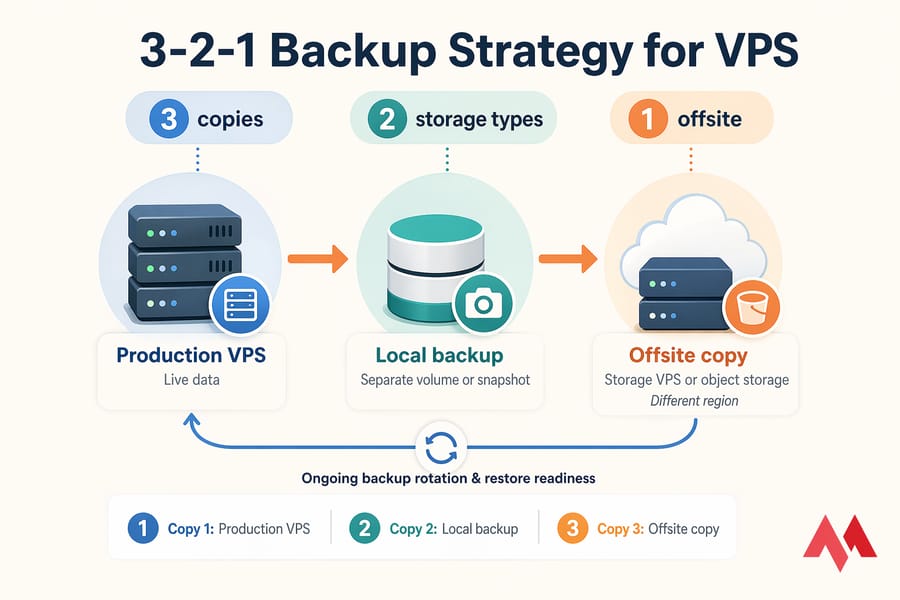
In practice for a VPS, that usually looks like: live data on your VPS, a local copy on a separate volume or snapshot, and an offsite copy on a storage VPS or object storage bucket in a different region. If you're on a budget, look for cheap VPS hosting options that can serve as a low-cost backup destination.
🔐 Encrypt backups and set retention policies
Backups contain everything sensitive about your server — credentials, customer data, API keys. Encrypt them at rest. Tools like Restic and Borg do this natively. For tar archives, pipe through gpg as shown earlier. Understanding what is data encryption is key to maintaining a secure pipeline.
For retention, a simple starting point:
- 7 daily backups
- 4 weekly backups
- 3 monthly backups
- 1 yearly archive (for compliance or long-term rollback)
Monitor the jobs. Use VPS monitoring tools or a simple service like healthchecks.io to alert you when a backup doesn't check in. Silent failures are the worst kind.
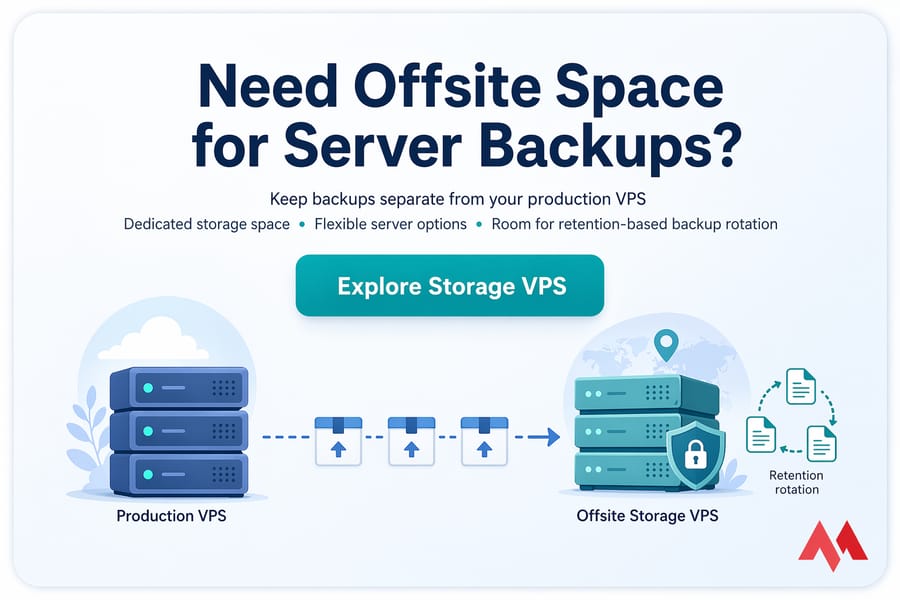
☁️ Need offsite space for server backups?
Keep backups separate from your production VPS with dedicated storage space, flexible server options, and room for retention-based backup rotation. Take a look at MonoVM Storage VPS — built for exactly this. It’s an ideal solution for scaling your storage without the overhead of a full compute node.
🔄 How to restore a VPS backup and verify it works
Here's a fun fact: a backup you've never restored isn't a backup. It's a hope. I mean that literally. I've seen companies discover on disaster day that their tar files were corrupt, their DB dumps were 0 bytes, or their encryption key was nowhere to be found. Verification is the most critical step in how to backup a server or VPS.
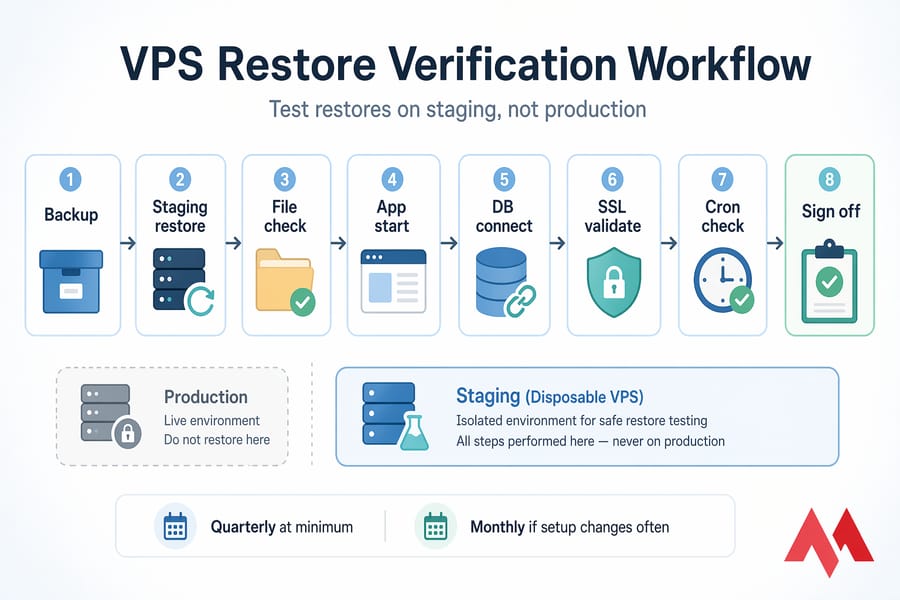
🧪 Test restores without risking production
Spin up a disposable VPS — a small one is fine — and restore your backup there. Don't touch production. The goal is to confirm:
- The backup file opens without errors
- Files extract with correct permissions
- The database imports cleanly
- Applications start and connect to the DB
- SSL certificates work (Learn more: install SSL on VPS)
- Cron jobs resume correctly
Do this quarterly at minimum. Monthly if your setup changes often.
📂 Recovery steps for Linux VPS
A typical Linux restore goes like this:
- Provision a fresh VPS with the same OS version
- Install the same packages (Nginx, MySQL, PHP, whatever)
- Pull the backup from offsite storage
- Extract configs:
tar -xzpf configs.tar.gz -C / - Restore the database:
gunzip < dump.sql.gz | mysql -u root -p - Restore web files to
/var/www - Reinstall SSL (or restore
/etc/letsencrypt) - Restart services and verify using VPS benchmark tools
📂 Recovery steps for Windows VPS
For Windows Server Backup recoveries:
- Boot into Windows Recovery Environment (for bare-metal restore) or use wbadmin on a running server for file-level restore
- Point wbadmin at your backup location:
wbadmin get versions -backupTarget:E: - Restore using
wbadmin start recoverywith the appropriate version identifier - Verify system state, services, and app connectivity
- For app data (SQL Server, IIS), restore the app-specific exports separately
Warning: Untested backups create false confidence. The first time you restore should never be during an actual disaster.
If migration or recovery feels out of scope, this migration guide covers related ground, and MonoVM support can help if things get hairy.
⚠️ Common server backup mistakes to avoid
I've debugged enough broken backups to fill a book. Here are the recurring ones. If you are worried about security, checking VPS security tips can help you avoid scenarios where backups are compromised.
- Keeping backups on the same server. If the disk dies, both originals and backups die together. Always have at least one copy off the machine.
- Never testing restores. You don't know if your backup works until you've restored it. Test quarterly.
- Skipping databases. Running databases can't be copied as files. Always dump first, sync the dump second.
- Forgetting SSL certs and configs. Missing
/etc/letsencryptor/etcturns a 30-minute restore into a full afternoon. - No retention policy. Keeping only the last backup means if you get hit by ransomware and don't notice for a day, your "backup" is already encrypted too. Keep versioned history.
- Unencrypted backups in the wild. Your backup has your customer data, API keys, and password hashes. Encrypt.
- Jobs running, but nobody monitoring. Silent failures are the killer. Alert on missing runs, not just failed ones.
- Trusting provider backups blindly. Many providers offer "backups" that are really just snapshots on the same infrastructure. Always have your own layer.
Backups and security overlap more than people realize. Harden your server too — see how to secure your Linux VPS and how to secure your Windows Server for companion reads.
✅ Final server backup checklist and next steps
Let's pull it all together. Here's the setup I'd recommend by scenario. Whether you're a developer on an Ubuntu VPS server or an enterprise admin, follow these steps.
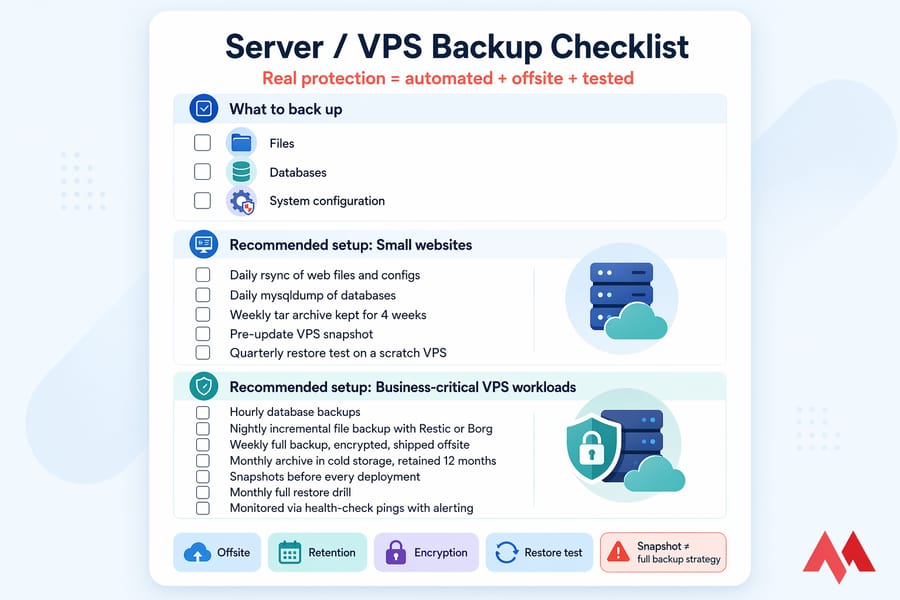
🌱 Recommended backup setup for small websites
- Daily rsync of web files and configs to a storage VPS or S3 bucket
- Daily mysqldump of databases, included in the same sync
- Weekly tar archive kept for 4 weeks
- Pre-update VPS snapshot
- Quarterly restore test on a scratch VPS
💼 Recommended backup setup for business-critical VPS workloads
- Hourly database backups (dumps or streaming replication)
- Nightly incremental file backup with Restic or Borg
- Weekly full backup, encrypted, shipped offsite
- Monthly archive in cold storage, retained 12 months
- Snapshots before every deployment
- Monthly full restore drill
- Monitored via health-check pings with alerting
🙋 When to use managed backup support
If you'd rather not babysit cron jobs, rotate storage, or debug why last Tuesday's backup was 400 KB instead of 4 GB, managed hosting is worth considering. You hand over the operational burden and keep the focus on your actual application. If you prefer a more hands-on approach with a dedicated machine, consider a managed dedicated server for total control and expert support.
🚀 Protect your VPS before the next failure happens
Whether you need a Linux VPS, Windows VPS, or offsite storage space for automated backups, MonoVM offers VPS plans built for uptime, control, and recovery readiness. Pair them with a proper backup routine, and you stop worrying about when the next failure hits. Because one will hit, eventually. That's just servers. Secure your data today and ensure your server stays resilient.
New to Server Terminology?
If terms like VPS, dedicated server, or server itself feel unfamiliar, you're not alone. Before diving into backup strategies, it helps to understand the infrastructure you're working with. Start with the basics: learn what a server is, explore what a VPS server is and how it differs from traditional hosting, or discover what a dedicated server is and when it makes sense to use one. Knowing your setup helps you choose the right backup approach.
.jpg)
Co-founder with 13+ years of experience, I have played an integral part in our company's growth and success. Having developed strategic plans, secured funding, and managed teams. My involvement extends to overseeing operations, product development, and industry representation, reflecting my versatile role in the business and commitment to its continued prosperity.