
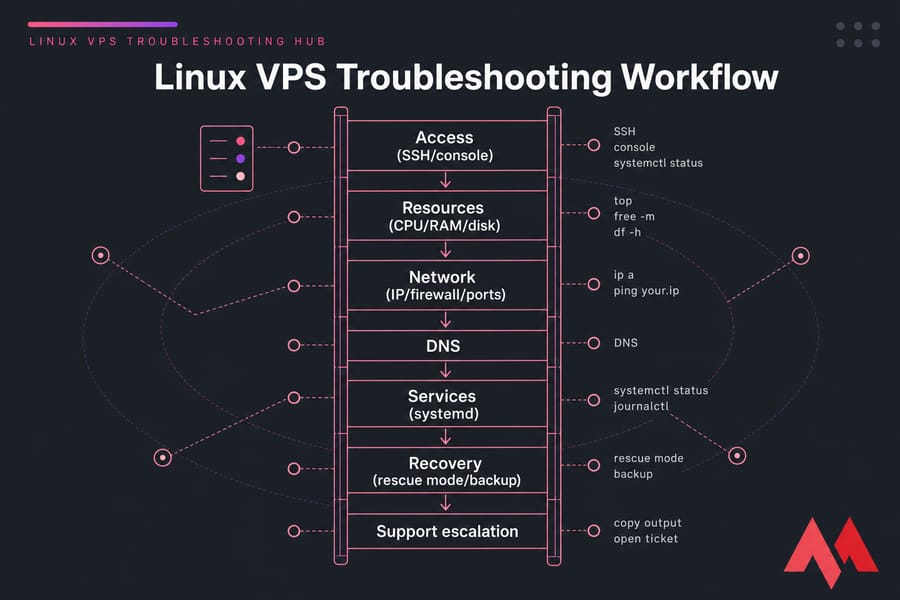
Linux VPS troubleshooting starts with identifying the symptom, then checking access, resource usage, networking, services, and logs. Use commands like systemctl status, journalctl, top, free -m, and df -h to isolate the cause before you restart services, edit firewall rules, or open a support ticket.
Start here: what's actually broken?
That's the short version. The longer version is this hub a symptom-first map of the failures I see most often on self-managed servers, with the safe order of operations for each one.
Here's the mindset shift most people need: a VPS isn't one thing that breaks. It's layers. The hypervisor, the OS, the network stack, the firewall, the services, your app code, and DNS sitting outside the box entirely. "My site is down" could be any of those. Random commands won't find it. A ladder of checks will.
Before you touch anything
- SSH credentials and console access through your provider panel (you'll want the second one when the first one fails)
- Root or sudo privileges
- Your distro and version — Ubuntu, Debian, CentOS, AlmaLinux, or Rocky Linux
- A recent backup or snapshot, if you have one
- The answer to "what changed right before this started?"
That last one solves maybe half of all incidents on its own. An update, a config edit, a new firewall rule, a cron job that ran at 3 a.m. Write it down before you start poking.
First checks to troubleshoot a Linux VPS safely
Don't reboot. I know it's tempting. A reboot destroys the evidence in memory, clears the process list, and often "fixes" things just long enough for the same failure to come back in six hours.
Instead, confirm scope. Is the whole server unreachable, or just one site? Can you ping the IP? Does the provider console show the machine running? If you can't get in at all, review how to connect to your VPS and try the console before assuming hardware trouble.
Once you're in, run these six. They take twenty seconds and rule out most of the obvious stuff:
uptime
top          # or htop, if installed
free -m
df -h
ip a
systemctl --failed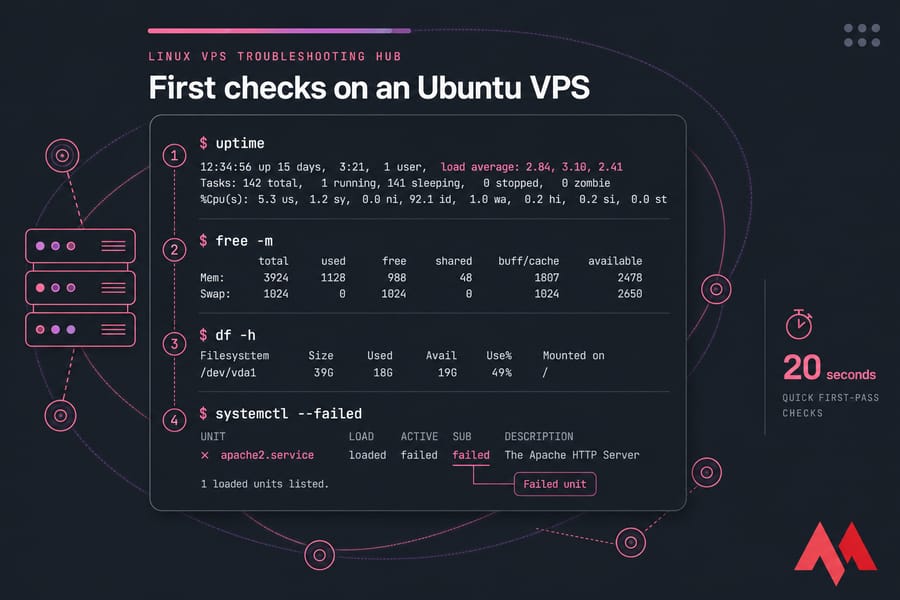
Copy the output somewhere. Seriously. If you end up escalating to support, that paste is worth more than three paragraphs of "it's broken." And if you're about to edit config files, take a snapshot or back up your server or VPS first — five minutes now versus a rebuild later.
SSH not working on a Linux VPS
Access problems are the scariest category because they block every other fix. The good news: the error message tells you a lot.
| Error | Likely cause | First command | Next fix |
|---|---|---|---|
| Connection refused | sshd stopped, or wrong port | systemctl status sshd (via console) |
Start sshd, confirm the listening port |
| Connection timed out | Firewall drop, or server down | ping your.ip |
Check UFW/firewalld rules and provider network |
| Permission denied (publickey) | Wrong key, bad file permissions | ssh -v user@ip |
Verify authorized_keys and 600/700 perms |
| Host key verification failed | Server rebuilt or IP reassigned | Inspect local ~/.ssh/known_hosts |
Remove the stale entry, reconnect |
| Too many authentication failures | Agent offering every key it has | ssh -o IdentitiesOnly=yes -i key |
Specify the key explicitly |
| Silent drop after repeated tries | fail2ban banned your IP | fail2ban-client status sshd |
Unban your IP from the console |
Check the service first. On Ubuntu and Debian the unit is ssh; on CentOS, AlmaLinux, and Rocky it's sshd. Then confirm something's actually listening:
ss -tulpn | grep -i sshNothing there? The daemon isn't running or won't start because of a config syntax error. Run sshd -t to validate the config before restarting anything.
Warning: if you just edited /etc/ssh/sshd_config and lost access, stop retrying SSH. Repeated failures can get you banned by fail2ban on top of the original problem. Go straight to console access, revert the file, then restart the daemon. Deeper walkthroughs live in our guides on the SSH connection refused error and how to fix SSH permission denied (publickey).
And don't "solve" a key problem by enabling password root login. That's trading a locked door for no door.
Linux VPS slow performance: CPU, RAM, and load
"My VPS is slow" is the vaguest ticket in hosting. Narrow it down by metric.
| Symptom | Metric | Command | Likely cause |
|---|---|---|---|
| Laggy SSH typing | Load average | uptime |
CPU saturation or heavy I/O wait |
| Site slow, CPU idle | I/O wait (%wa) | top, iostat -x 2 |
Disk contention or database queries |
| Processes killed randomly | Memory / OOM | free -m, dmesg | tail |
RAM exhaustion, no swap |
| Constant swap activity | si/so columns | vmstat 2 |
Undersized plan or a memory leak |
| One process pinned at 100% | Per-process CPU | htop |
Runaway script, bad cron, stuck worker |
| Slow only at peak hours | Traffic vs cores | top during peak |
Chronic underprovisioning |
Pro tip: load average only means something next to your core count. A load of 3.5 on 4 vCPUs is fine. On 1 vCPU it's a crisis. Check cores with nproc.
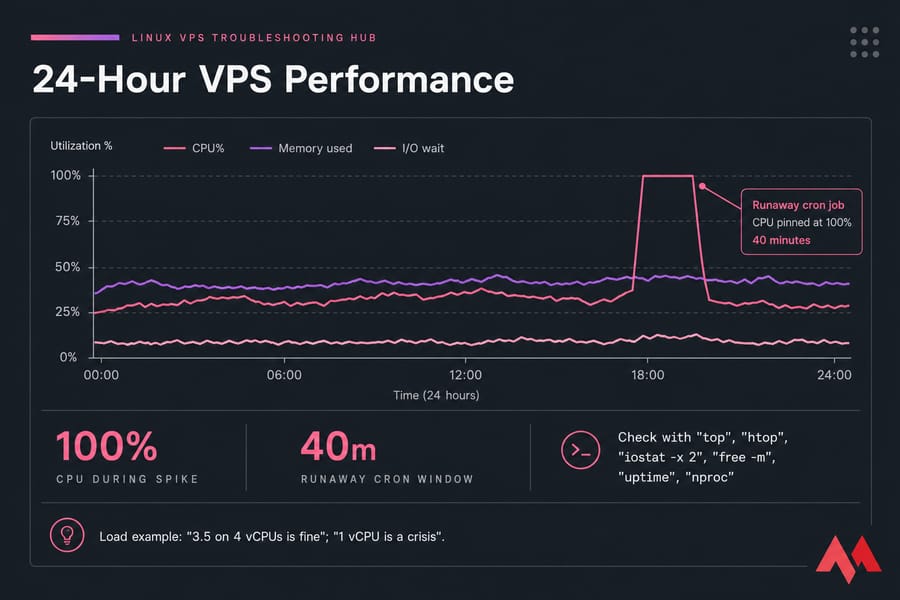
For per-metric detail, our guides on how to check Linux CPU usage and check Linux memory usage go further than top does.
Now, the honest part. Sometimes nothing is misconfigured — you've simply outgrown the plan. If you've tuned your stack, cached what you can, and the box still sits at 90% CPU during normal traffic, that's a resourcing decision, not a bug. Noisy neighbours exist too, but check your own processes first; in my experience it's your code nine times out of ten.
Linux VPS disk full: storage and inodes
df -h
df -i
du -sh /var/* | sort -h
Warning: a server can fail hard while df -h shows free space. That's inode exhaustion — millions of tiny files (session data, mail queues, cache fragments) using up filesystem entries. df -i is the check people forget.
| Location | Typical contents | Safe to inspect? | Caution |
|---|---|---|---|
/var/log |
System and service logs | Yes | Truncate, don't delete active files |
/var/cache |
Package and app caches | Yes | Clear via package manager |
/var/lib/mysql |
Database files | Inspect only | High — never delete manually |
/tmp |
Temp files | Yes | Low, but check nothing's mid-write |
/home, backup dirs |
User data, old archives | Yes | Verify before removing |
| Docker overlay dirs | Images, stopped containers | Yes | Use docker system prune |
Never run blanket recursive deletes on /var. Find the offender, then fix the cause — usually a log rotating badly or a backup script with no retention policy. Our guide on how to check disk space in Linux covers the drill-down commands in more depth.
Linux VPS network issues: IP, firewall, ports
Work outward from the box.
- Interface and IP:
ip a— is the expected address there and the interface UP? - Outbound:
ping -c4 1.1.1.1thencurl -I https://example.com - Routing:
ip routeandtraceroute 1.1.1.1for packet loss or a missing gateway - Listening ports:
ss -tulpn— is your service bound to0.0.0.0or only127.0.0.1? - Firewall:
ufw status verboseon Ubuntu/Debian,firewall-cmd --list-allon AlmaLinux/Rocky/CentOS,iptables -L -nunderneath both
That "bound to 127.0.0.1" mistake catches people constantly. The service is running, the firewall is open, and it still refuses external connections. Check the bind address.
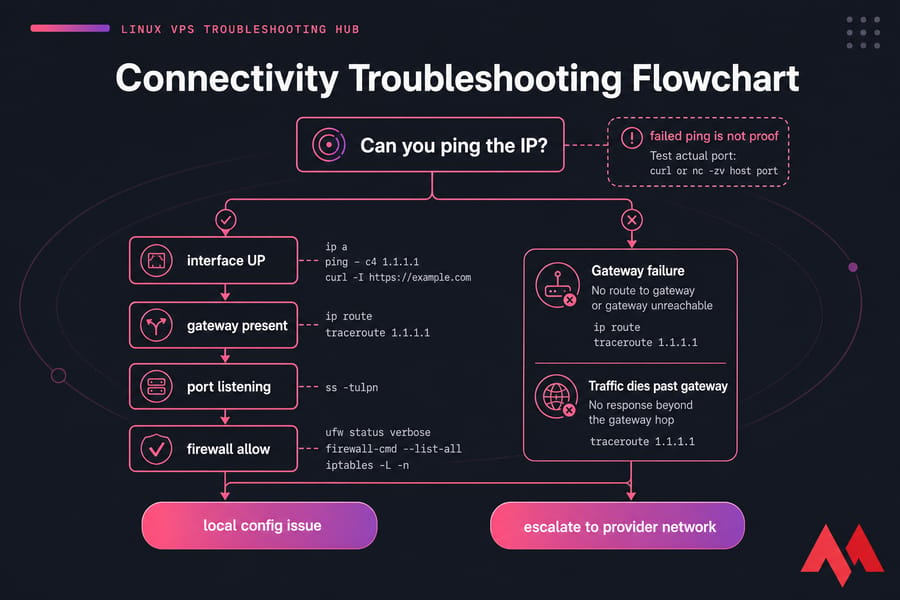
One caveat: many networks block ICMP, so a failed ping isn't proof of an outage. Test the actual port with curl or nc -zv host port instead. If you need help enumerating what's exposed, see how to check open ports in Linux. When the interface is clean but traffic dies past your gateway, that's provider territory — time for a ticket with your traceroute output attached.
DNS issues on a VPS
Quick summary: if the IP works but the domain doesn't, test DNS before touching your web server.
dig +short yourdomain.com
dig NS yourdomain.com
nslookup yourdomain.com 8.8.8.8
Compare what comes back to your actual VPS IP. Mismatch means a stale A record, wrong nameservers, or propagation still in flight — records can take up to 48 hours globally, though most resolvers update far sooner. Intermittent resolution usually means inconsistent records across nameservers.
Also sanity-check the server's own hostname with hostnamectl, and if you send mail, confirm reverse DNS matches your hostname or your messages will get filtered. Our walkthrough on how to use nslookup to test DNS covers query types in detail.
Web server troubleshooting: Apache, Nginx, MySQL, PHP
Pro tip: a running VPS guarantees nothing about Apache, Nginx, PHP-FPM, or MySQL. Test each layer separately.
| Layer | Check | Command | What failure means |
|---|---|---|---|
| DNS | Domain resolves to your IP | dig +short domain |
Fix records, not the server |
| Web server | Service up, port 80/443 open | systemctl status nginx |
Config error or port conflict |
| App / PHP | PHP-FPM socket alive | systemctl status php*-fpm |
502 Bad Gateway territory |
| Database | MySQL/MariaDB accepting connections | systemctl status mariadb |
Connection errors, 500s |
| Local loopback | Server answers itself | curl -I localhost |
Works locally = network/DNS issue |
Read the logs, not the browser. /var/log/nginx/error.log, /var/log/apache2/error.log (Ubuntu/Debian) or /var/log/httpd/error_log (RHEL family). A 502 almost always means the upstream PHP-FPM or app process is down or the socket path is wrong. A 503 means overload or a stopped backend. A 500 is usually your application throwing an unhandled error.
Always validate before reloading: nginx -t or apachectl configtest. Then restart Apache safely rather than killing processes by hand. If you're building the stack fresh or comparing setups, our guide on how to host a website on Linux VPS with Nginx or Apache covers the layout.
Service failed to start on Linux
Two commands do most of this work:
systemctl status servicename
journalctl -xeu servicename --since "10 min ago"
Read the last error, not the first line. Common causes, roughly in order of frequency:
- Config syntax error after an edit — the log names the file and line
- Port already in use — find the squatter with
ss -tulpn | grep :port - Failed dependency — a mount or database the unit needs isn't ready
- Permission denied — wrong file ownership, often after a manual chown or SELinux on RHEL-family distros
- Missing binary or file after an interrupted
apt/dnfupgrade
Restarting in a loop without reading logs is the single most common waste of time in server troubleshooting. Two minutes in journalctl beats twenty minutes of hope.
Need a Linux VPS that's easier to manage and recover?
If recurring outages, SSH lockouts, or resource bottlenecks keep eating your week, Linux VPS hosting from MonoVM gives you full root access, 25+ global locations, multiple distro options, flexible upgrade paths, and 24/7 technical support when you want a second set of eyes on a broken box.
Linux VPS recovery: boot failure, bad updates, lockouts
Escalating severity, escalating tools:
- Safe reboot — only after you've captured logs and metrics.
sudo rebootlets services shut down cleanly. - Hard reset from the panel — for a genuinely frozen kernel. It's the equivalent of pulling the plug, so expect filesystem checks on the way back up.
- Console access — for SSH lockouts and firewall mistakes. Full keyboard access without the network.
- Rescue mode — boots a separate environment and mounts your disk, so you can repair
/etc/fstab, roll back a kernel, or free space on a full root partition. - Restore from backup — when repair time exceeds what your downtime tolerance allows.
[Infographic >>> recovery decision tree: "Does the server respond?" → No → hard reset / rescue mode; Yes but no SSH → console; boots but service broken → journalctl; repair estimate over downtime tolerance → restore snapshot → contact support]
When a server won't boot, the usual suspects are a bad kernel from the last update, an fstab entry pointing at a device that no longer exists, or a completely full root filesystem. Mount from rescue mode and check /var/log/ plus your recent package history.
Warning: don't spend three hours hand-repairing a box when a snapshot restore takes eight minutes. Weigh repair time against real business cost.
Escalate to contact MonoVM support when the console itself won't load, when the network dies upstream of your interface, when you need a password reset you can't perform, or when you suspect an infrastructure-level incident. Those aren't things you can fix from inside the guest OS.
Common Linux VPS troubleshooting mistakes
- Rebooting first. Wipes the evidence, hides the cause.
- Editing configs without a copy.
cp file file.bakcosts one second. - Disabling the firewall to "test." Now you have two problems, one of them being scanned within minutes.
- Skipping logs and guessing from symptoms.
- Deleting files to free space without knowing what wrote them.
- Blaming DNS before confirming the service is even listening.
- Changing five things at once. If it works, you'll never know why — and you won't be able to reproduce the fix.
One change, one test, one note. Boring, but it's how incidents actually get closed.
Prevent recurring Linux VPS issues
Most repeat outages are predictable. Watch these continuously: CPU load versus core count, memory and swap usage, disk space and inodes, service status for your critical daemons, and uptime with external HTTP checks. Set alert thresholds at 80% so you get warned, not woken.
Then handle the basics:
- Configure logrotate properly so
/var/lognever fills the disk again - Automated, tested, off-server backups — an untested backup is a rumour
- Key-only SSH, fail2ban, a firewall with a default deny, and regular security updates
- A change log, even a plain text file, of what you modified and when
Pick your tooling from our roundup of VPS monitoring tools, and tighten the box using our guide to secure your Linux VPS. Hardening prevents a surprising share of "mystery" incidents, because a lot of them start as brute-force attempts or compromised scripts eating CPU.
If your workload is business-critical and you'd rather not be the on-call engineer, managed hosting shifts patching and monitoring off your plate.
Fix issues faster on a reliable Linux VPS
Keep this Linux VPS troubleshooting hub as your first-response checklist: symptom, then access, resources, network, DNS, services, logs, recovery. In that order. Pair it with infrastructure that gives you console access, snapshots, and humans who answer get a Linux VPS or talk to support when you need backup.
.jpg)
Co-founder with 13+ years of experience, I have played an integral part in our company's growth and success. Having developed strategic plans, secured funding, and managed teams. My involvement extends to overseeing operations, product development, and industry representation, reflecting my versatile role in the business and commitment to its continued prosperity.