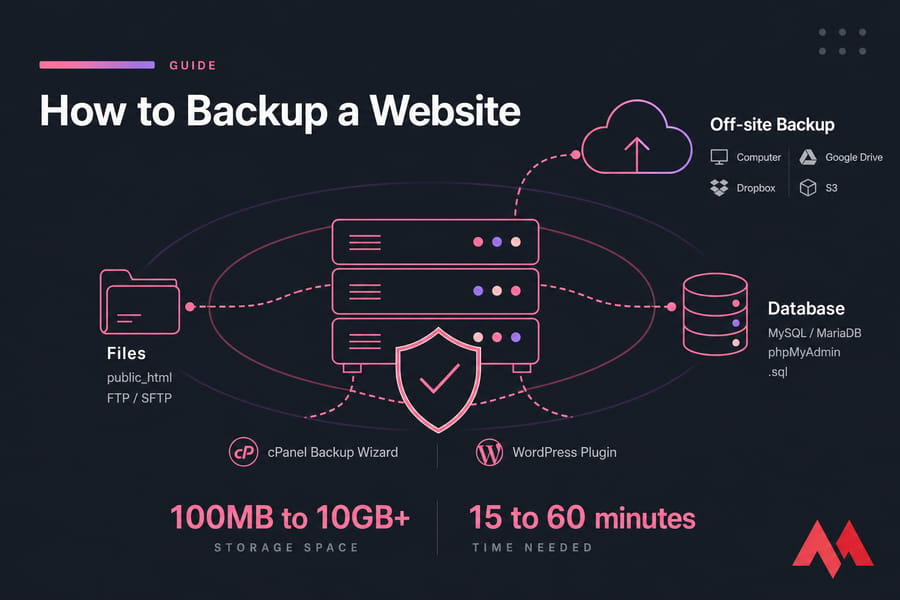
If you’re searching for how to backup website properly, the short answer is this: you need a copy of both your website files and your database, and you should store that copy somewhere off the server. The quickest route is usually cPanel’s Backup Wizard. If you don’t have that, use FTP or SFTP for files plus phpMyAdmin for the database, or a plugin if you’re on WordPress.
- Copy your website files from public_html or the site root.
- Export the MySQL or MariaDB database as a .sql file.
- Save the backup off-site to your computer, Google Drive, Dropbox, or S3.
- Test that you can actually restore it later.
Before You Begin
You’ll need a few basics first. Most of the failed backups I’ve seen weren’t caused by some dramatic server crash — they happened because someone didn’t have the right login details or ran out of disk space halfway through.
- Access to your hosting control panel such as cPanel, Plesk, or DirectAdmin, or FTP/SFTP credentials
- Database credentials if you’re backing up manually
- Free local or cloud storage space, usually anywhere from 100MB to 10GB+
- CMS admin access if you plan to use a plugin
- Roughly 15 to 60 minutes, depending on site size
What Is a Website Backup?
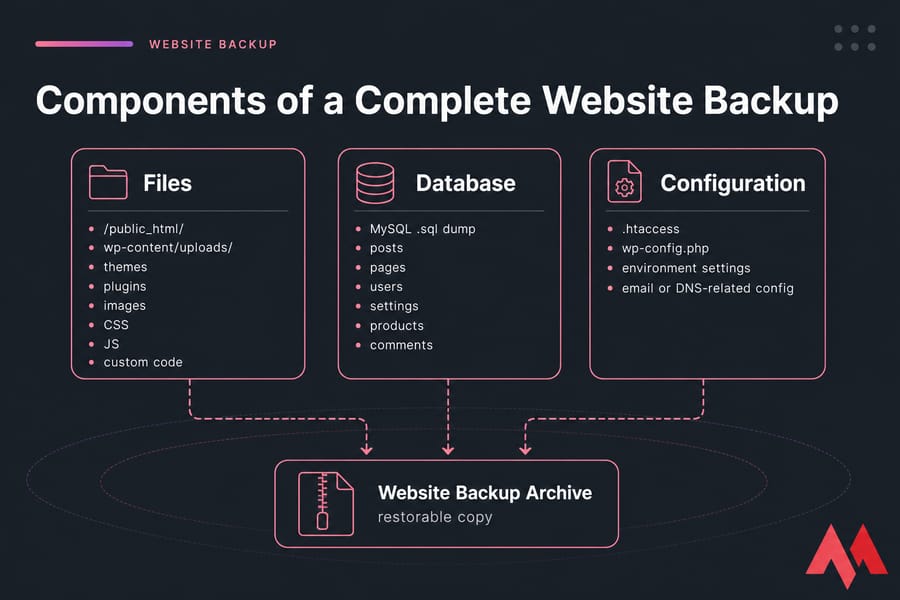
A website backup is a restorable copy of your site’s data. That usually means the files in your file system, the MySQL or MariaDB database, and the configuration pieces that tell the site how to run. If you want the broader definition of a website, that guide covers the basics. Here, we’re focused on protecting it.
A lot of people assume downloading the files from public_html is enough. It isn’t. If your site runs on WordPress, Joomla, Drupal, Magento, or a custom PHP app, the content, users, settings, and often orders live in the database. Lose that, and your backup is only half a backup.
- Files: core CMS files, themes, plugins, uploads, images, CSS, JS, and custom code
- Database: posts, pages, users, settings, products, comments, and dynamic content
- Configuration: files like .htaccess, wp-config.php, environment settings, and sometimes email or DNS-related config
Now that you know what’s inside a backup, let’s see why you absolutely need one.
Files vs. Database vs. Configuration
Think of it this way. Files are the structure, the database is the content brain, and configuration is the glue. Remove any one of those and restoration gets messy fast.
On a static HTML site, files may be enough. On a WordPress or custom PHP site, they’re not. I’ve seen people proudly keep a zip of public_html, then panic when the restored site shows a blank install because the database was never exported.
Why You Need to Backup Your Website
Backups aren’t optional admin busywork. They’re your recovery plan when something breaks — and sooner or later, something does break. A plugin update fails, a developer deletes the wrong directory, malware encrypts files, or a server outage leaves you scrambling.
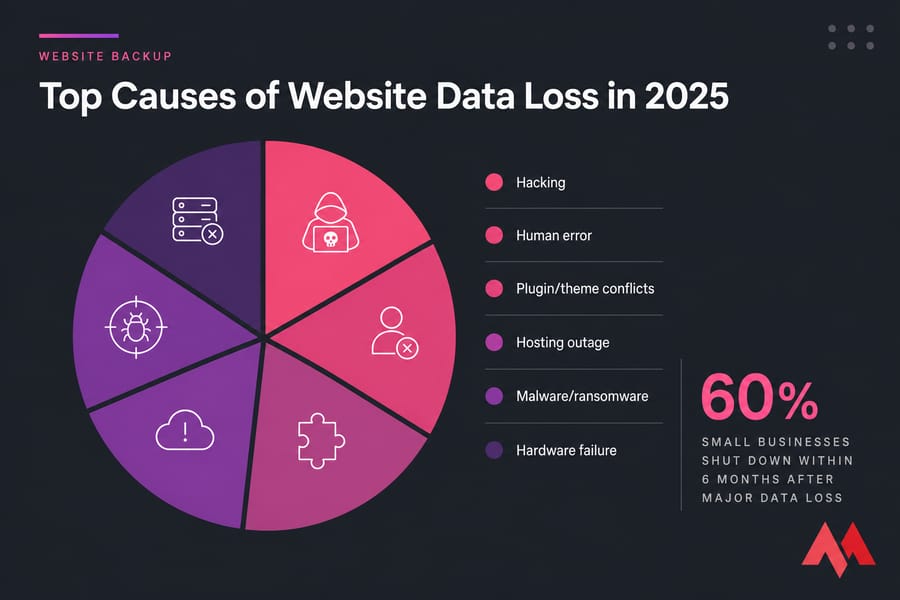
One data point that still hits hard: the National Cyber Security Alliance has long reported that roughly 60% of small businesses that suffer major data loss shut down within six months. That number gets quoted a lot because the pattern is real. If your site drives leads, sales, bookings, or support, downtime hurts fast.
If security is part of your concern — and it should be — read MonoVM’s guide to what is a cyber threat and these WordPress security best practices. Backups won’t stop an attack, but they absolutely reduce the damage when one lands.
Stat: Around 60% of small businesses that lose critical data shut down within 6 months. That’s why backup planning belongs right next to patching and security.
Top Causes of Website Data Loss
Here are the big ones I see again and again:
- Hacking: attackers delete content, inject junk, or replace files entirely
- Malware and ransomware: infected sites can become unusable or blacklisted
- Plugin or theme conflicts: one bad update can break layouts, admin login, or checkout flow
- Human error: accidental deletion is still one of the most common causes
- Hosting outages: provider issues do happen, even at good companies
- Hardware failure: disks die, RAID arrays fail, snapshots get corrupted
Hosts with built-in JetBackup like MonoVM reduce a lot of this pain, especially when you need a fast restore point after a bad update.
How Often Should You Backup a Website?
Backup frequency depends on how much data you can afford to lose. That’s your practical RPO — Recovery Point Objective. An online store taking orders every hour needs a tighter schedule than a brochure site you update once a month.
| Site Type | Recommended Frequency | Retention |
|---|---|---|
| Static HTML portfolio | Weekly and before changes | 4–8 copies |
| Small business WordPress site | Daily | 7–14 daily, 4 weekly |
| Active blog | Daily or twice daily | 14 daily, 8 weekly |
| WooCommerce or Magento store | Every 1–6 hours for database, daily full backup | 30+ copies with short intervals |
| Membership or LMS site | Every 4–12 hours | 14 daily, 8 weekly, 3 monthly |
For a small WordPress blog with 200 posts and 500MB of media, a daily file-and-database backup is usually enough. For e-commerce, I’d never be comfortable with just “once a week.” Next, let’s pin down exactly what belongs in a complete backup.
What to Include in a Complete Website Backup
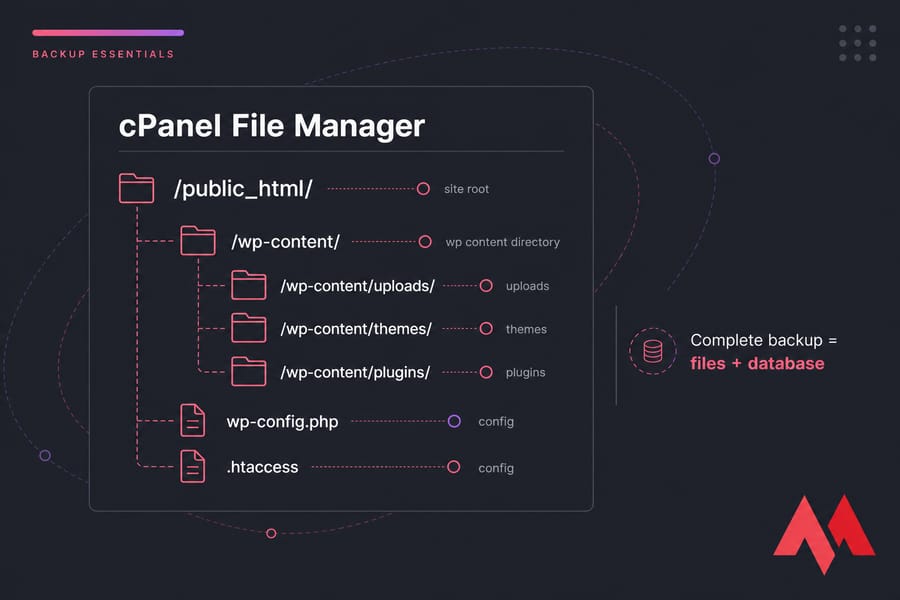
A complete website backup means more than zipping one folder. You need the live site files, the database, and the extra configuration pieces people forget until restore day. And restore day is not when you want surprises.
Key Takeaway: A complete backup = files + database. Miss either one and you don’t have a fully restorable website.
Website Files (public_html, wp-content, themes, plugins)
Start with the site root. On many shared hosting accounts that’s /home/username/public_html/, though addon domains may live in subfolders.
Critical paths often include:
| CMS | Critical Directories | Database Name Location |
|---|---|---|
| WordPress | /public_html/, /wp-content/uploads/, /wp-content/themes/, /wp-content/plugins/ | wp-config.php |
| Joomla | /public_html/, /images/, /templates/, /plugins/ | configuration.php |
| Drupal | /public_html/, /sites/default/files/, /modules/, /themes/ | settings.php |
| Custom PHP/HTML | /public_html/, /assets/, /uploads/, custom app folders | .env, config.php, app config files |
The MySQL/MariaDB Database
This holds posts, product data, comments, settings, menus, and often user accounts. If you’re not sure which database your site uses, check the config file. On WordPress, it’s usually in wp-config.php.
Email Accounts, DNS Zones & Configuration Files
Don’t skip the boring stuff. Files like .htaccess, php.ini, SSL certificate files, cron definitions, DNS zone records, and email account settings can save you hours later. If you need a refresher on .htaccess files, that article is worth a quick read. And if you’re tightening security before backup, this piece on WordPress file permissions helps.
- Files: site root, themes, plugins, uploads, custom scripts
- Database: MySQL or MariaDB export in .sql or .sql.gz
- Config: .htaccess, php.ini, wp-config.php, environment files
- Email: mailboxes, forwarders, filters if hosted on the same account
- DNS/SSL: zone entries and certificate material where applicable
Now you know what to copy. The next question is which method fits your setup.
Website Backup Methods Compared
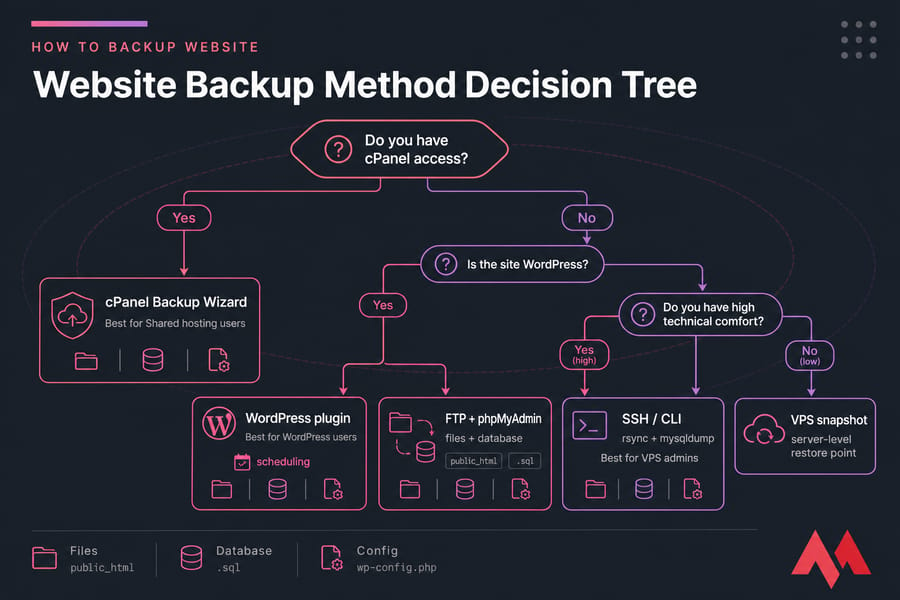
There isn’t one perfect method for everyone. If you’ve got cPanel, use it. If you’re on WordPress and want scheduling, a plugin is faster. If you run a VPS and like control, SSH plus rsync and mysqldump gives you the cleanest workflow.
| Method | Difficulty | Time Required | Best For | Cost | Pros | Cons |
|---|---|---|---|---|---|---|
| cPanel Backup Wizard | Easy | 5–15 min | Shared hosting users | Usually included | Simple, complete, no extra tools | Not all hosts enable full restore for users |
| FTP + phpMyAdmin | Moderate | 15–45 min | Any CMS, no plugin needed | Free | Works almost everywhere | Two-part process, slower on large sites |
| WordPress plugin | Easy | 5–20 min | WordPress users | Free/Paid | Scheduling, cloud storage, restore options | Plugin overhead, not CMS-agnostic |
| SSH command line | Advanced | 5–30 min | VPS admins, large sites | Free | Fast, scriptable, precise | Requires shell access and care |
| JetBackup/hosting backup | Easy | 1–5 min to launch | cPanel hosts with backup tools | Often included | One-click restore points | Depends on host retention policy |
| Server snapshot | Moderate | Minutes | VPS/dedicated users | Plan dependent | Full server state capture | Larger, less granular for single-site restore |
So which one should you try first? For most site owners, cPanel is still the easiest path.
How to Backup a Website Using cPanel (Easiest Method)
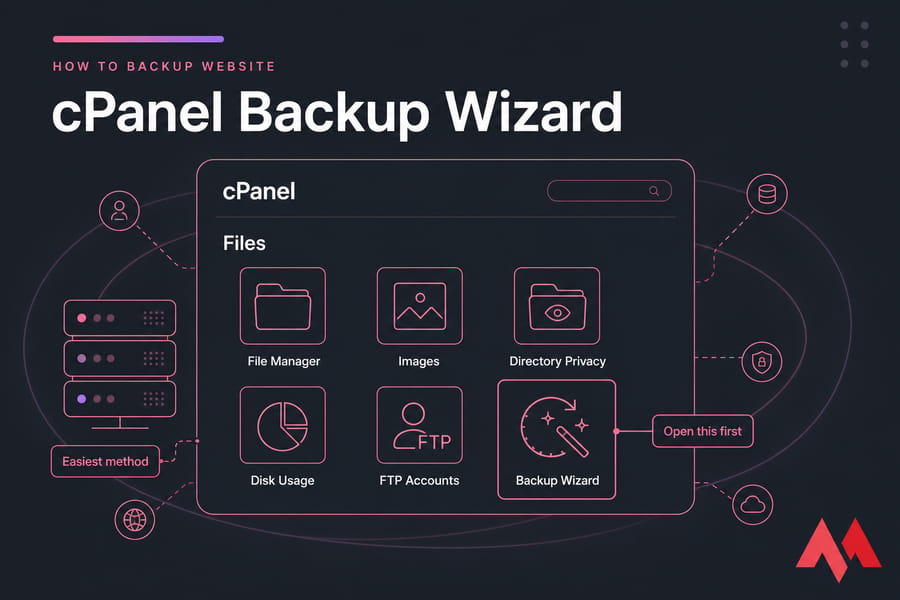
If your host gives you cPanel, this is the simplest way to create a full website backup. It’s fast, it includes the right pieces, and you don’t have to install anything. For small business sites, this is usually the “done in 10 minutes” option.
Using the cPanel Backup Wizard
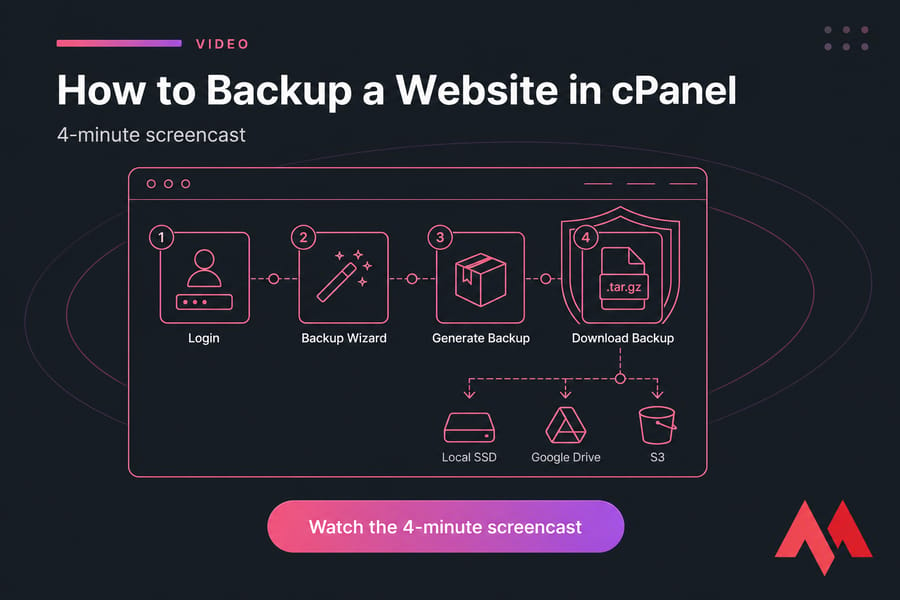
- Log in to cPanel.
- Open Backup Wizard under the Files section. If you don’t see it, some hosts use the older Backup tool instead.
- Click Back Up.
- Select Full Backup if you want the whole account, including files, databases, email filters, and settings.
- Choose the Home Directory as the destination unless you’re sending it to a remote FTP target.
- Enter your email address to receive a notification when the archive is ready.
- Click Generate Backup.
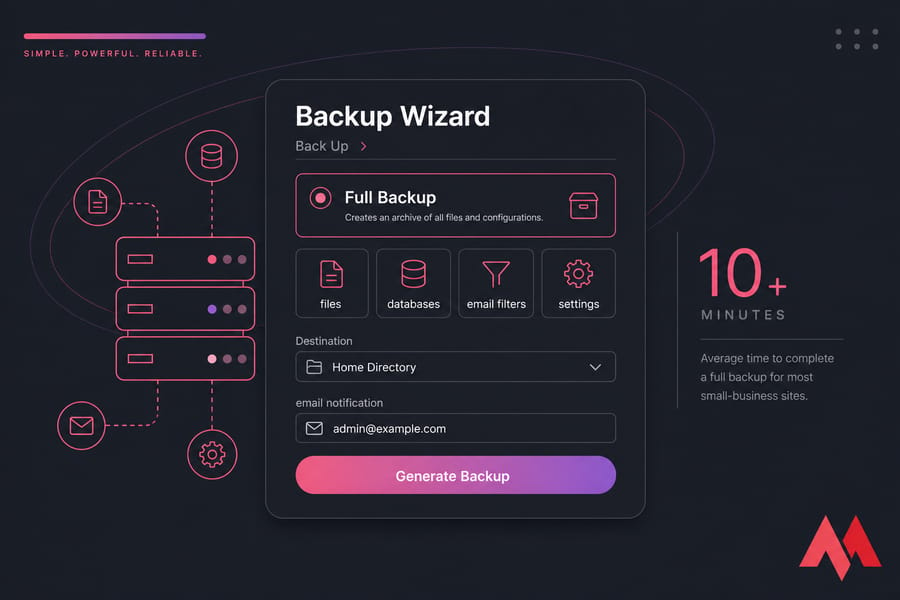
cPanel will build an archive in the background. On a 1GB WordPress site, I usually see this finish in 5 to 12 minutes. Larger sites can take longer, especially if the storage is busy.
Using JetBackup in cPanel
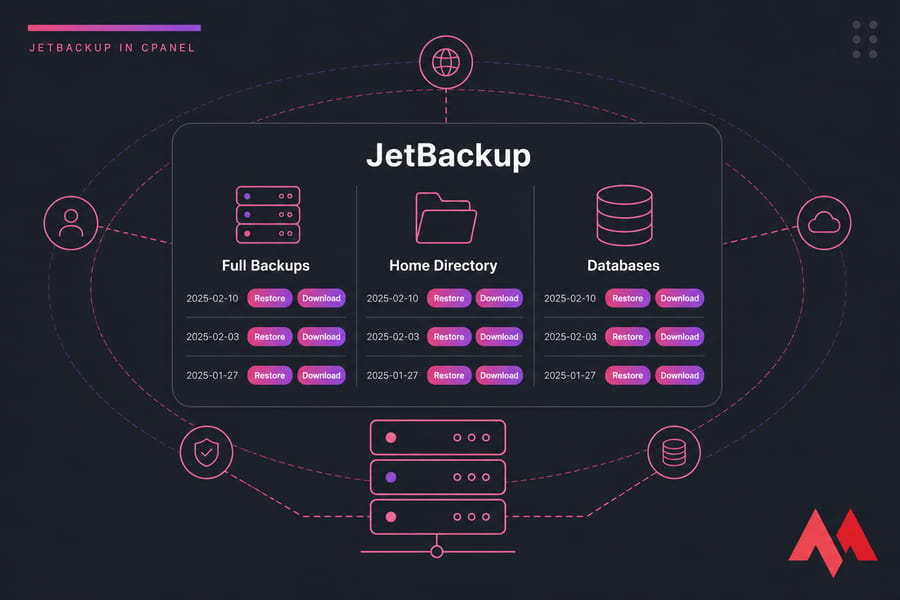
If your host includes JetBackup, use it. It’s cleaner than the old Backup Wizard and gives you restore points for full accounts, files, databases, and even email. If you’re not familiar with it, here’s What is JetBackup?
- Open JetBackup from cPanel.
- Choose Full Backups, Home Directory, or Databases.
- Select a restore point by date.
- Click Download if you want your own copy, or restore directly if your host allows it.
MonoVM’s cPanel VPS hosting typically makes this part easy because JetBackup is already part of the workflow. If you use a different panel, this hosting control panel guide will help you find the equivalent tools, and CWP users can check the CWP backup & restore guide.
Downloading the Backup File Securely
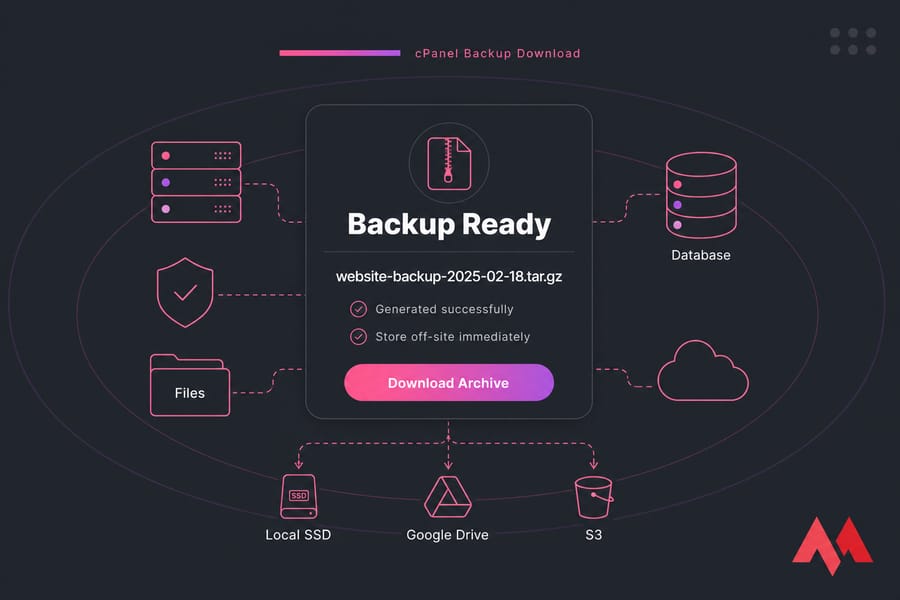
Once the backup finishes, go back and download it immediately. Don’t leave your only backup sitting on the same server. If the account gets suspended, hacked, or the disk fails, that local copy may disappear too.
Pro Tip: Always download your cPanel backup right away. A backup stored only on the same hosting account is a safety blanket with holes in it.
Store the archive on your computer and one cloud destination. For example, local SSD plus Google Drive is fine to start. Better still, add S3 or Backblaze B2 for a second off-site copy.
Quick Summary: cPanel is the easiest full-account method for most site owners, especially if JetBackup is included.
If you don’t have cPanel access, FTP is your next best option.
How to Manually Backup Website Files via FTP
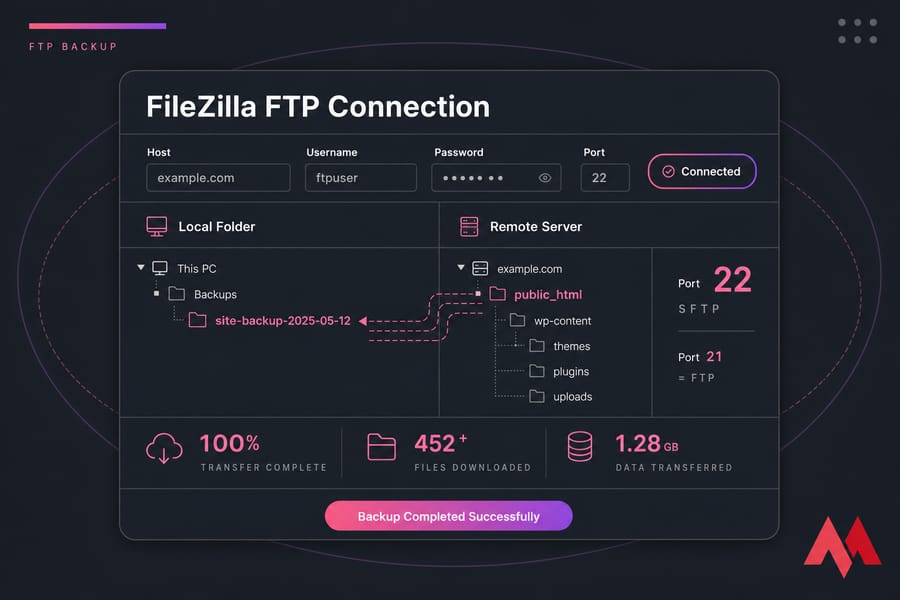
Manual FTP backup is straightforward and works for almost any site. It’s slower than a one-click archive, honestly, but it’s dependable. You pull down the actual files and keep them locally.
Setting Up FileZilla
- Install FileZilla, or use WinSCP/Cyberduck if you prefer.
- Open the client and enter your host, username, password, and port.
- Use port 21 for FTP only if that’s all your host offers.
- Use port 22 for SFTP when possible. It’s encrypted and far safer.
- Click connect and wait for the remote directory listing.
If you’re deciding between clients, MonoVM has a shortlist of the best FTP clients. And if you run your own server, this guide to install and configure FTP on Ubuntu is useful.
Downloading the public_html Directory
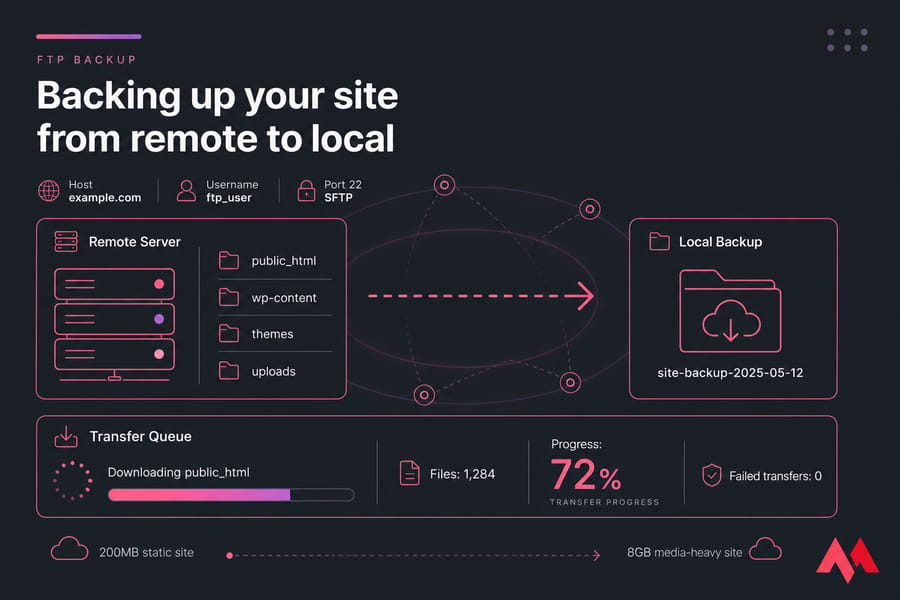
- Browse to public_html or your document root on the server.
- Create a local folder such as site-backup-2025-05-12.
- Drag the full site directory from remote to local.
- Wait for the transfer queue to finish.
- Verify the file count and check for failed transfers.
For a static HTML site under 200MB, this might take only a couple of minutes. For a WordPress media-heavy site with 8GB of uploads, it can take an hour or more depending on your connection.
One caution: FTP or SFTP only gets the files. You still need the database separately. That’s the step many beginners miss.
Quick Summary: FTP is ideal when you want direct access to files, but it must be paired with a database export for a complete backup.
Next up: the database side of the job, which is where your dynamic content usually lives.
How to Backup a Website Database with phpMyAdmin
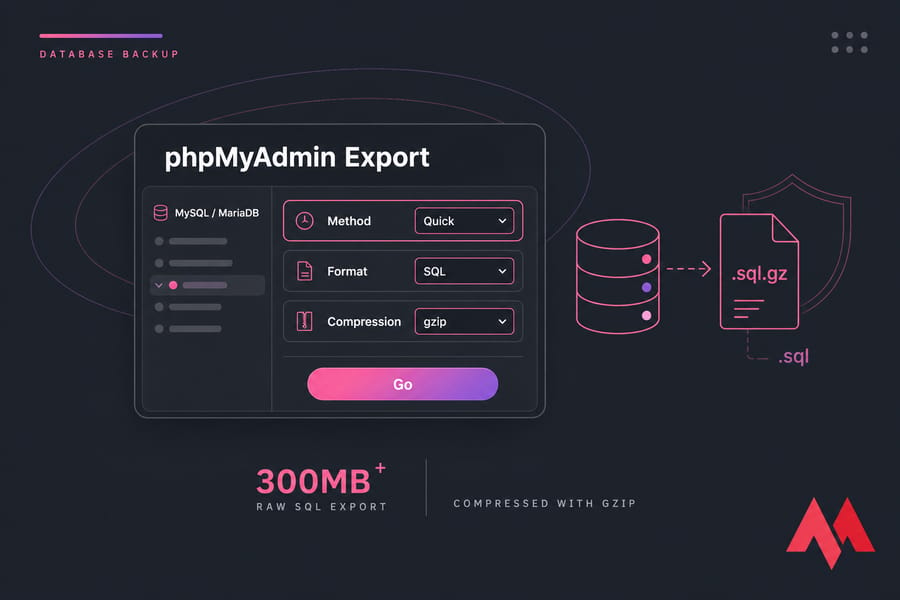
If your site uses MySQL or MariaDB, exporting the database with phpMyAdmin is one of the easiest manual methods. This produces a .sql file, or better, a compressed .sql.gz file you can store off-site.
Exporting a MySQL Database (.sql file)
- Log in to cPanel or your control panel and open phpMyAdmin.
- Select the correct database from the left sidebar.
- Click the Export tab.
- Choose Quick for a standard backup. Use Custom if you want table-level control.
- Select SQL as the format.
- Click Go to download the dump.
If you want more detailed screenshots and edge cases, MonoVM has a phpMyAdmin database backup tutorial dedicated to this exact process.
Compressing & Storing the Database Backup
Use gzip compression if the option is available. A 300MB raw SQL export often drops dramatically when compressed, which makes transfers easier and storage cheaper.
Store the database dump with the file backup using the same date-based naming format. I like folders such as 2025-05-12/full-site/files and 2025-05-12/full-site/database. Simple naming saves time later.
Warning: Never email a database backup to yourself. SQL files can contain customer records, email addresses, and password hashes.
For a brochure site with one database, the export usually takes under a minute. On a busy WooCommerce store, the file can grow large enough that command-line dumping is the better route. We’ll get there in a bit.
The manual method works everywhere, but WordPress users often want something with automation. Fair enough.
How to Backup a WordPress Website with a Plugin
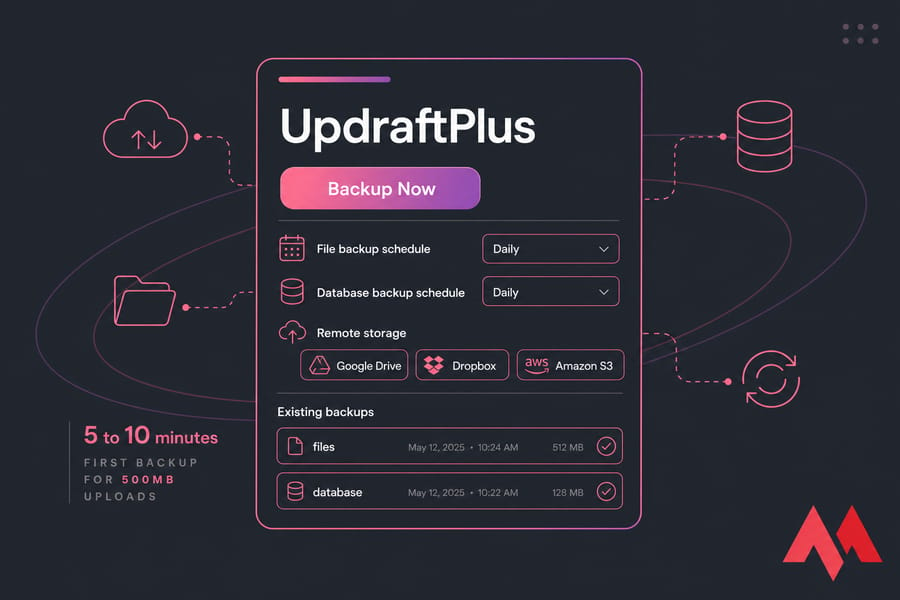
For WordPress, plugins are the fastest way to combine files, database, scheduling, and remote storage. I still prefer manual backups before major migrations or deep troubleshooting. But for day-to-day protection, plugins save a ton of time.
UpdraftPlus (Free + Paid)
UpdraftPlus is one of the most widely used WordPress backup tools for a reason. It’s easy to set up, supports remote storage, and the restore flow is decent even for non-technical users.
- In WordPress admin, go to Plugins and install UpdraftPlus.
- Open its settings page.
- Pick a remote destination such as Google Drive, Dropbox, or Amazon S3.
- Set your file backup and database backup schedule.
- Click Backup Now for the first run.
- Verify that the backup appears in the existing backups list and in your cloud storage.
For a WordPress blog with 500MB of uploads, UpdraftPlus usually finishes the first backup in 5 to 10 minutes. The remote upload can take longer than the backup itself.
Duplicator (Migration & Backup)
Duplicator is excellent when you also plan to move the site. It creates a packaged archive and installer flow that’s handy during server changes. If your backup goal is really “save it before migration,” pair this section with MonoVM’s website migration guide.
BackWPup (Free Alternative)
BackWPup is a solid free option if you want scheduled backups without much fuss. The interface is a little less friendly, in my opinion, but it gets the job done.
| Plugin | Free/Paid | Cloud Storage | Scheduling | Restore | Best Use |
|---|---|---|---|---|---|
| UpdraftPlus | Both | Yes | Yes | Yes | Easy regular backups |
| Duplicator | Both | Limited/Pro features vary | Yes | Yes | Migration plus backup |
| BackWPup | Both | Yes | Yes | More manual | Budget-friendly scheduling |
If you want a deeper plugin-specific walkthrough, check MonoVM’s best WordPress plugins. If your site has outgrown shared hosting, WordPress VPS hosting gives you more room for scheduled jobs and safer restore testing.
Quick Summary: For WordPress, plugins are the easiest path to automatic website backup with off-site storage.
If you prefer shell access or need more control over large sites, the command line is where things get interesting.
How to Backup a Website via SSH Command Line
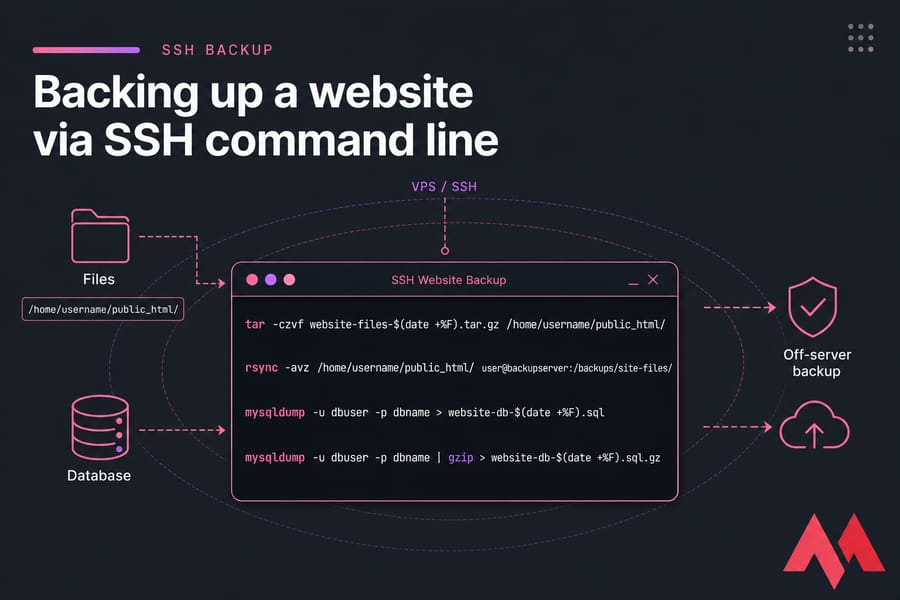
SSH backups are fast, scriptable, and ideal for VPS setups. They’re also the least forgiving if you type sloppy commands, so double-check paths before you hit Enter. If you’re new to shell access, start with this guide on how to SSH into Linux.
Backing Up Files with tar and rsync
First, create a compressed archive of the website files.
tar -czvf website-files-$(date +%F).tar.gz /home/username/public_html/
# -c create archive
# -z compress with gzip
# -v verbose output
# -f filename
If you want a synced copy to another server or local machine, rsync is excellent.
rsync -avz /home/username/public_html/ user@backupserver:/backups/site-files/
# -a archive mode
# -v verbose
# -z compress during transfer
MonoVM also has a fuller rsync command guide if you want to tweak exclusions and retention.
Exporting the Database with mysqldump
Next, dump the database:
mysqldump -u dbuser -p dbname > website-db-$(date +%F).sql
# Enter your database password when prompted
Or compress it on the fly:
mysqldump -u dbuser -p dbname | gzip > website-db-$(date +%F).sql.gzFor a WooCommerce store with a large order table, command-line dumping is often more reliable than phpMyAdmin because it avoids browser timeouts.
Sample Bash Backup Script
Here’s a simple example that creates file and database backups, then copies them to a backup folder:
#!/bin/bash

DATE=$(date +%F)
BACKUP_DIR="/home/username/backups/$DATE"
SITE_DIR="/home/username/public_html"
DB_NAME="dbname"
DB_USER="dbuser"

mkdir -p "$BACKUP_DIR"

tar -czf "$BACKUP_DIR/site-files.tar.gz" "$SITE_DIR"
mysqldump -u "$DB_USER" -p "$DB_NAME" | gzip > "$BACKUP_DIR/site-db.sql.gz"

echo "Backup completed: $BACKUP_DIR"
You can then move the archive off-server with scp:
scp /home/username/backups/2025-05-12/site-files.tar.gz user@remotehost:/remote/backups/
scp /home/username/backups/2025-05-12/site-db.sql.gz user@remotehost:/remote/backups/
If you’re writing your own scripts regularly, this Bash scripting cheat sheet is handy to keep around.
Quick Summary: SSH is the best option for large or custom sites when you want speed, automation, and precise control.
Of course, sometimes site-level backups aren’t enough. That’s where snapshots come in.
Server-Level Backups: Snapshots & VPS Backup Solutions
Site backups protect one application. Server backups protect the whole environment — OS, web server config, databases, installed packages, and often the full disk state. That matters if your VPS is doing more than just hosting one site.
VPS Snapshots Explained
A snapshot is a point-in-time image of the server disk, usually handled at the hypervisor level. It’s useful before risky upgrades, panel changes, or major migrations. If the whole stack goes sideways, you roll back the VPS to a known-good state.
For example, before upgrading PHP, changing Nginx config, or moving multiple sites, I’d take a snapshot first. It’s a much broader safety net than a single WordPress plugin backup.
When to Use Server-Level vs. Site-Level Backups
Use site-level backups when you need granular restore of one site’s files or one database. Use server-level backups when the whole machine matters, or when your RTO needs to be very short.
If you want the deeper server view, read MonoVM’s guide on how to backup a server or VPS.
🛡️ Tired of Manual Backups? MonoVM VPS plans include automated JetBackup, off-site snapshots, and one-click restore across 25+ global datacenters Explore VPS Hosting.
Now let’s automate the routine stuff so you’re not doing this by hand every Friday night.
How to Automate Website Backups
Manual backups are fine as a starting point. They are not a strategy. If your site matters, you want scheduled jobs, a retention policy, and an off-site destination.
Using Cron Jobs for Scheduled Backups
A cron job runs commands on a schedule. If that’s new territory, here’s a plain-English explanation of What is a cron job?
Example: run a backup script every day at 2:30 AM.
30 2 * * * /home/username/scripts/backup-site.sh >> /home/username/logs/backup.log 2>&1That script can create a tar.gz, run mysqldump, and clean up old copies. I’d also build in retention, such as keeping 7 daily backups, 4 weekly, and 3 monthly.
Cloud Backup Destinations (Google Drive, S3, Dropbox)
Your backup isn’t safe if it lives only on the same hosting account. Store it elsewhere. UpdraftPlus can send copies to Google Drive or Dropbox, and CLI users often push archives to S3-compatible storage with rclone or the AWS CLI. AWS has decent reference docs for Amazon S3 if you need them.
- Google Drive: easy for small sites and personal admin workflows
- Dropbox: simple and familiar, decent for light business use
- AWS S3: scalable and flexible for larger retention plans
- Backblaze B2: often cheaper for raw storage
If you’d rather not maintain scripts, managed hosting with automatic backups can handle the scheduling and retention for you. That’s usually the right move for business owners who don’t want to babysit cron logs.
Automation is only half the story, though. You also need to know how to restore when something breaks.
How to Restore a Website from a Backup
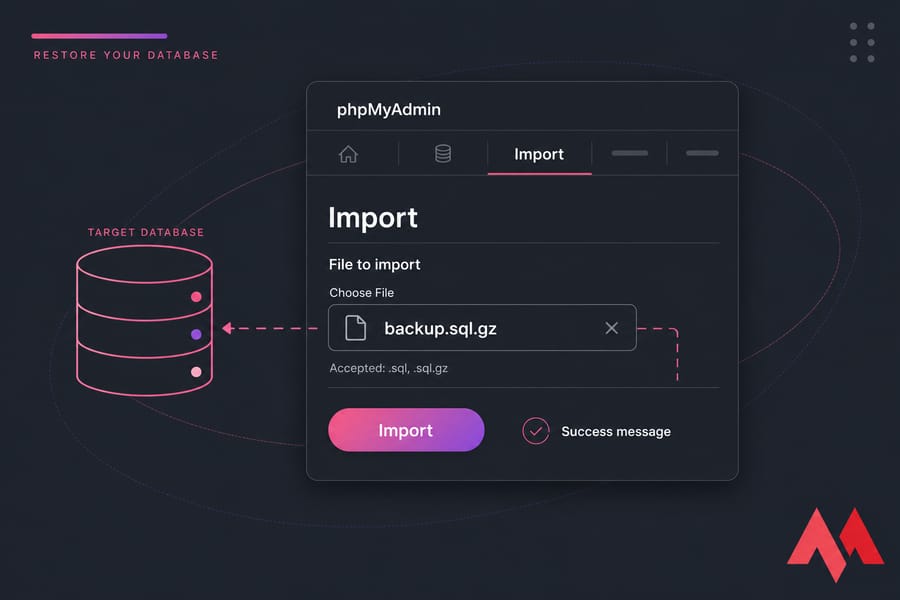
A backup is only useful if you can restore it under pressure. That’s why I always recommend doing one test restore on a staging domain or temporary subdomain. You don’t want your first restore attempt happening during an outage with customers already emailing you.
Restoring Files via cPanel or FTP
- If you used cPanel Backup Wizard or JetBackup, open the restore interface and choose the backup date.
- If you have only a downloaded archive, upload it back through File Manager or SFTP.
- Extract the files into the correct document root, usually public_html or a domain subfolder.
- Confirm that file permissions look sane after extraction.
JetBackup is easiest here because it can restore just the home directory or even a single database. Manual FTP restore works too, but it takes longer on large sites.
Importing the Database in phpMyAdmin
- Open phpMyAdmin.
- Select the target database.
- Click the Import tab.
- Choose your .sql or .sql.gz file.
- Start the import and wait for the success message.
If you restored the files but forgot the database import, your site may load as blank, show old content, or throw a database connection error. That mismatch happens a lot.
Verifying the Restored Website
Don’t stop after the homepage loads. Check the details.
- Open the homepage and at least 3–5 inner pages
- Log in to the admin area
- Confirm the database connection works
- Check images, CSS, and JS assets
- Test forms, search, checkout, or login flow
- Review permalinks and internal links
- Verify SSL and redirects still behave correctly
Plugin users can usually restore from the plugin dashboard itself. UpdraftPlus and Duplicator both make this fairly painless. For a simple WordPress brochure site, a full plugin restore can take under 10 minutes. For a large store, give yourself a maintenance window.
Next, let’s lock in the habits that make backups actually dependable.
Website Backup Best Practices (Including the 3-2-1 Rule)
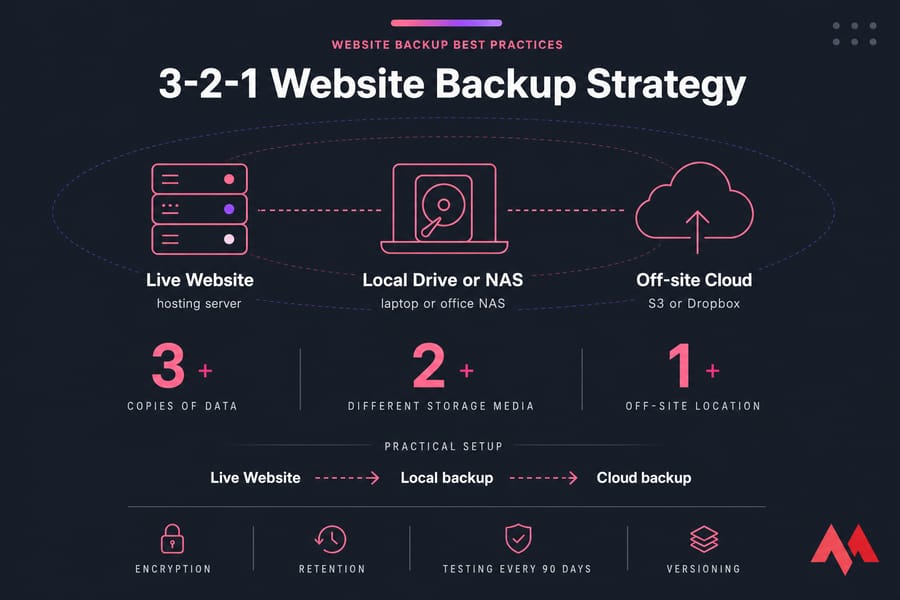
The 3-2-1 backup rule is still the best simple framework I know. It’s not fancy. It works.
- Keep 3 copies of your data — the live site plus two backups
- Use 2 different storage types — for example, local disk and cloud object storage
- Store 1 copy off-site — away from the server hosting the site
That means a practical setup could look like this: live website on hosting, daily backup stored on your laptop or office NAS, and another copy in S3 or Dropbox. If ransomware hits the server, or the host account gets locked, you still have options.
Good backup hygiene also includes:
- Encryption: protect archives that contain customer data
- Retention: keep enough history to roll back before a hidden problem started
- Testing: restore to staging every 90 days
- Versioning: avoid overwriting the only good copy
- Documenting: keep notes on where backups live and how to restore them
Pro Tip: Test your restore process at least once every 90 days. An untested backup is just a hopeful guess.
And yes, hosts can help. But you still want your own copy. Which brings us to the mistakes people repeat over and over.
Common Website Backup Mistakes to Avoid
Most backup failures aren’t technical mysteries. They’re process mistakes. Small, boring ones.
- Keeping only one copy: one backup on the same server is not enough.
- Ignoring the database: files alone won’t restore a dynamic site.
- Never testing restores: a backup that can’t restore is dead weight.
- Relying only on the host: hosting backups are helpful, but they shouldn’t be your sole plan.
- No encryption: SQL dumps and user exports can contain sensitive data.
- Backing up too infrequently: weekly backups for a busy store are asking for trouble.
- Leaving archives in public paths: never store downloadable backups inside web-accessible directories.
I’d add one more from experience: don’t wait until after an update breaks the site to learn where your backups are stored. That’s always a stressful way to find out.
Ready to Host a Site That Backs Itself Up? MonoVM’s cPanel VPS hosting gives you JetBackup, NVMe SSD speed, and 24/7 support. You can also compare WordPress VPS plans if your site is WordPress-focused.

An experienced tech and developer blog writer, specializing in VPS hosting and server technologies. Fueled by a passion for innovation, I break down complex technical concepts into digestible content, simplifying tech for everyone.