
Moving 400 GB of backups over a flaky connection is one of those tasks that either goes fine or ruins your evening. The good news: the safest way to migrate large files and backups to a Storage VPS is boring and repeatable — use a resumable, encrypted transfer method like rsync over SSH, verify checksums when it lands, then automate the next run with cron.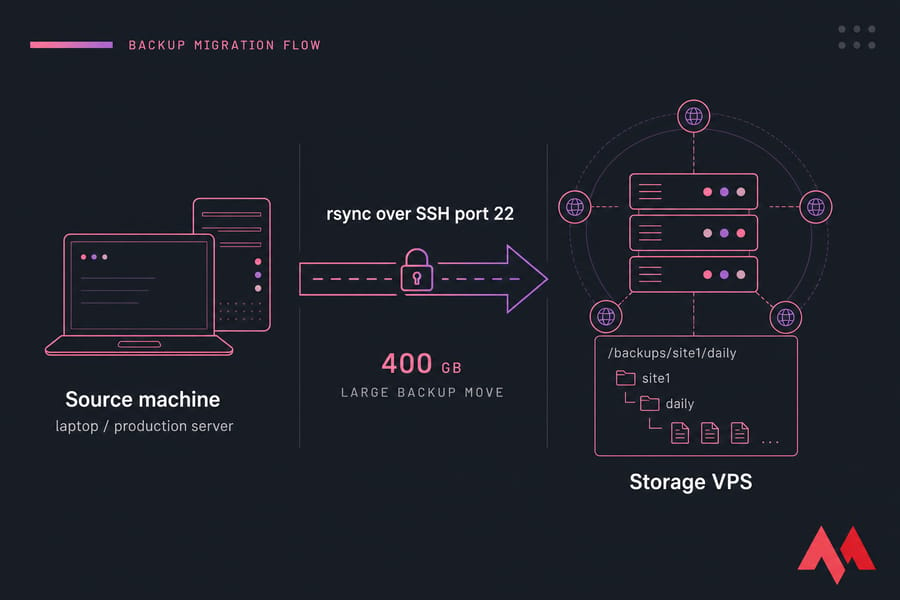
Why use a Storage VPS for backups and large file storage
A Storage VPS is just a virtual server with a lot of disk and not much else. You're not paying for CPU you won't use — you're paying for space you will.
Keeping backups on the same box that serves your site is a bad idea. One kernel panic, one bad disk, one compromised account, and both copies vanish together. An offsite target fixes that.
- Offsite redundancy — separate machine, separate failure domain, ideally a separate datacenter.
- Root access and protocol freedom — SSH, SFTP, rsync daemon, even a self-hosted sync app if you want to create your own cloud storage.
- Predictable pricing — no per-GB egress surprises like some object storage bills.
- Handles anything — cPanel archives, database dumps, VM images, media libraries, project archives.
It's also the natural destination if you've already read up on how to back up a server or VPS or built out how to set up a file server. Storage VPS hosting gives that workflow somewhere to land.
Before you transfer large files to a VPS: planning checklist
Ten minutes of planning saves a re-upload. Work through this first:
- Measure the source. Run
du -sh /path/to/backups. Know the real number, not your guess. - Check destination free space. Here's the guide on check disk space in Linux. Leave 20% headroom.
- Do the bandwidth math. 200 GB on a 50 Mbps uplink is roughly 9 hours. Plan the window accordingly.
- Set up access. You'll need the IP, a user, and ideally a key — see how to connect to a VPS and create an SSH key.
- Decide the folder layout now. Retrofitting structure later is miserable.
- One-time move or ongoing sync? That answer picks your tool.
Best methods to migrate backups to a VPS
| Method | Best for | Resume | Encrypted | Automation | Ease |
|---|---|---|---|---|---|
| rsync over SSH | Large + recurring transfers | Yes (--partial) |
Yes | Excellent | Medium |
| SFTP (WinSCP/FileZilla) | Windows users, one-off uploads | Usually | Yes | Poor | Easy |
| SCP | Single small file, quick copy | No | Yes | Weak | Easy |
| rclone | Cloud drive → VPS migration | Yes | Yes | Good | Medium |
These aren't equal. SCP restarts from zero if the link drops — fine for a 50 MB dump, painful for 300 GB. Plain FTP shouldn't be in the conversation for backups at all; if you're comparing protocols, the default SFTP port guide covers why SSH-based transfer wins. For most backup workloads, rsync over SSH is the starting point.
How to use rsync for large files and backup migration
rsync only sends what changed, resumes partial files, and verifies blocks as it goes. That's the whole pitch.
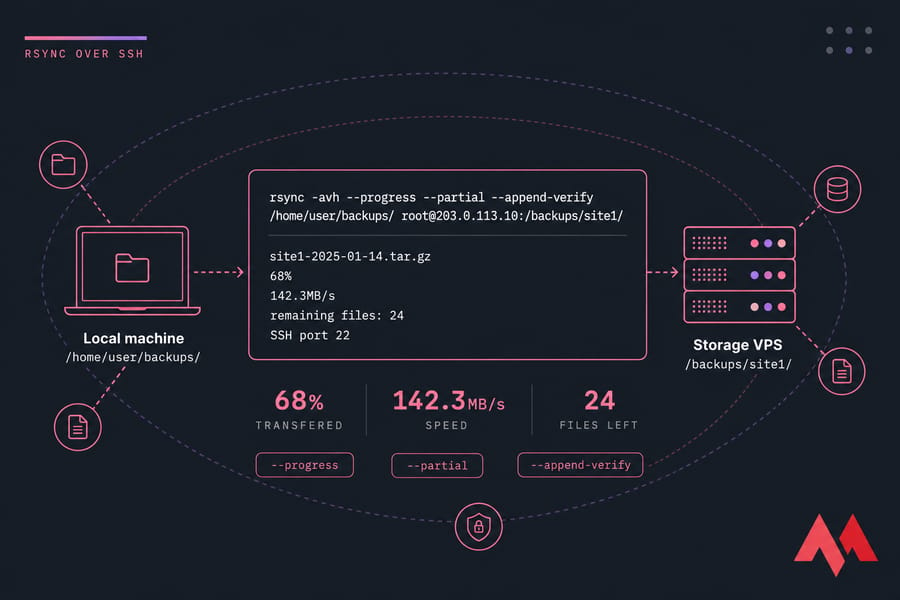
Local machine to Storage VPS:
rsync -avh --progress --partial --append-verify \
  /home/user/backups/ root@203.0.113.10:/backups/site1/
Server to server (run it from the source box):
rsync -avh --partial --bwlimit=5000 -e "ssh -p 22" \
  /var/backups/db/ backupuser@203.0.113.10:/backups/db/
What the flags actually do:
-a— archive mode: preserves permissions, timestamps, symlinks.-v/-h— verbose, human-readable sizes.--progress— live per-file status (also see how to monitor rsync progress).--partial --append-verify— keeps half-sent files and resumes them with verification instead of restarting.--bwlimit=5000— caps at ~5 MB/s so you don't saturate the production uplink at 2pm.-z— compress in transit. Skip it for.tar.gz,.zip, or video. You'll just burn CPU.
Trailing slashes matter. /backups/ copies the contents; /backups copies the folder itself. I've watched people create /backups/backups/backups this way. Full flag reference lives in the rsync command guide.
Uploading backups with SFTP, WinSCP, or FileZilla
No terminal? That's fine. Open WinSCP, pick SFTP, enter your VPS hostname or IP, username, port 22, and either a password or your key file. Drag the backup folder to the right pane.
Both WinSCP and FileZilla can resume interrupted transfers — right-click the failed item and choose resume rather than restarting. Create the destination directory first (/backups/site1/) and check ownership so the upload doesn't fail on permissions halfway through. Windows users moving data regularly should read transfer files from Windows to Linux server.
The catch: SFTP re-uploads everything each time. For nightly jobs, it's the wrong tool.
Compression, encryption, and folder structure
Compress text-heavy data — SQL dumps often shrink 80–90%. Don't bother with JPEGs, MP4s, or existing archives.
tar -czf site1-db-2025-01-14.tar.gz /var/backups/db/
gpg --symmetric --cipher-algo AES256 site1-db-2025-01-14.tar.gz
Encrypt anything containing customer data before it leaves your machine. Then keep the layout predictable:
/backups/site1/daily/site1-2025-01-14.tar.gz
/backups/site1/weekly/
/backups/site1/monthly/
Date-stamped filenames, one folder per server or app. Future you will restore faster.
Verify backup integrity after the transfer
Do not delete the source until this step passes. A finished progress bar proves nothing.
Generate a checksum on the source, then compare on the VPS:
sha256sum site1-2025-01-14.tar.gz > checksums.txt
ssh root@203.0.113.10 "cd /backups/site1/daily && sha256sum -c checksums.txt"
Compare file counts too (find . -type f | wc -l on both ends). Then actually extract one archive and restore it somewhere disposable. An untested backup is a rumour, not a recovery plan.
Automate recurring syncs with cron
Once the first migration lands, schedule the rest. This runs nightly at 2:15am and logs output:
15 2 * * * rsync -a --partial --bwlimit=8000 /var/backups/ backupuser@203.0.113.10:/backups/site1/daily/ >> /var/log/backup-sync.log 2>&1New to scheduling? Start with what a cron job is. Keep those logs from eating your disk using logrotate configuration, and add a simple check that alerts you when the job's exit code isn't 0 — silent backup failures are the classic disaster.
Common mistakes to avoid
| Mistake | Why it hurts | Better approach |
|---|---|---|
| Using scp for recurring bulk transfers | No resume, no delta sync | rsync over SSH |
| Skipping checksums | Silent corruption discovered at restore time | sha256sum -c after every migration |
| Deleting source data early | One bad transfer = total loss | Keep source until a test restore succeeds |
Dumping everything in /root |
Permission chaos, no retention possible | Structured /backups/<app>/<period>/ |
| No bandwidth limit | Production site crawls during backup window | --bwlimit plus off-peak scheduling |
| Only one copy | Not really a backup | Follow 3-2-1: three copies, two media, one offsite |
Sizing your Storage VPS for backup growth
Retention multiplies everything. A 40 GB backup with 7 daily, 4 weekly and 3 monthly copies isn't 40 GB — it's closer to 560 GB before compression.
Rough rule: current backup size × retention count × 1.5 for growth. For cold archives, HDD-backed storage is far cheaper per GB and perfectly adequate; use NVMe only if you restore frequently under time pressure (see HDD vs SSD). Weighing self-hosted against consumer cloud drives? Physical storage vs cloud storage breaks down the trade-offs.
Start storing backups securely with MonoVM Storage VPS
If your backups have outgrown local disks or shared hosting quotas, a dedicated remote target solves it cleanly: website archives, database exports, VM images, media libraries — all reachable over SSH, all scriptable, all yours.
View Storage VPS plans and pick a size for your backups.

An experienced tech and developer blog writer, specializing in VPS hosting and server technologies. Fueled by a passion for innovation, I break down complex technical concepts into digestible content, simplifying tech for everyone.