To create your own cloud storage, you need four things: a server (VPS, NAS, or a spare machine at home), cloud storage software like Nextcloud, a domain or public IP so you can reach it from anywhere, and basic security in place — SSL, a firewall, and real backups. For most people, installing Nextcloud on a VPS is the fastest and safest path.
That's the whole recipe. The rest of this guide is about picking the right pieces so you don't end up with a slow, exposed, or unreliable setup six months from now.
What does it mean to create your own cloud storage?
Private cloud storage means your files live on infrastructure you control, but you still get the conveniences you're used to — web access, desktop sync folders, mobile apps, shareable links. Nobody scans your documents. Nobody raises the per-user price next quarter.
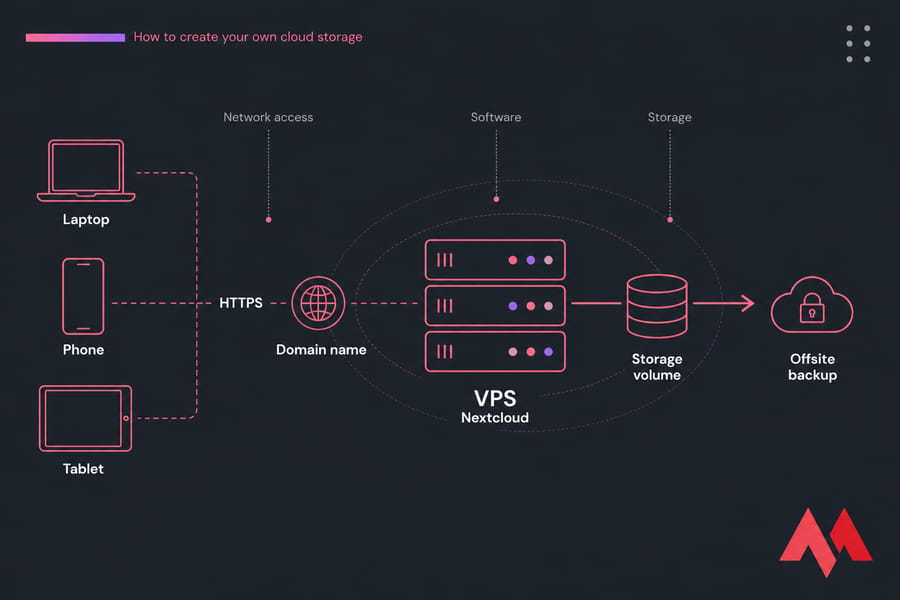
How self-hosted cloud storage works
Three layers, that's it:
- Storage — the disk holding your files (NVMe volume on a VPS, drives in a NAS, whatever).
- Software — Nextcloud, Seafile, or similar. It handles accounts, sharing, versioning, and the sync protocol.
- Network access — a domain name, DNS record, and HTTPS so your phone in a coffee shop can talk to that disk securely.
Miss any one of those and you don't have cloud storage. You have a hard drive.
Cloud storage vs file server vs NAS
A traditional file server shares folders over SMB or NFS on the local network — great in an office, painful over the internet. A NAS is a file server in an appliance box, though modern ones bundle sync apps too. Self-hosted cloud storage adds the web interface, sync clients, link sharing, and WebDAV access that make remote use practical. If your needs are purely local, our guide on how to set up a file server may actually be the better read.
Who should build a private cloud storage system?
Photographers with 500 GB of RAW files. Families who want one shared backup target instead of five Google accounts. Small remote teams passing around client documents. Developers who just like owning their stack. If you're none of those and you only store 15 GB of PDFs, honestly? Keep paying Dropbox.
Why people choose self hosted cloud storage over Google Drive or Dropbox
Privacy and data ownership
Your files sit on a disk you rent or own, encrypted in transit, with no third-party indexing. For anyone handling client contracts, medical documents, or legal files, that's not paranoia — it's the whole point.
Cost and storage flexibility
SaaS storage prices scale per user, per terabyte, forever. Self-hosting has a flatter curve: one VPS can serve ten accounts without ten subscriptions. But I'll be straight with you — self-hosting isn't automatically cheaper. Add your time, and 2 TB of Google One might win. It's cheaper at scale and with multiple users, not always at the small end. If you're still weighing options, compare against the best cloud storage options and read our breakdown of physical storage vs cloud storage first.
Sharing and remote access
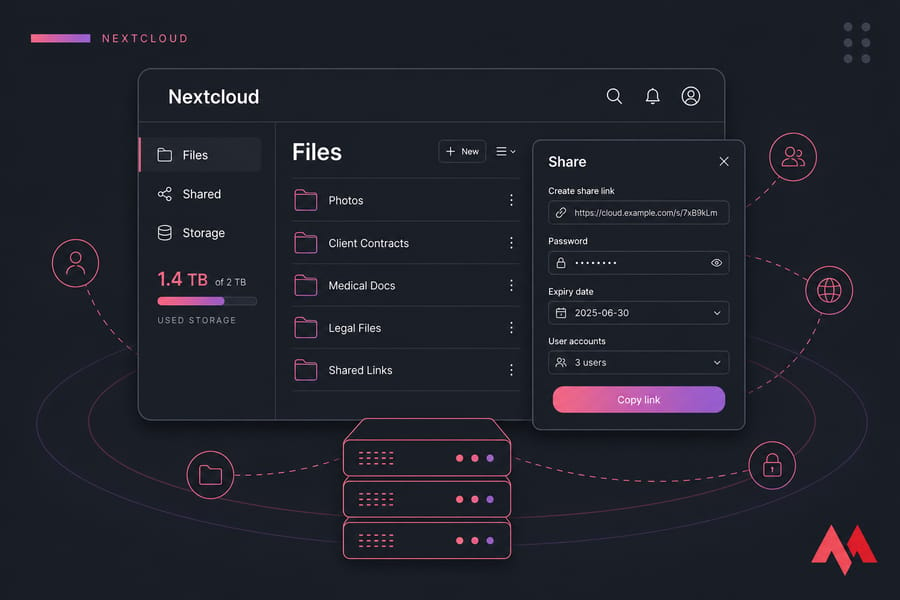
Password-protected share links with expiry dates, per-folder permissions, guest accounts, WebDAV mounts, calendar and contacts sync in the same app. That's Nextcloud out of the box.
| Benefit | Trade-off you accept |
|---|---|
| Full data ownership and privacy | You're the one responsible if it breaks |
| No per-user subscription creep | Monthly server cost regardless of usage |
| Unlimited customisation, apps, integrations | Updates and patching are on your calendar |
| Choose your own data location | Backups must be built by you, not assumed |
| Storage sized exactly to your needs | Real-time collaboration is decent, not Google-Docs-smooth |
Home cloud storage vs NAS vs VPS: which setup is best?
This is the decision that determines whether the project feels great or frustrating. Get it right first.
When a home server makes sense
You've got an old desktop or Raspberry Pi, a decent router, and you mostly access files at home. Recurring cost is basically electricity. The catch is upload bandwidth — most residential connections give you 10–40 Mbps up, which means pushing a 5 GB video folder to your phone from abroad crawls. Add power cuts, no static IP, and CGNAT on some ISPs, and remote access gets fiddly.
When a NAS is the better choice
A Synology or QNAP box is the appliance experience: RAID redundancy, a friendly UI, drive bays you can fill later. Perfect for bulk media libraries and local backups. Same home-internet limits apply for remote sync, though.
When a VPS is the easiest remote-access option
A VPS lives in a datacentre with symmetric gigabit uplinks, a public IP, and 24/7 uptime. Remote sync feels instant because it isn't fighting your home upload. No hardware to babysit, snapshots on demand, and you can scale disk when the photo library grows. If you want always-on remote access without home network limitations, a Storage VPS or Cloud VPS is usually the shortest route to something that just works.
For very large libraries — think multi-terabyte video archives — go straight to a dedicated storage server.
| Option | Upfront Cost | Monthly Cost | Skill Level | Remote Access | Best For |
|---|---|---|---|---|---|
| Home server | $0–300 (reuse old PC) | ~$5 power | Intermediate | Limited by upload speed | Tinkerers, local-first use |
| NAS appliance | $300–900 + drives | ~$5–10 power | Beginner | Workable, ISP-dependent | Media libraries, home backup |
| VPS | $0 | $5–40 | Beginner–intermediate | Excellent | Remote users, teams, small offices |
| Dedicated storage server | $0 | $60+ | Intermediate | Excellent | Multi-TB archives, businesses |
Pro tip: if your home upload is under 20 Mbps, a VPS will feel dramatically faster for anything you touch away from the house. That single number decides it for most people.
Best software to create a private cloud storage server
Nextcloud
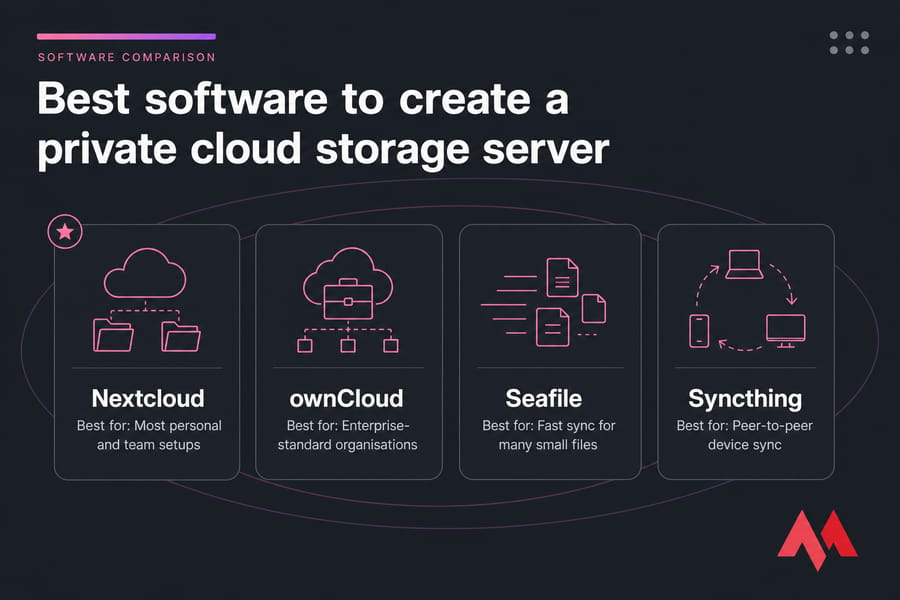
The default recommendation, and it's not close for general use. Full web file manager, desktop and mobile clients, share links, external storage mounts, calendar, contacts, notes, optional office editing, end-to-end encryption module, 2FA. Huge community, frequent releases.
ownCloud
The project Nextcloud forked from. Still solid, more enterprise-oriented, smaller app ecosystem. Choose it if your organisation already standardised on it. We compared them properly in ownCloud vs Nextcloud.
Seafile
Fastest sync engine of the bunch, thanks to block-level deduplication. If you move thousands of small files daily, Seafile shines. Fewer bundled apps, and files are stored in its own object format rather than plain folders — which some people hate.
Syncthing
Peer-to-peer sync between your devices, no central server needed. Brilliant, lightweight, and free. But it isn't cloud storage — no web UI for browsing, no share links, no user accounts. Great companion, poor replacement.
| Tool | Best For | Strengths | Weaknesses | Recommended? |
|---|---|---|---|---|
| Nextcloud | Most personal and team setups | Full feature set, apps, active community | Needs tuning for speed at scale | Yes — default pick |
| ownCloud | Existing enterprise deployments | Stable, business support options | Smaller ecosystem | Only if already invested |
| Seafile | Heavy, frequent file syncing | Very fast, efficient storage | Fewer extras, opaque storage format | Yes, for sync-first users |
| Syncthing | Device-to-device sync | No server required, tiny footprint | No web access or sharing links | As a supplement |
Quick summary: Nextcloud for full cloud features, Seafile for raw sync speed, Syncthing for peer sync between your own machines.
How to create your own cloud storage with Nextcloud
Here's what Nextcloud actually needs:
- OS: Ubuntu 22.04/24.04 LTS or Debian 12 — both well supported
- Web server: Nginx or Apache
- Database: MariaDB or MySQL (PostgreSQL works too)
- PHP plus the required extensions, and Redis for file locking and caching
- 2 GB RAM minimum for one or two users; 4 GB if you want it to feel snappy
- Storage sized to your library plus roughly 30% headroom for versions and trash
- Domain name pointed at your server, and a Let's Encrypt certificate
Manual install vs one-click deployment
Manual gives you full control and teaches you the stack — follow our walkthrough on how to install Nextcloud on Ubuntu, or the Debian variant if that's your flavour: install Nextcloud on Debian. Budget an hour or two the first time. Docker is a decent middle ground if you're comfortable with containers.
Prefer to skip the plumbing? A pre-optimized Nextcloud VPS arrives with the stack already tuned, so you log in and start uploading.
Launch your private cloud storage faster
Skip the hardware headaches and deploy on a high-performance MonoVM VPS — root access, NVMe storage, 25+ global locations, and 24/7 support. Explore Nextcloud VPS plans.
Step-by-step self hosted cloud storage setup
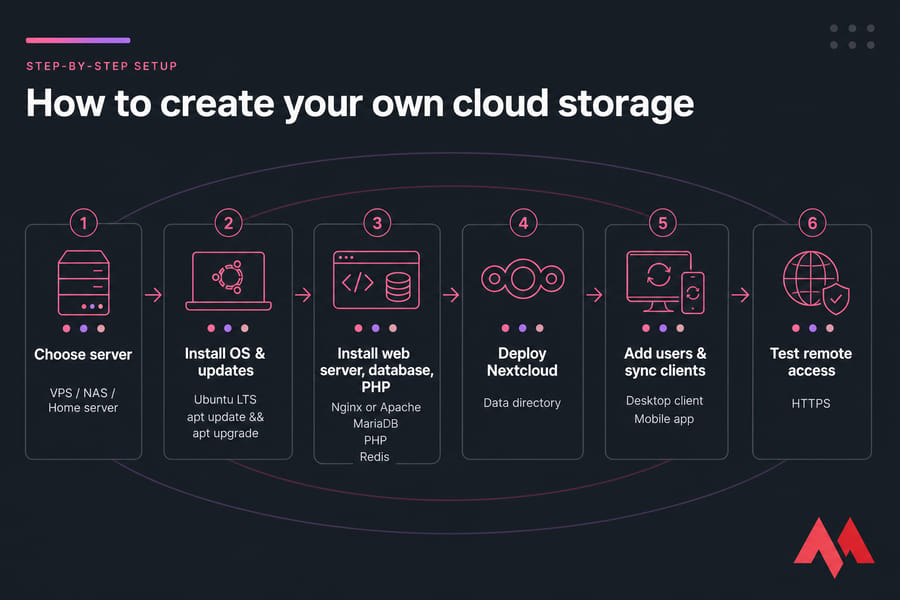
- Choose your server and storage. Pick your deployment model from the table above and size the disk to your actual data, not your ambitions. New to servers? Start with set up a VPS for beginners.
- Install the OS and patch it. Fresh Ubuntu LTS, then
apt update && apt upgrade. Create a non-root sudo user immediately. Here's how to connect to your VPS over SSH if that part's new. - Install the stack. Nginx or Apache, MariaDB, PHP with the extensions Nextcloud wants, Redis. Create a dedicated database and database user — don't reuse root.
- Deploy Nextcloud and attach storage. Download the release, set ownership to the web server user, run the setup wizard, then point the data directory at your storage volume. Mount external storage (S3, SFTP, SMB) later if you want to extend capacity without migrating.
- Create users, groups, and sync clients. One account per person, quotas where useful, shared group folders for the household or team. Install the desktop client on laptops and the mobile app for auto photo upload — that feature alone sells it to family members.
- Test remote access properly. Leave your network. Use mobile data. Upload a large file, share a link, open it on a device you've never logged in from. Then check the Nextcloud admin overview page and clear every warning it lists.
Related reading while you build: install SSL on a VPS and back up your server or VPS.
How to secure your cloud storage setup
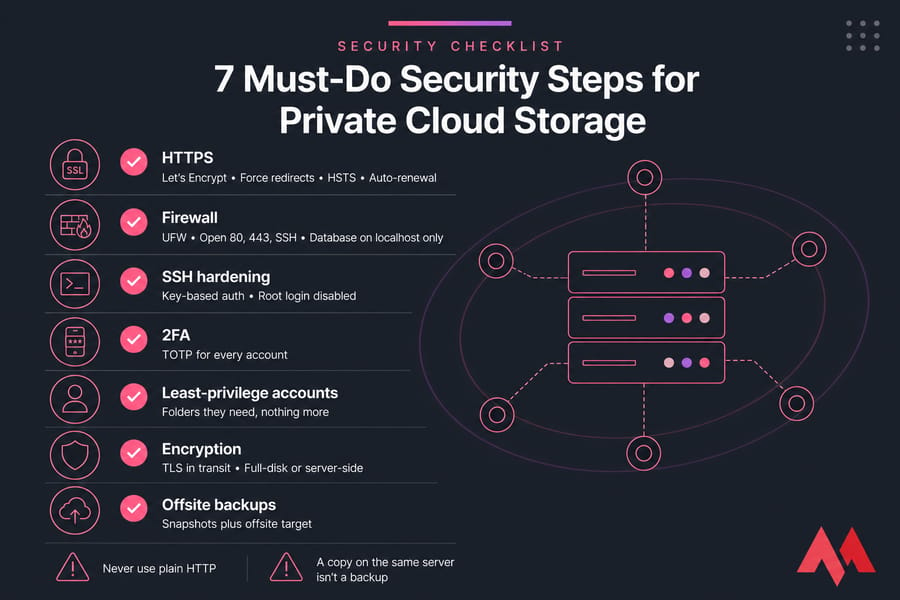
Warning: never expose a storage server over plain HTTP, and never run one without backups. Those two mistakes cause the majority of self-hosting disasters I've seen.
- HTTPS everywhere. Let's Encrypt is free and automated. Force redirects, enable HSTS, and set auto-renewal.
- Firewall. UFW with three ports open: 80, 443, and SSH. Everything else closed. Database listens on localhost only.
- SSH hardening. Key-based auth, root login disabled, a non-standard port if you like quieter logs. Walkthrough here: secure SSH access to your VPS.
- 2FA and least privilege. Turn on the TOTP app for every account, especially admins. Give people access to the folders they need, nothing more.
- Encryption. TLS covers data in transit. For data at rest, use full-disk or Nextcloud's server-side encryption — and understand the key-recovery implications before enabling it.
- Patching. Nextcloud, PHP, and the OS. Monthly at minimum, plus unattended security updates. Broader guidance in secure your Linux VPS.
- Offsite backups. A copy on the same server isn't a backup. Snapshots plus an offsite target, tested by actually restoring something.
Performance, backup, and scaling on a storage VPS
| Use Case | Users | Recommended RAM | Storage | Best Hosting Type |
|---|---|---|---|---|
| Personal documents and photos | 1–2 | 2–4 GB | 100–500 GB | Linux VPS |
| Family backup and photo sync | 3–6 | 4 GB | 500 GB–1 TB | Storage VPS |
| Small remote team | 5–20 | 8 GB | 1–2 TB | Storage VPS + NVMe |
| Media-heavy team or archive | 20+ | 16 GB+ | 4 TB+ | Dedicated storage server |
Two things fix most slowness complaints: putting the database and Nextcloud install on NVMe storage, and enabling Redis caching. Sluggish thumbnails and laggy file listings are almost always disk I/O or a missing cache, not bandwidth.
Keep your backup target on separate infrastructure. When capacity outgrows the plan, move to a storage-focused VPS or a dedicated box — capacity and reliability both improve, and migration is mostly an rsync job. And put basic monitoring in place; a few VPS monitoring tools will tell you about a full disk before your users do.
Common mistakes when you build your own cloud storage server
- Treating sync as backup. Delete a file on your laptop, it deletes on the server. Ransomware syncs beautifully too. You need versioned, offline copies.
- Skipping SSL. Credentials over plain HTTP on café Wi-Fi. Don't.
- Underestimating upload bandwidth. Home hosting with 8 Mbps up means a 20 GB backup takes most of a day.
- Undersizing the server. 1 GB RAM Nextcloud installs will OOM during previews. Start at 2 GB, prefer 4.
- No monitoring, no logs read. Disks fill silently. Our notes on how to troubleshoot a Linux VPS are worth bookmarking before you need them.
- Wrong hosting model. Choosing a home server for a remote team, or a tiny VPS for a 4 TB video archive.
Is creating your own cloud storage worth it?
For most technically curious people, yes — and it's less work than the internet makes it sound. Here's the honest breakdown by user type:
- Personal users: a small Linux VPS running Nextcloud. Cheap, fast, done in an afternoon.
- Families: Storage VPS for remote photo sync, or a NAS if everything happens at home. Some run both — NAS for bulk, VPS for access.
- Teams and businesses: Nextcloud VPS or dedicated storage, with 2FA, group folders, and offsite backups from day one. Consider managed hosting if nobody in-house wants to own patching.
- Not a good fit: people who want zero maintenance and have nobody to call when PHP breaks. That's a genuine constraint, not a character flaw.
Ready to build your own cloud storage?
Whether you need a lightweight personal drive or scalable private storage for a team, MonoVM offers full root access, NVMe infrastructure, 25+ global locations, and 24/7 support. Get a Linux VPS or view Storage VPS plans and have your private cloud running today.

An experienced tech and developer blog writer, specializing in VPS hosting and server technologies. Fueled by a passion for innovation, I break down complex technical concepts into digestible content, simplifying tech for everyone.