You can't install Nextcloud Server natively on Windows. Nextcloud's install page says Nextcloud Server does not support Microsoft Windows, and there is no Windows installer for the server. You can still run it from a Windows machine in three ways: Docker Desktop with Nextcloud All-in-One (AIO), a Linux virtual machine on Hyper-V or VirtualBox, or a Linux VPS if it needs to stay up around the clock. Docker is the quickest, so it gets most of the step-by-step detail below.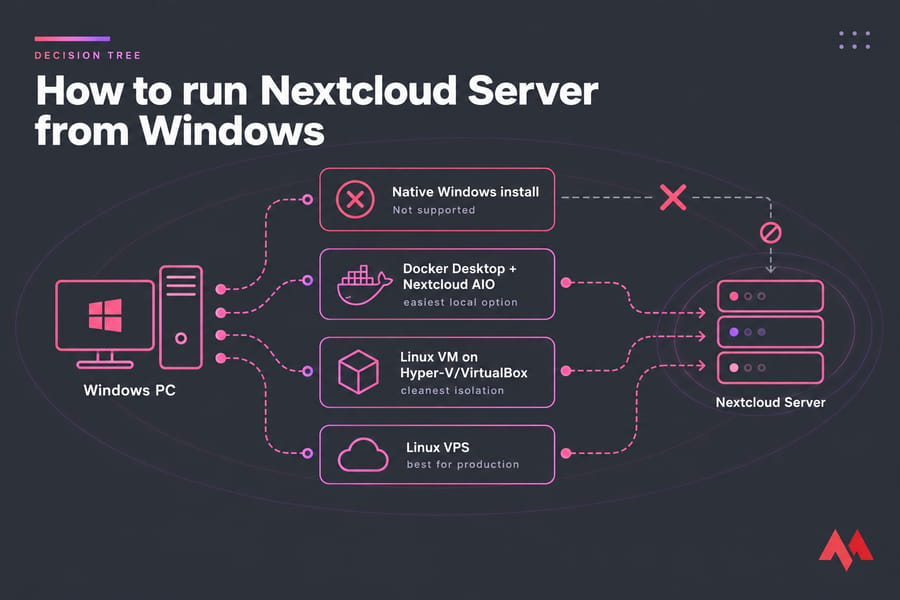
Can you install Nextcloud Server on Windows natively?
No. Nextcloud is a PHP application that the project only supports and tests on Linux. There's no supported route through IIS or XAMPP. Old forum guides that try it run into missing PHP modules and file locking problems, and upstream won't help when something breaks.
Server vs. desktop client on Windows
The Nextcloud Desktop client runs fine on Windows 10 and 11 and syncs a local folder with a Nextcloud server somewhere else. The Nextcloud Server is the web application that stores the files, runs the apps, and handles users, and it needs Linux. If you only want your PC to sync with a Nextcloud instance you already have, the desktop client is all you need.
Windows tutorials exist because Docker, virtual machines, and WSL each put a Linux environment on top of Windows. They all work to some degree, but none of them makes Nextcloud Server a native Windows program. If you're still weighing platforms, MonoVM's ownCloud vs Nextcloud comparison and the guide to create your own cloud storage cover the bigger choice.
Best ways to run Nextcloud on Windows
WSL is in the table because many tutorials push it, but I'd only use it for a short test.
| Method | Difficulty | Official alignment | Good for testing | Good for 24/7 | Best use case |
|---|---|---|---|---|---|
| Docker Desktop + Nextcloud AIO | Low | AIO is official; Windows host is not | Yes | Only if the PC never sleeps | Home lab on Windows 10/11 |
| Linux VM (Hyper-V, VirtualBox, VMware) | Medium | Matches the Linux-first support model | Yes | Acceptable on an always-on host | Clean separation from Windows |
| WSL | Medium | Unofficial workaround | Short-term only | No | Quick experiments |
| Linux VPS | Low to medium | Fully supported platform | Yes | Yes | Public, always-on use |
Start with Docker Desktop and AIO if you want Nextcloud running on your own PC tonight. Pick a VM if you'd rather keep Nextcloud away from your Windows install. The official docs point Windows users to a VM anyway, and the install page links an AIO-VM image for VirtualBox if you don't want to set up Docker yourself. If other people will depend on the instance, run it on a Linux server; MonoVM's Nextcloud VPS hosting saves you from keeping a desktop awake all night.
Prerequisites for any Windows method
- Windows 10/11 Pro or Windows Server for Hyper-V. Home editions can still run Docker Desktop on the WSL 2 backend.
- An administrator account.
- 2 CPU cores and 4 GB RAM at minimum for a lab; 8 GB or more is recommended.
- 40 to 80 GB of free disk space, plus room for your files.
- CPU virtualization (Intel VT-x or AMD-V) enabled in BIOS/UEFI.
- For public access: a domain name, router access for port forwarding, a plan for HTTPS, and somewhere to store backups.
Install Nextcloud on Windows with Docker Desktop and Nextcloud AIO
Nextcloud AIO is the official Docker deployment. One "mastercontainer" creates and updates the rest of the stack: Apache, PostgreSQL, Redis, and optional extras like Talk and Collabora. The AIO README says it runs on Windows through Docker Desktop.
Step 1: Install Docker Desktop and enable virtualization
- In Task Manager, go to Performance, select CPU, and check for "Virtualization: Enabled." If it's off, turn it on in BIOS/UEFI.
- Download Docker Desktop from docker.com and install it with the WSL 2 backend. MonoVM's guide to install Docker on Windows walks through each screen.
- Reboot, start Docker Desktop, and confirm the engine is running:
docker version
docker run hello-world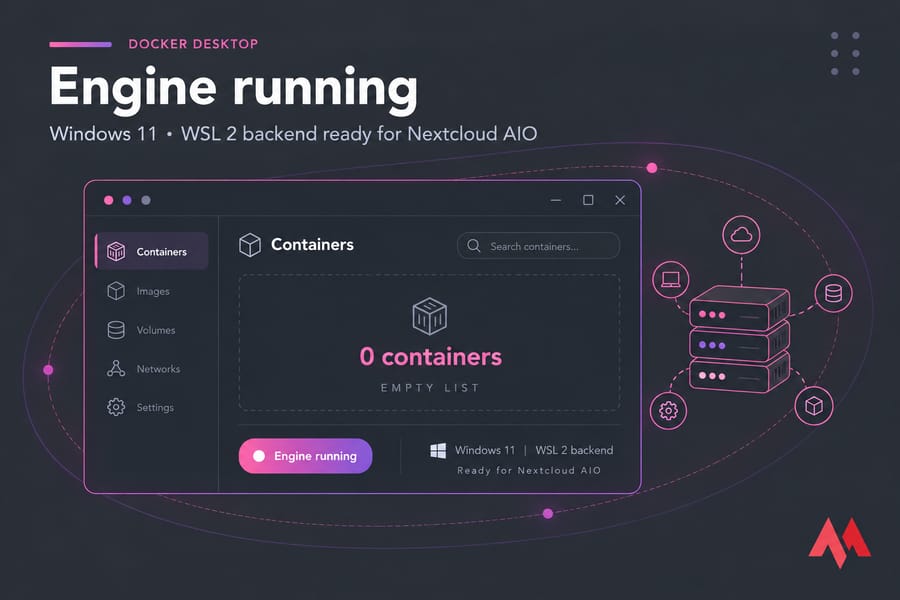
Step 2: Deploy the Nextcloud AIO mastercontainer
Open Command Prompt (not PowerShell, since the ^ line continuations are cmd syntax) and run the Windows variant of the AIO command:
docker run ^
--init ^
--sig-proxy=false ^
--name nextcloud-aio-mastercontainer ^
--restart always ^
--publish 80:80 ^
--publish 8080:8080 ^
--publish 8443:8443 ^
--env NEXTCLOUD_DATADIR="/run/desktop/mnt/host/c/ncdata" ^
--volume nextcloud_aio_mastercontainer:/mnt/docker-aio-config ^
--volume //var/run/docker.sock.raw:/var/run/docker.sock:ro ^
ghcr.io/nextcloud-releases/all-in-one:latest
The Docker socket mount on Windows differs from the Linux command, and the AIO team has changed it before. If this line fails, copy the current one from the "How to run AIO on Windows" section of the Nextcloud AIO README.
Step 3: Choose where your files live
NEXTCLOUD_DATADIR decides where user files end up. Without it, AIO stores them in a Docker volume inside Docker Desktop's virtual disk, which works but is hard to browse and back up from Windows. With it, they go to a normal folder on your drive.
Docker runs inside a Linux VM, so write the path in Linux form starting with /run/desktop/mnt/host/. C:\ncdata becomes /run/desktop/mnt/host/c/ncdata, and D:\Cloud\Data becomes /run/desktop/mnt/host/d/Cloud/Data. Set this before the first startup, because changing it later means migrating the data yourself.
Step 4: Open the AIO interface and complete the wizard
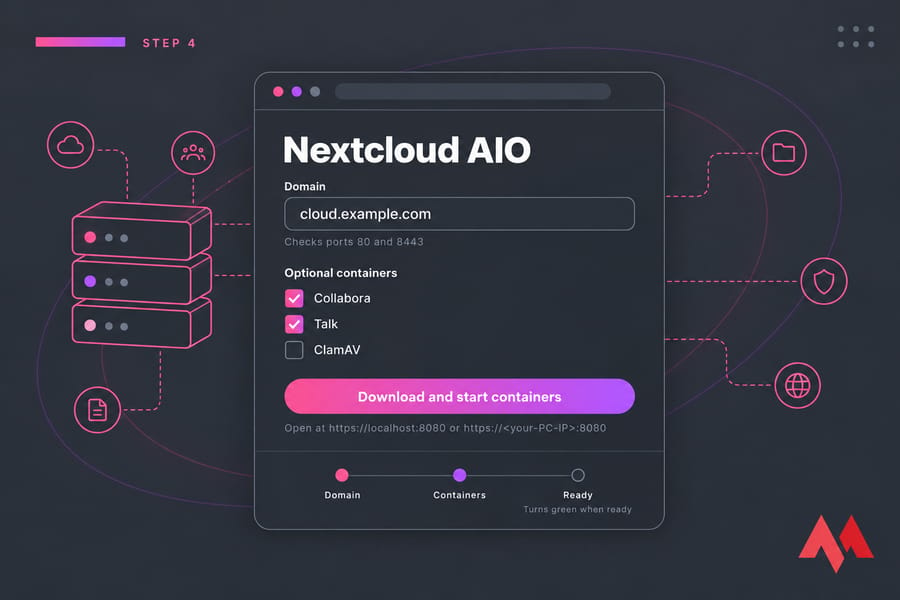
- Browse to
https://localhost:8080orhttps://<your-PC-IP>:8080. Use an IP address here, not a domain, and accept the self-signed certificate warning. - Save the passphrase AIO shows you in a password manager. You'll need it to get back in.
- Enter the domain that points to your public IP. AIO checks it over ports 80 and 8443, so set up the port forwarding described below first.
- Pick optional containers (Talk, Collabora, ClamAV, and so on), set your time zone, and start the containers.
- When everything turns green, AIO shows the initial admin credentials. Log in at your domain and change the password.
For a LAN-only setup without a public domain, the AIO docs describe a local-instance setup and a SKIP_DOMAIN_VALIDATION=true option for reverse proxies. They also mention Tailscale as a way to skip port forwarding entirely.
Step 5: Verify persistence
Upload a test file, restart Docker Desktop or the whole PC, and check that the containers come back and the file is still there. Look in C:\ncdata to confirm the data landed where you chose. If the containers stay stopped after a reboot, enable "Start Docker Desktop when you sign in." Docker only runs while a user is signed in, which is a real drawback for an unattended server.
Install Nextcloud in a Linux virtual machine on Windows
A VM gives Nextcloud a real Linux system with its own kernel, IP address, and filesystem, which is the setup the admin manual has in mind for Windows users. Windows still has to stay on, but nothing on the Windows side can interfere with the server. MonoVM's guide to set up a virtual machine covers the basics.
Create an Ubuntu Server VM
- Pick a hypervisor. Hyper-V comes with Windows Pro and Server editions (see the Windows Server Hyper-V guide); VirtualBox and VMware Workstation work on any edition.
- Download the current Ubuntu Server LTS ISO.
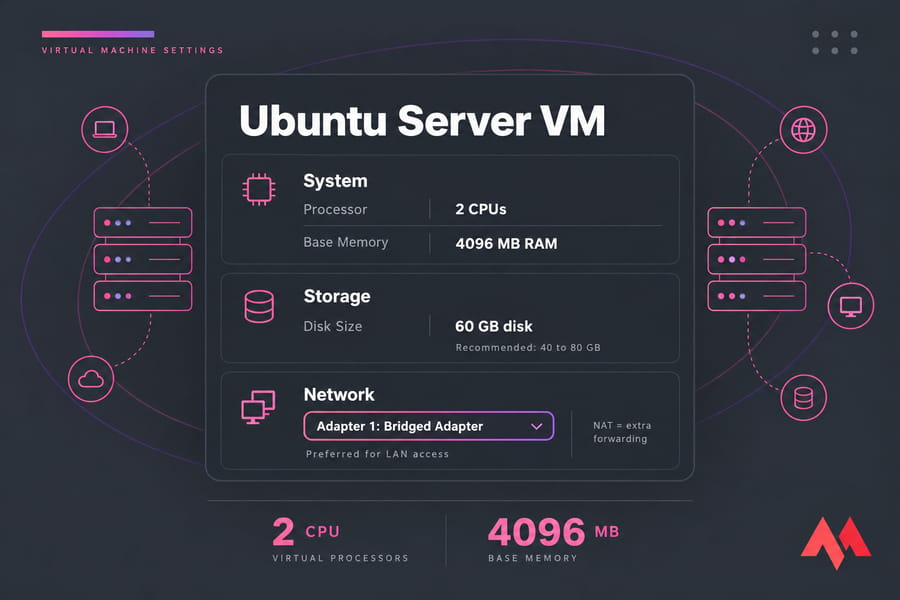
- Give the VM 2 vCPUs, 4 GB RAM (8 GB with Collabora or Talk), and a 40 to 80 GB disk.
- Install Ubuntu Server and select OpenSSH so you can manage it from a Windows terminal.
Choose NAT or bridged networking
NAT hides the VM behind the host, so other devices can't reach it without extra port forwarding in the hypervisor. Bridged networking (an External virtual switch in Hyper-V) puts the VM on your LAN with its own address, which is simpler for Nextcloud. Give it a DHCP reservation in your router so the IP stays fixed.
Deploy Nextcloud inside the VM
Option A is the same AIO stack, now on real Linux, the platform it's built for:
curl -fsSL https://get.docker.com | sudo sh
sudo docker run \
--init \
--sig-proxy=false \
--name nextcloud-aio-mastercontainer \
--restart always \
--publish 80:80 \
--publish 8080:8080 \
--publish 8443:8443 \
--volume nextcloud_aio_mastercontainer:/mnt/docker-aio-config \
--volume /var/run/docker.sock:/var/run/docker.sock:ro \
ghcr.io/nextcloud-releases/all-in-one:latest
Option B is a traditional web server, PHP, and database install. Follow how to install Nextcloud on Ubuntu, or install Nextcloud on Debian if you prefer that distro. It's more work, but you see every part of the stack.
To test, run ip a in the VM to find its address, then open https://<VM-IP>:8080 from a phone or laptop on the same Wi-Fi.
Nextcloud WSL setup: should you use it?
Some guides install Apache, PHP, and MariaDB in an Ubuntu distro under WSL and call it "Nextcloud on Windows 10." It works well enough for an afternoon of clicking around the admin panel, and MonoVM's guide shows how to install WSL if you want to try. For anything longer, these limits matter:
- It's unofficial, and nobody upstream tests Nextcloud on WSL.
- WSL 2 sits behind its own NAT'd network by default, so LAN devices can't reach it without port proxy rules on Windows.
- Services don't start on their own unless you configure systemd or a startup task, and WSL can shut down idle distros.
- Every Windows reboot, sleep, or update takes Nextcloud down.
If you want Docker anyway, Docker Desktop already uses WSL 2 underneath and handles the plumbing for you.
Nextcloud ports, domain, and SSL on Windows
Reaching Nextcloud from other devices takes four things: an open firewall, router forwarding, DNS, and HTTPS.
| Component | Port | Needed for | Notes |
|---|---|---|---|
| AIO interface | 8080/TCP | Initial setup and management | Self-signed certificate; keep it LAN-only |
| AIO interface (valid cert) | 8443/TCP | Domain validation, remote admin | Not needed behind a reverse proxy |
| HTTP | 80/TCP | Let's Encrypt certificate issuance | Redirects to HTTPS |
| Nextcloud web | 443/TCP | Browser, mobile, desktop client, WebDAV | The port users actually hit |
| Talk | 3478/TCP and UDP | Nextcloud Talk calls | Only if you enable Talk |
Local network vs. public internet
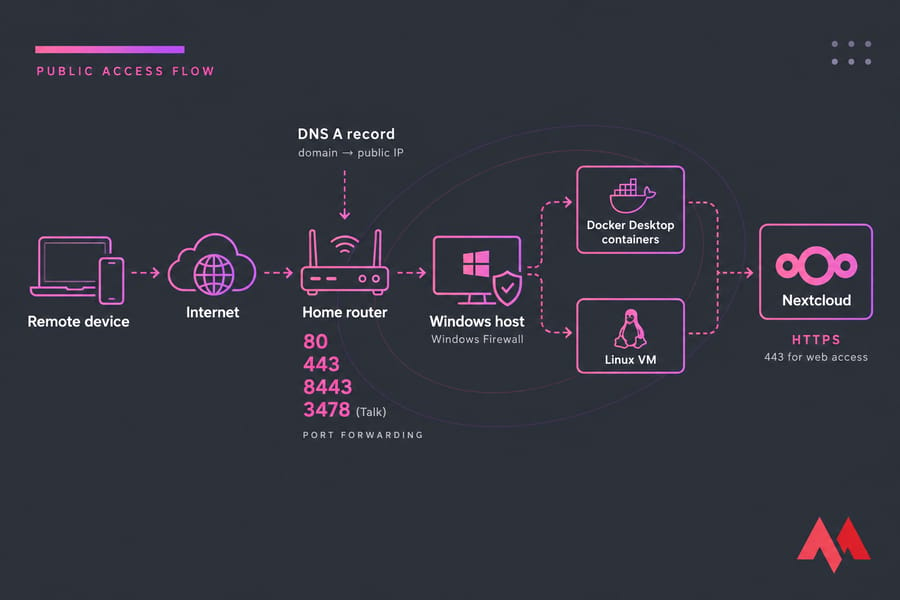
On a LAN, you only need Windows Firewall to allow inbound traffic on these ports. MonoVM's guide to open a port in Windows Firewall shows the GUI and command-line methods. For a bridged VM, the VM's own firewall is the one that matters.
Public access adds these steps:
- Reserve a static LAN IP for the Windows host or VM before setting up forwarding, or the rules break when DHCP hands out a new address.
- Forward ports 80, 443, and 8443 (plus 3478 for Talk) from the router to that IP.
- Point a DNS A record at your public IP, using dynamic DNS if your ISP changes it.
- Let AIO get a Let's Encrypt certificate, or terminate TLS at a reverse proxy such as Caddy or Nginx.
Never expose Nextcloud over plain HTTP on the internet, since passwords and files would travel unencrypted. Some ISPs block inbound port 80 or use CGNAT, and then a VPS is far easier than fighting your connection. On a server, install SSL on a VPS covers certificate setup.
Nextcloud security and performance best practices
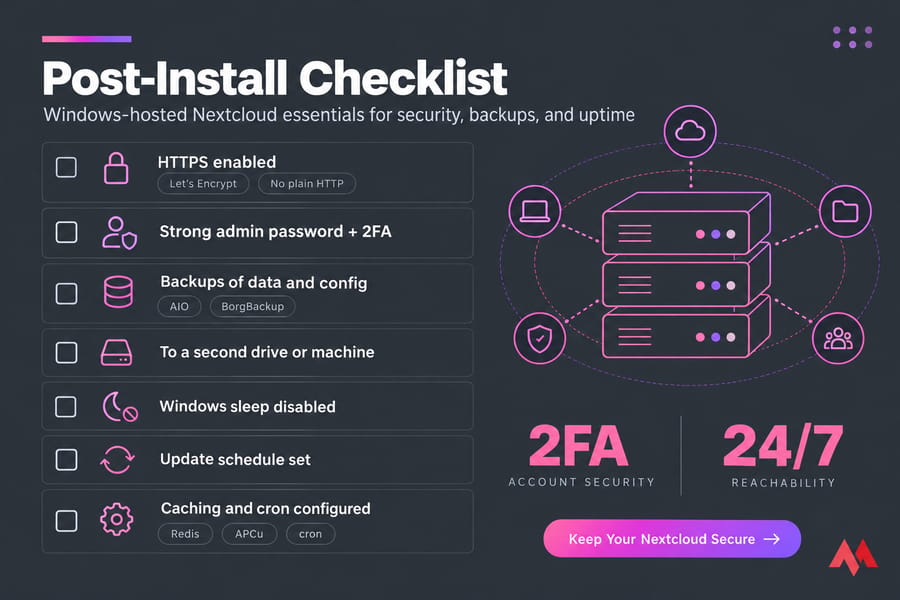
- Serve only over HTTPS, use a long unique admin password, and enable two-factor authentication from the apps page.
- Back up both the configuration and the data directory to a different drive or machine. AIO's built-in BorgBackup covers both.
- Keep Windows, Docker Desktop or the hypervisor, and Nextcloud updated. AIO updates its containers from the interface.
- If the server has to stay reachable, set Windows to never sleep or hibernate, and schedule update restarts outside working hours.
- Leave tuning for later. AIO already includes Redis caching and background jobs; on a manual install, add APCu/Redis and switch background jobs to cron once the basics work.
Say five staff at a small business need shared folders reachable from home, and the reception PC keeps restarting for updates. That's when to stop using Windows. A public-facing Nextcloud is easier to secure and keep online on a Linux server, and MonoVM's backup and VPS security guides cover the hardening.
Common Nextcloud on Windows errors and fixes
| Problem | Likely cause | Fix |
|---|---|---|
| Docker Desktop won't start | Virtualization disabled, or WSL 2 not installed | Enable VT-x/AMD-V in BIOS, then run wsl --update |
| "Port is already allocated" on 80 or 443 | IIS, Skype, XAMPP, or another web server holds the port | Run netstat -ano | findstr :80, find the PID, then stop or reconfigure that service |
| Works on localhost, not from a phone | Windows Firewall blocks inbound, or VM is on NAT | Add inbound rules; switch the VM to a bridged adapter |
| Domain validation fails in AIO | Ports 80/8443 not forwarded, DNS wrong, or ISP CGNAT | Check forwarding and DNS; use Tailscale or a VPS if behind CGNAT |
| Containers fail on custom data folder | Windows-style path in NEXTCLOUD_DATADIR |
Use /run/desktop/mnt/host/c/... format and recreate the mastercontainer |
| Slow first load or sync timeouts | Host sleeping or disks spinning down | Disable sleep and USB/disk power saving |
| Site down after reboot | Docker Desktop waits for user sign-in | Enable auto-start, or move to a VM/VPS |
Docker vs. virtual machine vs. VPS for Nextcloud
| Factor | Docker Desktop + AIO | Linux VM on Windows | Linux VPS |
|---|---|---|---|
| Setup speed | Fastest | Slower (OS install first) | Fast once provisioned |
| Reliability | Tied to Windows sessions and updates | Tied to the host staying on | Data center uptime |
| Update friction | Windows + Docker + AIO | Windows + hypervisor + Linux | Linux only |
| Portability | AIO backups restore anywhere | Export the whole VM | Snapshots and AIO backups |
| Public hosting readiness | Weak (home IP, CGNAT risk) | Moderate | Strong (static IP, open ports) |
| Scalability | Limited by your PC | Limited by your PC | Upgrade the plan |
On a Windows 11 Pro home lab with 16 GB of spare RAM, Docker Desktop and AIO will be running in under an hour, which is fine for learning. A Hyper-V VM keeps Nextcloud separate from your daily Windows use. Anything people rely on daily belongs on a Linux server. A Windows VPS doesn't help, because the support problem is Windows itself, so choose a Linux plan: MonoVM's Nextcloud VPS or a general Linux VPS.
Final verdict: the best way to run Nextcloud on Windows
Every working method puts Linux underneath Nextcloud somehow. Here's what I'd pick:
- For beginners on a Windows PC, Docker Desktop with Nextcloud AIO is the quickest working setup.
- For learning, a Linux VM on Hyper-V or VirtualBox gives you a proper server environment and shows how Nextcloud is built.
- For real-world hosting, a Linux VPS gives you a static IP, simpler HTTPS, and no sleeping desktop.
Test on Windows, then take an AIO backup and restore it on a server once you trust the setup. For an always-on private cloud without Windows workarounds, deploy Nextcloud on a VPS.

An experienced tech and developer blog writer, specializing in VPS hosting and server technologies. Fueled by a passion for innovation, I break down complex technical concepts into digestible content, simplifying tech for everyone.