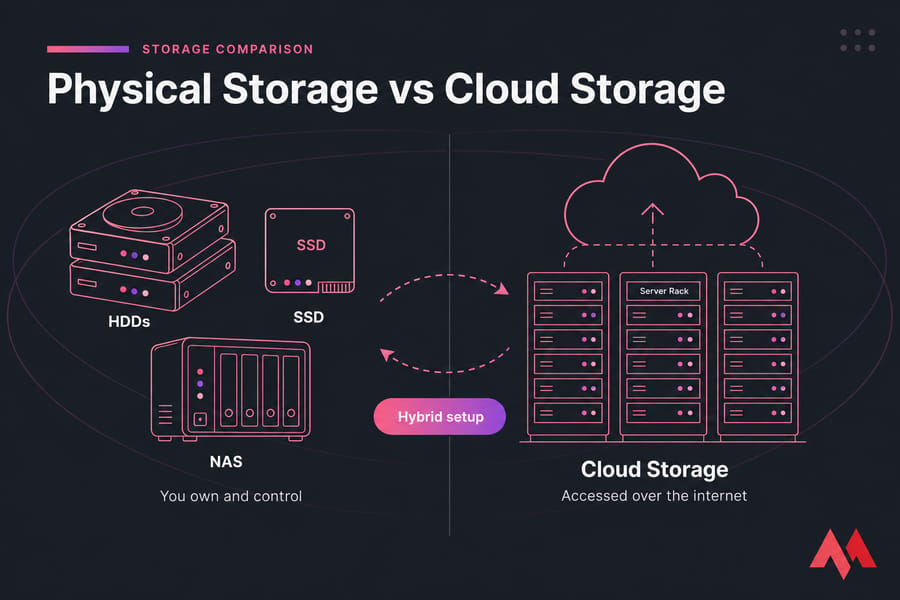
Here's the short version: physical storage means data sits on hardware you own and control HDDs, SSDs, NVMe drives, USB sticks, NAS boxes, dedicated servers. Cloud storage means data lives on someone else's infrastructure, accessed over the internet. Neither one is universally better. The right call depends on cost, speed, security, scalability, and how you plan to back things up.
If you mostly work alone, edit large local files, and care about offline access, physical storage usually wins. If you work across devices, share files with a team, or need elastic capacity without buying hardware, cloud storage tends to come out ahead. And honestly? Most serious setups end up using both.
The short answer for most users
For personal files and active work local storage. For sharing, syncing, and offsite backup cloud. For anything serious (a business, a website, regulated data), use a hybrid setup with both.
Side-by-side comparison table
| Factor | Physical Storage | Cloud Storage | Best For |
| Upfront cost | One-time hardware purchase | Low or zero to start | Cloud for low entry; physical for long-term ownership |
| Ongoing cost | Power, maintenance, replacement | Monthly/annual subscription | Physical for predictable spend |
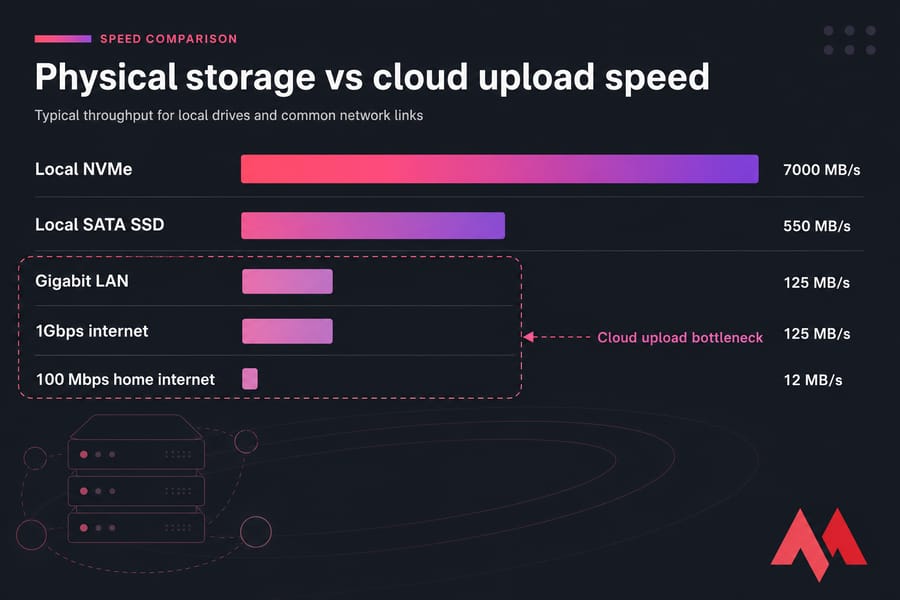
| Speed (local access) | Very fast (NVMe up to 7,000 MB/s) | Limited by your internet | Physical for editing, render, DB work |
| Remote access | Requires extra setup (VPN, NAS app) | Built-in from any device | Cloud for distributed teams |
| Scalability | Buy more drives, add bays | Click to upgrade plan | Cloud for elastic growth |
| Maintenance | You handle it | Provider handles it | Cloud for less hands-on work |
| Redundancy | RAID, multiple drives | Multi-region replication | Cloud usually safer by default |
| Offline access | Always available | Needs internet (sync apps cache locally) | Physical for travel/poor connections |
| Security control | You set everything | Shared responsibility model | Depends on your skill level |
| Collaboration | Limited unless on a server | Designed for it | Cloud for teams |
To choose correctly, you need to know what each model actually includes and it's broader than most people think.
What is physical storage in data storage?
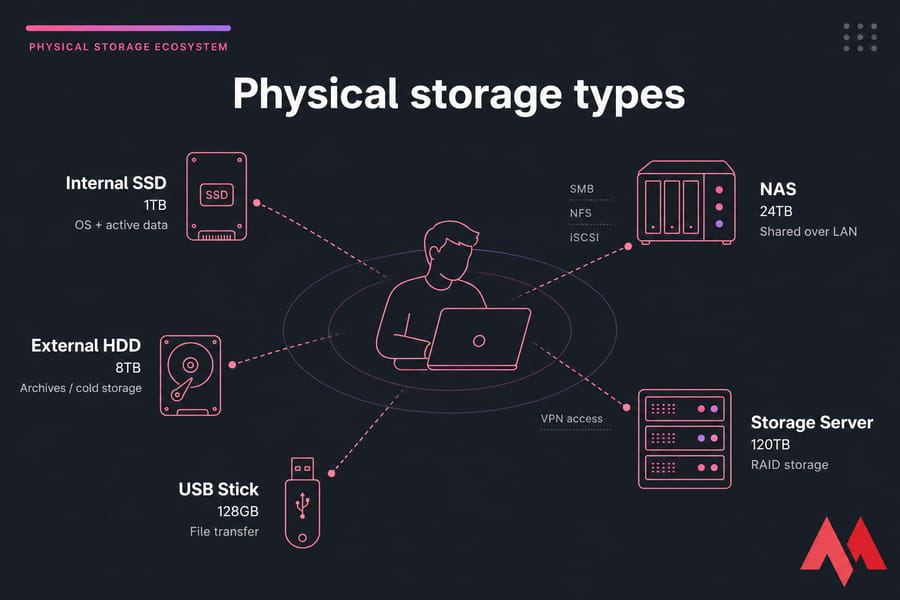
Physical storage is data kept on hardware you directly control. That includes the drive inside your laptop, an external SSD on your desk, the NAS in the office closet, and a rack-mounted dedicated server in a colocation facility. The defining trait isn't being "offline" it's ownership and physical control of the device.
This distinction is key to understanding broader infrastructure models, just like knowing what is cloud computing helps clarify the opposite end of the spectrum.
People often confuse "physical storage" with "stuff sitting on a shelf disconnected from any network." Not the same thing. A NAS exposed over your LAN is still physical storage. A dedicated storage server you rent in a data center is still, functionally, physical storage from your perspective you control the volumes, you decide what runs on it, you own the data layout.
Common types of physical storage devices
- Internal HDDs — cheap per terabyte, mechanical, slow but reliable for cold storage. Good for archives.
- SSDs — faster, no moving parts, the standard for OS drives and active data.
- NVMe drives — connect via PCIe, dramatically faster than SATA SSDs. Ideal for databases, video editing, virtualization.
- USB flash drives and external HDDs — portable, cheap, easy to lose. Fine for transfer, terrible as a sole backup.
- NAS (Network Attached Storage) — a small appliance with multiple drives, accessible over your network. Synology and QNAP dominate the home/SMB market.
- Dedicated storage servers — full servers loaded with high-capacity drives, often in RAID. The right call when you need terabytes of fast, controllable space.
How local and on-premise storage works
For a single drive, the OS mounts the device, you read and write files, and that's pretty much it. For NAS or on-prem servers, things get a bit more involved you've got network protocols (SMB, NFS, iSCSI), user permissions, and often RAID configurations that mirror or stripe data across multiple disks for redundancy or speed.
One thing worth flagging: physical doesn't mean isolated. A NAS can be reachable from anywhere if you set up VPN access. A dedicated server in a data center can serve files globally. The "physical" part refers to where the bits actually live, not whether anyone can reach them.
Who physical storage is best for
Video editors working with multi-gigabyte project files. Photographers handling RAW libraries. Developers running local databases. Anyone with strict compliance rules forcing data to stay on premises. And anyone who simply doesn't want their files riding on a third-party subscription forever.
What is cloud storage and how does it work?
Cloud storage keeps your data on remote servers usually spread across multiple data centers that you reach over the internet. You don't see the hardware. You don't replace failed disks. You pay a subscription (or per-GB fees) and the provider handles the messy parts: redundancy, hardware refresh, power, cooling, network.
Under the hood, providers replicate your data across multiple physical machines, and often across multiple geographic regions. Upload a file to a major cloud service and it's typically copied to at least three places before the upload "completes." That's why cloud storage tends to be remarkably durable the famous "eleven nines" durability claim for object storage isn't marketing, it's math from how many copies exist.
Public cloud storage vs private cloud storage
Public cloud storage is what most people mean by "the cloud" Google Drive, Dropbox, OneDrive, iCloud, AWS S3. You share infrastructure with millions of other customers. It's cheap, convenient, and not always the best fit for sensitive data.
Private cloud storage is hosted on infrastructure dedicated to you. That can be your own gear running cloud-like software, or a hosted setup like a VPS running Nextcloud. You get cloud features sync, sharing, version history without handing your files to a third party that mines them for metadata.
For high-capacity needs, a storage VPS gives you that control with room to grow.
How files are stored and synced in the cloud
Most consumer cloud services use a sync agent on your device. You drop a file into a watched folder, the agent uploads it, and within seconds it's available on your phone, your tablet, and your colleague's laptop. Behind the scenes, the service handles versioning (so you can roll back), conflict resolution, and partial uploads to save bandwidth.
Who cloud storage is best for
Remote teams. Anyone who switches between devices constantly. Small businesses that don't want to babysit hardware. People who've lost a laptop and want their stuff back instantly. Workflows where collaboration matters more than raw speed.
Cloud storage vs local storage: the key differences
This is where the comparison gets useful. Most "which is better" articles wave their hands at high-level pros and cons. Let's get specific.
Cost: upfront hardware vs recurring subscription
Physical storage is a CAPEX game. You buy a 4TB external SSD for around $250 and that's it no recurring bills (until it dies in five years). Cloud storage is OPEX. A typical 2TB plan runs $10–15/month, which is $120–180/year, every year, forever.
Run the math at five years: physical wins on pure storage cost. But that math ignores power, drive replacement, your time managing it, and the small but real risk of losing everything to a failed drive without a backup. Cloud's "expensive" subscription often includes redundancy, versioning, and recovery features you'd otherwise build yourself.
Speed: local performance vs internet dependency
An NVMe SSD can hit 7,000 MB/s. A typical home internet connection? Maybe 100 Mbps, which works out to about 12 MB/s. That's roughly 580x slower. For anything where you're moving big files often, local storage isn't just faster it's a different planet.
Cloud closes the gap when files are small, when you're already on a fast connection, or when the sync happens in the background while you do other work. But try editing 4K video off Google Drive and you'll feel the difference within thirty seconds.
Accessibility: offline access vs anywhere access
Local storage works on a plane. Cloud storage doesn't, unless you've cached files locally first. On the flip side, cloud lets you grab a file from any device anywhere — try doing that with the external drive sitting on your desk at home.
Scalability: fixed capacity vs elastic growth
You bought a 2TB drive. You've used 1.9TB. Now what? You buy another drive, plug it in, and reorganize. With cloud, you click a button and your plan upgrades. For unpredictable growth, that elasticity is genuinely valuable.
That said, "elastic" doesn't mean "free." Hit a serious scale and cloud bills get punchy. Egress fees in particular the cost of downloading your own data surprise a lot of people
Security: direct control vs provider-managed protection
Here's where things get nuanced, because the marketing on both sides is pretty misleading.
Physical storage gives you total control. It also gives you total responsibility. A drive without encryption that gets stolen is a data breach. A NAS exposed to the public internet without proper auth is a ransomware target. Owning the hardware doesn't make data secure your configuration does.
Cloud storage typically encrypts data at rest (often AES-256) and in transit (TLS). Major providers run mature security programs most small businesses can't match. But you're trusting the provider, you're vulnerable to account compromise (phishing, weak passwords, no MFA), and "zero-knowledge" encryption where even the provider can't read your files isn't the default on most consumer services.
If you're evaluating alternatives to the big names, our list of top Google Cloud alternatives covers providers with different security and privacy models.
Backup and disaster recovery differences
This is where people lose data. A single drive physical or cloud is not a backup. The 3-2-1 rule still applies: 3 copies of your data, on 2 different media, with 1 copy offsite.
Physical-only setups fail when fire, theft, or a building flood takes out everything in one location. Cloud-only setups fail when an account gets locked, a sync error overwrites good files with corrupted versions, or ransomware encrypts the synced folder.
Once the trade-offs are clear, the next step is to weigh each model's pros and cons head-on.
Physical storage advantages and disadvantages
Main benefits of physical storage
- Direct control. You own the device, you choose the encryption, you decide who gets access.
- No internet dependency. Your files work in a remote cabin, on a plane, during an ISP outage.
- One-time cost. Buy once, use for years. No monthly bill creeping up.
- Local transfer speeds. Plugging in beats uploading every time.
- Privacy. A truly local file isn't being scanned, indexed, or used to train anyone's model.
Main drawbacks of physical storage
- Hardware fails. All drives die. The question is when.
- Theft, fire, flood. One bad day in one location and everything's gone.
- Maintenance burden. You replace drives. You update firmware. You troubleshoot the NAS at 11pm.
- Limited scalability. Out of space means buying more hardware and shuffling things around.
- Weak collaboration. Sharing a 50GB project with a freelancer is genuinely annoying without cloud or server tooling.
Physical storage mistakes to avoid
Treating a single drive as a backup. (It's not.) Skipping RAID on a multi-drive setup that holds anything important. Leaving NAS shares unencrypted on a network with internet exposure. Forgetting that RAID isn't backup either it protects against drive failure, not file deletion or ransomware.
For users who need physical-grade control without managing the hardware in their own building, a storage dedicated server hits a nice middle ground your environment, somebody else's data center. This model also makes it easier to incorporate lessons from how distributed data management works when planning for resilience.
Cloud storage solves several of these issues. It also creates new ones.
Cloud storage advantages and disadvantages
Main benefits of cloud storage
- Anywhere access. Phone, tablet, work laptop, friend's computer — same files, everywhere.
- Easy sharing and sync. Send a link, done. No more emailing yourself attachments.
- Scalable capacity. Upgrade in 30 seconds when you fill the plan.
- Provider-managed redundancy. Your data is replicated across data centers automatically.
- Less hardware to babysit. No drives to replace, no firmware updates, no 11pm troubleshooting.
Main drawbacks of cloud storage
- Recurring cost. The bill never stops.
- Internet dependency. No connection, no files (mostly).
- Vendor lock-in. Try moving 5TB out of one provider into another. It's slow, expensive, and rarely fun.
- Privacy and compliance concerns. Where exactly is your data? Who has subpoena power over it? Does that fit your industry's rules?
- Egress fees and bandwidth limits. Some providers charge to download — yes, your own data.
Cloud storage mistakes to avoid
Assuming "cloud" automatically means "secure." It doesn't. Skipping MFA on accounts holding your entire business. Confusing sync with backup if a file gets corrupted on your laptop, that corruption syncs to every device. Ignoring versioning settings. And not reading the fine print on data ownership and provider rights.
If you've outgrown consumer cloud storage and want better control, this is exactly where a cloud VPS or a private setup starts to make sense. You can review the best cloud storage services if you'd rather stay with a managed consumer option.
So which actually wins for real-world use cases?
On-premise storage vs cloud storage for business use cases
Business decisions rarely come down to "which is technically better." They come down to "which actually fits how we work, what we can afford, and what we'll get audited on."
Small business file storage
For a small team say, 5–20 people sharing documents, spreadsheets, and proposals, cloud almost always wins. The collaboration features alone justify the cost. A NAS works too, but you'll spend time managing access, backups, and remote connectivity that the cloud handles by default.
Large media libraries and backups
Video production, photography studios, design agencies these workflows hammer storage. Active project files belong local (NVMe or SSD) for speed. Long-term archives belong somewhere cheaper: a dedicated storage server, or cloud archive tiers like S3 Glacier. Pure cloud here is painful and expensive. Pure local risks a fire wiping out years of work.
Team collaboration and remote work
Distributed teams need the anywhere-access model, which is why many use a VPS or cloud hosting setup to get the best of both worlds. Trying to coordinate a remote workforce on a NAS reachable only via VPN is a recipe for resentment and lost productivity. Pair cloud with a private option like a storage VPS if you need the collaboration layer without surrendering data sovereignty to a public provider.
Compliance-sensitive or latency-sensitive workloads
Healthcare, finance, legal, defense — industries where regulations dictate where data sits and who can touch it. On-premise or hosted private infrastructure usually wins because you can prove control. Same goes for latency-critical workloads (real-time analytics, video editing pipelines, certain database operations) where the round-trip to a cloud region adds unacceptable delay.
That said, newer architectures like edge computing vs cloud computing are starting to close this gap for specific use cases.
| Use Case | Recommended Option | Why |
| 5-person remote startup | Cloud (or hybrid) | Collaboration matters more than control |
| Video editing studio | Local + cloud archive | Speed for active work, cheap storage for old projects |
| Law firm with client files | On-prem or storage VPS | Compliance and data control |
| SaaS company | Cloud VPS + object storage | Scale and global delivery |
| Medical records | On-prem or HIPAA-compliant private cloud | Regulatory requirements |
| Personal photo library | Hybrid: NAS + cloud backup | Speed, capacity, and disaster protection |
For many buyers, the real comparison isn't abstract it's external drive, NAS, or server versus the cloud.
External hard drive, NAS, and storage server vs cloud storage
External hard drive vs cloud storage
An external hard drive is the cheapest entry point. Sub-$100 for a few terabytes. It's portable, requires zero setup, and works without internet. The downsides are real: it can fail, get lost, or get stolen. It's a single point of failure, and "I have an external drive" is not a backup strategy on its own.
Cloud beats external HDD for redundancy, sharing, and access from multiple devices. External HDD beats cloud for cost-per-TB, transfer speed, and offline reliability. The mature answer is to use both: external for fast local copies, cloud for offsite redundancy.
NAS vs cloud storage
A NAS gives you cloud-like features (sharing, syncing, sometimes mobile apps) on hardware you own. Synology and QNAP units run pretty good software. Setup takes a weekend if you're patient, plus the cost of the unit and drives.
NAS wins on local-network speed, ongoing cost (one-time hardware), and control. Cloud wins on simplicity, automatic redundancy, and not needing to think about it. NAS shines for households or small offices with consistent local access. It struggles when most users are remote.
Dedicated storage server or storage VPS vs cloud storage
This is the option most "physical vs cloud" articles skip entirely, and it's where things get interesting for serious workloads.
A storage VPS is hosted infrastructure where you get a virtual machine with a lot of disk space — terabytes, often on HDD for cost or SSD for speed. You control the OS, install whatever you want, and serve files however you like. It's not consumer cloud storage; it's an actual server you manage.
A dedicated storage server goes further: you get an entire physical machine with multiple drive bays. Maximum capacity, maximum control, no noisy neighbors.
This architecture is also dedicated server vs cloud server in terms of resource isolation, which matters when you're running I/O-intensive workloads.
Both options are great when you need:
- Self-hosted Nextcloud or similar private cloud platform
- Off-site backups for websites or apps
- Large media hosting or file distribution
- A central place for team or app data without consumer-cloud limitations
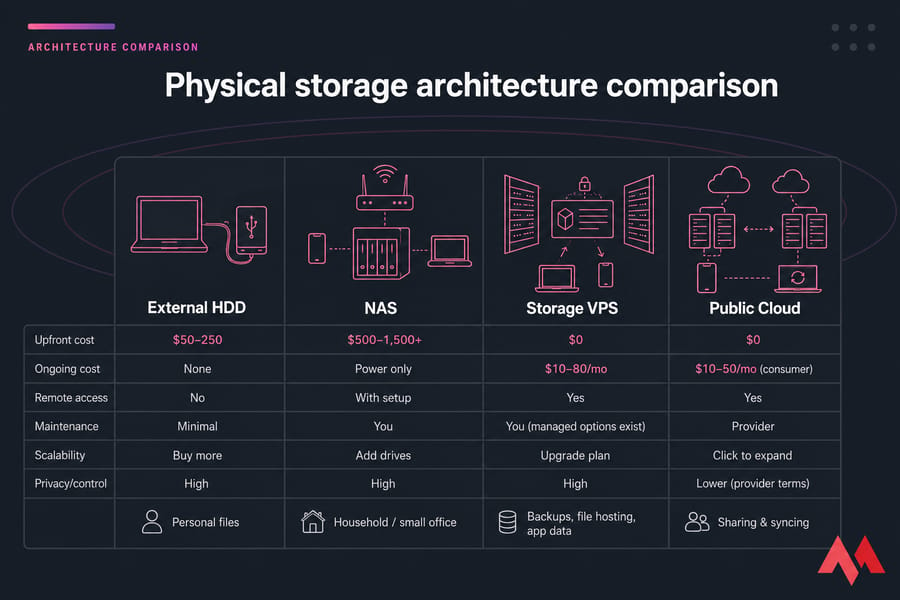
| Criterion | External HDD | NAS | Storage VPS | Public Cloud |
| Upfront cost | $50–250 | $500–1,500+ | $0 | $0 |
| Ongoing cost | None | Power only | $10–80/mo | $10–50/mo (consumer) |
| Remote access | No | With setup | Yes | Yes |
| Maintenance | Minimal | You | You (managed options exist) | Provider |
| Scalability | Buy more | Add drives | Upgrade plan | Click to expand |
| Privacy/control | High | High | High | Lower (provider terms) |
That's why many organizations don't pick one or the other they combine both.
When a hybrid storage solution is the best choice
Hybrid storage means using local and cloud together, deliberately, for what each does best. It's not complicated, and it's almost always the smart move once your data matters.
The classic framework is the 3-2-1 rule: keep 3 copies of important data, on 2 different types of media, with 1 copy stored offsite. A hybrid setup hits this naturally.
Hybrid example for small businesses
Active files live on a NAS in the office for fast local access. Documents under active collaboration sync through Google Workspace or a Nextcloud VPS. Nightly backups push to cloud archive storage. If the office floods, business resumes from the cloud. If the cloud account gets locked, the NAS keeps working.
Hybrid example for developers and websites
Production website runs on a cloud VPS. Database and media backups push nightly to a separate storage VPS in a different region. A weekly snapshot also gets pulled to a local NAS for paranoid-level redundancy. If anything blows up, multiple recovery paths exist.
Managing this across multiple environments is exactly the problem that multi-cloud management platforms are built to solve.
Hybrid example for backups and disaster recovery
Personal photos? Local copy on a NAS, working copy on the laptop, backup to cloud storage. Three copies, two media types, one offsite. The whole 3-2-1 thing handled without thinking about it.
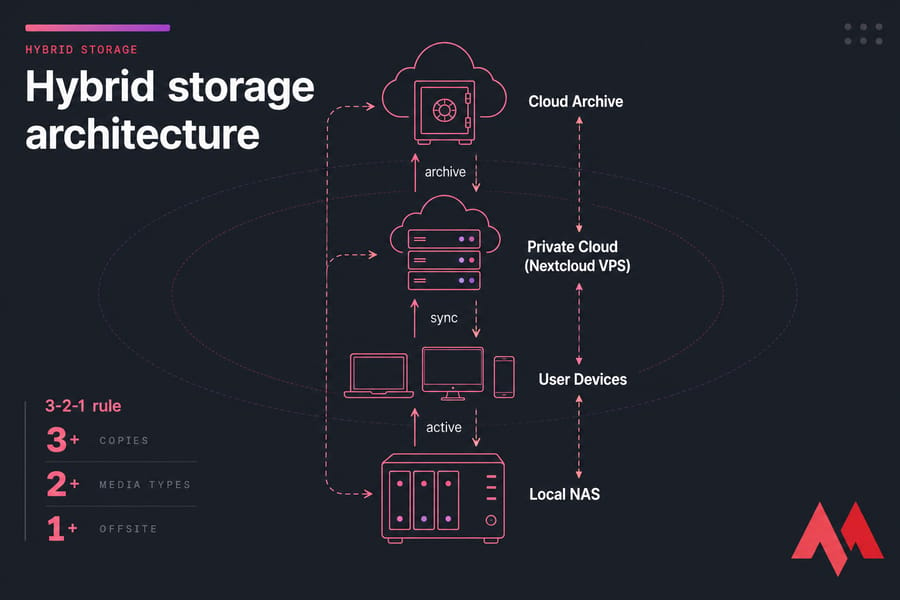
Hybrid sounds fancy. It isn't. It's just refusing to put all your eggs in one basket.
How to choose between physical storage and cloud storage
Here's a checklist that cuts through the noise.
7 questions to ask before deciding
- Do you need offline access? If yes, local storage is non-negotiable for at least part of the setup.
- Will multiple people use the files? Cloud (or a server-based local setup) makes this dramatically easier.
- How fast will storage needs grow? Unpredictable growth favors cloud. Steady or predictable favors physical.
- Is your internet stable and fast enough? Cloud falls apart on flaky connections.
- Do you need compliance or direct control? Regulated data usually means on-prem or private hosted infrastructure.
- Are you optimizing for upfront or monthly cost? CAPEX vs OPEX. Both work; pick the one your budget is built around.
- What's your backup and recovery requirement? If losing this data hurts, you need redundancy somewhere.
Best option by scenario
- Personal use (single user, mixed devices): Cloud storage with a local backup drive.
- Remote teams: Cloud first, with private cloud (Nextcloud VPS) if data sensitivity is high.
- Media editors and creatives: Local NVMe or NAS for active work, cloud archive for old projects.
- Server backups for websites/apps: Storage VPS or dedicated storage server with offsite cloud copy.
- Privacy-sensitive data: Self-hosted (Nextcloud on a VPS) or on-premise with strong encryption.
- Small business with growth ahead: Hybrid cloud collaboration, local NAS, scheduled cloud backups.
Final recommendation
For most readers landing on this page: don't pick one. Pick the right combination for your work, your budget, and your tolerance for losing data. Cloud-only is fragile in ways people underestimate. Physical-only is risky in ways people refuse to admit. Hybrid is boring, sensible, and almost always correct.

An experienced tech and developer blog writer, specializing in VPS hosting and server technologies. Fueled by a passion for innovation, I break down complex technical concepts into digestible content, simplifying tech for everyone.