
Logrotate is a Linux utility that archives, compresses, and removes old log files on a schedule. Its global settings live in /etc/logrotate.conf, while per-service policies normally sit in /etc/logrotate.d/. Write a policy, set frequency and retention, then validate it with sudo logrotate -d before you force anything.
Logrotate Configuration in Linux: The Short Version
Here's a working starting point for a fictional app that writes to /var/log/myapp/app.log:
/var/log/myapp/*.log {
    daily
    rotate 14
    compress
    delaycompress
    missingok
    notifempty
    create 0640 myapp adm
}
Don't paste that as-is and walk away. The owner, group, and — more importantly — whether your application reopens its log after rotation all need checking. That's the part most people skip, and it's why logs "rotate" while disk usage keeps climbing.
Read: How to Learn Linux
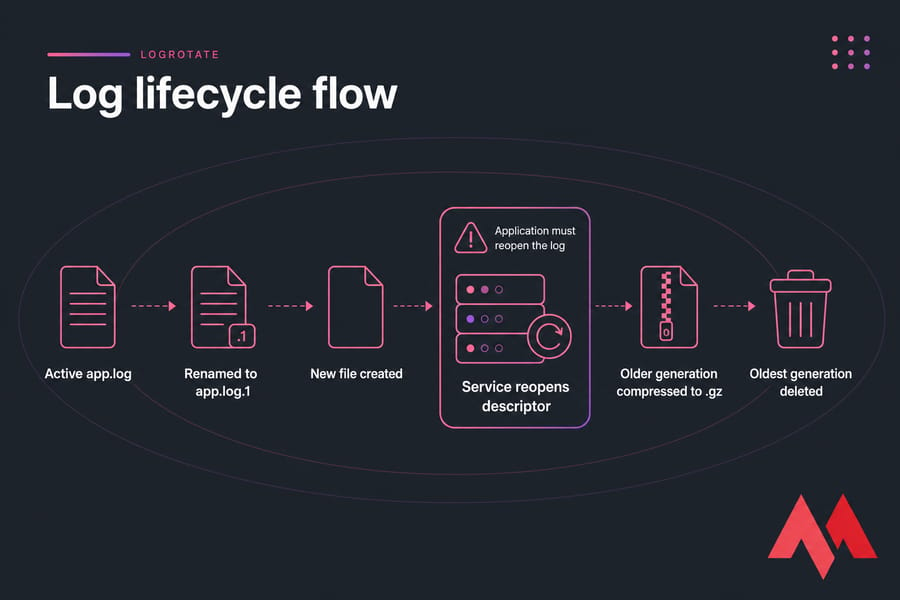
How Linux Log Rotation Actually Works
Logrotate isn't a daemon. It doesn't watch your files. It gets invoked periodically — by a systemd timer on most current distributions, or by /etc/cron.daily/logrotate on older ones — reads its policies, checks its state file, and decides what's due.
The sequence per log is roughly: rename (or copy) the active file, create a replacement or truncate the original, compress an older generation, then delete anything beyond your retention count.
The state file at /var/lib/logrotate/status records when each log was last rotated. This matters more than beginners expect. A perfectly valid policy will do nothing if the state file says the interval hasn't elapsed. Read it if you're curious — but don't edit or delete it as a "fix."
One more thing: your application holds an open file descriptor. Renaming the file doesn't move that descriptor. Unless the process is told to reopen its log, it happily keeps writing to app.log.1 forever. And journald? That's a separate subsystem with its own retention rules in journald.conf — Logrotate handles text files, not the binary journal.
If you got here because /var/log ate your partition, first check disk space in Linux to see what's actually consuming it.
Install Logrotate and Verify the Schedule
Open an SSH session first — if you need a hand, here's how to connect to your VPS. Then confirm what you have:
command -v logrotate
logrotate --version| Distribution | Install command | Scheduler check |
|---|---|---|
| Ubuntu / Debian | sudo apt update && sudo apt install logrotate |
systemctl status logrotate.timer |
| AlmaLinux / Rocky / RHEL | sudo dnf install logrotate |
systemctl list-timers --all | grep logrotate |
| Older releases (cron-based) | Package usually preinstalled | ls -l /etc/cron.daily/logrotate |
Here's a distinction that trips people up constantly. The timer controls how often Logrotate runs. Your policy controls whether a given log is due. A daily invocation does not mean every log rotates daily — a weekly policy still waits a week. If you're fuzzy on the scheduling side, our primer on how cron jobs work fills the gap.
Config File Locations and Syntax
The main file, /etc/logrotate.conf, sets global defaults and then pulls in everything else with a line like include /etc/logrotate.d. Package maintainers drop their policies into that directory. So should you.
Every block follows the same anatomy:
# comments start with a hash
/path/to/log {
    directive
    directive value
}
Directives inside a block override globals for that block only. You can list multiple paths, separated by spaces, and wildcards work fine.
Filename hygiene is worth thirty seconds of attention: keep names simple and alphanumeric. Some packages skip files with suffixes like .bak or dots, and behaviour varies by build. So if you back up a policy before editing, store the copy outside /etc/logrotate.d/. Need editor basics? See edit a file in Linux.
Configure Logrotate for a Custom Application: Five Steps
Step 1 — identify the writer. You need to know which process holds the file open:
ls -l /var/log/myapp/app.log
sudo lsof /var/log/myapp/app.log
That output gives you the owner, group, mode, and the PID. Useful background: inspect running Linux processes.
Step 2 — create the policy file. Something like sudo nano /etc/logrotate.d/myapp. If Nano's new to you, edit the policy with Nano walks through the keystrokes.
Step 3 — write it. Every placeholder below needs replacing with your real values:
/var/log/myapp/*.log {
    daily
    rotate 14
    missingok
    notifempty
    compress
    delaycompress
    dateext
    create 0640 myapp adm
    su myapp adm
    sharedscripts
    postrotate
        /usr/bin/systemctl kill -s HUP myapp.service >/dev/null 2>&1 || true
    endscript
}
Step 4 — check the reopen mechanism. The HUP signal and the unit name in that snippet are examples. Read your application's documentation. Some apps use USR1, some need a graceful reload, some rotate their own logs and want no help from you at all.
Step 5 — validate, then verify. Run sudo logrotate -d /etc/logrotate.conf and read the output for your block. After a real rotation, confirm the app is writing to the new file — not the renamed one.
Ownership and mode bits are load-bearing here. If create values are wrong, the app may lose write access. Refresher: Linux file permissions.
Essential Directives, With the Caveats
| Directive | Purpose | Caveat |
|---|---|---|
hourly / daily / weekly / monthly / yearly |
Time-based trigger | hourly is useless unless the scheduler runs hourly too |
size 100M |
Rotate when the file exceeds a threshold | Only evaluated when Logrotate is invoked; nothing is watched live |
minsize / maxsize |
Combine size with time conditions | minsize delays a due rotation; maxsize can trigger one early. They behave differently — check man logrotate |
rotate 14 |
Keep 14 rotated generations | Generations, not calendar days |
maxage 30 |
Delete archives older than 30 days | An extra constraint, not a substitute for a sane schedule |
dateext / dateformat |
Name archives by date instead of a counter | Changing naming mid-life can orphan old archives |
compress / delaycompress / nocompress |
Gzip archives | delaycompress leaves the newest archive uncompressed for one cycle — needed when a process may still write to it |
missingok / notifempty |
Skip absent or empty logs quietly | Without missingok, a missing path produces errors |
create 0640 user group |
Create the replacement file | Does not tell the app to reopen anything |
su user group |
Run rotation as that user/group | Fixes "insecure parent directory" refusals; it's not just ownership |
olddir /var/log/archive |
Move archives elsewhere | Directory must exist with correct permissions |
prerotate / postrotate / firstaction / lastaction |
Run scripts around rotation | Always close with endscript; use absolute paths |
sharedscripts |
Run scripts once per block, not per matched file | Without it, a wildcard block reloads your service five times |
Practical Examples
Size-driven policy. Use when volume is unpredictable rather than daily-steady:
/var/log/myapp/app.log {
    size 100M
    rotate 10
    compress
    missingok
    notifempty
    create 0640 myapp myapp
}
Nginx. Look at /etc/logrotate.d/nginx before you touch anything — the package already ships a correct policy, and Nginx reopens its logs on USR1. Same story for Apache: apache2 on Debian/Ubuntu, httpd on RHEL-family, both with a documented graceful reload. If you're setting up a stack from scratch, our guides on installing Nginx on Ubuntu and hosting a website on a Linux VPS cover the surrounding config.
Roughly 30 days of history: daily plus rotate 30. Approximately — empty or missing logs on some days mean fewer generations than calendar days.
Test Safely, Force Carefully
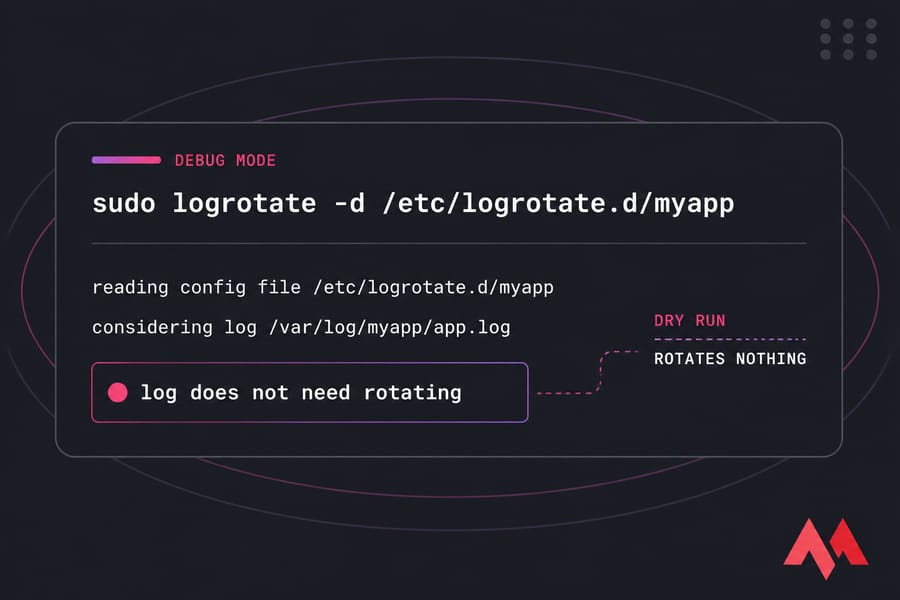
Start with debug mode. It prints decisions, rotates nothing, and leaves the state file alone:
sudo logrotate -d /etc/logrotate.confVerbose mode is not a dry run. It talks more and it will perform rotations that are due:
sudo logrotate -v /etc/logrotate.confForcing is the blunt instrument. Pointing -f at the main config may rotate every included policy on the box — rarely what you want on production. Target one file instead:
sudo logrotate -f /etc/logrotate.d/myappBetter still, test against a disposable state file so you don't corrupt real timing records:
sudo logrotate -d -s /tmp/logrotate-test.status /etc/logrotate.d/myappThen verify: archive exists, permissions match, compression timing matches your directives, and the application is writing to the fresh file. Check sudo journalctl -u logrotate.service for errors.
copytruncate vs create
| Criterion | create + reopen signal |
copytruncate |
|---|---|---|
| Method | Rename, create replacement, signal app to reopen | Copy the file, then truncate the original in place |
| App support needed | Yes | Usually no |
| Data-loss window | Minimal when implemented correctly | Lines written between copy and truncate can vanish |
| Large files | Cheap — just a rename | Copies the entire file |
| Descriptor behaviour | Process must reopen | Process keeps the same descriptor |
| Best for | Services with signals or graceful reload | Legacy apps that simply cannot reopen |
I reach for copytruncate</code only when there's no alternative. It works, and it's genuinely convenient — but that race window is real, and on a multi-gigabyte log the copy itself hurts.
Logrotate Not Working? Start Here
| Symptom | Likely cause | Check |
|---|---|---|
| "log does not need rotating" | Interval hasn't elapsed per the state file | logrotate -d; test with -s /tmp/test.status |
| Policy ignored entirely | Bad filename or syntax error | Confirm include path; read debug output |
| Insecure parent directory | Directory writable by a non-root user | sudo namei -l /var/log/myapp/app.log |
App still writing to .1 |
Descriptor never reopened | sudo lsof /var/log/myapp/ |
| New log has wrong owner | create values wrong |
sudo stat /var/log/myapp/app.log |
postrotate fails |
Wrong path or unit name | Run the command manually; check the journal |
| Never runs at all | Timer disabled or cron broken | systemctl list-timers --all |
| Disk still full | Deleted file held open by a process | sudo lsof +L1, then compare du and df |
That last row explains a classic head-scratcher: du says the space is free, df says it isn't. Something is still holding a deleted file open. Reopen or restart the writer. And no — chmod 777 is never the answer. For access errors, see fix permission denied errors.
Retention and Best Practices
There's no universally correct retention period. Base it on incident response needs, legal obligations, and how much storage you can spare. Keep authentication and customer-data logs tight — 0640 is a reasonable default, not a rule. Broader hardening: secure a Linux server.
A few habits worth adopting:
- Keep monitoring disk capacity after rotation is configured — use VPS monitoring tools rather than trusting a policy blindly.
- Ship important logs off the server. Compressed local archives are not a forensic record and they aren't a backup — that's what a proper plan to back up a server or VPS is for.
- Use package-maintained policies where they exist.
- Manage journald through
journald.conf(SystemMaxUse,RuntimeMaxUse) andjournalctl --vacuum-size— not Logrotate. - Containers usually log to stdout/stderr; rotation there belongs to the runtime or platform.
If log volume grows with traffic, add storage and monitoring rather than logging less. A Linux VPS with full root access gives you control over Logrotate, systemd units, permissions, and disk headroom as your workload scales.

An experienced tech and developer blog writer, specializing in VPS hosting and server technologies. Fueled by a passion for innovation, I break down complex technical concepts into digestible content, simplifying tech for everyone.