If you need to migrate from shared hosting to KVM VPS or move an older OpenVZ workload into a better environment, the safest path is pretty straightforward: back up everything, provision the new KVM VPS, rebuild the software stack, transfer files and databases, test on the new server before public cutover, lower DNS TTL, and only then switch traffic. The one big catch? OpenVZ to KVM migration usually isn't a direct copy-and-boot job. In most cases, you rebuild the environment and move the data over cleanly. When moving away from restrictive environments, understanding what is VPS server architecture and its dedicated resources helps you structure your new migration plan effectively.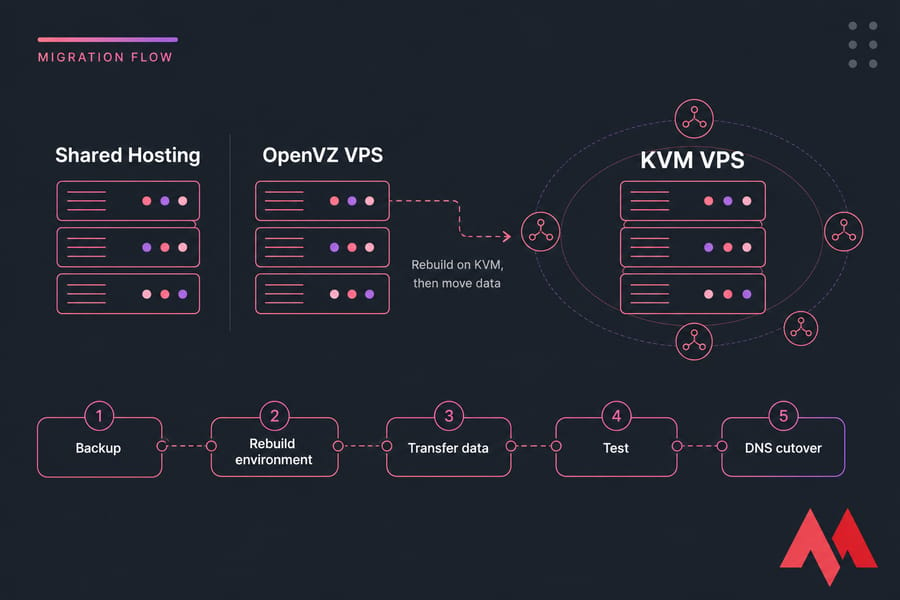
Key takeaway: OpenVZ migrations usually require rebuilding services on KVM rather than copying the container directly.
I've seen people treat this like a simple file copy. That's where trouble starts. The site might load, but email breaks, cron jobs stop running, SSL disappears, or the PHP version on the new box doesn't match the old one. So the goal here isn't just "move stuff." It's to move it without creating a mess you'll spend all weekend cleaning up.
Before you start, make sure you have:
- access to your current hosting account or OpenVZ VPS
- domain and DNS access
- database credentials
- SSH or control panel access, if available
- a fresh KVM VPS already provisioned
- off-server backups
- a maintenance window if the site is busy or revenue-generating
🚀 Why upgrade from OpenVZ or shared hosting to a KVM VPS
Most people don't move because they're bored. They move because the old setup is starting to get in the way.
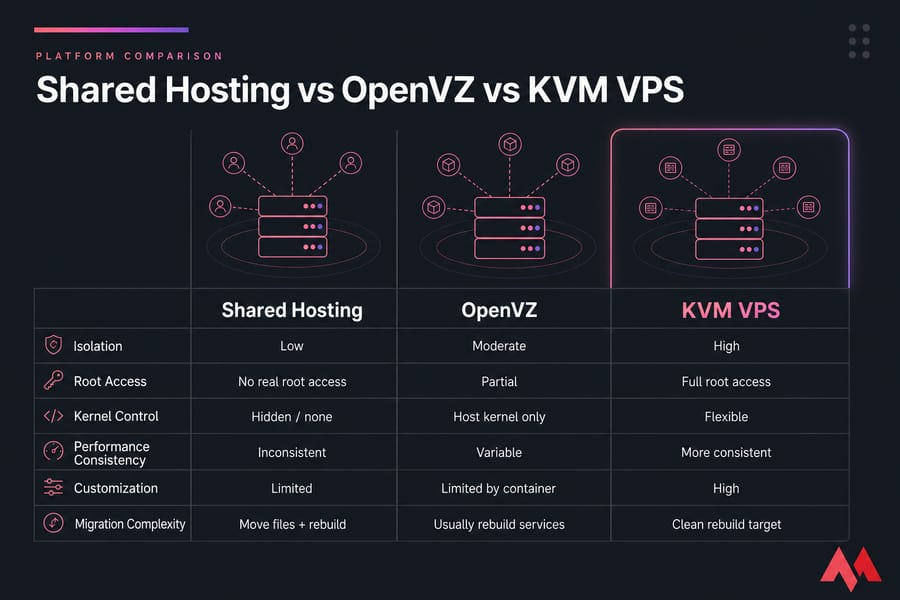
With shared hosting, the usual pain points are familiar: noisy neighbors, CPU throttling, plugin or application limits, and basically no real root access. You're living inside somebody else's rules. That's fine for a tiny brochure site. It gets old fast once you need custom packages, more memory, better caching, or predictable performance.
OpenVZ users usually hit a different wall. OpenVZ is container-based virtualization, so you're still tied to the host kernel. That means weaker kernel-level flexibility, less isolation than a true virtual machine, and fewer options when you need custom modules or distro-specific behavior. If you've ever tried to tune something low-level on OpenVZ and realized the answer was "you can't," you already know why people start looking at KVM.
A KVM VPS gives you a cleaner setup:
- Full virtualization so your VPS behaves like a real virtual machine
- Better resource isolation which helps with consistency under load
- Root access for package installs, firewall control, and service tuning
- Kernel flexibility that OpenVZ simply doesn't offer in the same way
- Wider OS and software compatibility for modern workloads
If you're moving for stronger isolation and root-level control, a KVM VPS gives you a cleaner long-term foundation than legacy container-based environments. That's the practical reason this upgrade makes sense.
And no, KVM isn't magic. You still have to size the VPS correctly, secure it, and maintain it. But if performance, compliance, stability, or customization matter, the move is usually justified. Choosing an infrastructure tailored to system administration and software engineering requires reviewing specific hardware options from the best VPS providers that prioritize root access and Kernel independence.
If you want a deeper breakdown of the platform differences, read KVM vs OpenVZ and shared hosting vs VPS hosting.
💡 When shared hosting becomes a bottleneck
You'll usually feel it before you can neatly measure it. Admin pages slow down. Background jobs time out. Caching plugins stop masking the deeper issue. And support replies with something vague about "resource usage."
A common example is a WordPress site that started small, then added WooCommerce, page builders, analytics scripts, and a few too many plugins. On shared hosting, it works until traffic spikes. Then checkout drags, image processing stalls, and backups take forever.
💡 Why OpenVZ users move to KVM
OpenVZ can still run lightweight workloads, but when you need proper isolation and less dependence on the host's kernel setup, KVM is the safer bet. I've seen migrations happen purely because one app update exposed a kernel/module limitation in the old container environment.
That kind of problem is frustrating because it isn't always your fault — but you still have to fix it.
💡 Who should not migrate yet
If your site is tiny, static, and barely uses any resources, a VPS may be overkill. Same story if you aren't ready to manage updates, services, and security, or don't have managed help lined up. A VPS gives you freedom. It also gives you responsibility.
Before moving, understand what actually changes.
🚀 KVM VPS migration basics: what changes after the move
The word "migration" makes this sound like a lift-and-shift. Sometimes it is. More often, it isn't.
With KVM, you're moving into a virtual machine running under a hypervisor. OpenVZ, by contrast, is container-based virtualization that shares the host kernel. Shared hosting is even more restricted — you usually get a control panel and very limited control of the underlying server.
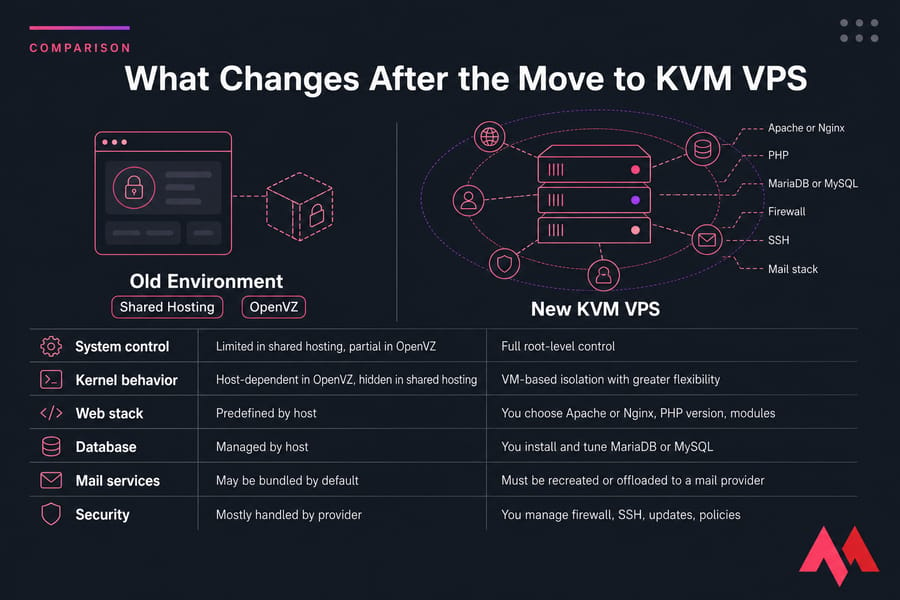
So what changes after the move? A lot, honestly.
| Area | Old Environment | New KVM VPS |
|---|---|---|
| System control | Limited in shared hosting, partial in OpenVZ | Full root-level control |
| Kernel behavior | Host-dependent in OpenVZ, hidden in shared hosting | VM-based isolation with greater flexibility |
| Web stack | Predefined by host | You choose Apache or Nginx, PHP version, modules |
| Database | Managed by host | You install and tune MariaDB or MySQL |
| Mail services | May be bundled by default | Must be recreated or offloaded to a mail provider |
| Security | Mostly handled by provider | You manage firewall, SSH, updates, policies |
What stays the same is your actual application data: website files, databases, media uploads, user accounts inside the app, and your domain names. What often needs to be rebuilt is the environment around that data — web server, PHP version, extensions, database engine, mail handling, firewall rules, SSL setup, cron, and service configs.
That's why I tell people this plainly: migration often means rebuilding the environment plus moving the data, not cloning everything bit-for-bit.
Before purchasing your new server, it is highly critical to examine what to consider when choosing VPS hosting to verify allocation specs match your target environmental needs.
If you need a quick primer, see what is KVM virtualization. And if you're still getting comfortable with the basics, a general guide on VPS environments can help too.
Once you know what changes, prepare before touching DNS.
🚀 VPS migration checklist before moving your website
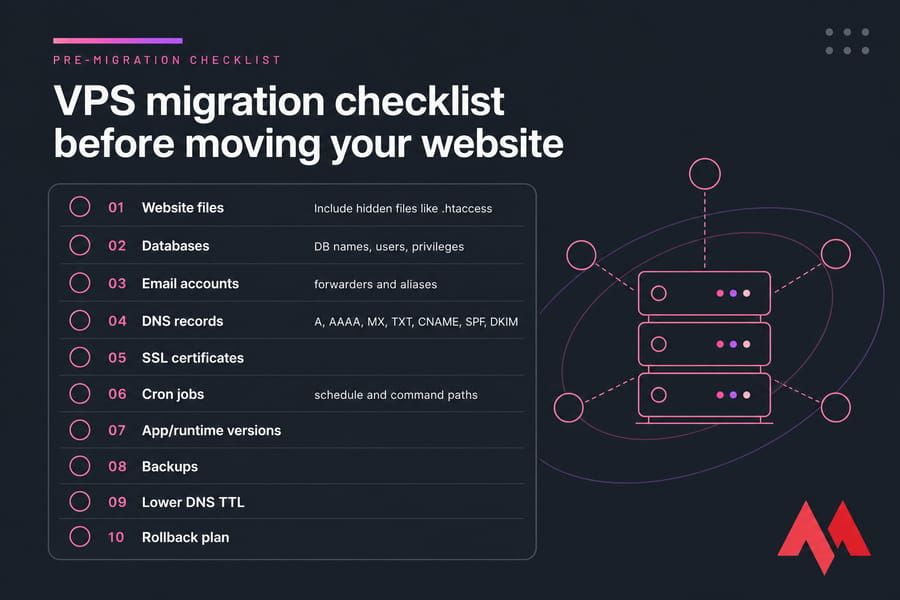
This part is a bit tedious, honestly. It's also the part that prevents late-night panic.
Don't begin by copying files. Begin with an inventory. You need to know exactly what exists on the old platform before you can reproduce it on the new one.
💡 Audit websites, apps, databases, email, and cron jobs
Make a list of every moving part. Not just the main domain. Everything.
| Item | Where to Find It | Backed Up? | Notes |
|---|---|---|---|
| Website files | File Manager, FTP, SSH, web root | Yes/No | Include hidden files like .htaccess |
| Databases | phpMyAdmin, MySQL CLI, app config | Yes/No | Note DB names, users, privileges |
| Email accounts | cPanel, DirectAdmin, mail client, mail dirs | Yes/No | Include forwarders and aliases |
| DNS records | Registrar, DNS provider, control panel | Yes/No | A, AAAA, MX, TXT, CNAME, SPF, DKIM |
| SSL certificates | Control panel, Let's Encrypt, Certbot | Yes/No | Can be reissued, but note current setup |
| Cron jobs | cPanel cron, crontab, app scheduler | Yes/No | Capture schedule and command paths |
| App/runtime versions | PHP info, package manager, panel settings | Yes/No | PHP modules matter more than people think |
| Users and permissions | System accounts, app roles, file ownership | Yes/No | Check web user and group settings |
- List all domains and subdomains
- Record document roots and application paths
- Note PHP version, extensions, and custom ini settings
- Identify whether the site uses Apache, Nginx, or both
- Check database engine versions and authentication methods
- Document email accounts, mailboxes, aliases, and forwarders
- Export existing DNS records
- Capture cron jobs exactly as they run now
- Note SSL certificate source and renewal method
💡 Lower DNS TTL before migration
Lower TTL 24 to 48 hours before the cutover if you can. That's one of the easiest ways to reduce downtime during website migration.
A practical TTL value is often 300 seconds for the records you'll change, usually the A record. If your DNS host doesn't update instantly, don't worry — just do it as early as possible. This won't remove propagation entirely, but it shortens the lag for many users.
💡 Create full backups and a rollback plan
Backups need to be fresh, off-server, and restorable. That's the standard. Anything less is wishful thinking.
At minimum, back up:
- website files
- all databases
- email data if mail is hosted on the old account
- DNS zone details
- SSL-related files if you're preserving custom certificates
- cron job definitions
- important config files
And test that the backups actually open and restore. I've seen people proudly announce they had backups, only to discover the SQL dump was truncated or the archive missed hidden files.
If you need a refresher, here's how to back up a server or VPS.
Your rollback plan should answer three questions:
- What triggers a rollback?
- How long will you keep the old environment online?
- Who changes DNS back if something breaks?
Also, freeze content updates near cutover. For a blog, that may mean pausing publishing for an hour. For ecommerce, it may mean a maintenance window or temporary order freeze during final sync. Not fun, but far better than losing transactions.
Quick summary: Audit first, back up second, build the new server third, switch DNS last.
If you're new to this part of server prep, it helps to read how to set up a VPS for beginners.
If you're coming from shared hosting, follow this path.
🚀 How to migrate from shared hosting to a KVM VPS step by step
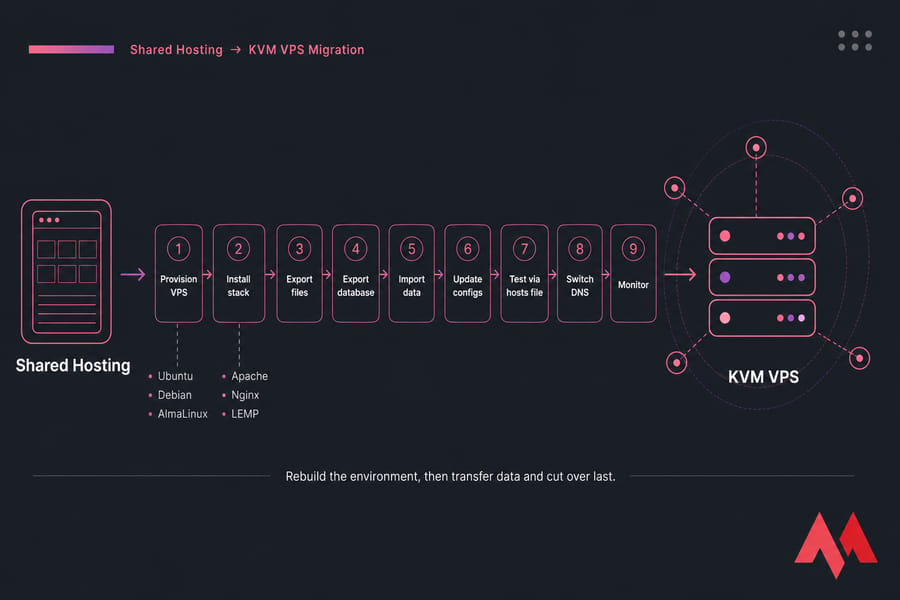
Shared hosting to VPS migration is usually easier than OpenVZ to KVM, but people still underestimate it. The big shift is that your host stops hiding the server layer from you. Now you need to recreate it.
💡 Export website files and databases
- Provision the new KVM VPS. Choose your OS first. Ubuntu, Debian, and AlmaLinux are common choices. Pick the one you're comfortable maintaining. For full environment orchestration, advanced system administrators and code deployers rely heavily on specialized VPS for developers layout implementations.
- Connect to the new server. Use SSH from your terminal or a client like PuTTY. If you need help with that, here's how to connect to your VPS.
- Decide on the stack. If your site ran under Apache on shared hosting, keeping Apache at first may reduce surprises. If you're comfortable with Nginx or a LEMP stack, that's fine too — just don't change everything at once unless you like debugging five variables at once.
- Export site files. Use cPanel File Manager, DirectAdmin, FTP, SFTP, or SSH. Grab the full web root, including hidden files such as
.htaccess, environment files, and upload directories. - Export the database. For smaller sites, phpMyAdmin is fine. For larger databases, I prefer a command-line dump because it's more reliable.
mysqldump -u dbuser -p dbname > dbname.sqlIf you're moving a cPanel site, a full cPanel backup can help, but don't assume the destination will restore it automatically unless you're using a compatible panel setup. A lot of people searching for "move cPanel site to VPS" expect a one-click restore. Sometimes you get that. Sometimes you really don't.
💡 Recreate the web stack on the KVM VPS
Install the software your app expects:
- Apache or Nginx
- PHP and the correct extensions
- MariaDB or MySQL
- optional control panel, if you want one
- mail services, if you're hosting email on the VPS too
Match the old PHP version closely at first. You can modernize later. Migration day is not the best moment to discover your app breaks on PHP 8.3 because it was quietly surviving on PHP 7.4.
A WordPress example: if the site used mod_rewrite, specific PHP modules, and image libraries on shared hosting, make sure those exist on the new VPS before importing anything. Otherwise permalinks fail, images don't process correctly, or admin pages behave strangely.
💡 Import data and update configuration files
- Upload website files to the correct document root.
- Create the new database and user on the VPS.
- Import the SQL dump.
mysql -u dbuser -p dbname < dbname.sql- Update the app configuration with the new database host, username, password, socket or port if needed, and any environment variables.
- Fix file ownership and permissions. This matters a lot. Shared hosting often hides the details, while VPS hosting doesn't.
- Recreate cron jobs using
crontab -eor your control panel scheduler. - Recreate email accounts if your mail is moving too. Also update MX, SPF, DKIM, and DMARC records when appropriate.
- Restore SSL by reissuing a Let's Encrypt certificate or reinstalling your existing cert files.
For WordPress, don't forget wp-config.php, permalink behavior, cache plugin settings, and any hard-coded paths or URLs in plugins. Most WordPress migrations work fine, but the weird issues usually come from config leftovers, mixed content, or file permission problems.
If you want a deeper walkthrough for this path, see how to migrate a website from shared hosting to VPS and, for WordPress specifically, guides on setup and optimization. If you're building the site fresh on the new VPS first, this can help with installing WordPress on VPS.
💡 Test before changing DNS
Pro tip: Use a hosts file override to validate the new server before public DNS changes.
Test the new server before your real domain points to it. You can do that with:
- a temporary URL or preview hostname
- a local hosts file override mapping your domain to the new VPS IP
Check:
- homepage and inner pages
- admin login
- forms
- checkout or payment flow if applicable
- image loading
- redirects
- SSL behavior
- database writes
Warning: If email is hosted with your shared account, migrate mailboxes and DNS records before canceling old hosting.
Once testing is clean, update DNS and monitor. If you need help with the DNS side, here's how to point your domain to a VPS.
A quick real-world example: a WordPress store on shared hosting with cPanel, phpMyAdmin, and email accounts can usually be moved in a few hours if the stack is straightforward. The longest delays are often DNS propagation and mailbox handling, not the file copy itself.
🚀 Ready to move to a KVM VPS without guessing?
If your current shared hosting or OpenVZ setup is limiting performance, KVM VPS hosting from MonoVM gives you dedicated resources, stronger isolation, and the flexibility to rebuild your stack properly.
🚀 How to handle OpenVZ to KVM migration safely
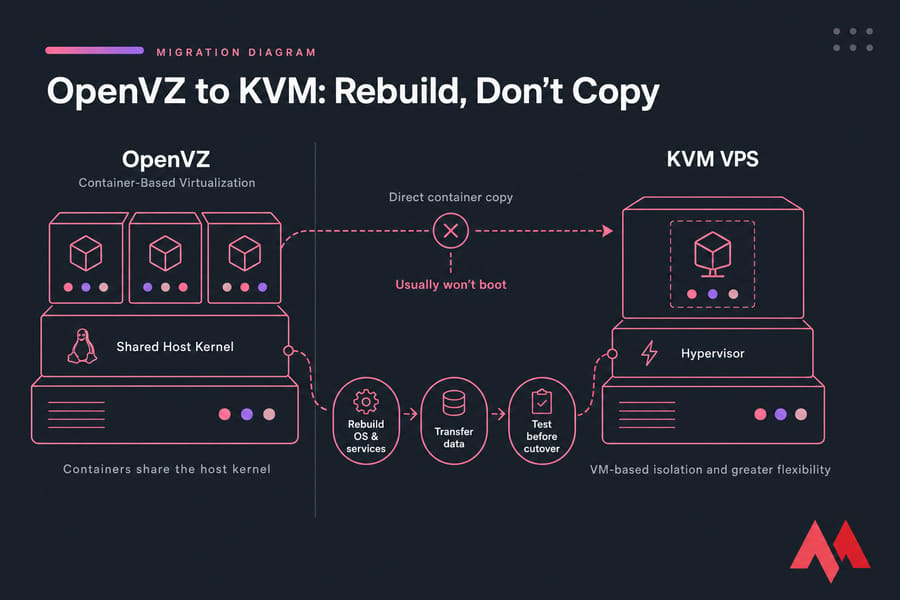
Now here's the thing. OpenVZ to KVM migration is not the same as shared hosting to VPS migration, and treating them like the same job is where people get burned.
💡 Why OpenVZ containers usually cannot be copied directly
OpenVZ containers share the host kernel. KVM gives you a full virtual machine with its own virtualized hardware environment. That difference affects:
- kernel behavior
- available modules
- filesystem assumptions
- network interface naming
- boot expectations
- service startup behavior
So can you migrate from OpenVZ to KVM directly? Usually not in the sense people hope. A raw container copy often won't boot or won't behave correctly on KVM without repair work. You might copy data out of the container, sure, but you generally shouldn't expect the container itself to become a healthy KVM VM.
Warning: Do not assume a container image will boot unchanged on KVM. Kernel and virtualization differences can break services.
App-level migration is the safer approach. Rebuild the OS and services on KVM, then move your data and selected configuration over.
💡 Rebuild the OS and services on KVM
- Provision the KVM VPS. Pick a current OS that matches your workload as closely as practical, or move to a supported newer release if you're ready for the application changes that may come with it.
- Install the required services. That typically means Apache or Nginx, PHP, MariaDB or MySQL, SSH access, firewall tools, and any app-specific packages.
- Match service behavior before optimizing. If the OpenVZ VPS ran Apache with certain modules, recreate that first. You can switch stacks later if you want.
- Recreate users, directories, and scheduled tasks. Don't copy everything blindly from
/etc. Pull only the config pieces you understand.
I personally prefer a clean rebuild over trying to drag years of old container cruft into a new VPS. Less mystery, fewer hidden dependencies.
💡 Transfer data with rsync, scp, and database dumps
For file data, rsync is usually the best tool because it preserves permissions and makes incremental syncs easy.
rsync -avz /var/www/ user@new-vps:/var/www/You can also copy specific archives or config files with scp:
scp /root/site-backup.tar.gz user@new-vps:/root/And databases should usually be dumped and re-imported, not copied as raw live files:
mysqldump -u root -p appdb > appdb.sql
scp appdb.sql user@new-vps:/root/
mysql -u root -p appdb < appdb.sql
If you want more practical syntax, MonoVM has useful rsync command examples.
Copy configs selectively. That means virtual host files, app configs, maybe cron definitions — not a blind recursive copy of every system directory. The goal is to preserve what matters without transplanting old assumptions into a new VM.
Service-specific checks matter here:
- Web: virtual hosts, rewrite rules, SSL paths, document roots
- Database: version compatibility, users, grants, bind settings
- SSH: access method, authorized keys, sudo users
- Cron: paths may differ on the new system
- Firewall: open only the ports you actually use
A mini example from real life: an older OpenVZ Linux VPS running Apache and MySQL can usually be rebuilt on a KVM VPS by installing the same major software versions, syncing /var/www, exporting MySQL databases, recreating Apache vhosts, restoring cron entries, and then testing on the new IP before DNS cutover. That's much safer than trying to image-copy the container and hoping it behaves.
For help with shell access during the move, see how to connect to your VPS.
Once data is in place, your cutover strategy determines whether users notice the move.
🚀 How to reduce downtime during server migration
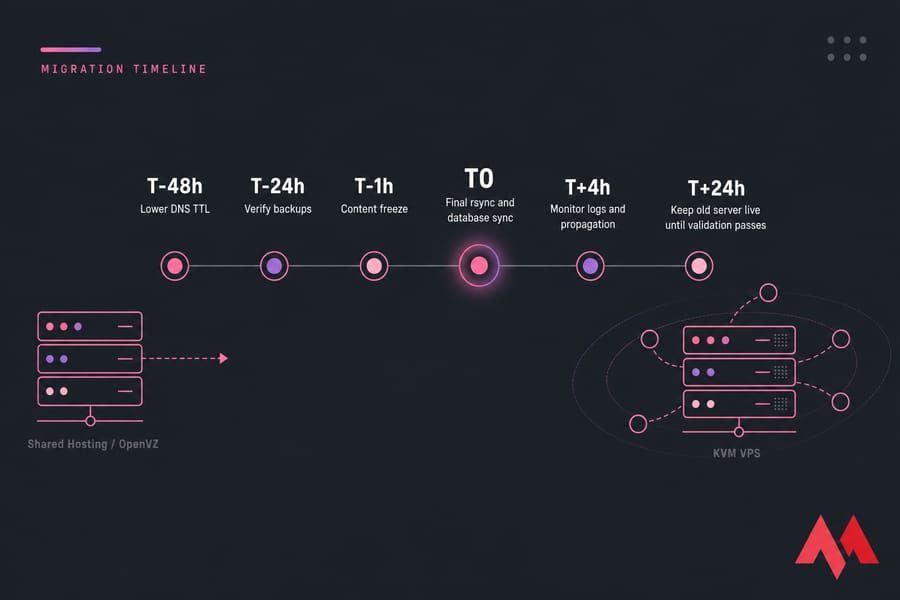
Server migration without downtime is the ideal. Server migration with minimal downtime is the realistic target.
💡 Use hosts file or temporary URL testing
Test the new environment privately first. A hosts file override is my favorite method because it lets you browse the real domain against the new server without changing public DNS. For some setups, a temporary URL or staging hostname works too, but it can be less accurate for apps that rely on the final domain.
💡 Freeze content changes before final sync
Right before cutover, pause anything that writes new data — blog posts, form submissions if possible, imports, order processing windows, or admin edits. Then run a final incremental sync.
- Run a final
rsyncfor changed files - Export and import the latest database state
- Confirm no queued jobs are still writing to the old server
This is where low-downtime migrations are won or lost.
💡 Switch DNS and monitor propagation
After validation, switch the A record or nameservers to the new KVM VPS. If you lowered DNS TTL earlier, many users will reach the new server faster. Not all of them. Some resolvers cache aggressively, and local ISP behavior varies.
Keep the old environment online during the propagation window. That's non-negotiable for me. Turning off the old host immediately is one of the easiest ways to create avoidable downtime.
During propagation, monitor:
- web server access and error logs
- database logs
- mail flow if email moved
- application errors
- CPU and RAM usage
Before launching live traffic shifts, engineers frequently implement system infrastructure diagnostic assessments via VPS benchmark tools to verify performance thresholds under synthetic loads.
If you want to confirm propagation from multiple regions, a DNS checker is handy.
Pro tip: Lower TTL 24–48 hours before migration to reduce propagation delay.
After traffic reaches the new server, verify every critical function.
🚀 Post-migration KVM VPS setup and security checks
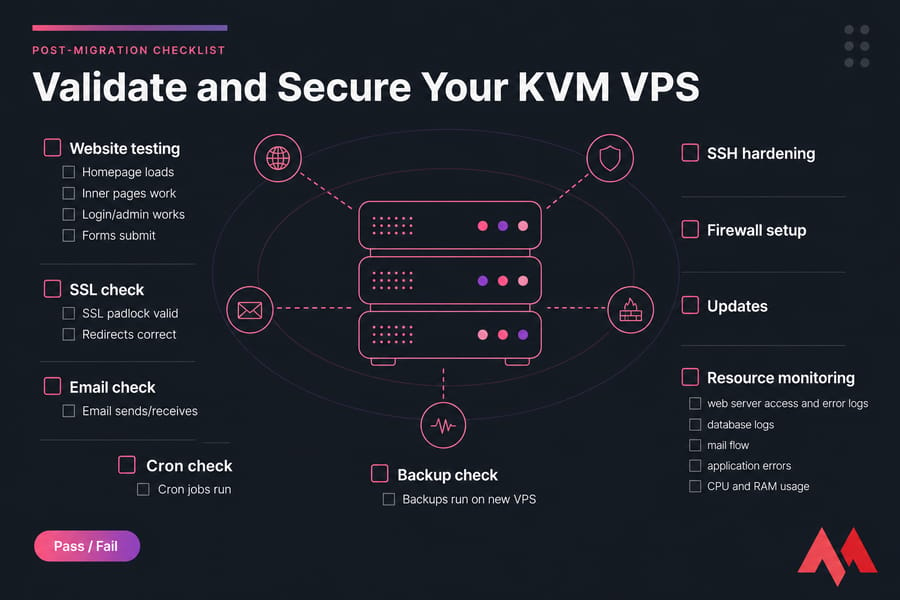
A migration isn't done when the homepage loads. That's just the first test.
💡 Verify SSL, email, cron jobs, and permissions
Use a post-migration validation checklist and actually mark things off. Don't trust memory.
| Check | Pass/Fail | Notes | Owner |
|---|---|---|---|
| Homepage loads | Pass/Fail | Check real domain and HTTPS | You |
| Inner pages work | Pass/Fail | Spot-check key sections | You |
| Login/admin works | Pass/Fail | Test user roles | You |
| Forms submit | Pass/Fail | Check email notifications too | You |
| Email sends/receives | Pass/Fail | Test inbox and outbound | You |
| SSL padlock valid | Pass/Fail | No mixed content warnings | You |
| Redirects correct | Pass/Fail | HTTP to HTTPS, www rules | You |
| Cron jobs run | Pass/Fail | Check logs or output | You |
| Backups run on new VPS | Pass/Fail | Verify destination and schedule | You |
- Check homepage and inner pages
- Test forms and search features
- Log in to admin panels
- Confirm database connectivity and writes
- Verify SSL and redirects
- Review file ownership and permissions
- Test email sending and receiving
- Confirm cron tasks are running
- Make sure backups now run from the new VPS
💡 Harden SSH, firewall, and updates
Once the site is stable, do the basic hardening work right away.
- Use SSH keys where possible
- Disable password authentication if key-based access is ready
- Change the default SSH port if you want an extra layer of noise reduction
- Enable a firewall with UFW or firewalld
- Apply pending OS and package updates
- Consider fail2ban for brute-force protection
Don't overcomplicate it on day one. Just cover the basics cleanly. For the next steps, read how to secure your Linux VPS and configure secure SSH on a VPS.
💡 Monitor performance after launch
Watch CPU, RAM, disk, and logs for the first 24 to 72 hours. Migrations sometimes expose hidden problems only after real traffic returns.
If page generation is slow or the database is spiking, don't guess. Measure. Tuning comes after stability. MonoVM also has guidance on improving VPS performance once the move is complete.
Related reading: If you're new to server administration, go back and review how to set up a VPS for beginners.
Many migration failures come from overlooked details, not the transfer itself.
🚀 Common shared hosting to VPS migration mistakes
These are the mistakes I see over and over. Most of them are boring. All of them can hurt.
💡 Forgetting PHP version and module compatibility
Impact: white screens, fatal errors, broken plugins, failed image processing.
If the old site ran on a specific PHP version with certain extensions, match it first. Upgrade later. This is especially common with older WordPress sites and custom PHP apps.
💡 Missing DNS, email, or scheduled task changes
Impact: mail disappears, forms stop delivering, cron automation silently fails.
People change the A record and think they're done. But MX, SPF, DKIM, TXT, subdomains, and app webhooks may also need attention. And if email lived on the old shared host, forgetting mailbox migration is brutal.
💡 Skipping rewrite rules, permissions, and rollback
Impact: 404s, 500 errors, uploads fail, rollback becomes chaos.
Apache .htaccess rules don't magically become Nginx config. File ownership might be wrong on the new server. And if you never validated your backups or planned a rollback, every issue suddenly feels bigger than it is.
- Don't forget hidden files such as
.htaccess - Check MySQL or MariaDB version behavior
- Test forms, checkout, and login paths — not just the homepage
- Keep old hosting active until propagation and validation are complete
- Document exactly how to revert DNS if needed
If permissions are giving you trouble, this guide to WordPress file permissions helps. And if the move triggers server-side errors, see how to troubleshoot a 500 internal server error. For a refresh on record types, review what DNS is.
If this feels too risky or time-sensitive, managed migration may be worth it. Examining the technical service offerings of the best Windows VPS provider can clarify standard technical support frameworks for cross-platform moves.
🚀 Managed KVM VPS migration help from MonoVM
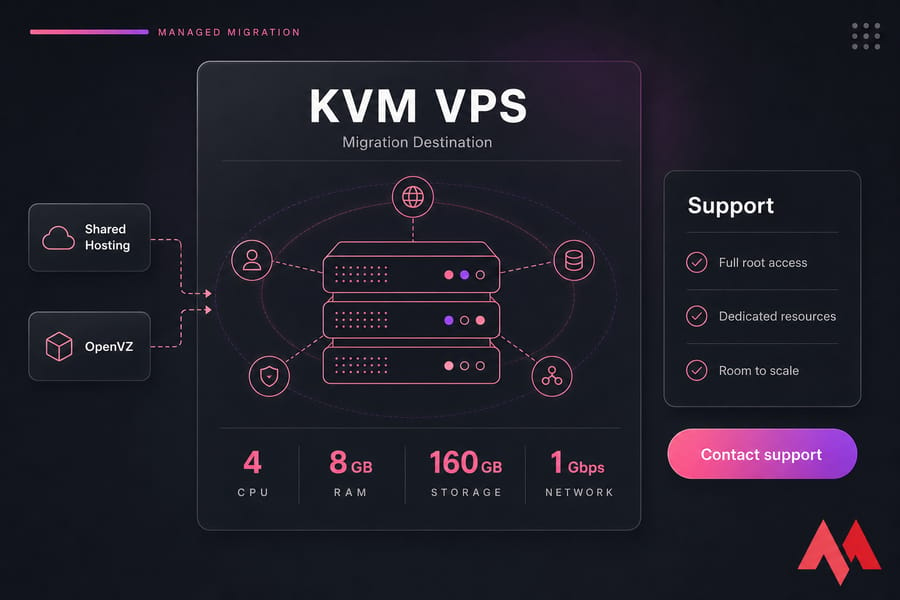
Self-migration is totally reasonable for a small site, a single app, or a test workload where you can afford a few bumps. But for business-critical sites, ecommerce stores, multiple domains, custom stacks, or anything involving an OpenVZ rebuild, getting migration assistance is often the smarter call.
For business-critical sites, using a KVM VPS with support available can reduce migration risk and shorten your cutover window.
MonoVM's KVM VPS hosting is a solid destination if you want full root access, dedicated resources, and room to scale after the move. If you're unsure which plan fits, think in terms of workload:
- Single WordPress or brochure site: lower resource plan is often enough
- WooCommerce, multiple sites, or mail hosting: give yourself more RAM and storage headroom
- Custom apps or OpenVZ rebuilds: plan for both migration overhead and future growth
Before contacting support, prepare your domain list, current hosting details, software versions, and whether email is part of the move. That shortens the back-and-forth a lot.
🚀 Start your KVM VPS migration with the right environment
Whether you're moving one WordPress site or rebuilding an OpenVZ workload, choose a KVM VPS plan built for stability, control, and future scaling. Need help? Use Get a KVM VPS or contact Support before your migration window.
💡 Advanced Comparison: Structural Analysis of Environments
To accurately understand the performance dynamics you will face after migration, consider this secondary layer of hypervisor mechanics contrasted against baseline systems.
| Operational Factor | Shared Infrastructure | OpenVZ Container | KVM Dedicated VM |
|---|---|---|---|
| RAM Allocation Mode | Dynamically shared via OS | Bursted limits over host limits | Strictly physical pre-allocated RAM |
| I/O Priority Scheduling | Unmanaged high contention | Fair-share scheduling algorithms | Dedicated virtual disks with independent queues |
| Custom Kernel Customization | Completely locked out | Restricted to host sysctl parameters | Full compilation of native kernel configurations |
| Network Stack Isolation | Shared network interface layer | Bridged/routed via host virtual devices | Fully direct virtualized NIC components |
💡 Expert Tips and Industry Best Practices
When running live sync commands via terminal networks during data shifts, use the screen or tmux background window managers. If your local network connection drops mid-transfer during large file operations, a terminal layer detachment will protect your transfer from corruption.
Additionally, always execute system configuration updates under explicit staging rules before declaring a production site stable. Maintaining proper application path version limits will ensure reliable growth paths.

An experienced tech and developer blog writer, specializing in VPS hosting and server technologies. Fueled by a passion for innovation, I break down complex technical concepts into digestible content, simplifying tech for everyone.