
To host a website on a Linux VPS, connect over SSH, install Nginx or Apache, place your files in the web root, create a server block or virtual host for your domain, point your DNS A record to the VPS IP, open ports 80 and 443, and enable HTTPS with Let’s Encrypt. That’s the whole path. The details are what usually trip people up.
If you’ve already got a server, great. If not, Linux VPS hosting with root access gives you the cleanest starting point for this kind of setup.
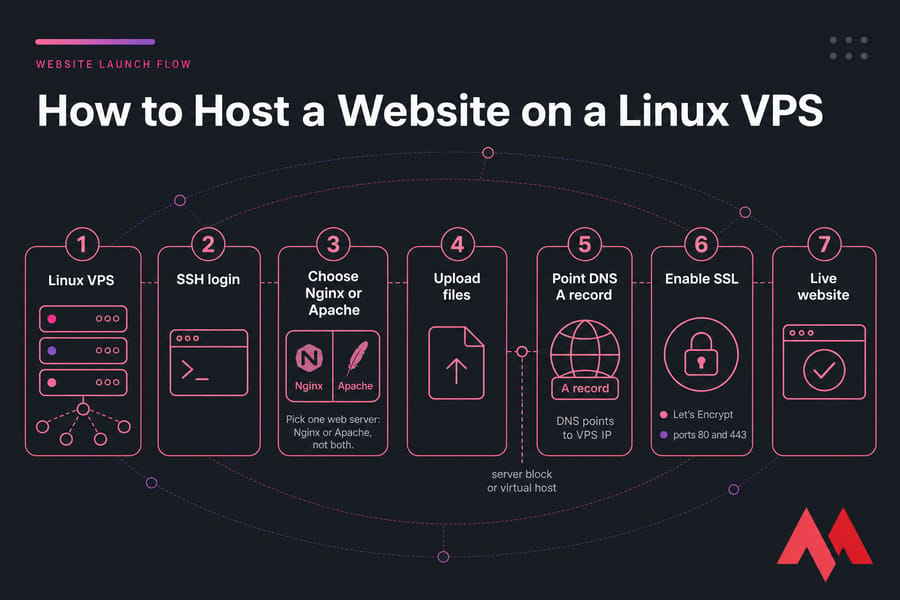
Key takeaway: pick one web server for this setup Nginx or Apache, not both.
What you need before hosting a website on a Linux VPS
Hosting a site on a VPS means your Linux server runs the web server software, serves your files, and answers requests for your domain. Simple idea. A few moving parts, though.
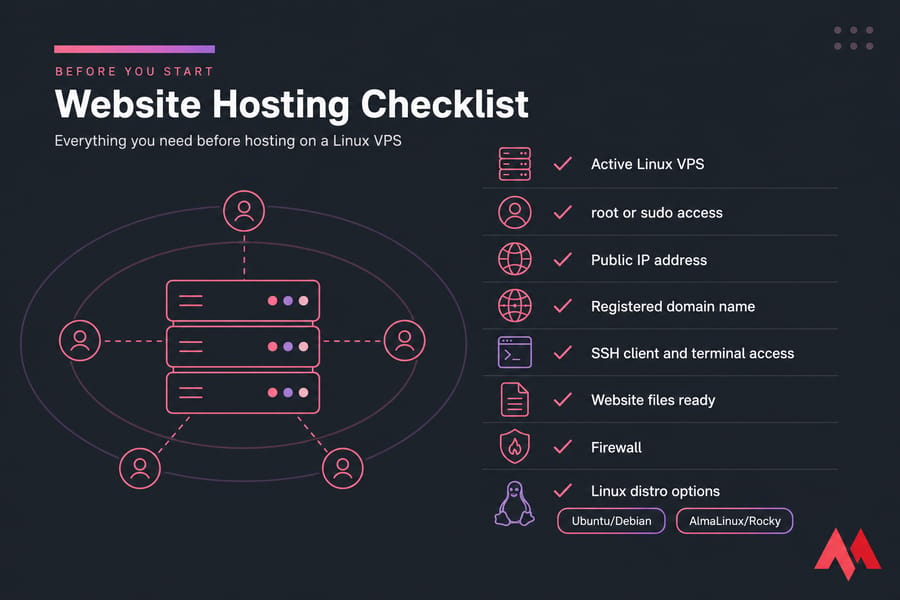
- Active Linux VPS with root or sudo access
- Public IP address
- Registered domain name
- SSH client and terminal access
- Website files ready
- Ubuntu/Debian or AlmaLinux/Rocky
If you’re brand new, start with how to connect to a VPS and this broader VPS setup for beginners guide.
One more thing: static and dynamic sites aren’t the same. A static HTML site just needs the web server and files. A PHP site or CMS needs extra stack pieces like PHP-FPM or a database. I’m keeping this guide focused on the deployment path: web server, domain, files, firewall, and SSL.
Once you have these basics ready, the next step is choosing the right web server.
Nginx vs Apache for Linux VPS website hosting
Nginx uses an event-driven model, which usually means lower memory use and very good handling of lots of simultaneous connections. Apache uses a process/thread model and is still a perfectly valid choice, especially when you want familiar per-directory controls with .htaccess.
| Feature | Nginx | Apache | Best For |
|---|---|---|---|
| Request model | Event-driven | Process/thread-based | High concurrency vs flexibility |
| Static files | Excellent | Good | Static sites |
| .htaccess | No | Yes | Rewrite-heavy apps |
| Reverse proxy | Excellent | Good | Proxy setups |
| Per-directory overrides | No | Yes | Shared team workflows |
| Beginner comfort | Fine once learned | Often more familiar | Apache for .htaccess users |
My quick recommendation? For a simple static site or a low-resource VPS, I’d usually pick Nginx. For WordPress or PHP apps where you already rely on .htaccess, Apache can be easier. Both work. MonoVM offers Ubuntu, Debian, AlmaLinux, and Rocky Linux VPS options, so you can follow the distro path you prefer.
Need deeper background? See what is a web server, install Nginx on Ubuntu, and restart Apache.
Prepare your Linux VPS for web server setup
First, log in with SSH and update the box. Fresh packages save headaches later.
sudo apt update && sudo apt upgrade -y
sudo dnf update -y
Ubuntu/Debian uses apt. AlmaLinux/Rocky uses dnf. If you’re still using root directly, I’d strongly suggest creating a sudo user before going further.
Open the web ports next.
# Ubuntu/Debian with UFW
sudo ufw allow OpenSSH
sudo ufw allow 80/tcp
sudo ufw allow 443/tcp
sudo ufw enable

# AlmaLinux/Rocky with firewalld
sudo systemctl enable --now firewalld
sudo firewall-cmd --permanent --add-service=http
sudo firewall-cmd --permanent --add-service=https
sudo firewall-cmd --reload
Check your public IP so you know what DNS should point to.
curl ifconfig.meAvoid making your website directory world-writable or owned in odd ways. I’ve seen people use 777 to “fix” a 403, then forget about it. Bad idea.
If you want extra prep help, read configure secure SSH on a VPS and how to check open ports in Linux.
How to host a website with Nginx on a VPS
Install Nginx, enable it, then create a document root and server block.
# Ubuntu/Debian
sudo apt install nginx -y
sudo systemctl enable --now nginx

# AlmaLinux/Rocky
sudo dnf install nginx -y
sudo systemctl enable --now nginx

sudo mkdir -p /var/www/example.com/html
echo "<h1>example.com is live</h1>" | sudo tee /var/www/example.com/html/index.html
sudo chown -R $USER:$USER /var/www/example.com/html
sudo find /var/www/example.com -type d -exec chmod 755 {} \;
sudo find /var/www/example.com -type f -exec chmod 644 {} \;
# Ubuntu/Debian: /etc/nginx/sites-available/example.com
server {
listen 80;
server_name example.com www.example.com;
root /var/www/example.com/html;
index index.html index.htm index.php;
access_log /var/log/nginx/example.com.access.log;
error_log /var/log/nginx/example.com.error.log;
location / {
try_files $uri $uri/ =404;
}
}sudo ln -s /etc/nginx/sites-available/example.com /etc/nginx/sites-enabled/example.com
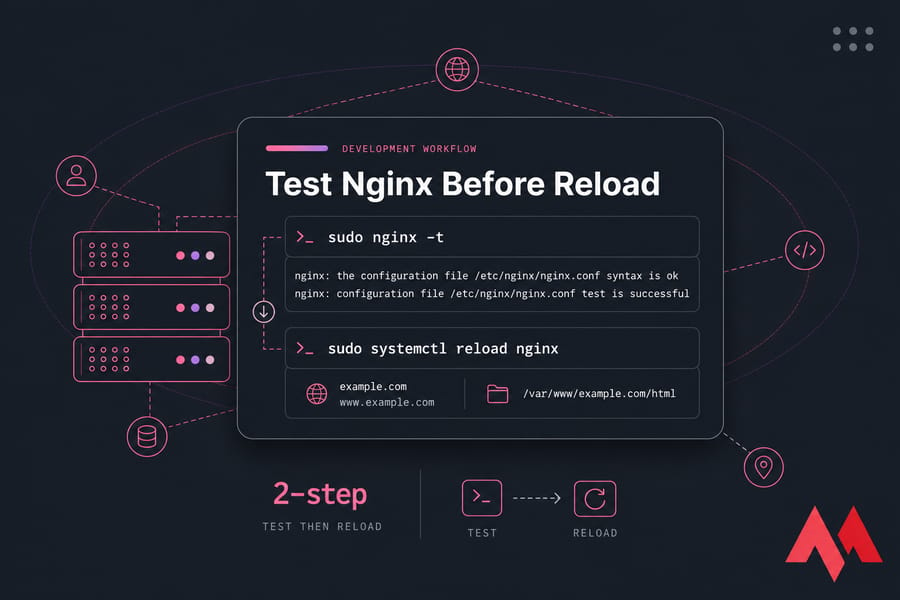
sudo nginx -t
sudo systemctl reload nginxOn AlmaLinux/Rocky, put the same server block in /etc/nginx/conf.d/example.com.conf, then run sudo nginx -t and reload.
Pro tip: always test with nginx -t before reloading. That one command has saved me from embarrassing outages more than once.
How to host a website with Apache on a Linux VPS
Apache website hosting follows the same flow, just with a virtual host instead of an Nginx server block.
# Ubuntu/Debian
sudo apt install apache2 -y
sudo systemctl enable --now apache2

# AlmaLinux/Rocky
sudo dnf install httpd -y
sudo systemctl enable --now httpd

sudo mkdir -p /var/www/example.com/html
echo "<h1>example.com is live</h1>" | sudo tee /var/www/example.com/html/index.html
# Ubuntu/Debian: /etc/apache2/sites-available/example.com.conf
<VirtualHost *:80>
ServerName example.com
ServerAlias www.example.com
DocumentRoot /var/www/example.com/html
ErrorLog ${APACHE_LOG_DIR}/example.com.error.log
CustomLog ${APACHE_LOG_DIR}/example.com.access.log combined
</VirtualHost>sudo a2ensite example.com.conf
sudo a2dissite 000-default.conf
sudo apache2ctl configtest
sudo systemctl reload apache2On AlmaLinux/Rocky, create the vhost under /etc/httpd/conf.d/example.com.conf, then test with sudo httpd -t and reload httpd.
Apache’s big advantage is still .htaccess. If your app depends on rewrite rules, that matters.
How to point your domain to a VPS with DNS
Now point the domain to your server. Create an A record for @ pointing to your VPS IP. You can also add www as another A record or a CNAME to the root domain.
| Record Type | Host | Value | Purpose |
|---|---|---|---|
| A | @ | 203.0.113.10 | Root domain to VPS |
| CNAME | www | example.com | www to root domain |
Edit this at your registrar or DNS provider, depending on where your nameservers point. TTL affects caching. Sometimes DNS updates show in minutes; sometimes they drag on for a few hours, and in rare cases up to 48 hours.
dig example.com
nslookup example.com
ping example.com
If DNS resolves but the wrong site appears, your server_name or ServerName may not match. For more detail, see set up a domain on a VPS.
Upload website files to your VPS and fix permissions
Your files should usually live under /var/www/example.com/html. That works for both Nginx and Apache in this guide.
scp -r ./my-site/* user@your_vps_ip:/var/www/example.com/html/You can also use SFTP or pull from Git on the server. For permissions, stick with directories 755 and files 644 unless your app needs a specific writable folder. Then set only that folder writable by the correct user or group.
sudo chown -R www-data:www-data /var/www/example.com/html
sudo find /var/www/example.com/html -type d -exec chmod 755 {} \;
sudo find /var/www/example.com/html -type f -exec chmod 644 {} \;
On AlmaLinux/Rocky, the web server user is often apache instead of www-data. And please don’t use chmod 777. If permissions confuse you, this guide on Linux file permissions helps.
Install SSL on VPS with Let’s Encrypt
Don’t skip HTTPS. Browsers expect it now, and Certbot makes it pretty painless. Just make sure DNS already points to the correct IP and port 443 is open.
# Nginx
sudo apt install certbot python3-certbot-nginx -y
sudo certbot --nginx -d example.com -d www.example.com

# Apache
sudo apt install certbot python3-certbot-apache -y
sudo certbot --apache -d example.com -d www.example.com
On AlmaLinux/Rocky, install Certbot with dnf and use the matching plugin if available. Certbot can also set the HTTPS redirect for you. Afterward, verify the lock icon in your browser and test renewal:
sudo certbot renew --dry-runIf you want a longer walkthrough, see install SSL on a VPS. Commercial certificates also exist at buy an SSL certificate, but Let’s Encrypt is enough for most sites.
Troubleshoot common Linux VPS website hosting issues
| Problem | Likely Cause | Command to Check | Fix |
|---|---|---|---|
| Site not loading | Service stopped | systemctl status nginx/apache2/httpd | Start and enable service |
| Connection refused | Firewall blocked | ufw status or firewall-cmd --list-all | Allow 80 and 443 |
| DNS error | Propagation not complete | dig example.com | Wait and verify records |
| 403 Forbidden | Bad permissions or no index | ls -la /var/www/example.com/html | Fix owner, 644/755, add index file |
| 404 Not Found | Wrong root path | nginx -t or apache2ctl configtest | Correct root/DocumentRoot |
| Wrong site appears | Default host catching traffic | Check enabled sites | Disable default site, fix domain match |
| HTTPS fails | DNS not ready for Certbot | dig +short example.com | Wait for correct resolution, retry |
Logs tell the truth. Nginx logs are usually in /var/log/nginx/. Apache logs are often in /var/log/apache2/ on Debian-based systems or /var/log/httpd/ on RHEL-based systems. Also, clear browser cache and remember DNS cache can mislead you for a while. For specific errors, see 403 Forbidden, 404 Not Found, and this site can’t be reached.
Next steps after you host your website on a Linux VPS
Once the site is live, keep going:
- Secure your Linux VPS and lock down SSH
- Back up your server or VPS
- Apply updates regularly
- Set up uptime monitoring and basic alerts
- Improve VPS performance if traffic grows
- Add PHP, a database, or app runtime if you want to host a PHP website on VPS or move into WordPress, Laravel, or Node.js
If you want the flexibility of self-hosting without handling every server task yourself, View Linux VPS plans and managed Linux hosting may be the better fit. And if you still need the server itself, MonoVM offers 25+ global VPS locations, root access, Linux distro choice, SSD/NVMe options, and 24/7 support.

An experienced tech and developer blog writer, specializing in VPS hosting and server technologies. Fueled by a passion for innovation, I break down complex technical concepts into digestible content, simplifying tech for everyone.