
If you’re wondering how to transfer domain registration safely, the short answer is this: make sure the domain is eligible, unlock it, get the EPP/auth code, start the transfer at the new registrar, approve the emails, and wait. In most cases, your hosting does not move automatically, and your site stays up if your nameservers remain unchanged.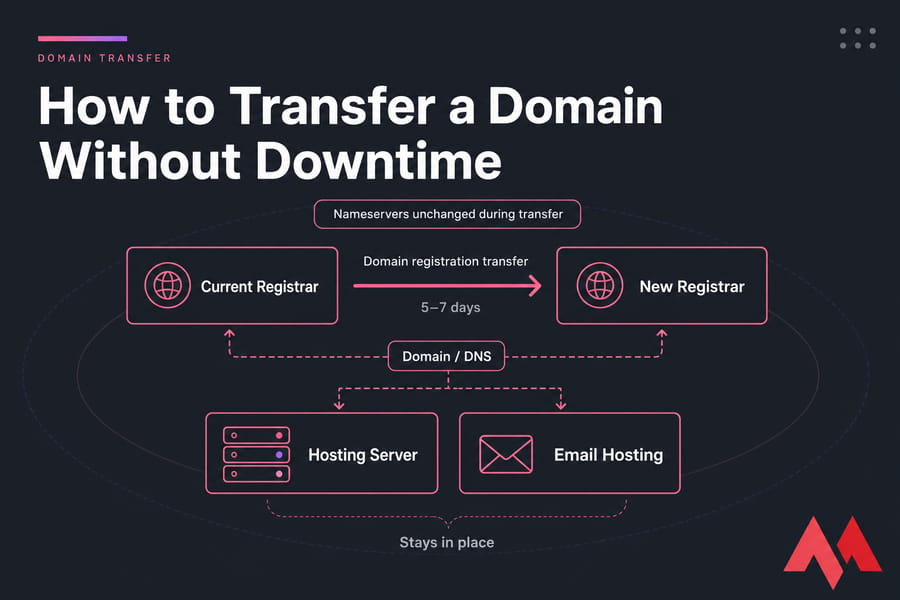
- Check transfer eligibility.
- Unlock the domain.
- Get the EPP or authorization code.
- Confirm registrant/admin email access.
- Start the transfer with the new registrar.
- Approve the transfer request.
- Wait for completion, usually 5–7 days.
A domain transfer changes the company managing your registration record the registrar. It does not usually move your website files, mailbox storage, or server.
If you need a refresher on the difference, see What is a Domain Name and domain vs hosting.
What a domain transfer is and how it works
When you transfer a domain to another registrar, you’re changing who manages the registration, billing, renewal, and control panel for that domain. The registry for the TLD still exists in the background, but your new registrar becomes the company you deal with day to day.
What changes? Usually the registrar dashboard, renewal settings, contact management, and where you request support. What stays the same? Often the domain name itself, the nameservers, the DNS resolution, and your hosting setup.
That’s the part people mix up all the time. A registrar transfer is not the same thing as moving a website. If your WordPress site is on a VPS or shared hosting account somewhere else, it can stay there. Same goes for email hosting.
Quick example. If your domain is at GoDaddy but your site lives on another host, you can transfer the domain registration only and leave the site where it is. Another example: if you want to move both the domain and the site, that’s two jobs — a registrar transfer plus a website migration.
And if you just want the domain to point to a new server, you may only need to change DNS or set up custom nameservers, not transfer the registrar at all.
Domain transfer requirements before you begin
Before you start, make sure your domain is actually eligible for transfer. This is where most failed transfers begin, honestly.
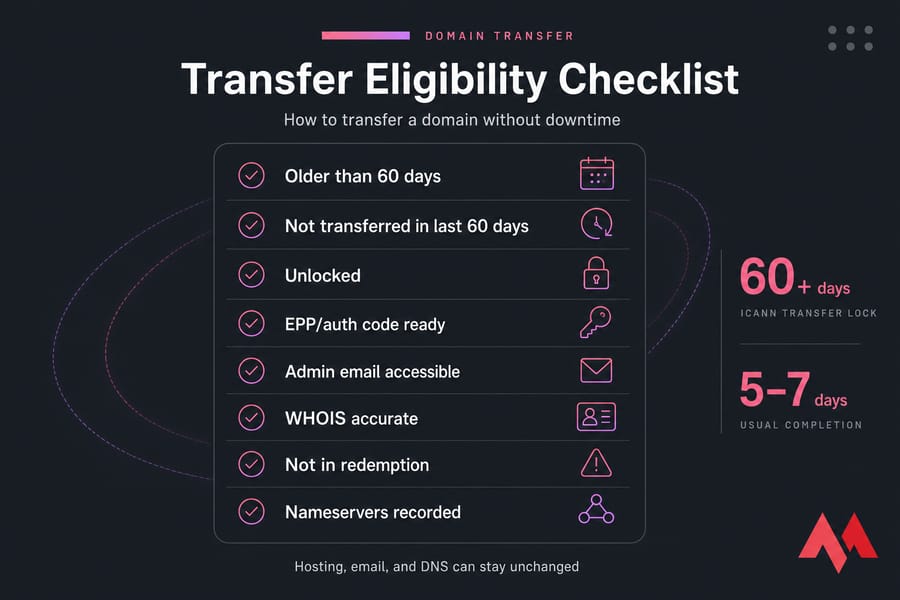
| Requirement | Why It Matters | How to Verify |
|---|---|---|
| Older than 60 days | ICANN rules often block early transfers | Check registration date in dashboard or WHOIS |
| Not transferred in last 60 days | Recent transfers usually trigger a lock | Review transfer history |
| Domain unlocked | Registrar lock blocks transfer out | Look for transfer lock in the registrar panel |
| EPP/auth code ready | New registrar needs it to validate transfer | Request it from current registrar |
| Email access works | You may need to approve transfer emails | Test the registrant/admin inbox |
| WHOIS details accurate | Bad contact info can delay approval | Use the WHOIS lookup tool |
Pay close attention to the ICANN 60-day transfer lock. For many gTLDs, you can’t transfer a domain within 60 days of initial registration or a recent transfer. Some registrars also apply locks after registrant contact changes. And ccTLDs can play by different rules, so don’t assume every extension behaves the same way.
You’ll also need the domain transfer auth code — also called the EPP code or authorization code.
If you want more detail, here’s what is EPP code. Before you touch anything, I’d also save your current nameservers and key DNS records. It’s boring, yes. It also saves headaches later.
How to transfer a domain name step by step
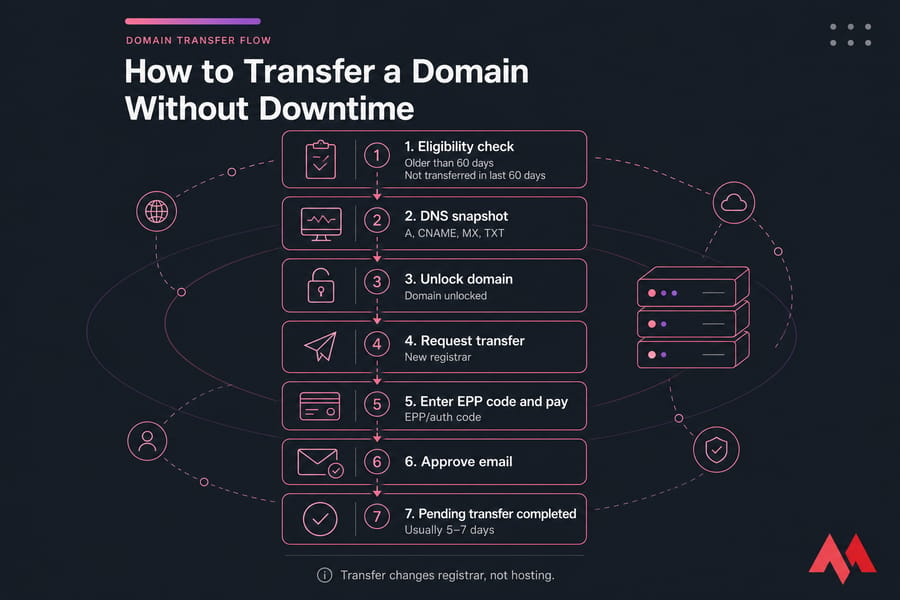
Step 1: Confirm the domain is eligible
Check age, transfer history, expiry state, and domain status. If it’s in redemption or pending delete, stop and fix that first. If it’s close to expiry, you may want to renew your domain first, depending on timing.
Step 2: Review nameservers and DNS records
Write down your nameservers, plus the important DNS records: A, CNAME, MX, and TXT. If your site and email already work, preserving these settings is how you transfer domain without downtime.
Step 3: Disable registrar lock and privacy blockers if needed
Turn off the domain lock in your current registrar dashboard. In some setups, privacy protection can complicate approval emails or WHOIS visibility, so double-check how your registrar handles that.
Step 4: Request the domain transfer at the new registrar
Go to the gaining registrar and begin the transfer request. If you’re considering MonoVM, you can start through the domain transfer service. You may also want to review domain pricing first.
Ready to move your domain? If it’s unlocked and you have the EPP code, you can start the transfer in minutes with MonoVM’s domain transfer service.
Step 5: Enter the auth code and pay the transfer fee
Paste in the EPP code exactly as provided. One wrong character is enough to cause a failed domain transfer. Most registrars charge a transfer fee, and for many TLDs that includes a one-year registration extension.
Step 6: Approve the transfer confirmation email
Watch the registrant or admin inbox. You may receive a transfer confirmation email or FOA-style approval request. If you don’t approve it, the transfer can sit there doing nothing.
Step 7: Track pending transfer status until completion
Most transfers sit in a pending transfer state for several days while the losing registrar releases the domain. Once complete, log in to the new registrar and verify nameservers, auto-renew, contact details, and domain renewal settings. If you’re moving into a new setup entirely, you can also use MonoVM to register a domain for other projects.
Transfer domain without downtime: website, DNS, and email safety
A registrar transfer by itself usually does not take your site offline. The risk starts when people change nameservers or DNS records in the middle of the process.
| Action | Affects Website? | Affects Email? | Risk Level |
|---|---|---|---|
| Registrar transfer only | Usually no | Usually no | Low |
| Nameserver change | Yes, can redirect traffic | Yes, can affect MX routing | Medium |
| DNS record edit | Yes | Yes | Medium |
| Hosting migration | Yes | Sometimes | Higher |
Best practice: keep the nameservers unchanged until the transfer completes. Your hosting stays on the same server unless you separately move it. Email usually keeps working too, as long as your MX records don’t change.
If you later decide to change DNS, preserve your A records, MX records, CNAMEs, and TXT entries carefully. That’s where mail breaks happen. I’ve seen people blame the transfer when the real problem was a missing MX record.
Domain transfer vs nameserver change vs website migration
| Action | Changes Registrar? | Changes DNS? | Moves Website Files? | Use Case |
|---|---|---|---|---|
| Domain transfer | Yes | Usually no | No | Change domain registrar |
| Nameserver change | No | Yes | No | Point domain to new DNS provider |
| Website migration | No | Sometimes | Yes | Move WordPress or app to new host |
| Full site move | Yes | Yes | Yes | Consolidate registrar and hosting |
If you only want your domain to point somewhere new, a nameserver change may be enough. If you want to move WordPress to a new host, that’s a hosting job, not a registrar transfer. For more on that distinction, see how to set up a domain on VPS and transfer WordPress from host to another host.
How long does domain transfer take?
For many gTLDs, the domain transfer process takes around 5–7 days. Sometimes it finishes faster if approvals happen quickly. Sometimes it drags because of the TLD, registrar workflow, bad auth code, or missing approval email.
If the transfer is stuck, check lock status, email approvals, and the EPP code first. Then review supported extensions and rules for the specific TLD.
Common domain transfer problems and how to fix them
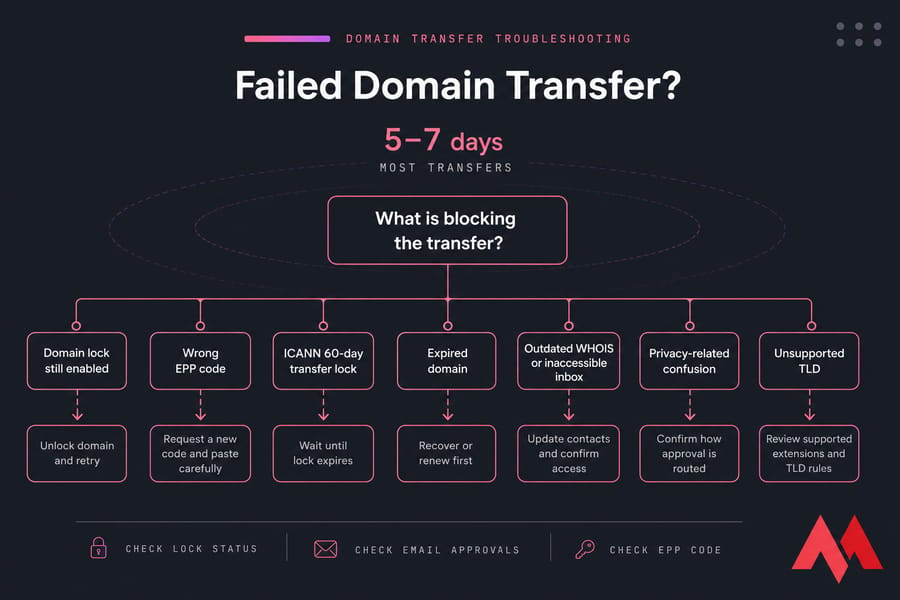
| Problem | Likely Cause | Fix | Where to Check |
|---|---|---|---|
| Transfer blocked | Domain lock still enabled | Unlock domain and retry | Current registrar dashboard |
| Transfer rejected | Wrong EPP code | Request a new code and paste carefully | Email or transfer settings |
| Not eligible | ICANN 60-day transfer lock | Wait until lock expires | Registration and transfer dates |
| No approval email | Outdated WHOIS or inaccessible inbox | Update contacts and confirm access | WHOIS and account profile |
| Expired domain | Redemption or severe expiry state | Recover or renew first | what happens when a domain expires |
| Privacy-related confusion | Masked contact details | Confirm how approval is routed | Privacy settings and registrar help |
Another common one: the losing registrar quietly waits for you to approve or cancel a transfer-out notice. Check every related inbox, including spam. If you’re stuck, use registrar support instead of guessing. And if you need ownership details clarified, this guide on finding the owner of a domain can help.
Should you transfer your domain to a new registrar?
Good reasons to transfer: better pricing, cleaner DNS tools, easier domain renewal, stronger privacy options, or having domains, hosting, SSL, and email under one account. If you’re comparing options, this roundup of the best domain registrars is a useful starting point.
Reasons to wait: you’re inside a lock period, you can’t access the admin email, or you’re already making major DNS changes. Don’t stack three risky changes into one afternoon. That rarely ends well.
Start your domain transfer with MonoVM
If you’re ready, start with MonoVM’s domain transfer page. Check supported TLDs, review pricing, and make sure your domain is unlocked before submitting the request.
If you’re consolidating services, MonoVM can also help with SSL certificates and email hosting. And if you’re unsure whether you need a transfer, a DNS change, or a full migration, contact support. That’s a lot better than making a blind change at midnight.

An experienced tech and developer blog writer, specializing in VPS hosting and server technologies. Fueled by a passion for innovation, I break down complex technical concepts into digestible content, simplifying tech for everyone.