A VPS running out of disk space rarely fails politely. MySQL refuses writes, apt upgrades die halfway, and logs scream "No space left on device." I've watched a 25 GB plan go from 60% to 100% overnight because one chatty log went rogue. The fix: find the culprit, clean safely, prevent a repeat.
Quick answer: check total usage with df -h, find the biggest directories with du -h --max-depth=1, then clear package cache, archived logs, stale backups, and unused Docker data. If space keeps filling up, fix retention settings or resize the VPS disk.
Why a VPS Disk Space Full Problem Happens
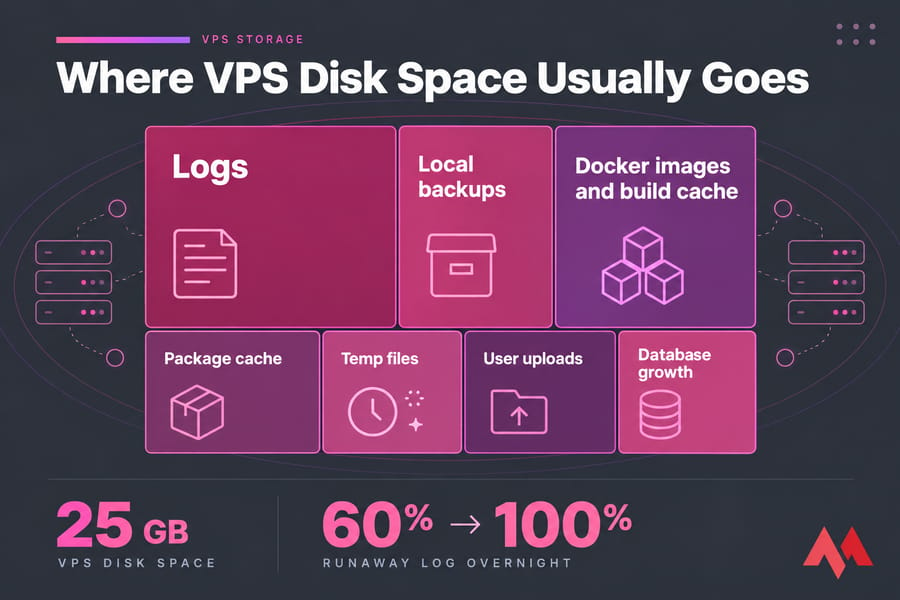
Entry-level VPS disks are small, and nothing cleans itself up by default. Usual suspects:
- Logs:
/var/log, journals, IIS logs - Local backups dumped nightly onto the same disk
- Docker data under
/var/lib/docker - Package cache, temp files, uploads, growing databases
Sudden spikes usually mean a runaway log. Gradual creep means real growth — and that decides whether you clean or resize. For broader context, check VPS resource usage across CPU, RAM, and disk together.
Emergency Checks Before You Clean Disk Space on a VPS
- Snapshot or back up first. Here's how to back up a server or VPS properly.
- Confirm access. If SSH or RDP won't connect, use your provider's web console.
- Check space and inodes. Run
df -handdf -i. Millions of tiny session files can exhaust inodes while bytes look fine. - Don't touch
/etcor/var/lib/mysqlblindly.
Seeing other symptoms too? This guide will help you troubleshoot Linux VPS issues.
How to Find What's Taking Up Space on a Linux VPS
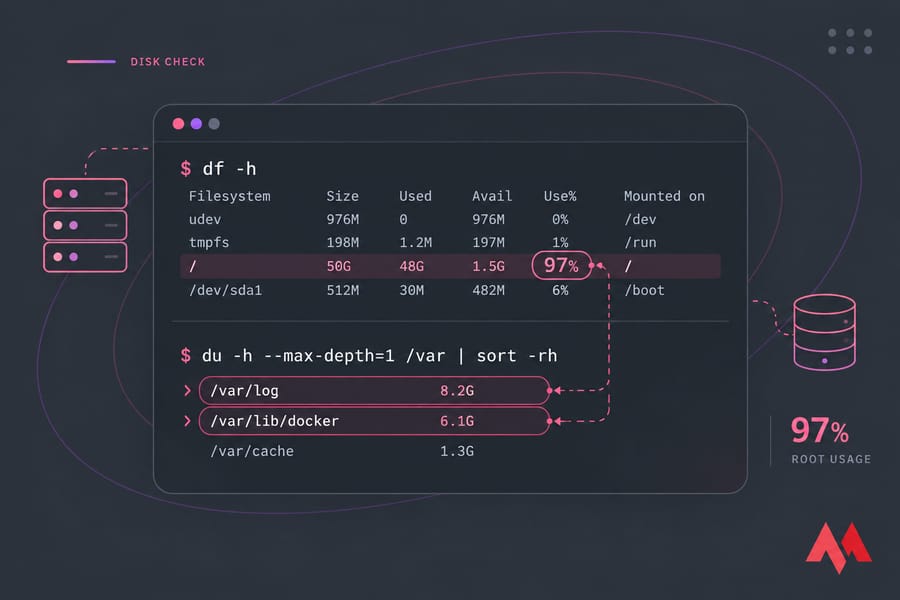
df -h                                   # usage per filesystem
sudo du -h --max-depth=1 / 2>/dev/null | sort -rh | head -15
sudo du -h --max-depth=1 /var | sort -rh | head
sudo find / -xdev -type f -size +500M -exec ls -lh {} \; 2>/dev/null
df -i                                   # inode usage
Start broad, then drill down (-xdev keeps find off mounted volumes). Usually the answer is /var/log, /var/lib/docker, /var/cache, or a forgotten backups folder in /root or /home. More detail: how to check disk space in Linux.
Linux VPS Disk Full Cleanup Steps That Are Usually Safe
Package cache
# Ubuntu/Debian
sudo apt clean && sudo apt autoremove --purge
# AlmaLinux/Rocky/CentOS
sudo dnf clean all     # or: sudo yum clean all
Low risk. autoremove also drops old kernels. Read its list first and keep the one you're running (uname -r).
Journals and logs
journalctl --disk-usage
sudo journalctl --vacuum-size=200M
Vacuuming only removes archived journals, not active ones, so you may free less than you expect. Rotated *.gz logs are fine to delete. For a live log, use sudo truncate -s 0 /var/log/app.log instead of rm (more on why below).
| Target | Status | Notes |
|---|---|---|
APT/DNF cache, rotated .gz logs |
Safe to clean | Regenerated as needed |
Old /tmp files |
Safe to clean | Skip files apps hold open |
| Old local backups, archives | Inspect first | Confirm an off-server copy exists |
| Old kernels, Docker data | Inspect first | Keep the running kernel and live containers |
/var/lib/mysql, /etc, app data |
Do not delete blindly | Use DB tools to purge, not rm |
Docker Disk Space Cleanup on a VPS
Run docker system df first, then choose:
| Command | What it removes |
|---|---|
docker system prune |
Stopped containers, unused networks, dangling images, unused build cache |
docker system prune -a |
Also every image not used by a container |
docker builder prune |
Build cache only |
docker system prune --volumes |
Adds unused anonymous volumes — check for data first |
Volumes aren't pruned by default — deliberately. Never rm -rf /var/lib/docker by hand. Also check container logs: the default json-file driver has no size cap, so set max-size and max-file in /etc/docker/daemon.json. See how to delete Docker images and this Docker cheat sheet.
Why df and du Show Different Disk Usage
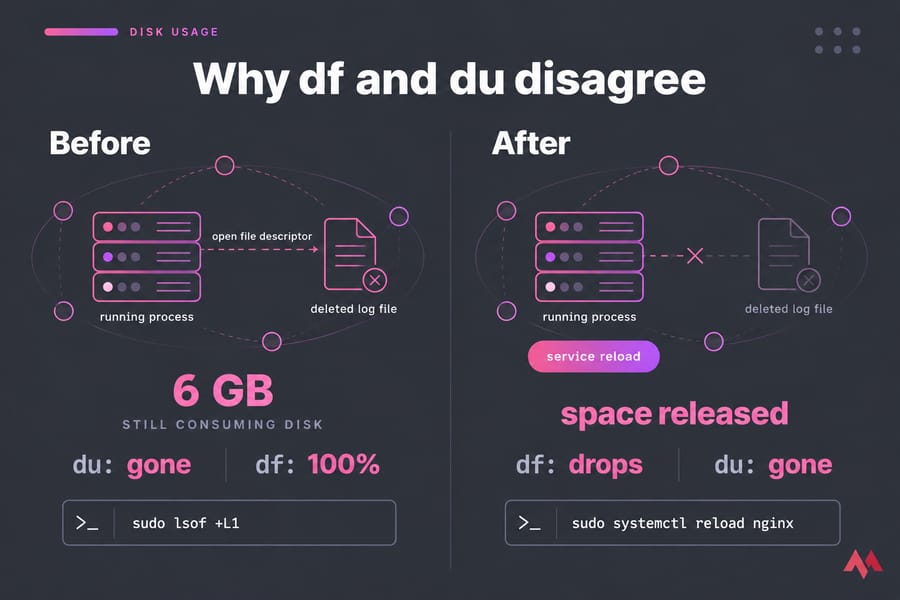
You rm a 6 GB log, du shows it gone, but df still says 100%. The writing process still holds an open file descriptor, so the blocks aren't released.
sudo lsof +L1 # or: sudo lsof | grep deletedReload or restart the owning service (say, sudo systemctl reload nginx) in a quiet window. Don't kill a database just to reclaim space.
Windows VPS Disk Cleanup When the C: Drive Is Full
Spot heavy folders with WinDirStat or TreeSize, then:
- Run
cleanmgr(Disk Cleanup), click Clean up system files, and tick Windows Update Cleanup and temp files. - Shrink the component store:
Dism.exe /Online /Cleanup-Image /StartComponentCleanup - Clear
C:\Windows\Temp, old IIS logs inC:\inetpub\logs\LogFiles, and the Recycle Bin. - On newer Windows Server builds with Desktop Experience, enable Storage Sense (Settings > System > Storage).
Leave SQL Server data and app folders alone. Cleanup frees space; it doesn't add any. To actually grow C:, you'll need to resize a Windows VPS disk. Outgrown the plan entirely? A larger Windows VPS is the cleaner fix.
Resize VPS Disk vs Keep Cleaning: How to Decide
| Scenario | Cleanup works? | Resize? |
|---|---|---|
| One runaway log or failed backup loop | Yes | No |
| Disk refills within weeks after cleanup | Briefly | Yes |
| Database or media growing monthly | No | Yes, or offload |
| Server won't boot because disk is 100% | Via console/rescue | Often fastest |
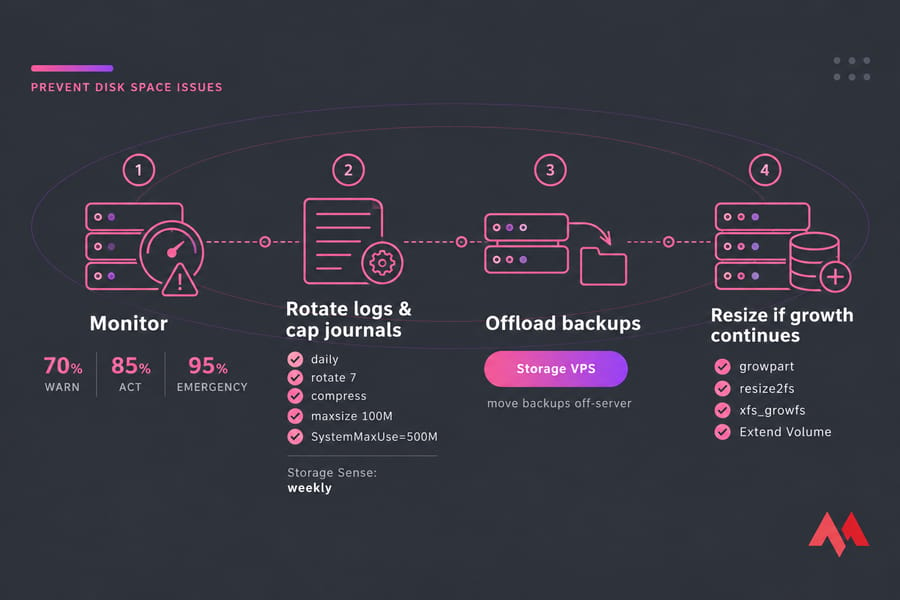
One catch: a provider-level upgrade only adds unallocated space. Your OS still has to extend the partition and filesystem. On Linux that's growpart plus resize2fs or xfs_growfs. On Windows it's Extend Volume in Disk Management. See how to resize a cloud server. Is I/O slow as well? An NVMe VPS fixes both problems at once.
Prevent a VPS from Running Out of Disk Space Again
- Rotate logs: configure Logrotate in Linux with
daily,rotate 7,compress, andmaxsize 100Mfor noisy apps. - Cap journald: set
SystemMaxUse=500Min/etc/systemd/journald.conf, then restartsystemd-journald. - Schedule Storage Sense on Windows to run weekly.
- Alert at 70/85/95%: warn, act, emergency.
- Offload backups. Migrate large files and backups to a Storage VPS instead.
Common VPS Storage Mistakes to Avoid
- Deleting big unknown folders in
/var/lib. - Removing active logs without reloading the service.
- Ignoring inodes when
df -hlooks healthy. - Blind
docker system prune -a --volumeson production.
Final Checklist for VPS Disk Cleanup and Storage Management
- Snapshot, then
df -h,df -i,du,lsof +L1. - Clean cache, archived logs, Docker leftovers, and stale backups.
- Set retention limits and alerts.
- Still growing? Move bulky data to a Storage VPS or upgrade to a bigger Linux VPS.
Tired of babysitting disk usage? Managed Hosting hands that work to people who do it every day. If you're stuck in the middle of an outage, the MonoVM support team can help.

An experienced tech and developer blog writer, specializing in VPS hosting and server technologies. Fueled by a passion for innovation, I break down complex technical concepts into digestible content, simplifying tech for everyone.