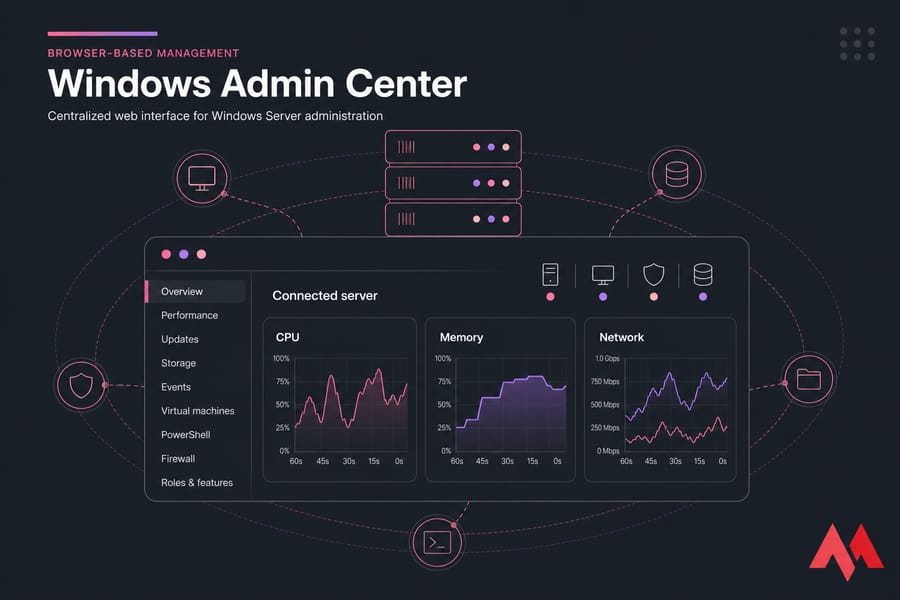
Windows Admin Center is Microsoft's browser-based management tool for Windows Server, Windows PCs, Hyper-V hosts, and failover clusters. It lets administrators handle core tasks — performance monitoring, updates, storage configuration, event review, and virtual machine management — from one centralized web interface.
Windows Admin Center explained: what it is and who it's for
So that's the short answer to what is Windows Admin Center. But it raises a more practical question: why would you use it when you already have RDP and Server Manager?
Here's how I'd frame it. Microsoft built Windows Admin Center (often shortened to WAC) as a unified management layer that sits on top of the tools you already know. It doesn't reinvent Windows administration. It just puts the pieces — Event Viewer, services, disks, firewall rules, roles and features, PowerShell — behind a single HTTPS interface you open in Edge or Chrome.
Is Windows Admin Center a Microsoft tool?
Yes. It's developed and maintained by Microsoft, distributed as a free download from the Microsoft Evaluation Center, and licensed as part of your existing Windows Server entitlement. You don't buy a separate license for it. That surprises people who assume any centralized management console must carry a per-node fee.
Who should use Windows Admin Center?
- Sysadmins running a handful of Windows Servers — the sweet spot, honestly
- Hyper-V administrators who want VM oversight without the old Hyper-V Manager snap-in
- Windows VPS and dedicated server customers who'd rather not open a full desktop session for every small task
- MSPs and small IT teams managing several client environments
- Anyone running Server Core, where there's no local GUI to fall back on
What problem does Windows Admin Center solve?
Tool sprawl. That's the honest answer. Before WAC, checking a disk, reviewing a failed service, and patching a server meant three different consoles and probably two RDP sessions. Windows Admin Center collapses that into one dashboard, and it does it without installing an agent on every managed node.
How Windows Admin Center works for browser-based Windows Server management
Understanding the interface is one thing. Understanding the plumbing underneath is what stops you from making a bad deployment decision.
Gateway mode vs local deployment
You install Windows Admin Center in one of two ways.
Desktop mode installs it on Windows 10 or Windows 11. It runs as a local service, you hit https://localhost:6516, and it manages remote servers from your workstation. Good for a single admin. Nothing shared.
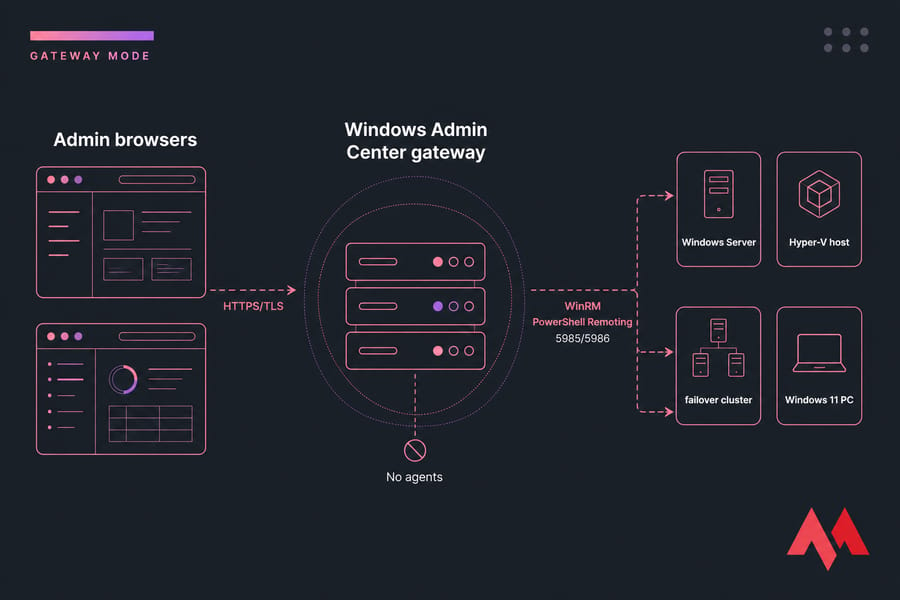
Gateway mode installs it on a Windows Server acting as a dedicated management gateway. Your whole team browses to that one host over HTTPS, and the gateway does the talking to every managed node. This is what you want in any environment with more than one administrator.
How Windows Admin Center connects to servers
No agents. That's the part people miss. WAC uses the remote management stack that already ships with Windows: WinRM (Windows Remote Management, the service that carries remote administrative commands) and PowerShell Remoting over port 5985/5986. The gateway authenticates as you, then runs commands on the target and renders the results in your browser.
Practical consequence: if WinRM isn't enabled on a target machine, WAC can't reach it. On Windows Server it's on by default. On Windows 10/11 clients you'll usually need to run Enable-PSRemoting -Force first. And if there's a firewall between the gateway and the node, those WinRM ports need to be open — same as any remote PowerShell workflow.
How it works with PowerShell, WinRM, and HTTPS
Every click in the WAC UI translates to PowerShell underneath. That's not marketing; it's the architecture. Which is why WAC ships with an integrated PowerShell console per connection — you can jump from a GUI task to the command line without leaving the page. Worth confirming you're on a current version with check your PowerShell version before troubleshooting connection failures.
Browser-to-gateway traffic is HTTPS with TLS. During install, WAC generates a self-signed certificate by default. Replace it with a proper certificate from your internal CA or a public one. Self-signed works, but you'll be clicking through browser warnings forever, and that trains people to ignore warnings.
What can Windows Admin Center manage on Windows Server and beyond?
Scope varies by target type. A standalone server exposes a different tool set than a failover cluster or a Windows 11 desktop. Here's the general map.
| Target type | What you can manage |
|---|---|
| Windows Server (standalone) | Performance, events, services, processes, devices, registry, files, scheduled tasks, roles and features, updates, firewall, network adapters, storage, certificates, local users and groups, remote desktop settings |
| Hyper-V host | Virtual machines, virtual switches, VM checkpoints, live migration, VM resource allocation |
| Failover cluster | Cluster nodes, roles, cluster-aware updating, quorum, Storage Spaces Direct volumes and drives |
| Windows 10 / 11 PC | Events, services, processes, devices, registry, firewall, storage, PowerShell — no server roles |
Monitoring, updates, certificates, and events
Three workflows I use constantly. First, the overview page — live CPU, memory, and network charts, plus a restart and shutdown button. Second, Updates, which surfaces pending Windows updates per server so you're not RDP-ing into six boxes to check patch status. Third, Certificates, which lists every cert in the machine store with expiry dates. I've caught an expiring TLS cert this way about a week before it would have taken down a customer's site.
Firewall management is there too, so you can open a port without dropping into Group Policy in Windows or the legacy console.
Quick summary: Windows Admin Center handles monitoring, updates, services, storage, certificates, networking, and Hyper-V tasks from one console — but the exact tool list depends on what you're connecting to.
Windows Admin Center features and built-in tools you should know
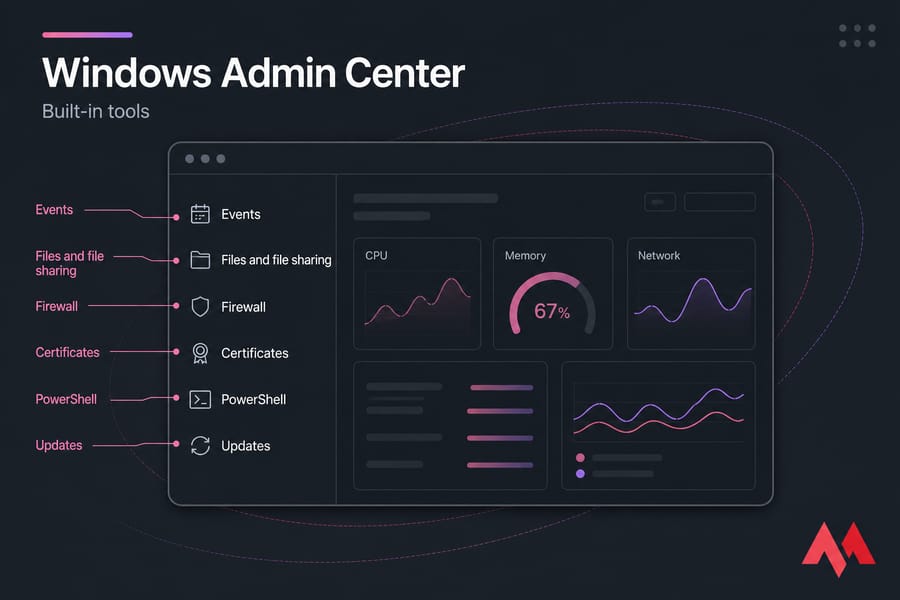
| Tool | What it does | Typical admin use |
|---|---|---|
| Overview | Live resource charts, restart, rename, edit environment variables | First stop when a server feels slow |
| Events | Filtered Event Viewer in the browser | Chasing application crashes and logon failures |
| Services | Start, stop, set startup type | Restarting a stuck IIS or SQL service |
| Processes | Task Manager equivalent, incl. end task | Killing a runaway process |
| Files and file sharing | Browse, upload, download, manage SMB shares | Pulling a log file off a server fast |
| Updates | Windows Update status and installation | Monthly patch rounds |
| Firewall | Inbound and outbound rules | Opening an app port safely |
| Storage / Volumes | Disks, volumes, resize, initialize | Expanding a full data drive |
| Certificates | View, import, request certs | Renewal tracking |
| Roles and features | Install and remove server roles | Adding IIS or DNS |
| Registry | Browse and edit keys | Applying a documented fix |
| PowerShell | Remote PS session in-browser | Anything the GUI can't do |
Extensions and Azure integrations
WAC has an extension model, and it matters more than it sounds. Microsoft and third parties (Dell, Fujitsu, DataON, Veeam and others) publish extensions that add hardware health, backup status, or vendor-specific dashboards. You install them from the Extensions page in Settings.
Then there's the Azure side: Azure Backup, Azure Site Recovery, Azure Arc onboarding, Azure Monitor, Azure File Sync. If you run hybrid, that's genuinely useful. If you don't, ignore it entirely — nothing breaks.
Which tools still require other consoles?
Active Directory Users and Computers. Group Policy Management. Exchange. DHCP scope-level work. Anything Microsoft hasn't ported. For those you're still reaching for RSAT (Remote Server Administration Tools — the installable set of MMC snap-ins and modules for managing servers from a workstation).
Benefits of Windows Admin Center for remote administration
Let's talk about what actually changes in your day.
- Fewer desktop sessions for routine work. Checking why a service stopped used to mean an RDP login, a wait for the profile to load, then Services.msc. Now it's two clicks in a tab that's already open.
- One pane for many servers. Add ten servers to the connections list, and patch status or disk pressure is visible without hunting.
- Server Core becomes manageable. If you run Windows Server Core, WAC gives you a GUI where the OS deliberately has none. That combination is excellent — smaller attack surface, fewer reboots, still usable.
- Lighter on bandwidth. A web dashboard over a mediocre connection beats a full graphical desktop session. If you've ever tried to administer a server over hotel Wi-Fi, you know.
- Good delegation story. Junior staff can restart a service through WAC without you handing out full desktop access.
This is especially convenient when you're managing a Windows VPS hosting instance remotely — the machine lives in a datacenter somewhere, and browser-based administration removes most of the friction of getting to it.
Manage Windows Servers more efficiently on MonoVM
Planning to run Windows Admin Center for remote administration? Start with a high-performance Windows VPS with full administrator access, 25+ global locations, and room to scale. Explore Windows VPS plans.
Windows Admin Center vs Server Manager, RDP, RSAT, and PowerShell
The biggest decision point for most admins isn't whether WAC exists — it's how it stacks up against what they're already using.
| Task | Windows Admin Center | RDP | Server Manager | PowerShell |
|---|---|---|---|---|
| Check server performance | Best | Works | Limited | Works |
| Install a server role | Best | Works | Best | Best |
| Manage Hyper-V VMs | Best | Works | No | Works |
| Install a GUI application | No | Best | No | Limited |
| Bulk change across 50 servers | Poor | No | No | Best |
| Manage Active Directory objects | Limited | Works | No | Best (RSAT module) |
| Manage Server Core | Best | Console only | Remote only | Best |
| Patch multiple servers | Best | Poor | No | Works |
| Manage a failover cluster | Best | Works | No | Works |
| Scripted automation | No | No | No | Best |
Windows Admin Center vs Server Manager
Server Manager is the classic dashboard that opens on login to a full Windows Server GUI install. It handles roles, features, and basic multi-server views. WAC does everything Server Manager does plus a lot more, in a browser, with a modern interface. Microsoft positions WAC as the evolution — but it hasn't removed Server Manager, and it isn't a strict one-to-one replacement. Treat WAC as the primary console and Server Manager as the thing you barely open anymore.
Windows Admin Center vs RDP
Different jobs. If you're unclear on what RDP is, it's a full interactive desktop session — you're sitting at the machine, virtually. WAC is task-based: pick a tool, do the thing, move on.
WAC won't help you run a vendor's GUI installer, click through a legacy application's configuration wizard, or troubleshoot something visual. For that you still need how to use Remote Desktop. WAC just means you'll need it far less often.
Windows Admin Center vs RSAT and PowerShell
RSAT is a per-workstation install of MMC snap-ins. Powerful, but you're maintaining it on every admin desktop, and version mismatches with newer server OSes are a recurring headache. WAC centralizes that — install once on the gateway, everyone browses to it.
PowerShell is a different category. It's automation, and nothing in WAC competes with a well-written script that touches 200 machines. For anything repetitive, drop to a shell — see run PowerShell as administrator.
Pro tip: Use Windows Admin Center for routine administration, PowerShell for automation, and RDP only when a full desktop session is genuinely required. They complement each other. Anyone telling you to pick one is oversimplifying.
Windows Admin Center limitations and trade-offs
I'd rather you hear this here than discover it mid-migration.
- Coverage gaps. AD, Group Policy, Exchange, DNS zone editing, WSUS — either absent or thin. MMC and RSAT stay installed.
- No real bulk operations. The connections list is a list, not a fleet manager. Fifty servers needing the same registry change? Script it.
- Extension quality varies. Some third-party extensions are excellent. Others are stale or barely maintained. Test before relying on one.
- The gateway is a dependency. Gateway down means nobody's managing anything through WAC. Plan for that, and keep RDP access as a fallback.
- It's a browser app. Which means occasional slow loads, session timeouts, and the odd rendering quirk. Not a dealbreaker, just reality.
- Learning curve. If you've navigated MMC by muscle memory for fifteen years, WAC will feel slower for the first week. It gets better.
Windows Admin Center use cases for Hyper-V, Windows VPS, and physical servers
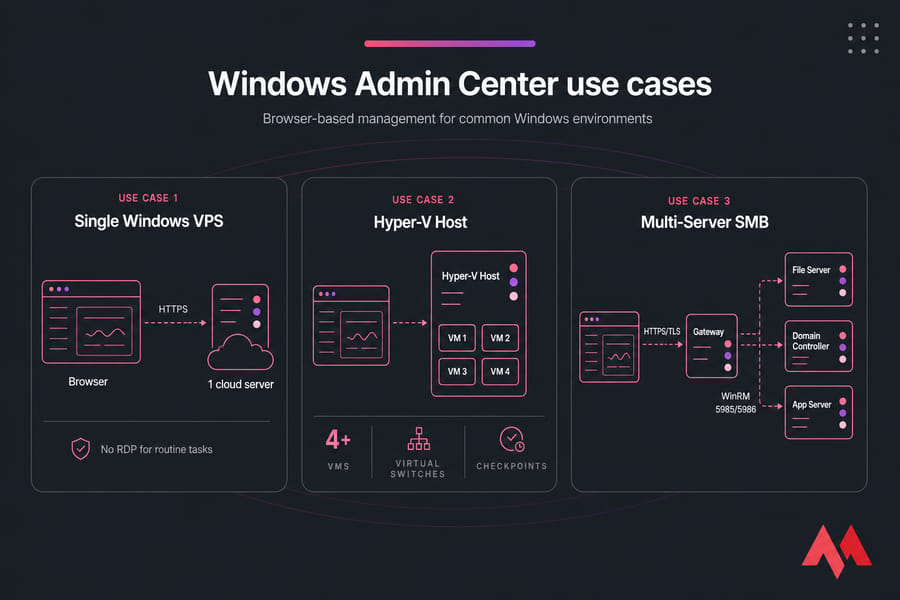
| Environment | Why Windows Admin Center helps | Extra tools you'll still need |
|---|---|---|
| Single Windows VPS | Monitor resources, patch, resize volumes, open firewall ports without an RDP session | RDP for app installs |
| Hyper-V host | Create and manage VMs, checkpoints, virtual switches, live migration | PowerShell for bulk VM provisioning |
| Failover cluster | Node health, cluster-aware updating, Storage Spaces Direct volumes | Failover Cluster Manager for edge configs |
| Small business (3–10 servers) | One console for patching, services, disks, and event triage | RSAT for AD and Group Policy |
| Server Core deployments | Provides the GUI the OS doesn't have | Console access for recovery |
Managing a single Windows VPS
Simplest scenario, and probably the most common one for hosting customers. You install WAC in desktop mode on your laptop, add the VPS by hostname or IP, and manage it from there. Or install the gateway on the VPS itself and reach it over HTTPS from anywhere. Either works. The second option means you need to think carefully about network exposure — more on that next.
Administering Hyper-V hosts and virtual machines
WAC's Hyper-V tooling is solid: create a VM, attach a virtual switch, take a checkpoint before a risky change, live-migrate between hosts. If you're building out virtualization, pair this with Windows Server Hyper-V and pick your OS carefully using best Windows Server versions — WAC supports Windows Server 2016 and later as managed nodes, with the richest tool set on 2019, 2022, and 2025.
Handling small business and multi-server environments
Third practical example: monthly maintenance across a file server, a domain controller, and an application server. Open WAC, check Updates on each, review Events for anything alarming, glance at volume free space, restart in a sensible order. Twenty minutes instead of an hour of RDP hopping.
Is Windows Admin Center secure? Best practices for deployment
It's secure when configured properly. It's a liability when it isn't — and the failure mode is a management console reachable from the open internet with a self-signed cert. Don't do that.
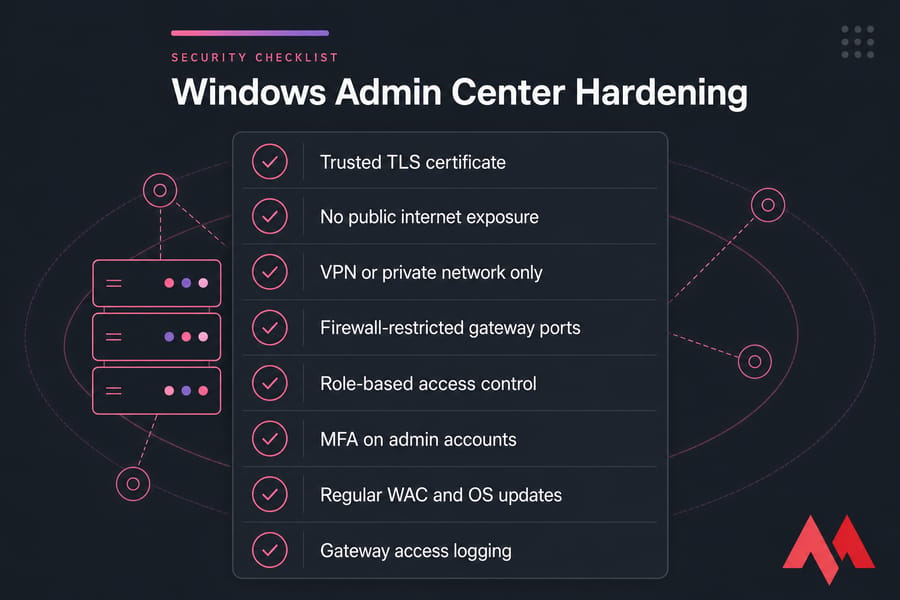
- Replace the self-signed certificate with one from a trusted CA. TLS 1.2 minimum.
- Keep the gateway off the public internet. Reach it over VPN, a private network, or an Azure AD-protected reverse proxy. Never expose port 443 on a management gateway to the world and call it a day.
- Restrict at the firewall. Allow gateway access only from known admin subnets. If you're unsure how to scope that properly, review secure a Windows Server practices first.
- Use role-based access control. WAC supports gateway administrators versus gateway users, and per-server RBAC roles like Readers and Hyper-V Administrators. Least privilege, always.
- Enforce MFA on the accounts that log into the gateway. If WAC is registered with Azure AD, conditional access applies.
- Patch WAC itself. Microsoft ships updates regularly. An unpatched management gateway is a high-value target.
- Enable logging. Gateway access events land in the Windows event log. Ship them somewhere you'll actually look.
Should you use Windows Admin Center? Final verdict
Yes — if you manage Windows Server, Hyper-V, or a Windows VPS and you're currently doing routine work through repeated RDP sessions. The time savings are real and the install takes about five minutes.
Best fit: small-to-mid IT teams, Hyper-V administrators, Server Core deployments, and hosting customers managing remote Windows machines. Weaker fit: large AD-centric enterprises with mature automation, where PowerShell DSC and existing tooling already cover the ground.
The right mental model is layered. WAC as your daily console. PowerShell for anything repetitive or large-scale. RDP for the handful of tasks that genuinely need a desktop. RSAT for Active Directory and Group Policy. That's a working setup, and it's what most competent Windows shops actually run.
Need a reliable server for Windows Admin Center?
Browser-based administration only feels good on stable infrastructure. Deploy Windows Admin Center on a Windows Server 2022 VPS with full administrator access, fast provisioning, and 24/7 technical support. View Windows hosting options and pick the spec that fits your workload.

An experienced tech and developer blog writer, specializing in VPS hosting and server technologies. Fueled by a passion for innovation, I break down complex technical concepts into digestible content, simplifying tech for everyone.