
An EPP code is a unique authorization code used to approve a domain transfer from one registrar to another. It is also called an auth code or transfer code. To use it, unlock your domain, request the code from your current registrar, then enter it when starting the transfer with the new registrar.
If you're new to this, the jargon can feel worse than the actual process. I've seen people get stuck not because the transfer was hard, but because the registrar called the same thing three different names. And then mixed it up with nameservers, DNS, and account locks. Not helpful.
If you just bought your first domain, it also helps to understand what is a domain name and how it differs from hosting. MonoVM also has a simple explainer on domain vs hosting, which clears up one of the most common transfer-time misunderstandings.
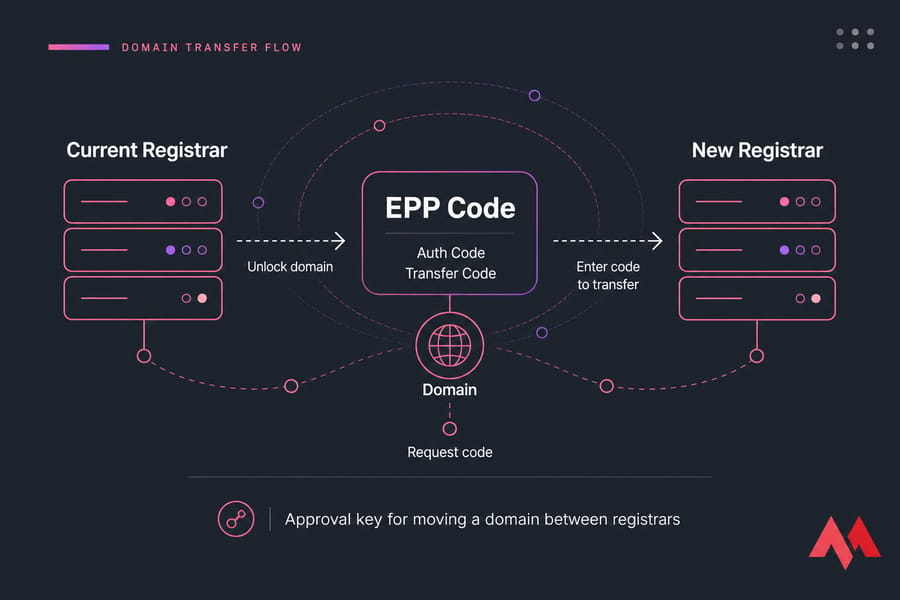
Key takeaway: An EPP code is the approval key for moving a domain between registrars.
What is an EPP code for domain transfer?
An EPP code is a unique transfer authorization code for a domain. In plain English, it's the code that proves you want to move your domain from one registrar to another. ICANN-regulated transfers for many common domain extensions use this extra check to reduce unauthorized moves.
EPP stands for Extensible Provisioning Protocol. You don't need to understand the protocol itself to transfer a domain. Really, you don't. What matters is the practical part: your current registrar gives you a code, and your new registrar asks for it during the transfer process.
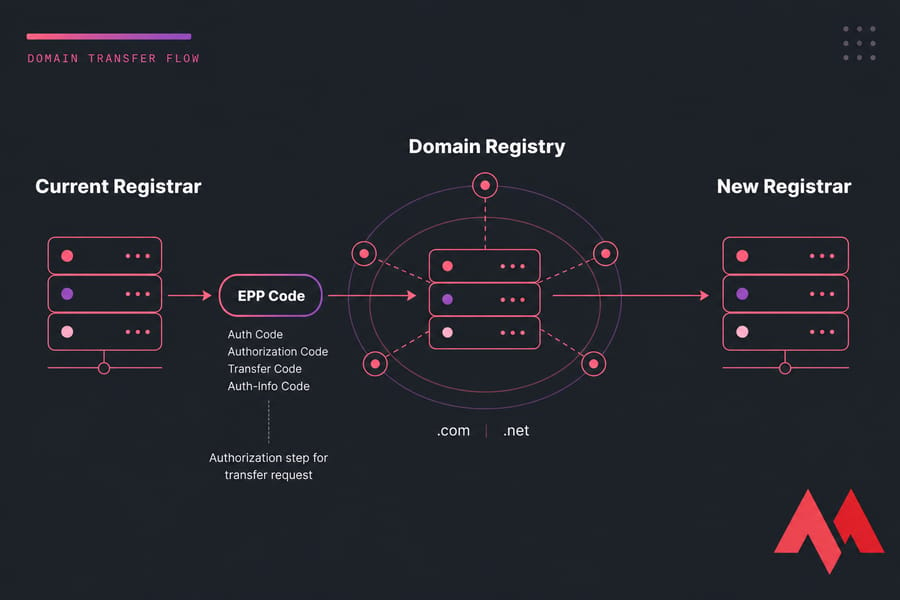
You'll also see the same thing called an auth code, authorization code, transfer code, or auth-info code. Different registrar dashboards use different labels. That's normal, even if it's a bit annoying.
The code is usually issued through your current registrar's domain management panel, though in some cases the registry rules or registrar workflow may require the code to be sent by email or provided by support after identity checks. The registrar is the company you manage the domain through. The registry is the backend operator for the extension, such as .com or .net.
Think of it like a one-use approval token for a registrar change. It does not control where your site is hosted, and it does not change your DNS on its own.
If you're still building your basics, reading how to buy a domain name can help connect the dots between registration, ownership, and transfer rights. Now that you know what the code is, the next question is why registrars require it.
What does EPP stand for?
EPP stands for Extensible Provisioning Protocol. That's the technical standard used in domain management, but for everyday transfers, you only need to know that the EPP code is the authorization token tied to that process.
Is an EPP code the same as an auth code?
Yes, in most registrar interfaces, an EPP code is the same as an auth code. You may also see authorization code, transfer code, or auth-info code.
Who issues the EPP code: registrar or registry?
In practice, you usually get the code from your current registrar through its control panel, email workflow, or support team. The exact process depends on the registrar and the domain extension.
Why an EPP code matters in a domain transfer
The EPP code exists for one reason: security. Without it, moving a domain between registrars would be far too easy for the wrong person. And that would be a mess.
When someone tries to transfer a domain, registrars usually don't rely on account login alone. They also check domain lock status, transfer authorization, and often approval sent to the registrant email. That extra friction is intentional. It protects domain ownership.
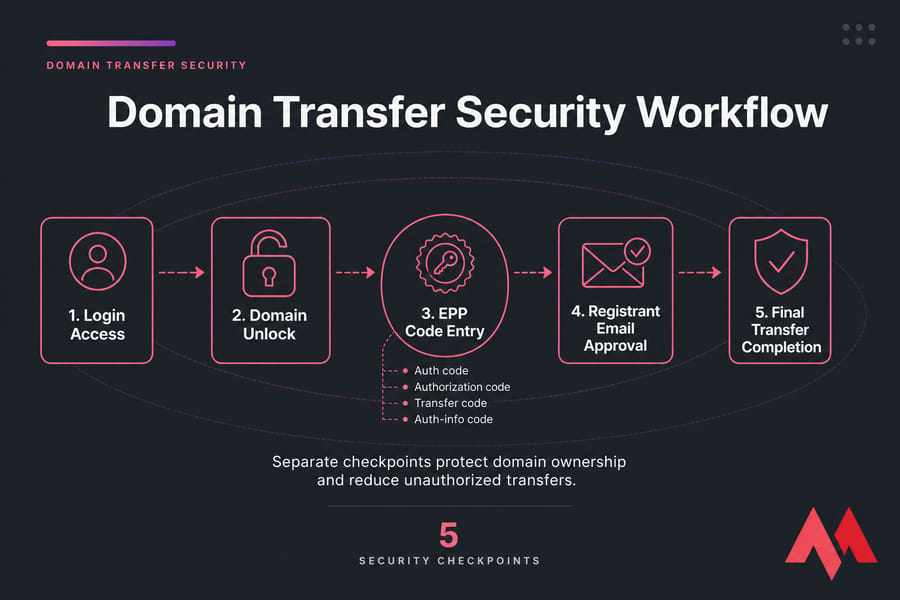
Here's why the EPP code matters:
- It helps prevent unauthorized registrar transfers.
- It adds a second layer beyond just logging into an account.
- It works alongside registrar lock and approval email workflows.
- It gives the gaining registrar proof that the transfer was authorized.
- It reduces the chance of accidental or malicious domain movement.
In my experience, beginners often assume, "I own the account, so that's enough." Sometimes it isn't. Registrars treat domains as valuable assets, so transfer authorization is stricter than editing a contact field or changing nameservers.
That matters even more if privacy settings or old WHOIS details are involved. If you need a refresher there, MonoVM has a guide on domain privacy protection, and you can verify public ownership signals with the WHOIS lookup tool.
Because registrars label this code differently, it helps to know the alternate terms.
How the authorization step protects domain ownership
The code proves that the person starting the transfer has access to the current registrar account or registrant workflow. It isn't perfect by itself, but combined with lock status and email approval, it makes unauthorized transfers much harder.
When a transfer can proceed without delays
Transfers usually move faster when the domain is unlocked, older than any applicable 60-day restriction, linked to a working registrant email, and submitted with the current valid code.
Why registrars require confirmation beyond account login
Because a registrar login can be compromised, outdated, or shared. Transfer authorization adds another checkpoint before ownership control moves elsewhere.
EPP code vs auth code vs transfer code: are they different?
Usually, no. These terms almost always refer to the same thing: the code used to authorize a registrar transfer.
What changes is the label in the registrar dashboard. One provider may say EPP code. Another may use authorization code. Another may hide it under transfer code or auth-info code. Same job, different wording.
| Term | Meaning | Same as EPP code? | Where you might see it |
|---|---|---|---|
| EPP code | Transfer authorization code for a domain | Yes | Transfer settings, advanced domain settings |
| Auth code | Short label for authorization code | Yes | Registrar dashboard, transfer page |
| Authorization code | Formal transfer approval code | Yes | Email notices, checkout flow, support docs |
| Transfer code | Generic user-facing name for the same code | Usually yes | Beginner-friendly registrar panels |
| Auth-info code | Registry/registrar term for transfer auth token | Usually yes | Some support articles and TLD-specific workflows |
If you're clicking around a domain panel and can't find "EPP code," search for any of those alternatives. That's often the trick. I've had to do this with registrars that bury it under advanced tools for no good reason.
If you need help spotting where transfer-related settings usually live, this guide on how to manage your domain control panel is worth a look.
The next thing users need to know is whether every transfer actually requires one.
Common names registrars use
The most common labels are EPP code, auth code, authorization code, transfer code, and auth-info code. Some panels even call it a transfer PIN, though that's less standardized.
When “auth-info code” appears instead
You'll usually see auth-info code in support docs, registry-related notes, or more technical registrar interfaces. For most users, it still means the same transfer authorization code.
Terms users should look for in domain panels
Check menu items like Transfer Settings, Domain Security, Advanced Settings, Get Authorization Code, or Send Auth Code. Those are the usual hiding spots.
When you need an EPP code and when you may not
Most registrar-to-registrar transfers for common gTLDs like .com, .net, and .org require an EPP code. That's the normal path. But not every domain extension follows identical rules, and this is where people get tripped up.
Some ccTLDs have their own registry policies. A country-code extension may use a different transfer mechanism, require a different format, or add local eligibility rules. That's why it helps to understand ccTLDs vs gTLDs before assuming every transfer works the same way. You can also check the extension in MonoVM's TLD list if you're not sure what category your domain falls into.
Another exception: an internal account push at the same registrar often does not require an EPP code. That's because the domain isn't changing registrars. It's only moving between accounts inside the same provider. Different process entirely.
And then there are registry-specific quirks. Some extensions have stricter contact validation. Others may not use a standard EPP workflow at all. So the safest rule is this: assume you need an auth code for a registrar transfer unless the registrar or extension policy clearly says otherwise.
Warning: If your domain is locked or under a 60-day restriction, the transfer may fail even with the correct EPP code.
| Scenario | EPP code needed? | Notes |
|---|---|---|
| .com transfer to another registrar | Usually yes | Standard gTLD transfer workflow |
| .net or .org transfer to another registrar | Usually yes | Auth code commonly required |
| Some ccTLD transfers | Maybe | Rules vary by registry and extension |
| Move domain between two accounts at same registrar | Usually no | This is an account push, not a registrar transfer |
| Recently registered or recently changed registrant details | Maybe blocked | 60-day restrictions may apply depending on policy |
ICANN rules affect many transfers, especially for gTLDs, but your extension and current registrar policy still matter. If your domain is eligible, the next step is finding the code in your current registrar account.
gTLD transfers vs some ccTLD exceptions
gTLD transfers usually follow the familiar unlock-plus-auth-code pattern. Some ccTLDs don't, or they add extra rules that change the order and requirements.
Internal account pushes vs registrar transfers
An account push keeps the domain at the same registrar, so it often avoids the EPP code step. A registrar transfer moves the domain to a new provider, which is where authorization gets stricter.
Cases where transfer rules differ by extension
Extension-specific registry policy can affect code format, transfer timing, eligibility, and approval steps. Always check the transfer rules for your exact TLD before you start.
How to get your EPP code from your current registrar
This is the part most people actually care about: where to find the code.
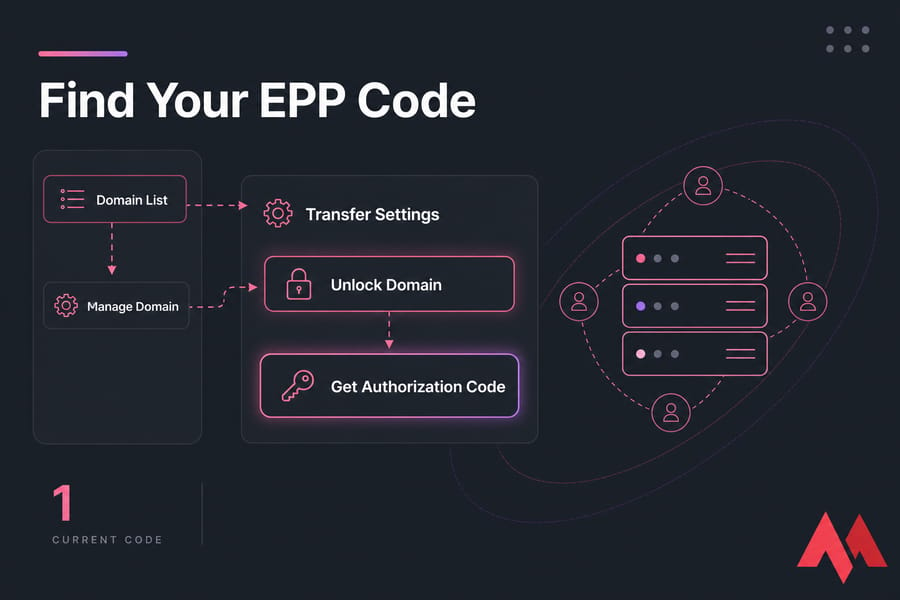
Across providers like GoDaddy, Namecheap, Cloudflare Registrar, Dynadot, Porkbun, and others, the general path is usually something like this:
- Log in to your current registrar account.
- Open your domain list.
- Select the domain you want to move.
- Look for Manage Domain, Transfer Settings, Domain Security, or Advanced Settings.
- Unlock the domain first if required.
- Click the option to get, reveal, or email the authorization code.
That said, registrar interfaces change. A lot. So don't expect every screen to match exactly.
Some registrars show the EPP code instantly in the domain panel. Others send it to the registrant email on file. And some require manual support verification before they'll release it, especially if the domain has higher-risk status or account changes were made recently.
If the registrar emails the code, double-check that you still have access to that email inbox. That's a very common blocker. I've seen transfers stall for days because the domain still pointed to an old employee account or an inbox nobody monitors anymore.
A few practical tips:
- Use the newest code if the registrar regenerates it on request.
- Copy it carefully. Extra spaces before or after the code can cause errors.
- Paste it into a plain text note first if you're worried about formatting.
- Check whether the domain must be unlocked before the code is issued.
- If support provides the code manually, ask whether there is an expiration window.
Pro tip: Some registrars regenerate the code when requested, so always use the newest version.
Common examples:
- GoDaddy: usually places transfer options inside the domain management area and may send approval details by email.
- Namecheap: often labels it clearly as an auth code in the domain list or sharing/transfer tools.
- Cloudflare Registrar: keeps domain management fairly clean, but you'll still want to confirm transfer lock and contact details before requesting anything.
- Squarespace Domains or legacy Google Domains context: transfer settings may live under domain security or transfer-out sections.
If you're still exploring the domain lifecycle more broadly, here are guide on how to register a domain name.
Once you have the code, you can start the transfer with the new registrar.
Where to find the EPP code in a domain control panel
Look under the selected domain's management page, usually inside transfer, security, or advanced settings. If there's a search bar in the dashboard, try terms like auth code, transfer code, or authorization code.
What to do if the registrar emails the code
Confirm that the email address on file is still accessible, then use the latest code sent. If multiple codes were issued, older ones may no longer work.
What to do if support must manually provide it
Be ready to verify ownership with account details, billing info, or contact confirmation. Ask support whether the domain is unlocked and transfer-eligible before you leave the chat or ticket.
How to use an EPP code to transfer a domain to another registrar
If you want the exact order, here it is. This is the sequence that keeps most transfers clean and avoids the usual mistakes.
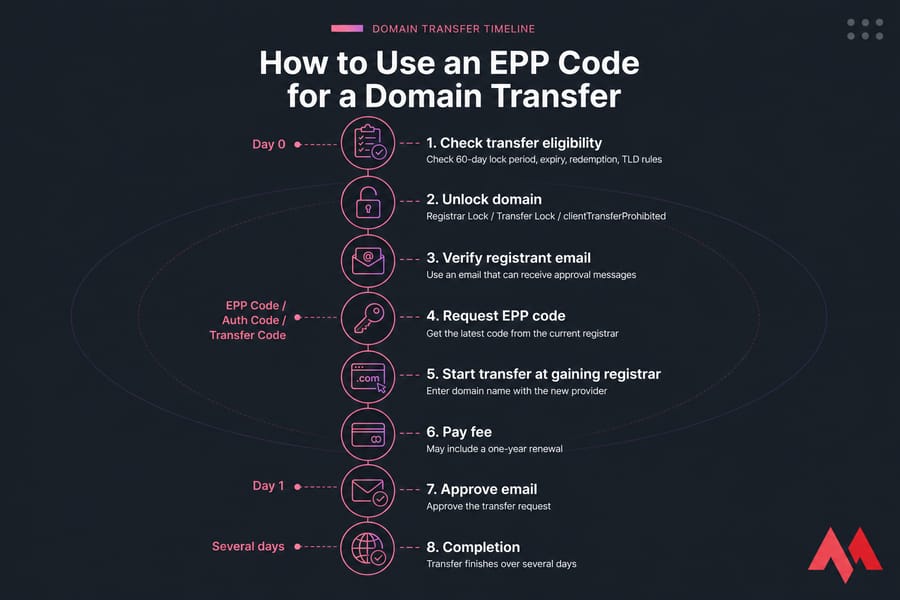
- Check transfer eligibility. Make sure the domain isn't inside a 60-day lock period after registration or a recent registrant change if ICANN-related restrictions apply. Also check that it isn't expired, in redemption, or blocked by TLD-specific rules.
- Unlock the domain. In many control panels this appears as Registrar Lock, Transfer Lock, or a status related to clientTransferProhibited. If it's locked, the transfer won't proceed.
- Confirm registrant contact details. Make sure the registrant email works and can receive approval messages. This step gets skipped all the time, and then people wonder why the transfer is stuck.
- Request and copy the EPP code. Get the latest version from the losing registrar. Copy it exactly as shown.
- Start the transfer at the gaining registrar. Enter the domain name at the new provider.
- Enter the EPP code. Paste the auth code when prompted. This is the core authorization step.
- Pay the transfer fee if required. Many registrars charge for the transfer and include a one-year renewal, though the exact policy depends on the extension and provider.
- Approve the transfer request. Watch for confirmation emails from the gaining registrar or, in some cases, the losing registrar. Approve them quickly to avoid delays.
- Wait for the transfer to complete. Many domain transfers finish in a few days, but timing varies by registrar workflow, TLD, email approvals, and whether the losing registrar releases the domain early.
Now here's the part that reassures people: your website and email usually do not break just because the registrar changes. If your nameservers stay the same, DNS keeps pointing where it pointed before. That's why a domain transfer is not the same thing as a hosting move.
Warning: Do not confuse changing nameservers with transferring the domain.
I personally prefer leaving nameservers untouched until the transfer fully completes unless there's a very specific reason to change them sooner. It keeps variables low. Fewer moving parts, fewer surprises.
Before you hit submit, run this quick readiness check:
| Check | Why it matters | Status |
|---|---|---|
| Registrant email works | Needed for transfer confirmations | Confirm before starting |
| Domain is unlocked | Locked domains usually cannot transfer | Must be enabled |
| Domain is older than 60 days if applicable | ICANN-related restrictions may block transfer | Verify in advance |
| EPP/auth code is current | Old or regenerated codes can fail | Use latest code |
| Domain is not expired or in redemption | Status can delay or prevent transfer | Check before payment |
| DNS records are documented | Helpful if any post-transfer settings need review | Back up first |
If the domain is close to expiry, review the registrar's transfer and renewal terms. MonoVM's domain renewal page can help if renewal timing becomes part of the decision.
If the transfer doesn't go smoothly, the issue is usually one of a few common blockers.
Step 1: Check transfer eligibility
Look at the domain age, status, extension policy, and recent ownership/contact changes. A correct code won't override a lock or registry restriction.
Step 2: Unlock the domain
Disable registrar lock only when you're ready to start the move. Leaving a domain unlocked for no reason isn't ideal from a security standpoint.
Step 3: Confirm registrant contact details
Make sure contact details are current and the approval email won't disappear into an abandoned inbox.
Step 4: Enter the EPP code at the new registrar
Paste the code exactly as issued. If the new registrar reports it as invalid, request a fresh one and try again rather than guessing.
Step 5: Approve the transfer request
Watch for transfer approval email messages from both sides of the process. Some registrars also let you approve or expedite inside the account dashboard.
Step 6: Monitor transfer completion
Track status in the new registrar's panel and keep confirmation emails until the move is fully complete. I also recommend taking a screenshot of the final completed state, just in case.
Common EPP code and domain transfer problems
Most failed transfers come down to four things: lock status, email access, invalid code, or eligibility rules. That's it more often than not.
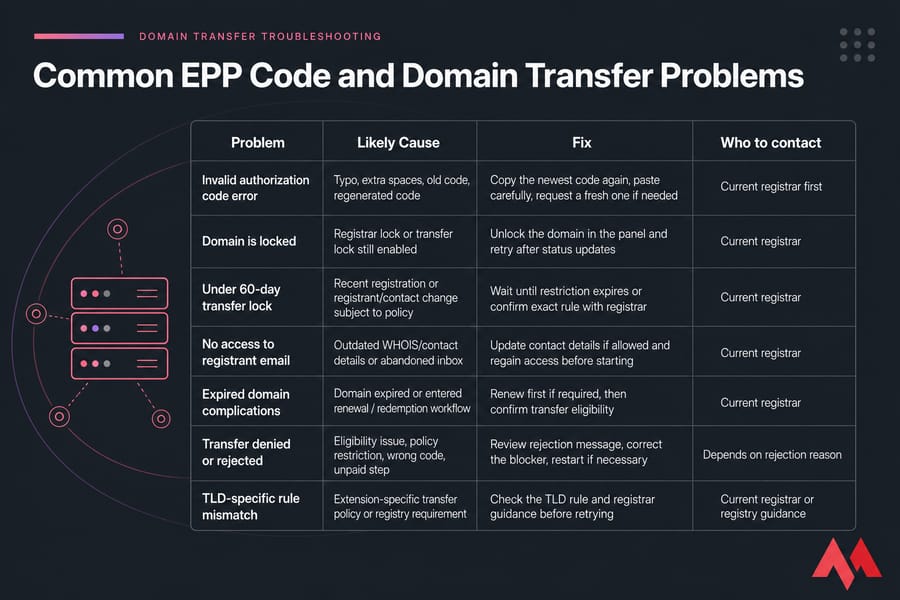
| Problem | Likely Cause | Fix | Who to contact |
|---|---|---|---|
| Invalid authorization code error | Typo, extra spaces, old code, regenerated code | Copy the newest code again, paste carefully, request a fresh one if needed | Current registrar first |
| Domain is locked | Registrar lock or transfer lock still enabled | Unlock the domain in the panel and retry after status updates | Current registrar |
| Under 60-day transfer lock | Recent registration or registrant/contact change subject to policy | Wait until restriction expires or confirm exact rule with registrar | Current registrar |
| No access to registrant email | Outdated WHOIS/contact details or abandoned inbox | Update contact details if allowed and regain access before starting | Current registrar |
| Transfer pending too long | Email approval not completed or losing registrar not yet released domain | Approve all notices and check if manual release is available | Both registrars |
| Transfer denied or rejected | Eligibility issue, policy restriction, wrong code, unpaid step | Review rejection message, correct the blocker, restart if necessary | Depends on rejection reason |
| Expired domain complications | Domain expired, in grace period, or redemption status | Check whether renewal is required before transfer | Current registrar |
| TLD-specific mismatch | Extension uses non-standard transfer rules | Verify extension policy before retrying | Registrar or registry policy support |
A few of these deserve extra detail.
Invalid authorization code error
This usually means the code is wrong, outdated, or pasted with hidden spaces. Some registrars regenerate the EPP code every time you request it, which invalidates the previous one. So if you asked for it twice, use the latest version.
Domain is locked or under 60-day transfer lock
A correct code won't bypass a lock. If the domain status shows a registrar lock or transfer prohibition, unlock it first. Also, ICANN-related restrictions can block transfers for many gTLDs within 60 days of registration or certain contact changes. Not every TLD follows the same rule, but enough do that you should always check.
No access to the registrant email
If approval goes to an old inbox, the transfer can stall or fail. Use WHOIS lookup to review public ownership clues where available, and if you're trying to confirm current ownership history, this guide on how to find who owns a domain may help.
Transfer pending, denied, or rejected
Pending doesn't always mean broken. Sometimes the losing registrar is waiting out its standard release window. Sometimes you missed an approval email. If the transfer is denied, read the exact reason. That's where the real answer is.
I've seen people restart the whole process three times instead of checking one rejection message that plainly said "domain locked." Save yourself the loop.
Expired domain complications
An expired domain can still be transferable in some cases, but once it hits redemption, things get uglier and more expensive. If the domain is near expiry, check whether renewing first is smarter. MonoVM's domain renewal page is the right place to compare that path.
If your domain is eligible, MonoVM's domain transfer service can help you initiate the move from your current registrar. Many of these errors happen because users confuse the EPP code with other domain settings.
EPP code vs nameservers vs domain unlock
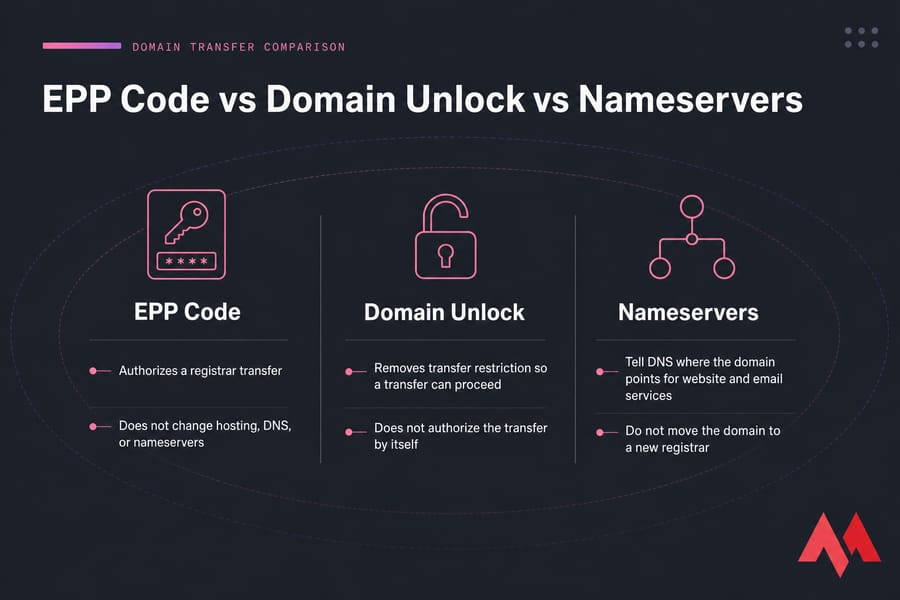
This is probably the biggest source of confusion, so let's separate the three clearly.
| Item | What it does | What it does not do |
|---|---|---|
| EPP code | Authorizes a registrar transfer | Does not change hosting, DNS, or nameservers |
| Domain unlock | Removes transfer restriction so a transfer can proceed | Does not authorize the transfer by itself |
| Nameservers | Tell DNS where the domain points for website and email services | Do not move the domain to a new registrar |
So what does this actually mean?
If you change nameservers, you're changing where DNS queries go. That's about traffic direction for your website, email, and other records. If you unlock a domain, you're removing a transfer restriction. If you enter an EPP code, you're authorizing the registrar move. Three separate actions.
This is why a site can stay online during a registrar transfer if nameservers remain unchanged. DNS and registrar ownership management are connected, sure, but they are not the same layer of control. That's also why moving a domain is not the same as moving hosting.
If you want a deeper backgrounder, MonoVM has explainers on what is DNS, domain vs URL
Before you begin, a few best practices can prevent downtime and transfer delays.
What the EPP code does
It approves the transfer request between registrars. That's its job, nothing more.
What nameservers do
They point the domain's DNS to the provider handling your records. Changing them can affect where your site and mail resolve.
What domain lock does
It blocks unauthorized registrar transfers until you deliberately disable the restriction.
Why these steps are often confused
Because many registrars place them in the same domain settings area, and users assume every transfer-related option does the same thing. It doesn't.
Best practices before starting a domain transfer
A little prep work here saves a lot of pain later. Honestly, this part is a bit tedious, but it's where smooth transfers come from.
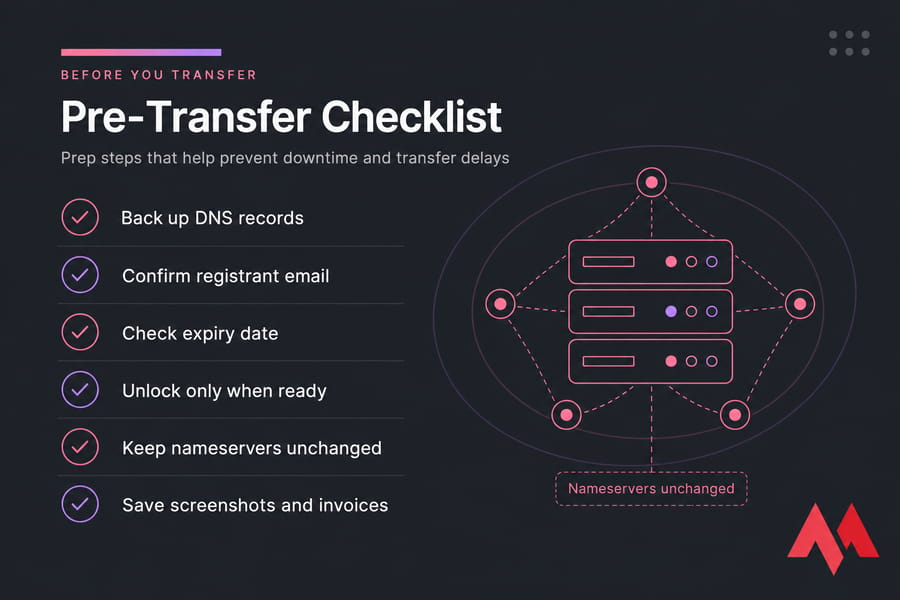
- Back up your DNS records. Take screenshots or export records if your provider allows it. You probably won't need them, but when you do, you'll be glad you saved them.
- Keep nameservers unchanged if the site is live. That reduces the chance of accidental website or email disruption during the registrar move.
- Check the renewal date. If the domain is close to expiration, review the transfer and renewal policies first rather than guessing.
- Use an email address you can access now. Not the one you plan to fix later.
- Disable the lock only when you're ready. Don't leave the domain unnecessarily unlocked for days.
- Save invoices, confirmation emails, and screenshots. If support gets involved, having proof speeds things up.
- Check TLD-specific rules before payment. This matters more with some country-code domains than people expect.
If you're still shopping around, you can also review domain options in the guide to best domain registrars.
If you're ready to move your domain, MonoVM's transfer tools can help simplify the process.
Avoiding website and email disruption
Leave DNS alone unless you need to change it. If nameservers stay the same, your site and mail usually keep working during the transfer.
Backing up DNS records
Record your A, AAAA, CNAME, MX, TXT, and other important entries before you start. It's cheap insurance.
Timing your transfer around renewal dates
Don't wait until the last minute. Some domains can still transfer near expiry, but the safest path depends on status, registrar policy, and extension rules.
Keeping domain security in place
Use the code only when you're ready, keep account access secure, and re-enable any appropriate protections once the transfer is complete.
Move Your Domain With Confidence Use your EPP code to start a secure domain transfer with MonoVM, or explore domain pricing, lookup, and registration tools before you switch.
Domain Transfer | Check Domain Pricing | Search Domain Availability
MonoVM supports domain registration, transfer, lookup, and pricing tools in one ecosystem. If having that under one roof matters to you, it's a practical setup. I've found that simpler tooling usually means fewer transfer-time mistakes.

An experienced tech and developer blog writer, specializing in VPS hosting and server technologies. Fueled by a passion for innovation, I break down complex technical concepts into digestible content, simplifying tech for everyone.