
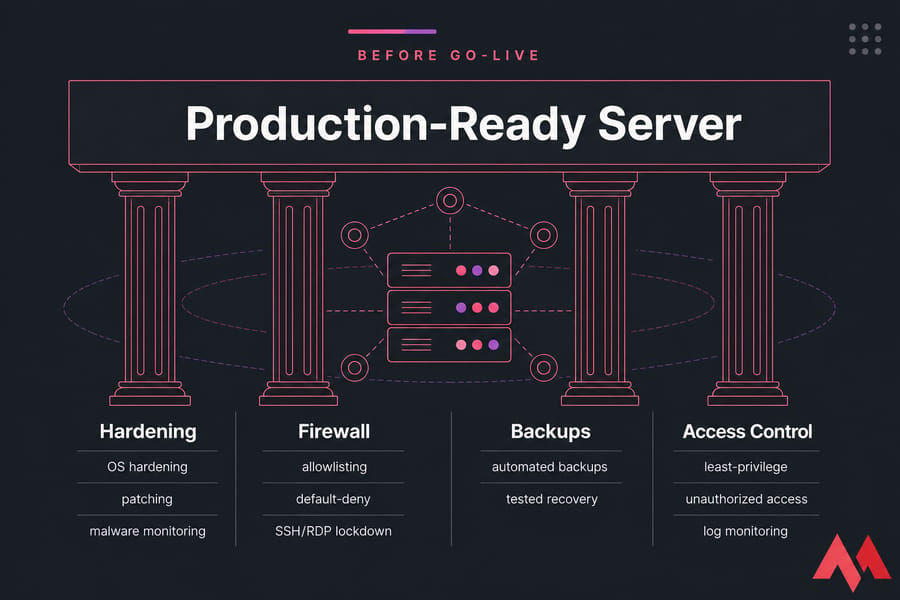
A dedicated server security checklist is your baseline operational framework for locking down a physical server before it touches production traffic and keeping it locked down afterward. It covers OS hardening, firewall allowlisting, SSH or RDP lockdown, least-privilege access, regular patching, malware and log monitoring, automated backups, and tested recovery. The point: shrink the attack surface, block unauthorized access, and make sure you can restore quickly when something goes sideways.
Unlike a dedicated server in a shared environment, you own the entire stack here. Nobody else patches your kernel. Nobody else writes your firewall rules. That control is the appeal and the burden.
New to dedicated hosting? Start by learning what a dedicated server is and how it works before applying these security best practices.
What makes dedicated server security different from VPS security
On a VPS, your provider handles the hypervisor, the physical network edge, and the underlying host. On a dedicated box, you're responsible all the way down to the BIOS, the IPMI/iLO out-of-band controller, and the RAID card firmware. That's a wider blast radius. It's also why generic "Linux server security" articles miss the mark they ignore the management plane that ships with every dedicated server.
Who should use this checklist
This guide is for admins running production workloads on Linux or Windows dedicated hardware web servers, database servers, game backends, control panel hosts. You don't need to be a full-time security engineer. You do need command-line comfort and a willingness to test before you flip switches.
Critical vs recommended controls
Not every task carries equal weight. Throughout this guide I'll flag items as Critical (do before go-live), Recommended (do in the first week), and Ongoing (weekly or monthly). If you only have an hour, focus on the Critical items first.
Priority dedicated server security checklist before go-live
Here's the sequence I follow on every new build. It's saved me more than once.
| Task | Priority | Linux | Windows | Why It Matters |
|---|---|---|---|---|
| Change all default credentials | Critical | ✓ | ✓ | Default logins are the first thing scanners try |
| Create a named admin user | Critical | ✓ | ✓ | Shared root/Administrator kills accountability |
| Apply all OS and package updates | Critical | ✓ | ✓ | Unpatched CVEs are the #1 entry path |
| Configure firewall default-deny | Critical | ✓ | ✓ | Closes accidental service exposure |
| Restrict SSH/RDP by source IP or VPN | Critical | ✓ | ✓ | Public admin ports get hammered constantly |
| Disable password auth (SSH) / enforce NLA (RDP) | Critical | ✓ | ✓ | Brute-force defense |
| Enable MFA for admin access | Critical | ✓ | ✓ | One stolen password shouldn't equal a breach |
| Configure automated backups | Critical | ✓ | ✓ | Recovery is non-negotiable |
| Verify time sync (NTP) and logging | Recommended | ✓ | ✓ | Logs without accurate timestamps are nearly useless |
| Install fail2ban / configure account lockout | Recommended | ✓ | ✓ | Auto-block brute-force attempts |
| Restrict IPMI/iLO to a management VLAN | Critical | ✓ | ✓ | Out-of-band access is god-mode |
| Run a first restore test | Recommended | ✓ | ✓ | Untested backups aren't backups |
Warning: Never change firewall, SSH, or RDP rules without a tested fallback — console access, IPMI, or KVM. Lock yourself out and you'll be on hold with support at 2 a.m.
First 30 minutes
Update the OS. Create your named admin account. Set a strong root/Administrator password (then plan to stop using that account daily). Configure the firewall to default-deny and explicitly allow only the ports you need. Lock down SSH or RDP to your office or VPN IP.
First 24 hours
Switch SSH to key-based auth and disable password login. Enable MFA on every admin path. Configure your backup target and run a first job. Install a basic intrusion-detection tool (fail2ban or CrowdSec on Linux, Defender plus account lockout on Windows). Document every rule and account in a running runbook.
Weekly and monthly
Review auth logs and failed login attempts. Apply pending patches in a maintenance window. Audit open ports. Test a restore from backup — yes, every month. Review user accounts after any staff change. Run a vulnerability scan (Lynis on Linux, the built-in Security Compliance Toolkit on Windows).
For broader operational guidance, see our walkthrough on how to use and manage a dedicated server.
Dedicated server hardening steps for Linux and Windows
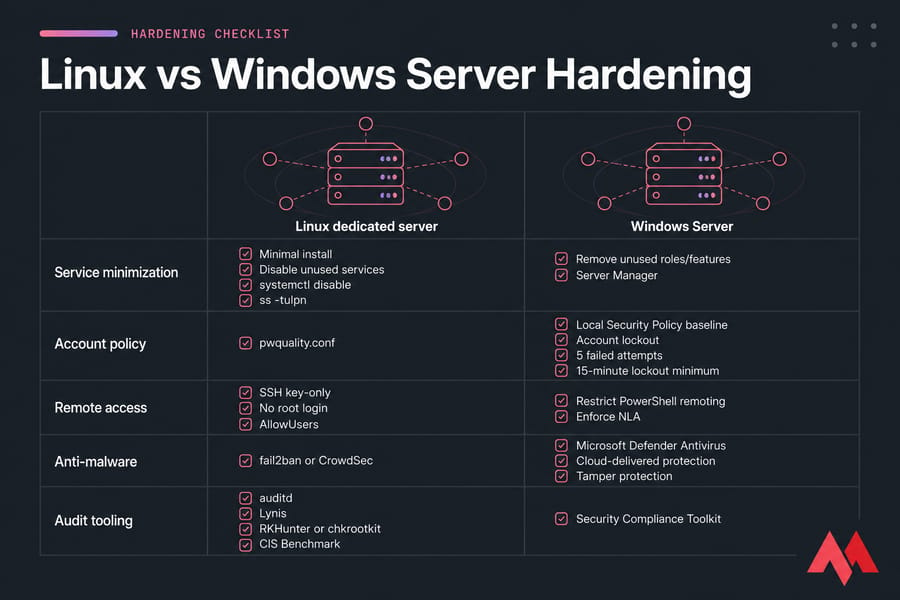
Hardening means trimming the OS down to only what your workload actually needs. Every extra service is another door.
Linux dedicated server hardening checklist
- Start with a minimal install. Skip the desktop environment, skip anything you don't need.
- Disable unused services with
systemctl disableand verify withss -tulpn. - Set a strong password policy via
/etc/security/pwquality.conf. - Configure SSH for key-only auth, no root login, and a restricted
AllowUserslist see our secure SSH configuration guide. - Install fail2ban or CrowdSec to auto-ban brute-force attempts.
- Enable
auditdfor kernel-level audit logging. - Run
Lynis audit systemmonthly. Fix the warnings. - Use RKHunter or chkrootkit periodically for rootkit detection.
- Benchmark against the relevant CIS Benchmark for your distro.
- Walk through the deeper Linux server security guide for command-level steps.
Windows Server hardening checklist
- Remove unused server roles and features through Server Manager.
- Apply a Local Security Policy baseline (Microsoft's Security Compliance Toolkit ships ready-made templates).
- Enable Microsoft Defender Antivirus with cloud-delivered protection and tamper protection on.
- Configure account lockout: 5 failed attempts, 15-minute lockout minimum.
- Restrict PowerShell remoting to specific admin accounts and source IPs.
- Harden RDP: enforce Network Level Authentication, limit accounts that can log on, and put RDP behind a VPN.
- Enable Windows Update for Business with a deferred schedule for feature updates, immediate for security ones.
- Turn on auditing for logon events, privilege use, and policy changes.
- Reference our full Windows Server security checklist for screenshots and policy paths.
Pro Tip: Start with a minimal OS install and remove unused services before deploying apps. Adding hardening later means tracking down which service depends on which port — a nightmare you can avoid.
Reducing your attack surface
Every open port, every running daemon, every installed package is potential surface. Inventory everything. Ask: does production need this? If not, remove it. CIS Benchmarks are an excellent baseline reference — they're free, vendor-neutral, and updated regularly.
Server firewall best practices and port allowlisting
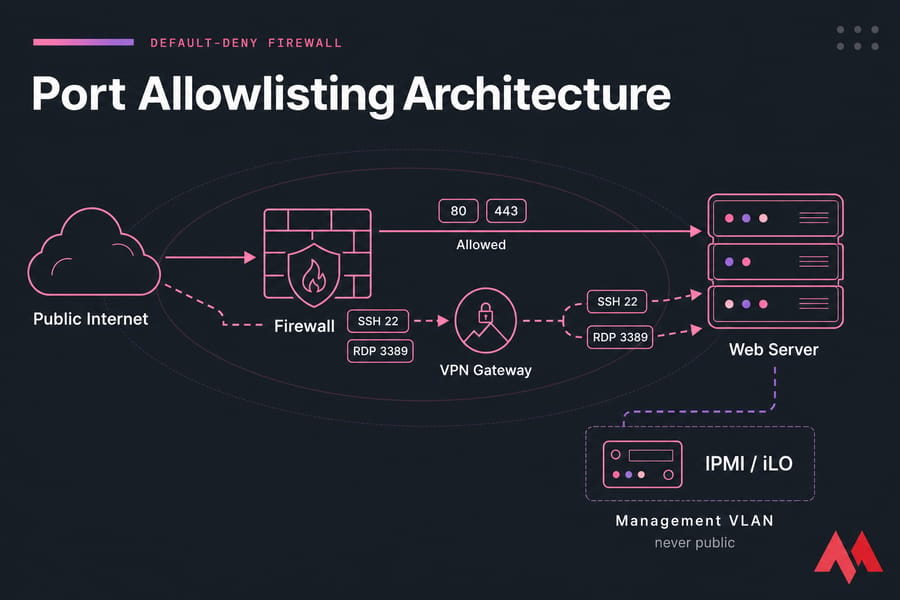
Firewall philosophy here is simple: default deny, explicit allow. Nothing reaches the server unless you said so. Learn the basics with our primer on what a firewall does, then build your rule set.
Which ports should stay open
| Service | Default Port | Public Access Needed? | Recommendation |
|---|---|---|---|
| HTTP | 80 | Yes (for redirect) | Open, redirect to 443 |
| HTTPS | 443 | Yes | Open, enforce TLS 1.2+ |
| SSH | 22 | No | VPN or source-IP allowlist only |
| RDP | 3389 | No | VPN gateway, never public |
| MySQL/PostgreSQL | 3306 / 5432 | No | Bind to localhost or private network |
| SMTP submission | 587 | Depends | Open only if mail server, with TLS |
| Control panel (cPanel/Plesk) | 2083 / 8443 | Limited | IP allowlist or VPN |
| IPMI / iLO | varies | No | Management VLAN only |
Linux firewall options
UFW is the friendliest. firewalld is the default on RHEL-family distros. iptables (or nftables underneath) is the engine. Pick one and stick with it mixing front-ends causes ghost rules.
Audit periodically using these commands to check open ports in Linux.
Windows Defender Firewall baseline
Set the public profile to block all inbound by default. Create explicit rules per workload and document why each rule exists. Our walkthrough on opening ports in Windows Firewall covers the GUI and PowerShell paths.
Key Takeaway: Publicly expose only the ports your workload absolutely needs. Everything else lives behind a VPN, a bastion, or an IP allowlist.
Access control best practices for dedicated servers
Most breaches I've cleaned up didn't involve fancy zero-days. They involved a shared admin password, an SSH key copied across five servers, or an offboarded employee whose account never got removed.
Securing SSH access
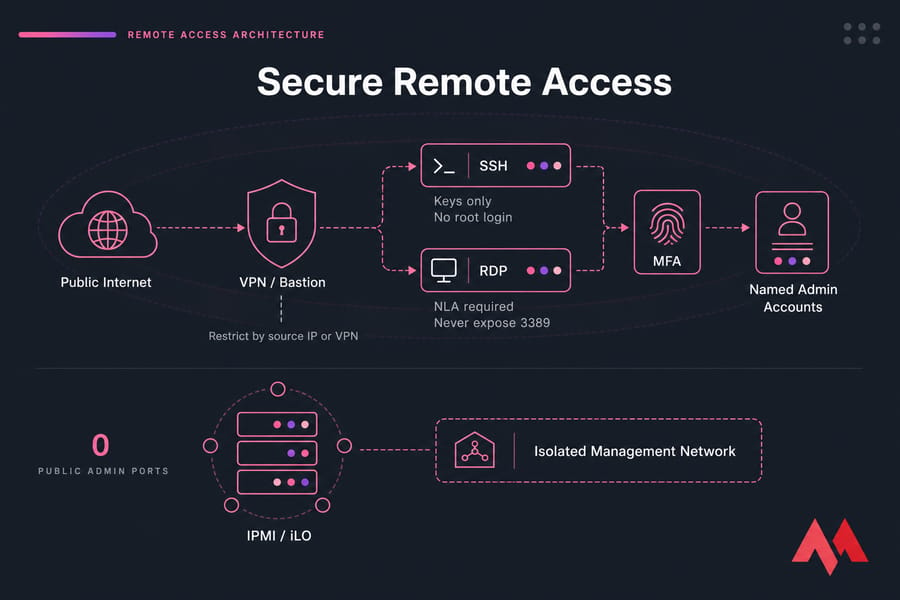
- Use SSH keys, not passwords. See how to connect with an SSH private key.
- Disable root login (
PermitRootLogin no). - Restrict to specific users with
AllowUsersorAllowGroups. - Use
Matchblocks for finer control per network. - Add MFA via Google Authenticator PAM module or hardware keys (FIDO2).
- Limit source IPs at the firewall layer, not just in sshd.
Securing RDP access
- Never expose 3389 to the public internet. Period.
- Require Network Level Authentication.
- Add MFA on top of RDP using Duo, Azure MFA, or similar.
- Restrict the "Allow log on through Remote Desktop Services" right to a specific group.
- Route through a VPN gateway or RD Gateway.
- Set lockout thresholds and monitor failed logon events see our guide on securing RDP and how to defend against RDP brute force.
Least privilege, sudo, and admin separation
Every human gets a named account. Nobody shares logins. Daily work happens as a regular user; admin actions require sudo (Linux) or a separate elevated account (Windows). Audit sudoers monthly. When someone leaves, disable their account that day, not next quarter.
When to use VPN, IP allowlisting, or bastion
Pick at least one for any admin port:
- IP allowlist — simplest, works when your team has static IPs.
- VPN — best for distributed teams; one trusted entry point.
- Bastion / jump host — best for multi-server environments where you want a single audited choke point.
Warning: Changing the SSH port from 22 to 2222 is not a security control. It reduces log noise. That's it. Keys, MFA, and IP restrictions do the actual work.
Patch management and update policy
Unpatched software is, year after year, one of the top breach causes. The fix isn't glamorous — it's calendar discipline.
What needs patching
OS packages, the kernel, web server (Nginx/Apache/IIS), database engine, language runtimes, control panel, backup agents, and any third-party app. If it has a version number, it has a patch cycle.
Auto vs manual updates
| Update Type | Recommendation | Why |
|---|---|---|
| Security patches (OS) | Auto, with same-week reboot window | Speed matters more than caution |
| Kernel updates | Manual, scheduled | Reboots required; test first |
| Major version upgrades | Manual, with snapshot | Breaking changes likely |
| Application patches | Staged: dev → prod | Dependency conflicts |
Always take a snapshot or backup before any non-trivial upgrade. For OS-specific steps, see updating Ubuntu, updating CentOS, Windows Server updates, and updating the Linux kernel.
Dedicated server backup strategy and restore checklist
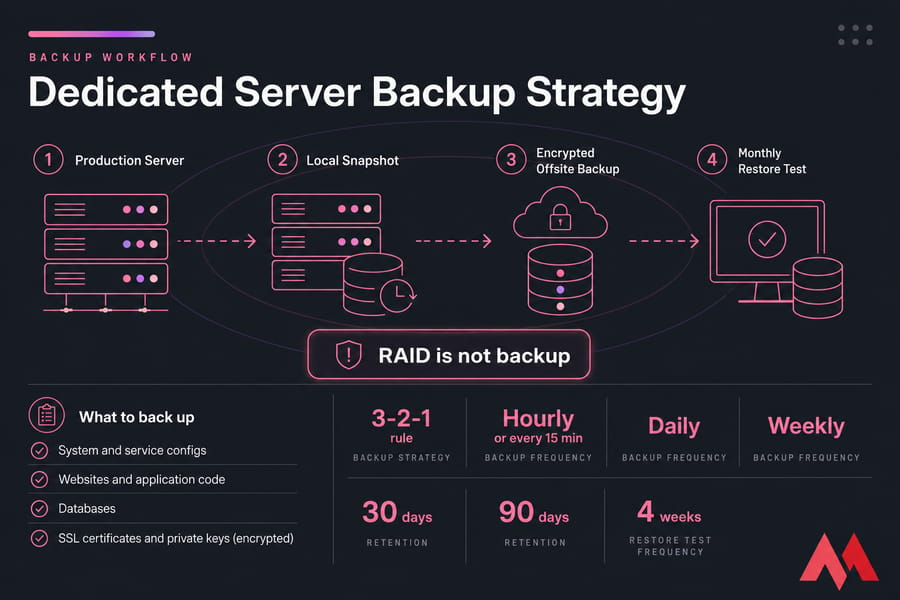
If you remember one thing from this article: RAID is not a backup, a snapshot is not a backup, and an untested backup is not a backup.
What to back up
- System and service configs (
/etc, IIS config, registry exports) - Websites and application code
- Databases (use proper dumps, not file copies of live data files)
- SSL certificates and private keys (encrypted)
- User data, mail stores, custom scripts
- Cron jobs / scheduled tasks definitions
Frequency, retention, and storage
| Asset | Frequency | Retention | Storage Target |
|---|---|---|---|
| Database | Hourly or every 15 min (binlogs) | 30 days | Offsite + encrypted |
| Website files | Daily | 30 days | Offsite |
| System config | On change + weekly | 90 days | Versioned repo |
| Full system image | Weekly | 4 weeks | Offsite |
Follow the 3-2-1 rule: three copies, two media types, one offsite. Encrypt backups at rest. Lock down the backup repository — if an attacker can delete your backups, you don't have backups. Offsite storage VPS works well as an inexpensive backup target.
For implementation, see how to back up a server and the Windows Server Backup guide.
Restore testing
This is where most teams fail. Schedule a monthly restore to a scratch server. Confirm the restore actually boots and the data is usable. Document RPO (how much data you can afford to lose) and RTO (how long recovery takes) in plain language: "We can lose at most 1 hour of orders, and we can be back online within 4 hours."
Stat Callout: Most "the backups failed" incidents I've investigated were actually "the restore was never tested" failures. The backups ran fine — they just didn't contain what anyone thought they did.
Monitoring, logs, and intrusion detection
Prevention isn't enough. You need to know when something's wrong — ideally before customers tell you.
What to monitor first
- Authentication logs and failed logins
- Privilege escalation events (sudo, runas)
- Service starts, stops, and restarts
- File integrity on critical paths (
/etc, web roots, system binaries) - Resource anomalies — sudden CPU, memory, or outbound traffic spikes
- New listening ports
Tools to consider
| Need | Linux | Windows |
|---|---|---|
| Brute-force defense | fail2ban, CrowdSec | Account lockout + Defender |
| Audit logging | auditd | Windows Event Forwarding |
| File integrity | AIDE, Wazuh | Wazuh agent |
| EDR / malware | ClamAV, Wazuh | Microsoft Defender |
| Centralized SIEM | Wazuh, OSSEC, Graylog | Same, plus Sentinel |
For day-to-day visibility, light tools like htop and a handful of dedicated server monitoring tools go a long way. Make sure NTP is configured — logs across servers are nearly useless if timestamps drift.
Common dedicated server security mistakes
| Mistake | Why It's Risky | Better Approach |
|---|---|---|
| Using root/Administrator daily | One slip = full compromise | Named user + sudo/elevation |
| SSH/RDP open to 0.0.0.0/0 | Constant brute-force, eventual hit | VPN, bastion, or IP allowlist |
| Unused services left running | Extra CVEs, extra exposure | Remove or disable everything unused |
| No restore testing | Backups exist but don't actually work | Monthly restore drill |
| Treating RAID as backup | RAID protects against drive failure, not ransomware or deletion | RAID + real backups offsite |
| No patch schedule | Known CVEs sit exploitable for months | Weekly patch window |
| Forgotten accounts after offboarding | Ex-employees retain access | Same-day account disable |
| Exposed IPMI/iLO | Total control of the box at the BMC layer | Isolate on management VLAN — see our IPMI overview |
If you came from VPS land, our VPS security tips cover overlapping ground worth a skim.
Managed vs unmanaged dedicated server responsibilities
Be honest with yourself about what you'll actually maintain. Skipped patches and untested backups are way more dangerous than picking the "wrong" hosting model.
| Responsibility | Unmanaged | Managed | Customer Still Owns? |
|---|---|---|---|
| Hardware & network | Provider | Provider | No |
| OS install & baseline | You | Provider | No |
| OS patching | You | Provider | Application patches: yes |
| Firewall policy | You | Shared | App-specific rules: yes |
| User access & MFA | You | You | Yes — always |
| Backups | You | Provider (often) | Verify retention fits your RPO |
| Monitoring & response | You | Provider | App-layer alerts: yes |
| Application security | You | You | Yes — always |
A managed dedicated server reduces operational load — patching, monitoring, and incident support shift to the provider. What stays with you no matter what: your application code, your credentials, your access policy. Nobody else can secure those for you.
Key Takeaway: Managed hosting reduces operational burden, not your responsibility for credentials and application security.
Need a more secure dedicated server setup?
If you'd rather not handle every hardening, patching, and access-control task yourself, MonoVM's dedicated and managed options can shorten the path to production.
Browse dedicated server plans or talk to 24/7 technical support about what fits your workload.
Dedicated server security checklist recap
Print this. Pin it. Work through it on every new build.
Hardening
- Minimal install, unused services removed
- CIS Benchmark baseline applied
- Strong password policy and account lockout
- Anti-malware / EDR active
Firewall
- Default deny, explicit allow
- Only workload ports exposed publicly
- Admin ports behind VPN or allowlist
- Rules documented with purpose
Access control
- Named accounts, no shared logins
- SSH key auth, root login disabled
- RDP behind NLA + MFA + VPN
- Least privilege, sudo discipline
- IPMI on isolated management network
Backups
- 3-2-1 strategy, encrypted at rest
- Daily app/db backups, weekly full image
- Monthly restore test
- RPO and RTO documented
Monitoring
- Auth logs and failed logins reviewed weekly
- File integrity monitoring on critical paths
- NTP synced, log retention set
- Alerting thresholds tuned (not too noisy, not too quiet)
Next steps
Use this checklist as your baseline, then pick the model that fits your team. For full control, deploy on MonoVM dedicated servers. For less hands-on security work, look at managed dedicated server.

An experienced tech and developer blog writer, specializing in VPS hosting and server technologies. Fueled by a passion for innovation, I break down complex technical concepts into digestible content, simplifying tech for everyone.