To configure Windows Task Scheduler, open Task Scheduler (or run taskschd.msc), pick Create Task instead of Create Basic Task, set a trigger such as Daily or At startup, add an action that starts your program or script, review the Conditions and Settings tabs, then save and run it manually to confirm it works.
Configure Windows Task Scheduler: the short version
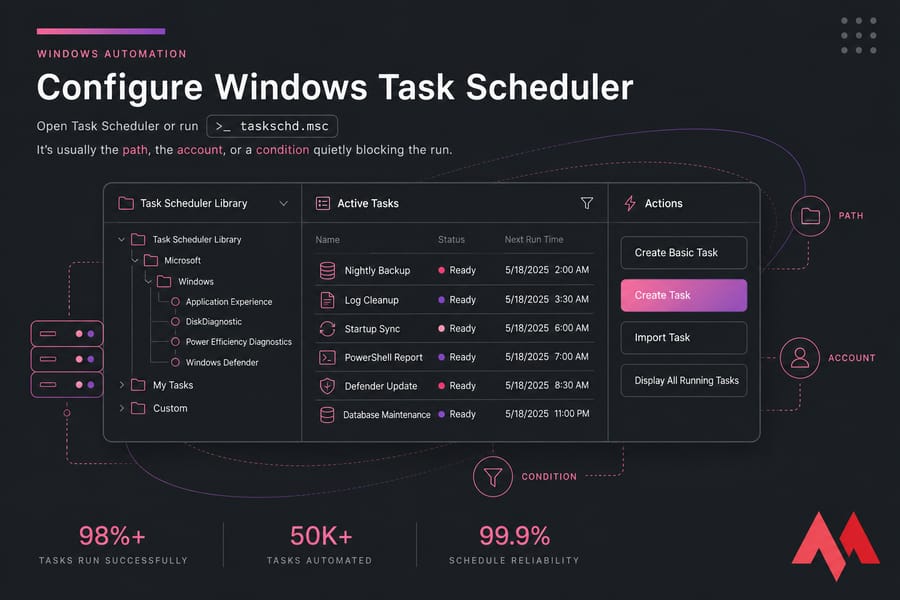
That's the whole thing in one paragraph. But the reason you're here probably isn't the click path — it's that a task you already created never fired, or fired and did nothing. I've debugged that exact situation more times than I care to admit on Windows Server boxes, and it's almost never the schedule. It's the path, the account, or a condition quietly blocking the run.
Before you start
- Administrator access on the machine (required if you want elevated tasks).
- The script, executable, or file you're scheduling must already exist at a known path.
- Decide now: does this run only while you're logged in, or even when nobody's logged in? It changes everything downstream.
- For PowerShell, know your execution policy and always use full file paths.
- On Windows Server or a Windows VPS, use an account that actually has the permissions the task needs — not just any local user.
What Windows Task Scheduler actually does
Task Scheduler is Microsoft's built-in automation engine. It's been in Windows since forever, it ships with Windows 10, Windows 11, Windows Server 2019, and Windows Server 2022, and it's the closest thing Windows has to cron.
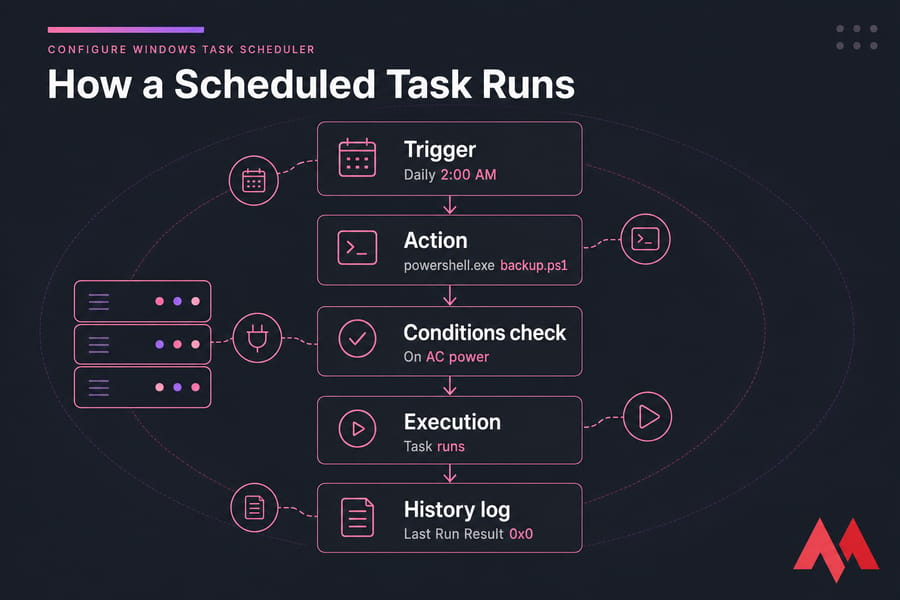
Every scheduled task is made of four parts:
- Trigger — the "when." A time, a startup event, a logon, or a specific Event Viewer entry.
- Action — the "what." Usually "Start a program," which covers
.exe,.bat,.cmd, and PowerShell scripts. - Conditions — the "only if." On AC power, machine idle, network available.
- Settings — the "how it behaves." Retry on failure, run after a missed start, kill it if it hangs.
People use it for nightly backups, log cleanup, restarting a crashed app pool, syncing files, running maintenance scripts, and launching apps at logon. On a server it earns its keep even harder — if you're new to that side of things, here's a primer on what Windows Server is and why it behaves differently from a desktop.
Create Basic Task vs Create Task
Both buttons sit in the right-hand Actions pane. They create the same kind of object — the difference is how much of it you're allowed to configure.
| Feature | Create Basic Task | Create Task | Best for |
|---|---|---|---|
| Setup speed | Wizard, ~30 seconds | Tabbed dialog, a few minutes | Basic for quick one-offs |
| Run whether user is logged on or not | No | Yes | Create Task, always, on servers |
| Run with highest privileges | No | Yes | Create Task for admin-level scripts |
| Multiple triggers | One only | Unlimited | Create Task |
| Multiple actions | One only | Unlimited | Create Task |
| Conditions tab | Hidden | Full control | Create Task |
| Run as a different account | No | Yes (incl. SYSTEM) | Create Task |
| Configure for OS version | No | Yes | Create Task |
Basic Task isn't bad. It's fine for "open this app every morning on my laptop." But for anything script-driven, anything unattended, and anything on a headless box like Windows Server Core, use Create Task. You'll end up there eventually anyway.
How to create a scheduled task in Windows, step by step
- Press
Win + R, typetaskschd.msc, press Enter. (Start menu search for "Task Scheduler" works too. So does launching it from an elevated prompt — here's how to open Command Prompt as administrator if you need it.) - In the left pane, expand Task Scheduler Library. I'd suggest right-clicking it and creating a folder for your own tasks. Keeps your stuff separate from the hundred Microsoft tasks already in there.
- Click Create Task in the right pane.
- General tab: give it a name and a description your future self will understand. "Backup" is useless. "Nightly SQL dump to D:\Backups — owner: ops" is not.
- Still on General, under Security options, click Change User or Group to set the account. Then select Run whether user is logged on or not. Tick Run with highest privileges if the script touches protected paths, services, or the registry.
- Triggers tab: click New, pick your schedule from the "Begin the task" dropdown, set the time, click OK.
- Actions tab: click New, leave the action as Start a program, then fill in Program/script, Add arguments, and Start in. More on those fields below — they're where most tasks break.
- Conditions tab: if this is a server or VPS, untick Start the task only if the computer is on AC power. It's checked by default and it has silently killed more tasks than any other setting.
- Settings tab: tick Run task as soon as possible after a scheduled start is missed and set a restart-on-failure policy if the job is important.
- Click OK. Enter the account password when prompted — that's what lets the task run without a logged-on session.
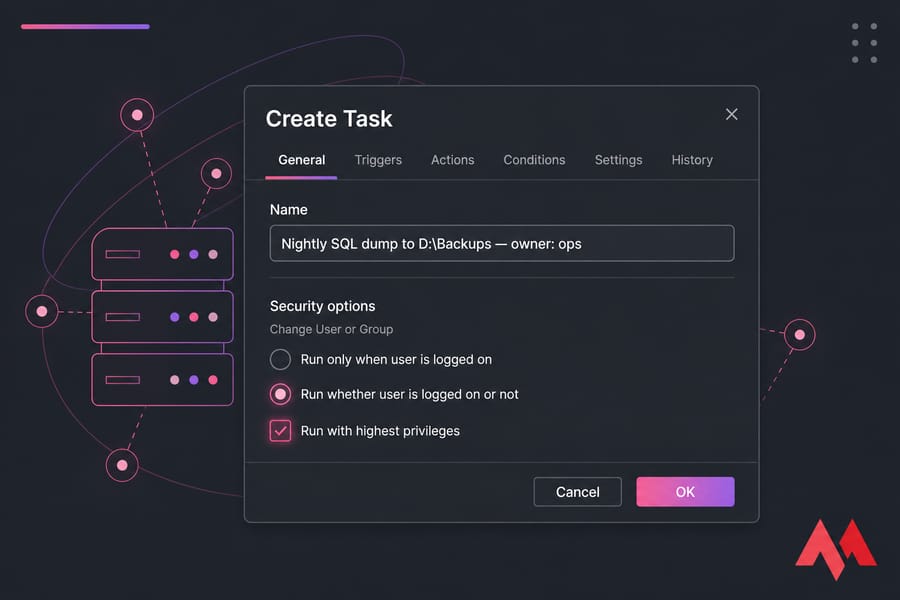
Pro tip: if the password prompt never appears after clicking OK, you probably left "Run only when user is logged on" selected. Go back to General and fix it, otherwise your 3 AM task won't run on a server nobody's logged into.
How to schedule a batch file in Windows Task Scheduler
Task Scheduler runs .bat and .cmd files directly. You don't need a wrapper in most cases.
Say you've got this at C:\Scripts\cleanup.bat:
@echo off
del /q /f /s "%TEMP%\*"
forfiles /p "C:\Logs" /s /m *.log /d -14 /c "cmd /c del @file"
echo Cleanup finished %DATE% %TIME% >> C:\Logs\cleanup-history.txt
On the Actions tab:
| Field | Value |
|---|---|
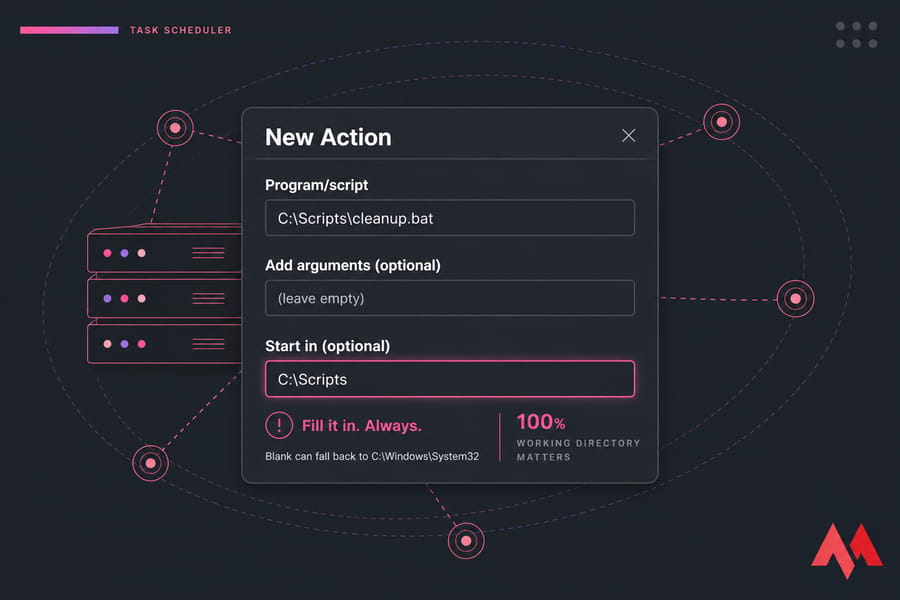
| Program/script | C:\Scripts\cleanup.bat |
| Add arguments | (leave empty) |
| Start in | C:\Scripts |
That Start in field is labelled "(optional)" and that label is a lie. If your batch file uses any relative path — .\output\, data.csv, whatever — and Start in is empty, the working directory becomes C:\Windows\System32. Your script runs, writes files somewhere weird or fails half-way, and Task Scheduler happily reports success. Fill it in. Always. And don't wrap it in quotes, Task Scheduler doesn't like that here.
Use cmd.exe /c "C:\Scripts\cleanup.bat" in Program/script only when you need to chain commands or capture the exit code differently. Otherwise it's unnecessary. If you're building out the script itself, this list of CMD commands is a decent reference.
How to schedule a PowerShell script with Task Scheduler
Here's where people trip. You cannot point Program/script at a .ps1 file and expect it to execute. Windows will open it in Notepad or do nothing at all. You call the interpreter and pass the script as an argument.
| Field | Value |
|---|---|
| Program/script | powershell.exe |
| Add arguments | -NoProfile -ExecutionPolicy Bypass -File "C:\Scripts\backup.ps1" |
| Start in | C:\Scripts |
Quick breakdown. -NoProfile skips the user profile so a broken profile script can't take your task down. -ExecutionPolicy Bypass applies only to that single process — it does not change machine policy, which is exactly why it's the right tool here rather than loosening policy system-wide. -File must come last, and the path gets quotes if it contains spaces.
Add logging to the script itself. Task Scheduler tells you the process launched; it does not tell you the script worked:
Start-Transcript -Path "C:\Logs\backup-$(Get-Date -f yyyyMMdd).log" -Append
try {
    Copy-Item "D:\Data\*" "\\backup01\archive\" -Recurse -Force -ErrorAction Stop
    Write-Output "Backup OK"
} catch {
    Write-Output "FAILED: $($_.Exception.Message)"
}
Stop-Transcript
If the script needs elevation, tick Run with highest privileges — same effect as choosing to run PowerShell as administrator manually. And if a cmdlet works interactively but fails in the task, check your PowerShell version; scheduled tasks calling powershell.exe hit Windows PowerShell 5.1, not PowerShell 7. For 7 you'd point at pwsh.exe instead.
Triggers, conditions, and settings that actually matter
| Trigger | Best use case | Notes |
|---|---|---|
| On a schedule (daily/weekly) | Backups, reports, cleanup | Respects local time zone — check it on cloud servers |
| At startup | Services-like apps, VPS boot jobs | Add a 1–2 minute delay so networking is ready |
| At log on | Per-user desktop automation | Won't fire on an unattended server |
| On an event | Reacting to a service crash or error ID | Grab the log, source, and Event ID from Event Viewer first |
| On idle | Heavy scans, defrag | Rarely triggers on busy servers |
| One time | Migrations, scheduled reboots | Pair with "Delete task if not scheduled to run again" |
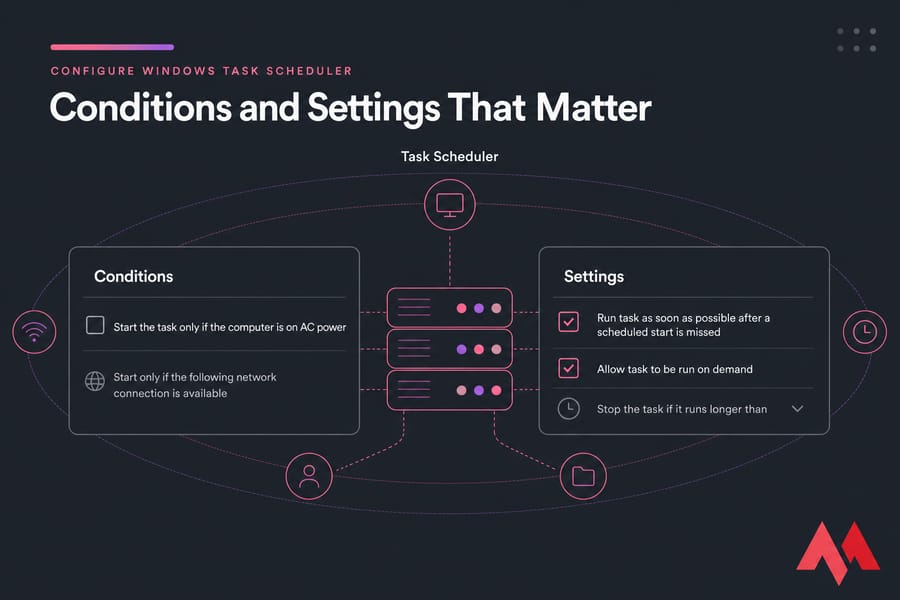
On the Conditions tab, the AC-power checkbox is the big one. "Start only if the following network connection is available" is the second — it depends on network profile detection and gets flaky. On Settings, keep "Allow task to be run on demand" enabled so you can test it, enable the missed-start catch-up, and set "Stop the task if it runs longer than" to something sane so a hung script doesn't sit there for a week.
Key takeaway: for unattended server automation, Run whether user is logged on or not plus Run with highest privileges is the default combination you want. Everything else is tuning.
Worth knowing: on domain-joined machines, Group Policy in Windows can override or deploy scheduled tasks centrally. If a task keeps reverting, that's your first suspect.
Test the task and read the history
Never trust a task you haven't manually run.
- Right-click the task → Run. Watch the Status column change to Running.
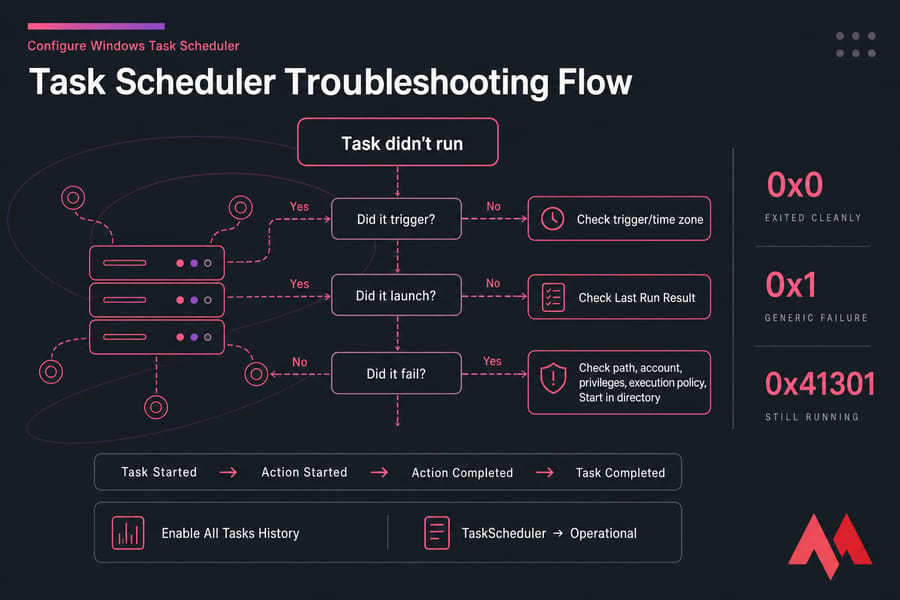
- Check Last Run Result.
0x0means the process exited cleanly.0x1is a generic failure.0x41301just means it's still running. - Open the History tab. If it says history is disabled, click Enable All Tasks History in the right-hand pane — it's off by default and you'll want it.
- Read the event sequence: Task Started → Action Started → Action Completed → Task Completed. A missing "Action Completed" means the process never exited normally.
- Cross-check your own script log.
0x0only proves the process launched and returned zero. It says nothing about whether the backup actually copied anything.
For deeper digging, Event Viewer under Applications and Services Logs → Microsoft → Windows → TaskScheduler → Operational has the full record. Some of the diagnostics here overlap with important Windows commands like schtasks /query /v /fo LIST, which dumps everything about a task to the console.
Task Scheduler not running: problems and fixes
| Problem | Likely cause | Fix |
|---|---|---|
Result 0x1, nothing happened |
Script ran from System32, relative paths broke |
Set Start in to the script folder |
Result 0x2 |
File not found | Verify the exact path in Program/script; no quotes in that field |
| Task never fires at all | Task disabled, or trigger expired | Check Status column and the trigger's end date |
| Only runs when you're logged in | "Run only when user is logged on" selected | Switch to "Run whether user is logged on or not" on General |
| Task stopped working after a password change | Stored credentials expired | Re-open the task, click OK, re-enter the password |
| Access denied in the log | Account lacks rights, or UAC blocking | Tick Run with highest privileges; grant "Log on as a batch job" |
| PowerShell script does nothing | Execution policy or missing -File |
Use -ExecutionPolicy Bypass -File "path" |
| Runs on desktop, not on VPS | AC power condition ticked | Untick it on the Conditions tab |
| Fires at the wrong hour | Server time zone differs from yours | Confirm system time zone; use "Synchronize across time zones" |
| Nothing in Task Scheduler responds | Task Scheduler service stopped | Check the Schedule service is Running and set to Automatic |
If a task exists specifically to catch random service crashes on a Windows VPS, an On-event trigger tied to the crash Event ID beats polling every five minutes.
Quick summary: path → account → privileges → conditions → history. In that order. You'll find it in the first three about 80% of the time.
Best practices for reliable automation
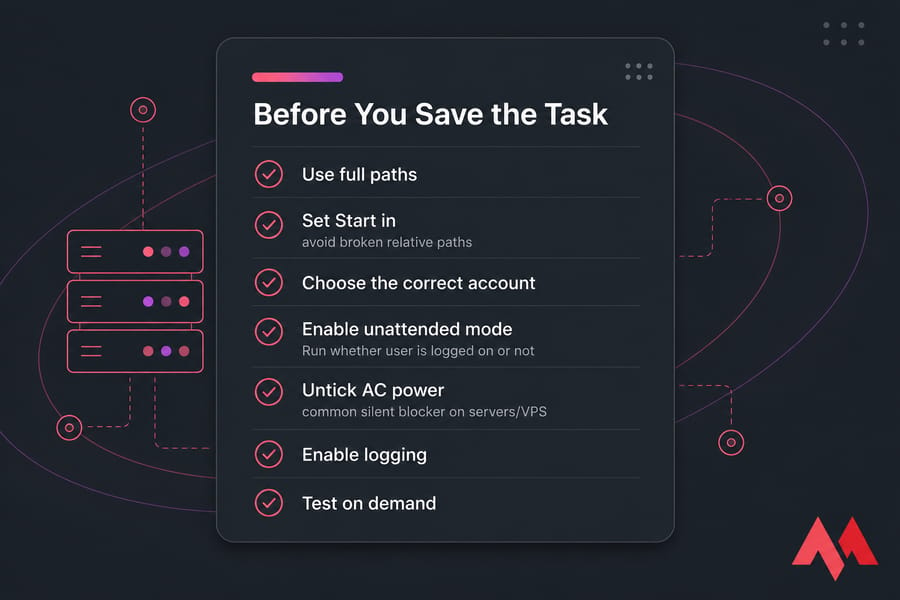
- Full paths everywhere. Program/script, arguments, and inside the script. No exceptions.
- One folder for scripts.
C:\Scriptsworks. Avoid user-profile paths — they vanish when the account changes. - Log every run with a timestamp. Silent tasks are unmaintainable tasks.
- Least privilege. Only tick highest privileges when the job genuinely needs it. Broader guidance here on how to secure your Windows Server.
- Test manually first — in a console, then on demand, then on schedule.
- Export to XML. Right-click → Export. Store the file with your scripts. Re-importing on a rebuild takes ten seconds instead of an hour.
- Review History after every edit. One typo in Add arguments is all it takes.
Task Scheduler on Windows Server and Windows VPS
This is where scheduled tasks stop being a convenience and start being infrastructure. A desktop sleeps, gets shut down, gets carried to a coffee shop. A server doesn't.
Typical jobs I set up on a fresh Windows VPS:
- Nightly backup script copying to a second volume or remote share
- Log rotation and temp-folder cleanup, weekly
- Automatic restart of an app or service that has a known memory leak
- Scheduled reboot during a maintenance window
- PowerShell health checks that email or webhook you on failure
The RDP thing catches everyone. You connect, run something, disconnect — and if the task is set to "run only when user is logged on," it dies with your session. On servers, unattended mode isn't optional. Also worth noting: if the job needs to run continuously rather than on a schedule, a Windows service is the better fit. Task Scheduler is for point-in-time and event-driven work.
New to server admin? Walk through how to set up a Windows VPS first, then come back and layer automation on top.
Need a machine that's actually always on?
Your backup script can't run if your laptop's closed. MonoVM's Windows VPS plans give you full admin access, persistent uptime, and RDP from anywhere — the right home for scheduled jobs. Want the newest build? See Windows Server 2022 VPS pricing. Stuck on something? Talk to 24/7 support.

An experienced tech and developer blog writer, specializing in VPS hosting and server technologies. Fueled by a passion for innovation, I break down complex technical concepts into digestible content, simplifying tech for everyone.