Short version: to resize a cloud server, take a snapshot first, change the plan or resource allocation in your provider dashboard, reboot if the hypervisor requires it, then verify CPU, RAM, and disk inside the OS. If you added storage, you'll usually need one extra step — extending the partition and filesystem — before the space actually becomes usable.
That last part trips up more people than anything else. I've lost count of how many tickets start with "I paid for 200GB but my server still shows 80GB." Nothing's broken. The OS just hasn't been told yet.
If your current plan is out of headroom, Cloud VPS hosting from MonoVM makes the upgrade path a lot less painful. But let's cover the process properly first.
What does it mean to resize a cloud server?
Resizing means changing the compute resources assigned to an existing virtual machine — vCPU cores, memory, or storage — without rebuilding it. Your data, IP, OS install, and configs stay where they are.
Two things get confused constantly:
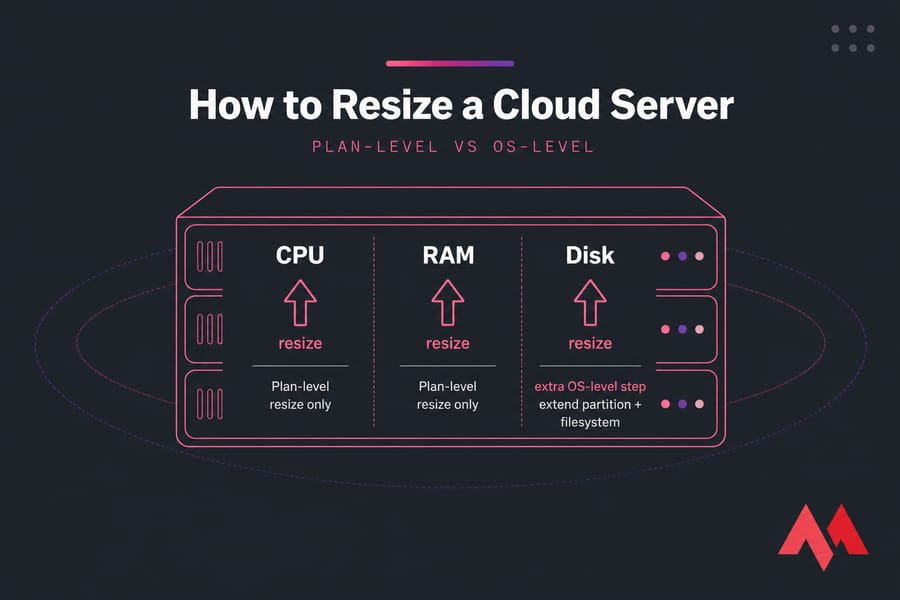
- Plan-level resize — the hypervisor hands your VM more vCPU, RAM, or block storage.
- OS-level resize — the partition table and filesystem inside the VM get stretched to match.
CPU and RAM only need the first step. Disk almost always needs both. Also worth knowing: some providers only allow one-way resizes (up, not down), and some let you scale RAM independently while others force you onto a fixed plan tier. Check before you plan a maintenance window.
Does resizing delete data? No, not under normal conditions. It's not a reinstall or a migration. If you're unclear on the difference between platforms, this breakdown of cloud servers vs VPS and the primer on what cloud hosting is will help.
When should you increase cloud server resources?
Don't upgrade on vibes. Look at numbers first — otherwise you'll pay for CPU cores when your real problem is an unindexed database query.
| Symptom | Likely bottleneck | What to check | Action |
|---|---|---|---|
| Load average consistently above core count | CPU saturation | top, uptime, steal time |
Add vCPU |
| Swap in use, OOM killer entries in logs | Memory pressure | free -h, dmesg |
Add RAM |
| Writes failing, updates aborting | Disk full | df -h, df -i |
Expand storage |
| Slow queries, high I/O wait | Storage I/O | IOPS, latency graphs | Faster NVMe tier or tuning |
| Fine at night, crawls at peak | Concurrency limits | Request rates, worker counts | Tune first, then scale |
Typical triggers: traffic growth, a new app deployment, a database that quietly tripled, or log and backup files nobody rotated. Before deciding, review check Linux CPU usage, check Linux memory usage, and check disk space in Linux. For a broader baseline, the guide on VM monitoring metrics covers what's actually worth watching.
What to do before a cloud server resize
This is the part people skip. Don't.
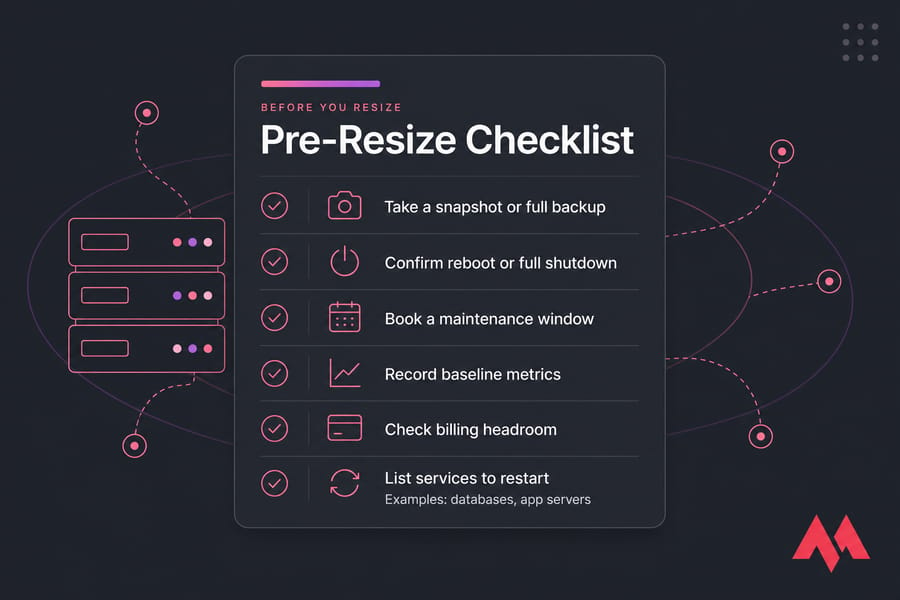
- Take a snapshot or full backup — see how to back up a server or VPS.
- Confirm whether your provider requires a reboot or a full shutdown.
- Book a maintenance window outside peak hours.
- Record baseline metrics so you can prove the upgrade helped.
- Make sure billing headroom exists for the larger plan.
- Note which services need restarting afterwards (databases and app servers often cache memory limits at boot).
How to upgrade server RAM and CPU step by step
The dashboards differ — AWS, Azure, Google Cloud, DigitalOcean, Linode, MonoVM — but the flow is basically identical everywhere:
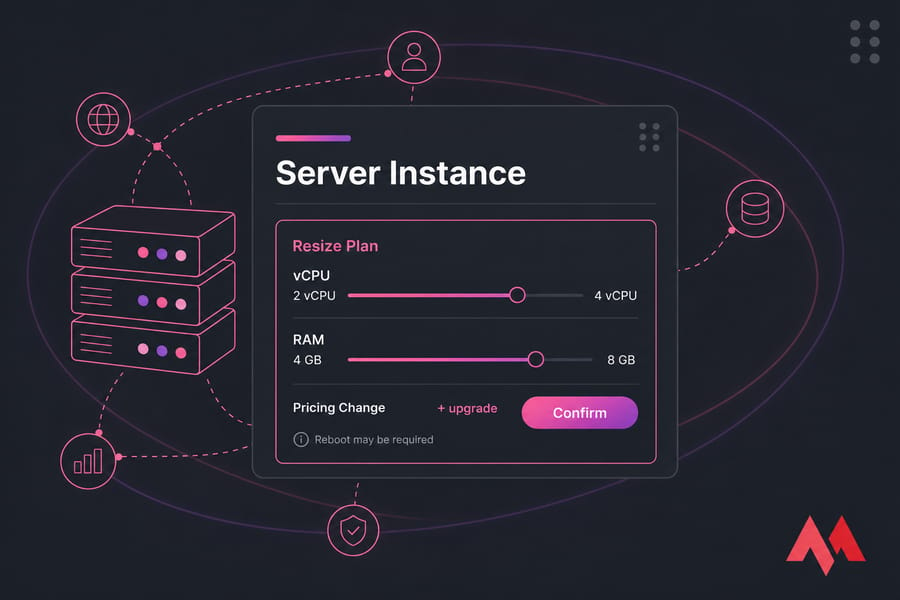
- Log into your control panel and open the server instance.
- Choose Resize, Upgrade, or Change Plan.
- Pick the new vCPU and RAM allocation.
- Confirm the pricing change.
- Shut down or reboot if prompted — many hypervisors can't hot-add CPU.
- Reconnect over SSH or RDP and verify.
On Linux, verify with three quick commands:
nproc
lscpu | grep "^CPU(s)"
free -h
On Windows Server, Task Manager's Performance tab or Get-ComputerInfo | Select CsProcessors, CsTotalPhysicalMemory in PowerShell will confirm it. Then restart your app services so they pick up the new limits.
How to expand cloud server disk space safely
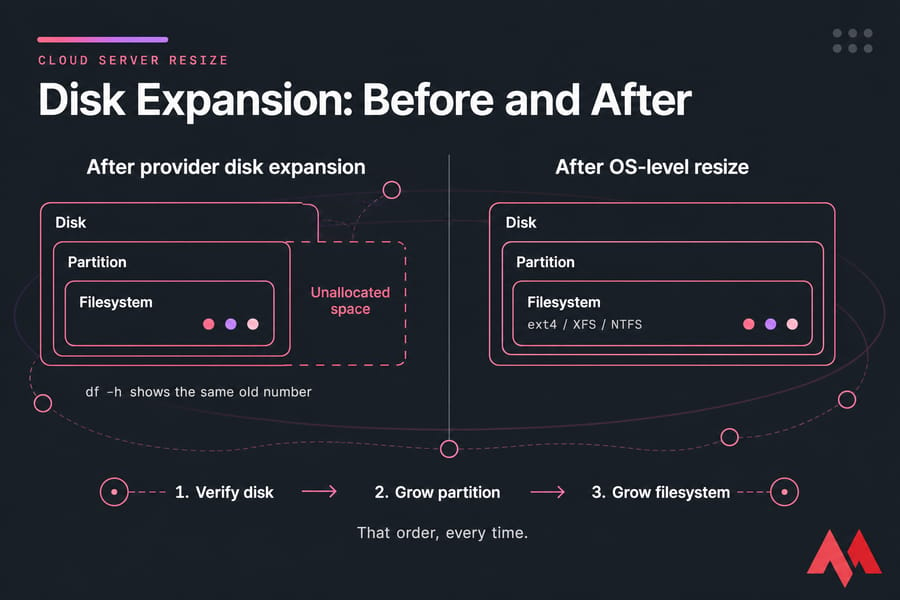
Here's where it gets interesting. Storage lives in three layers:
- Disk — the virtual block device the provider assigns.
- Partition — the slice of that disk your OS uses.
- Filesystem — ext4, XFS, or NTFS, sitting inside the partition.
Growing the disk in the dashboard leaves you with unallocated space. The partition doesn't move, so the filesystem doesn't grow, so df -h shows the same old number. Root volumes usually need the growpart-style approach; secondary data volumes are often simpler because you can unmount them.
How to resize a Linux cloud server after disk expansion
Verify what the kernel sees:
lsblk
df -h
If lsblk shows the larger disk but the partition is still small, grow the partition. Note the space between device and partition number:
growpart /dev/sda 1Your device may be /dev/vda, /dev/nvme0n1, or something else entirely — check lsblk output, don't copy blindly. Then extend the filesystem:
resize2fs /dev/sda1        # ext4
xfs_growfs /              # XFS, uses mount point
Both work on a mounted, live root filesystem on modern kernels. Confirm with df -h. If you're on LVM, you'll need pvresize and lvextend first.
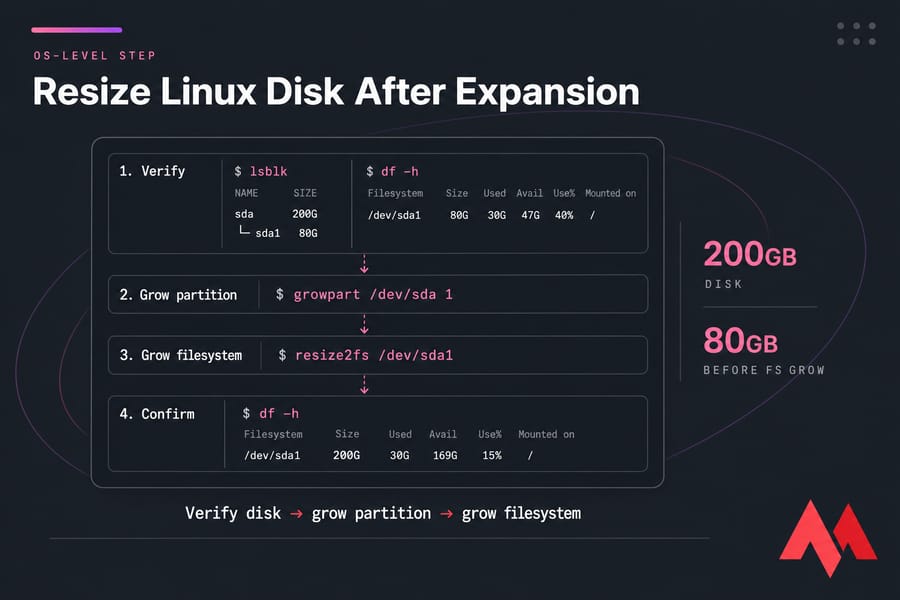
Verify disk → grow partition → grow filesystem. That order, every time. If something looks wrong afterwards, the guide on how to troubleshoot Linux VPS issues is a good next stop.
How to resize a Windows cloud server disk
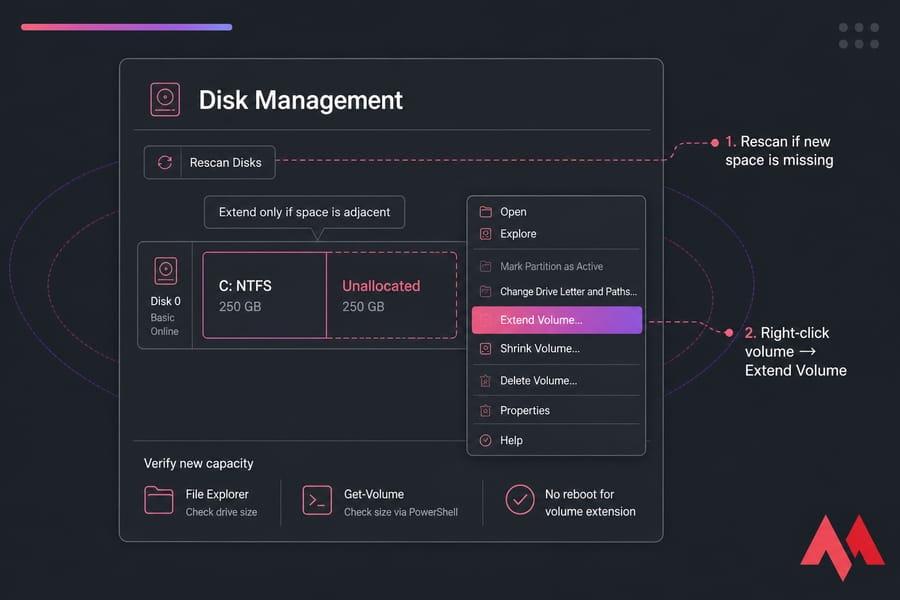
- Open Disk Management (
diskmgmt.msc). - Right-click the disk and choose Rescan Disks if the new space isn't visible.
- Find the unallocated block next to your target volume.
- Right-click the volume → Extend Volume → follow the wizard.
- Confirm the new NTFS capacity in File Explorer, or run
Get-Volumein PowerShell.
Extending a volume doesn't need a reboot, though the provider-level resize might have. If the unallocated space isn't adjacent to the volume, Disk Management won't extend it — you'll need third-party tooling or a different layout. More detail in the dedicated walkthrough on how to resize a Windows VPS disk.
Vertical scaling vs horizontal scaling
| Factor | Vertical (resize one server) | Horizontal (add servers) |
|---|---|---|
| Complexity | Low | High — load balancer, shared state |
| Downtime | Brief reboot, usually | None if done right |
| Redundancy | None — single point of failure | Built in |
| Cost curve | Predictable, hits a ceiling | Higher baseline, scales further |
| Best for | Single app, one database, steady growth | HA needs, spiky traffic, distributed apps |
For most sites, a resize is the right answer. Scale out when uptime matters more than simplicity.
Common mistakes and troubleshooting
| Problem | Cause | Fix |
|---|---|---|
| Dashboard shows new disk, OS doesn't | Partition not extended | Run growpart, then resize2fs or xfs_growfs |
| Partition grew, free space unchanged | Filesystem not expanded | Expand the filesystem for your type |
| CPU/RAM still show old values | No reboot after resize | Reboot the instance |
| Windows shows no unallocated space | Disk not rescanned | Rescan Disks in Disk Management |
| Still slow after upgrade | App, query, or config bottleneck | Profile the app, not the hardware |
| Bill jumped unexpectedly | Snapshots and storage billed separately | Delete stale snapshots |
Other classics: no snapshot, resizing at 2pm on a Monday, and assuming a bigger box will fix bad code. If the resource shows in the panel but never reaches the OS, that's a hypervisor-side question — contact MonoVM support rather than guessing.
Upgrade your resources with MonoVM Cloud VPS
If you're resizing every few months, that's a signal your plan tier is wrong. MonoVM's Cloud VPS hosting covers 25+ global locations with both Linux VPS and Windows VPS builds, so you can move up a tier without changing platforms.
Not sure whether you need CPU, RAM, or just faster storage? Ask the 24/7 team before you buy — they'll check the resize path and tell you whether a reboot is required.
Upgrade my cloud server resources — view Cloud VPS plans and pick the tier that fits your workload.

An experienced tech and developer blog writer, specializing in VPS hosting and server technologies. Fueled by a passion for innovation, I break down complex technical concepts into digestible content, simplifying tech for everyone.