
Bookmark this one. A Node.js command cheat sheet is the thing you want open in a second tab when you're mid-build and can't remember whether it's npm update or npm outdated that tells you what's stale. This page covers the three command families that matter — node, npm, and npx — with copy-ready syntax, real examples, and the troubleshooting bits nobody includes.
Here's the short version:
node -v— check your Node.js versionnpm -v— check your npm versionnode app.js— run a JavaScript filenpm init -y— create a package.json instantlynpm install <package>— install a dependencynpm run <script>— execute a package.json script
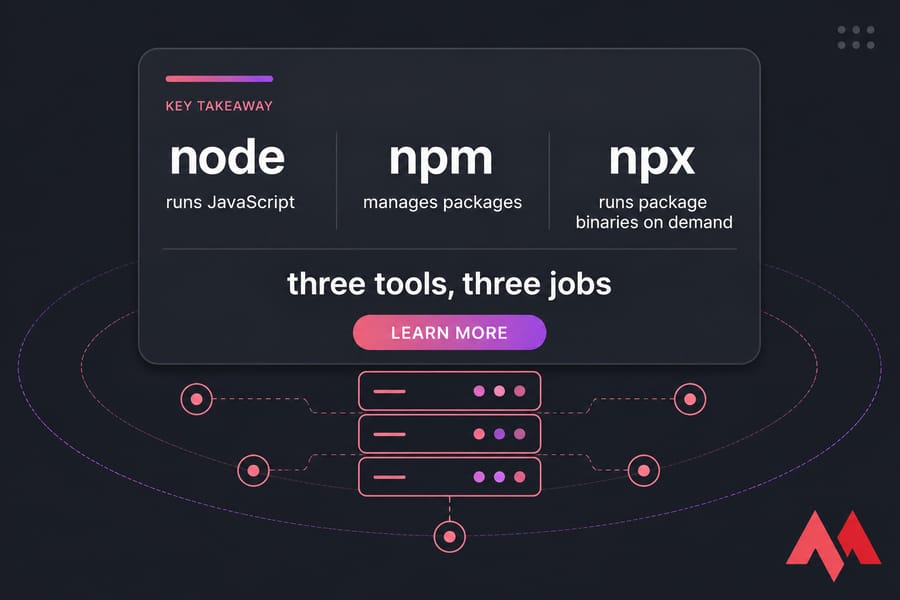
What this Node.js commands cheat sheet includes
This isn't a tutorial. It's a reference. Everything is grouped by the task you're actually trying to finish — check a version, install something, run a script, debug a crash, fix a broken PATH.
Who it's for
Junior backend devs, students, technical founders, and sysadmins who inherited a Node app and now have to keep it alive. If you already know what Node.js is and have it installed, you're ready.
Before you start
- Node.js installed — if not, follow how to install Node.js and npm first
- A terminal: Bash, zsh, PowerShell, or Command Prompt
- npm and npx (both ship with Node — you don't install them separately)
- Admin/sudo rights if you plan on global installs
- A project folder with a
package.jsonfor anything npm-related
One caveat: flags change between major Node versions. The --watch flag, for instance, only became stable in Node 20+. If a command here throws an error, check your version before assuming a typo.
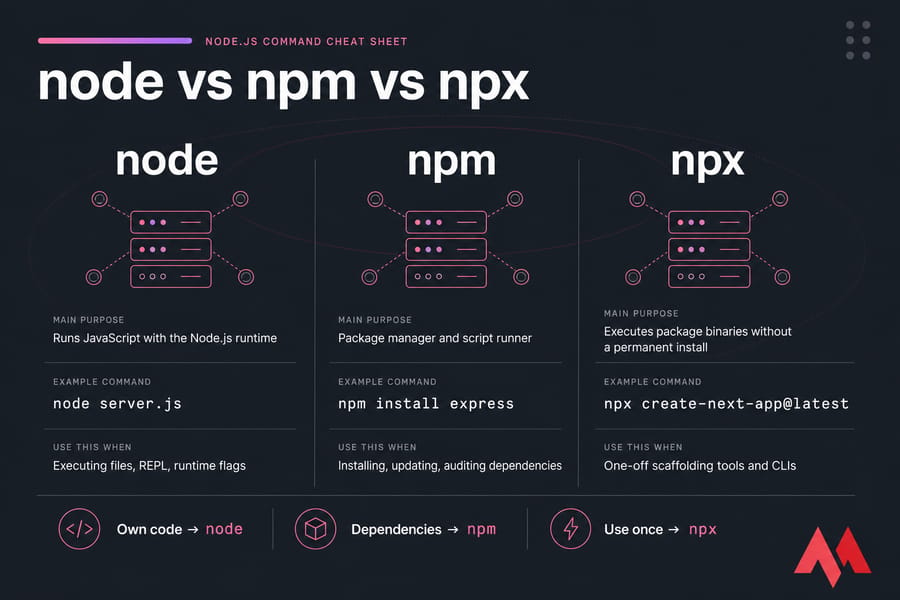
Node vs npm vs npx commands explained
This is where most confusion starts, so let's kill it early.
| Tool | Main Purpose | Example Command | Best Used For |
|---|---|---|---|
node |
Runs JavaScript with the Node.js runtime | node server.js |
Executing files, REPL, runtime flags |
npm |
Package manager and script runner | npm install express |
Installing, updating, auditing dependencies |
npx |
Executes package binaries without a permanent install | npx create-next-app@latest |
One-off scaffolding tools and CLIs |
Rough rule of thumb: if you're running your own code, it's node. If you're managing someone else's code, it's npm. If you want to use someone else's tool once and never think about it again, it's npx. And yes, npx is essentially an alias for npm exec these days — same underlying mechanism, shorter to type.
Wondering whether npm is even the right package manager for you? That's a separate rabbit hole — see npm vs Yarn vs pnpm.
Basic Node.js CLI commands every developer should know
These are the ones you'll type hundreds of times.
| Command | What It Does | Example | Notes |
|---|---|---|---|
node <file> |
Runs a JavaScript file | node app.js |
The .js extension is optional but be explicit |
node |
Opens the interactive REPL | node |
Exit with .exit or Ctrl+D |
node -v |
Prints the installed Node version | Output: v22.11.0 |
Same as --version |
node -e "<code>" |
Evaluates inline JavaScript | node -e "console.log('hi')" |
Great for one-liners in scripts |
node -p "<code>" |
Evaluates and prints the result | node -p "1+1" |
Saves you writing console.log |
node -r <module> <file> |
Preloads a module before the script | node -r dotenv/config app.js |
Common for env loaders |
node --check <file> |
Syntax-checks without executing | node --check app.js |
Handy in pre-commit hooks |
node - |
Reads JavaScript from stdin | echo "console.log(1)" | node - |
Useful in pipelines |
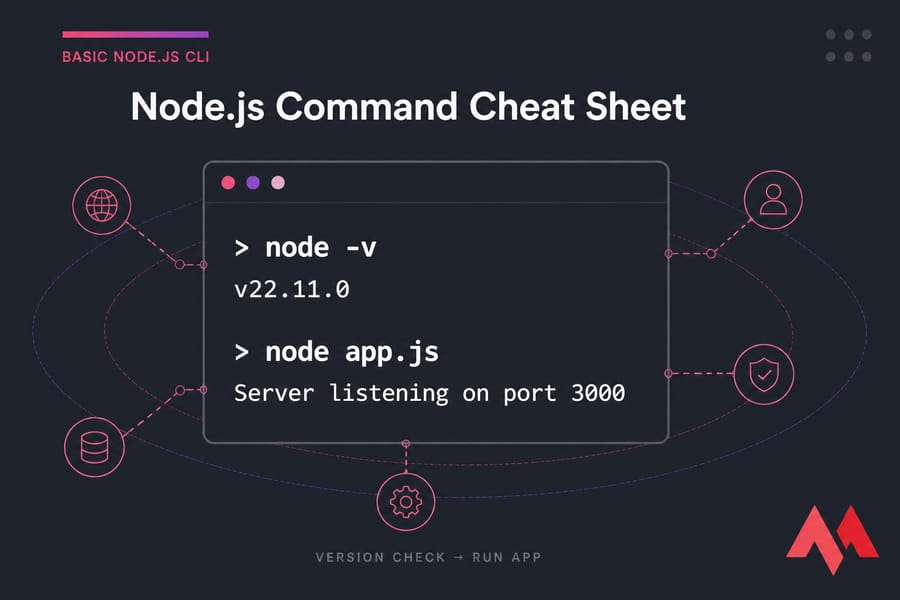
If you memorize five things today, make it these: node -v, node app.js, node, npm init -y, npm install. Everything else you can look up.
Node.js version commands and environment checks
Version mismatches cause more "it works on my machine" incidents than any bug I've debugged. Check first, blame later.
| Command | Purpose | Platform |
|---|---|---|
node -v / node --version |
Node version (identical output) | All |
npm -v |
npm version | All |
node -p "process.version" |
Version from inside the runtime | All |
node -p "process.platform" |
Returns linux, darwin, or win32 |
All |
node -p "process.arch" |
CPU architecture (x64, arm64) | All |
which node |
Path to the Node binary | Linux / macOS |
where node |
Path to the Node binary | Windows |
echo $NODE_ENV |
Reads the environment variable | Bash / zsh |
echo %NODE_ENV% |
Reads the environment variable | Command Prompt |
$env:NODE_ENV |
Reads the environment variable | PowerShell |
That process.platform trick is underrated. When a cross-platform build script misbehaves, it tells you exactly which branch Node thinks it's on. For deeper coverage there's a full guide on how to check your Node.js version, and if you need the host details too, the OS version via command line guide pairs nicely.
npm commands cheat sheet for package management
This is the section you'll come back to most. I've grouped it by task rather than alphabetically, because nobody thinks alphabetically at 11pm.
| Command | Scope | What It Does |
|---|---|---|
npm init |
Project | Interactive package.json creation |
npm init -y |
Project | Accepts all defaults instantly |
npm install |
Project | Installs everything in package.json |
npm install express |
Local | Adds to dependencies |
npm install -D nodemon |
Local | Adds to devDependencies |
npm install -g pm2 |
Global | Installs system-wide binary |
npm install express@4.18.2 |
Local | Pins an exact version |
npm ci |
Project | Clean install straight from package-lock.json |
npm uninstall express |
Local | Removes package and lockfile entry |
npm update |
Project | Updates within semver ranges |
npm outdated |
Project | Lists current vs wanted vs latest |
npm list --depth=0 |
Project | Shows top-level dependencies only |
npm list -g --depth=0 |
Global | Shows globally installed packages |
npm audit |
Project | Reports known vulnerabilities |
npm audit fix |
Project | Auto-patches what it safely can |
npm cache clean --force |
System | Wipes the npm cache |
npm rebuild |
Project | Recompiles native modules |
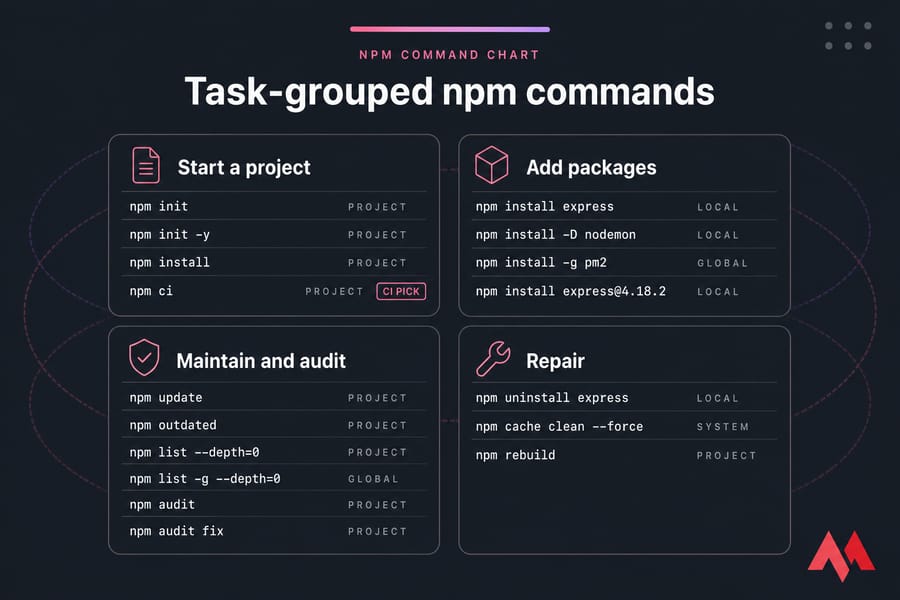
Pro tip: in CI pipelines, use npm ci instead of npm install. It deletes node_modules, installs exactly what the lockfile says, and fails loudly if package.json and package-lock.json disagree. Deterministic builds, every time.
The local-vs-global distinction trips people up constantly. Local packages live in your project's node_modules and get committed to package.json. Global packages live once on your machine and are almost never what you want — more on that shortly. Related reading: check npm version, update npm, and install npm on Ubuntu.
npx commands for running packages without global installs
npx downloads a package, runs its binary, and doesn't leave it cluttering your system. That's it. That's the pitch.
| Task | Command | Why npx |
|---|---|---|
| Scaffold a Next.js app | npx create-next-app@latest my-app |
Always pulls the newest generator |
| Scaffold a React app | npx create-react-app my-app |
No stale global copy |
| Try a package once | npx cowsay "hello" |
Zero install footprint |
| Run a local dev dependency | npx eslint . |
Uses the project's pinned version |
| Run a specific version | npx typescript@5.4 tsc --init |
Version-locked, one-off |
| Equivalent modern form | npm exec -- eslint . |
Same engine, explicit syntax |
Order of resolution matters: npx checks your local node_modules/.bin first, then the npm registry. So if eslint is already a devDependency, npx uses that copy — not a fresh download. That's exactly the behaviour you want in a team repo where everyone must run the same linter version.
package.json script commands with npm run
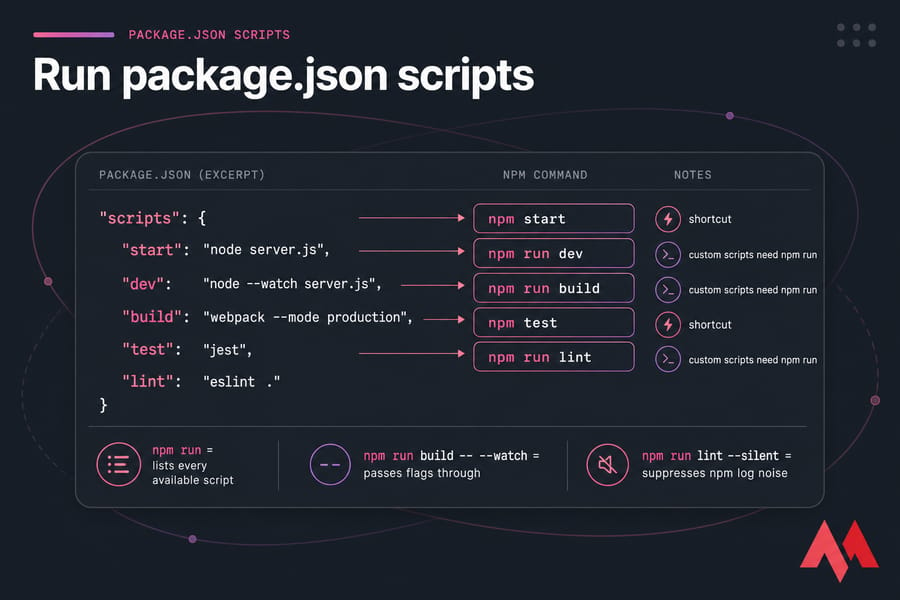
Scripts are where daily work actually happens. Here's a realistic block:
{
  "scripts": {
    "start": "node server.js",
    "dev": "node --watch server.js",
    "build": "webpack --mode production",
    "test": "jest",
    "lint": "eslint ."
  }
}
And the commands that drive it:
npm start— shortcut for thestartscriptnpm test— shortcut for thetestscriptnpm run dev— any custom script needsrunnpm run build— production bundlenpm run— lists every available scriptnpm run build -- --watch— passes flags through to the underlying toolnpm run lint --silent— suppresses npm's own log noise
That double dash catches everyone once. Without it, npm swallows the flag instead of forwarding it. And if you're dropped into an unfamiliar repo, plain npm run is the fastest way to see what the previous developer built. Faster than opening package.json, honestly.
Node.js REPL and debug commands
Type node with no arguments and you're in the REPL — a live JavaScript scratchpad.
| Command / Flag | What It Does |
|---|---|
.help |
Lists all REPL dot-commands |
.exit |
Leaves the REPL (Ctrl+D works too) |
.editor |
Multi-line editing mode |
.save session.js |
Writes the session to a file |
.load script.js |
Loads a file into the REPL |
node inspect app.js |
Built-in CLI debugger with breakpoints |
node --inspect app.js |
Opens the inspector for Chrome DevTools / VS Code |
node --inspect-brk app.js |
Same, but pauses on the first line |
node --watch app.js |
Auto-restarts on file change (Node 18.11+) |
node --trace-warnings app.js |
Full stack traces for warnings |
node --max-old-space-size=4096 app.js |
Raises the heap limit to 4GB |
node --env-file=.env app.js |
Loads env vars natively (Node 20.6+) |
Warning: never leave the inspector port exposed on a production server. It grants full code execution. Bind it to localhost and tunnel over SSH if you genuinely need remote debugging. Memory-hungry apps are also worth pairing with server-side tuning — see how to improve VPS performance and optimize Linux performance.
Common Node.js command mistakes to avoid
- Mixing node and npm. There's no such thing as node install. Runtime commands and package commands are different tools.
- Installing everything globally. Global packages drift out of sync with projects and break when Node updates. Keep tools local, use npx for one-offs.
- Running npm commands outside the project root. If there's no package.json in the current directory, npm walks up the tree and may install into the wrong place — or your home folder.
- Ignoring engine mismatches. A package requiring Node 20 will fail in weird, unhelpful ways on Node 16. Check how to update Node.js when that happens.
- Using npm install in CI. It can silently upgrade transitive dependencies. Use npm ci.
- Committing node_modules. Just don't. That's what the lockfile is for.
How to fix "node: command not found" and version mismatch errors
| Problem | Likely Cause | Fix |
|---|---|---|
node: command not found |
Not installed, or not on PATH | Run which node / where node; reinstall if empty |
npm: command not found |
Partial install or broken symlink | Reinstall Node — npm ships with it |
| Works in one terminal, not another | Shell profile not reloaded | source ~/.bashrc or restart the terminal |
'node' is not recognized... (Windows) |
PATH entry missing | Add the Node folder in System Environment Variables, reopen PowerShell |
| Wrong version reported | Two installs competing on PATH | which -a node to find duplicates, remove one |
| Version resets after reboot | NVM default not set | nvm alias default 22 |
EACCES on global install |
Permission conflict | Use NVM instead of sudo |
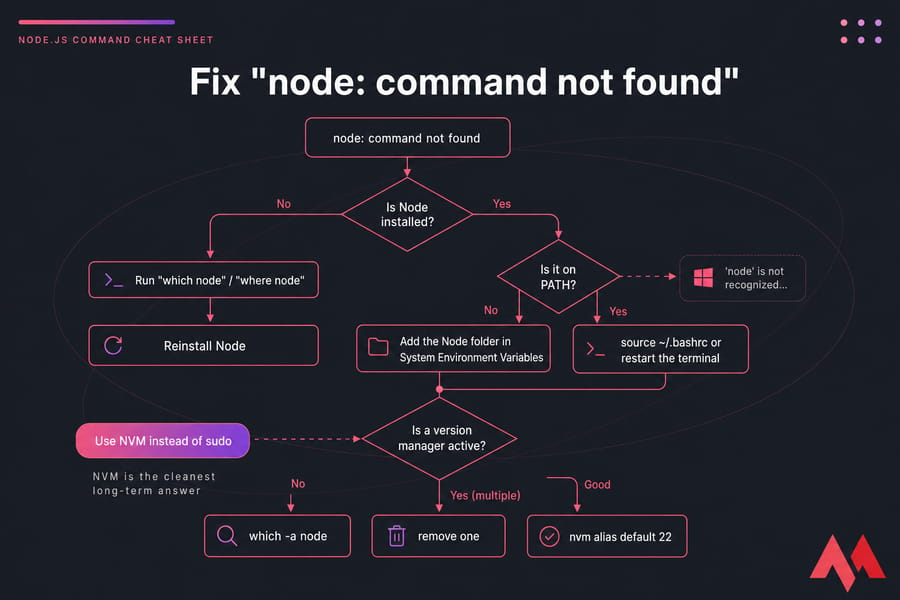
NVM is the cleanest long-term answer. It installs Node per-user, avoids sudo entirely, and lets you switch versions per project with a single command. Start with install NVM on Ubuntu. For npm-specific breakage, there's a dedicated walkthrough on how to fix the npm command not found error.
Running Node.js apps on a VPS
Sooner or later, localhost stops being enough. Your app needs to stay up when your laptop lid closes.
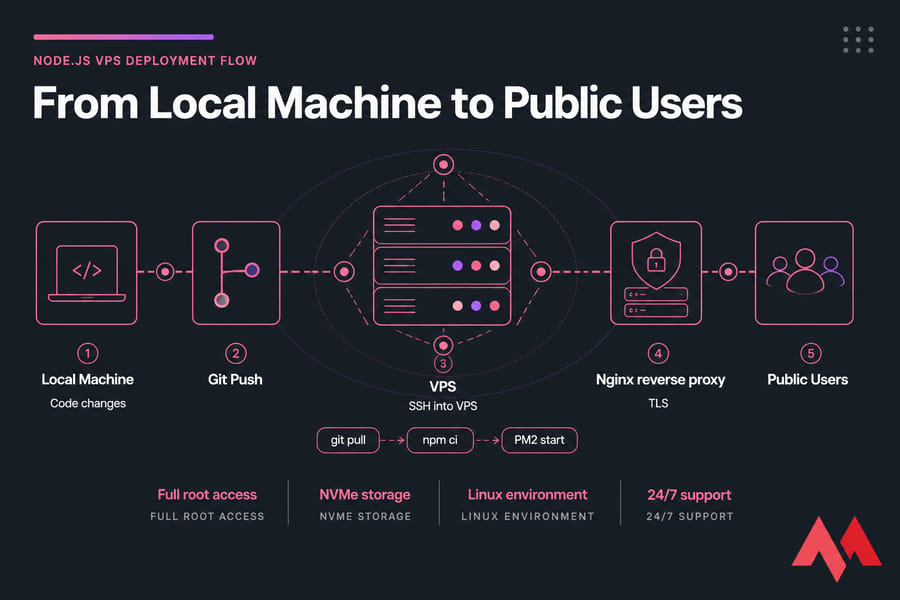
That's the moment a VPS earns its keep. Root access means you install what you need without asking permission. Persistent processes mean PM2 keeps your app alive through crashes and reboots. Isolated resources mean a neighbour's traffic spike doesn't tank your response times. Add Nginx as a reverse proxy, deploy via Git over SSH, and you've got a production setup that costs less than a couple of coffees a month.
The typical stack: SSH in, clone your repo, run npm ci, start with PM2, put Nginx in front for TLS. Start with how to connect to a VPS, then follow the guide on how to deploy your Node.js application on a VPS.
Ready to run your Node.js app beyond localhost?
MonoVM's Node.js VPS hosting gives you full root access, NVMe storage, and a developer-friendly Linux environment across multiple global locations. Prefer a blank canvas? A general Linux VPS works just as well, and 24/7 support is there when a deployment goes sideways at 2am.
Keep this cheat sheet handy
Bookmark it, print it, share it with whoever on your team keeps typing node install. Once these commands are second nature, the natural next step is shipping — and a Node.js VPS is the shortest path from localhost to a live URL.
More cheat sheets worth keeping close: the Linux commands cheat sheet and the Docker cheat sheet.

An experienced tech and developer blog writer, specializing in VPS hosting and server technologies. Fueled by a passion for innovation, I break down complex technical concepts into digestible content, simplifying tech for everyone.