Nothing kills the excitement of a fresh Windows VPS faster than that watermark in the bottom-right corner: Windows is not activated. Annoying, yes. But usually a five-minute fix. This guide walks you through how to activate a Windows license on your VPS — using the Settings app, using the command line, and what to do when activation flat-out refuses.
Quick answer: First check whether your hosting plan already includes a Windows license. Then connect over RDP, open Settings > System > Activation, or run Command Prompt as Administrator and use slmgr /ipk YOUR-KEY followed by slmgr /ato. Confirm the result with slmgr /dlv.
What Windows VPS activation actually means
Activation is Microsoft's way of confirming your copy of Windows is licensed for the machine it's running on. On a VPS, that "machine" is a virtual one — which is exactly where people get tripped up.
An unactivated Windows Server keeps running, but you'll see nag prompts, some personalization is locked, and depending on the build you may hit grace-period expiry warnings. More importantly, an unlicensed server is a compliance problem if you're running anything commercial on it.
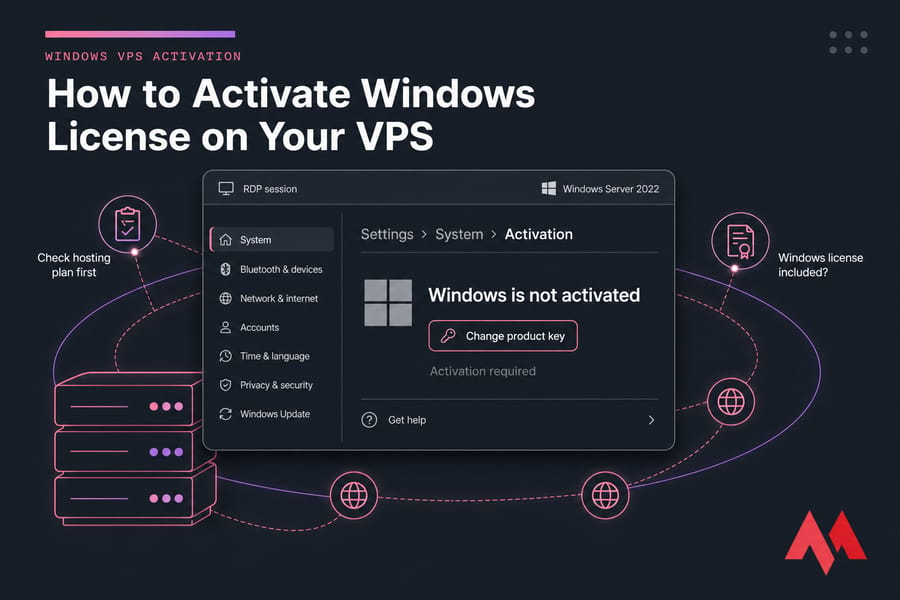
The big difference from a home PC? On a VPS, the license often isn't yours to supply. Many hosts bundle Windows licensing into the monthly fee. So before you go hunting for a key, check what you already paid for.
Step 1: Check if your Windows VPS license is already included
This step saves more support tickets than any other. Look at three places:
- Your plan description or order page (does it list "Windows license included"?)
- Your invoice — a separate Windows licensing line item is a strong signal
- The welcome email or control panel notes from your provider
Most managed Windows VPS hosting plans run on provider-issued licensing (typically SPLA-style arrangements between the host and Microsoft). In that model, activation is handled server-side, often through a KMS host. If your VPS should be pre-licensed but shows as unactivated, don't paste in a personal key — that can make things messier. Open a ticket instead.
Warning: Don't enter your own product key until you've confirmed your plan doesn't already include licensing. Overwriting a working provider key is a genuine hassle to undo.
Can't even reach the server yet? Sort that first — here's how to connect to a Windows server, and a guide to troubleshoot RDP connection issues on Windows VPS.
Step 2: Verify your current Windows activation status
Before changing anything, see where you stand. Two ways.
GUI: Open Settings > System > Activation (on Windows Server 2019 and 2022 it's Update & Security > Activation on some builds). It'll say either "Windows is activated" or give you an error state.
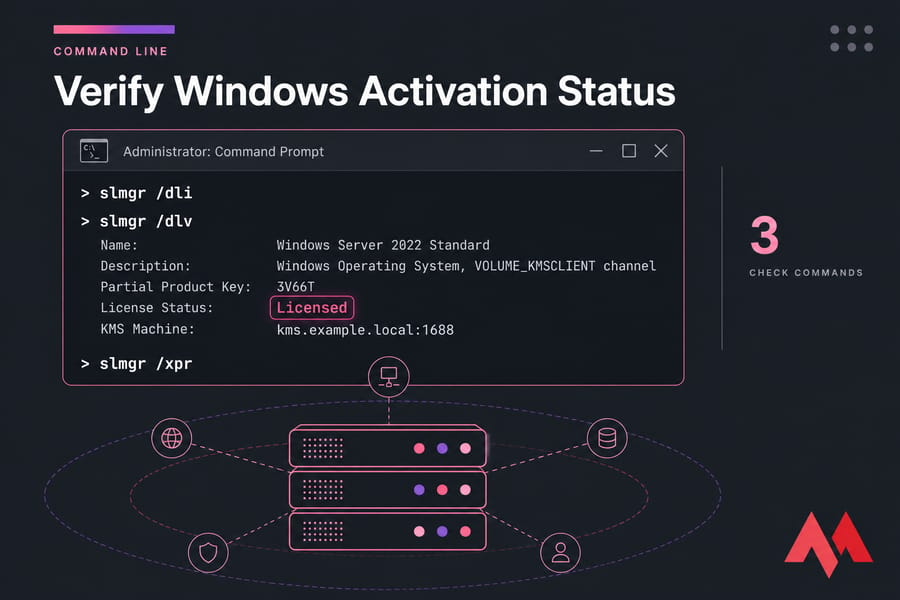
Command line: Open Command Prompt as Administrator and run:
slmgr /dli
slmgr /dlv
slmgr /xpr
The first shows a short summary (partial key, license status). The second dumps the full detail — activation ID, KMS info, edition. The third tells you whether activation is permanent or time-limited.
While you're here, confirm your installed edition. A Standard key will not activate a Datacenter install, and vice versa. If you're unsure what's running, see how to check your Windows version.
Step 3: Activate Windows from the Settings app
- Log in over RDP with an administrator account.
- Open Settings > System > Activation.
- Click Change product key.
- Type the 25-character key (format: XXXXX-XXXXX-XXXXX-XXXXX-XXXXX).
- Click Next, then Activate.
It normally finishes in under a minute. No reboot required in most cases, though a restart clears the desktop watermark faster.
If the "Change product key" option is greyed out or missing, you're either not in an elevated session, or the server is configured for KMS activation and expects to find the key server automatically. That's when you go to the command line.
Step 4: Use the Windows Server activation command tools
The slmgr script is the sysadmin's route, and honestly it's faster once you're used to it. Open Command Prompt (or PowerShell) as Administrator, then:
slmgr /ipk XXXXX-XXXXX-XXXXX-XXXXX-XXXXX
slmgr /ato
slmgr /xpr
slmgr /dlv| Command | What it does | Expected result |
|---|---|---|
| slmgr /ipk | Installs the product key | Popup: "Installed product key successfully" |
| slmgr /ato | Contacts activation servers and activates | Popup: "Product activated successfully" |
| slmgr /xpr | Shows whether activation is permanent | "The machine is permanently activated" |
| slmgr /dlv | Full license detail for diagnostics | License Status: Licensed |
| slui 4 | Opens phone activation wizard | Fallback when online activation fails |
Pro tip: Run slmgr /dlv before and after. Copy both outputs into a text file — if you ever need support, that pair of outputs answers half their questions instantly.
Worth knowing: activation needs outbound network access. Retail and MAK keys need to reach Microsoft's activation servers over HTTPS; KMS activation talks to a KMS host on TCP 1688. If your firewall blocks either, activation fails no matter how valid the key is.
Which Windows product key types actually work on a VPS
| License type | Works on a VPS? | Notes | Risk |
|---|---|---|---|
| Provider-managed (SPLA-style) | Yes | Bundled into your hosting fee, usually auto-activated | Lowest — host handles compliance |
| MAK (Volume) | Usually | One-time online activation, fixed activation count | Runs out of activations if reused |
| KMS (Volume) | Yes, with a KMS host | Renews every 180 days; needs reachable KMS server | Fails if KMS is unreachable |
| Retail | Sometimes | Depends on the licensing terms of that specific SKU | May breach terms in hosted environments |
| OEM | No | Tied to the original physical hardware | Won't transfer; don't try |
Key takeaway: OEM keys are bound to the machine they shipped with. They're not portable to a virtual server. And a Datacenter installation will never accept a Standard-only key — check the edition first. If you're still choosing, our rundown of the best Windows Server versions covers the edition differences.
Fixing common Windows VPS activation errors
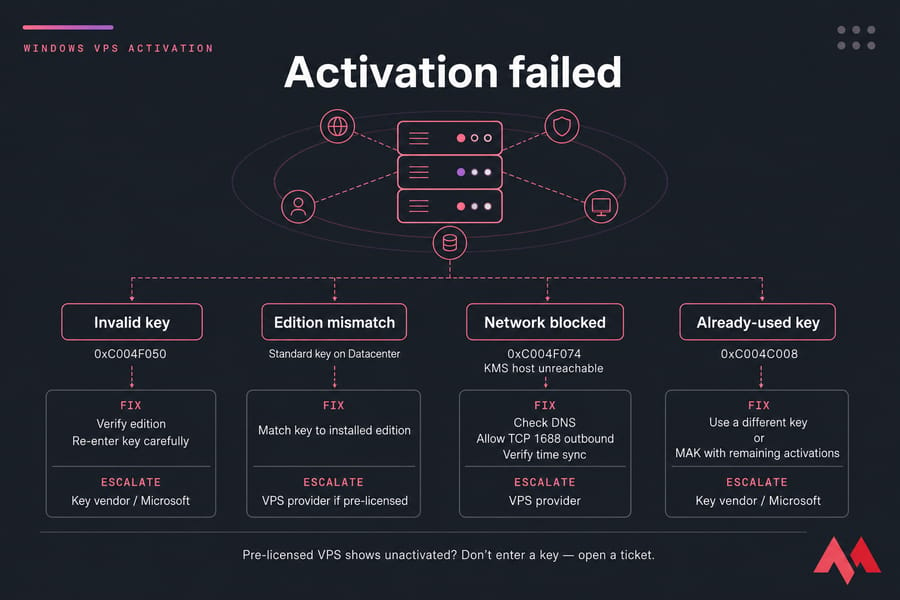
| Error or symptom | Likely cause | Fix | Escalate to |
|---|---|---|---|
| 0xC004F050 | Invalid key or edition mismatch | Verify edition, re-enter key carefully | Key vendor / Microsoft |
| 0xC004C008 | Key already used elsewhere | Use a different key or MAK with remaining activations | Microsoft |
| 0xC004F074 | KMS host unreachable | Check DNS, allow TCP 1688 outbound, verify time sync | VPS provider |
| "Activation servers unavailable" | Firewall, DNS, or temporary Microsoft outage | Flush DNS, retry in 30 minutes | Provider if persistent |
| Wrong system date/time | Clock drift on the VM | Sync time with an NTP source, retry | Self-fix |
| Pre-licensed VPS shows unactivated | Template or deployment issue | Don't enter a key — open a ticket | VPS provider |
For DNS and firewall issues specifically, clearing the DNS cache and opening the right port in Windows Firewall resolve a surprising share of "activation servers unavailable" cases.
Quick summary: most VPS activation failures come down to three things — edition mismatch, the wrong license type, or blocked outbound traffic.
Confirm activation succeeded
- Settings > Activation reads "Windows is activated with a digital license" or "…with a product key"
- slmgr /xpr returns "permanently activated" (or a renewal date if KMS)
- slmgr /dlv shows License Status: Licensed
- Watermark gone after a reboot
Save a note with the edition, the last five characters of your key, and the activation method. Future-you will thank present-you. Then take a Windows Server backup while the system is clean.
When to contact your VPS provider
Go to the host first if your plan includes licensing, if the VPS was deployed from a provider template, or if you're hitting KMS errors on a managed network. Include in the ticket: a screenshot of the Activation page, full slmgr /dlv output, your Windows edition and build, and your order ID. That's everything a technician needs on first contact — no back-and-forth.
Go to Microsoft instead when you bought the key yourself and it's rejected as invalid or already in use. That's a licensing matter, not a hosting one. MonoVM customers can reach MonoVM support around the clock for provider-side licensing checks.
Next steps after activation
- Run a full Windows Server update cycle.
- Change the default administrator password and restrict RDP access.
- Harden the box — follow our guide to secure your Windows Server.
- Finish the build using the walkthrough on how to set up a Windows VPS.
And if licensing headaches are the reason you're here in the first place, a plan with Windows included removes the problem entirely. See Windows VPS plans with licensing included.

An experienced tech and developer blog writer, specializing in VPS hosting and server technologies. Fueled by a passion for innovation, I break down complex technical concepts into digestible content, simplifying tech for everyone.