
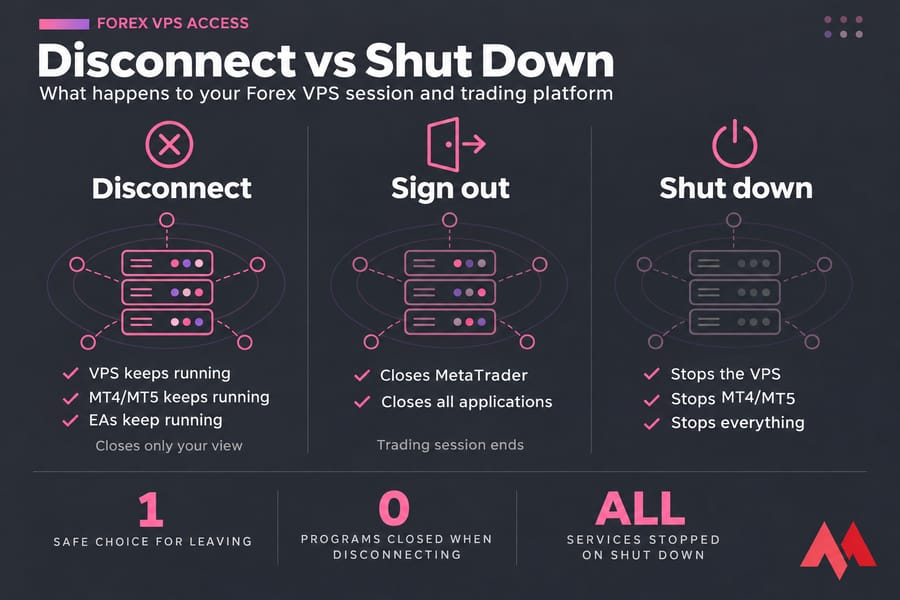
To access your Forex VPS, connect over Remote Desktop Protocol (RDP). On Windows, use the built-in Remote Desktop Connection. On a Mac, Android phone or iPhone, use Microsoft's Windows App. Enter your VPS IP address, username and password, and you'll see the server's desktop with MT4 or MT5 on it. Disconnecting closes only your view of the server, and your trading platform keeps running on the VPS.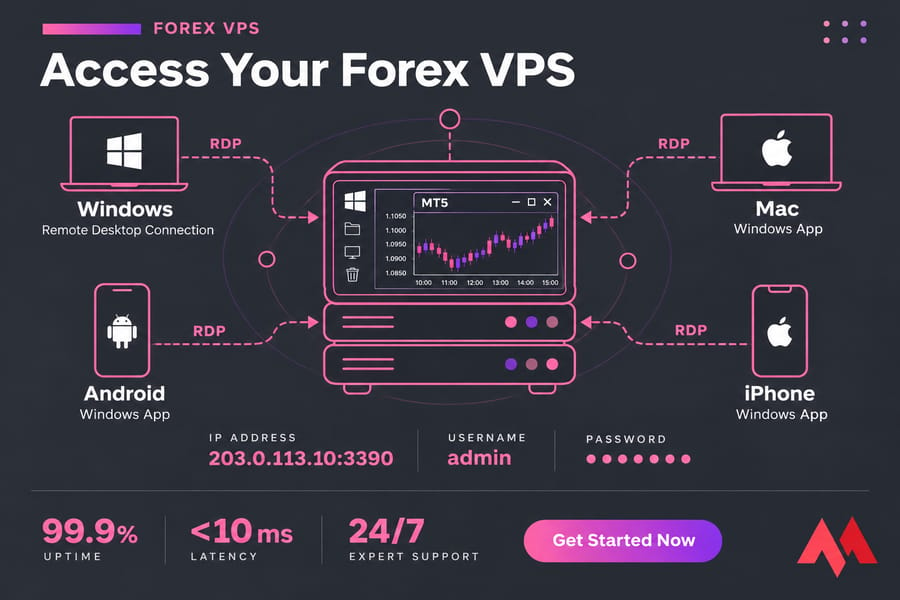
What you need before you connect to your Forex VPS
Most Forex VPS plans run Windows because MT4 and MT5 are Windows programs, so the usual way in is RDP. If you're still deciding whether you need a server, read what a Forex VPS is first. Before you connect, have these ready:
- The VPS IP address
- The username (usually Administrator)
- The password
- The right app for your device (see below)
- A custom port, if your provider moved RDP off the default 3389. You'll enter it as
IP:port, for example203.0.113.10:3390 - A stable internet connection
Your provider sends the login details once the server is activated. Keep them in a password manager, not in a screenshot on your phone.
Remote desktop for Forex VPS: RDP vs browser access
RDP gives you the full Windows desktop from any device, and it stays responsive. (For the protocol details, see what RDP is.) Microsoft has renamed the app on some platforms: Windows App replaces the Remote Desktop app on macOS, iOS, iPadOS and Android, but not on Windows 11 for regular users.
| Method | Best for | Limitations |
|---|---|---|
| Remote Desktop Connection (Windows) | Daily management of MT4/MT5 and EAs | Only on Windows |
| Windows App (Mac, Android, iPhone) | Logins from a Mac and quick checks from a phone | Small screens make detailed chart work slow |
| Browser VNC (if your provider offers it) | Emergencies, when RDP fails or you can't install an app | Slower, and copy and paste often doesn't work |
Access your Forex VPS from Windows with Remote Desktop Connection
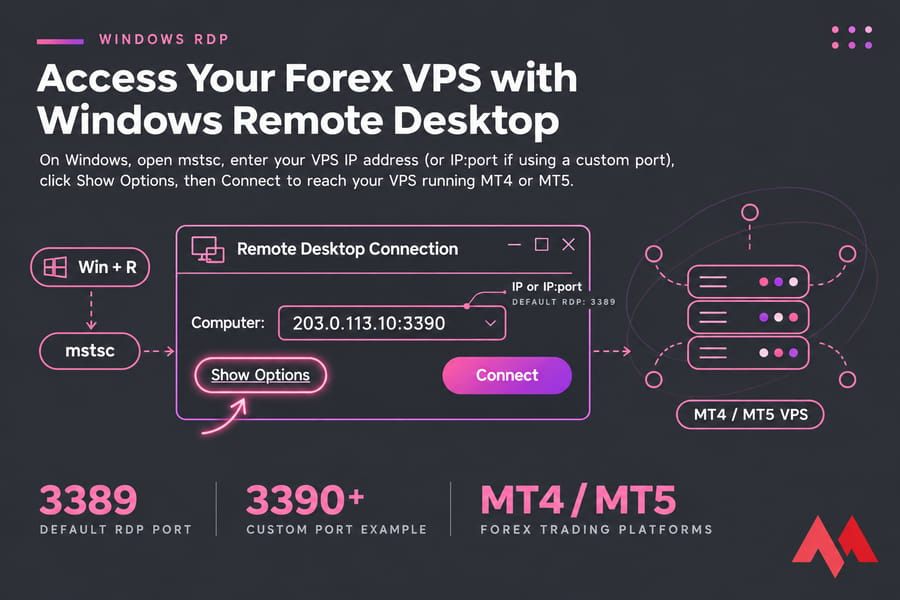
- Press
Win + R, typemstscand press Enter to open Remote Desktop Connection. - In the Computer field, type your VPS IP address, or
IP:portif your provider uses a custom port. - Click Show Options to set full screen on the Display tab or save the connection as an
.rdpfile. With the file on your desktop, reconnecting takes one double-click. - Click Connect, choose More choices, then Use a different account, and enter your username and password.
- If a certificate warning appears, check that the IP shown matches your VPS and click Yes. The warning is normal the first time you connect to a server with a self-signed certificate.
For more on connection settings, see our guide on how to use RDP.
Access your Forex VPS from Mac with Windows App
Older tutorials (including some from 2023 and earlier) tell you to install "Microsoft Remote Desktop." That app is now called Windows App, and it's free in the Mac App Store.
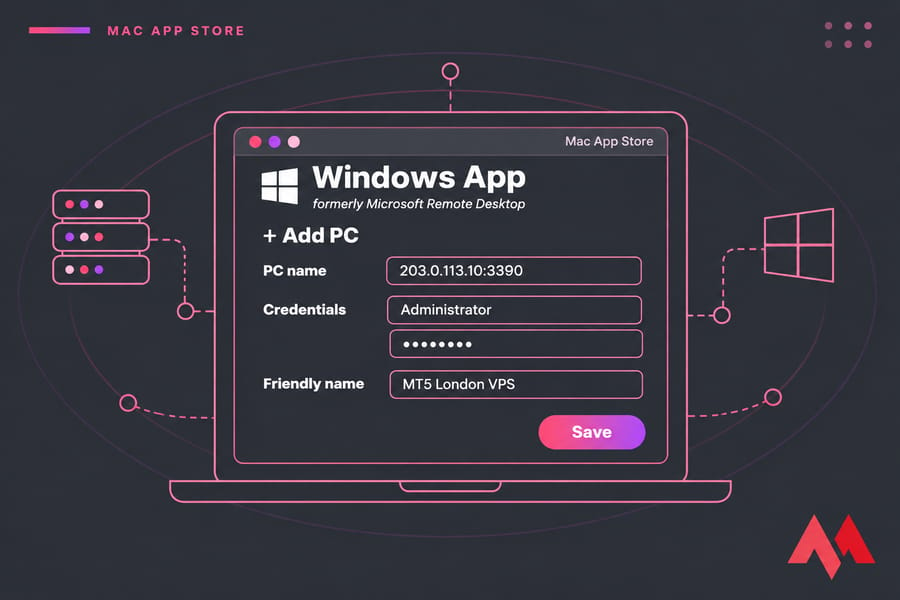
- Install Windows App from the Mac App Store and open it.
- Click the + button and choose Add PC.
- Enter the IP address (with
:portif needed) in the PC name field. - Under Credentials, add a user account with your VPS username and password.
- Set a friendly name such as "MT5 London VPS" and save.
- Double-click the tile to connect. If a certificate prompt appears, click Continue.
The Windows key maps to Command on a Mac keyboard, so some shortcuts won't do what you expect. Our guide to using RDP on Mac covers keyboard mapping and display settings.
Access your Forex VPS from Android with Windows App
- Install Microsoft's remote desktop client (Windows App) from Google Play.
- Tap + and choose Add PC.
- Enter the IP address, add your username and password, and save.
- Tap the saved PC tile to open your VPS desktop.
A phone is fine for checking open trades, restarting a frozen terminal or closing a position in an emergency. Building charts or editing EA inputs on a 6-inch screen is painful, so turn the phone to landscape and pinch to zoom. For more detail, see how to connect to Windows Server on Android via RDP.
Access your Forex VPS from iPhone with Windows App
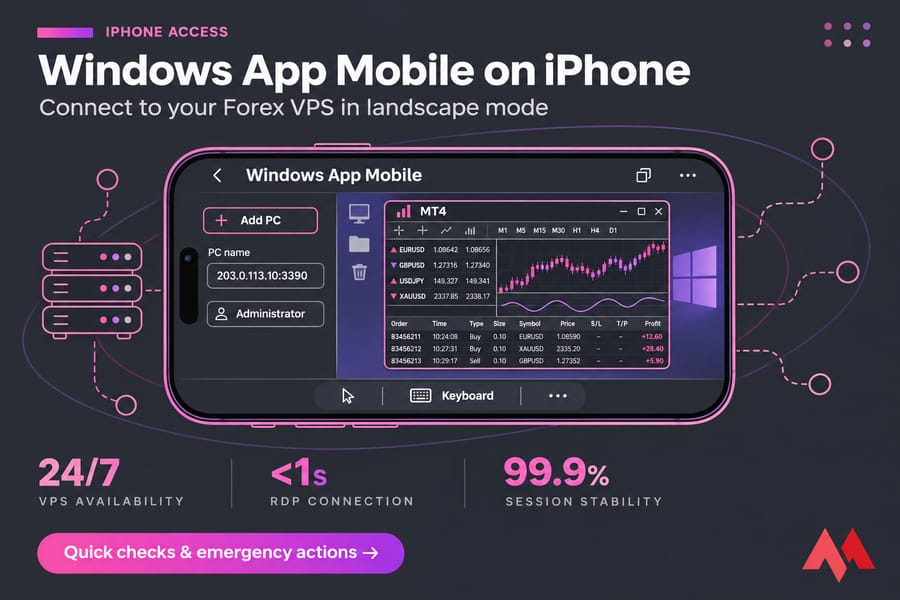
On iOS, the App Store lists the app as Windows App Mobile. It used to be called Remote Desktop Mobile.
- Install Windows App Mobile from the App Store.
- Tap + and then Add PC.
- Enter the IP address and add a user account with your credentials.
- Save, then tap the tile to connect. Accept the certificate prompt if it appears.
The app works like a trackpad: tap to click, drag to move the pointer, and tap the keyboard icon in the toolbar to type passwords or lot sizes. The saved tile stays in the app, so reconnecting later takes one tap. Our guide on how to connect to Windows Server via iPhone walks through the screens.
Disconnect from your trading VPS without stopping MT4 or MT5
Closing the Remote Desktop window, or pressing the X in Windows App, puts your session in a "disconnected" state where every program keeps running. Your EAs keep trading, and you can turn off your laptop.
Don't click Sign out, Shut down or Restart inside the VPS unless you mean to stop trading. Signing out closes all applications, including MetaTrader.
If MetaTrader keeps losing its broker connection while the VPS is running, read how to prevent MetaTrader from disconnecting on a VPS.
Forex VPS troubleshooting: common RDP login problems
| Problem | Likely cause | Fix |
|---|---|---|
| "Your credentials did not work" | Typo, or Windows using your local account | Choose Use a different account and retype the password |
| Can't find the app | The tutorial uses the old name | Search the store for "Windows App" |
| Connection times out | Wrong IP or port, or port 3389 blocked on public Wi-Fi | Check the IP and port, or switch to mobile data |
| Can't reach the server at all | VPS powered off or rebooting | Check its status in your client area |
| Black or frozen screen | Session hung | Disconnect, wait a minute and reconnect |
| RDP fails every time | Firewall or service issue on the server | Use browser VNC if your provider offers it, then contact support |
For deeper fixes, see how to fix RDP connection issues on Windows VPS. If the VPS still won't respond, contact MonoVM support with your IP and the exact error message.
Forex VPS security and performance tips for remote access
- Change the default password to a long, unique one.
- Don't log in over open hotel or café Wi-Fi without a VPN.
- Pick a data center near your broker. Our guides to the best Forex server location and Forex VPS latency explain why a shorter distance means faster order execution.
- Install Windows updates on your own schedule, and restart MetaTrader automatically after reboot so a forced update doesn't leave your EAs offline.
- Optimize MetaTrader for Forex VPS use, and back up MetaTrader settings before big changes.
Once you can log in, install MT4 on a VPS and finish the setup with how to set up a VPS for Forex trading.
If you need a server that keeps MT4 and MT5 online around the clock and works with all of these apps, compare MonoVM's Forex VPS hosting plans and pick a location near your broker.

An experienced tech and developer blog writer, specializing in VPS hosting and server technologies. Fueled by a passion for innovation, I break down complex technical concepts into digestible content, simplifying tech for everyone.