
MetaTrader disconnects on a VPS usually come from one of three places: your Windows session, your broker connection, or MetaTrader's own settings. The VPS itself is rarely the whole story. Most MT4/MT5 drops I've seen on client servers were caused by a trader who signed out of RDP when they should have just closed the window, or by a Windows update that rebooted the server at 3 a.m. with nothing set up to bring the terminal back.
Quick answer: To prevent MetaTrader from disconnecting on a VPS, close RDP with Disconnect instead of Sign out, turn on Windows auto-login, launch MT4/MT5 automatically at logon, keep the VPS's CPU and RAM load reasonable, check your ping to the broker, and run a reboot test before you trust the server with a live account.
Before you start, you'll need admin access to a Windows VPS, your broker login with the exact server name, and a quiet market window for testing. If MetaTrader isn't installed yet, install MT4 on a VPS first, or go through how to set up a VPS for forex trading.
Why MetaTrader Disconnects on a VPS
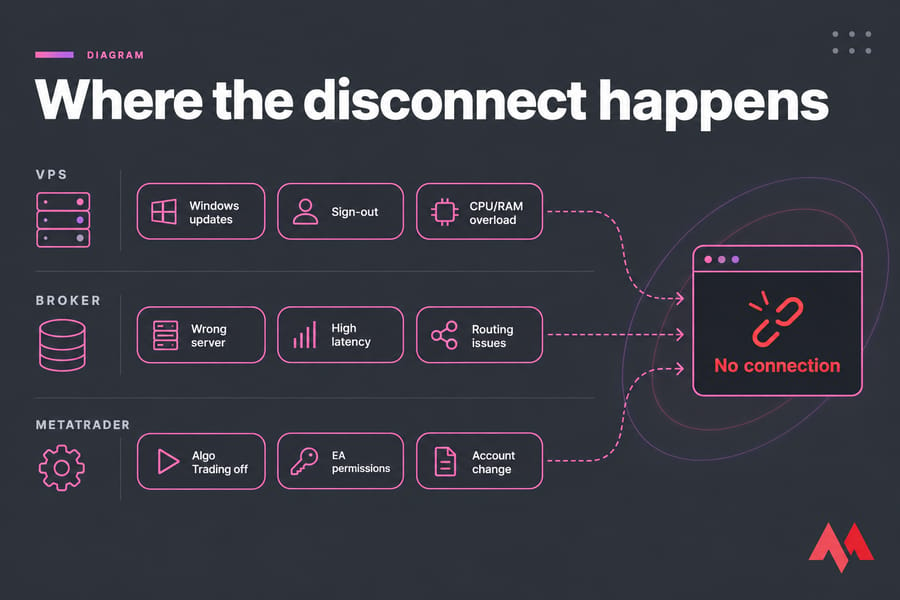
A red "No connection" message doesn't mean your VPS is down. It means the terminal can't reach the broker's trade server. That could be your fault, the VPS provider's, or the broker's. Sort the cause into one of these buckets:
- VPS-side: forced Windows Update reboots, someone signing out of RDP, maxed-out CPU or RAM, network adapter power saving.
- Broker-side: the wrong server selected at login, high latency, broker maintenance, routing problems between the data center and the broker.
- MetaTrader-side: Algo Trading switched off, missing EA permissions, a corrupted install, or too many charts loaded at once.
Before you change any settings, figure out which bucket you're in.
RDP Disconnect vs Sign Out: The Mistake That Kills MetaTrader
This one catches more traders than anything else. When you close the Remote Desktop window, your Windows session keeps running in the background, and MT4/MT5 keeps trading. When you choose Sign out or Log off from the Start menu, Windows ends the session and shuts down every app in it, MetaTrader included.
| Action | Session | MetaTrader | Safe? |
|---|---|---|---|
| Click X on the RDP window | Stays active | Keeps running | Yes |
| Disconnect from the connection bar | Stays active | Keeps running | Yes |
| Start > Sign out | Ends | Closes | No |
| Restart / Windows Update reboot | Ends | Closes until relaunched | Only with auto-recovery |
Closing RDP is safe. Signing out is not.
So you won't kill MetaTrader by closing RDP. The next thing that can take it down is a reboot.
Windows VPS Settings That Keep MT4/MT5 Running 24/7
Disable sleep and adapter power saving
Go to Power Options and pick High performance, with sleep set to Never. Then open Device Manager, go to your network adapter's Properties, open the Power Management tab, and untick "Allow the computer to turn off this device to save power." Many VPS images don't show that tab at all, and that's fine. Tuning TCP keepalive is an optional advanced step. Leave it until the basics below are working.
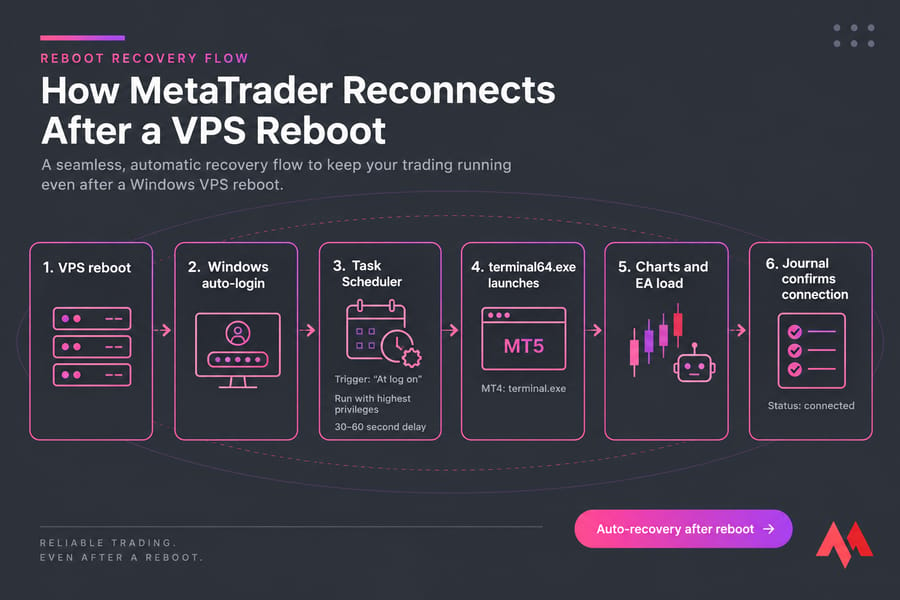
Turn on auto-login
MetaTrader is a desktop app, so it can't open while Windows is sitting at the login screen. Turn on automatic sign-in with netplwiz or the Sysinternals Autologon tool. Be aware of the trade-off: auto-login makes recovery after a reboot much easier, but it also means you need a strong password and tighter control over who can reach your VPS.
Launch MT4 or MT5 at logon
- Open Task Scheduler and choose Create Task.
- Tick "Run with highest privileges."
- Add a trigger: At log on, for your user.
- Add an action that points to
terminal.exe(MT4) orterminal64.exe(MT5) in your install folder. - Add a 30–60 second delay so the network is up before MetaTrader starts.
Dropping a shortcut into the Startup folder (shell:startup) also works. I still prefer Task Scheduler because it gives you delays and better control over how the terminal launches. For the full walkthrough, see how to automatically restart MetaTrader after reboot.
MetaTrader Settings That Stop EAs From Silently Stopping
An open terminal isn't necessarily a trading terminal. Check these in Tools > Options > Expert Advisors:
- Global switch: the AutoTrading button (MT4) or Algo Trading button (MT5) in the toolbar has to be on. If it's off, no EA can trade, whatever its own settings say.
- DLL imports and WebRequest: turn these on only if your EA actually needs them, and add only the specific URLs it uses.
- MT5 protective switches: look at the options that disable algo trading when the account or profile changes. A login to a different account can quietly turn your EA off.
- Load: lower "Max bars in chart" and close indicators you don't use.
Different EAs need different permissions, so it's worth reading up on MetaTrader Expert Advisors. For more tuning ideas, see how to optimize MetaTrader for Forex VPS.
Broker Latency and Server Selection
The ping value in the bottom-right corner of MetaTrader shows your latency to the broker's trade server. As a rule of thumb, under 20 ms is excellent, 20–80 ms is fine for most EAs, and anything regularly above 100–150 ms is worth looking into, especially for scalping. Low latency won't fix a broken setup. It does make reconnects shorter and execution cleaner.
If your ping stays high, check that you're logged in to the right broker server, then think about moving your VPS closer to it. Our guides on Forex VPS latency and the best Forex server location cover the major broker hubs: London, New York, and Tokyo.
How to Verify MetaTrader Is Really Running Unattended
Don't assume it's working. Test it during quiet market hours:
- Close RDP, wait 2 minutes, and reconnect. The terminal should still be connected and the EA should still show as active.
- Reboot the VPS. Check that Windows signs in on its own, MT4/MT5 opens, and your charts load.
- Look in the Journal and Experts tabs for the login and EA initialization lines.
Before you change anything major, back up MetaTrader settings. Your profiles and EAs take a few seconds to copy and much longer to rebuild.
MetaTrader VPS vs Full Windows Forex VPS
| Feature | MetaTrader Virtual Hosting | Windows Forex VPS |
|---|---|---|
| Setup | One click from inside the terminal | Manual, full RDP access |
| Multiple terminals/brokers | One terminal per subscription | As many as your RAM can handle |
| DLLs, external tools, scripts | Limited | Fully supported |
| Desktop control | None | Complete |
| Best for | Simple EAs and signal copying | Complex stacks, prop firm setups |
MQL5's built-in hosting works well for a single EA or a signal subscription. If you need several terminals, custom DLLs, or tools that run outside MetaTrader, you'll want Windows VPS hosting.
MT4/MT5 Disconnect Troubleshooting Checklist
| Symptom | Likely Cause | Fix |
|---|---|---|
| "No connection" in red | Wrong server, expired account, no internet | Check the server name, log in again, test a browser |
| Keeps reconnecting | High latency, overloaded CPU/RAM | Check ping and Task Manager, cut down charts |
| EA stopped after reboot | No auto-login or startup task | Set up auto-login and Task Scheduler |
| Open but not trading | Algo Trading off, account switched | Re-enable it, review the MT5 protective options |
| Crashes or freezes | Corrupted install | Back up, then reinstall |
Best Forex VPS Setup for Fewer Disconnects
As a rough guide, plan for 2 GB of RAM for one or two terminals and 4 GB or more for four or more terminals running EAs. Uptime, data center location, and responsive support matter more than saving a few dollars a month. MonoVM's Forex VPS hosting is built for MT4, MT5, and Expert Advisors, offers a 99.99% uptime target, and has low-latency locations near major brokers. If you're switching providers, here's how to migrate MetaTrader to a new VPS, along with more on choosing a VPS for automated trading.
Tired of checking on your terminal all night? See MonoVM Forex VPS plans for MT4/MT5.

An experienced tech and developer blog writer, specializing in VPS hosting and server technologies. Fueled by a passion for innovation, I break down complex technical concepts into digestible content, simplifying tech for everyone.