Knowing how to back up MetaTrader settings, EAs, and trading data on a VPS is the difference between a 15-minute recovery and a weekend spent rebuilding charts from memory. If your Expert Advisors run 24/7 on a Windows VPS, your entire trading operation lives inside one folder — and most traders back up the wrong one.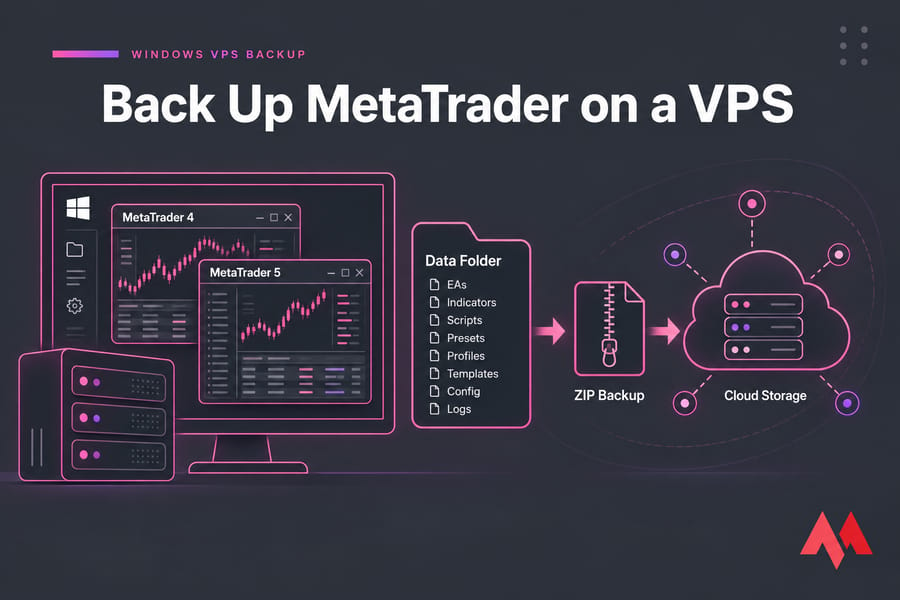
Short version, before we get into the detail:
- In MetaTrader, click File > Open Data Folder — that's your real working directory, not
C:\Program Files. - Copy the whole data folder (EAs, indicators, scripts, presets, profiles, templates, config, logs) to storage that isn't on the same VPS.
- Automate it with Robocopy plus Task Scheduler so it happens daily without you thinking about it.
- Pair the file backup with a full VPS snapshot, then actually test a restore before you need one.
That's the whole strategy. Now the parts that trip people up.
What a MetaTrader VPS backup should actually include
Here's something worth internalising early: your open positions don't live on your VPS. They sit on your broker's servers. If the VPS dies at 3am, your trades still exist — but nothing is managing them.
What dies with the VPS is the management layer: the EA logic, the input parameters you spent three months tuning, the chart profiles, the templates, and the connection settings that point at the right broker server.
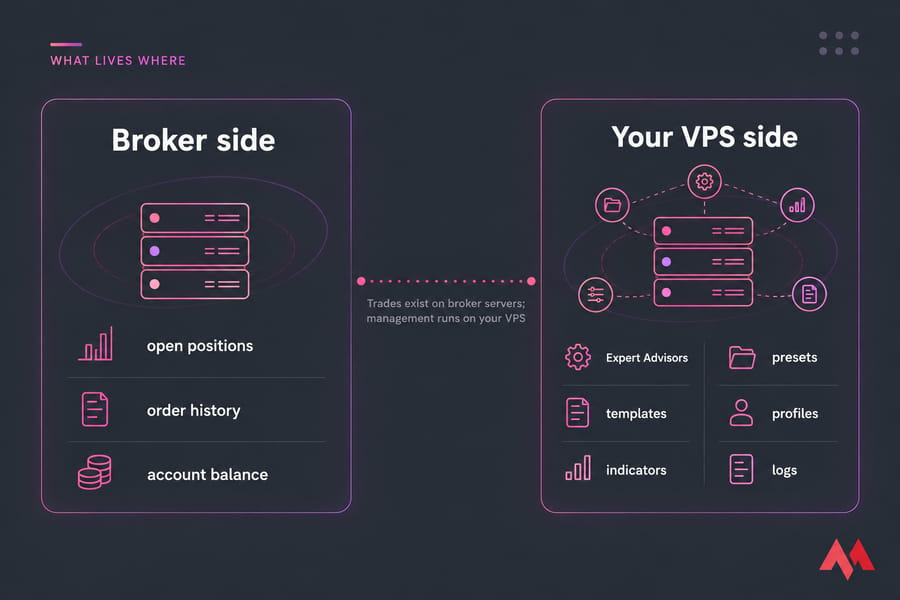
Three things get confused constantly, so let's separate them:
- The installation directory — the terminal executable and its shipped files. Reinstallable in five minutes. Low value.
- The data folder — everything you created, configured, or bought. Irreplaceable.
- The VPS snapshot — a full image of the machine, OS included. Useful, but a blunt instrument.
If you're new to running MetaTrader on a remote server, it helps to understand what a Forex VPS is and how to set up a VPS for Forex trading before you build a backup routine around it.
Before you copy anything, confirm where MetaTrader is really storing your data. This is where most backups quietly fail.
MT4 data folder and MT5 data folder: where your files really live
Since MT4 build 600, the terminal data folder is usually separated from the installation folder. MetaQuotes made that change to sidestep Windows UAC restrictions on writing into Program Files — the same reason Windows redirects writes into C:\Users\<user>\AppData\Local\VirtualStore\Program Files for older apps while File Explorer pretends they're in the install directory. Confusing? Yes. That's exactly why people back up an empty shell and don't notice.
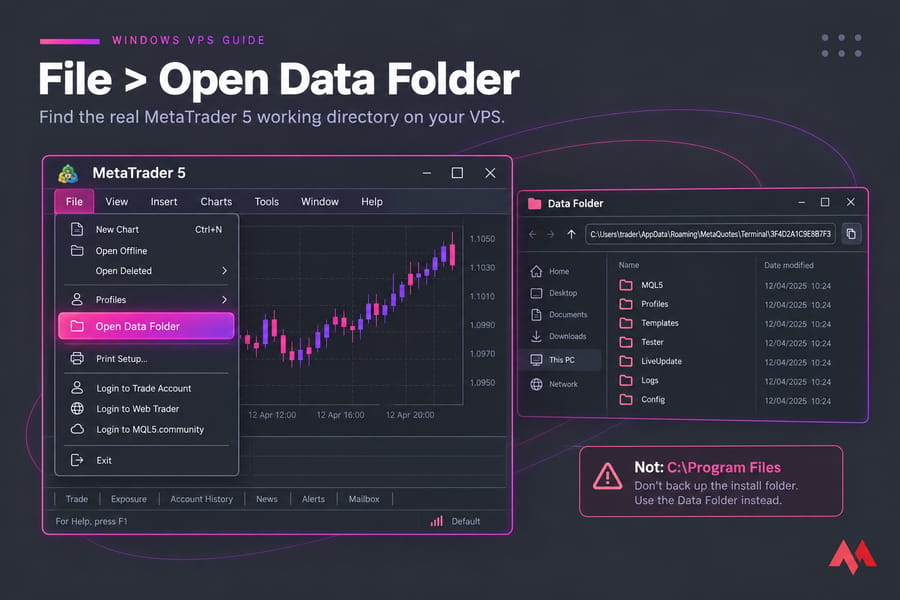
How to use File > Open Data Folder
Don't guess the path. Open your terminal, click File, then Open Data Folder. Windows Explorer opens on the correct directory for that specific terminal instance. Do this separately for every terminal you run.
Default paths on a Windows VPS
| Platform | Typical data folder path | Notes |
|---|---|---|
| MetaTrader 4 | C:\Users\<username>\AppData\Roaming\MetaQuotes\Terminal\<instance_id> |
instance_id is a 16-character hash derived from the install path |
| MetaTrader 5 | C:\Users\<username>\AppData\Roaming\MetaQuotes\Terminal\<instance_id> |
Same structure; confirmed in the MetaTrader 5 platform start documentation |
| Portable mode | Inside the installation folder itself | Launched with the /portable flag — data and install live together |
Each data folder contains an origin.txt file holding the path to the installation folder it belongs to. When you've got four terminals on one VPS and four cryptic hash-named folders, origin.txt is how you match them up. Open it. Label your backup accordingly. Future you will be grateful.
Warning: Backing up only
C:\Program Files (x86)\YourBroker MT4\is the single most common mistake I see. Unless you're running portable mode, that folder contains almost none of your actual work.
The official MT4 data structure documentation covers this behaviour in detail. If you haven't got the platform running yet, MonoVM's guide on how to install MT4 on a VPS walks through the setup side.
Which MetaTrader folders and config files to back up
Inside the data folder, not everything carries equal weight. Here's the priority map.
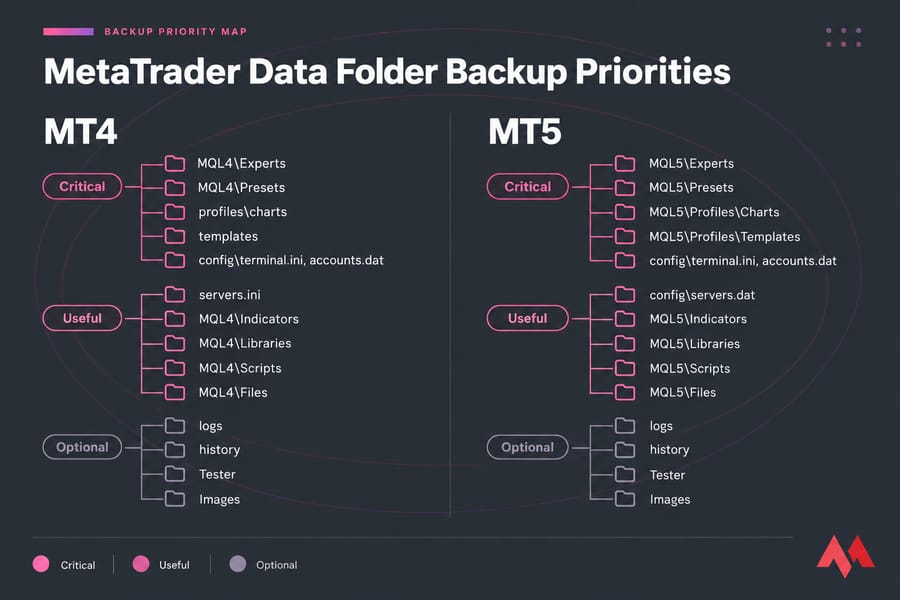
| Folder / file | MT4 / MT5 | What it stores | Priority |
|---|---|---|---|
MQL4\Experts / MQL5\Experts |
Both | Your Expert Advisors (.ex4/.ex5 and .mq4/.mq5) | Critical |
MQL4\Presets / MQL5\Presets |
Both | EA input parameters — the .set files |
Critical |
profiles\charts (MT4) / MQL5\Profiles\Charts |
Both | Chart layouts, timeframes, attached objects | Critical |
templates (MT4) / MQL5\Profiles\Templates |
Both | Saved chart templates (.tpl) | Critical |
config\terminal.ini, accounts.dat |
Both | Terminal settings and stored account entries | Critical |
config\servers.dat / servers.ini |
MT5 / MT4 | Broker server connection list | High |
MQL4\Indicators / MQL5\Indicators |
Both | Custom indicators, including paid ones | High |
MQL4\Libraries / MQL5\Libraries |
Both | DLLs and shared libraries your EAs call | High |
MQL4\Scripts / MQL5\Scripts |
Both | One-shot execution scripts | Medium |
MQL4\Files / MQL5\Files |
Both | CSV inputs, state files, licence keys written by EAs | Medium |
Tester / MQL5\Profiles\Tester |
Mostly MT5 | Backtest and optimisation results | Medium |
logs, MQL5\Logs, history |
Both | Terminal/EA logs and downloaded price history | Low |
Two things deserve a callout. First, presets. Those .set files hold the exact input values your EA runs with — lot sizing, risk caps, magic numbers, session filters. Reinstalling the terminal takes minutes; reconstructing a tuned parameter set from memory takes weeks and you'll get it wrong.
Second, libraries. If a commercial EA depends on a DLL sitting in MQL4\Libraries, copying just the .ex4 file gives you a robot that loads and then fails silently. Copy the whole MQL4 or MQL5 tree and you sidestep the problem entirely.
Honestly? Just take the entire data folder. It's rarely more than a few hundred megabytes, and the selective approach only makes sense when history files have ballooned. If you want more background on the software side, MonoVM has a primer on MetaTrader Expert Advisors.
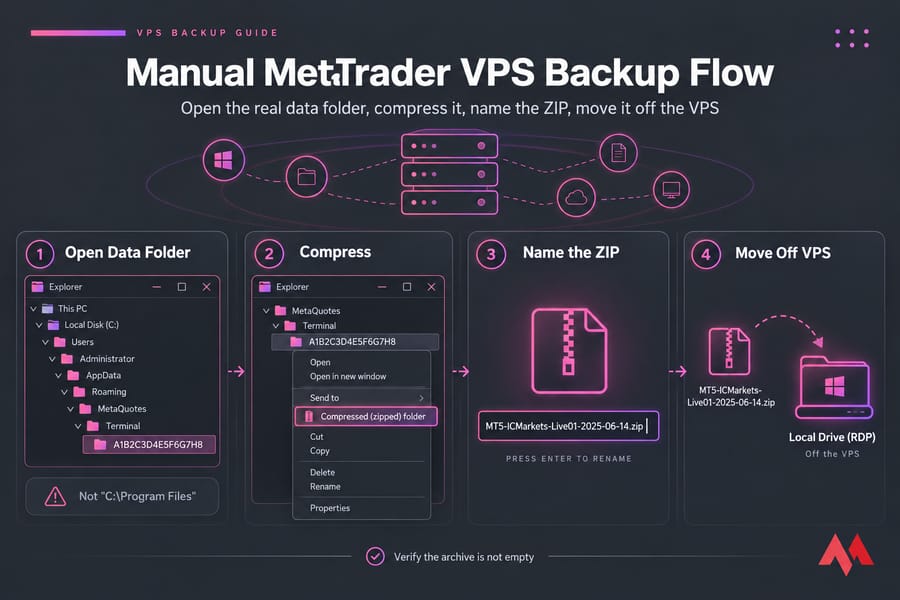
How to back up MT4 settings manually on a Windows VPS
This is the five-minute version. Do it once today, even if you plan to automate later.
- Disable AutoTrading (MT4) or Algo Trading (MT5). Click the toolbar button. You don't want an EA writing to a file mid-copy.
- Document the live state. Screenshot your charts, your Navigator panel, and the Journal tab. Note the broker server name, account number, and which profile is active. Takes 60 seconds and saves an hour later.
- Open the data folder via File > Open Data Folder.
- Close the terminal. A cold copy is a clean copy. Logs and
.datfiles are held open while the terminal runs. - Go up one level, right-click the instance folder, choose Send to > Compressed (zipped) folder.
- Name it properly:
MT5-ICMarkets-Live01-2025-06-14.zip. Platform, broker, account, date. No exceptions. - Move the ZIP off the VPS. Drag it across your RDP session to your local machine, or drop it into a synced cloud folder.
- Verify. Check the file size looks sane and open the archive. An empty 4KB ZIP is not a backup.
If RDP drive redirection isn't enabled on your server, MonoVM's guide on how to transfer files to and from a Windows VPS covers the alternatives.
Manual copies are fine for one-off protection. Active EA traders should automate.
How to automate MetaTrader backups with Robocopy and Task Scheduler
Robocopy ships with Windows Server. No installs, no licences, no third-party agent eating CPU on a latency-sensitive box.
A safe Robocopy command
robocopy "C:\Users\Administrator\AppData\Roaming\MetaQuotes\Terminal\A1B2C3D4E5F6G7H8" "D:\MT-Backups\MT5-Live01\Latest" /E /COPY:DAT /R:2 /W:5 /XD logs history /LOG+:"D:\MT-Backups\Logs\mt5-backup.log" /TEE /NPIn plain English: copy everything including empty subfolders (/E), preserve data, attributes and timestamps (/COPY:DAT), retry twice with a 5-second wait instead of hanging forever (/R:2 /W:5), skip the bulky logs and history directories (/XD), and append results to a log file so you can prove it ran (/LOG+). Microsoft's own Robocopy reference uses the same /COPY:DAT and /LOG pattern in its examples.
Warning: Don't reach for
/MIRunless you fully understand it. Mirror mode purges files from the destination that no longer exist in the source — delete an EA by accident, run the job, and your backup copy vanishes too.
Scheduling it
Save the command as C:\Scripts\mt-backup.bat, then open Task Scheduler:
- Create Task (not Basic Task — you need the extra options).
- General tab: tick Run whether user is logged on or not and Run with highest privileges.
- Triggers: daily at a quiet hour. Weekend traders can go every 12 hours; scalping setups that change parameters often might justify every 6.
- Actions: Start a program → your
.batfile. - Settings: allow the task to run on demand so you can test it immediately.
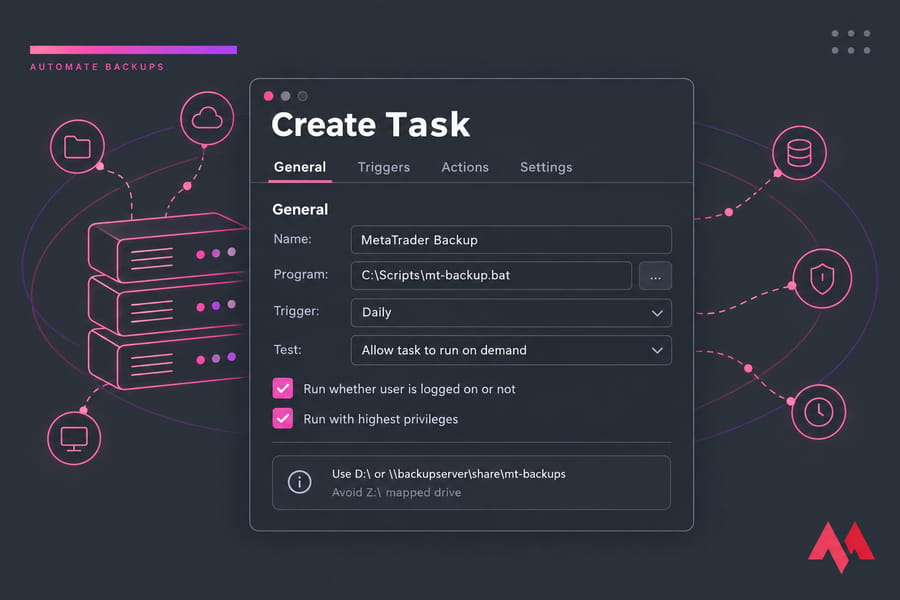
One gotcha that burns people: mapped network drives often don't resolve inside scheduled tasks because the task runs in a different impersonation context. Use a local path like D:\ or a full UNC path such as \\backupserver\share\mt-backups instead of Z:\. MonoVM's walkthrough on how to configure Windows Task Scheduler covers the account and trigger settings in more depth.
Check the log file weekly. Robocopy writes a summary showing copied, skipped, and failed counts. If "Failed" is anything other than zero, investigate before you need the backup.
VPS snapshot vs file backup for MetaTrader
These solve different problems. Using one and calling it done is how traders end up stuck.
| Scenario | Best recovery method | Why |
|---|---|---|
| Deleted a preset or template by mistake | File backup | Surgical — restore one file in seconds |
| Windows update broke the server | Snapshot | Rolls back OS state, not just your files |
| Terminal corrupted after a crash | File backup + reinstall | Fresh binaries, your data restored on top |
| Moving to a new provider or region | File backup | Snapshots rarely transfer between hosts |
| Ransomware or full disk failure | Both | Snapshot for the machine, off-server copy for your data |
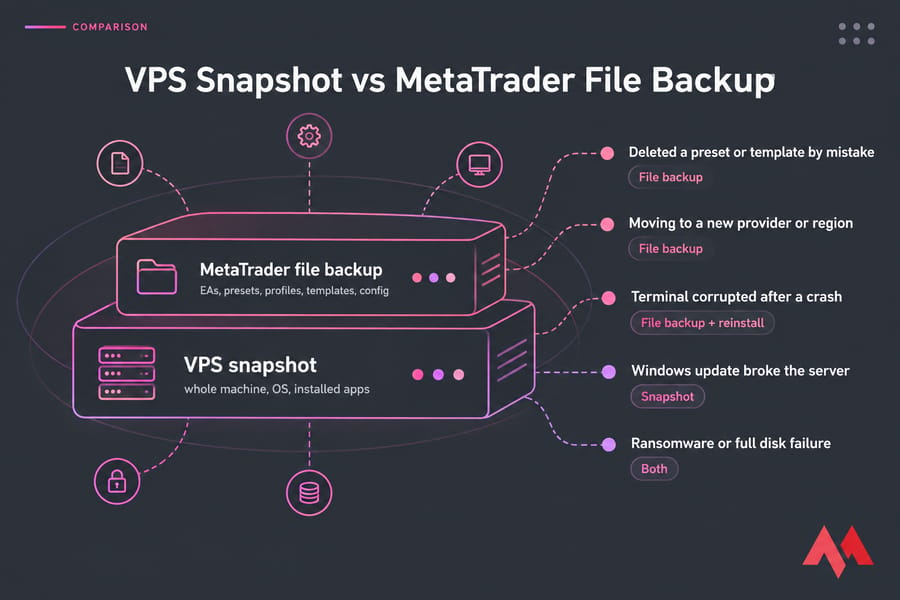
Not every VPS plan includes snapshots by default, so check before you assume. And if your provider does offer them, treat snapshots as a second layer rather than your only one. Snapshots usually live on the same infrastructure as the server they protect. For the broader picture on full-machine recovery, see MonoVM's Windows Server backup guide.
How to restore MetaTrader settings, EAs, and trading data
Once a backup exists, the only thing that matters is whether you can restore it cleanly.
Restoring to the same VPS
Close the terminal. Extract your archive. Copy the folders back into the live data folder, overwriting when prompted. Relaunch. Done.
Restoring to a new VPS
- Install the same MetaTrader build from your broker on the new server.
- Launch it once, then close it — this generates the new
instance_iddata folder. - Open File > Open Data Folder on the fresh install to find the new path.
- Copy your backed-up
MQL4/MQL5,profiles,templates, andconfigcontents into it. - Relaunch and log into your broker account.
This overlaps heavily with a platform move, so MonoVM's guide on how to migrate MetaTrader to a new VPS is worth reading alongside this one.
Post-restore validation checklist
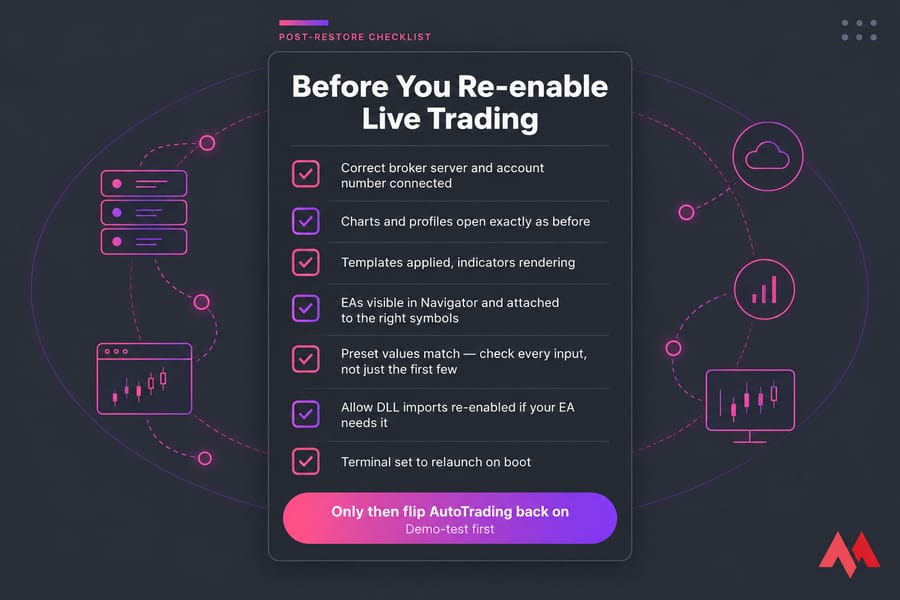
- Correct broker server and account number connected
- Charts and profiles open exactly as before
- Templates applied, indicators rendering
- EAs visible in Navigator and attached to the right symbols
- Preset values match — check every input, not just the first few
- "Allow DLL imports" re-enabled if your EA needs it
- Terminal set to relaunch on boot, per the guide on how to automatically restart MetaTrader after reboot
Only then flip AutoTrading back on. Demo-test first if the market's open and you've got positions running.
Common MetaTrader backup mistakes on a VPS
- Backing up the install folder only. Covered above, still the number one failure.
- Keeping the only copy on the same VPS. If the disk goes, so does the backup. Off-server or it doesn't count.
- Overwriting one archive forever. Keep at least seven daily versions — corruption often goes unnoticed for days.
- Forgetting DLLs, licence files, and presets. The EA loads, then does nothing. Maddening to debug under pressure.
- Ignoring extra instances. If you run multiple MetaTrader instances on a VPS, each one has its own data folder. Back up every single one.
- Never testing a restore. An untested backup is a guess.
Best backup frequency for EAs, presets, and trading logs
| Trader type | Scheduled backup | Event trigger | Restore test |
|---|---|---|---|
| Full-auto EA, multiple pairs | Daily | Any parameter or EA change | Monthly |
| Semi-auto / swing | Every 2–3 days | New indicator or template | Quarterly |
| Manual with custom tools | Weekly | Before Windows updates | Quarterly |
| Prop-firm / funded account | Daily + snapshot weekly | Every session change | Monthly |
Always take an ad-hoc backup before a Windows Server update, before installing anything new, and before any VPS migration. Three copies, two storage types, one off-server — the classic 3-2-1 rule works fine here.
Wrapping up
Back up the data folder, keep a copy off the server, automate it with Robocopy, and rehearse the restore. That's it. Once that's running, spend the saved time on performance instead — MonoVM's guide to optimize MetaTrader for a Forex VPS is the logical next step.
Tested backups and a stable server belong together. A MonoVM Forex VPS gives you always-on MetaTrader hosting with remote access from anywhere, and the Windows VPS range has room to run several terminals side by side.
Get my Forex VPS running today.

An experienced tech and developer blog writer, specializing in VPS hosting and server technologies. Fueled by a passion for innovation, I break down complex technical concepts into digestible content, simplifying tech for everyone.