
To automatically restart MetaTrader after a VPS reboot, enable Windows auto-login, then create a Task Scheduler task that launches your MT4 or MT5 executable at logon with highest privileges. Reboot the VPS and confirm the terminal, charts, and Expert Advisors all come back.
That's the whole recipe. But the part most traders skip — and the reason MT4 sits dark while the market moves — is auto-login. Windows can't run a GUI app like MetaTrader with nobody signed in. If you're running EAs on a Forex VPS hosting plan and your server reboots for updates at 3 a.m., no login means no terminal, and no terminal means no trades.
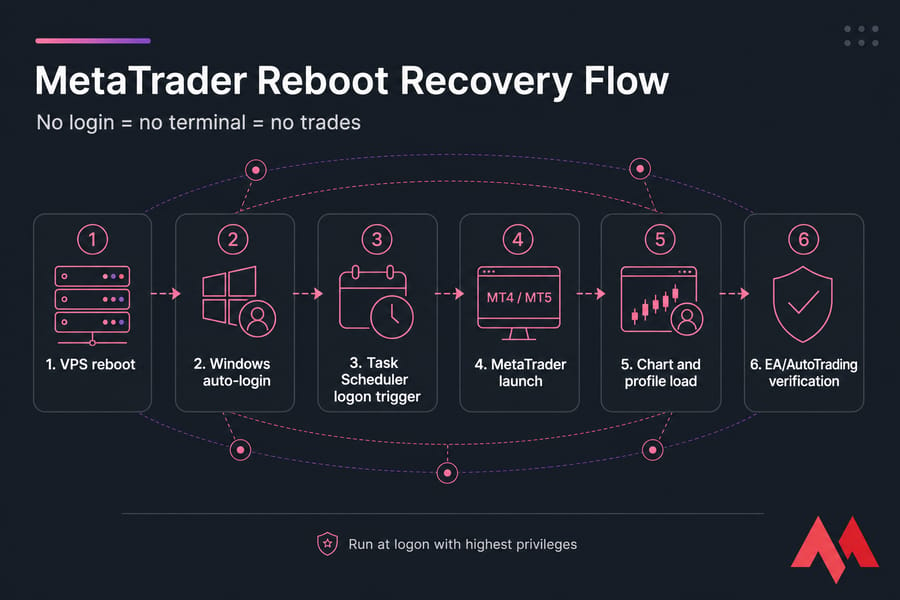
Why MT4 or MT5 may not restart after a Windows VPS reboot
Windows doesn't relaunch applications after a restart by default. It never has. When your VPS reboots — because of a Windows Update, a provider maintenance window, or a crash — the operating system boots to the login screen and stops there.
Three root causes cover almost every case:
- No Windows session. Nobody is signed in, so no user-mode app is running.
- No startup trigger. Nothing tells Windows to open
terminal.exeorterminal64.exe. - Wrong user context. A task exists, but it's set to run under an account that never signs in.
One thing worth clearing up: closing your Remote Desktop window is not a reboot. When you disconnect from RDP, your session stays alive and MetaTrader keeps trading. Signing out is different — that ends the session and kills the terminal. So always disconnect, never log off.
Prerequisites for MetaTrader auto start on a VPS
Get these lined up first:
- A Windows VPS with administrator access and working RDP.
- MT4 or MT5 already installed. If you haven't got that far, start with how to install MT4 on a VPS.
- The exact executable path. Right-click your desktop shortcut → Properties → Target. MT4 is usually
terminal.exe; 64-bit MT5 isterminal64.exe. - A decision on which Windows account runs MetaTrader — this must be the same account that signs in automatically.
- A backup of your
profiles,templates, and EA settings before you start fiddling. - The ability to reboot the VPS for a real test.
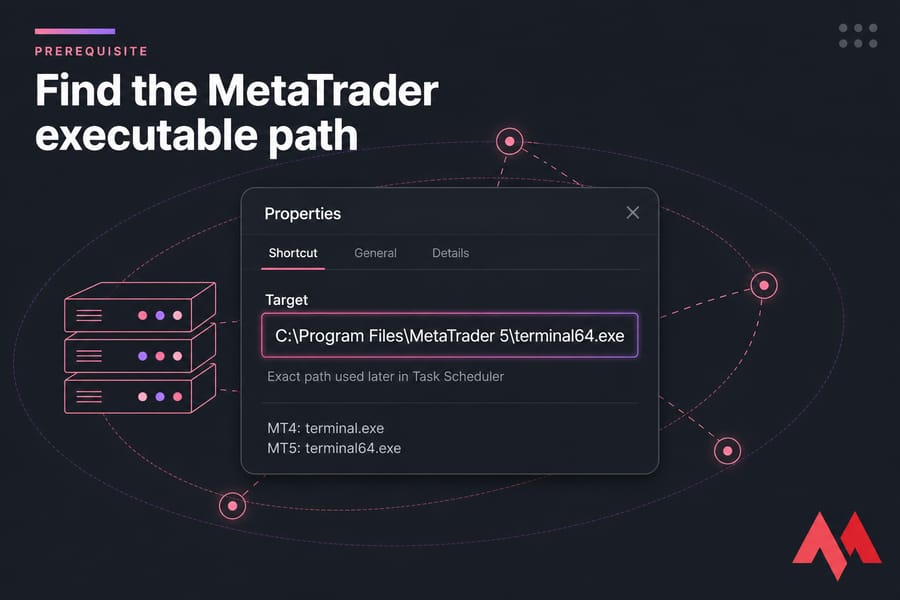
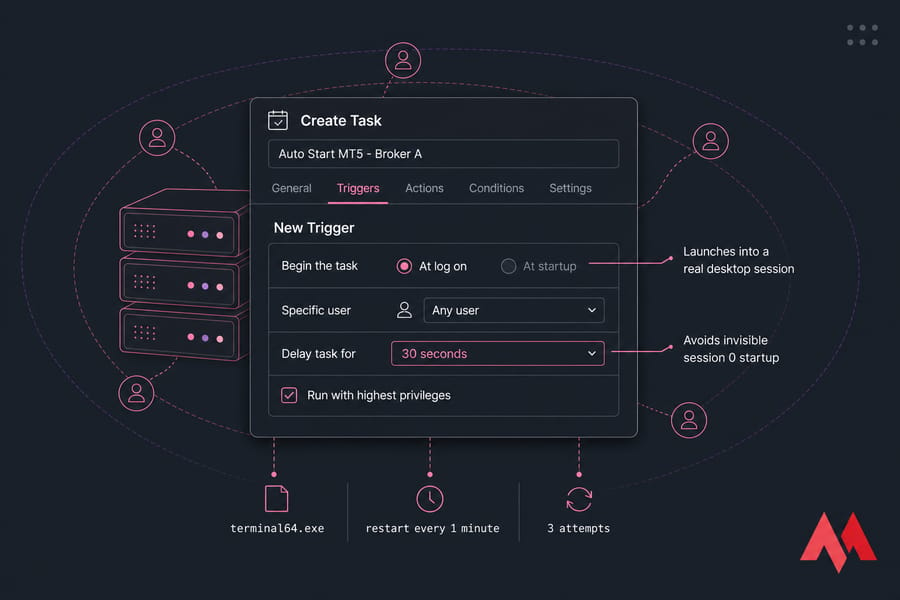
Use Task Scheduler to restart MetaTrader automatically
This is the method I recommend. Task Scheduler gives you privilege control, retry behaviour, and a history log you can actually read when something breaks. The Startup folder gives you none of that.
Step-by-step
- Press
Win + R, typetaskschd.msc, hit Enter. - In the right pane, click Create Task — not Create Basic Task. The basic wizard hides the settings you need.
- On the General tab, name it clearly:
Auto Start MT5 - Broker A. Set the user account to the one that will auto-login. Leave "Run only when user is logged on" selected, and tick Run with highest privileges. - On the Triggers tab, click New → begin the task At log on → specific user (your trading account). Add a 30-second delay so Windows finishes loading networking first.
- On the Actions tab, choose Start a program and browse to your terminal executable. For example, if MT5 lives at
C:\Program Files\MetaTrader 5\terminal64.exe, that's your path. Set "Start in" to the install folder. - On Conditions, untick anything power-related. On Settings, enable "If the task fails, restart every 1 minute" with up to 3 attempts.
- Click OK, enter the account password if prompted, then right-click the task and choose Run to confirm MetaTrader opens.
Why "At log on" and not "At startup"? Because a startup trigger fires before any user session exists, and a GUI app launched into session 0 either fails or runs invisibly. Logon triggers land the terminal in a real desktop where you can see it over RDP. If you want deeper background on the tool itself, see the guide to configure Windows Task Scheduler.
Enable Windows auto login on your VPS
Task Scheduler handles the launch. Auto-login makes sure there's a session for it to launch into.
- Press
Win + R, typenetplwiz, press Enter. - Select your trading account in the list.
- Untick Users must enter a user name and password to use this computer.
- Click Apply, enter the password twice, and confirm.
If that checkbox isn't visible (common on newer Windows Server builds and where domain policy applies), you'll need the registry route under Winlogon — or ask your provider's support team to enable it.
Warning: change your Windows password later and auto-login silently stops working. Update the saved credentials in netplwiz the same day you rotate the password, or you'll discover the problem after a reboot at the worst possible time.
Auto-login does lower your security floor, so compensate: use a strong password, restrict RDP by IP or move it behind a firewall rule, and read up on how to secure your Windows Server and secure RDP access.
Startup folder: the simpler fallback
Press Win + R, type shell:startup, and drop a shortcut to your MetaTrader executable into the folder that opens. Done in twenty seconds.
It works fine for one terminal on a lightly used VPS. It also has no retry logic, no elevation control, no history, and it still depends entirely on auto-login. Use it as a belt-and-braces backup, not your primary method.
Task Scheduler vs Startup folder
| Method | Ease of setup | Reliability | Best for | Weakness |
|---|---|---|---|---|
| Task Scheduler | Moderate (5 minutes) | High — retries, elevation, logged history | Any serious EA setup, multiple terminals | More clicks; wrong user context breaks it |
| Startup folder | Very easy (20 seconds) | Moderate — fires once, no retry | A single terminal, casual use | No logging, no privilege control, no failure recovery |
Auto-starting multiple MT4 or MT5 terminals
Running Broker A on MT4 and Broker B on MT5? Each terminal needs its own install directory and its own scheduled task. Never point two shortcuts at the same data folder — you'll get profile corruption and terminals fighting over the same config.
- Name tasks predictably:
Auto Start MT4 - ICMarkets,Auto Start MT5 - Pepperstone. - Stagger the logon delays (30s, 60s, 90s) so four terminals don't hammer CPU and RAM simultaneously.
- Verify each one reconnects to its own broker independently after the test reboot.
Full setup detail lives in the guide on how to run multiple MetaTrader accounts on one VPS.
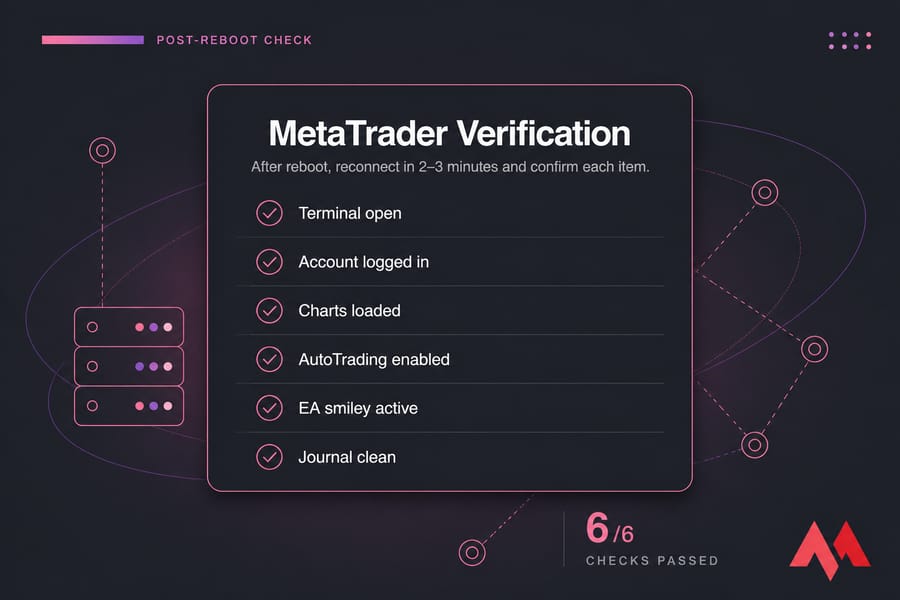
Test it with a real reboot
Don't trust an untested config with live capital. Pick a quiet window — Sunday evening before the open is ideal — and restart the VPS from within Windows.
- Wait 2–3 minutes, then reconnect over RDP.
- Is MetaTrader open? Is the correct broker account logged in (check the bottom-right status bar)?
- Did your charts and profile load?
- Is AutoTrading (or Algo Trading in MT5) green, not red?
- Are the smiley faces on your EA charts active rather than crossed out?
- Check the Journal and Experts tabs for connection or initialisation errors.
If it didn't launch, open Task Scheduler → your task → History tab. That log tells you whether the trigger fired at all.
MetaTrader not opening after reboot: common fixes
| Problem | Likely cause | Fix |
|---|---|---|
| Nothing launched at all | Auto-login disabled or broken | Recheck netplwiz; re-enter the saved password |
| Task history shows "task started" but no window | "Run whether user is logged on or not" selected | Switch back to "Run only when user is logged on" |
| Error 2147942402 (file not found) | Wrong executable path after an update or reinstall | Recheck the shortcut Target and update the Action path |
| Task never triggered | Task assigned to a different user account | Match the task user to the auto-login account |
| Terminal opens, not logged in to broker | "Save account information" unchecked | Tick it in the login dialog, then reboot and retest |
| EA loads but doesn't trade | AutoTrading off after relaunch | Enable AutoTrading, save the profile, retest |
| Auto-login stopped working suddenly | Password was changed or expired | Update credentials in netplwiz and in the task |
If your terminal keeps dying mid-session rather than failing at boot, that's a different animal — look at random service crashes within a Windows VPS instead.
Keeping automated trading stable long term
Auto-start is one layer. Uptime is the other. A few habits that pay off:
- Set Windows Update active hours outside market sessions so restarts don't land mid-London-open.
- Keep the VPS lean — browsers, download managers, and random utilities eat the RAM your terminals need.
- Watch CPU and memory, especially with three or more terminals plus tick-heavy EAs. Guidance on optimizing MetaTrader for a Forex VPS helps here.
- Sit close to your broker's servers. Distance costs milliseconds, and milliseconds cost fills — see Forex VPS latency and best Forex server location.
If you're still building out the environment, the walkthrough on how to set up a VPS for Forex trading covers the groundwork, and the overview of choosing a VPS for automated trading explains what specs actually matter.
Need a VPS built for MT4 and MT5 uptime?
Auto-restart settings only help if the server underneath them stays up. If your strategy depends on unattended execution, compare Forex VPS hosting plans built for low-latency trading, or browse general-purpose Windows VPS hosting if you need a broader Windows environment. Both come with 24/7 support when something goes sideways at 2 a.m.

An experienced tech and developer blog writer, specializing in VPS hosting and server technologies. Fueled by a passion for innovation, I break down complex technical concepts into digestible content, simplifying tech for everyone.