If you want the short version: to use a VPN server for remote work, you install a VPN client, load the config your admin gave you, authenticate (ideally with MFA), confirm the tunnel is actually routing traffic, and then open your internal tools — file shares, dashboards, RDP, SSH — exactly as if you were sitting in the office. That's the whole workflow. Everything else is detail.
But the details matter, because most teams get one of two things wrong: they either make access so locked down that nobody uses it, or they leave internal services hanging off the public internet and call it a day. I've seen both. Let's sort it out.
What a VPN server does for remote work
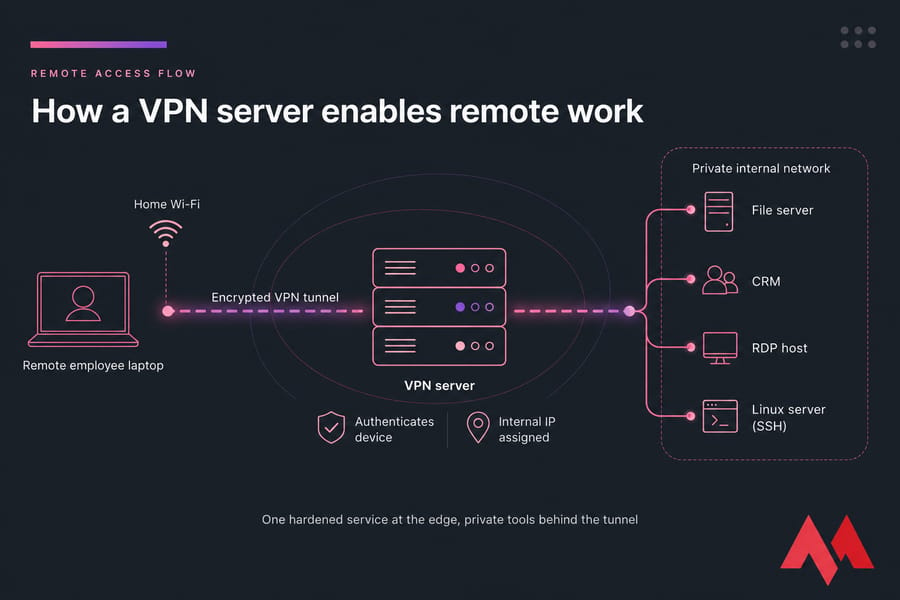
A VPN server sits at the edge of your private network (or on a VPS you control) and accepts encrypted connections from approved devices. The VPN client is the app on the employee's laptop or phone. The server authenticates it, hands it an internal IP address, and from that moment the device behaves like a machine on the office LAN.
This is not the same thing as a consumer privacy VPN. Those exist to mask your IP and unblock streaming. A business remote access VPN exists to let a trusted person reach private resources. Same underlying tech, completely different goal. If you want the foundation first, MonoVM's explainer on what a VPN is and how it works covers the mechanics.
Why bother instead of just publishing your apps to the internet? Because an exposed RDP port or an internal dashboard with a login form is a target within hours of going live. A VPN shrinks your attack surface to one hardened service.
When your team actually needs a remote work VPN
Not every remote worker needs one. Honestly. If your company runs entirely on Google Workspace, Slack, and a SaaS CRM, a VPN adds friction without adding much protection — those services already use TLS and support SSO plus MFA.
You need a VPN when the resource is private:
- Internal file servers, NAS shares, or design asset libraries
- Self-hosted ERP, CRM, ticketing, or BI dashboards bound to a private subnet
- SSH into production or staging servers
- RDP to an office workstation or Windows Server
- Admin panels, database consoles, and internal APIs
- Printers, dev boxes, VoIP systems on the office network
The rule I use: if it has no business being reachable from a random IP in another country, put it behind the VPN. More context on what VPNs are used for if you're still on the fence.
How to connect to a work VPN, step by step
Here's the employee-side workflow, regardless of platform.
- Get your credentials. Your admin sends either an
.ovpnfile (OpenVPN), a WireGuard config or QR code, or a server address plus username for IKEv2. Store it somewhere encrypted — not in a shared Downloads folder, not in a group chat. - Install the client. OpenVPN Connect, the official WireGuard app, or the built-in VPN settings on Windows and macOS for IKEv2/IPSec. Linux users can use
nmcli, NetworkManager, orwg-quick. - Import the config. Drag the file in, or scan the QR code on mobile. Don't hand-type server addresses if a config file exists.
- Authenticate. Certificate, key, or password — plus your MFA code if your admin enabled it. They should have.
- Connect and verify. This is the step people skip.
- Then open your tools. Not before. Launching RDP while the tunnel is still negotiating is how you get confusing timeout errors.
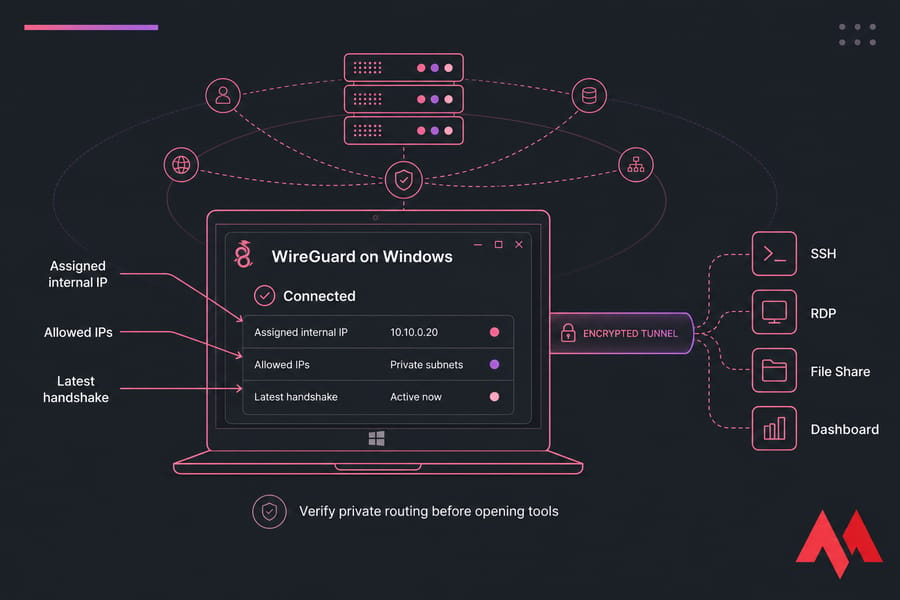
Pro tip: "Connected" in the client UI means very little on its own. Ping one private IP (say, your file server at 10.10.0.20) and resolve one internal hostname. If the ping works but the hostname doesn't, you've got a DNS problem, not a VPN problem.
What you can access after connecting
Whatever your role allows — and that's the point. Three real patterns:
- Developer: connects to VPN, then SSHes into a staging box on a private subnet. No public port 22 anywhere. See how to SSH on Linux if that part's new.
- Office employee: connects, mounts the departmental file share, then opens RDP to their desk PC. Compare the approaches in SSH vs RDP.
- Ops lead: connects, loads the internal monitoring dashboard on
10.0.5.14:3000, restarts a service, disconnects.
Segment your network so the developer's tunnel can't reach payroll and the sales team can't reach production. Least privilege isn't paranoia, it's basic hygiene.
VPN vs remote desktop for remote work
| Factor | VPN | Remote Desktop (RDP/VDI) |
|---|---|---|
| What you get | Network access from your own device | A session on someone else's machine |
| Local performance | Uses your laptop's CPU/GPU | Depends on the host and latency |
| Data location | Files can land on the endpoint | Data stays on the host |
| Best for | Devs, admins, file access, internal apps | Legacy Windows apps, locked-down data handling |
| Risk if exposed publicly | One hardened service to defend | Brute-force magnet — never expose it directly |
Key takeaway: VPN gives you network access; remote desktop gives you desktop access. Most businesses end up using both — VPN first, then RDP inside the tunnel. That's the pattern described in secure remote desktop access.
Best VPN protocols for remote employees
| Protocol | Speed | Setup | Best for |
|---|---|---|---|
| WireGuard | Fastest | Simple, small config | Small teams, dev access, modern deployments |
| OpenVPN | Good | More moving parts, mature tooling | Mixed environments, restrictive firewalls (TCP/443) |
| IKEv2/IPSec | Fast | Native clients, no extra app | Mobile users switching between Wi-Fi and cellular |
There's no universal winner. I'd start with WireGuard for a team of 5–50 and reach for OpenVPN when you need to punch through hotel or corporate firewalls. Dig deeper via WireGuard vs OpenVPN and the broader best VPN protocol breakdown.
How to secure a VPN server for remote employees
- Enforce MFA. Stolen credentials are the number one entry point. A password alone isn't access control.
- Use certificates or keys, rotate them when someone leaves, and revoke immediately — same day.
- Lock the firewall down to the VPN port only, and restrict what each tunnel subnet can reach.
- Push internal DNS through the tunnel to avoid leaks and broken hostname resolution.
- Decide on split vs full tunnel. Split tunneling is faster and lighter; full tunnel gives you traffic visibility and protects users on sketchy public Wi-Fi. Pick per role, not globally.
- Patch and log. Kernel, VPN daemon, and endpoints. Review connection logs weekly.
Warning: never expose RDP straight to the internet because "the VPN was annoying." That single shortcut undoes everything else. More hardening steps in how to secure a VPN server.
Troubleshooting a remote access VPN setup
| Symptom | Likely cause | Fix |
|---|---|---|
| Connected, nothing loads | Missing route or wrong AllowedIPs | Push the correct internal subnet to clients |
| IPs work, hostnames don't | DNS not routed through tunnel | Set internal DNS in the client profile |
| Won't connect at all | Port blocked upstream | Switch OpenVPN to TCP/443 or change UDP port |
| Auth failure | Expired or revoked certificate | Reissue the client cert, check server clock |
| Slow or stalling transfers | MTU mismatch | Lower MTU to ~1380 and retest |
Should you host a VPN server on a VPS?
For most small businesses, yes. A VPS gives you a static public IP, a clean OS you fully control, and a location you choose — put the server near your team, not near your ego. A modest 1–2 vCPU Linux box handles dozens of WireGuard peers without breaking a sweat; OpenVPN wants a bit more CPU headroom for encryption.
Where it falls short: heavily regulated industries and large enterprises moving to zero-trust architectures with identity-aware proxies. Everyone else — consultancies, agencies, distributed dev teams — a self-hosted VPN on a VPS is genuinely the practical answer. Weigh it against subscriptions in self-hosted VPN vs commercial VPN.
Ready to build it? Start with VPN server hosting and roll your own using MonoVM's guides on setting up a VPN on a VPS server, installing OpenVPN on a VPS. Protocol-specific plans live on the OpenVPN server hosting page, and general VPS server plans cover everything else.
Your remote work VPN checklist
Employees, every session: connect before opening anything, verify with one ping and one hostname, keep the OS and client patched, never share config files, disconnect when you're done.
Admins, before rollout: pick a protocol, provision the VPS, lock the firewall, enable MFA, plan subnets per role, document the support path, then onboard users in small batches. Test the revocation process before you need it.

An experienced tech and developer blog writer, specializing in VPS hosting and server technologies. Fueled by a passion for innovation, I break down complex technical concepts into digestible content, simplifying tech for everyone.