![How to Back Up a Minecraft Server Automatically 🔄 [2026]](/wp-content/uploads/2026/09/back-up-minecraft-server-automatically748-main.webp)
If you run a Minecraft server for more than a couple of weeks, something will eventually go sideways. A chunk corrupts, a plugin update misbehaves, or someone with ops accidentally nukes a build. Learning how to back up a Minecraft server automatically is the difference between losing ten minutes and losing six months of world progress.
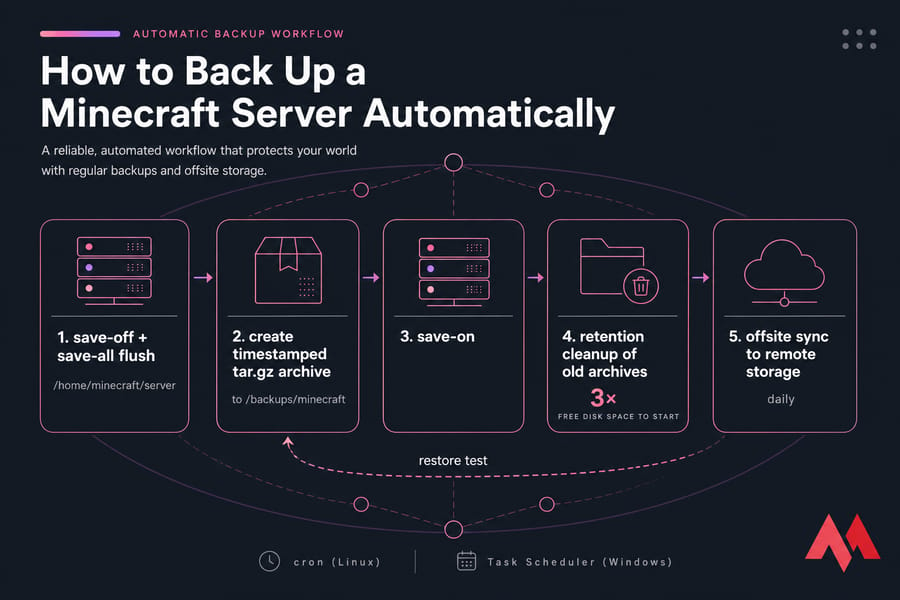
Quick answer: To automate a Minecraft server backup, write a script that flushes world data to disk, archives the server files into a timestamped tar.gz or ZIP, deletes archives older than your retention window, then schedule it with cron on Linux or Task Scheduler on Windows. Copy at least one archive offsite daily, and test a restore before you actually need one.
Before you start
You'll need a few things in place. Nothing exotic.
- File-level access to your server directory (SSH on Linux, RDP on Windows)
- Console access so you can send
save-offandsave-allcommands - Free disk space — at least 3× your current world size to start
- Knowledge of where your world folder actually lives
Nice to have: an offsite destination (another VPS or object storage), and an SFTP client for spot-checking archives. Throughout this guide I'll assume the server lives at /home/minecraft/server and backups go to /backups/minecraft. Swap in your own paths.
Why automatic Minecraft server backups are essential
Manual backups fail for one boring reason: you forget. You'll do it religiously for two weeks, then miss a day, then a week, and the crash always happens on day nine.
What can go wrong without a backup
- World corruption after an unclean shutdown or power loss mid-write
- Failed version or mod updates — one incompatible mod can make a world unloadable
- Accidental deletion of a world folder during "cleanup"
- Griefing that you only notice three days later
- Disk or host failure, which no amount of in-server care protects against
I've watched a friend's SMP lose a full weekend of builds because a single corrupted region file took down the whole overworld. There was a backup. It was four weeks old.
When manual backups are not enough
If you're planning a Minecraft version bump, backups aren't optional — read our guide on how to update a Minecraft server and take a fresh archive first. And if you're still at the setup stage, our walkthrough on how to make a Minecraft server pairs well with this one. Automation doesn't remove risk, but it removes the human who forgets.
What to include in a Minecraft server backup
Most guides say "back up the world folder." That's incomplete advice that produces broken restores. Here's what actually matters.
| File / Folder | Why it matters | Required? |
|---|---|---|
world/ |
Overworld terrain, player data, structures | Required |
world_nether/, world_the_end/ |
Separate dimension folders on Paper/Spigot | Required if present |
server.properties |
Ports, gamemode, view distance, MOTD | Required |
ops.json, whitelist.json |
Admin and access lists | Required |
banned-players.json, banned-ips.json |
Moderation history | Recommended |
usercache.json |
UUID-to-name mapping | Optional |
plugins/ |
Paper/Spigot/Bukkit JARs and their config + data folders | Required (Paper/Spigot) |
mods/ |
Forge or Fabric mod JARs | Required (modded) |
config/ |
Per-mod configuration for Forge/Fabric | Required (modded) |
Server JAR + start.sh / start.bat |
Exact version and JVM flags | Recommended |
logs/ |
Post-mortem forensics after a crash | Optional |
cache/, crash-reports/ |
Regenerated automatically | Skip |
Pro tip: plugin and mod configs are as important as the world. Restore a world without the matching economy plugin database and you've restored terrain, not a server. For modded packs specifically, see our notes on running a modded Minecraft server — version drift is the number-one cause of failed modded restores.
Honestly, for most servers under 20 GB the simplest correct answer is: archive the whole server directory and exclude the junk. Cheaper than debugging what you missed.
Minecraft server backup methods compared
| Method | Ease | Reliability | Best for | Downsides |
|---|---|---|---|---|
| Script + cron / Task Scheduler | Medium | High | VPS owners, modded servers | Requires shell access and a little setup |
| Backup plugin (Paper/Spigot) | Easy | Medium | Vanilla-ish Paper servers on panels | Plugin-scoped, adds server load, can miss non-plugin files |
| VPS snapshots | Very easy | Medium | Whole-machine rollback | Not application-consistent; coarse granularity |
| Manual copy | Easy | Low | One-off pre-update safety net | You will forget |
Key takeaway: snapshots are genuinely useful, but they capture your disk mid-write. If Minecraft was flushing a region file at that exact moment, you may snapshot a torn write. Use snapshots as a fast rollback layer, not your only backup. The broader principles in our guide to back up a server or VPS apply here too.
My default recommendation: scripted file backups on a schedule, plus offsite copies, plus host snapshots as a bonus.
How to automate a Minecraft server backup on Linux with cron
This is the method I'd use on any VPS. It works for Paper, Spigot, Forge, and Fabric identically, because it operates on files rather than the game.
Step 1: Create the backup directory
sudo mkdir -p /backups/minecraft
sudo chown minecraft:minecraft /backups/minecraft
Keep archives outside the server folder. Otherwise your backups get backed up, and the files grow exponentially — a classic mistake.
Step 2: Understand the save flush
Minecraft holds chunk data in memory and writes it out periodically. Archive mid-write and you can get an inconsistent world. The safe sequence is:
save-off— stop automatic world savingsave-all flush— force everything in memory to disk now- Archive the files
save-on— re-enable saving
Warning: if your script dies between step 1 and step 4, the server stops saving until you notice. Use a trap so save-on always runs. I've included one below.
Step 3: The backup script
This assumes the server runs inside a screen session named mc. Swap the mc_cmd function for an RCON client or tmux send-keys if that's your setup.
#!/bin/bash
set -u

SERVER_DIR="/home/minecraft/server"
BACKUP_DIR="/backups/minecraft"
STAMP=$(date +%Y-%m-%d_%H%M)
ARCHIVE="$BACKUP_DIR/mc-$STAMP.tar.gz"
RETAIN_DAYS=14

mc_cmd() { screen -S mc -p 0 -X stuff "$1$(printf '\r')"; }

# Always re-enable saving, even if the script fails
trap 'mc_cmd "save-on"' EXIT

mc_cmd "say Backup starting..."
mc_cmd "save-off"
mc_cmd "save-all flush"
sleep 10

tar -czf "$ARCHIVE" \
  --exclude='./cache' \
  --exclude='./crash-reports' \
  --exclude='./logs/*.gz' \
  -C "$SERVER_DIR" .

mc_cmd "save-on"
mc_cmd "say Backup complete."

# Retention: delete archives older than RETAIN_DAYS
find "$BACKUP_DIR" -name 'mc-*.tar.gz' -mtime +$RETAIN_DAYS -delete

echo "$(date) backup ok: $ARCHIVE" >> /var/log/mc-backup.log
Line by line, in plain English: the trap guarantees saving comes back on. sleep 10 gives the flush time to finish on larger worlds — bump it to 20–30 seconds if your world is over 10 GB. tar -czf creates a single gzip-compressed archive. find ... -mtime +14 -delete is your retention policy in one line.
Save it as /usr/local/bin/mc-backup.sh and make it executable:
sudo chmod +x /usr/local/bin/mc-backup.sh
sudo -u minecraft /usr/local/bin/mc-backup.sh
Step 4: Schedule it with cron
Run crontab -e as the user that owns the server, then add:
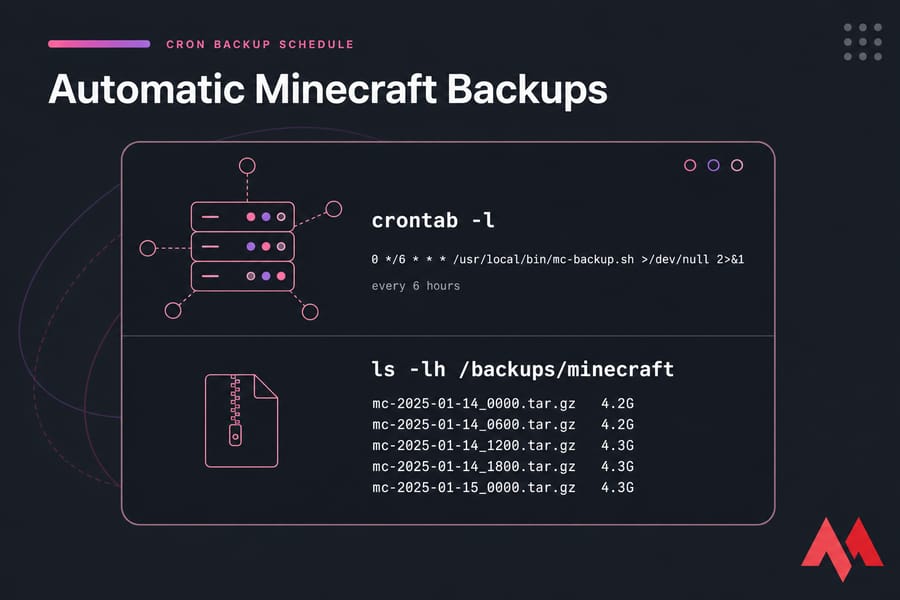
0 */6 * * * /usr/local/bin/mc-backup.sh >/dev/null 2>&1That's every six hours, on the hour. New to scheduling? Our explainer on what a cron job is covers the field syntax properly. Pick an off-peak hour if your player base is regional.
Step 5: Verify the archive
Don't trust a file just because it exists. Check it:
tar -tzf /backups/minecraft/mc-2025-01-14_0600.tar.gz | head -30
ls -lh /backups/minecraft
You should see ./world/, ./server.properties, and your plugins/ or mods/ directory in the listing. If the archive is suspiciously small — say 40 KB when your world is 4 GB — your path is wrong.
All of this needs root or sudo access, which shared and free Minecraft hosts usually don't give you. If cron is off the table where you're hosted, a Linux VPS or purpose-built Minecraft server hosting plan solves that in about ten minutes.
How to schedule a Minecraft server backup on Windows with Task Scheduler
Running on Windows Server? The logic is identical; only the tooling changes.
Step 1: Write the PowerShell script
Save this as C:\Scripts\mc-backup.ps1:
$ServerDir  = "C:\Minecraft\server"
$BackupDir  = "D:\Backups\Minecraft"
$RetainDays = 14
$Stamp      = Get-Date -Format "yyyy-MM-dd_HHmm"
$Archive    = Join-Path $BackupDir "mc-$Stamp.zip"

New-Item -ItemType Directory -Force -Path $BackupDir | Out-Null

Compress-Archive -Path "$ServerDir\*" -DestinationPath $Archive -CompressionLevel Optimal

Get-ChildItem $BackupDir -Filter "mc-*.zip" |
  Where-Object { $_.LastWriteTime -lt (Get-Date).AddDays(-$RetainDays) } |
  Remove-Item -Force

Add-Content "D:\Backups\mc-backup.log" "$(Get-Date) backup ok: $Archive"
Compress-Archive builds the dated ZIP. The Get-ChildItem block is your retention cleanup — the PowerShell equivalent of find -mtime. For worlds above roughly 5 GB, swap in 7-Zip (7z a) because Compress-Archive gets slow and memory-hungry.
Flush saves first, same as on Linux. If you run the server in a console window, send save-off and save-all flush manually before a big backup, or use an RCON CLI tool inside the script. Backing up a stopped server is always the safest option if you can tolerate a two-minute restart window.
Step 2: Create the scheduled task
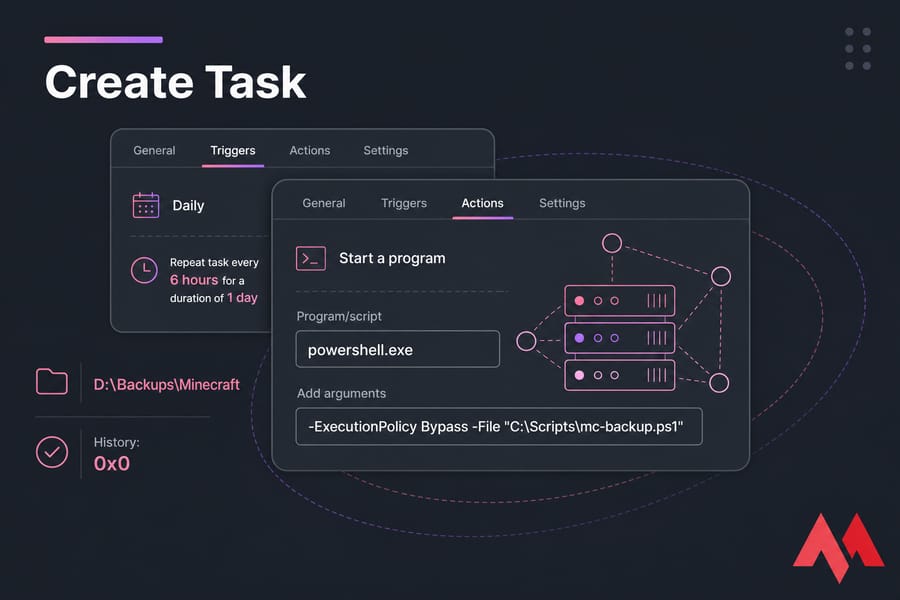
- Open Task Scheduler → Create Task (not Basic Task)
- General tab: name it, tick Run whether user is logged on or not and Run with highest privileges
- Triggers: new daily trigger, then set Repeat task every 6 hours for a duration of 1 day
- Actions: Start a program →
powershell.exe, arguments-ExecutionPolicy Bypass -File "C:\Scripts\mc-backup.ps1" - Settings: allow the task to run on demand so you can test it immediately
Step 3: Confirm it actually ran
Right-click the task → Run, then check the History tab for exit code 0x0 and confirm a fresh ZIP landed in D:\Backups\Minecraft. Task Scheduler's most common failure is a permissions mismatch on the destination folder. Our guide to Windows Task Scheduler covers the trickier trigger and credential options, and a Windows VPS gives you the admin rights this setup needs.
Offsite Minecraft backup options with rsync or cloud storage
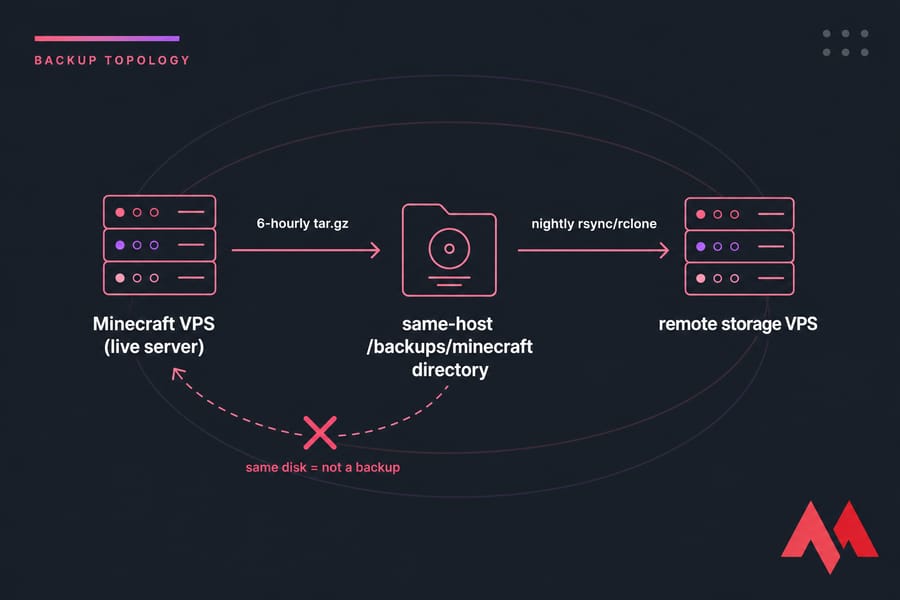
Here's the uncomfortable truth: backups sitting on the same disk as your server aren't backups. They're copies. Disk fails, both die.
Option 1: rsync to another server
rsync -avz --delete-after \
  /backups/minecraft/ \
  backupuser@203.0.113.10:/srv/mc-archives/
Add that as a second cron line an hour after your backup window. Set up SSH keys so it runs unattended. The rsync command guide covers the flags in detail, and if you need to skip certain paths, see how to exclude files with rsync.
Option 2: rclone to object storage
rclone copy /backups/minecraft remote:mc-backups \
  --transfers=4 --min-age 10m
Run rclone config once to add your provider. --min-age 10m avoids uploading a tarball that's still being written. If you'd rather own the destination, you can create your own cloud storage on a cheap box.
Apply the 3-2-1 rule
Three copies, two different media or machines, one offsite. For Minecraft that's: live server, local archives, remote copy. A storage VPS is the cheapest way to be that third copy — you're paying for capacity, not CPU. If your archives contain player data, encrypt them at rest (gpg or rclone's crypt backend) before shipping offsite.
How to restore a Minecraft server backup safely
A backup you've never restored is a hypothesis. Test it on a quiet Tuesday, not during an outage.
- Stop the server completely. Send
stopin the console. Never extract files over a running server — you'll corrupt what's left. - Preserve the broken state.
mv /home/minecraft/server /home/minecraft/server.broken. If you picked the wrong archive, you still have a way back. - Extract the archive.
mkdir -p /home/minecraft/server && tar -xzf /backups/minecraft/mc-2025-01-14_0600.tar.gz -C /home/minecraft/server - Check ownership.
chown -R minecraft:minecraft /home/minecraft/server. Wrong permissions after extraction is the top restore failure. - Verify version compatibility. The server JAR, mod loader, and mod versions must match what the world was created with. A 1.20.4 Forge world will not open under a 1.21 JAR.
- Test privately. Start the server with whitelist on, fly around spawn, check player inventories and a plugin database or two.
- Reopen to players only after that check passes. Then delete
server.brokenonce you're confident.
For partial restores — say only the end dimension broke — extract just that folder rather than the whole tree. Less risk, faster recovery.
Minecraft backup retention, frequency, and storage planning
| Server type | Frequency | Retention | Offsite |
|---|---|---|---|
| Private (2–8 friends) | Every 24 hours | 7 daily | Weekly copy |
| Active community (20–80 players) | Every 6 hours | 8 recent + 14 daily + 8 weekly | Daily copy |
| Modded / heavy plugins | Every 6–12 hours + before every update | 14 daily + 4 monthly | Daily copy |
On sizing: a vanilla world with a few hundred hours of play typically sits between 500 MB and 5 GB. Modded packs balloon fast — 15–40 GB isn't unusual with chunk-hungry mods. Gzip usually shaves 40–60% off world data, less if the pack ships pre-compressed assets.
Rough maths for an active community: 3 GB world × ~50% compression × 30 retained archives ≈ 45 GB of backup storage. Compression also costs CPU, so if backups are causing tick lag, check whether you're RAM-starved first — our notes on how much RAM Minecraft needs and on how to add more RAM to the Minecraft server are the right starting point. Fast disks help too; archiving 20 GB on spinning storage is painful, which is why I'd put an active server on an NVMe VPS.
Common Minecraft server backup mistakes to avoid
- World only, no plugins or mods. → Restore boots into an unrecognisable server. → Archive the whole directory with targeted excludes.
- No retention cleanup. → Disk hits 100%, server crashes, backups stop. → Add the
find -mtimeline and check disk space in Linux weekly. - No save flush. → Torn region files inside the archive. → Always
save-off→save-all flush→ archive →save-on. - Everything on one disk. → Single hardware failure wipes server and backups together. → One offsite copy daily.
- Never testing restores. → You discover the archive is empty during the emergency. → Restore to a throwaway directory once a month.
- Ignoring logs. → Silent failures for weeks. → Read
/var/log/mc-backup.logor Task Scheduler history; monitor overall load with a routine like our guide to checking VPS resource usage.
Final checklist for automatic Minecraft server backups
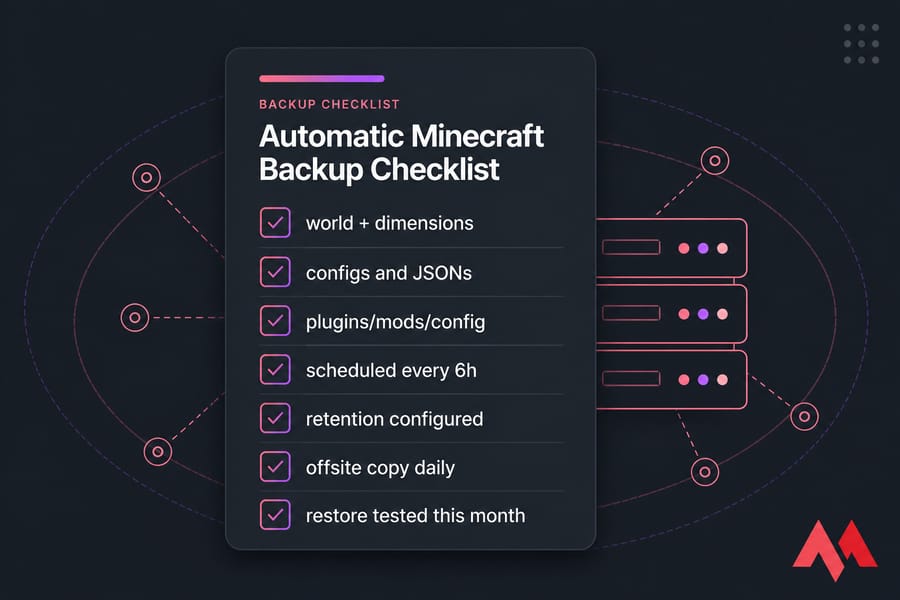
Minimum safe setup: daily scripted archive with save flush, 7-day retention, one weekly offsite copy, one tested restore.
Better setup for growing communities: 6-hourly archives, tiered daily/weekly retention, nightly offsite sync, monthly restore drills, disk-space alerting, and a fresh manual archive before every version or modpack change.
When to upgrade your host: if you can't run cron, can't reach the filesystem, or keep hitting a storage cap, the platform is the bottleneck — not your script. Full root access, generous NVMe storage, and 25+ global locations are what make this workflow trivial instead of a fight. Compare options in our roundup of the best Minecraft server hosting, or go straight to Minecraft VPS hosting built for custom scripts, modded packs, and scalable backup retention.
Protect your world before the next crash. Get Minecraft VPS hosting with full root access — and set up your first automated backup tonight.

An experienced tech and developer blog writer, specializing in VPS hosting and server technologies. Fueled by a passion for innovation, I break down complex technical concepts into digestible content, simplifying tech for everyone.