To set up a dual-stack IPv4 and IPv6 server, give the network interface an address and a default route for each protocol. Then publish an A record and an AAAA record, open the same firewall ports for both families, make your services listen on both, and test each protocol from outside the server. Skip any one of these and the server can look fine from your location while failing for some of your visitors.
The examples cover Ubuntu with Netplan and RHEL-family systems with nmcli, followed by DNS, firewall rules, Nginx and Apache, testing, and common fixes. All addresses come from the documentation ranges (203.0.113.0/24 and 2001:db8::/32). Replace them with the values your provider assigned.
What dual-stack IPv4 and IPv6 means
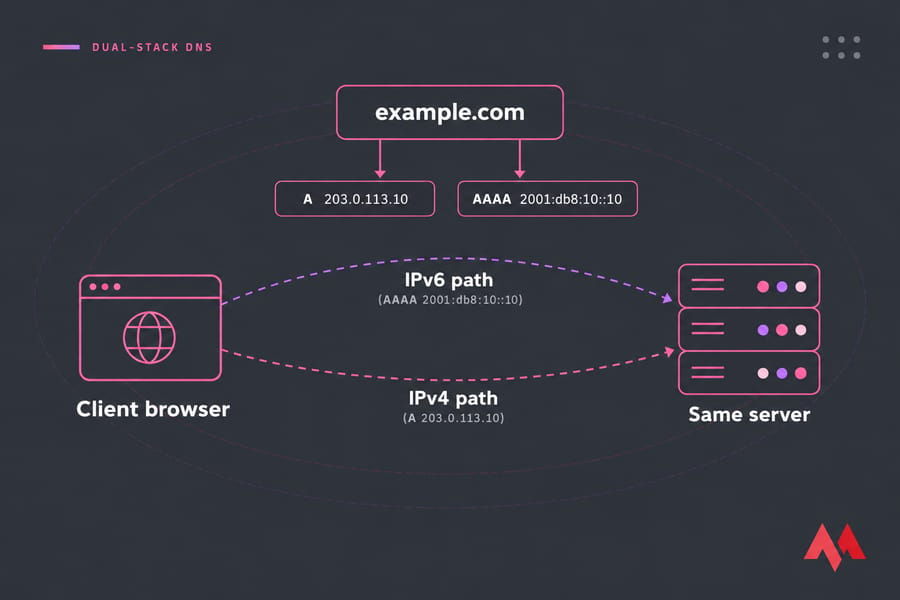
A dual-stack host runs both protocols at once. It has an IPv4 address, an IPv6 global unicast address, a default route for each, and services that accept connections over either. For a refresher on addressing and headers, read the IPv4 vs IPv6 differences first.
The client picks the protocol. When a browser gets both an A and an AAAA record for your hostname, it follows the Happy Eyeballs algorithm: it usually tries IPv6 first and starts an IPv4 attempt if IPv6 hasn't connected yet. RFC 8305 recommends a 250 millisecond default delay between those attempts. That hides a dead IPv6 path from browsers, but scripts, monitoring tools, mail servers, and certificate authorities still fail on it.
| Model | Reachability | Complexity | Best for | Drawbacks |
|---|---|---|---|---|
| IPv4-only | IPv4 clients only | Low | Legacy or internal apps | IPv6-only clients depend on carrier translation |
| Dual-stack | Both protocols natively | Medium | Public websites, APIs, SSH-managed VPSs | Two stacks to configure, firewall, and monitor |
| IPv6-only + NAT64/DNS64 | IPv6 natively, IPv4 through a translator | High | Large fleets cutting IPv4 costs | Needs translation infrastructure; some apps break |
When to use dual-stack networking on a VPS
Dual-stack is the right default for anything public on a VPS, including websites, APIs, admin dashboards, and hosts you reach over SSH. Some users are still on IPv4-only networks, and a growing share of mobile users are on IPv6-first networks. Running both serves each group natively.
It also lets you migrate from IPv4 to IPv6 one service at a time, since IPv4 keeps working while you test. IPv6-only with NAT64 and DNS64 makes sense when you control the client network and want to retire IPv4 addresses. For a single public server, it adds translation infrastructure you don't need.
The cost is operational: two sets of firewall rules, two routes, and faults that can hit one protocol while the other works. Monitor each protocol separately from the start.
Prerequisites for a dual-stack IPv4 and IPv6 setup
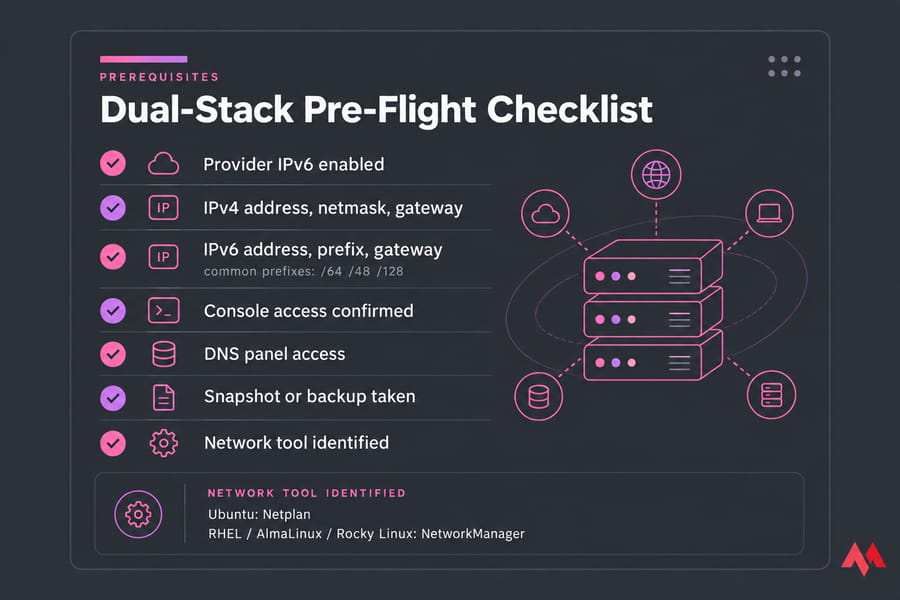
Before you edit any configuration, collect the following:
- A server whose provider routes IPv6 to it. Some providers enable it at creation; DigitalOcean, for example, lets you turn on IPv6 when you create a Droplet and configures it automatically. An IPv6 VPS hosting plan gives you both protocols without a support ticket.
- Your IPv4 address, netmask, and gateway.
- Your IPv6 address, prefix length (often
/64, sometimes/48or/128), and IPv6 gateway. If the notation is unfamiliar, read IPv6 subnet prefixes. - Root or sudo access, plus console access (VNC or a provider console) in case a network change locks you out.
- Access to your DNS provider's control panel.
- A snapshot or backup.
- The tool that manages networking on your OS: Netplan on Ubuntu, NetworkManager on RHEL, AlmaLinux, and Rocky Linux.
Run ls /etc/netplan/ and systemctl is-active NetworkManager to see which one your server uses.
Configure dual-stack IPv4 and IPv6 on Ubuntu with Netplan
Find the interface name with ip -br link. On most VPSs it's eth0, ens3, or enp1s0. Edit the YAML file in /etc/netplan/, often 50-cloud-init.yaml. If cloud-init generates that file, disable its network module first so a reboot doesn't overwrite your changes.
network:
  version: 2
  ethernets:
    eth0:
      dhcp4: false
      dhcp6: false
      accept-ra: false          # static IPv6; ignore router advertisements
      addresses:
        - 203.0.113.10/24       # IPv4 address/prefix
        - 2001:db8:10::10/64    # IPv6 address/prefix
      routes:
        - to: default
          via: 203.0.113.1      # IPv4 gateway
        - to: default
          via: 2001:db8:10::1   # IPv6 gateway
          on-link: true         # needed if the gateway sits outside your prefix
      nameservers:
        addresses:
          - 1.1.1.1
          - 2606:4700:4700::1111
Recent Netplan versions deprecate gateway4 and gateway6, so both default routes go under routes. If your provider uses router advertisements and SLAAC, set accept-ra: true and drop the static IPv6 lines. SLAAC vs DHCPv6 explains when each fits. On a public server, a static address is easier to manage because the address in DNS never changes.
Apply the configuration safely
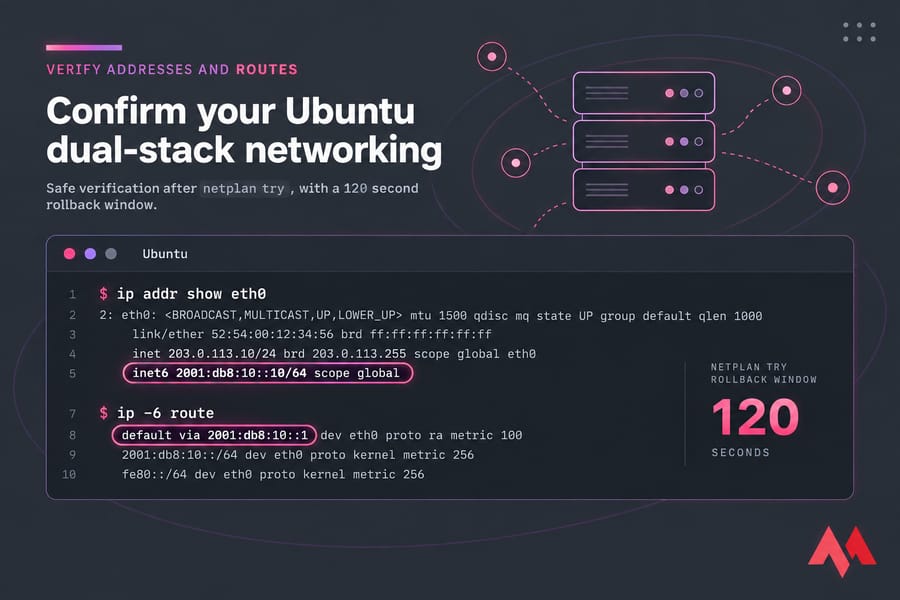
Over SSH, use netplan try instead of netplan apply. If you don't confirm within 120 seconds (the default), it restores the previous configuration.
sudo netplan generate     # catches YAML syntax errors
sudo netplan try          # press ENTER once you've confirmed SSH still works
Verify addresses and routes
ip addr show eth0         # expect inet 203.0.113.10/24 and inet6 2001:db8:10::10/64 scope global
ip route                  # expect: default via 203.0.113.1
ip -6 route               # expect: default via 2001:db8:10::1
ping -6 -c 3 2606:4700:4700::1111
For older releases and more Ubuntu detail, see set up IPv6 on Ubuntu.
Configure dual-stack networking on RHEL, AlmaLinux, or Rocky Linux
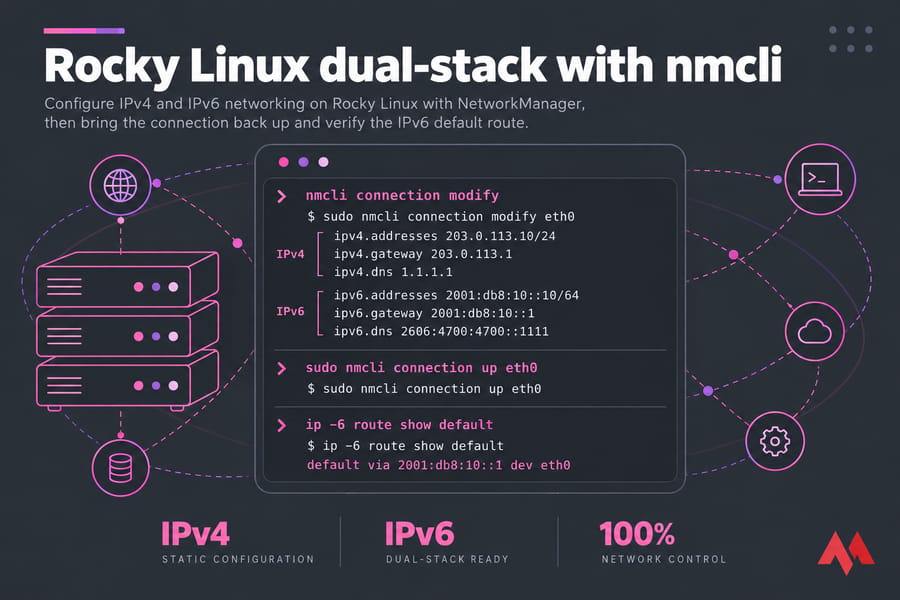
RHEL 8 and later, AlmaLinux, and Rocky Linux manage interfaces with NetworkManager. The old ifcfg scripts are legacy, so use nmcli. List your connection profiles first:
nmcli connection showAssuming the profile is called eth0, set both stacks on it. Red Hat's networking guide uses separate ipv4.gateway and ipv6.gateway properties, so each family gets its own default route:
sudo nmcli connection modify eth0 \
  ipv4.method manual \
  ipv4.addresses 203.0.113.10/24 \
  ipv4.gateway 203.0.113.1 \
  ipv4.dns "1.1.1.1" \
  ipv6.method manual \
  ipv6.addresses 2001:db8:10::10/64 \
  ipv6.gateway 2001:db8:10::1 \
  ipv6.dns "2606:4700:4700::1111"
If your provider assigns IPv6 through SLAAC, use ipv6.method auto and leave out the address and gateway. Reactivate the profile from the provider console, or chain the commands so an SSH disconnect can't stop them halfway:
sudo nmcli connection up eth0
ip -6 addr show dev eth0
ip -6 route show default
ping -6 -c 3 2606:4700:4700::1111
A missing IPv6 default route usually means the gateway is wrong or the provider expects a link-local gateway such as fe80::1. Check your provider's network details page.
Set up dual-stack DNS with A and AAAA records
An A record maps a hostname to an IPv4 address and an AAAA record maps it to an IPv6 address. Publish both for every hostname that should answer on both protocols, usually the apex domain, www, API hostnames, and any mail hostname that accepts connections. AAAA records covers the format in more depth.
| Name | Type | Value | TTL |
|---|---|---|---|
| example.com | A | 203.0.113.10 | 300 |
| example.com | AAAA | 2001:db8:10::10 | 300 |
| www | CNAME | example.com | 300 |
Keep the TTL short (300 seconds) during rollout so you can pull a bad AAAA record quickly, and raise it once things are stable. Resolvers keep a cached answer until its previous TTL expires, so there's no single propagation time. If the server sends mail, ask your provider to set reverse DNS (PTR) for the IPv6 address too, since many receiving servers reject IPv6 senders without a matching PTR record.
Don't publish an AAAA record until the route, firewall, and listener all work over IPv6. A wrong record breaks more than a few browsers. Let's Encrypt always prefers IPv6 for the initial connection when a domain has both record types and falls back to IPv4 only on network-level failures. If IPv6 connects but serves the wrong content or an error, validation fails.
Open IPv6 firewall rules and keep security parity
Your IPv4 rules don't cover IPv6. Linux filters the two families separately, so a firewall built only for IPv4 leaves the IPv6 side either fully open or fully blocked. Aim for the same open ports on both protocols.
UFW
Make sure /etc/default/ufw contains IPV6=yes. UFW then creates matching IPv6 rules automatically:
sudo ufw allow OpenSSH
sudo ufw allow 80/tcp
sudo ufw allow 443/tcp
sudo ufw reload
sudo ufw status verbose    # each rule should appear twice, once with (v6)
firewalld
Services added to a firewalld zone apply to both families:
sudo firewall-cmd --permanent --add-service=ssh
sudo firewall-cmd --permanent --add-service=http
sudo firewall-cmd --permanent --add-service=https
sudo firewall-cmd --reload
sudo firewall-cmd --list-all
ICMPv6 rules you should not block blindly
IPv6 depends on ICMPv6 far more than IPv4 depends on ICMP. Neighbor discovery (types 133 to 137) replaces ARP, and "Packet Too Big" (type 2) makes path MTU discovery work, because IPv6 routers don't fragment packets. Block all ICMPv6 and the server can lose its gateway, or large HTTPS responses can hang while small requests still work. UFW's default before6.rules already allows the required types; keep them allowed in any custom nftables or ip6tables rules. IPv6 security best practices covers further hardening.
Configure Nginx or Apache to listen on IPv4 and IPv6
None of the above helps if the web server only binds to IPv4. In Nginx, add a listener for each family:
server {
    listen 80;
    listen [::]:80;
    listen 443 ssl;
    listen [::]:443 ssl;
    server_name example.com www.example.com;
    # ssl_certificate and the rest of the config
}
Since version 1.3.4, Nginx sets ipv6only=on on [::] sockets by default, so listen [::]:80 accepts only IPv6 and you need the IPv4 line too. A single socket with ipv6only=off works, but logs then show IPv4 clients as mapped addresses (::ffff:203.0.113.5), so separate listeners are more predictable. Set ipv6only or default_server on [::]:80 in one server block only, or Nginx refuses to start with a duplicate listen error. Configure Nginx for IPv6 has more examples.
Apache's Listen 80 binds to all addresses on both families by default, and <VirtualHost *:80> matches both. When you bind to specific addresses, IPv6 literals need brackets: Listen [2001:db8:10::10]:80 and <VirtualHost 203.0.113.10:80 [2001:db8:10::10]:80>.
Check the sockets after reloading:
sudo ss -tulpn | grep -E ':(80|443)\s'
# expect 0.0.0.0:80 and [::]:80 (same for 443)
SSH, Postfix, and Dovecot have their own listen settings, so check them the same way.
Test dual-stack connectivity and validate your server
Check in this order: IP config, route, listener, firewall, DNS, then external HTTP. Run the last checks from another machine with IPv6, because tests on the server itself can pass over loopback or a local route.
| Goal | Command | Expected result | If it fails |
|---|---|---|---|
| IPv4 DNS | dig +short A example.com |
203.0.113.10 | Fix the A record |
| IPv6 DNS | dig +short AAAA example.com |
2001:db8:10::10 | Fix or add the AAAA record |
| IPv4 reachability | ping -4 -c 3 example.com |
Replies, 0% loss | Check IPv4 route or firewall |
| IPv6 reachability | ping -6 -c 3 example.com |
Replies, 0% loss | Check IPv6 gateway, ICMPv6 rules |
| Listeners | ss -tulpn |
0.0.0.0 and [::] on 80/443 | Add IPv6 listen directives |
| HTTP over IPv4 | curl -4 -I https://example.com |
HTTP/2 200 (or your redirect) | Check vhost, IPv4 firewall |
| HTTP over IPv6 | curl -6 -I https://example.com |
Same status as IPv4 | Check listener, IPv6 firewall |
| Certificate on IPv6 | curl -6 -vI https://example.com 2>&1 | grep -i subject |
Your domain's certificate | IPv6 listener uses wrong server block |
You can also use nslookup to verify DNS with nslookup -type=AAAA example.com. For an outside view, run certbot renew --dry-run. Let's Encrypt validates over IPv6 when an AAAA record exists, so a successful dry run confirms the IPv6 HTTP path from the internet.
Troubleshoot common dual-stack IPv4 and IPv6 issues
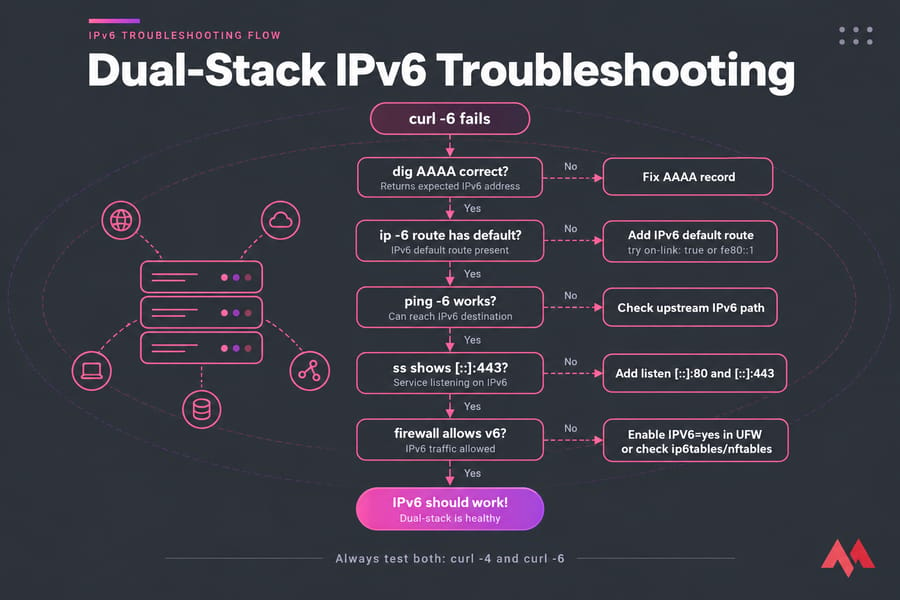
Most dual-stack failures look alike from outside: the site works for some users and not others, or certificate renewals start failing.
| Symptom | Likely cause | Fix |
|---|---|---|
curl -6 reaches a different site or times out |
AAAA record points to an old server or a typo | Correct the AAAA record, or remove it until IPv6 works |
| IPv6 address present, "Network is unreachable" | No IPv6 default route | Add the gateway; try on-link: true or fe80::1 |
| Ping over IPv6 works, HTTP refused | Web server bound to IPv4 only | Add listen [::]:80 and [::]:443 |
| Ping works, HTTP times out over IPv6 | Firewall missing IPv6 rules | Enable IPV6=yes in UFW or check ip6tables/nftables |
| Small pages load, large ones hang over IPv6 | ICMPv6 Packet Too Big blocked | Allow ICMPv6 type 2 in and out |
| Let's Encrypt validation fails, IPv4 fine | IPv6 path serves wrong vhost or 404 | Make the IPv6 listener serve the challenge path |
| Site slow for some users only | Degraded IPv6 path; Happy Eyeballs waits before falling back | Compare curl -4 and curl -6 timings; check provider routing |
| Mail rejected from IPv6 | No reverse DNS for the IPv6 address | Set a PTR record matching the mail hostname |
These faults are easy to miss because your browser falls back to IPv4 without telling you, while API clients, crawlers, and the ACME validator fail outright. Always test with -4 and -6 explicitly. For deeper diagnostics, see fix IPv6 connection problems.
Dual-stack best practices for production deployments
- Roll out in stages: configure and test IPv6 with no
AAAArecord, then publish the record with a short TTL. - Whenever you open or close a port, confirm the change applies to both families.
- Monitor each protocol separately. A single check against the hostname tests whichever protocol the monitoring node prefers, so force one check to IPv4 and another to IPv6.
- Document your addresses, prefix, gateways, and the DNS records that depend on them. Server moves and IP changes get much less risky.
- Check listeners after installing any new service. An app that binds only to
0.0.0.0silently becomes IPv4-only. - Move internal services to IPv6 once the public side is stable, so you can drop IPv4 later.
If you're starting fresh, a Linux VPS with native IPv6 lets you build both stacks from day one, which is less work than adding IPv6 to a server already in production.

An experienced tech and developer blog writer, specializing in VPS hosting and server technologies. Fueled by a passion for innovation, I break down complex technical concepts into digestible content, simplifying tech for everyone.