![How to Migrate Business Email 📨 [Step-by-Step]](/wp-content/uploads/2026/07/migrate-business-email838-main.webp)
Switching email providers scares people. And honestly? It should do it wrong and your team loses access to their inboxes, clients get bounce-backs, and years of email history vanishes. But here's the good news: you can migrate business email to a new hosting provider without downtime if you sequence the steps properly instead of rushing the DNS change.
I've done this dozens of times, from tiny 3-person shops to companies with 40+ mailboxes. The pattern is always the same. Slow, staged migrations win. Fast ones cause fires. Let's walk through the safe way to do it.
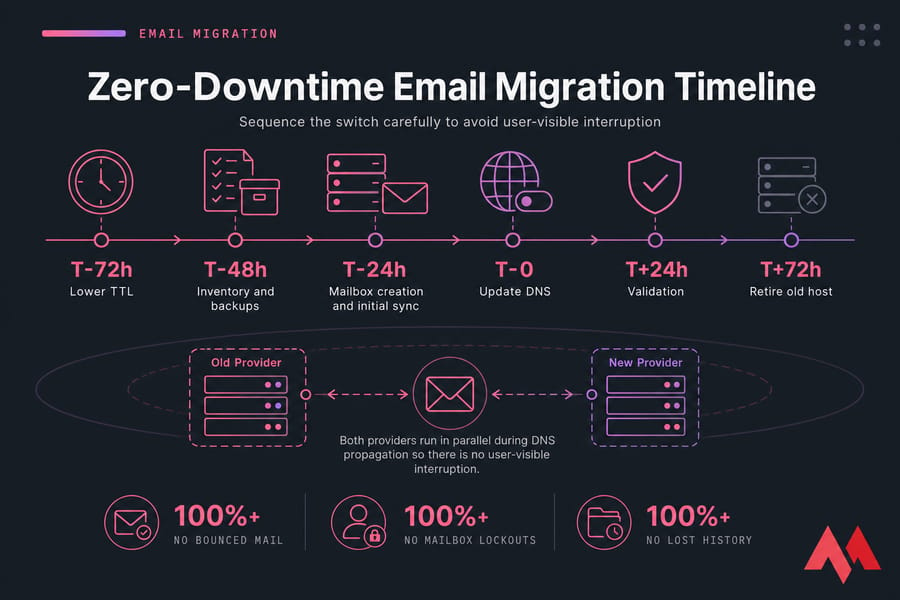
What zero-downtime email migration actually means
Let's set expectations first. True, literal zero downtime where absolutely nothing changes at the technical level — isn't realistic. What you can achieve is no user-visible interruption: no bounced mail, no mailbox lockouts, no lost history. That's the real goal, and it's very achievable.
The trick is running both the old and new providers in parallel during the switch. While DNS propagates (which can take minutes to a day or two depending on your TTL), some mail servers will still route to the old provider. If both are set up to receive, nothing gets dropped. Mail flow stays intact the whole time.
Email cutovers are actually safer than website migrations when staged right, because you control the overlap window. Not sure whether you even need separate email infrastructure? This breakdown of email hosting vs web hosting clears that up.
Key takeaway: Zero-downtime migration depends on sequencing, not speed. The safest migrations start with inventory — not DNS changes.
Your business email migration checklist before cutover
Before you touch anything, take inventory. This is the step most people skip, and it's the one that bites them later.
- Audit every mailbox — active users, dormant accounts, and don't forget the non-human ones.
- List all aliases, forwarders, catch-all addresses, and shared mailboxes. These rarely migrate automatically.
- Back up or export mailbox data — inboxes, sent items, and where applicable, contacts and calendars.
- Note current DNS records: MX, SPF, DKIM, DMARC, and any autodiscover entries.
- Confirm admin access to your current provider, the new provider, and your domain's DNS zone. Locked out of your registrar? Fix that now.
- Pick a low-volume cutover window — a Friday evening or weekend works for most SMBs.
- Write rollback notes so you can revert DNS fast if something breaks.
Once your inventory's done, you're ready to pick a migration method. If you're still standing up accounts on the destination side, our guide on how to create an email account is a handy reference.
Email hosting migration methods compared
There's no single "right" method — it depends on your source and destination platforms.
| Method | Best For | What It Migrates | Main Risk | Downtime Risk |
|---|---|---|---|---|
| IMAP sync | Most cross-provider moves | All folders + messages | Large mailboxes stall | Low |
| Export / import | POP3 accounts, local mail | Client-stored mail | Manual, per-user | Medium |
| Provider-assisted | Google Workspace, M365 | Mail, contacts, calendars | Vendor-specific setup | Low |
| cPanel copy | cPanel-to-cPanel | Mailboxes + settings | Doesn't work cross-panel | Low |
IMAP sync is the workhorse for moving between different platforms. POP3 accounts are trickier — mail often lives locally in the client, so you may need an export/import from Outlook or Thunderbird. Moving between cPanel, DirectAdmin, or Titan? Cross-provider means IMAP sync almost every time.
DIY works fine for small teams. But for mixed environments or dozens of users, managed migration saves headaches. Compare options in our roundup of the best email hosting provider choices, and check out Titan business email if you want something SMB-friendly.
Prepare MX records and DNS before the switch
Before you change anything in DNS, lower your TTL. TTL (time to live) tells the internet how long to cache your records. Drop it to 300 seconds (5 minutes) about 24–72 hours before cutover, and DNS changes will propagate fast when you flip the switch.
Audit these records first:
| Record | Purpose | Before Cutover | During Cutover |
|---|---|---|---|
| MX | Where mail is delivered | Keep old, lower TTL | Point to new provider |
| SPF | Authorized senders | Note existing includes | Add new, keep old temporarily |
| DKIM | Message signing | Generate key on new host | Publish new record |
| DMARC | Anti-spoofing policy | Set to monitor mode | Keep relaxed during transition |
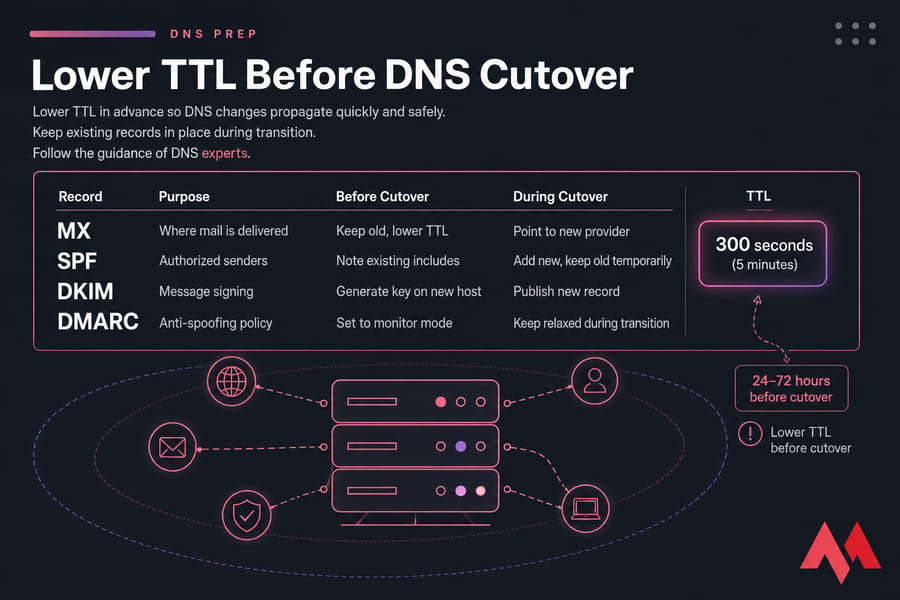
Warning: Don't delete old MX or SPF records until the new environment is proven. Removing them early is a classic way to drop live mail.
One common trip-up: registrar DNS versus hosting DNS. Make sure you're editing the zone that's actually authoritative. Verify with a DNS checker after each change. For deeper background, see what DNS is and what a DMARC record is.
Create mailboxes on the new provider first
Never point MX at a provider that has no mailboxes. Build the destination environment before any traffic moves.
- Create every mailbox, matching usernames and addresses exactly.
- Set quotas that match or exceed the old ones.
- Recreate all aliases, forwarders, catch-all addresses, and shared inboxes.
- Enable webmail, IMAP, and SMTP access.
- Generate secure passwords, document them, and turn on MFA if supported.
- Send a test message through one or two accounts before migrating everything.
Need a walkthrough for the webmail side? See our guide on activating business webmail service or explore email hosting options directly.
How to migrate IMAP email accounts and old messages
Here's the core of a smooth move. IMAP sync copies mail from the source server to the destination while both stay online.
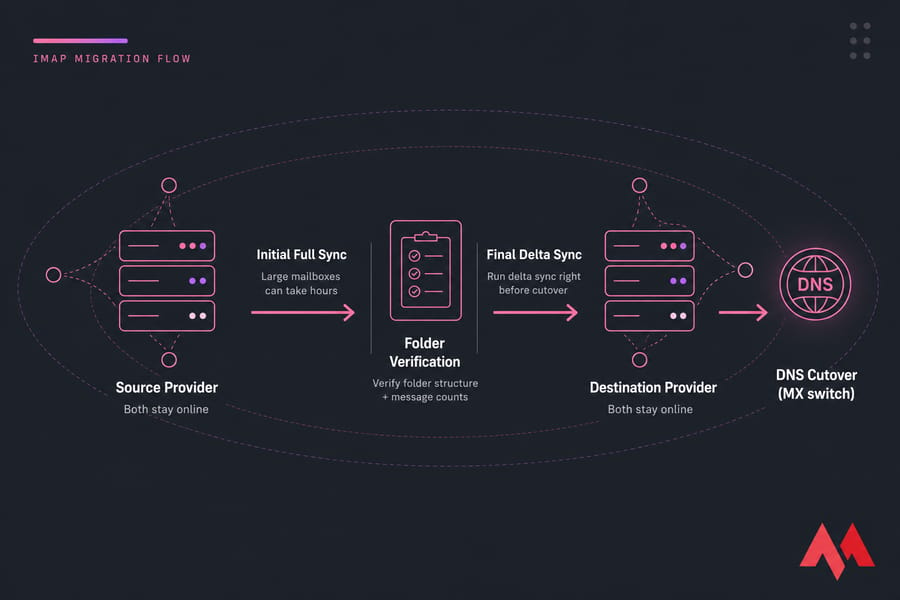
The workflow:
- Enter source and destination credentials into your sync tool.
- Run an initial full sync. This can take hours for large mailboxes — start early.
- Verify folder structure and message counts on the new side.
- Just before cutover, run a final delta sync to catch anything new.
Pro tip: Run the initial sync days ahead, then a quick delta sync right before you switch MX. That way only a tiny window of mail needs catching up.
Watch for large attachments and mailboxes near quota — they can stall a sync. And here's the thing most people miss: contacts and calendars often don't ride along with mail. If your providers differ, export and import those separately. POP3 users? Their mail may only exist in Outlook, so you'll export from the client.
Ask staff not to reorganize folders during the final sync. Curious how the protocol works underneath? Read up on what an IMAP server is and how a mail server works.
Update SPF, DKIM, and DMARC during the DNS switch
Getting mail flowing is only half the battle. If authentication is wrong, your messages land in spam even though everything "works."
- MX: Point to the new provider.
- SPF: Add the new provider's include. Keep the old one temporarily if the old server still sends. Remove it only after the old provider fully stops.
- DKIM: Enable it on the new host and publish the generated TXT/CNAME record.
- DMARC: Keep the policy relaxed (p=none or quarantine) during transition to avoid false failures.
Warning: Never publish two SPF TXT records for the same domain. Merge them into one. Multiple SPF records break authentication entirely.
If mail sends but lands in junk, it's almost always an auth issue. For outbound fundamentals, see SMTP and how SMTP works. cPanel users can follow our steps to create a DMARC record in cPanel.
Test inbound and outbound mail flow after cutover
Once records are live, validate everything before you decommission anything.
| Test | From | To | Expected |
|---|---|---|---|
| Inbound | External Gmail | New mailbox | Arrives in inbox |
| Outbound | New mailbox | External Gmail | Passes SPF/DKIM |
| Alias / forwarder | External | Alias address | Routes correctly |
| Shared inbox | External | Shared mailbox | All members see it |
| Mobile / Outlook | Device | New server | Login + sync works |
Check the authentication headers on a received test — you want SPF, DKIM, and DMARC all showing pass. Reconfigure Outlook, Apple Mail, Gmail, and phones with the new server settings (autodiscover helps, but don't count on it). Then monitor bounces and logs for 24–72 hours.
Quick summary: Keep both providers active for at least 24–72 hours. If a test fails, it's usually a missing record, a mailbox that wasn't created, or a client still pointed at the old server.
Common email migration mistakes that cause downtime
- Switching MX before creating mailboxes → mail bounces. Fix: build the destination first.
- Forgetting aliases, catch-all, or shared mailboxes → silent mail loss. Fix: recreate them all pre-cutover.
- Not lowering TTL → slow, painful propagation. Fix: drop TTL 24–72h ahead.
- Skipping the final delta sync → recent mail missing. Fix: always sync again right before switching.
- Multiple SPF records → auth breaks. Fix: merge into one.
- Enforcing strict DMARC too early → legit mail rejected. Fix: relax during transition.
- Canceling the old host too soon → dropped in-flight mail. Fix: keep it 72+ hours.
Best email hosting for post-migration stability
If your current mail is bundled into basic shared web hosting, you've probably outgrown it deliverability and reliability tend to suffer. Dedicated email hosting gives you cleaner authentication, proper webmail, and real support.
MonoVM's email hosting and Titan business email fit small teams and growing companies that want professional inboxes without the maintenance overhead. Setting up Titan is straightforward here's our guide to setting up Titan Email on MonoVM.
Get expert help when you're moving multiple users, large mailboxes, or mixed Google/Microsoft 365/cPanel environments. Our team is available around the clock contact support if you'd rather not run the cutover solo.

An experienced tech and developer blog writer, specializing in VPS hosting and server technologies. Fueled by a passion for innovation, I break down complex technical concepts into digestible content, simplifying tech for everyone.