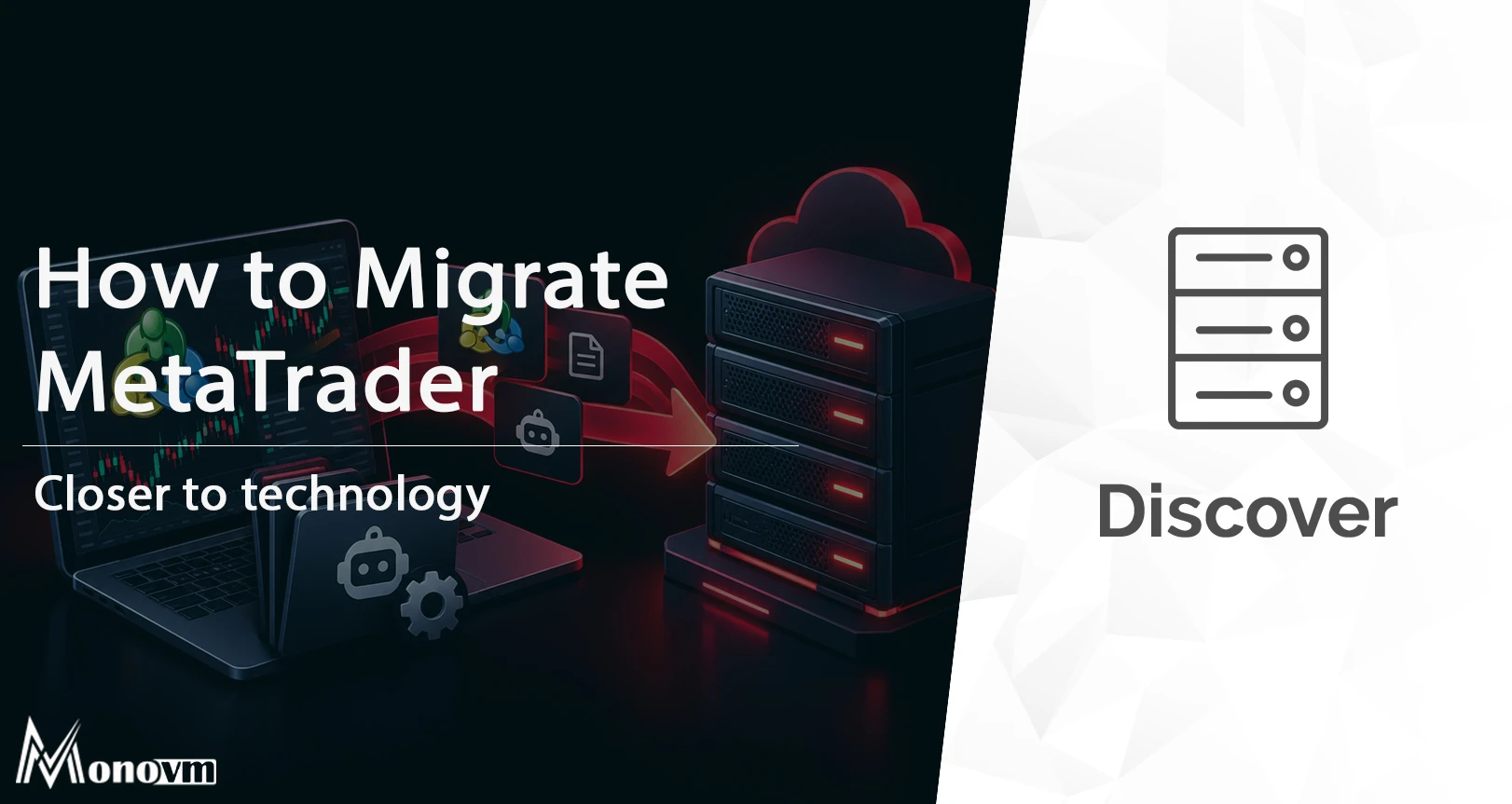
To migrate MetaTrader and Expert Advisors to a new VPS, back up your MT4 or MT5 data folder, install MetaTrader fresh on the new server, copy your EAs, indicators, templates and profiles across, log back into your broker account, then test auto trading before you shut the old machine down. Validate charts, EA inputs and startup behaviour so you don't miss trades.
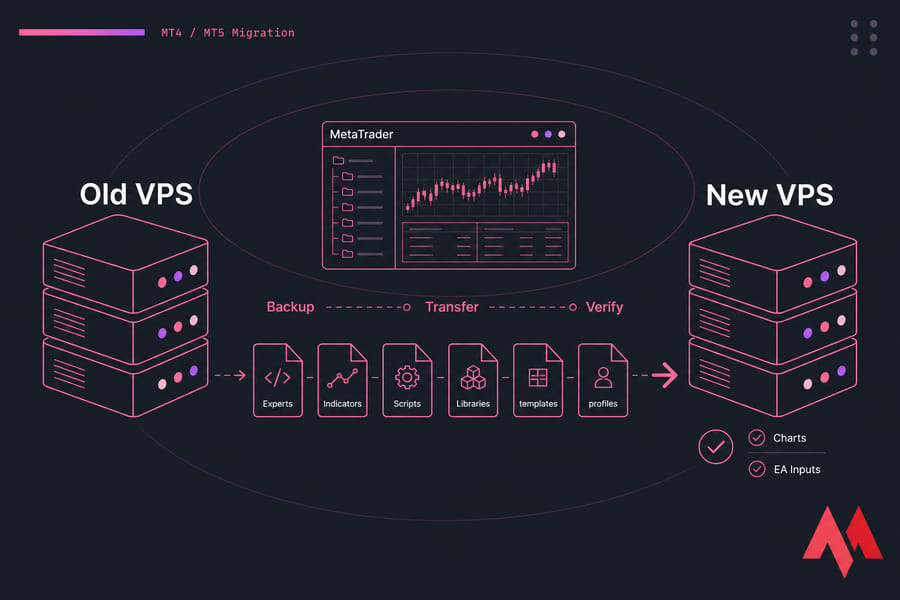
- Pause automated trading and document your current setup
- Back up the data folder (not just the install directory)
- Prepare the new Windows VPS and install MetaTrader
- Restore Experts, Indicators, Scripts, Libraries, templates, profiles
- Log in, verify, then cut over
Before you start
- RDP access to both the old and new VPS
- Your broker account number, password and exact server name
- Somewhere to park the backup — local machine, cloud drive, or a mapped RDP drive
- A written list of active EAs, symbols, timeframes and presets
- A migration window during quiet market hours (weekend is ideal)
What a MetaTrader VPS migration actually includes
Moving MetaTrader isn't the same as installing it. Installation gives you an empty terminal. Migration means recreating your whole trading environment: the terminal build, your MetaTrader Expert Advisors, custom indicators, scripts, DLL libraries, chart templates, profiles, EA presets and the broker login that ties it all together.
Two things you're trying to protect. First, settings — nobody wants to re-enter 40 EA inputs from memory. Second, uptime. Your open positions live on the broker's server, not your VPS, but an EA that isn't running can't manage them.
Traders usually migrate for a reason: lag, random reboots, not enough RAM for four terminals, or a server sitting on the wrong continent from their broker. If you're new to the concept, what is a Forex VPS covers the fundamentals before you shop for a replacement.
What to back up before moving MT4 or MT5
Do this part properly and the rest is mechanical. Skip it and you'll be rebuilding charts on Monday morning.
- Credentials: account number, investor and master passwords, broker server name, and the terminal build number (Help > About).
- Chart inventory: every open chart with its symbol, timeframe, attached EA and template name.
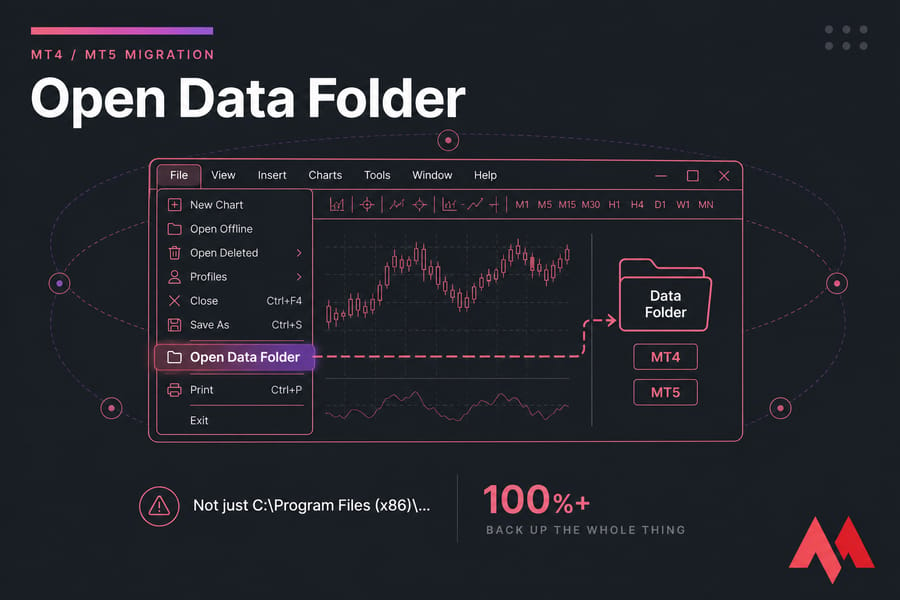
- The data folder: open MetaTrader, click File > Open Data Folder, and zip the whole thing. That's the safest single action in this entire guide.
- Screenshots: take a picture of each EA's inputs tab. Tedious, honestly — but it has saved me twice.
Pro tip: don't rely on copying C:\Program Files (x86)\... alone. On modern Windows the live settings usually sit under AppData, and that's the part people miss.
MetaTrader data folder paths for EAs, indicators, templates and profiles
Paths vary slightly by build and by whether the terminal was installed portable, so always confirm through File > Open Data Folder rather than guessing. From that root, here's what matters.
| MT4 folder | MT5 folder | Contains | Must copy? |
|---|---|---|---|
MQL4\Experts |
MQL5\Experts |
EA files (.ex4/.ex5, .mq4/.mq5) | Yes |
MQL4\Indicators |
MQL5\Indicators |
Custom indicators | Yes |
MQL4\Scripts |
MQL5\Scripts |
One-shot scripts | Yes |
MQL4\Libraries |
MQL5\Libraries |
DLLs and .ex4/.ex5 libraries | Yes — EAs break without them |
MQL4\Include |
MQL5\Include |
Header files for source EAs | Only if you compile locally |
MQL4\Presets |
MQL5\Presets |
Saved EA input sets (.set) | Yes |
MQL4\Files |
MQL5\Files |
CSV/news files EAs read or write | Yes, if your EA uses them |
templates |
templates (MQL5\Profiles\Templates on some builds) |
Chart templates (.tpl) | Yes |
profiles |
MQL5\Profiles\Charts</td > |
||
config |
config |
Terminal/server settings | Optional — often cleaner to redo |
history, logs, tester |
bases, logs, Tester |
Price history, logs, backtests | No — they rebuild themselves |
Key takeaway: the data folder matters far more than the installation folder.
Copy the whole terminal, or do a fresh install?
| Method | Best for | Downside |
|---|---|---|
| Direct copy of the terminal folder | Portable installs, discontinued broker builds, exact clones | Carries over corruption and stale config; can break on a different Windows version |
| Fresh install + copy data folder contents | Almost everyone | Takes 10–15 extra minutes; you re-login manually |
My recommendation: fresh install from your broker's own installer, then drop your MQL4/MQL5 subfolders, templates and profiles into the new data folder. If you need the installation walkthrough, see install MT4 on VPS. MetaTrader runs best on a Windows VPS — that's where the EA ecosystem lives.
How to migrate MetaTrader and Expert Advisors step by step
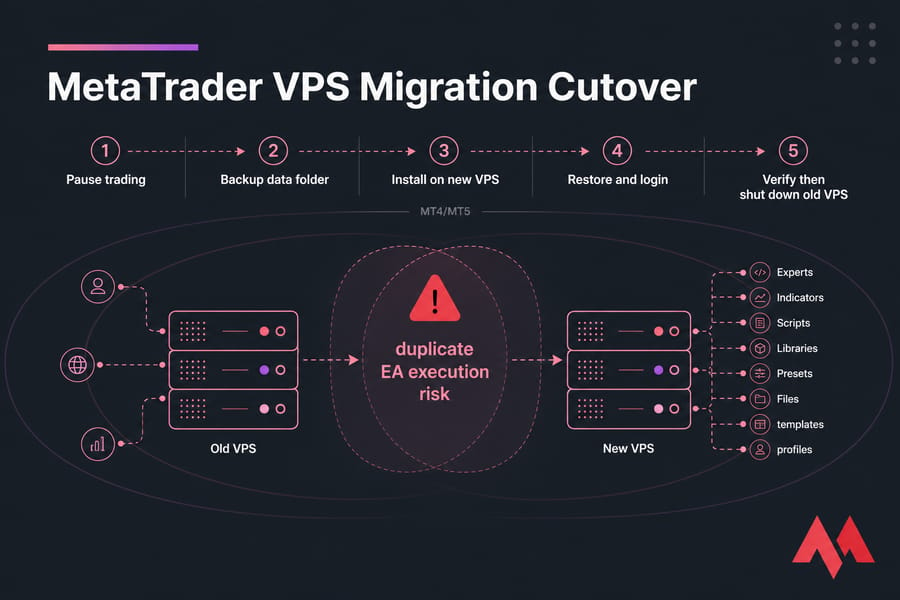
Warning: never run the same live EA setup on both servers at once. Duplicate orders on one account is a genuinely expensive mistake.
- Pause trading. Turn off AutoTrading (MT4) or Algo Trading (MT5) on the old VPS and note any open positions.
- Record the setup. Screenshot charts and EA input tabs; write down symbols, timeframes and magic numbers.
- Back up. Zip the data folder and copy it off the old VPS.
- Prepare the new VPS. Connect over RDP, run Windows updates, set the time zone, and if you're building from scratch follow how to set up VPS for Forex trading.
- Install MetaTrader. Use the installer from your broker so you get the correctly branded build. Running several accounts? Install each into its own directory — see how to run multiple MetaTrader instances on VPS.
- Restore your files. Launch the terminal once, close it, open File > Open Data Folder, then paste in Experts, Indicators, Scripts, Libraries, Presets, Files, templates and profiles.
- Log in and rebuild charts. Reopen the terminal, log into your broker server, load your profile, and confirm the EA appears in the Navigator panel.
- Enable and test. Turn on AutoTrading, tick Allow DLL imports where required, then watch the Experts tab for initialisation messages. Only after that do you shut the old terminal down for good.
Verify MT4/MT5 and your EAs after migration
| Check | Why it matters |
|---|---|
| Account connected, prices ticking | A frozen feed means no EA activity at all |
| Chart, symbol and timeframe match the old setup | Wrong timeframe = a different strategy |
| Smiley face on the chart (not a sad face or cross) | Confirms the EA is actually allowed to trade |
| EA inputs, lot sizing, magic numbers | Defaults silently replace your tuned values |
| Allow DLL imports enabled | DLL-dependent EAs fail without it |
| Experts and Journal tabs clean | Missing-file and login errors show up here first |
| VPS time zone and broker server time | Session-based strategies depend on it |
| Reboot test | Proves the terminal and EAs come back after a restart |
That last one gets skipped constantly. Reboot the VPS, reconnect over RDP, and confirm MetaTrader relaunches with EAs live. Then tidy up performance with these tips on how to optimize MetaTrader for Forex VPS.
Common migration mistakes
| Mistake | Fix |
|---|---|
| Copying only Program Files | Always copy from Open Data Folder |
| Missing indicators or DLL libraries | Copy Indicators and Libraries together |
| Generic MetaQuotes build instead of the broker's | Download from your broker |
| Both VPS instances trading live | Disable auto trading on the old one first |
| Assuming "it opened, so it works" | Read the Journal and Experts logs |
| New server far from the broker | Match the location — see best Forex server location |
MT4 vs MT5 migration differences
Same playbook, different folder names. MT4 uses MQL4 with top-level templates and profiles directories. MT5 uses MQL5 and tucks charts and templates under MQL5\Profiles. EAs don't cross over: MQL4 code won't run on MT5, so you need the compiled version for the platform you're moving to. For the broader platform picture, read MT4 vs MT5.
When a better Forex VPS is the real fix
If you're migrating because things were unstable, don't move the problem sideways. Look for: enough RAM for every terminal you run (roughly 1 GB per instance plus headroom), NVMe storage, full RDP access, a Windows Server licence included, and a data centre near your broker's execution servers. Latency isn't a vanity metric — see Forex VPS latency for how milliseconds translate into fills.
Moving to a faster trading server? MonoVM's Forex VPS hosting runs across 25+ locations with 24/7 assistance, so you can pick a node close to your broker and keep MT4, MT5 and your EAs online continuously. Not sure which plan fits your instance count? 24/7 support will help you size it before you migrate.
Backup, transfer, restore, verify, cut over. That's the whole job.

An experienced tech and developer blog writer, specializing in VPS hosting and server technologies. Fueled by a passion for innovation, I break down complex technical concepts into digestible content, simplifying tech for everyone.