If you're comparing VMware vs Parallels, you're almost certainly looking at two specific products: VMware Fusion and Parallels Desktop, both running on a Mac. Not vSphere. Not ESXi. Just the desktop apps that let you run Windows 11 or Linux next to macOS without rebooting.
I've installed both on Intel Macs and Apple Silicon Macs more times than I care to count. The short version? Parallels wins on polish. Fusion wins on flexibility and cost. And for a decent chunk of readers, the honest answer is that neither belongs on your Mac at all — a remote machine would serve you better. Let's get into it.
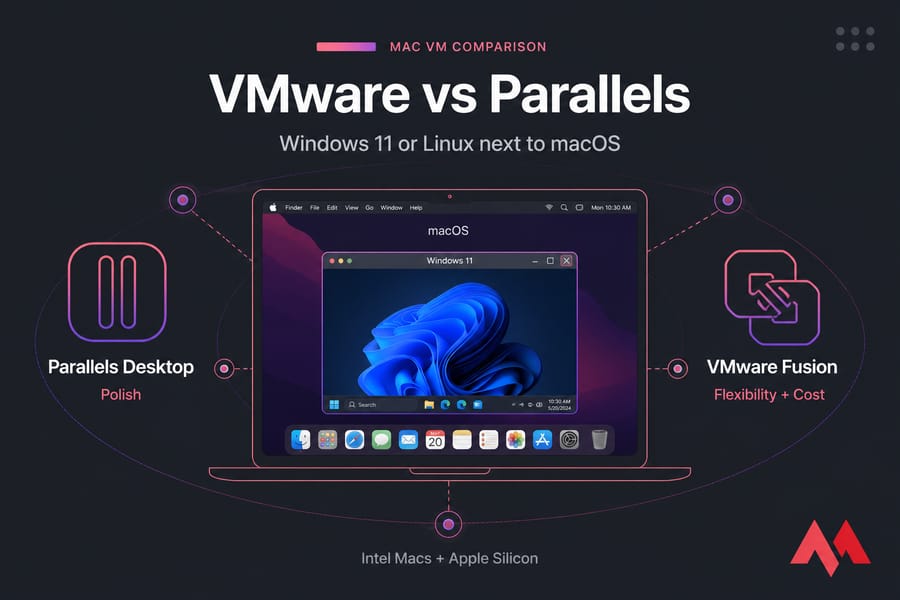
VMware vs Parallels: quick verdict
Parallels Desktop is usually the better choice for most Mac users because it offers smoother setup, tighter macOS integration, and stronger day-to-day Windows-on-Mac performance. VMware Fusion can still be a good pick for budget-conscious or advanced users, especially if you prefer VMware's ecosystem and don't need the most polished Mac experience.
- Best overall: Parallels Desktop — fastest path from zero to a working Windows 11 VM, especially on M-series chips.
- Best budget / flexible pick: VMware Fusion — personal-use licensing has been generous, and the tooling appeals to people who already live in VMware land.
- Best for always-on Windows: Neither. A remote Windows VPS hosting plan handles that job with less friction.
If you're new to all this, it's worth skimming what a virtual machine is and what VMware is before you spend money.
Key takeaway: choose by chip type and workload, not brand reputation. An M3 MacBook Air with 8GB RAM changes the math completely.
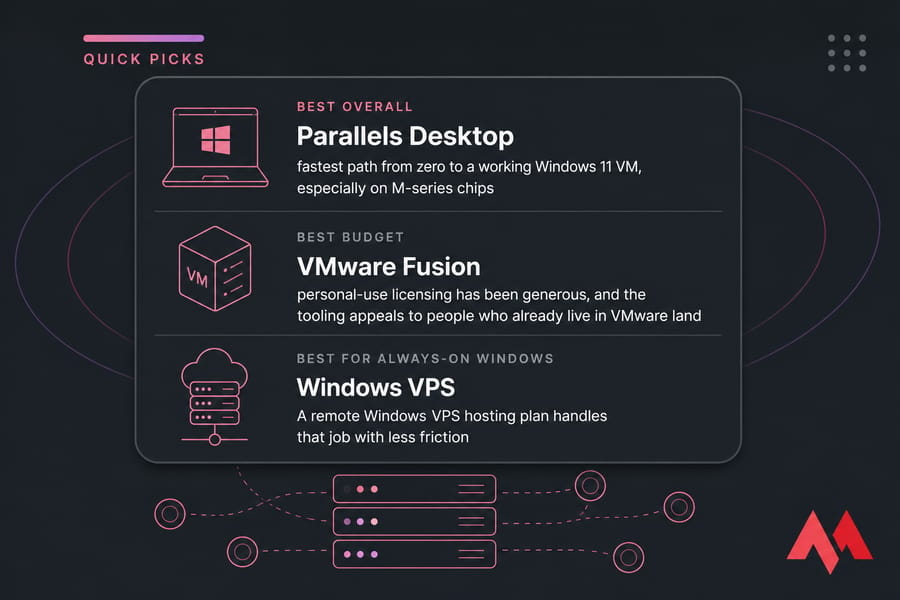
Quick Picks card showing Parallels Desktop, VMware Fusion, and Windows VPS recommendations
Before you decide, know these four things
- Is your Mac Intel or Apple Silicon (M1/M2/M3/M4)? This is the single biggest variable.
- What's the actual workload — Office apps, dev work, QA testing, one legacy Windows tool, or gaming?
- How much RAM and free storage do you have? 8GB is tight. 16GB is comfortable.
- Do you need the VM running when your laptop lid is closed? If yes, look at a VPS instead.
VMware Fusion vs Parallels Desktop explained
Both are Type 2 hypervisors — software that runs on top of macOS rather than directly on the metal. That's different from the server hypervisors you'll read about in what a hypervisor is, where the hypervisor is the operating system.
| Product | What it actually is | Who makes it |
|---|---|---|
| VMware Fusion | The Mac-side member of VMware's desktop virtualization family (the sibling of Workstation on Windows/Linux). Config-file driven, comfortable for anyone who's touched vSphere. | VMware, now under Broadcom |
| Parallels Desktop | A Mac-first virtualization app built around integration — Windows apps in the Dock, shared clipboard, Touch Bar support, one-click installers. | Parallels (Alludo) |
Why does this comparison matter almost exclusively to Mac owners? Because Parallels Desktop only runs on macOS. There's no Windows or Linux version competing with VMware Workstation. So the entire fight happens on Apple hardware, which is why chip architecture dominates everything below.
VMware vs Parallels features compared
Feature lists are boring on their own, so I've added the "so what" column.
| Feature | Parallels Desktop | VMware Fusion | Notes |
|---|---|---|---|
| Guided Windows 11 install | One-click, downloads the image for you | Assisted, but you often supply your own ISO | Parallels saves beginners 20+ minutes |
| Snapshots | Yes, plus rollback mode | Yes, with a clean snapshot tree view | Fusion's tree is nicer for QA work |
| Cloning | Linked and full clones | Linked and full clones | Tie |
| Shared folders | Aggressive by default (Desktop, Documents mapped) | Opt-in, more conservative | Depends whether you want isolation |
| Clipboard + drag-and-drop | Excellent, including images | Works, occasionally needs a Tools reinstall | Parallels |
| USB passthrough | Solid, with per-device auto-connect rules | Solid, more manual | Roughly even |
| Printer / camera / mic sharing | Automatic | Configurable, some setup | Parallels for convenience |
| Seamless app mode | Coherence mode | Unity mode | Coherence is more reliable in my testing |
| Advanced networking | Bridged, shared, host-only | Bridged, NAT, host-only, custom subnets | Fusion for lab builders |
| Nested virtualization | Limited | Better on Intel hardware | Fusion |
| Virtual TPM / secure boot | Yes | Yes | Both meet Windows 11 requirements |
| Linux guest tooling | Good, with prebuilt distro downloads | Good, open-vm-tools baked into most distros | Fusion feels more at home here |
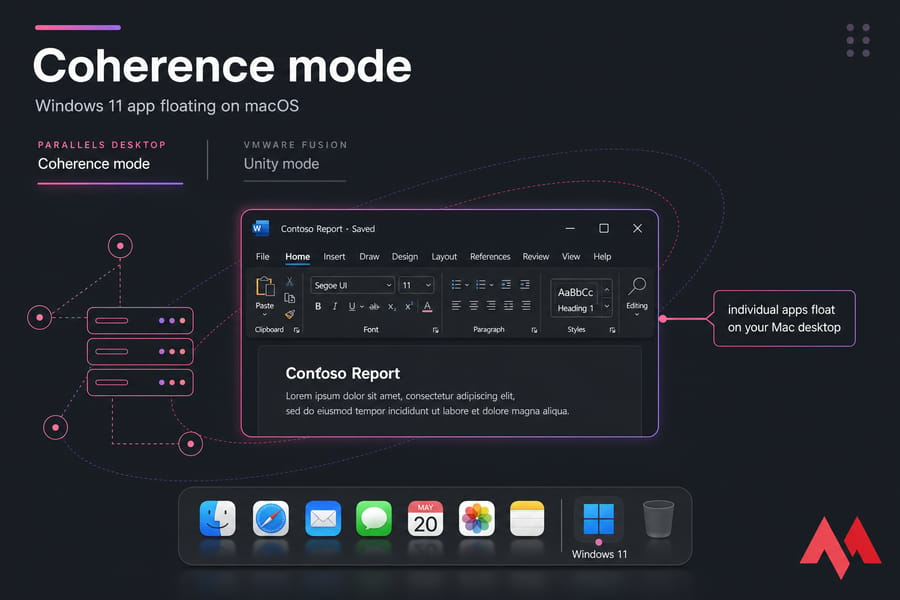
Coherence mode versus Unity mode deserves a sentence of its own. Both strip away the Windows desktop so individual apps float on your Mac desktop. Parallels' implementation is more mature — fewer redraw glitches, better menu bar handling. Fusion's Unity works, but it's clearly not the feature the team polishes first.
If you've never built one of these before, how to set up a virtual machine walks through the basics that apply to either app.
VMware vs Parallels performance on Mac
Here's where marketing pages get vague. Let me be specific about what actually differs.
Boot and resume. Parallels consistently suspends and resumes faster in my experience — you click the icon, and Windows is usable in a few seconds. Fusion's cold boots are competitive; its resume feels a beat slower.
CPU and RAM overhead. Both are Type 2 hypervisors, so both pay a tax. The gap between them is small compared to the gap caused by your allocation choices. Give a Windows 11 ARM VM 4GB on a 16GB Mac and it'll crawl. Give it 8GB and it'll feel fine.
Pro tip: allocate enough RAM for the guest, but always leave headroom for macOS. Overcommitting memory triggers swap on both sides and makes everything worse. On a 16GB Mac, 6–8GB for the VM is the sweet spot.
Graphics and 3D acceleration. Both offer 3D acceleration with DirectX support layered onto Metal. Neither is close to native. Light CAD viewing, older games, and UI compositing are fine. Anything demanding is not.
| Workload | Better choice | Why | Caveat |
|---|---|---|---|
| Office, Outlook, accounting apps | Parallels | Snappier UI, better clipboard and printing | Difference is modest on 16GB+ Macs |
| Browser-heavy Windows testing | Tie | Both handle Chrome/Edge well | RAM allocation matters more than the app |
| Dev environments (Node, .NET, Docker) | Slight edge: Fusion | Better networking control, cleaner CLI | Parallels is faster to set up |
| QA with frequent snapshots | Fusion | Snapshot tree management is clearer | Parallels rollback mode is simpler for one-offs |
| Linux labs and multi-VM setups | Fusion | Custom subnets, more VMs without hand-holding | Watch your disk space |
| Light creative / design work | Parallels | Better GPU passthrough behaviour | Still slower than native macOS apps |
| Gaming | Neither | 3D acceleration is partial at best | Use native, a console, or cloud gaming |
Want to squeeze more out of whichever you pick? Our guide on how to optimize VM performance covers allocation, disk type, and background service trimming.
Parallels vs VMware for Apple Silicon and Windows 11
This section matters more than every feature table above. Seriously.
On an Intel Mac, both apps run standard x86_64 Windows 10/11 and virtually any x86 Linux distro. Compatibility is close to universal. That's the easy scenario — and it's the scenario most old blog posts were written for.
On Apple Silicon (M1, M2, M3, M4), the CPU is ARM. You cannot virtualize x86 Windows on an ARM chip. What you run instead is Windows 11 ARM, and that distinction has real consequences.
Warning: Windows on M-series Macs means Windows 11 ARM. Most 32-bit and 64-bit x86 apps run through Microsoft's built-in translation layer, but anything with kernel-level drivers — VPN clients, anti-cheat, hardware dongles, some tax and industrial software — may simply refuse to install.
| Mac type | Parallels Desktop | VMware Fusion | Windows support notes |
|---|---|---|---|
| Intel Mac | Supported | Supported | Full x86 Windows 10/11 and x86 Linux |
| M1 / M2 | Mature, guided Windows 11 ARM install | Supported, more manual ISO handling | ARM only; x86 apps via translation |
| M3 / M4 | Best-in-class experience | Works well, less polish | Same ARM constraints apply |
| Linux guests on Apple Silicon | ARM distros (Ubuntu, Fedora, Debian) | ARM distros, strong open-vm-tools support | x86-only Linux binaries won't run natively |
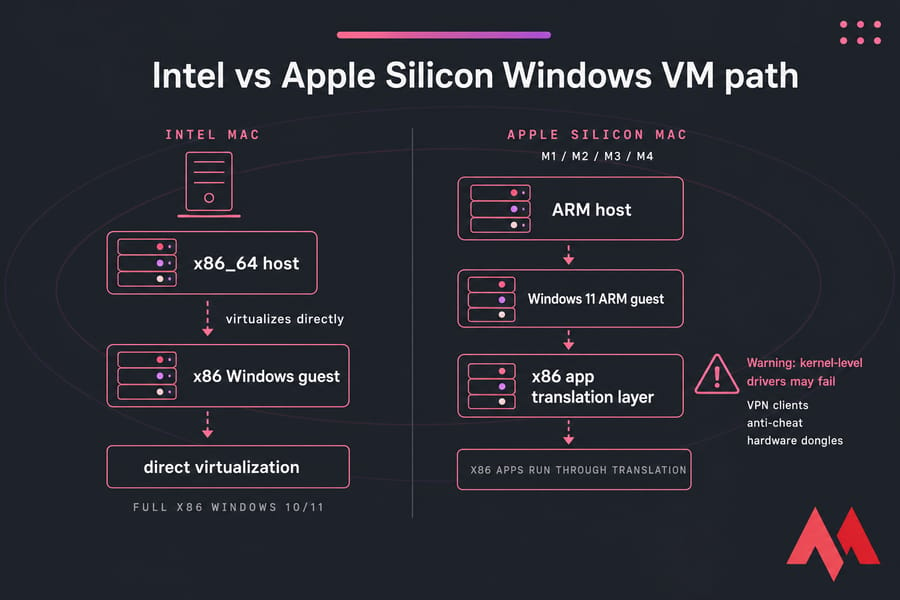
Parallels has been the smoother Apple Silicon story since day one — it handles the Windows 11 ARM download, licensing prompt, and driver install without you touching a config file. Fusion caught up and works fine on M-series Macs, but expect to do a bit more legwork. For deeper context on Windows guests generally, see our Windows virtual machine guide.
VMware Fusion vs Parallels pricing and licensing
Pricing shifts, so treat everything here as directional and check the official pages before you buy.
Parallels Desktop is positioned as a premium convenience product, sold mainly as an annual subscription with a perpetual option for the standard edition. You pay for polish and yearly macOS-compatibility updates.
VMware Fusion has historically been the cheaper route, and Broadcom has offered Fusion free for personal, non-commercial use. That's a genuine advantage if your needs are occasional. But licensing under Broadcom has changed more than once — verify the current terms rather than trusting a two-year-old forum post.
| Cost component | Parallels Desktop | VMware Fusion |
|---|---|---|
| Software model | Subscription (perpetual option available) | Free personal use tier; paid commercial licensing |
| Yearly macOS upgrade path | Included with subscription; paid upgrade otherwise | Typically included |
| Windows 11 license | Separate purchase from Microsoft | Separate purchase from Microsoft |
| Storage impact | 60–100GB+ per Windows VM | 60–100GB+ per Windows VM |
| RAM upgrade cost | Not upgradeable on Apple Silicon — buy right the first time | Same |
Quick summary: the hypervisor price is only part of the bill. A Windows license, 80GB of SSD you can't reclaim, and the RAM you wish you'd bought are the real costs.
Best virtual machine for Mac by use case
Students and office users. Choose Parallels. If you need one Windows accounting app or a university-mandated statistics tool on a MacBook Air, the guided install and Coherence mode are worth the subscription. You'll spend zero evenings troubleshooting.
Developers and testers. This one splits. If you're testing Ubuntu and Windows side by side with custom subnets and frequent snapshot rollbacks, Fusion's controls fit better. If you mostly need one Windows VM for a build target, Parallels is faster to live with.
Linux VMs. Fusion, narrowly. Free personal licensing plus mature open-vm-tools support in most distros makes it the practical pick for a home lab. Read Linux virtual machine for guest-side setup.
Occasional Windows-only apps. Fusion's personal-use tier, honestly. Why subscribe for something you open twice a month?
Gaming and graphics-heavy work. Neither. Set expectations now and save yourself the refund request.
Warning: neither Parallels nor VMware Fusion should be treated as a replacement for native Windows gaming hardware. Anti-cheat systems commonly block VMs outright.
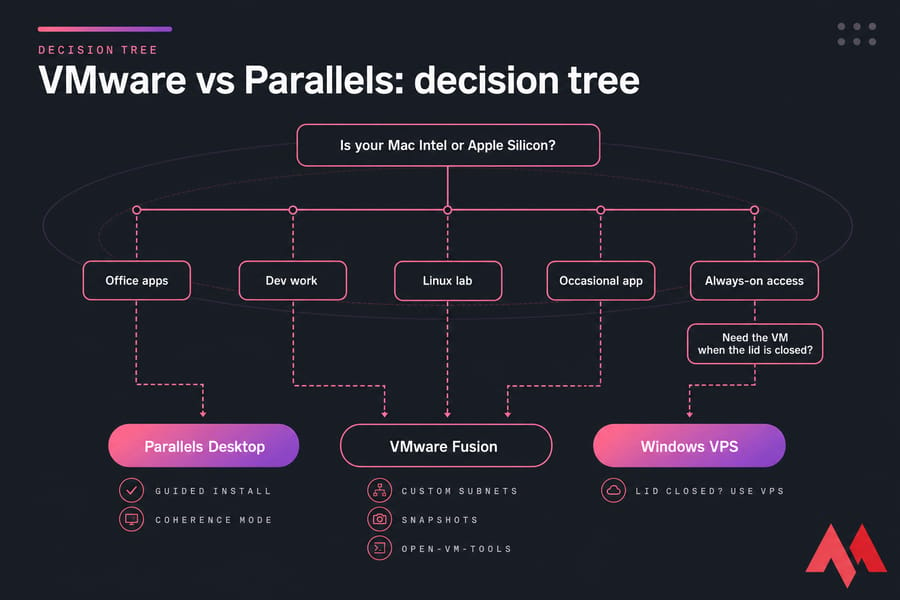
Decision tree infographic routing Mac users to Parallels Desktop, VMware Fusion, or Windows VPS.
VMware or Parallels: pros, cons, and buyer mistakes
VMware Fusion pros: free for personal use, superior networking and snapshot management, familiar to anyone in a VMware shop, less aggressive about integrating itself into macOS.
Fusion cons: rougher setup, weaker Unity mode, slower feature cadence, licensing uncertainty under Broadcom.
Parallels Desktop pros: best-in-class Apple Silicon experience, one-click Windows 11 install, excellent Coherence mode, fast suspend/resume, reliable peripheral sharing.
Parallels cons: subscription pricing, upsell prompts, less granular advanced control.
The four mistakes I see repeatedly:
- Ignoring chip architecture. Buying a licence, then discovering the app you need won't run on Windows ARM.
- Expecting gaming performance. It isn't there. It won't be.
- Forgetting the Windows licence. Neither app includes one.
- Under-allocating RAM — or over-allocating it. Both hurt. Leave macOS breathing room.
Whichever you choose, apply the fundamentals in virtual machine security best practices. A Windows VM with your Documents folder mapped is a real attack surface.
Local VM vs cloud VM: when a VPS is the better option
Local virtualization hits a wall in predictable places. Your MacBook Air has 8GB soldered RAM. Your VM dies when the lid closes. You need the same Windows environment from your iPad in an airport. A colleague needs access to the same machine.
That's when a remote environment beats a local one. The difference between the two models is explained well in VM vs VPS, and if the terminology is new, start with what a VPS server is.
| Scenario | Local VM | Windows VPS | KVM / Linux VPS |
|---|---|---|---|
| Offline access on a plane | Best | No | No |
| Always-on automation or bots | Poor | Best | Good |
| Mac has 8GB RAM | Painful | Best | Best |
| Team needs shared access | No | Best | Good |
| Legacy x86 Windows app on M-series Mac | Blocked by ARM | Best | No |
| Server-style Linux workloads | Adequate | No | Best |
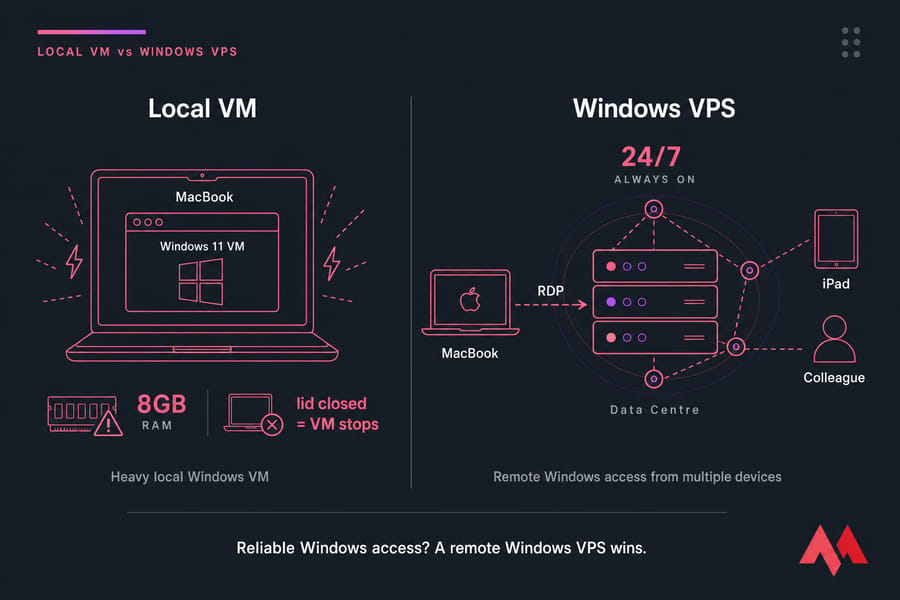
If your main goal is reliable Windows access rather than local testing, a Windows VPS is simply easier than babysitting a VM — see the practical scenarios in Windows VPS use cases. For Linux development, automation, or server testing, a KVM VPS hosting plan gives you clean full virtualization and 24/7 uptime.
Need Windows access without running a heavy VM on your Mac?
If your Mac is short on RAM, storage, or always-on availability, MonoVM's Windows VPS plans give you a remote Windows environment you can reach from anywhere — with 24/7 support and global locations, minus the local virtualization overhead. Explore Windows VPS plans.
VMware vs Parallels final verdict
- Best overall: Parallels Desktop. For most Mac users — especially on M-series chips — it's the least painful path to a working Windows 11 VM.
- Best budget choice: VMware Fusion. Free personal use and stronger networking make it the value pick for occasional or lab use.
- Best for power users: Fusion, if you build multi-VM labs or already work inside VMware's ecosystem daily.
- Best for always-on or remote workflows: Skip local virtualization. A Windows VPS wins.
Comparing other hypervisors too? Our related breakdowns cover VMware vs VirtualBox, VMware vs Hyper-V, and VMware vs Proxmox on the server side.
Choose the right virtualization setup for your workflow
Use Parallels or VMware Fusion for local desktop virtualization — or move to a VPS when you need better uptime, remote access, and resources your Mac can't spare. View Windows VPS plans or view KVM VPS plans.

An experienced tech and developer blog writer, specializing in VPS hosting and server technologies. Fueled by a passion for innovation, I break down complex technical concepts into digestible content, simplifying tech for everyone.