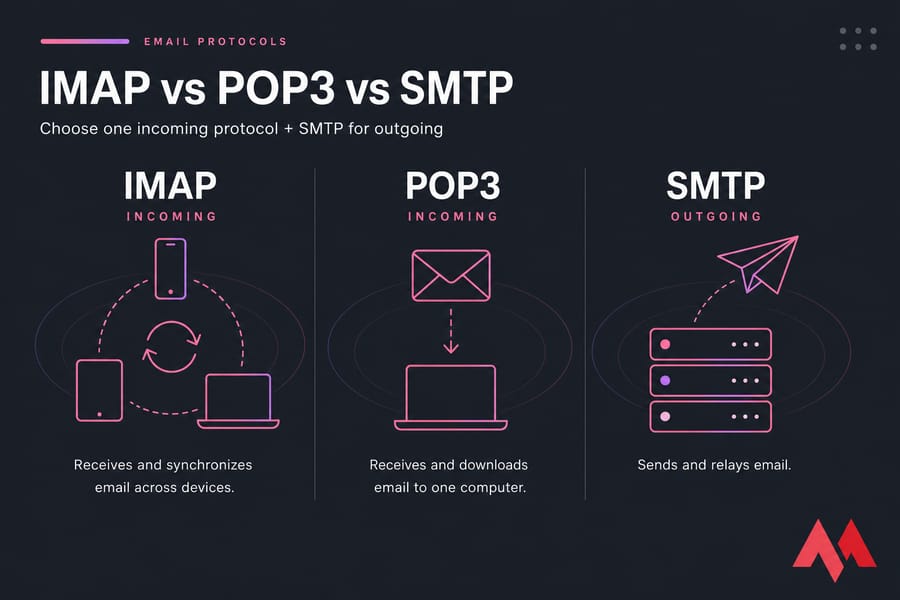
Here's the short version of IMAP vs POP3 vs SMTP: SMTP sends your mail, IMAP and POP3 receive it. They're not three competing options — you need one incoming protocol plus one outgoing protocol. For nearly everyone reading this, that means IMAP for incoming and SMTP for outgoing. Pick POP3 only when you deliberately want messages downloaded to a single machine.
- IMAP (Internet Message Access Protocol) — receives and synchronizes email across devices.
- POP3 (Post Office Protocol version 3) — receives and downloads email, usually to one computer.
- SMTP (Simple Mail Transfer Protocol) — sends and relays email.
IMAP vs POP3 vs SMTP at a Glance
| Protocol | Main purpose | Where mail lives | Multi-device sync | Best for |
|---|---|---|---|---|
| IMAP | Read and manage incoming mail | On the server | Yes | Anyone using a phone plus a computer |
| POP3 | Download incoming mail | Local device (server copy optional) | No | Single-machine local archives |
| SMTP | Send and relay outgoing mail | Nowhere — it's a transfer protocol | Not applicable | Every account, plus apps and websites |
The mistake I see constantly in support tickets? Someone picks "SMTP" in their client's protocol dropdown and wonders why the inbox stays empty. SMTP isn't an alternative to IMAP or POP3. It's the other half of the job.
How Email Protocols Work Together
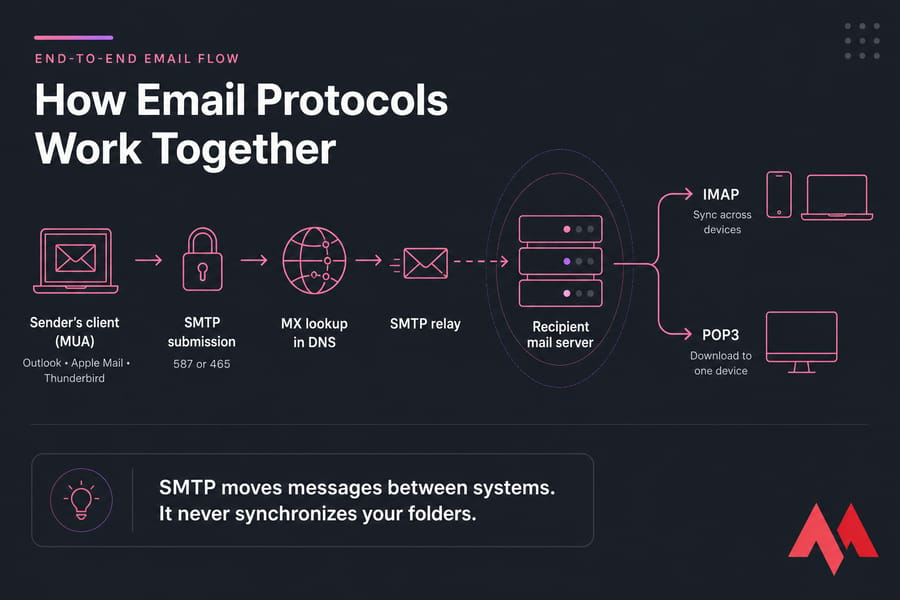
Follow one message from end to end and the split makes sense:
- You compose a message in a mail user agent (MUA) — Outlook, Apple Mail, Thunderbird.
- The client authenticates to your provider's submission server (MSA) over SMTP, usually on port 587 or 465.
- That server looks up the recipient domain's MX record in DNS.
- SMTP relays the message to the destination mail transfer agent (MTA).
- The receiving server stores it in the recipient's mailbox.
- The recipient reads it via IMAP or pulls it down via POP3.
Webmail hides all this behind a browser interface some providers use internal APIs rather than IMAP for their own web client but the underlying how a mail server works logic is the same. SMTP moves messages between systems. It never synchronizes your folders.
What Is IMAP?
IMAP (defined today by RFC 9051) keeps the mailbox on the server. Your client shows a view of it. Read status, flags, folders, drafts, sent items, deletions — all of that lives server-side and propagates to every connected device.
Read a message on your phone at lunch, and it's already marked read in Outlook when you get back to your desk. That's the whole appeal. Most clients also cache messages locally, so you can read and search offline; the changes sync when you reconnect.
Two honest caveats. IMAP consumes your mailbox quota, because everything stays on the server. And synchronization cuts both ways — delete a message on one device and it's gone everywhere. IMAP is not a backup. If you want details on the server side, see what an IMAP server does.
What Is POP3?
POP3 (RFC 1939) connects, downloads new messages, and hands them to your local client. Simple by design.
It does not automatically wipe the server. Nearly every client has a "leave a copy on the server" option, and whether messages are removed depends entirely on that setting. What POP3 genuinely lacks is folder, flag, and sent-mail synchronization — your organization exists only on that one machine.
POP3 still earns its place in a few situations: a single archival workstation, a tiny mailbox quota you need to keep clear, or a connection so patchy that full server access is painful. But the "offline access" argument has largely evaporated, since IMAP clients cache mail too.
The real risk is storage. One drive failure on the only machine holding those downloads and the mail is gone. Back it up separately.
What Is SMTP?
SMTP (RFC 5321) handles two related jobs. First, submission: your client hands an authenticated message to your provider's server, formalized in RFC 6409. Second, relay: servers pass the message along to the recipient's domain.
That's why Simple Mail Transfer Protocol shows up everywhere outside your inbox. WordPress contact forms, password-reset emails, order receipts, application alerts — all of them submit through authenticated SMTP or a provider API. None of them need IMAP unless the app has to read replies. For the full delivery sequence, read how SMTP works.
IMAP vs POP3: Which Incoming Protocol Wins?
| Feature | IMAP | POP3 | What it means for you |
|---|---|---|---|
| Primary behavior | Sync with server | Download to client | IMAP mirrors; POP3 moves |
| Folder & flag sync | Yes | No | POP3 organization is device-local |
| Sent mail sync | Yes | Usually no | POP3 sent items vanish from other devices |
| Multi-device | Designed for it | Awkward at best | Phone + laptop = IMAP |
| Server quota use | High | Low (if copies removed) | Watch mailbox limits with IMAP |
| Backup exposure | Deletions replicate | Single point of failure | Neither is a backup |
| Migration & shared inboxes | Well supported | Poor | IMAP is the standard migration path |
In Outlook, Apple Mail, and Thunderbird alike, choose IMAP unless you have a specific reason not to. Shared team mailboxes over POP3 are a mess — one device grabs the mail and nobody else sees it. Picking a client? Compare email clients for desktop and mobile first.
Ports, TLS, and Authentication
| Service | Port | Connection mode | Note |
|---|---|---|---|
| IMAP | 993 | Implicit TLS | Recommended default |
| IMAP | 143 | Cleartext, upgrade via STARTTLS | Only with STARTTLS enforced |
| POP3 | 995 | Implicit TLS | Recommended default |
| POP3 | 110 | Cleartext, upgrade via STARTTLS | Only with STARTTLS enforced |
| SMTP submission | 465 | Implicit TLS | Current and valid under RFC 8314 |
| SMTP submission | 587 | STARTTLS | Standard submission port |
| SMTP relay | 25 | Server-to-server | Not for client submission; often blocked outbound |
Implicit TLS means the connection is encrypted from the first byte. STARTTLS starts plain and upgrades — fine when enforced, risky when optional. RFC 8314 covers both. And no, 465 isn't obsolete; that myth won't die. More detail on SMTP ports 25, 465, and 587.
Authentication matters as much as the port. Many providers now require OAuth 2.0 or an app password instead of your account password — they aren't interchangeable. Also remember: a secure port encrypts the connection, while SPF, DKIM, and DMARC handle sender authentication. Different jobs. Round it out with business email security best practices.
Which Combination Should You Choose?
| Scenario | Incoming | Outgoing | Why |
|---|---|---|---|
| Personal mail on several devices | IMAP (993) | SMTP (587/465) | Everything stays in sync |
| One workstation, local archive | POP3 (995) | SMTP (587/465) | Deliberate local retention |
| Shared team inbox | IMAP | SMTP | POP3 breaks shared access |
| WordPress contact form | None | SMTP | Send-only |
| Transactional app email | None | SMTP or API | No mailbox reading needed |
| Self-hosted server | Dovecot | Postfix or Exim | You own security and reputation |
| Mailbox migration | IMAP | — | Copies folders between providers |
A Linux VPS can absolutely run a Linux mail server with Postfix plus Dovecot — but you inherit DNS authentication, TLS renewals, spam filtering, and IP reputation work. That's a real job, not a weekend project.
Need business email without managing mail protocols yourself?
Keep in mind email hosting and web hosting are different services. Email hosting supplies the mailbox, IMAP/POP3 access, authenticated SMTP, and webmail as one managed package. Explore email hosting plans or see Titan business email.
Configuring Incoming and Outgoing Mail
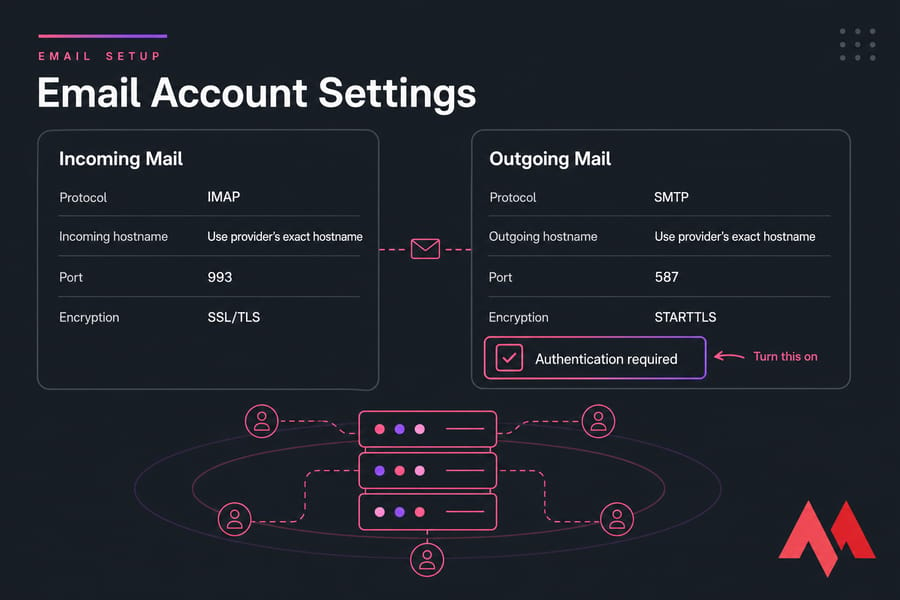
Gather these before you touch the client: full email address, password (or app password / OAuth), incoming hostname, outgoing hostname, ports, and encryption modes. Never guess that it's imap.example.com — pull the real values from your provider's documentation or control panel.
- Create the mailbox first if it doesn't exist — here's how to create an email account in cPanel.
- Choose IMAP (993) or POP3 (995) for incoming, with implicit TLS.
- Enter the SMTP hostname and port separately — 587 or 465.
- Turn on authentication for outgoing mail. This is the step people skip.
- Send a test message to an external address and reply to it.
- Confirm the reply lands in the server-side Sent folder, not just locally.
MonoVM customers can follow the verified steps to set up Titan Email on MonoVM.
Troubleshooting Common Failures
| Symptom | Likely cause | Fix |
|---|---|---|
| Receive works, send fails | SMTP auth disabled, wrong port, ISP blocking 25 | Enable authentication; use 587 or 465 |
| Send works, nothing arrives | Wrong incoming protocol/port, quota full | Verify IMAP/POP3 settings and mailbox usage |
| Endless password prompts | App password or OAuth required | Generate an app password; update the client |
| Certificate warning | Hostname mismatch or clock drift | Use the provider's exact hostname; sync system time |
| Sent items missing | Client saving locally | Point Sent to the server-side IMAP folder |
| POP3 mail vanishing | Delete-from-server enabled elsewhere | Enable "leave a copy on server" |
Don't "fix" TLS errors by disabling encryption. And remember that delivery problems aren't always protocol problems — MX, SPF, DKIM, DMARC, and PTR records affect routing and inbox placement. If mail leaves but lands in spam, start with a DMARC record in cPanel.
Final Recommendation
Use IMAP on port 993 plus authenticated SMTP on 587 or 465. That's the right answer for almost every mailbox, on almost every device. Reach for POP3 plus SMTP only when a single-machine local archive is a genuine requirement, and pair it with real backups. Send-only apps need nothing but SMTP.
One last thing worth repeating: encrypted ports protect the connection, not the mailbox. You still need backups and domain authentication. If you'd rather not maintain relays, certificates, and spam filters yourself, view MonoVM email hosting plans and get domain email running on every device.

An experienced tech and developer blog writer, specializing in VPS hosting and server technologies. Fueled by a passion for innovation, I break down complex technical concepts into digestible content, simplifying tech for everyone.