In 2026, knowing how to manage a VPS server isn’t just an IT skill it’s the difference between scaling smoothly and scrambling during downtime.
Every millisecond of latency, every security patch you delay, every misconfigured service directly affects revenue, user trust, and growth. Whether you’re running an eCommerce store processing payments around the clock, a SaaS platform managing authentication, or a high-traffic content site, VPS management sits at the core of your operational stability.
When you manage a VPS, you’re in control of everything from operating system configuration and security hardening to application deployment, monitoring, performance tuning, and long-term scalability. It’s not just server access; it’s full infrastructure ownership.
If you’re still building your foundation, start with What is VPS to understand the architecture before diving deeper.
In this guide, we’ll walk through the complete VPS lifecycle from Linux CLI and Windows configuration to managing a VPS without cPanel, exploring free management options, and mastering security, monitoring, and performance optimization so you can run your infrastructure with confidence instead of reacting to crises.
What Does It Mean to Manage a VPS Server?
When you ask how to manage a VPS server, what you’re really asking is how to take full operational responsibility for your infrastructure.
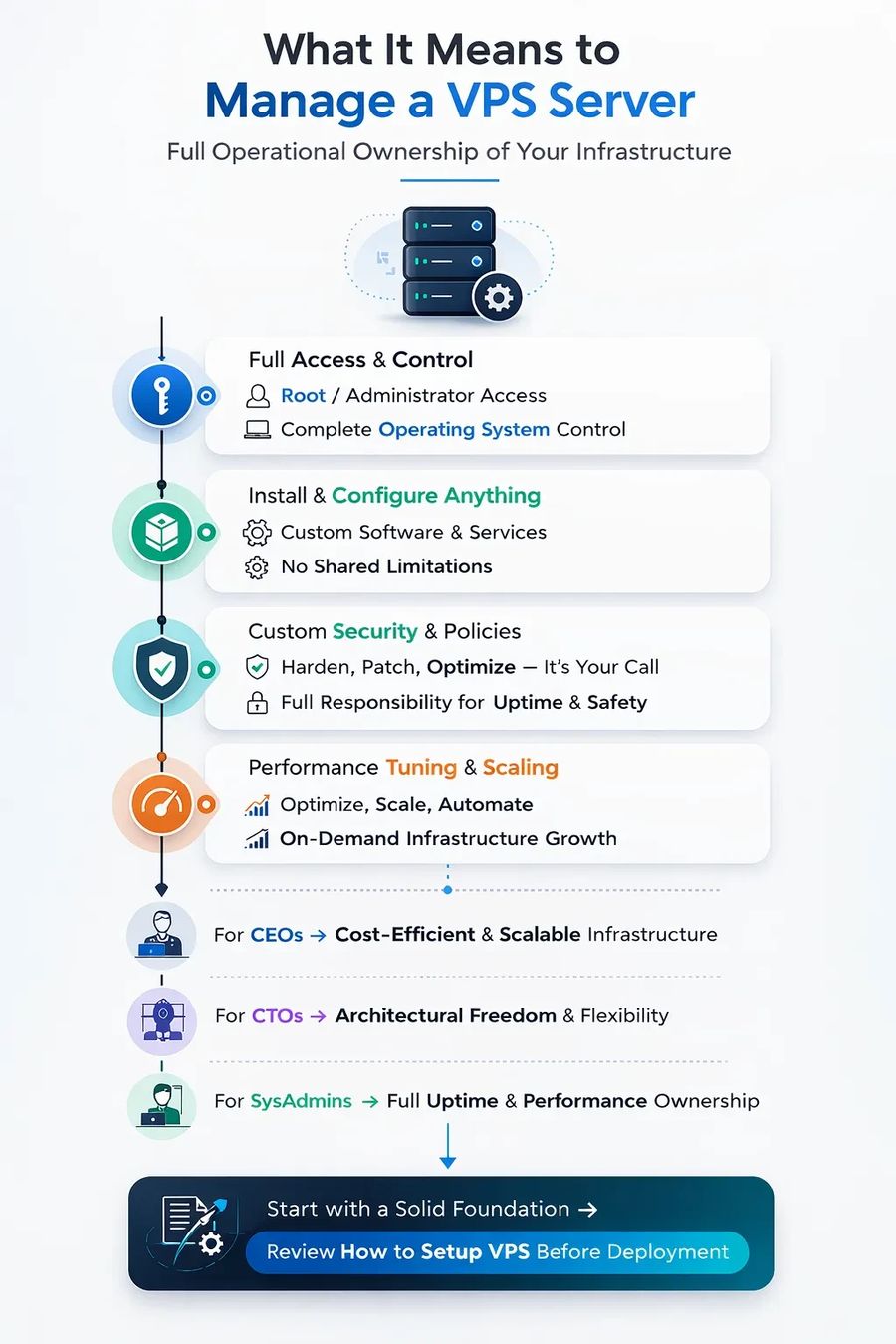
VPS hosting is fundamentally different from shared hosting. You’re not renting space inside someone else’s controlled environment you’re running your own isolated server. That means root or Administrator access, complete operating system control, the freedom to install and configure any software you need, custom security policies, and full authority over performance tuning.
In simple terms, VPS management equals ownership.
There’s no hidden layer of management quietly handling updates, optimizing services, or securing your stack. If something needs to be hardened, scaled, patched, or optimized — it’s your call.
For a CEO, that ownership translates into cost-efficient scalability and predictable infrastructure spending.
For a CTO, it means architectural freedom and the ability to design systems without shared-hosting limitations.
For a system administrator, it means direct accountability for uptime, security, and performance.
If you want a structured starting point before taking control of your environment, review How to Setup VPS before deployment.
Managed vs Unmanaged VPS Hosting
|
Feature |
Managed VPS |
Unmanaged VPS |
|
Provider Support |
High |
Minimal |
|
Technical Skill Needed |
Low |
High |
|
Cost |
Higher |
Lower |
|
Control Level |
Limited |
Full |
- Managed VPS reduces operational burden but increases cost.
- Unmanaged VPS lowers cost but requires strong technical skills.
Many growing startups begin unmanaged, then scale to managed as complexity increases.
How to Manage VPS Server (Step-by-Step Workflow)
Here’s the real-world operational framework behind how to manage VPS hosting the right way.
Think of VPS management as a continuous lifecycle not a one-time setup task.
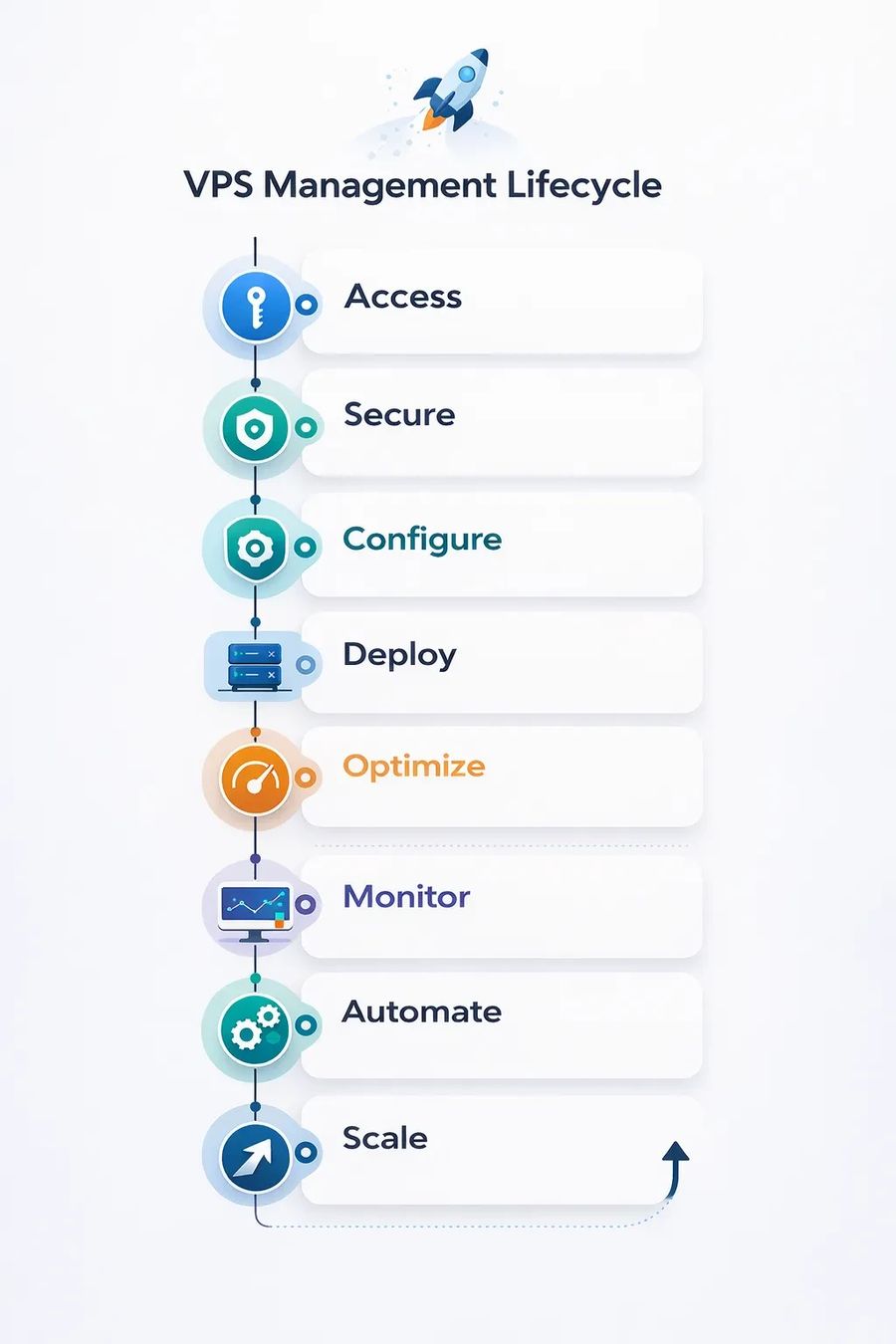
Each phase builds on the previous one. You gain access to the server, harden it immediately, configure the environment properly, deploy your applications, and then move into ongoing optimization and monitoring. From there, automation reduces manual workload, and scaling ensures your infrastructure grows with demand.
Most VPS failures don’t happen during setup they happen months later due to neglected updates, poor monitoring, or lack of performance tuning. This lifecycle approach prevents that mistake by treating VPS management as an ongoing operational strategy, not a checkbox completed on day one.
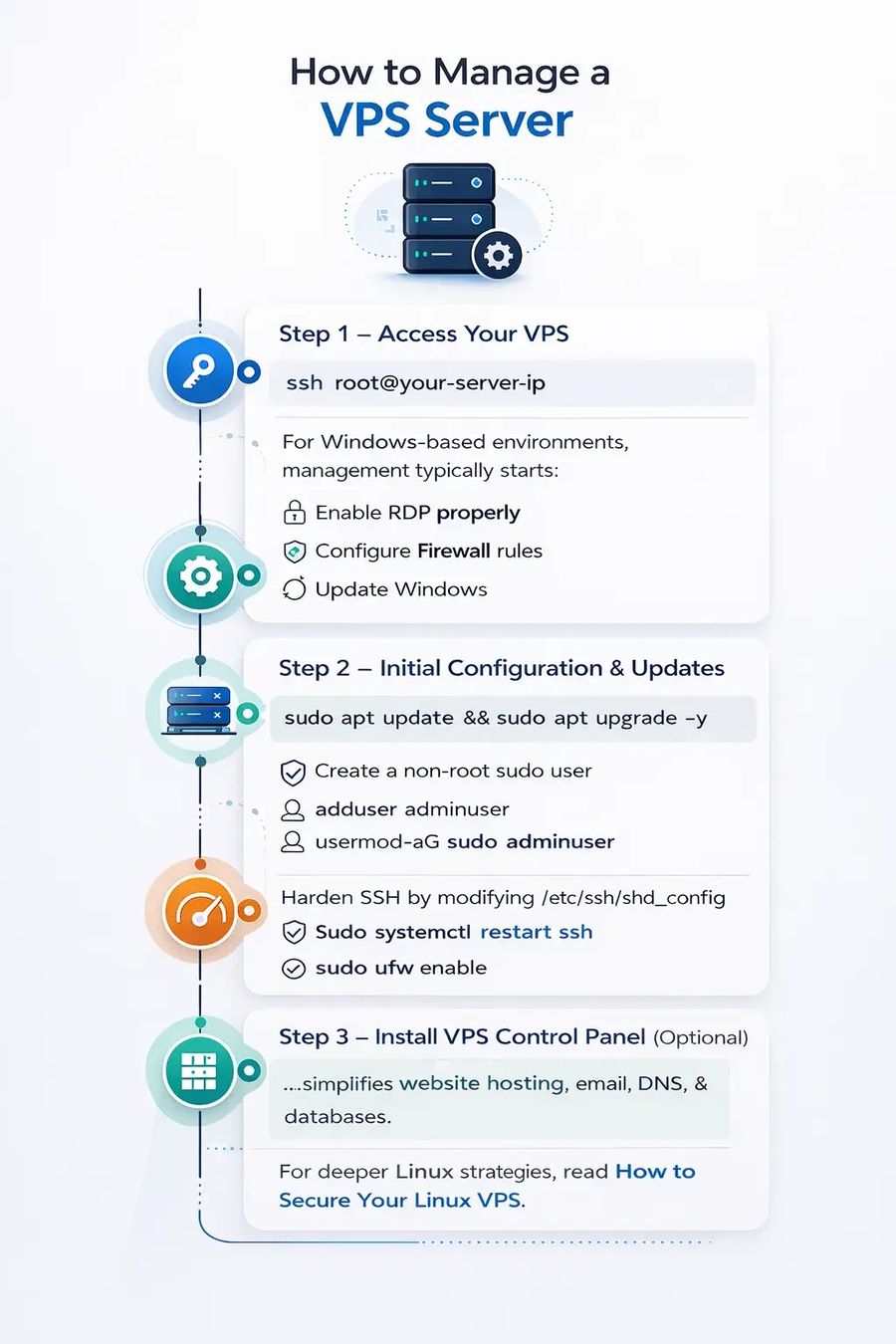
Step 1 – Access Your VPS
For Linux servers, access via SSH:
ssh root@your-server-ip
For Windows-based environments, management typically starts with Remote Desktop (RDP). This is your direct administrative gateway into the server.
If you’re learning How to Setup VPS for Windows, the initial configuration should always follow a secure structure.
First, enable RDP access properly and restrict it to trusted IP addresses whenever possible. Leaving RDP open to the entire internet without limitations is one of the most common security mistakes.
Next, configure Windows Firewall rules carefully. Only allow the ports and services your application truly needs. Everything else should remain closed by default.
Then, set a strong Administrator password and avoid using the default “Administrator” username without additional hardening. Brute-force attacks frequently target predictable credentials.
Finally, apply the latest Windows updates immediately after deployment. Security patches and cumulative updates close known vulnerabilities that automated bots actively scan for.
Windows VPS environments are especially popular for ASP.NET applications, MSSQL databases, enterprise software, and remote workstation setups. When configured correctly, they provide a stable and powerful platform but like any VPS, security and maintenance must be proactive, not reactive.
Step 2 – Initial Configuration & Updates
One of the biggest VPS management mistakes is skipping initial hardening.
Update packages immediately:
sudo apt update && sudo apt upgrade -y
Create a non-root sudo user:
adduser adminuser
usermod -aG sudo adminuser
Harden SSH by modifying:
/etc/ssh/sshd_config
Restart service:
sudo systemctl restart ssh
Enable UFW firewall:
sudo ufw allow OpenSSH
sudo ufw enable
Set timezone correctly:
timedatectl set-timezone UTC
For deeper Linux hardening strategies, review How to Secure Your Linux VPS.
Step 3 – Install VPS Control Panel (Optional)
Not every team wants to manage a server through the command line. Many businesses prefer a graphical interface that makes day-to-day operations faster and more intuitive.
That’s where a VPS control panel becomes valuable.
A control panel simplifies core tasks like website hosting, email account management, DNS configuration, database creation, and file management. Instead of manually editing configuration files or running terminal commands, you can manage most services through a structured dashboard. For small teams or non-technical founders, this significantly reduces complexity and setup time.
If you’re evaluating which solution fits your needs, explore Best VPS Control Panels for a detailed comparison of features, performance, and pricing.
That said, advanced DevOps teams often skip panels entirely. They prefer direct CLI management for tighter security control, cleaner system architecture, lower resource usage, and full customization flexibility.
Best Control Panel for VPS
|
Panel |
💰 Free/Paid |
🖥️ OS Support |
🎯 Best For |
📚 Learning Curve |
|
cPanel |
💳 Paid |
🐧 Linux |
🏢 Hosting Providers |
🟢 Low |
|
Plesk |
💳 Paid |
🐧 Linux / 🪟 Windows |
🏢 Agencies |
🟢 Low |
|
CyberPanel |
🆓 Free / 💳 Paid |
🐧 Linux |
⚡ LiteSpeed Users |
🟡 Medium |
|
Webmin |
🆓 Free |
🐧 Linux |
🛠️ System Administrators |
🟡 Medium |
|
CloudPanel |
🆓 Free |
🐧 Linux |
👨💻 Developers |
🟡 Medium |
There is no universal “best” control panel for VPS. The right choice always depends on your operational needs and long-term goals.
Budget plays a major role. Some panels come with monthly licensing fees that make sense for agencies and hosting providers, while others offer free versions that are ideal for startups or developers managing a few servers.
Technical expertise is another deciding factor. Beginner-friendly panels reduce complexity with guided interfaces and automation, while more advanced tools assume you understand server architecture and want deeper control.
Hosting scale also matters. Managing a single application server is very different from handling dozens of client websites or multi-server deployments. Some panels are optimized for small environments, while others are built for high-volume hosting operations.
Finally, consider your automation and integration needs. If you rely heavily on APIs, CI/CD pipelines, or infrastructure-as-code workflows, certain lightweight panels or even no panel at all may be the smarter choice.
If you want a broader perspective beyond control panels, including monitoring, automation, and security utilities, explore 👉 Best VPS Server Management Tools for a complete ecosystem overview.
How to Manage VPS Without cPanel
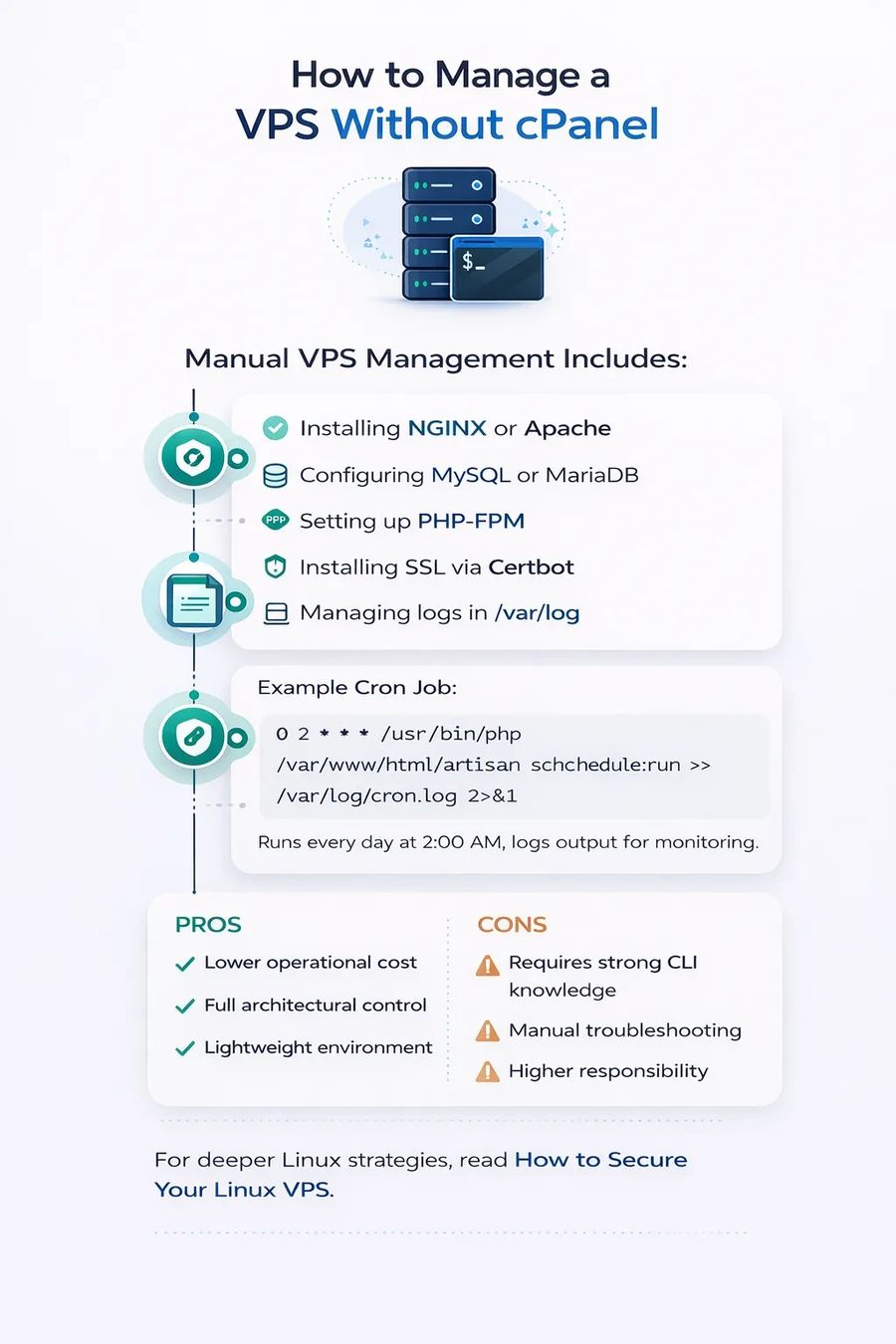
Many professionals specifically search how to manage vps without cpanel.
Manual management includes:
- Installing NGINX or Apache
- Configuring MySQL or MariaDB
- Setting up PHP-FPM
- Installing SSL via Certbot
- Managing logs in /var/log
- Creating cron jobs
Example cron job:
0 2 * * * /usr/bin/php /var/www/html/artisan schedule:run >> /var/log/cron.log 2>&1
This example runs a scheduled task every day at 2:00 AM and logs the output for monitoring. Proper cron management is essential for backups, cleanup tasks, certificate renewals, and automated maintenance in a manually managed VPS environment.
Pros
- Lower operational cost
- Full architectural control
- Lightweight environment
Managing a VPS without a control panel eliminates licensing fees and unnecessary background services. Your server runs only what you install — nothing more. That means better resource efficiency and a cleaner architecture tailored exactly to your application’s needs.
Cons
- Requires strong CLI knowledge
- Manual troubleshooting
- Higher responsibility
Without a graphical interface, everything depends on your command-line skills. Debugging issues, configuring services, and securing the system must all be handled manually. There’s no safety net which increases both flexibility and accountability.
This approach is especially ideal for SaaS platforms, API servers, microservices architectures, and containerized deployments where performance, scalability, and infrastructure control matter more than convenience.
How to Manage VPS Server Free
If you’re researching how to manage VPS server free, the good news is that open-source solutions are more than capable of handling production workloads — when configured properly.
Tools like Webmin offer a free control panel experience, while CyberPanel provides a free tier suitable for many small to mid-sized deployments. On the security side, UFW can manage firewall rules efficiently, Fail2Ban helps block brute-force attacks, and Netdata delivers real-time performance monitoring. For backups, rsync-based strategies remain one of the most reliable and lightweight options available.
Free does not mean insecure. In fact, many enterprise environments rely heavily on open-source infrastructure. The difference is discipline. Free tools require careful configuration, consistent updates, and proactive monitoring. There’s no premium support safety net — your security and performance depend entirely on how well you manage the stack.
As your infrastructure grows and traffic increases, you may eventually outgrow VPS limitations and require more isolated resources. When that stage arrives, review How to Manage Dedicated Server to prepare for enterprise-level scaling.
VPS Security Best Practices
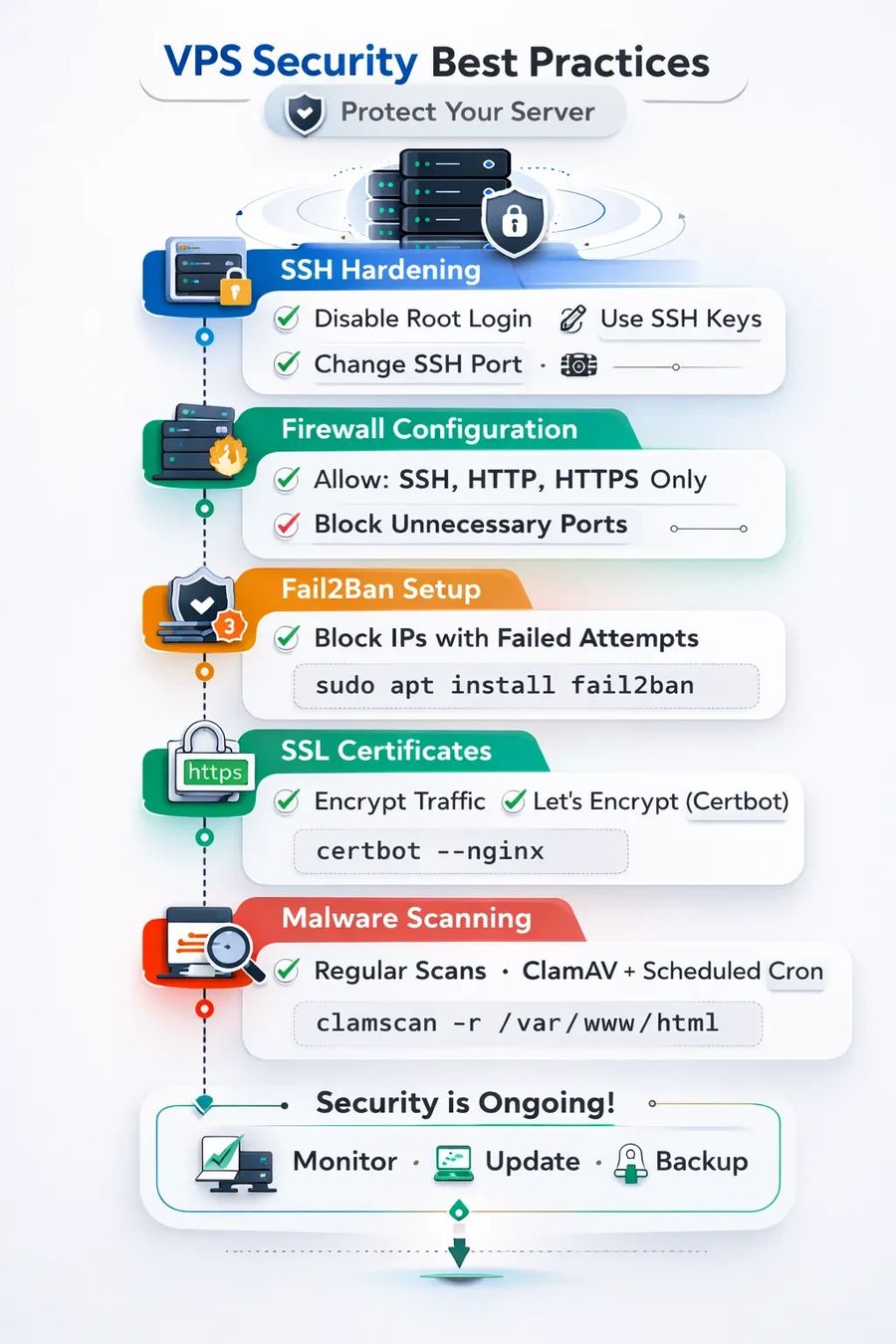
Security is not an optional layer in VPS management it’s the foundation everything else depends on. Performance tuning and scaling mean nothing if your server is vulnerable.
SSH Hardening
Your first priority should be locking down SSH access. Disable direct root login to prevent attackers from targeting the most powerful account on the system. Replace password-based authentication with SSH keys, which are significantly more secure against brute-force attempts. Changing the default SSH port won’t stop a determined attacker, but it does reduce automated scanning noise and lowers exposure to basic bot attacks.
Firewall Configuration
A properly configured firewall acts as your first line of defense. Only allow the ports your application actually needs — typically SSH, HTTP, and HTTPS. Every unnecessary open port increases your attack surface. A minimal-access policy dramatically reduces risk.
Fail2Ban Setup
Fail2Ban adds an intelligent security layer by monitoring logs and automatically blocking IP addresses that show malicious behavior, such as repeated failed login attempts. When combined with SSH hardening and strict firewall rules, it significantly strengthens your VPS against automated attacks.
In VPS management, security is not a one-time setup task — it’s an ongoing discipline.
sudo apt install fail2ban
SSL Certificates
certbot --nginx
Malware Scanning
Even a properly hardened VPS can become vulnerable over time — especially if multiple users, third-party applications, or public uploads are involved. That’s why malware scanning should be part of your regular security routine.
ClamAV is a widely used open-source antivirus engine that can scan files, email attachments, and web directories for malicious signatures. It can be scheduled via cron to perform routine scans without manual intervention.
In addition to local tools, external scanning services can help identify vulnerabilities from an outside perspective. These tools simulate real-world attack behavior and detect exposed services, outdated software, or misconfigurations you might overlook internally.
Malware scanning isn’t about reacting after a breach — it’s about early detection before damage spreads.
Security Hardening Checklist
1. OS updates enabled
Ensure automatic operating system updates are turned on so critical security patches and vulnerability fixes are applied as soon as they are released. Delaying updates leaves systems exposed to known exploits that attackers actively scan for.
2. Firewall active
A properly configured and active firewall is essential for controlling incoming and outgoing network traffic. It minimizes the attack surface by blocking unauthorized access while allowing only necessary services and ports.
3. Fail2Ban installed
Install and configure Fail2Ban (or a similar intrusion prevention tool) to monitor login attempts and automatically block suspicious IP addresses. This significantly reduces the risk of brute-force attacks and repeated unauthorized access attempts.
4. Strong passwords
All accounts, especially administrative and service accounts, should use strong, unique passwords. Weak or reused credentials remain one of the most common and easily exploited security gaps.
5. SSH key authentication
Disable password-based SSH login and enforce key-based authentication. SSH keys provide a much stronger and more secure method of access compared to traditional passwords.
6. Regular backups
Perform consistent, automated backups and regularly test restoration procedures. Backups are critical for recovering from hardware failures, accidental deletions, cyberattacks, or ransomware incidents.
7. Log monitoring enabled
Enable centralized logging and actively monitor system logs for unusual activity, failed login attempts, configuration changes, or unexpected behavior. Early detection is key to preventing small issues from becoming major breaches.
Skipping even one of these measures can leave a production environment vulnerable. Security is only as strong as its weakest link.
How to Optimize a VPS Server for Performance
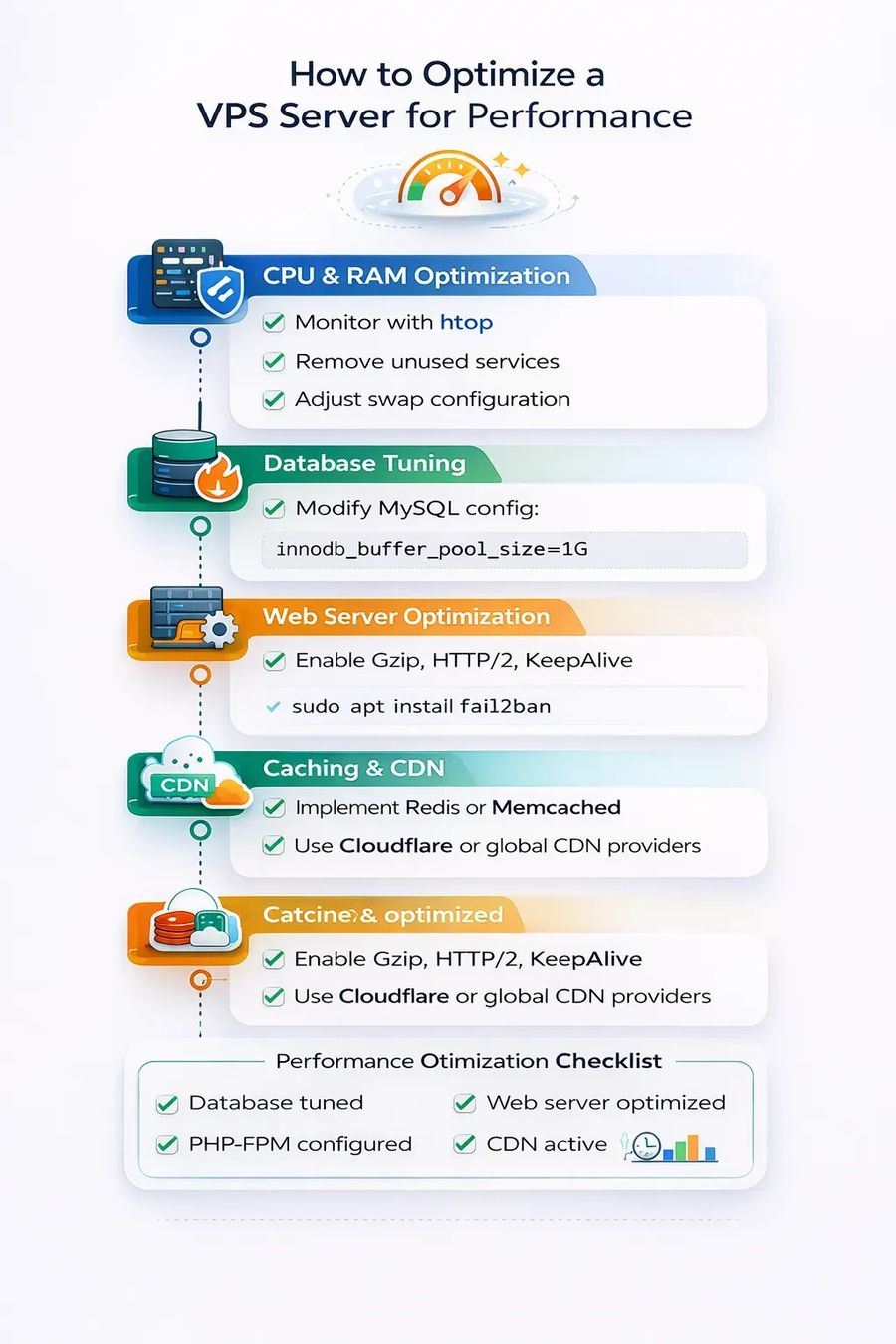
Knowing how to optimize a VPS server directly affects application responsiveness.
CPU & RAM Optimization
Monitor with htop.
Remove unused services.
Adjust swap configuration.
Database Tuning
Modify MySQL config:
innodb_buffer_pool_size=1G
Web Server Optimization
Enable Gzip, HTTP/2, KeepAlive.
Optimize PHP-FPM workers.
Caching & CDN
Implement Redis or Memcached.
Use Cloudflare or global CDN providers
Performance Optimization Checklist
- Database tuned
Make sure the database is properly optimized for your workload. This includes indexing frequently queried columns, optimizing slow queries, adjusting memory buffers, and removing unused data. A well-tuned database reduces response times and prevents bottlenecks under heavy traffic. - Web server optimized
Configure the web server (such as Nginx or Apache) for maximum efficiency. This may involve enabling compression, adjusting worker processes, configuring keep-alive settings, and fine-tuning request handling. Proper optimization ensures the server can handle high concurrency without unnecessary resource strain. - PHP-FPM configured
PHP-FPM should be carefully configured based on available server resources. Setting the correct process manager type, max children, memory limits, and timeout values ensures stable performance and prevents resource exhaustion during traffic spikes. - Caching enabled
Implement caching at multiple levels whenever possible — including application caching, object caching (e.g., Redis or Memcached), and page caching. Caching reduces database load and speeds up response times by serving precomputed content instead of regenerating it repeatedly. - CDN active
Use a Content Delivery Network (CDN) to distribute static assets such as images, CSS, and JavaScript across geographically distributed edge servers. This reduces latency for global users and offloads traffic from the origin server. - Resource monitoring enabled
Continuously monitor CPU usage, memory consumption, disk I/O, and network traffic. Proactive monitoring helps identify performance bottlenecks early and allows for scaling or optimization before users experience slowdowns.
Neglecting performance optimization can lead to slow load times, poor user experience, and lost revenue — especially as traffic grows. Consistent tuning and monitoring keep systems fast, stable, and scalable.
Monitoring & Automation for VPS Management
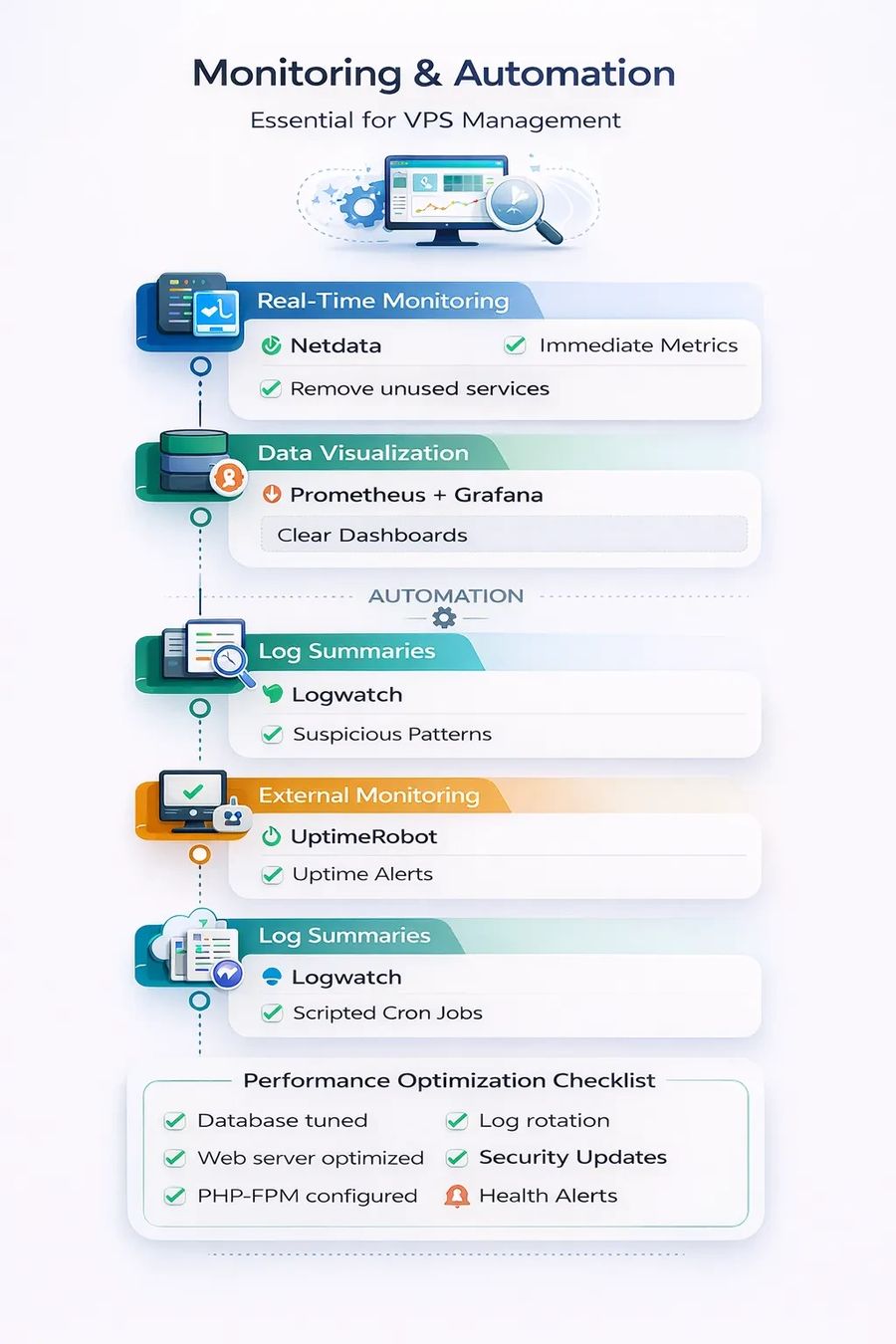
Professional server management strategies must always include strong observability. Without visibility into system performance and behavior, infrastructure becomes difficult to control and risky to maintain.
Observability starts with real-time monitoring. Netdata provides immediate insight into CPU, memory, disk, and network usage, making it easier to spot issues as they happen.
For long-term metrics collection, Prometheus gathers and stores time-series data. This allows teams to analyze trends, measure performance over time, and create reliable alerting rules.
Grafana builds on that data by turning raw metrics into clear, visual dashboards. Well-designed dashboards make it easier to detect anomalies and understand system health at a glance.
External uptime monitoring is equally important. UptimeRobot continuously checks service availability and alerts you if your website or application becomes unreachable.
Logwatch adds another layer of awareness by summarizing system logs into readable reports. This helps identify suspicious activity, failed login attempts, or system errors early.
Automation is the second pillar of professional server management. Backups should be scheduled automatically using cron jobs to ensure data protection happens consistently.
Log rotation must also be automated to prevent logs from filling up disk space and affecting performance.
Security patch updates should run on a defined schedule so systems remain protected against known vulnerabilities.
Health monitoring alerts need to be configured to notify administrators immediately when something goes wrong.
Automation reduces downtime caused by human oversight. When routine tasks run reliably in the background, teams can focus on optimization and growth instead of emergency fixes.
Common VPS Management Mistakes
- Skipping updates
- No backup strategy
- Weak passwords
- Ignoring server logs
- Installing unnecessary services
A single overlooked update can expose your entire infrastructure.
Windows VPS Management Guide
If you are learning how to setup a vps server (windows), focus on:
- RDP secure access
- Windows Firewall rules
- IIS configuration
- Windows Update automation
- Antivirus installation
Windows VPS is common for enterprise apps and remote desktop environments.
If you need to migrate OS versions later, review 👉How to Change the Operating System on VPS for a safe transition guide.
Conclusion
Mastering how to manage a vps means understanding security, performance, monitoring, and automation not just installation.
For startups, agencies, SaaS companies, and growing enterprises, VPS hosting offers the perfect balance between cost control and performance power.
If you’re ready to deploy scalable infrastructure with instant setup, global data centers, affordable pricing, and 24/7 technical support, the next step is clear:
Scale your business today Buy VPS Hosting and deploy production-ready servers in minutes.
MonoVM provides enterprise-grade VPS infrastructure built for performance, reliability, and growth.

An experienced tech and developer blog writer, specializing in VPS hosting and server technologies. Fueled by a passion for innovation, I break down complex technical concepts into digestible content, simplifying tech for everyone.