
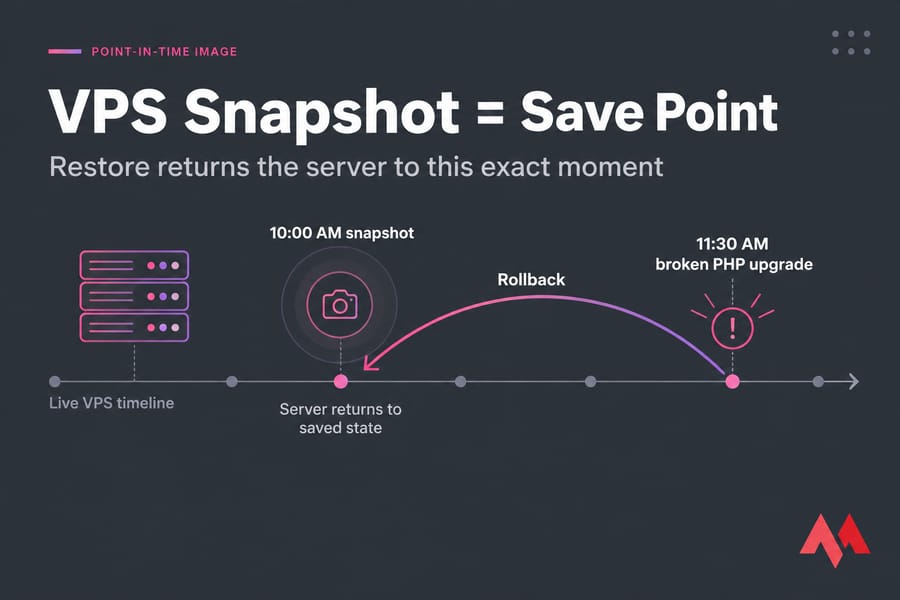
A VPS snapshot is a point-in-time image of your virtual server's disk. It records the operating system, apps, files and configuration exactly as they were when you clicked "create." If an update or config change goes wrong, you restore the snapshot and the server goes back to that moment. But a snapshot isn't a backup. People who treat it like one are the ones who later say, "I thought I was protected."
Key takeaway: A VPS snapshot lets you roll back a bad change. It doesn't replace a full backup plan.
If you're still fuzzy on the basics, start with what a VPS server is.
VPS Snapshot Meaning, in Plain English
Think of it as a save point in a video game. If you reload, nothing you did after the save is kept.
That's why snapshots are called point-in-time images. A snapshot freezes the virtual disk as it was at, say, 10:00 AM on Tuesday. Later changes to the live server don't affect it.
How a VPS Snapshot Works
Your VPS runs as a virtual machine on a physical host, and the hypervisor controls its virtual disk. (If that layer is new to you, here's what a hypervisor does.) When you take a snapshot, this is roughly what happens:
- The platform marks the current state of the virtual disk as the restore point.
- New writes from your running server go to fresh blocks instead of overwriting the old ones. That's called copy-on-write, and it means the original data stays untouched.
- Some providers then copy the snapshot to separate snapshot storage.
- When you restore, the disk goes back to the marked state.
Providers do this differently. Some keep snapshots on the same storage cluster as your VPS, and others store them somewhere else. Google Cloud, for example, says its standard disk snapshots cover a single disk. It recommends machine images when you need to capture a whole VM with several disks.
What a VPS Snapshot Includes (and What It May Miss)
| Component | Usually included? | Notes |
|---|---|---|
| Operating system and packages | Yes | Kernel, libraries, installed software |
| Website files and uploads | Yes | Anything on the snapshotted disk |
| Config files (Nginx, firewall, cron) | Yes | Great for undoing bad edits |
| Databases | Yes, at disk level | Data may not be consistent if the server was running |
| RAM / running processes | Depends on provider | Most VPS snapshots copy the disk only |
| Extra attached volumes | Depends on provider | Often need their own snapshots |
Databases are where people get caught out. A snapshot can copy the disk while the database is still writing to it. When it boots, MySQL or PostgreSQL may then have to run crash recovery. That usually works, but not always. That's why I always keep a real database dump alongside my snapshots.
VPS Snapshot vs Backup: What's the Difference?
Both get your data back, but they're built for different problems.
| Feature | Snapshot | Backup |
|---|---|---|
| Main purpose | Fast rollback after a bad change | Recovery after data loss or disaster |
| Storage location | Often the same provider infrastructure | Ideally offsite, separate provider |
| Speed to create/restore | Minutes | Slower, depends on size and method |
| Granularity | Whole disk, all or nothing | Single files, folders, or databases |
| Retention | Short-term (days) | Weeks to months, with multiple versions kept |
| Survives provider outage or account loss? | Usually no | Yes, if stored offsite |
Warning: If the snapshot is stored on the same infrastructure as your VPS, a failure there can take out both.
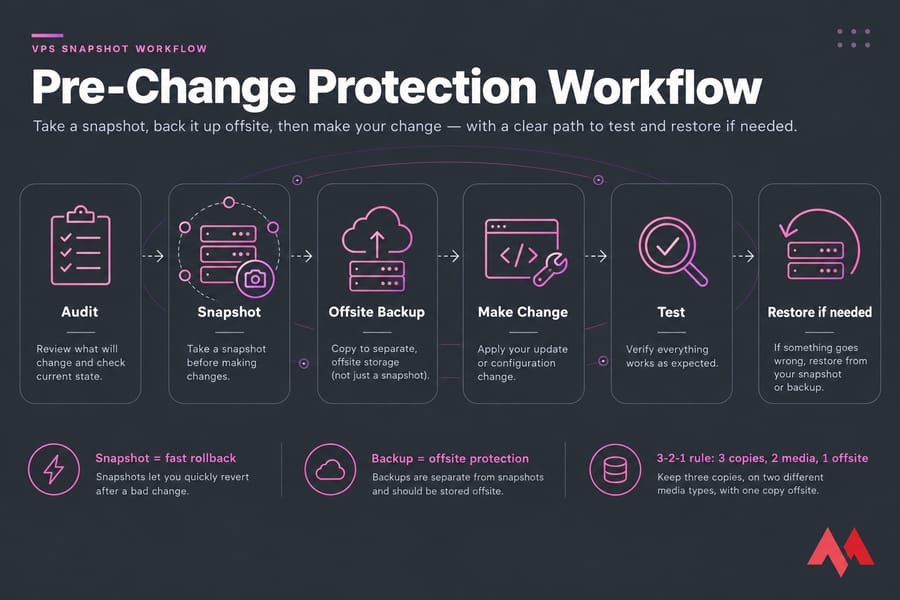
The 3-2-1 rule still applies: three copies of your data, on two types of storage, with one copy offsite. A snapshot can count as one of those copies, but not all three. For the backup side (rsync, Restic, cron jobs, database dumps), read our guide on how to back up a server or VPS. A separate storage VPS is a good place to keep your offsite copies.
When to Use a VPS Snapshot
Take a snapshot right before you do something risky, such as:
- OS or package updates: an
apt upgradethat installs a new kernel, or a Windows cumulative update on your Windows VPS. - PHP, database or control panel upgrades: for example, moving from PHP 8.1 to 8.3 and finding out a plugin doesn't work with it.
- Deployments and migrations: a new app release, or moving sites between servers.
- Firewall and SSH changes: one wrong rule can lock you out of your Linux VPS.
Pro tip: Take the snapshot right before the change, not three hours earlier. If you roll back, you lose everything written to the server in between.
Limitations You Shouldn't Ignore
There are three main ones:
- Same-infrastructure risk: a storage failure, a billing suspension or a hacked account can take out the VPS and its snapshots at the same time.
- Crash-consistent vs application-consistent: a crash-consistent snapshot captures the disk as it would look after a power cut. An application-consistent snapshot is taken after apps have saved their pending data to disk. On Windows, a service called VSS handles this.
- Storage cost: providers usually charge for snapshots per GB, and old ones add up.
The hardest risk to spot is false confidence. A snapshot won't help if ransomware was on your disk for a week before you noticed. Don't count on rollback alone. Take the time to secure your Linux VPS as well.
Can You Snapshot a Running VPS?
Usually, yes. Most providers let you take snapshots while the server is running. But those snapshots are usually only crash-consistent. That's fine for a quiet blog. For a busy online store, briefly stop the web server, or flush and lock the database for a moment. If you can afford a minute of downtime, powering off works too. For critical databases, take a proper database dump as well.
What Happens When You Restore a Snapshot?
Your server goes back to the saved state, and everything added after the snapshot is gone: new orders, uploads, emails, logs and user sign-ups. I've seen a store owner restore a snapshot and lose six hours of orders without realizing it.
After a restore, check that:
- Services (web server, database, mail) are running
- The ports you need are open and SSH/RDP works
- DNS still points to the right IP
- The site loads, and logins, forms and checkout work
Restoring and cloning are different things. Restoring overwrites your current server. Cloning creates a new server from the snapshot and leaves the original alone.
VPS Snapshot Best Practices
- Take a snapshot right before every risky change.
- Give it a clear name:
pre-php83-2025-06-12is better than "snapshot-3." - Delete old snapshots a few days after the change has proven stable.
- Always keep offsite backups as well.
- Test a restore (or a clone) at least once so you know it works.
For everyday upkeep, see how to manage a VPS server. If you'd rather not handle snapshots and backups yourself, managed hosting puts that work in the hands of a support team.

An experienced tech and developer blog writer, specializing in VPS hosting and server technologies. Fueled by a passion for innovation, I break down complex technical concepts into digestible content, simplifying tech for everyone.