
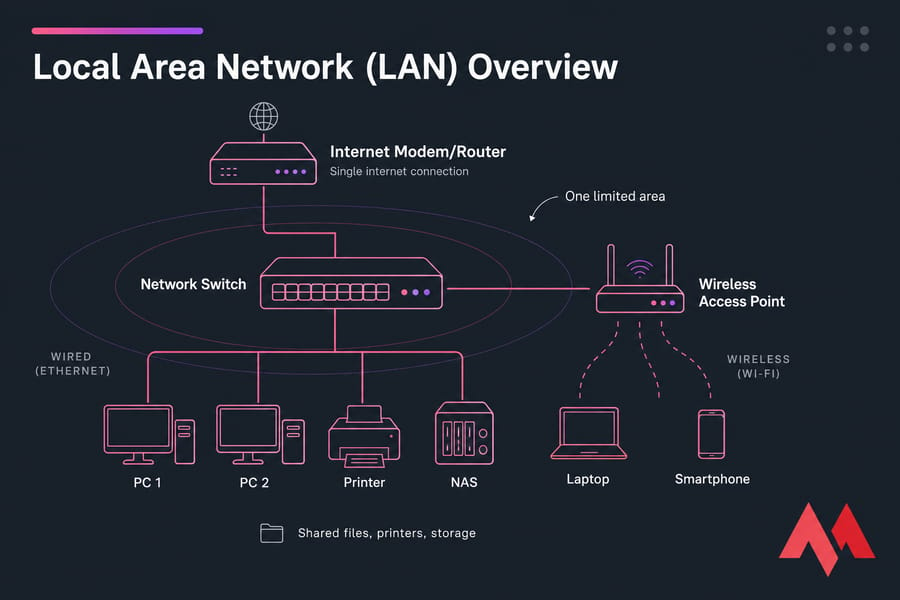
A LAN, or Local Area Network, connects devices inside one limited area — a home, an office floor, a school building. Those devices share files, printers, storage and a single internet connection over Ethernet cable or Wi-Fi. The full form of LAN is simply Local Area Network, and "local" refers to geographic scope, not cable type.
Your home router plus your laptop, phone, TV and printer? That's a LAN. Nothing more exotic than that.
A LAN or Local Area Network is a set of computers or Internet of Things devices connected to form a small network. This type of network is suitable for a small area such as a small business, a building, a home, or any small place with only a handful of devices. All the devices in the network can be connected with the help of an Ethernet cable, or it can be a wireless connection. A single communication line passes through, which connects all devices.
🔧 How Does A LAN Work?
Here's the part most beginner articles get wrong. A modern wired LAN isn't one shared cable that everyone takes turns on — that died with coax and hubs. Today each device gets its own dedicated link into a switch, which forwards frames only to the port where the destination lives.
A LAN is established to connect devices to make processes smoother. Suppose there is a file on which different personnel need to work. If it is situated on a computer not connected to a network, only one person can work on it and only by sitting on that specific node. These kinds of processes create a bottleneck in smooth functioning. Suppose there is a network in a business, and every node has access to that file. No one is required to make separate copies of it.
MAC addresses, IP addresses, DHCP and DNS
Inside the LAN, devices find each other by MAC address (the hardware ID burned into every network interface card). ARP is the translator that maps an IP address to a MAC. Your DHCP server — usually the router — hands out IP addresses from a subnet like 192.168.1.0/24, while DNS resolves names to addresses.
Traffic between two local devices never leaves the switch. Traffic bound for the internet goes to the default gateway (the router), gets NAT'd, and heads out. That distinction matters: a LAN works perfectly fine with no internet connection at all.
🧩 What Constitutes A LAN?
A LAN constitutes computers, laptops, routers, switches, access points, servers, and other components which ensure smooth functioning within the network. An Ethernet cable is used on a wired connection. It is a cable that connects different devices to a network. It made its debut in 1983, and since then, it has been used to connect LANs, MANs, and WANs.
A switch is a networking device that ensures the proper data flow by packet switching it. It is used at the data link layer (of the OSI model) and contains several multiports to transmit data between nodes correctly. A Layer 2 switch is used for smaller networks, while Layer 3 switches are more suitable for a larger one.
A router is used to connect networks, and it sits between your network and the extensive network called the internet and streamlines the flow.
Other devices include computers which act as servers and nodes. In a smaller network, a computer can act as both a server and a node, while in a larger network, there is a dedicated server to store files and carry out important tasks.
Not all LANs connect to the internet. A switch is used to transmit data in such a network.
What Devices Are Used in a LAN?
- Network switch — the core of any wired LAN. Unmanaged switches just work; managed switches give you VLANs, port security, and monitoring.
- Router — connects your LAN to the outside world and separates broadcast domains.
- Wireless access point (AP) — extends the same LAN over 802.11 Wi-Fi.
- NIC — the network interface card in each PC, server or printer.
- Cabling — Cat5e handles gigabit fine; Cat6 or fiber for longer runs and multi-gig. Patch panels keep structured cabling sane.
- Endpoints and shared resources — workstations, file servers, NAS boxes, printers, IP cameras, PoE devices.
📂 Types Of LAN
There are 3 types of LAN. These are divided based on the number of devices they include.
Wired LAN (Ethernet, IEEE 802.3)
A Wired LAN uses physical components like Ethernet cables to connect them. For a home office or a small business, constituting only a few devices, it is the right choice of network. All the devices connect to the network via a single cable line. Cable to switch. Lowest latency, most consistent throughput, hardest to eavesdrop on. Still the right answer for servers, desktops and anything doing heavy file transfers.
For a small network, it works alright to spread a cable and connect devices to it. But it is often difficult to increase the network size, affecting the cost.
Wireless LAN (WLAN, IEEE 802.11)
Computers are connected via IEEE 802.11 specification in a wireless LAN, and every device is connected to the other via an invisible wireless spectrum. In an organization where thousands of devices are required to be connected, it is not feasible to spread miles of cable. Plus, it also grants flexibility, as it is easy to add numerous nodes without disturbing the present network. Same network, no cables. Convenient, but shared airtime, interference and distance all eat into real throughput.
Virtual LAN (VLAN, IEEE 802.1Q)
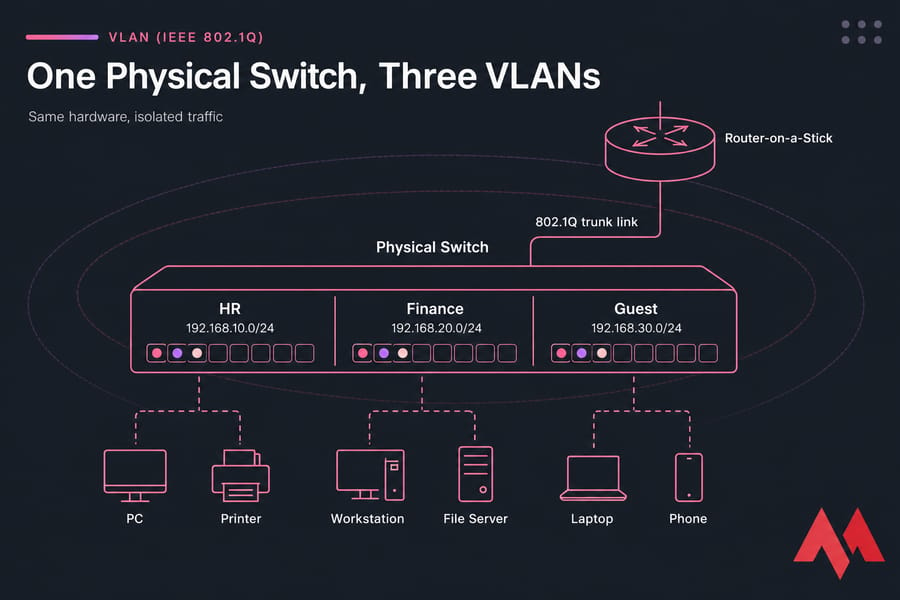
A wired LAN restricts the number of devices that can be added. If you expand it, it will cause data traffic and distort the functioning. To make it smooth, a LAN is divided into several Virtual LANs. These virtual LANs help control the broadcast traffic by limiting the disturbance to a few devices. You can understand it as isolation of devices at the data link layer to improve the traffic. A VLAN splits one physical switch into several logical networks. HR, Finance and Guest traffic can ride the same hardware yet never see each other. It's segmentation — not a way to "add more devices."
🏢 LAN Examples in Real Life
- Home LAN: ISP router, two laptops on Wi-Fi, a smart TV, a wireless printer, maybe a NAS on cable.
- Office LAN: 24-port managed switch, file server, two access points, VoIP phones on PoE, network printer.
- School lab LAN: 30 workstations in star layout, one image server, VLAN separating students from staff.
- Retail LAN: POS terminals and a barcode scanner on an isolated VLAN, guest Wi-Fi kept completely separate.
🏗️ Architecture Of LAN
From the architecture point of view, LAN is divided into two types, Client-server and Peer-To-Peer. The name is self-explanatory, but here you go.
- All the clients are connected to a central node in a client-server architecture. This central server works like the file storage, print server, data server, network server, and the nodes connect to it to access the required resources. It can be a wired or a wireless connection.
- In peer-to-peer connection, there is no dedicated node performing server tasks. Every device is connected to all the other devices on the network and can freely access the information stored on that node. The architecture is suitable for home networks or small businesses where the workload is less.
Two architectures matter. Peer-to-peer works up to roughly ten machines — everyone shares folders directly, no central box. Client-server centralises files, authentication and backups on a dedicated server, which is what you want past a dozen users. Most small businesses run a mix.
🔗 LAN Topologies
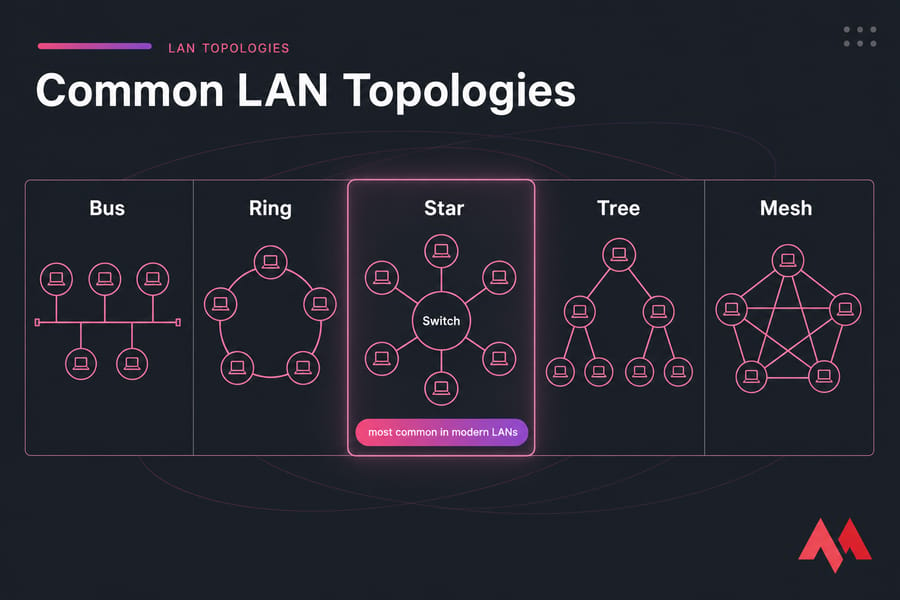
A topology can be understood as the physical architecture of a LAN in which the different devices are connected. Since a LAN uses a cable, there are different topologies in which a network can be formed. As for topology: star, bus, ring, tree and mesh all exist in textbooks, but virtually every modern Ethernet LAN is a star (or a tree of stars). The centre is a switch — not a server, despite what a lot of diagrams claim. Spanning Tree Protocol (STP) keeps redundant links from creating loops.
Ring topology
In a ring topology, devices make a ring after getting connected. It starts from a device that connects to the other one, the second device connected to the third, etc. The ring completes when the nth device connects back to the first device. In a ring topology, if two computers need to connect to each other, the information will be passed through all the nodes in between. It is not a very effective topology.
Bus Topology
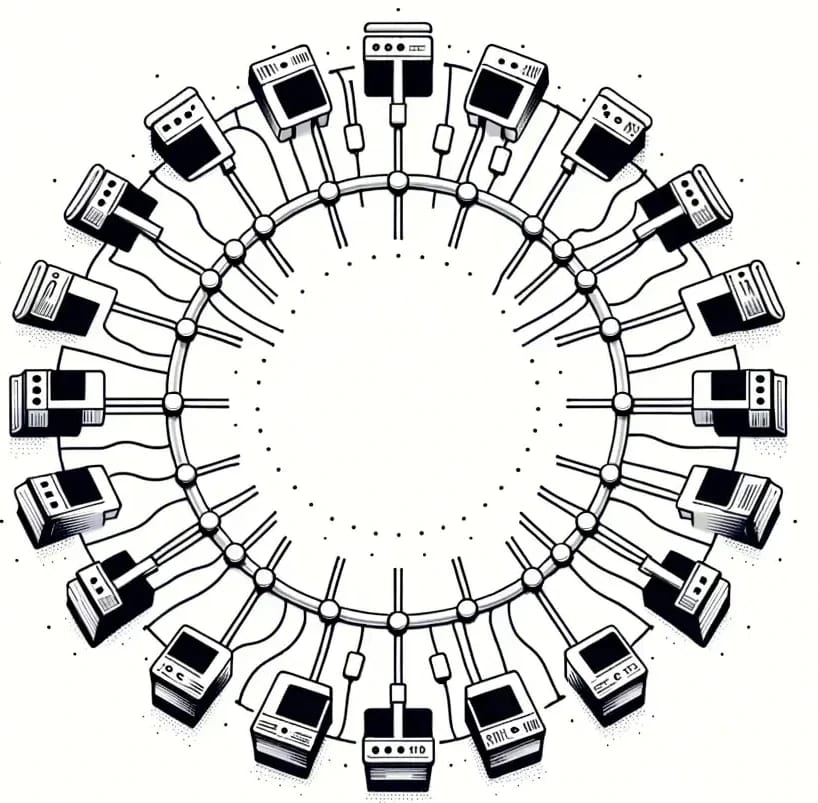
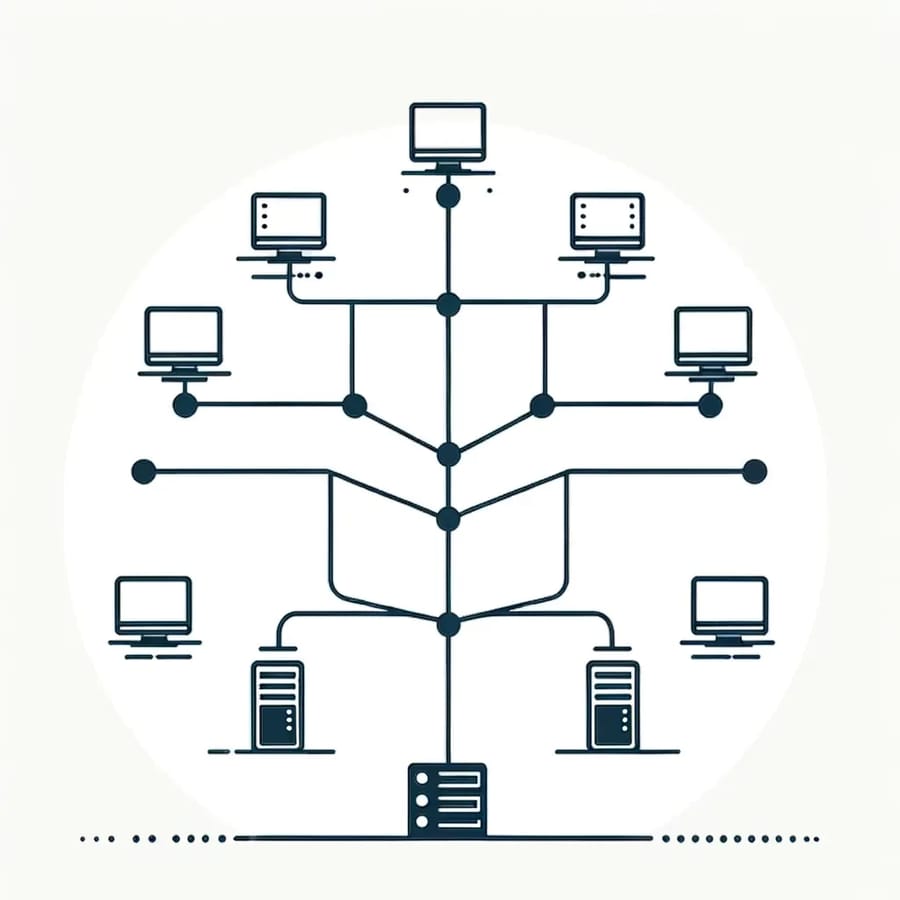
In a bus topology, a single cable passes throughout the organization. All the computers in the network connect themselves to this single directional cable via a dropline. It allows easy network expansion as there is endless opportunity to add nodes at the end. Falling out of the leading cable means dropping out of the network, which is risky.
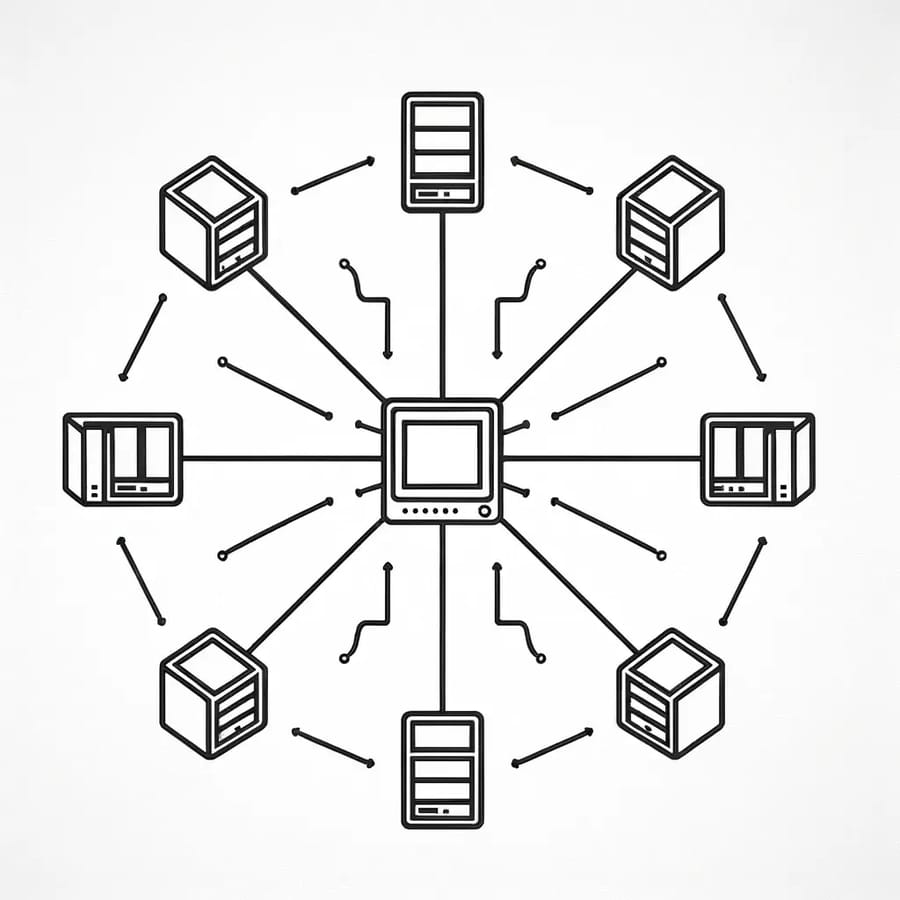
Star Topology
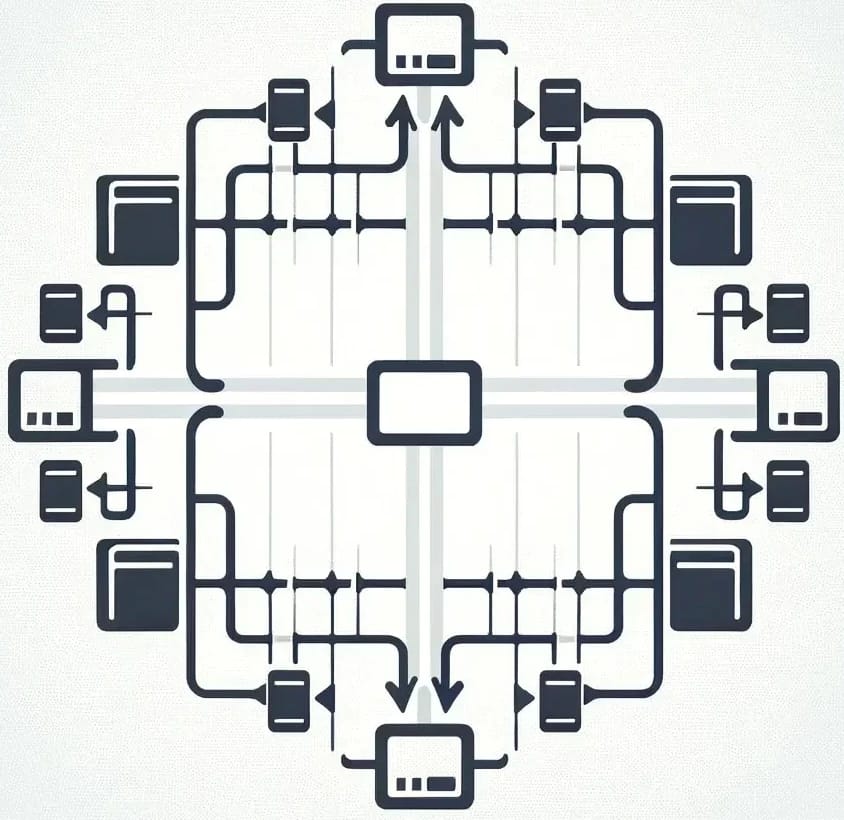
In this topology, a central server is a star. Each node connects to it via a cable. The nodes don't connect directly to each other. It is easy to expand the network, as any computer that needs to be linked can do so with a cable without disrupting the existing nodes. But the network depends entirely on the server. If it fails, the network fails.
Tree Topology
In this topology, the data flow is hierarchical. The central server connects to the secondary servers, and the nodes or clients connect to the secondary servers instead of the main server. For larger organizations, this architecture is best-suited. But again, the dependency is entirely on the central server.
Mesh Topology
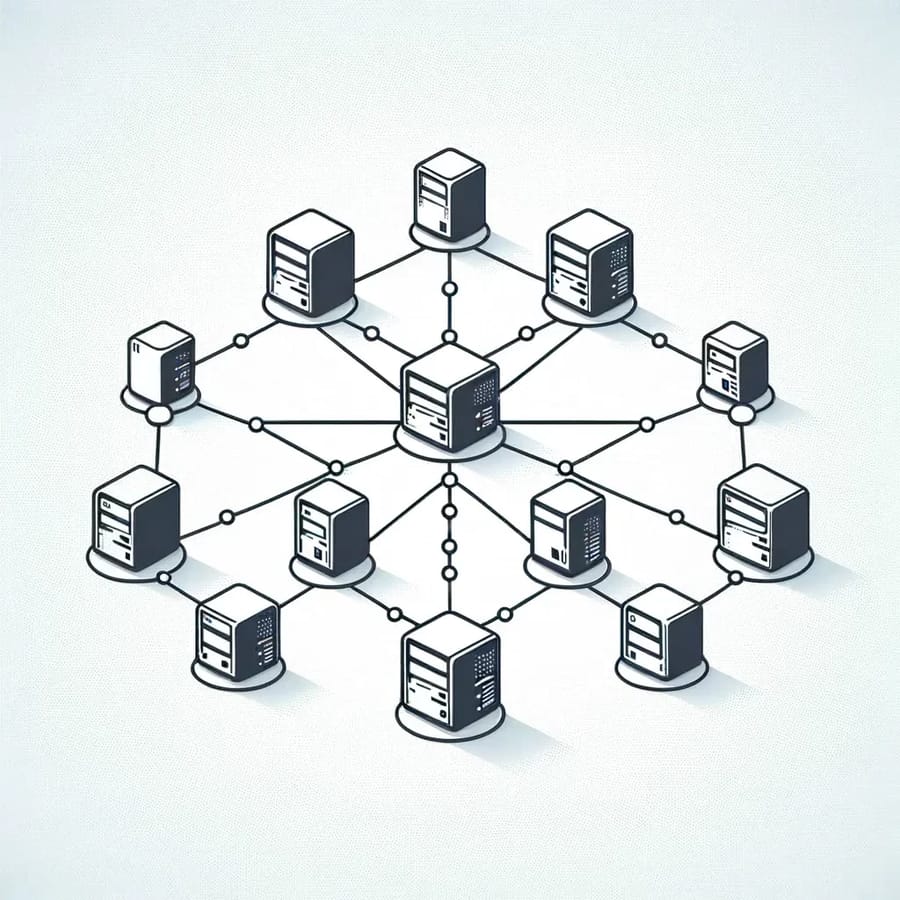
In this topology, every device is connected to its nearest node and all the other nodes on the network. There are several links in a mesh topology. Say, if there is a network of 5 nodes, then every node has four links to connect to all the devices. There is no central server, so there is no dependency. But installation is complex. Also, it requires a massive amount of cables, making it a costly choice.
🌍 How Does It Differ From MAN and WAN?
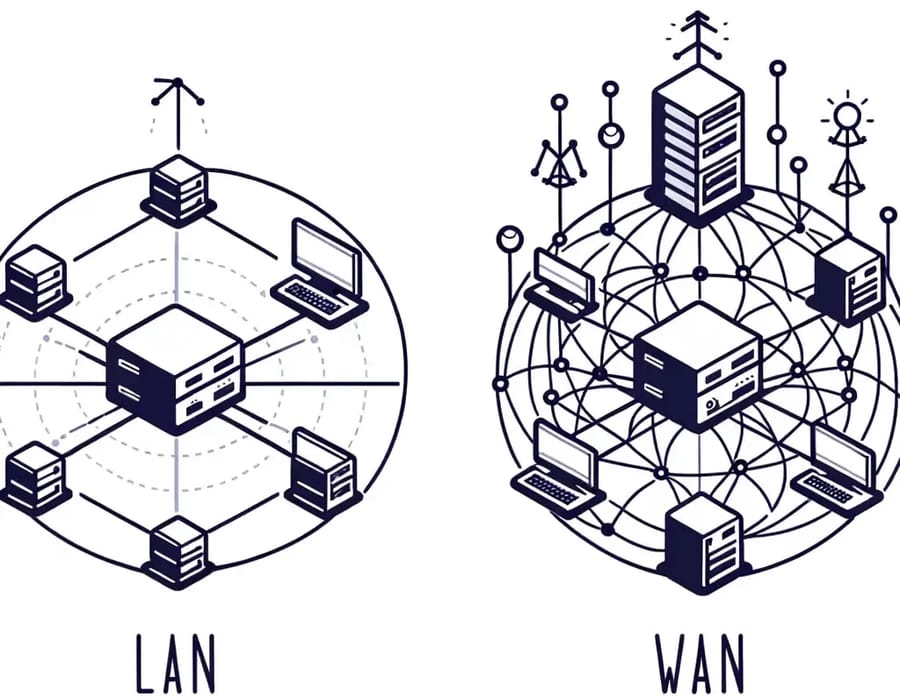
Architecture-wise, networks have been divided into LAN, MAN, and WAN. You learned about LAN, now understand how it differs from MAN and WAN.
- A LAN is fit for a small geographical location such as a home or building. The speed ranges from 10 Mbps to 1000 Mbps. The LAN is a privately-owned network.
- A MAN stands for Metropolitan Area Network. It uses fiber-optic cables to connect devices in different buildings scattered across a city or municipality. It uses Metro Ethernet to connect. A telecommunication company helps the operator to organize and manage the services. The earlier television disc connections are an example of the Metropolitan Area Network. The speed of a MAN is up to 100 Mbps.
- WAN is a Wide Area Network suitable for organizations that are spread across the globe. The area covered by a WAN is broad, and it allows organizations to transmit data across the locations with the help of a telecommunication company. Satellite technologies play an essential role in managing the network. The speed of a WAN connection is 10-20 Mbps. Read more about internet access technologies if you want the full picture on how the wide area links are delivered.
| Criteria | LAN | MAN | WAN |
| Area covered | Room to building | City or metro area | Country to global |
| Ownership | You own it all | City, campus or carrier | Carriers and ISPs |
| Typical tech | Ethernet, Wi-Fi | Metro Ethernet, fiber rings | MPLS, SD-WAN, internet VPN |
| Latency | Sub-millisecond | Low single-digit ms | Tens to hundreds of ms |
| Example | Office network | University campus links | Global company WAN |
LAN vs WLAN vs VLAN
People mix these constantly. A LAN is the network itself. A WLAN is the wireless portion of that LAN. A VLAN is a logical partition inside it. You can have a WLAN sitting on a VLAN inside a LAN — all three at once, no contradiction.
✅ Advantages Of Using LAN
Here are the benefits of establishing a LAN network.
- LAN allows software sharing. You can install the licensed software on a central PC and use it across the network without paying for distinct copies.
- It provides resource sharing, as you can share central server's printers, storage space, drives, etc. A dedicated file server is often the cleanest way to deliver those shares at scale.
- The data is stored in a centralized place, so all the users can access it from their respective nodes. In this way, a tab can be kept on access points.
- As a LAN is a smaller network, it is a very convenient way to share important messages and news in a timely manner.
- It is a cost-saving choice as one internet connection can be shared by all the connected devices.
- Only connected nodes can access the data stored on the server, which enhances the security.
⚠️ Disadvantages of LAN
There are certain disadvantages of using LAN, such as:
- The central server has the right to access all the nodes. Thus, LAN administrators can also look into the user's private data stored on the nodes. It is a violation of privacy rights.
- The cost of setting up a LAN network is quite high, especially when you are establishing a wired connection.
- You always need a system administrator handy to ensure timely network maintenance. It is easy to breach LAN security if LAN administrators are not vigilant.
- If one node catches a virus, it spreads to the entire network and can wipe out your data in minutes.
🛠️ How to Set Up a Basic LAN
- Gather hardware: router, switch with enough ports, Cat5e/Cat6 patch cables, access point if you need Wi-Fi.
- Cable the router's LAN port to the switch uplink, then each device to its own switch port.
- Let DHCP assign addresses, but reserve static IPs for the printer, NAS and any server.
- Test it:
ipconfigorifconfigto confirm an address, thenping 192.168.1.1andping 8.8.8.8. - Enable file and printer sharing (SMB on Windows) and verify from a second machine.
Common mistake? Plugging two switch ports into each other and creating a loop. Second most common: leaving the router's default admin password.
🔒 LAN Security Best Practices
- Change default admin credentials and restrict management access to one subnet.
- Use WPA3 (WPA2-AES at minimum) on wireless, and put guests on a separate SSID and VLAN.
- Segment with VLANs and enforce ACLs on your firewall between them.
- Enable port security on managed switches; shut down unused ports.
- Patch firmware on routers, switches and APs — this is where most networks rot.
- Treat MAC filtering as speed-bump only. It's trivially spoofed.
- Log, monitor, back up device configs, and use a VPN for remote access. If you want to run your own tunnel endpoint instead of trusting a third-party service, our VPN server plans and OpenVPN server hosting cover both the setup and the hardening.
For deeper hardening once the tunnel is up, the guide on how to secure a VPN server walks through firewall rules, DNS leak protection, and SSH hardening step by step. If your team works remotely, using a VPN server for remote work explains the client-side workflow and the split-tunnel decisions. And if you're still weighing whether a VPN is the right tool at all, what VPNs are used for covers the common scenarios.
🚨 Common LAN Issues and Solutions
Local Area Networks (LANs) are crucial for the seamless operation of interconnected devices within a defined geographical area. Despite their advantages, LANs can encounter various issues that affect performance, connectivity, and overall network health. Below, we explore some common LAN issues and their potential solutions to help maintain a robust and efficient network.
1. Slow Network Speeds
- Symptoms: Web pages load slowly, files take a long time to transfer, and videos buffer frequently.
- Solutions: Check for and remove any unnecessary devices or applications consuming bandwidth. Upgrade network hardware if it's outdated. Use LAN speed test tools to pinpoint bottlenecks.
2. Intermittent Connectivity
- Symptoms: Devices frequently disconnect from the network or experience fluctuating signal strength.
- Solutions: Ensure wireless access points are optimally placed and not obstructed. Replace faulty cables and connectors. Update network drivers and firmware on devices and network hardware.
3. IP Address Conflicts
- Symptoms: Devices cannot connect to the network, or multiple devices are mistakenly assigned the same IP address.
- Solutions: Set up a Dynamic Host Configuration Protocol (DHCP) server to automatically assign unique IP addresses. Manually configure static IP addresses for critical devices to avoid conflicts.
4. Network Congestion
- Symptoms: Network performance degrades during peak usage times, leading to delays and packet loss.
- Solutions: Implement Quality of Service (QoS) settings to prioritize critical traffic. Segment the network with VLANs to reduce broadcast traffic and improve management.
5. Security Breaches
- Symptoms: Unauthorized access to the network, data theft, or malware infections.
- Solutions: Implement firewall policies and network encryption. Regularly update antivirus software and educate users on security best practices. Conduct frequent security audits.
6. Hardware Failures
- Symptoms: Complete loss of connectivity, network devices not powering on, or physical damage to networking equipment.
- Solutions: Regularly inspect and maintain hardware. Have redundancy plans in place, such as spare routers or switches. Consider using managed services for critical components.
7. Software Configuration Errors
- Symptoms: Devices unable to communicate correctly, services not available, or network protocols malfunctioning.
- Solutions: Verify configuration settings on network devices and servers. Ensure that all network equipment is running compatible software versions. Reset configurations to default settings if necessary and reconfigure.
8. Wireless Interference
- Symptoms: Poor wireless signal strength, dropped connections, or slow data rates.
- Solutions: Change the wireless channel on routers and access points to avoid interference from other networks. Ensure that devices are using the 5GHz band where possible for less congestion.
Preventing Common LAN Issues
To minimize the occurrence of these issues, regular network monitoring and proactive maintenance are key. Implementing a robust network design from the outset, with consideration for future scalability and redundancy, can also mitigate many common problems. Training network users on best practices and security awareness can further protect your LAN from various issues, ensuring a stable and secure network environment.
📊 LAN Speed Test Tools
When managing or setting up a Local Area Network (LAN), it's crucial to ensure that your network operates at optimal speeds to handle data transfer, file sharing, and communication tasks efficiently. Several tools are available that can help you test the speed of your LAN, providing valuable insights into its performance and helping identify potential bottlenecks. Below are some of the most recommended LAN speed test tools, along with a brief overview of their features and how they can be used to analyze your network's performance.
1. LAN Speed Test (Lite)
- Description: LAN Speed Test (Lite) by Totusoft is a simple yet powerful tool designed to measure the speed of your wired or wireless LAN. It tests the time it takes to send and receive data between computers on your network, providing results in terms of transfer rates and potential delays.
- Features: Easy to use, no need for complex configurations; measures write and read speeds.
- Usage: Ideal for quickly checking the performance of your LAN without extensive setup.
2. NetStress
- Description: NetStress is a network benchmarking tool that measures the throughput and performance of your LAN. It can be used to test the speed between two computers on your network using TCP or UDP data streams.
- Features: Supports multiple network adapters, provides detailed graphs and statistics for throughput.
- Usage: Best suited for more detailed analysis and troubleshooting network performance issues.
3. Wireshark
- Description: While primarily known as a network protocol analyzer, Wireshark can also be used to monitor LAN speeds by capturing and analyzing packets flowing through the network.
- Features: Detailed analysis of network traffic, identification of bottlenecks, and performance issues.
- Usage: Recommended for advanced users needing in-depth network analysis and monitoring.
4. iPerf3
- Description: iPerf3 is a highly versatile network testing tool that can be used to measure the maximum achievable bandwidth on IP networks, including LANs. It supports testing of both TCP and UDP data transfers.
- Features: Test bandwidth, latency, and packet loss; support for various parameters to customize tests.
- Usage: Suitable for both basic and advanced users looking to conduct thorough bandwidth tests.
5. NetIO-GUI
- Description: NetIO-GUI is a graphical interface for the command-line network benchmarking tool NetIO. It measures the network speed between two computers using various protocols.
- Features: User-friendly interface; supports multiple protocols; provides detailed results for throughput tests.
- Usage: Great for users who prefer a graphical interface for testing and comparing network speeds.
6. SpeedTest Master
- Description: SpeedTest Master is a broadband speed test tool that can also be used to test LAN speeds, especially useful for testing the speed of your internet connection to the devices within your LAN.
- Features: Easy to use with a simple interface; provides detailed reports on ping, download, and upload speeds.
- Usage: Ideal for quickly checking internet and LAN speeds on various devices without technical knowledge.
🧭 Troubleshooting and Speed Testing
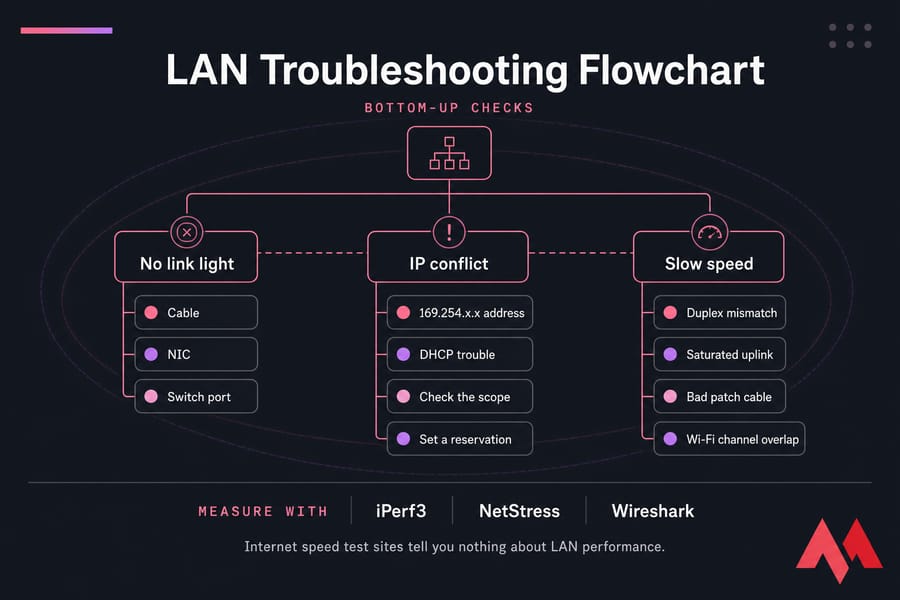
Work bottom-up. No link light means cable, NIC or switch port. An IP conflict or 169.254.x.x address means DHCP trouble — check the scope or set a reservation. Slow speeds usually trace to a duplex mismatch, a saturated uplink, a bad patch cable, or Wi-Fi channel overlap.
For measurement: iPerf3 is the tool I reach for first (raw TCP/UDP throughput between two hosts), NetStress is friendlier on Windows, and Wireshark is what you open when you need to see why, not just how fast. Internet speed test sites tell you nothing about LAN performance.
🎯 Key Takeaways
- LAN stands for Local Area Network — devices connected within one limited area.
- Modern wired LANs are switched star networks, not shared single-cable systems.
- A LAN works without internet; the router only handles outbound traffic.
- Core gear: switch, router, access point, NICs, Cat5e/Cat6 cabling.
- WLAN is the wireless part; VLAN is logical segmentation within the same LAN.
- Security comes from segmentation, WPA3, patching and disabled unused ports.
🏁 Conclusion
This is all about LAN. From this comprehensive guide, you can learn the characteristics of LAN, how it can be helpful, its benefits and limitations, its different architecture types, and how it differs from MAN and WAN.
An organization must learn about the different options and then choose a networking architecture that is best suited for it. Now that you know about the various networks decide what's best for your organization. If you're building the environment from scratch or moving it off-site, a VPS and a dedicated server both give you a clean foundation to run your own VPN endpoint, file shares, and internal services without relying on hardware you have to babysit.


I'm fascinated by the IT world and how the 1's and 0's work. While I venture into the world of Technology, I try to share what I know in the simplest way with you. Not a fan of coffee, a travel addict, and a self-accredited 'master chef'.