Managing your domain properly protects your website, email, and overall online presence. A domain isn’t just a web address it’s the core of your digital identity and how users recognize and trust your brand.
When configured correctly, everything works seamlessly. Your site loads, emails are delivered, and connected services function without interruption. But small misconfigurations can cause downtime, lost messages, or security vulnerabilities.
Your domain control panel is the command center. This is where you manage DNS records, renew your domain, update contact details, change nameservers, and apply security settings. Understanding how it works means you stay in control — not guessing what each change might break.
In this guide, we’ll cover the tasks that actually matter and explain key terms in plain language so you can manage your domain confidently and avoid costly mistakes.
If you’re just getting started, build a strong foundation first by reading What Is a Domain Name. Once you understand the basics, everything from DNS settings to renewals becomes much easier to manage.
What Is a Domain Control Panel?
A domain control panel is the administrative dashboard provided by your domain registrar. It allows you to manage every aspect of your domain without needing direct server access.
Unlike hosting dashboards, which manage files and applications, a domain control panel strictly handles domain-level configurations. If you’re unsure about the difference, review Web Hosting Control Panels to understand how hosting and domain management operate at different layers.
Proper domain management ensures:
- Your website points to the correct server
- Email services function properly
- Ownership information remains valid
- Your domain is protected against unauthorized transfers
How to Access Your Domain Control Panel
Accessing the panel is straightforward:
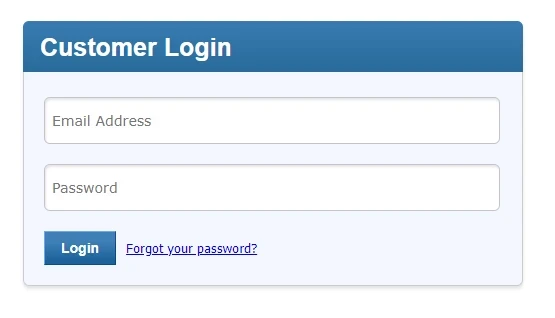
- Visit your registrar’s domain control panel login page.
- Enter your account credentials.
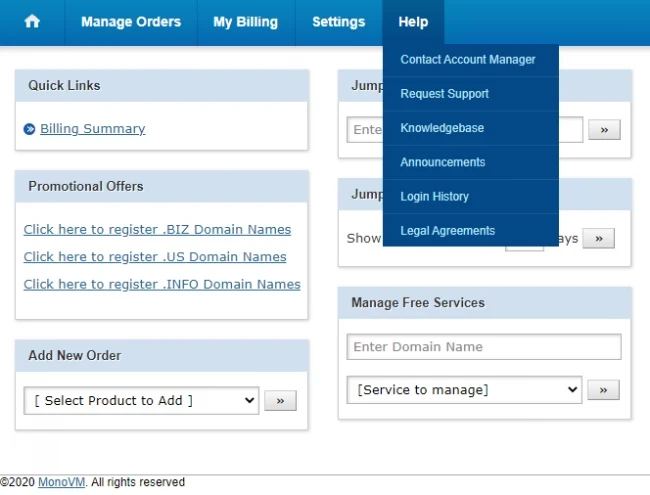
- Navigate to the “Manage Orders” section.
- Select the domain you want to manage.
Inside the dashboard, you’ll typically see sections for DNS management, contact details, renewals, and security settings.
If you haven’t updated your credentials recently, it’s highly recommended to change your password in the Domain Control Panel to maintain account security.
Managing DNS Records
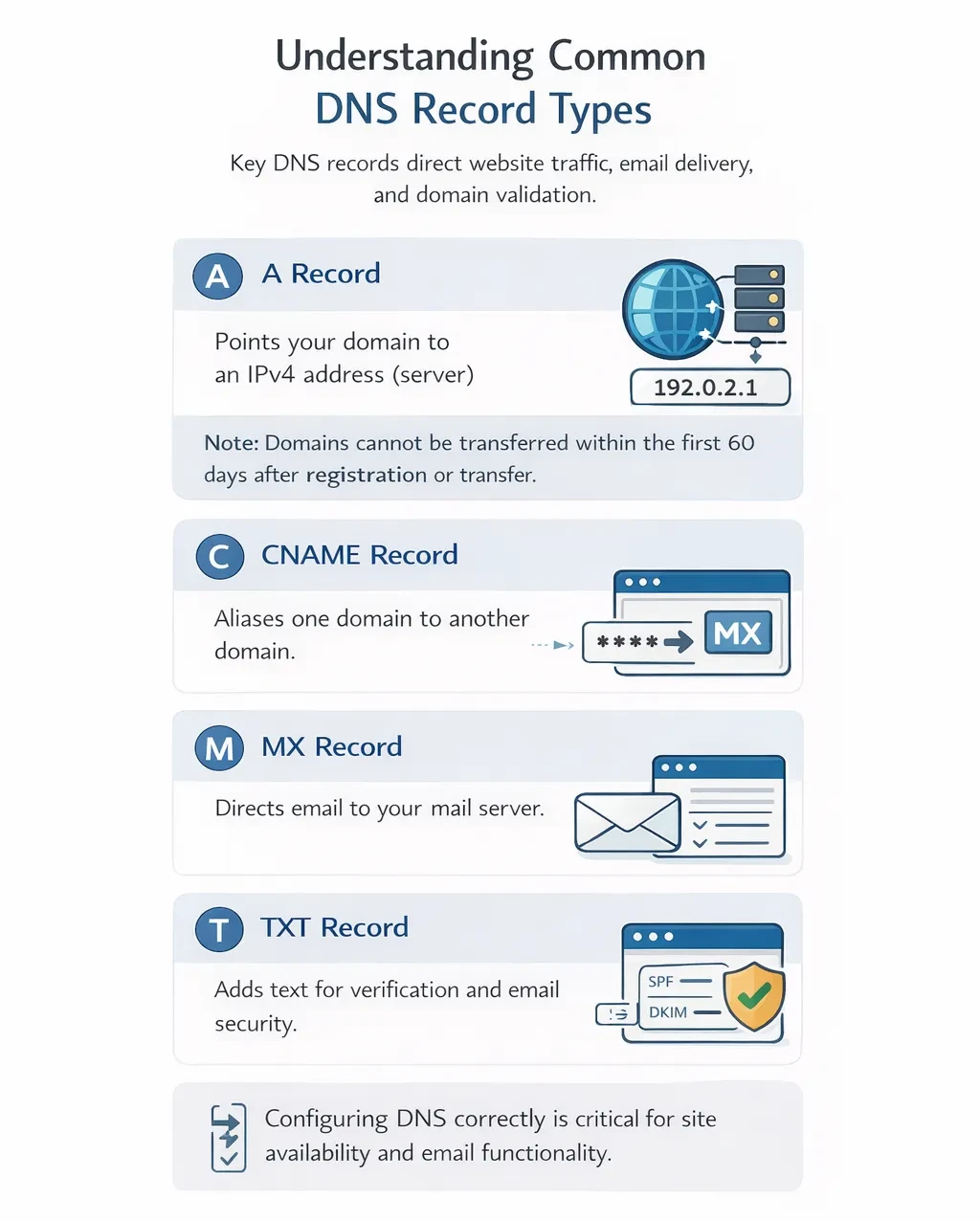
DNS (Domain Name System) records determine how your domain interacts with websites, email services, and third-party verification systems. They act as instructions that tell the internet where to send visitors, how to route email messages, and how to confirm domain ownership. Without properly configured DNS records, your website may not load, emails may fail to deliver, and important services may stop functioning correctly.
The most commonly used DNS record types include:
- A Record: Connects your domain to a specific IPv4 address, typically the public IP address of your server or VPS. This record is essential when hosting a website and ensures that visitors are directed to the correct server.
- CNAME Record: Points one hostname to another domain name instead of an IP address. It is commonly used for subdomains like “www” or when connecting your domain to external services and platforms.
- MX Record: Controls where incoming email messages are delivered. It directs email traffic to your designated mail server and ensures that messages sent to your domain reach the correct inbox.
- TXT Record: Stores text-based information used for domain verification and email authentication protocols such as SPF, DKIM, and DMARC. These records help protect your domain from spoofing and improve email security.
Understanding how these records work is critical before making any changes. For example, if you are connecting your domain to a VPS, you will usually need to update the A record with your server’s public IP address. Reviewing a practical deployment guide, such as a step-by-step walkthrough on How to Setup Domain on VPS , can help you see how DNS adjustments function in real-world scenarios.
When editing DNS settings:
- Always verify that you are modifying the correct record type.
- Double-check the IP address or target value for accuracy.
- Allow sufficient time sometimes up to 24 hours for global DNS propagation after making changes.
Even a minor typo or incorrect value can interrupt website availability or email functionality. Careful review and attention to detail are essential to ensure uninterrupted service and a smooth domain configuration process.
If you’re unsure whether to configure your setup using a root domain (example.com) or a subdomain (like blog.example.com), it’s important to understand the structural and technical differences before proceeding. Choosing the wrong approach can affect SEO, DNS configuration, hosting setup, and overall site organization. To make the right decision and avoid common structural mistakes, read Domain vs Subdomain before finalizing your configuration.
Updating WHOIS Contact Information
Your WHOIS information serves as the official ownership record for your domain. It contains important details about the registrant (owner), as well as administrative and technical contacts associated with the domain. These records verify who controls the domain and provide a point of contact for legal, operational, or transfer-related matters.
To update your WHOIS information:
- Go to the Contact Information section in your domain management panel.
- Edit the necessary fields, such as name, organization, email address, phone number, or mailing address.
- Save your changes and complete any verification process, such as confirming through a verification email, if prompted.
Maintaining accurate WHOIS information is mandatory. Incorrect, outdated, or false details can lead to serious consequences, including domain suspension, ownership disputes, or failed transfer requests. Keeping this information up to date is not just recommended it is a requirement for maintaining full control of your domain.
Domain Renewal Process
Domains must always be renewed before their expiration date to avoid service disruption and potential loss of ownership. A domain is not permanently owned after registration it is leased for a specific period (usually 1–10 years). If it is not renewed on time, your website, email services, and any connected applications may immediately stop functioning.
When a domain expires, several things can happen:
- Your website may display an expiration or parking page.
- Business email addresses linked to the domain may stop sending or receiving messages.
- API services, client portals, or SaaS integrations connected to the domain may fail.
- Search engine rankings can be negatively affected if downtime continues.
To renew your domain:
- Log into your domain registrar account.
- Go to your domain management dashboard.
- Select the domain you wish to renew.
- Choose the renewal period (for example, 1 year, 2 years, or longer).
- Confirm your payment details and complete the transaction.
It is strongly recommended to enable auto-renewal, especially for production websites, business domains, e-commerce stores, or any project generating traffic or revenue. Auto-renew automatically charges your saved payment method before the expiration date, significantly reducing the risk of accidental expiration due to missed reminders, expired credit cards, or administrative oversight.
If a domain is not renewed on time, it typically enters several phases:
- Grace Period
Immediately after expiration, most registrars provide a grace period (often 0–30 days). During this time, you can renew the domain at the standard renewal price without penalties.
- Redemption Period
If the grace period passes, the domain enters redemption. At this stage, the domain is removed from normal use, and restoring it requires an additional redemption fee — often significantly higher than the standard renewal cost.
- Pending Deletion
After redemption, the domain enters a short pending deletion phase. Once this ends, the domain becomes publicly available and can be registered by anyone.
Failing to renew on time can therefore result not only in downtime, but also in permanent loss of your domain including brand identity, traffic, customer trust, and SEO value.
If you are launching a new project, rebranding, or planning future development, securing your domain name early is a smart strategic move. Domain names are registered on a first-come, first-served basis, and high-value names are claimed quickly.
You can check availability and register your domain directly here Buy Domain with MonoVM.
Proactively managing renewals and securing domains early ensures long-term stability, brand protection, and uninterrupted online presence.
Domain Transfer Process
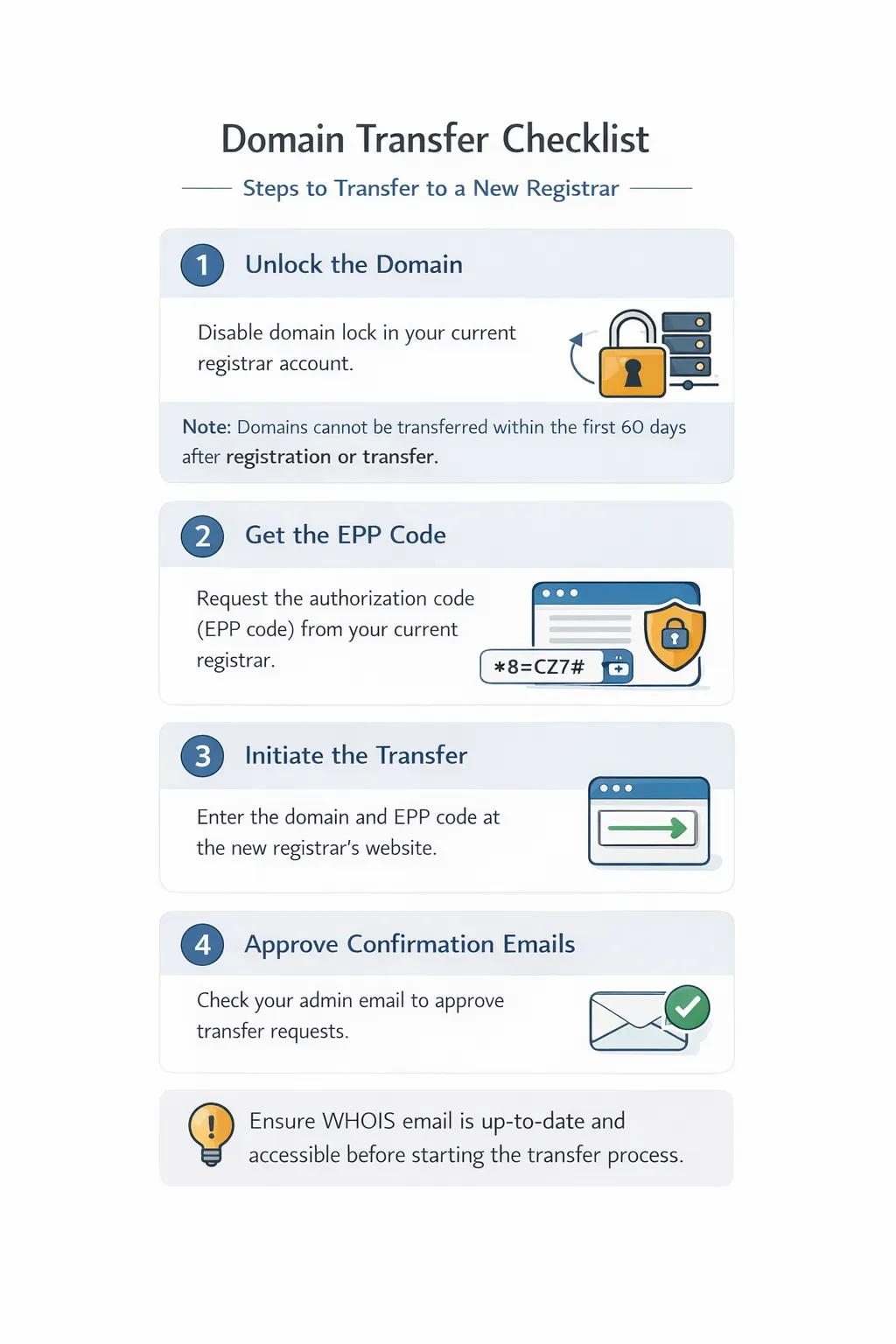
Transferring a domain to another registrar requires careful preparation to ensure a smooth and uninterrupted transition. While the process itself is straightforward, missing a step or overlooking verification details can delay or even cancel the transfer request.
Before starting the transfer, make sure the domain is eligible. According to ICANN regulations, domains cannot be transferred within 60 days of initial registration or within 60 days of a previous transfer. If your domain falls within this restriction window, you will need to wait until the lock period expires.
To begin the transfer process:
First, log into your current registrar account and disable the domain lock (sometimes called “Registrar Lock” or “Transfer Lock”). This security feature prevents unauthorized transfers, so it must be turned off before proceeding.
Next, request the EPP code (also known as the authorization code or transfer key) from your control panel. This unique code acts as a password for the domain and is required by the new registrar to verify that you approve the transfer.
Then, go to the new registrar’s website and initiate the transfer process. You will be asked to enter your domain name and provide the EPP code. After submitting the request, confirmation emails will be sent to the administrative contact email address listed in your WHOIS records. You must approve these emails to authorize the transfer.
It is extremely important to ensure that your WHOIS contact email address is active and accessible before beginning the process. If you cannot access the confirmation email, the transfer cannot be completed.
Once approved, domain transfers typically take between 5 to 7 days to finalize, although some registrars allow you to speed up the process by manually approving the release from the current provider.
Proper preparation verifying eligibility, unlocking the domain, confirming accurate WHOIS information, and monitoring approval emails helps prevent delays and ensures a seamless registrar transition.
Security Best Practices for Domain Management
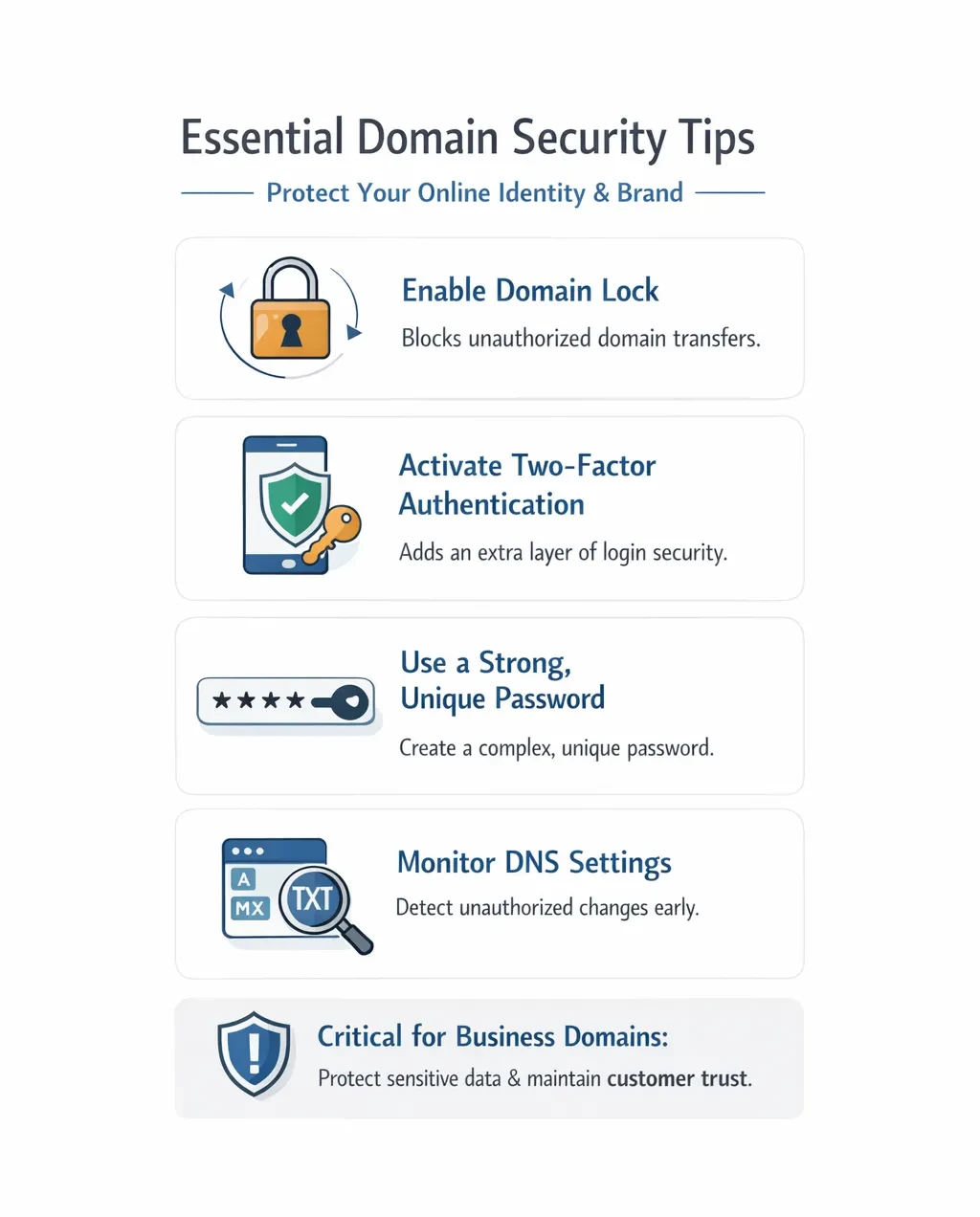
Domain security should never be overlooked. Your domain is the core of your online identity, and if it becomes compromised, the consequences can be serious. An attacker who gains control of your domain can redirect visitors to malicious websites, intercept email communications, launch phishing campaigns, or completely disrupt your services. Beyond technical damage, such incidents can severely harm your brand reputation and customer trust.
At a minimum, you should enable domain lock to prevent unauthorized transfers. Domain lock ensures that even if someone attempts to move your domain to another registrar, the transfer cannot proceed without first unlocking it from your control panel. This simple setting provides a critical layer of protection against domain hijacking.
You should also activate two-factor authentication (2FA) on your registrar account. Adding 2FA means that logging in requires not only your password but also a secondary verification method, such as a code generated on your phone. This significantly reduces the risk of unauthorized access, even if your password is exposed.
Using a strong, unique password is equally important. Avoid reusing passwords across multiple platforms, as a breach on one service can put your domain account at risk. A long, complex password stored securely in a password manager is strongly recommended.
In addition, regularly reviewing your DNS settings helps ensure that no unauthorized changes have been made. Unexpected modifications to A records, MX records, or TXT records may indicate that someone has accessed your account. Routine checks allow you to detect and address suspicious activity early.
These security practices are especially important for business domains that handle sensitive customer data, process payments, or manage confidential communications. For such domains, stronger protections and consistent monitoring are not optional they are essential to maintaining operational stability and protecting your organization’s digital assets.
Troubleshooting Common Domain Issues
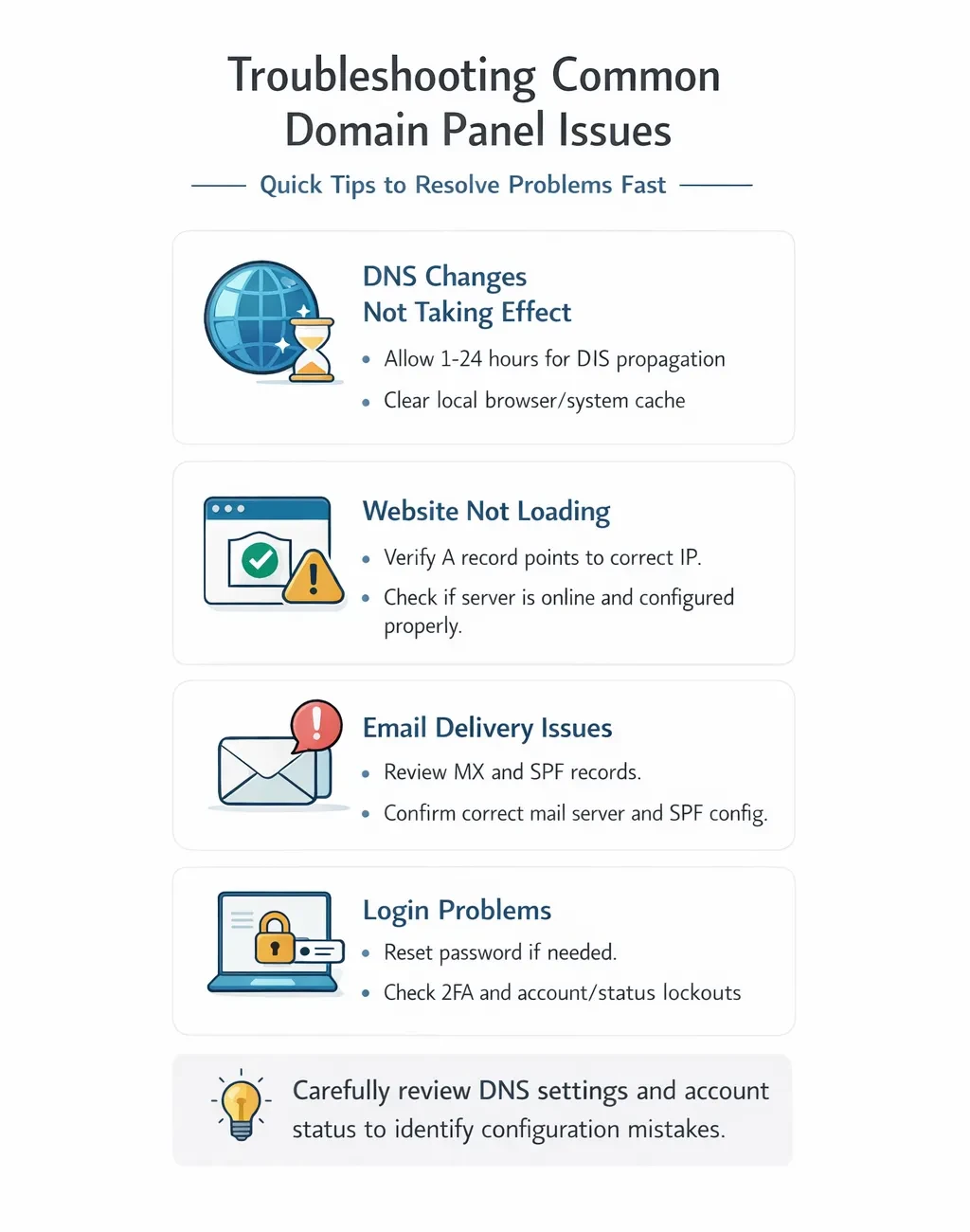
If your changes do not appear immediately after updating DNS settings, DNS propagation is usually the reason. When you modify a DNS record, the update must be distributed across DNS servers worldwide. Because many providers cache DNS information based on the record’s TTL (Time to Live) value, it can take several hours — and in some cases up to 24 hours for the changes to fully reflect globally. In many situations, simply waiting and clearing your local browser or system cache resolves the issue.
If your website fails to load after updating DNS, the first step is to verify that the A record is pointing to the correct public IP address. Even a small typo in the IP can prevent visitors from reaching your server. You should also confirm that the server itself is online, properly configured, and accepting connections. A correctly configured DNS record will not fix a server that is offline or misconfigured.
Email delivery issues are most commonly linked to incorrect MX records or improperly configured SPF records. If MX records point to the wrong mail server, incoming messages will fail to arrive. Similarly, an incorrect SPF configuration may cause outgoing emails to be rejected or marked as spam. Carefully reviewing these records usually resolves most email-related problems.
Login problems are typically account-related rather than DNS-related. In such cases, resetting your password, checking for account lockout notifications, or confirming two-factor authentication settings can often restore access quickly.
In general, most domain-related issues are caused by small configuration mistakes — such as incorrect record values, outdated IP addresses, or missing verification steps — rather than major system failures. Careful review and methodical troubleshooting usually identify and resolve the problem efficiently.
Final Thoughts
Your domain control panel serves as the central command center for your entire online presence. From this interface, you manage DNS records, renewal settings, ownership details, transfers, and security configurations. Every critical function that keeps your website accessible and your email operational begins here. Understanding how to properly navigate and manage these settings is essential to maintaining stability, performance, and protection.
Effective DNS management ensures that visitors are routed to the correct server and that email services function without interruption. Keeping track of renewal dates prevents unexpected expiration and service downtime. Properly handling transfers ensures smooth transitions between registrars when needed. Strengthening account and domain security settings protects against unauthorized access, hijacking attempts, and malicious configuration changes.
Whether you are running a personal blog, an e-commerce platform, or enterprise-level infrastructure, disciplined domain management is not optional. Small oversights — such as an expired domain, incorrect DNS entry, or disabled security feature can result in costly downtime, lost revenue, and reputational damage. Proactive management keeps your digital operations consistent and reliable.
If you are launching a new website or expanding your online presence, securing an appropriate domain name is one of the first and most important steps. Choosing and registering your domain early helps protect your brand identity, ensures availability, and provides a stable foundation for future growth.