Have you ever wondered how large companies manage to run hundreds of separate, secure operating systems at the same time using just a single physical server? The answer lies in a deep understanding of what a virtual machine (VM) really is. This technology allows businesses to make the most efficient use of their physical hardware by creating isolated, flexible workspaces while significantly reducing costs. In this comprehensive guide, you’ll learn what is virtual machine and how it works , what types of VMs exist, and why they’ve become so important today in terms of security and scalability.
What Is a Virtual Machine? (Core Definition)
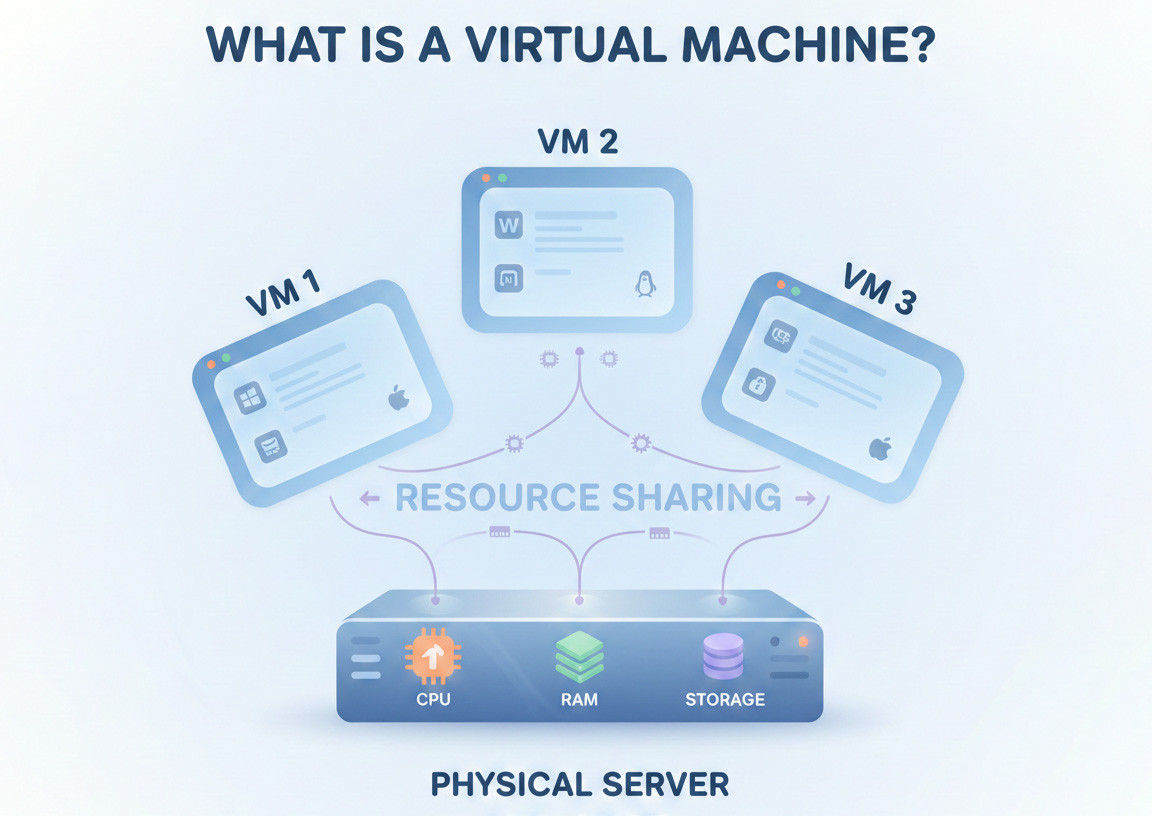
When we talk about a Virtual Machine (VM), we are referring to a fully independent execution environment that is created by software. A VM provides an isolated space where a guest operating system (Guest OS), along with all its applications, can run. This guest OS can be anything, from Windows and Linux to even older versions of operating systems.
Just like a regular computer, a virtual machine needs memory, CPU, storage, and virtualized network adapters.
The key word here is “virtual.” These resources are not physical; they are simulated by a software layer known as the hypervisor. This simulation is so convincing that the guest OS believes it is running on its own dedicated hardware. As a result, the VM operates completely independently from the host operating system.
A Fundamental Distinction: VM vs. Physical Machine
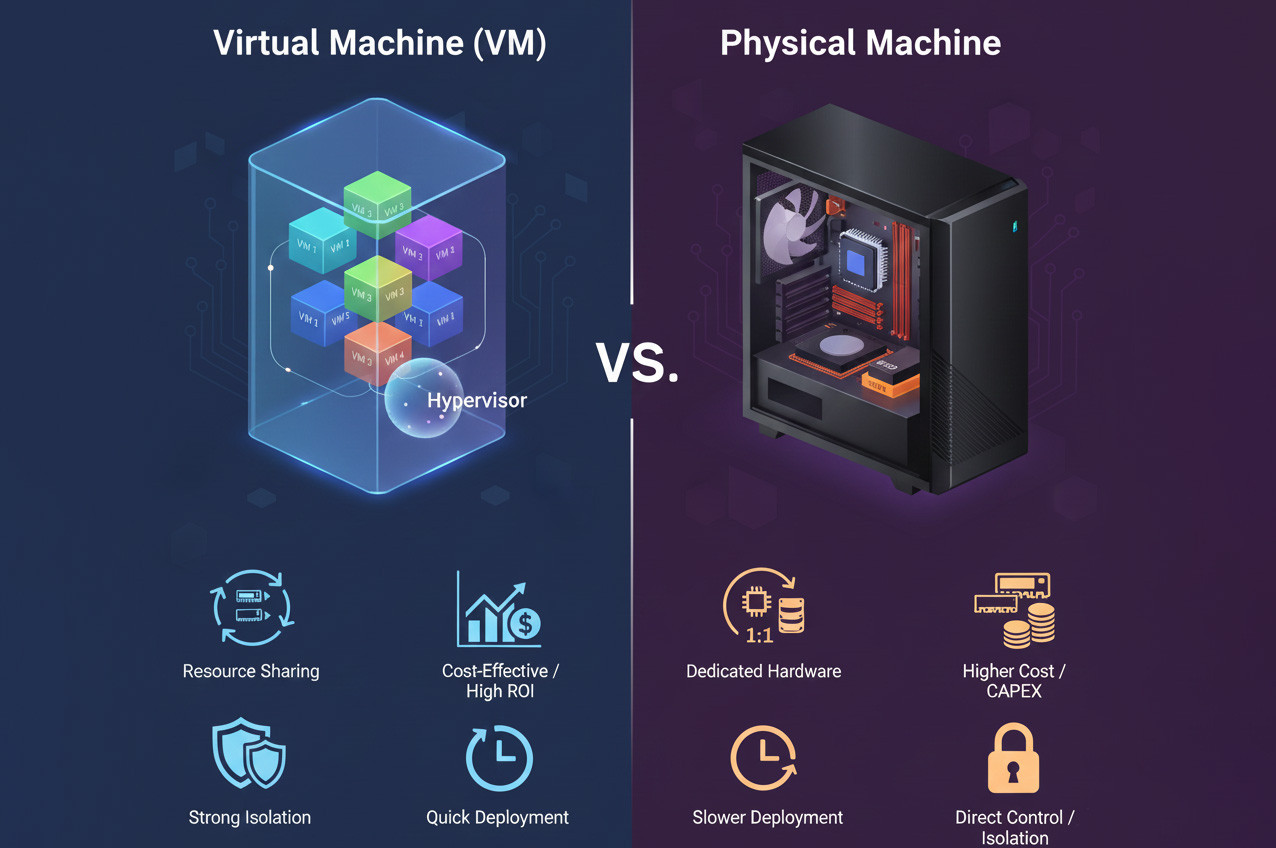
Understanding the difference between a VM and a physical machine is essential for anyone managing IT infrastructure. The main difference lies in how resources are managed and how the cost structure works.
|
Comparison Aspect |
Virtual Machine (VM) |
Physical Machine |
|
Resource Sharing |
Shares the host hardware resources, managed by the hypervisor. |
All hardware resources are fully dedicated. |
|
Isolation |
Strong isolation at the hypervisor level. Each VM is completely separated. |
Isolation depends on the physical architecture and the operating system. |
|
Cost and Economics |
Cost-effective and reduces the need to buy multiple hardware systems. Offers better return on investment. |
Higher costs for purchasing, maintaining and powering the hardware. |
|
Performance |
May experience slight overhead under extremely heavy workloads because of the hypervisor. |
Maximum performance and very low latency thanks to direct hardware access. |
|
Deployment Speed |
Quick to deploy and ready within minutes. |
Deployment and installation take more time. |
Physical machines are ideal for demanding and mission-critical workloads that require raw performance and complete hardware control, such as sensitive research projects or banking systems. In contrast, VMs are designed to optimize resources, improve efficiency and reduce CAPEX and maintenance costs. If you want to run several different workloads on a powerful server, VMs are the best option available.
How Does a Virtual Machine Work?
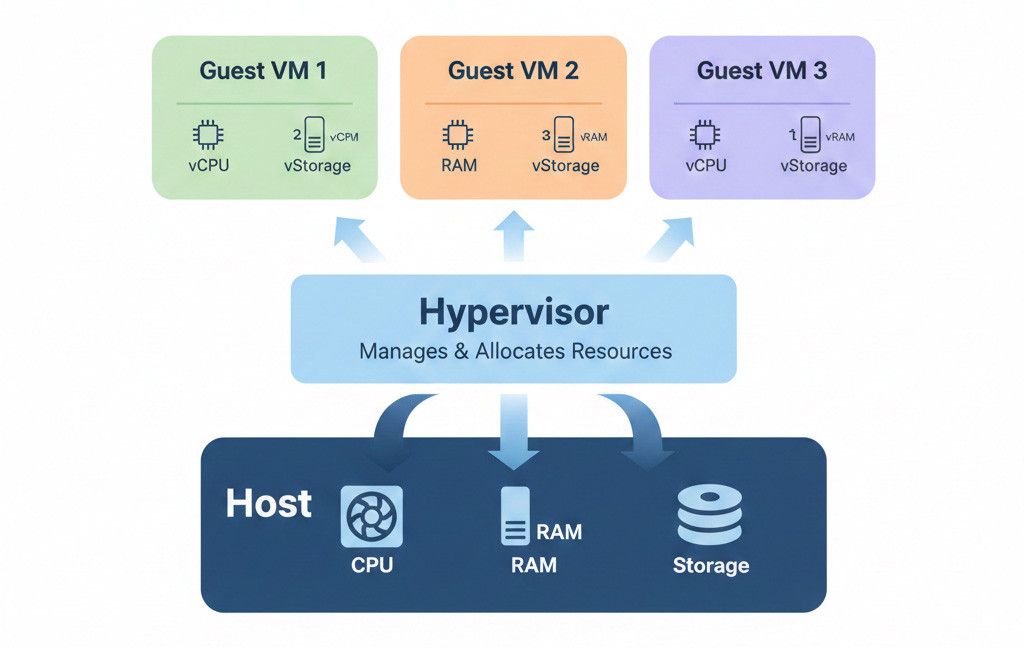
Virtual machines operate through virtualization technology. In practice, virtualization relies on software called hypervisors, which allow multiple VMs to run on a single physical device. The physical device is called the host, and the virtual machines running on it are referred to as guests.
Put simply, the hypervisor is responsible for allocating and managing resources such as RAM, CPU, and storage from the host to the guest. It also schedules operations across all VMs to ensure fair execution and proper timing for every workload.
It is worth noting that there are two types of hypervisors: Type 1 Hypervisors and Type 2 Hypervisors.
|
Feature |
Type 1 Hypervisor (Bare Metal) |
Type 2 Hypervisor (Hosted) |
|
Execution Method |
Runs directly on physical hardware with no need for a host operating system. |
Runs as an application on top of a host operating system. |
|
Advantages |
Lower performance overhead due to direct hardware access. Provides stronger isolation for each VM. |
Easier to manage and user-friendly, suitable even for non-technical users. |
|
Use Cases |
Ideal for enterprise-scale datacenter environments (production environments) requiring high performance and security. |
Suitable for personal use, testing, learning, or small-scale development environments. |
|
Examples |
VMware ESXi, Microsoft Hyper-V |
VirtualBox, VMware Workstation |
If you are building critical or cloud infrastructure, Type 1 is the right choice. If you only need a test or learning environment on your personal laptop, Type 2 will be sufficient. Once the hypervisor is in place, resource virtualization happens as follows:
CPU Virtualization
A common question is Does a VM have its own CPU? The short answer is no. The hypervisor takes the physical CPU and divides it into virtual units called vCPUs. These vCPUs are scheduled on physical cores as needed, creating the impression that each VM has full processing power.
RAM Virtualization
The hypervisor maps each VM’s assigned memory to the host’s physical RAM to keep workloads isolated. If total VM memory exceeds the host’s RAM, the system starts swapping and performance drops noticeably. Always make sure the host has more physical RAM than the combined allocation of all VMs.
Storage Virtualization
Storage systems like SAN and NAS are abstracted and presented to VMs as a unified storage pool. RAID is also a basic form of this, combining multiple disks into one logical unit. For better performance, store VM files on a separate disk from the host OS and allocate at least 10 GB per VM.
Learn more about the technology that powers these independent, efficient environments and how it works by checking out What is virtualization.
Components & Architecture of a VM
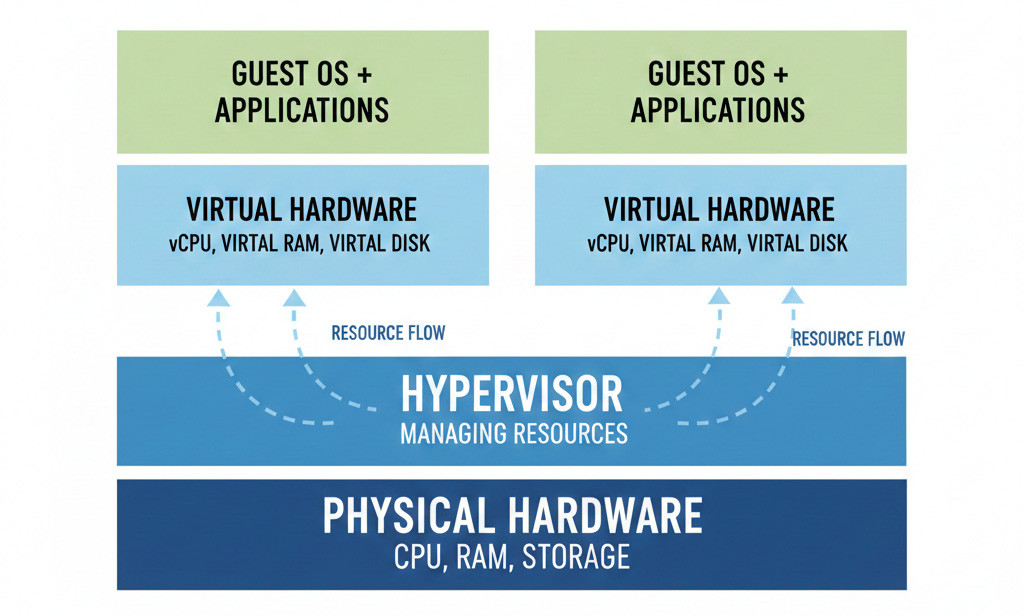
The architecture of a virtual machine consists of several layers that work together to create the illusion of a physical computer. You can understand the structure of a virtualized system as a stack, starting from the physical hardware up to the guest operating system:
- Physical Hardware (Host): This foundation includes the actual CPU, RAM and storage that provide the raw computing power for all virtual machines.
- Hypervisor: This software layer acts as the controller. Its main role is to isolate VMs from one another and manage how physical resources are allocated to each VM.
- Virtual Hardware: This layer is unique for each VM. It consists of configuration files that simulate hardware components such as virtual disks, virtual graphics adapters and vCPUs for the guest operating system.
- Guest OS and Applications: The guest operating system (such as Windows or Linux) runs on top of the virtual hardware. Your applications run inside this guest OS and remain fully isolated from the host environment.
In this architecture, the hypervisor ensures that each VM remains invisible to the others and that every VM believes it has the full resources it needs.
Types of Virtual Machines
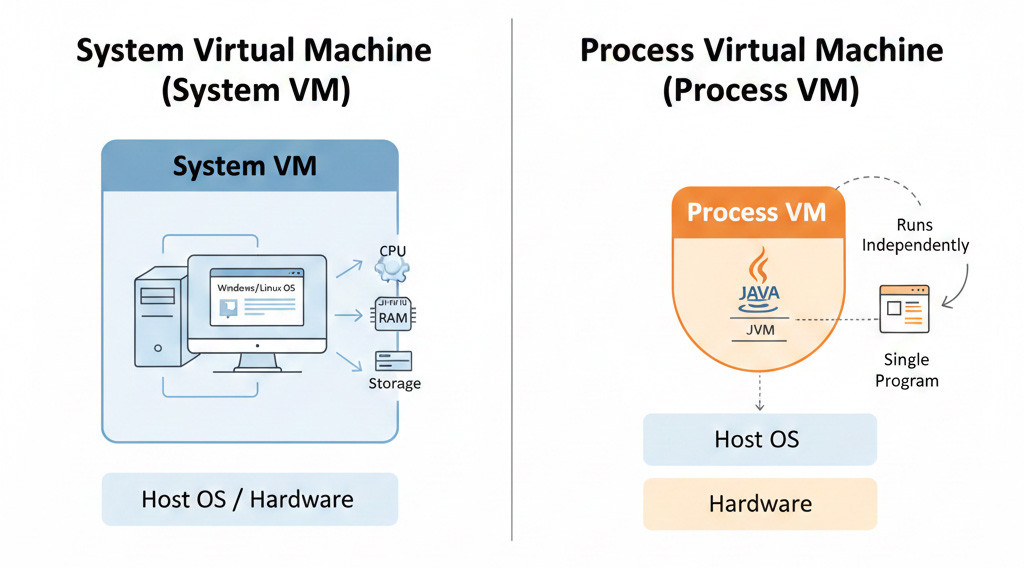
Generally, virtual machines fall into two main categories: process virtual machines and system virtual machines.
1. System Virtual Machine (System VM)
This is the most common type of VM. A system VM provides a full emulation of a physical computer’s hardware. It allows you to run an entire operating system (such as Windows, Linux or macOS) inside the host OS. These VMs play a critical role in server virtualization and creating isolated environments.
2. Process Virtual Machine (Process VM)
A process VM is designed to run a single program or process independently of the underlying platform. The best-known example is the Java Virtual Machine (JVM). The JVM interprets a special virtual machine language (often called bytecode) and enables applications written in languages like Java to run on any OS (Windows, Linux etc.) without modifying the code.
Beyond these two main categories, VMs can also be grouped based on their operating systems, such as Windows VMs, Android VMs, Linux VMs or VMware-based VMs. Learn more about the different options and explore which setup fits your needs best by checking out Virtual Machine Types.
What Are Virtual Machines Used For?
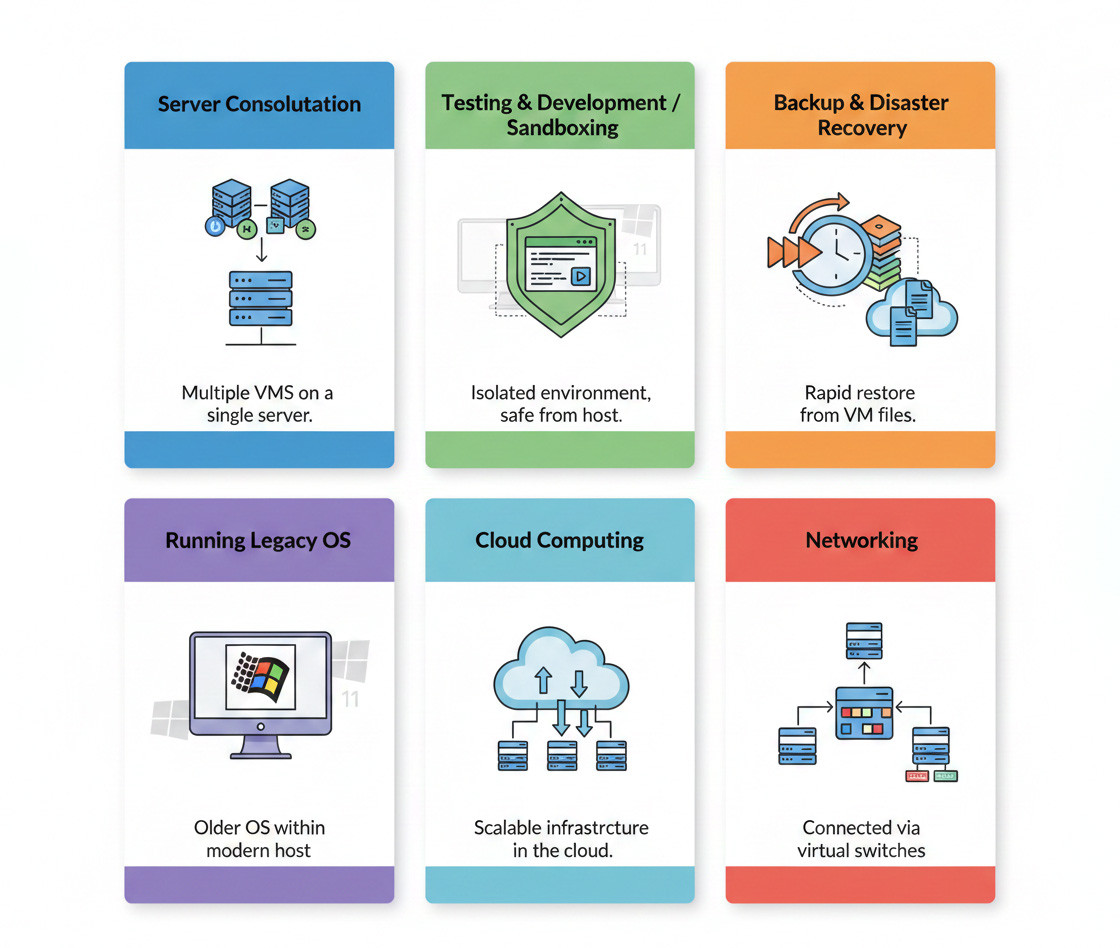
So, what is virtual machine used for? Because of the flexibility and isolation, they provide, virtual machines (VMs) play a role in nearly every area of modern IT.
Server Consolidation and High Efficiency
This is perhaps the most important use case for VMs. In the past, each service (such as a website, database or email server) required a separate physical machine. Virtualization makes it possible to run multiple operating systems and environments on a single powerful physical server.
This eliminates the need to purchase and manage multiple servers, reduces costs related to space, power and cooling, and ensures far more efficient use of hardware resources.
Testing, Development and Sandboxing
Development teams can quickly create isolated environments that mimic production systems, allowing them to test software without risking the stability of core systems.
Security professionals can also use VMs to execute malicious code or perform penetration testing inside a fully controlled environment (sandboxing), ensuring that no harm reaches the actual infrastructure.
Backup and Fast Disaster Recovery
One of the biggest advantages of VMs is that the entire OS, configuration and data are stored in one or more files (configuration files and virtual disks). This makes backing up, moving or copying them extremely easy.
If a physical server fails, recovery can take hours or even days. In a virtualized environment, however, restoring a VM from a backup typically takes only a few minutes.
Running Legacy or Incompatible Operating Systems
If you need to run applications that only work on older operating systems (such as Windows XP), you can run them inside an isolated VM while keeping your main operating system modern and secure.
Virtual Machine in Cloud Computing
Cloud VMs are virtual machines created on top of a cloud provider’s large virtualized infrastructure instead of local hardware. They can be launched, resized, and replicated on demand, offering fully flexible compute resources. Public clouds deploy VM instances through clustered hypervisors, which assign virtual CPU, RAM, and storage while managing scaling and high availability.
Virtual Machine in Networking
In networking, a VM uses virtualized network components instead of physical switches and routers. Hypervisors create virtual switches that connect VMs, enabling segmentation and VLAN based isolation. This allows administrators to build scalable, software defined networks without altering physical hardware.
Advantages & Disadvantages of Virtual Machines
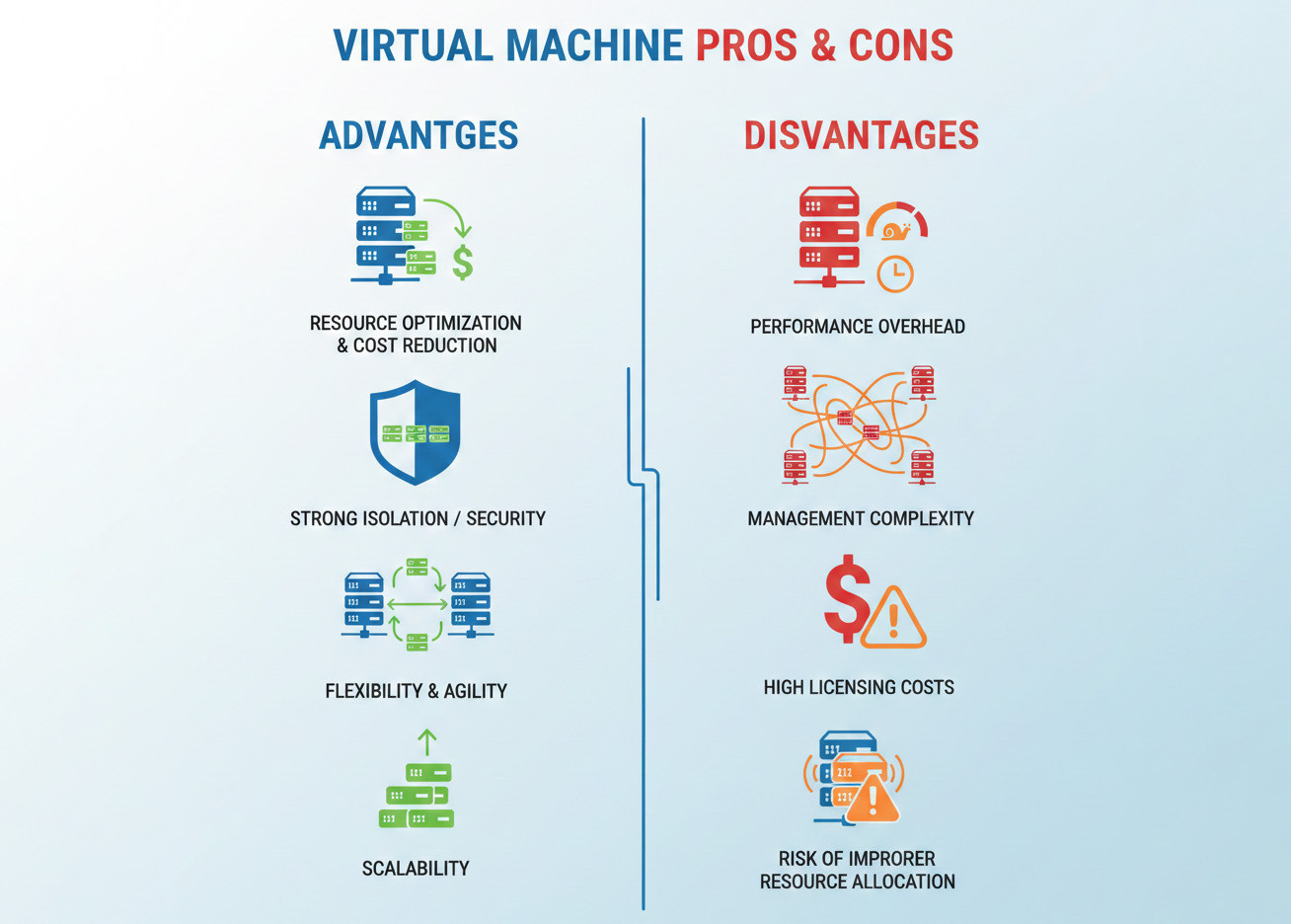
Before fully transitioning your infrastructure to virtualization, it’s essential to understand both its benefits and its limitations.
Key Advantages of Virtual Machines
Here are the main reasons why many organizations choose VMs as a core part of their infrastructure strategy:
- Resource Optimization and Cost Reduction: The biggest advantage is the ability to maximize the efficiency of a powerful physical server. This significantly reduces the costs of purchasing multiple physical machines, as well as ongoing maintenance and energy expenses.
- Strong Isolation (Security Isolation): Each VM operates in an independent, fully isolated environment with its own OS, kernel and resources. This means that if one VM encounters a security issue, the other VMs on the same host remain unaffected.
- Flexibility and Agility: Creating a VM is much faster and easier than setting up a new physical machine. With features like live migration, you can move VMs between physical servers without downtime, which greatly helps in backup, recovery and handling critical workloads.
- Scalability: You can easily scale your applications by adding more virtual servers, allowing workloads to be distributed more effectively and performance to increase.
These advantages demonstrate why virtualization is so widely adopted and valued in modern IT environments.
Disadvantages, Limitations and Challenges
Despite its strengths, virtualization also comes with a set of challenges that should be carefully considered:
- Performance Overhead: Even with modern hardware advancements, the hypervisor still introduces an additional software layer. This layer adds processing overhead, especially for applications that require very low latency and high performance.
- Management Complexity: Managing a large-scale virtualized infrastructure requires specialized expertise in hypervisors, virtual networking (NFV) and monitoring tools.
- Licensing Costs: Some of the most advanced commercial virtualization platforms, such as VMware, come with high licensing fees, which can be a significant challenge for organizations.
- Risk of Improper Resource Allocation: If resources are not managed properly, especially in cases of over-allocation, the host system may experience performance degradation, which can impact critical VMs.
Keeping these challenges in mind will help you design a more balanced and long-term virtualization strategy.
Virtual Machines vs Other Technologies
When you choose the right infrastructure to run your applications, the decision is no longer just about using a VM or not. Technologies such as containers, bare metal servers, and platforms like VirtualBox have expanded the options. The following table gives you a clear and fast comparison of these technologies.
|
Feature |
Virtual Machine (VM) |
Container |
Bare Metal Server |
VirtualBox |
|
Isolation |
Very strong, full OS kernel |
Medium, shared kernel |
Complete, direct hardware access |
Strong, similar to VM |
|
System Overhead |
High, full OS boot |
Very low |
None |
Medium |
|
Startup Speed |
Seconds to minutes |
Extremely fast, less than one second |
Instant after main OS boot |
Medium |
|
Performance |
Medium to high |
High |
Very high |
Low to medium |
|
OS Flexibility |
Can run multiple different OS types |
Limited to the host kernel |
Only one OS |
Supports multiple OS types |
|
Security |
Strong |
Good, depends on configuration |
Very strong |
Medium |
|
Best Use Cases |
Multi OS environments, isolated testing, servers |
Microservices, DevOps, fast scaling |
Heavy workloads, high performance computing, low latency apps |
Desktop usage, training, basic testing |
|
Examples |
VMware, Hyper V, KVM |
Docker, Kubernetes |
Dedicated servers |
Oracle VirtualBox |
Let us give you a Short Explanations for Each Comparison.
VM vs Containers
A VM contains a complete operating system with its own kernel, which provides stronger isolation. Containers share the host operating system kernel, so they are lighter, faster, and ideal for microservices. Choose VMs when security and OS separation matter most. Choose containers when speed and scalability are important.
For a deeper look at the differences, explore VM vs Containers to see when to choose each for your workloads.
VM vs Bare Metal
Bare metal servers run the operating system directly on hardware with no virtualization layer. This results in maximum performance and the lowest latency. VMs have some overhead but offer greater flexibility, scalability, and ease of management. For very heavy workloads and high-performance computing, bare metal is the better option. For general scalable environments, VMs are more practical.
VM vs VirtualBox
VirtualBox is not a technology that competes with VMs. VirtualBox is a Type 2 hypervisor used on desktops to create and run VMs. When people say “VirtualBox vs VM” they confuse the tool with the result. VirtualBox is the software and the VM is the environment created by that software.
For a complete understanding of infrastructure choices, check out VM vs VPS and VDI vs VM to see which fits your needs best.
How to Get a Virtual Machine (Beginner Guide)
Now it is time to get familiar with the process of creating a virtual machine. In this guide, we are using Oracle VM VirtualBox, which is free, open source and multi-platform.
Step 1: Download and Install Oracle VM VirtualBox
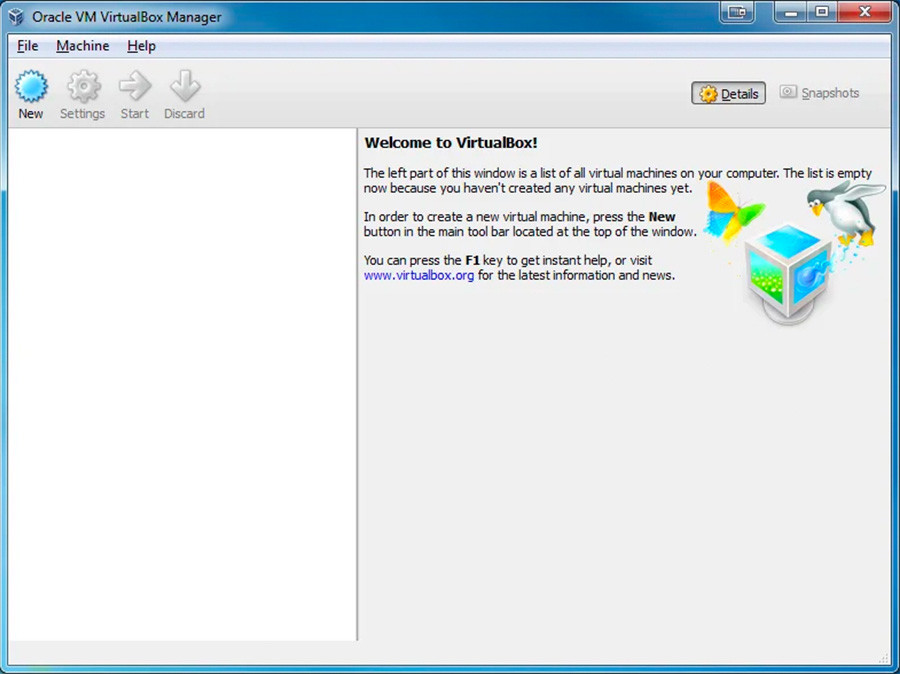
Download the version that matches your operating system and install it. It is best to keep all default settings during installation. You may also be asked to install additional Oracle components. If you see such a request, accept it so that all the required tools for creating a virtual machine are installed on your system. After a successful installation, you will see a window similar to the image below.
Step 2: Create a Virtual Machine
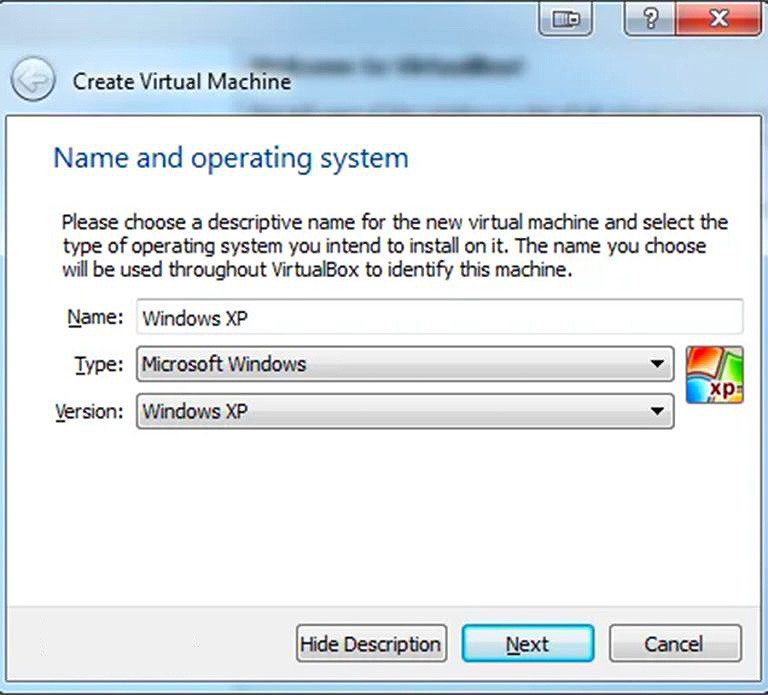
To create a virtual machine, open Oracle VM VirtualBox, choose File > New, and then enter a name for your virtual machine. It is recommended to choose a meaningful name. After entering the name, select the Type and Version based on the operating system you plan to install.
Step 3: Allocate Memory to the Virtual Machine
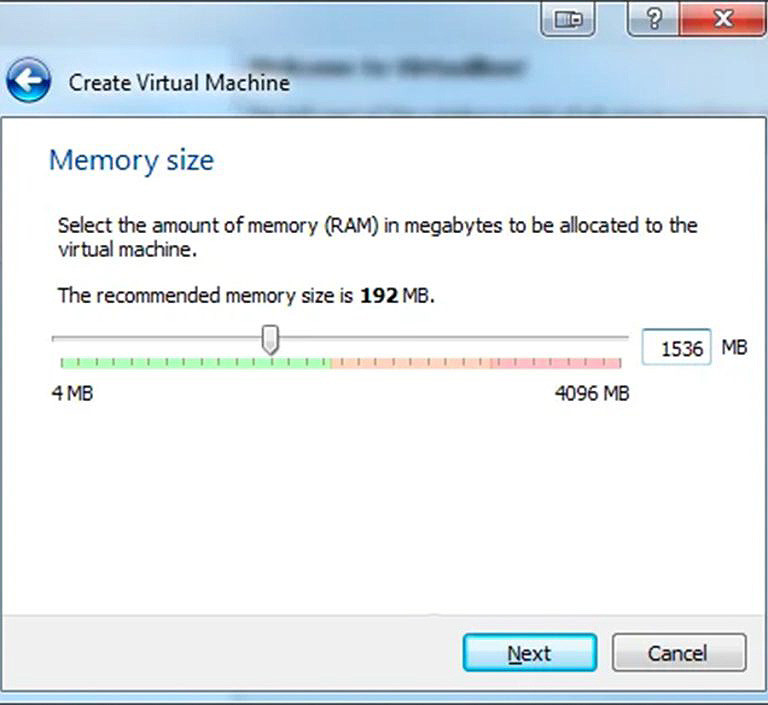
The amount of memory you assign depends entirely on your host system's RAM. It is recommended not to allocate more than half of your host RAM to a virtual machine.
For example, if you want to create a Windows virtual machine, allocate at least 1 or 2 gigabytes of RAM. If you plan to create a Linux based VM, allocate at least 513 megabytes of RAM.
Step 4: Set Up the Virtual Machine Hard Drive
After clicking Next in the previous step, a window will appear where you can configure the virtual hard disk.
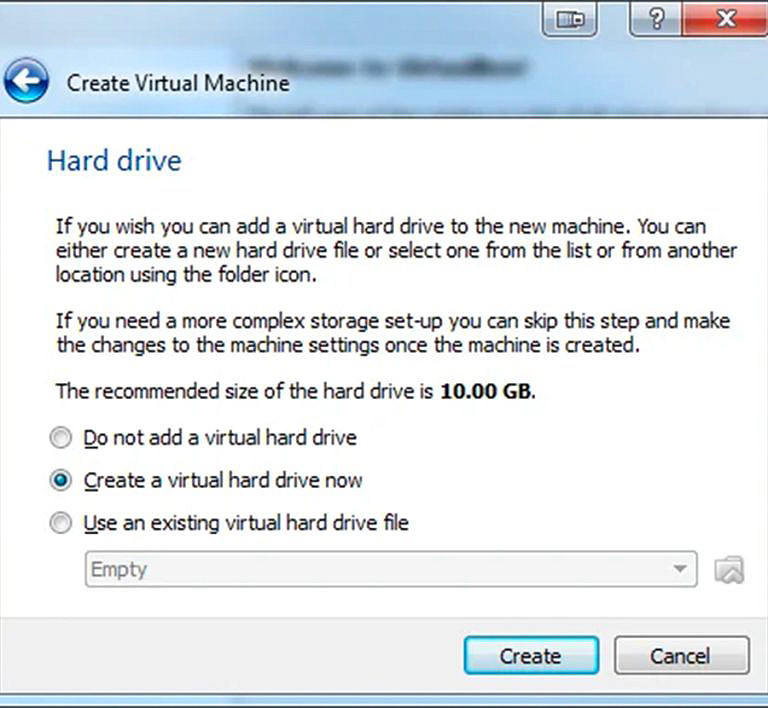
If you already have a virtual machine and want to add its hard drive, choose Use an existing virtual hard drive file. Otherwise, select Create a virtual hard drive now and then click Create.
Step 5: Choose the Hard Drive File Type
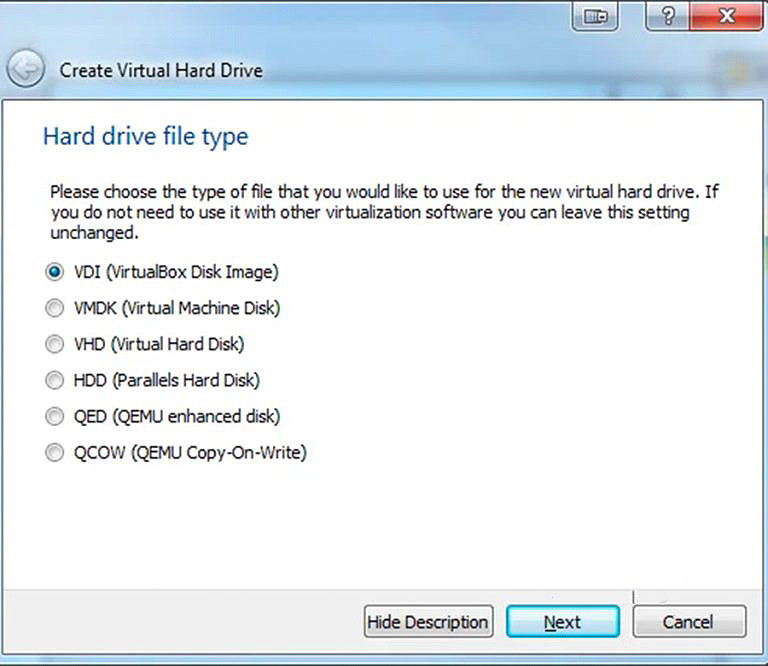
In the next window, choose VDI. This option usually provides the best performance. The virtual machine will be stored on your system as a .vdi file.
Step 6: Choose Storage on the Physical Hard Drive
After completing the previous step and clicking Next, a new window will appear.
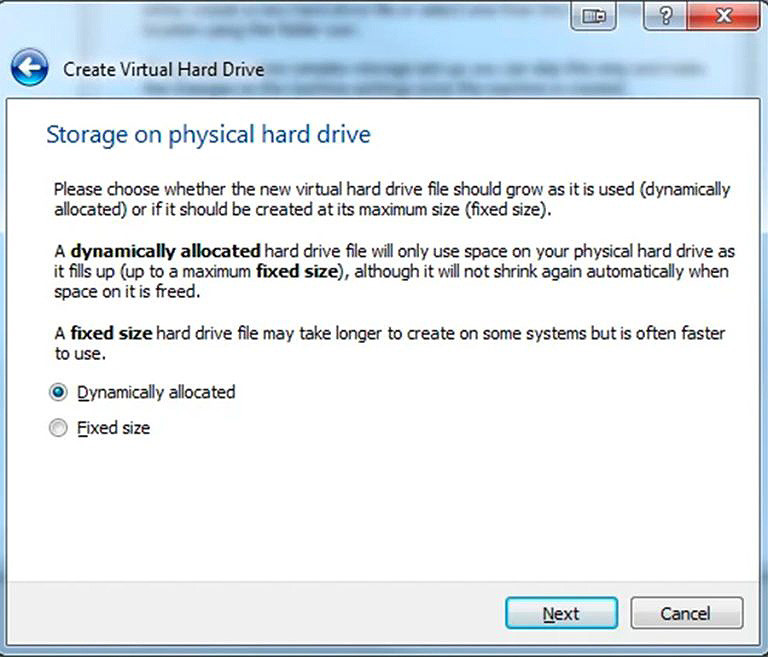
Although the Fixed Size option can provide slightly better performance, it takes up more space on your system. For this reason, we recommend using the Dynamically Allocated option.
Step 7: Set the File Location and Size
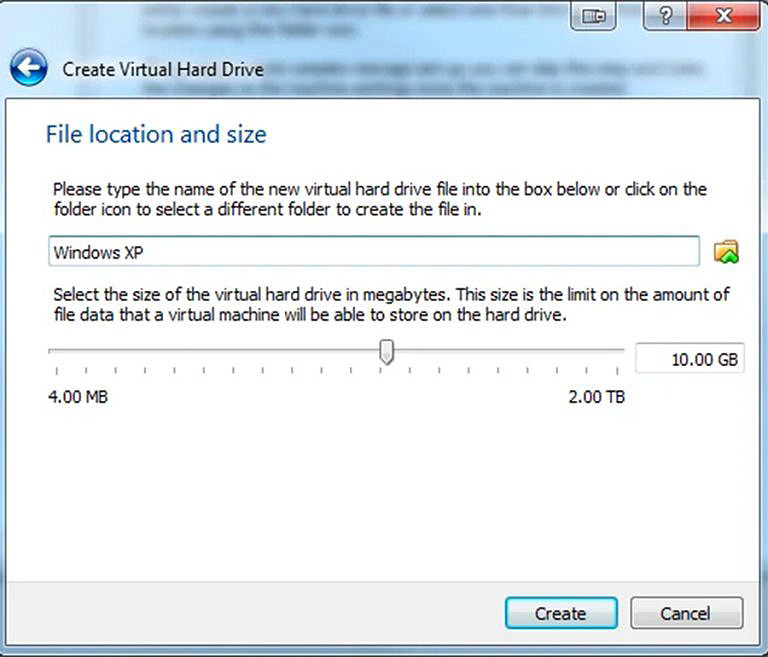
VirtualBox uses the minimum possible size as the default limit for virtual machine files. Depending on your needs, you may want to increase this limit. At the top of this window, you can also specify the file storage location. After completing this step, your virtual machine is created. Now you need to install an operating system on it.
Step 8: Install the Operating System on the Virtual Machine
Double click the newly created virtual machine. Its name is the one you selected in Step 2.
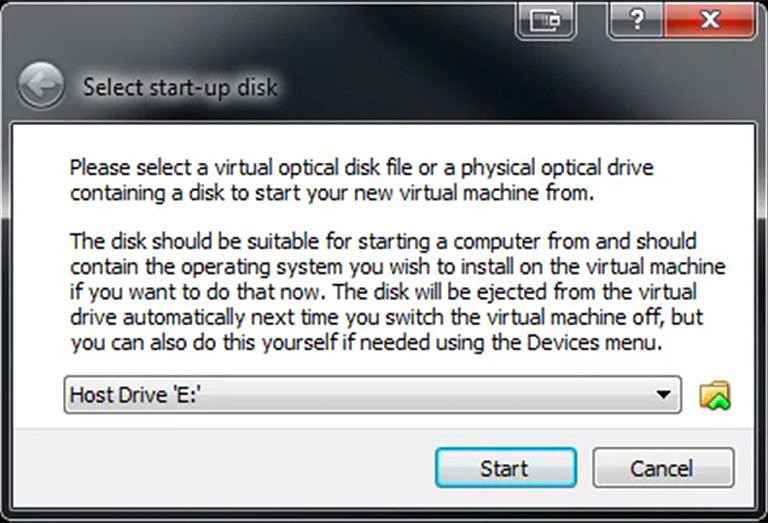
Now select the ISO file for the operating system you want to install and click Start. This will begin the installation process. The duration depends on different factors such as the type of operating system and the hardware power of your host machine.
After the installation is complete, your virtual machine with the chosen operating system is ready to use.
For a smooth start with Windows, check out What Is a Windows Virtual Machine and learn how to set up and run it step by step.
VM Monitoring & Management
Without active monitoring, you can never determine whether a VM is performing slowly because of its own internal workload or because it is competing with a noisy neighbor that is consuming excessive resources. This is why you should continuously track the following technical indicators:
- CPU Ready Time: This metric shows how long a VM has to wait before the hypervisor allows it to access the physical CPU cores. A high CPU Ready Time indicates excessive contention and insufficient resource allocation.
- Disk Latency and Network Traffic: Disk I/O bottlenecks are one of the most common causes of VM slowdowns. Monitoring network traffic also helps you identify communication bottlenecks and excessive bandwidth consumption.
- Virtual Machine Lifecycle and Snapshots: Track the state of the VM (running, paused, stopped) and manage snapshots carefully. Snapshots can be useful for quick rollbacks, but too many of them can consume significant storage space.
In enterprise environments where hundreds of VMs are managed, using platforms such as vSphere Client for VMware is essential. These tools provide both command line and web-based interfaces for centralized VM management.
Best Virtual Machine Software
Now you know that running a virtual machine requires a hypervisor. A hypervisor can exist as software, hardware, or even part of an operating system; however, the most commonly used ones are software-based hypervisors designed specifically for virtualization. Below are three of the top hypervisor software tools.
- VirtualBox: A free and popular virtualization tool for Windows, Linux, and macOS that supports multiple guest operating systems and useful features for testing and development.
- VMware Workstation: A widely used and free hypervisor that runs on major operating systems including Windows, Linux, and macOS.
- Parallels Desktop: A macOS-exclusive virtualization tool that makes creating and running VMs on Mac easy; it is paid software but offers an affordable personal edition.
These tools provide a solid foundation for creating and managing virtual machines, setting the stage for exploring their practical uses and benefits. Explore What is a Linux Virtual Machine to see how you can set up, run, and optimize Linux VMs using these top hypervisor tools.
It’s Time to Go Virtual
Virtual machines remain one of the core pillars of the digital era thanks to their strong isolation, cost efficiency, and high flexibility. So do not miss the chance to take advantage of this powerful technology. At MonoVM, we provide optimized and scalable VM hosting through our dedicated servers. We manage your infrastructure with top level security and performance standards, and more importantly, our 24/7 support team is always by your side so you never have to worry about performance issues or system instability. Start building your infrastructure with MonoVM today and enjoy uninterrupted support from day one.

An experienced tech and developer blog writer, specializing in VPS hosting and server technologies. Fueled by a passion for innovation, I break down complex technical concepts into digestible content, simplifying tech for everyone.