Quick Answer: Which Text Editor to Learn Right Now?
Stop. Before you read another hot take about "Vim superiority" or "Emacs is an operating system," let's cut to what actually matters: your workflow, your goals, your time.
Best Editor for Server Admins (Beginner)
🟢 Learn Nano first. It's preinstalled on almost every Linux distro, has no modes to worry about, and shows its own shortcuts at the bottom of the screen. If you SSH into servers to edit config files, Nano will never strand you.
Best Editor for Developers Who Code Daily
🔵 Learn Vim (or Neovim). The learning curve is real — expect 2–4 weeks before you feel comfortable. But modal editing, motions, and macros compound into dramatically faster text manipulation. Neovim adds async plugins, a modern config system, and an LSP client that rivals VS Code.
Best Editor for Power Customizers & Extensibility
🟣 Learn Emacs. Emacs isn't just an editor — it's a Lisp interpreter wearing an editor costume. With Spacemacs or Doom Emacs, you get a fully programmable environment. Yes, it takes time. But nothing else lets you script your editing experience this deeply.
Why Terminal Editors Still Matter for VPS and SSH Workflows
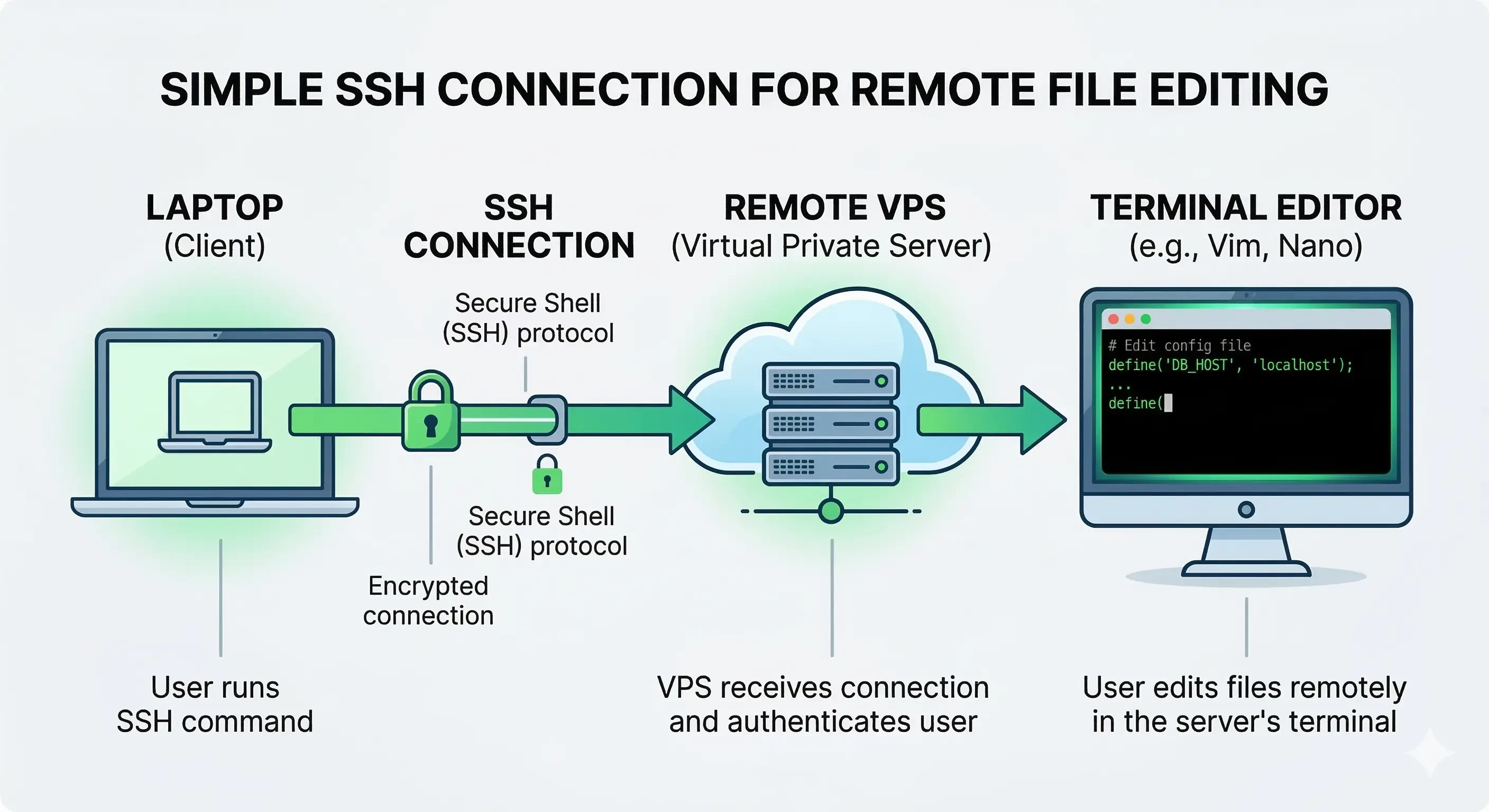
Graphical editors are beautiful. But the moment you SSH into a remote server at 2 AM to fix a broken nginx config, you're not launching VS Code.
Terminal editors remain essential because:
- SSH-only access — most VPS and cloud servers don't have a GUI, full stop.
- Low resource environments — lightweight containers and micro VPS instances (512MB RAM) can't afford running a graphical stack.
- Speed — editing a file on the server directly beats scp-edit-upload loops every time.
- Universality — Nano, Vim, and Emacs run on any POSIX-compatible system. They work over slow connections, high-latency links, and inside tmux panes.
💡 Don't have a practice server? Spin up a cheap Linux VPS on MonoVM to practice these editors in a real SSH environment. Ubuntu 22.04 LTS images are available with one click.
If you need help getting connected, check out How to SSH into a Linux Server before moving forward.
Nano — The Beginner-Friendly Terminal Editor
Nano was designed to be accessible. Unlike Vim and Emacs, it doesn't have hidden modes, arcane chords, or a configuration language. You open a file, type, and save. That's it.
Nano Quick Start: 5 Commands to Survive on a Server
# Open a file
nano /etc/nginx/nginx.conf

# With sudo for system files
sudo nano /etc/nginx/nginx.conf
| Action | Shortcut |
|---|---|
| Save file | Ctrl+O, then Enter |
| Exit | Ctrl+X |
| Search | Ctrl+W |
| Cut line | Ctrl+K |
| Paste | Ctrl+U |
The shortcuts are always displayed at the bottom of the Nano window — you'll never be stuck.
When Nano Is the Right Choice
- You need to edit a remote config file right now and move on.
- You're a sysadmin who reaches for the terminal occasionally, not a programmer living in it.
- You're brand new to Linux and don't want editing to be a stumbling block.
- Your team shares servers and you need an editor everyone can pick up without training.
Limitations of Nano
- No modal editing — no motions, no macros, no composable commands. Large-scale text manipulation is tedious.
- Minimal plugin ecosystem — no LSP support, no syntax-aware completion, no git integration built in.
- Not ideal for heavy coding — editing 500 lines of Python in Nano is functional but slow compared to Vim.
⚠️ Pro Tip: When editing critical /etc files, save to a temp file first as a safety net:
sudo nano /tmp/nginx.conf
# Edit, verify, then move into place:
sudo mv /tmp/nginx.conf /etc/nginx/nginx.conf
→ Want more Nano shortcuts? Read the Full Nano Text Editor Guide or How to Save and Exit Nano.
Vim & Neovim — Modal Editing and Long-Term Speed
Vim is not just an editor — it's a language for manipulating text. Once you internalize it, editing stops feeling like typing and starts feeling like thinking on the file.
The core insight: Vim is modal. You spend most of your time in Normal mode navigating and manipulating text, not typing. Insert mode is just one gear among many.
Vim Core Concepts: Modes, Motions, and Commands
| Mode | How to Enter | What You Do |
|---|---|---|
| Normal | Esc | Navigate, run commands |
| Insert | i, a, o | Type text |
| Visual | v, V, Ctrl+V | Select text |
| Command | : | Save, quit, search-replace |
Composable commands are Vim's superpower. You think in verbs + motions:
- dw — delete word
- ci" — change inside quotes
- yap — yank (copy) a paragraph
- >G — indent from cursor to end of file
Neovim Improvements & Modern Plugin Ecosystem
Neovim (2014–present) is a hard fork of Vim with key improvements:
- Lua-based configuration (faster and more readable than VimScript)
- Built-in LSP client — native language server support without plugins
- Async plugin execution — plugins don't block your editing
- Tree-sitter — better syntax highlighting than regex-based parsers
- Active community and plugin ecosystem — Lazy.nvim, Telescope, nvim-cmp
For new learners in 2024–2025, Neovim is the recommended starting point over classic Vim.
Quick Start: 5 Essential Vim Commands
# Open a file
vim ~/.bashrc
# or with Neovim
nvim ~/.bashrc
| Action | Command |
|---|---|
| Enter Insert mode | i |
| Return to Normal mode | Esc |
| Save | :w + Enter |
| Quit | :q + Enter |
| Save and quit | :wq + Enter |
| Quit without saving | :q! + Enter |
| Search | /your-term + Enter |
| Delete a line | dd (Normal mode) |
| Copy a line | yy (Normal mode) |
| Paste | p (Normal mode) |
⚠️ Stuck in Vim? Press Esc (you may need to press it twice), then type :q! and hit Enter. This quits without saving. You're free.
A minimal .vimrc to start with:
set number           " Show line numbers
set tabstop=4        " Tab width
set expandtab        " Spaces instead of tabs
set autoindent
syntax on
→ See the full Vim Cheat Sheet and How to Save and Exit Vim.
Emacs — The Extendable Programmable Editor
There's an old joke: "Emacs is a great operating system — it's just missing a decent text editor."
The punchline is the point. Emacs is built on Emacs Lisp (elisp), a full programming language, which means you can extend it to do virtually anything: write code, manage email, run git, keep a calendar, write org documents, browse the web. Many Emacs users never leave it.
Emacs Core Concepts: Buffers, Major/Minor Modes, Elisp
- Buffers — everything in Emacs is a buffer: files, terminals, git diffs, emails.
- Major modes — context-aware settings per buffer type (Python mode, Org mode, Magit).
- Minor modes — optional features you toggle (line numbers, spell check, whitespace highlight).
- Keybinding notation — C-x means Ctrl+X; M-x means Alt+X (Meta key).
Quick Start: 5 Essential Emacs Commands
# Open Emacs with a file
emacs /etc/hosts
# Or in terminal mode (no GUI)
emacs -nw /etc/hosts
| Action | Shortcut |
|---|---|
| Open file | C-x C-f |
| Save file | C-x C-s |
| Quit Emacs | C-x C-c |
| Search forward | C-s |
| Cancel/abort | C-g |
| Run any command | M-x + command name |
Emacs Distributions: Spacemacs & Doom Emacs
Raw Emacs can feel sparse and dated out of the box. Two community distributions dramatically improve the experience:
- Spacemacs — uses mnemonic, space-bar-led keybindings; popular with Vim refugees (Evil mode built in).
- Doom Emacs — faster startup, modular config, opinionated defaults. The most popular choice for new Emacs users today.
💡 The killer feature: Emacs's org-mode is arguably the most powerful plain-text note-taking and planning system ever built. If you write a lot — documents, specs, notes, tasks — org-mode alone may justify the learning investment.
→ Compare more deeply in Emacs vs Vim: Which Text Editor is Better?
Feature Comparison: Nano vs Vim vs Emacs
At-a-Glance Comparison Table
| Feature | Nano | Vim / Neovim | Emacs |
|---|---|---|---|
| Ease of learning | ⭐⭐⭐⭐⭐ Very easy | ⭐⭐ Steep (2–4 wks) | ⭐ Very steep |
| Editing speed (long-term) | ⭐⭐ Moderate | ⭐⭐⭐⭐⭐ Very fast | ⭐⭐⭐⭐ Fast |
| Extensibility | ⭐ Minimal | ⭐⭐⭐⭐ Excellent | ⭐⭐⭐⭐⭐ Unmatched |
| Remote/SSH editing | ✅ Excellent | ✅ Excellent | ✅ Good |
| Resource usage | 🟢 Minimal (~2MB) | 🟢 Light (~10–30MB) | 🟡 Moderate (50–200MB) |
| Plugin ecosystem | ❌ Limited | ✅ Massive (Lazy.nvim) | ✅ Massive (MELPA) |
| LSP / IDE features | ❌ None | ✅ Full (nvim-lspconfig) | ✅ Full (eglot, lsp-mode) |
| Git integration | ❌ External only | ✅ Fugitive, gitsigns | ✅ Magit (best-in-class) |
| Config language | None | VimScript / Lua | Emacs Lisp |
| Default on Linux distros | ✅ Almost all | ✅ Most | ❌ Install required |
| Best for | Quick server edits | Daily coding & speed | Deep customization |
Key Trade-off Summary
- Nano wins on immediacy — zero ramp-up, always there, always works.
- Vim/Neovim wins on efficiency ceiling — no other tool lets you manipulate text as fast once the motions are muscle memory.
- Emacs wins on depth and programmability — if you want your editor to be your entire development environment, nothing comes close.
🔑 Key Takeaway: Learn Nano for server survival, Vim for long-term speed, Emacs for deep customization. Most developers settle on Vim/Neovim as a primary editor and keep Nano in their back pocket for quick server edits.
🚀 Practice tip: The fastest way to build real muscle memory is editing real files on real servers. Provision a MonoVM Linux VPS and commit to editing all your config files from the terminal for 30 days. No graphical fallbacks.
Editor Integrations for Developers: tmux, LSP, and Git
Integration Overview
| Integration | Nano | Vim / Neovim | Emacs |
|---|---|---|---|
| tmux | Works alongside it | Excellent (split panes) | Works alongside it |
| LSP | ❌ Not supported | ✅ nvim-lspconfig, coc.nvim | ✅ eglot, lsp-mode |
| Git | External (git CLI) | ✅ vim-fugitive, gitsigns.nvim | ✅ Magit (best-in-class) |
| File tree | ❌ | ✅ nvim-tree, NERDTree | ✅ treemacs, dired |
| Fuzzy search | ❌ | ✅ Telescope.nvim | ✅ Helm, Consult |
Using Editors Smoothly Over SSH
A few settings that make terminal editing much more pleasant on remote connections:
# In your local ~/.ssh/config
Host myserver
    Hostname your.server.ip
    User ubuntu
    ServerAliveInterval 60   # Keep connection alive

# On the remote server, set your TERM correctly
export TERM=xterm-256color
# Use tmux to persist sessions across disconnects
tmux new -s dev
# Re-attach after reconnect:
tmux attach -t dev
Recommended Plugins by Editor
Neovim starter plugins (via Lazy.nvim):
{ "nvim-telescope/telescope.nvim" },  -- fuzzy finder
{ "neovim/nvim-lspconfig" },          -- LSP
{ "lewis6991/gitsigns.nvim" },        -- git decorations
{ "nvim-tree/nvim-tree.lua" },        -- file tree
Emacs essentials (via M-x package-install):
- magit — the finest git interface in any editor
- eglot — built-in (Emacs 29+), minimal LSP client
- org — built-in; use it for everything
- vertico + consult — modern completion UI
Next Steps: Cheat Sheets, Practice VPS & Resources
Download Your Editor Cheat Sheets
- 📄 Nano Cheat Sheet — one-page PDF with all shortcuts [Download]
- 📄 Vim/Neovim Cheat Sheet — motions, modes, operators, and essential commands [Download]
- 📄 Emacs Cheat Sheet — core keybindings, Doom/Spacemacs shortcuts [Download]
Practice on a Real Server
The fastest way to build real terminal editor skills is working on a real Linux server over SSH — not a local sandbox.
🖥️ Practice on a Real Linux VPS
Get a low-cost, fast Linux VPS with SSH access — ideal for practicing Nano, Vim, or Emacs. Preinstalled Ubuntu 22.04 LTS images. Deployable in under 60 seconds.
Provision Developer VPS — Start Practicing →
Use code VPS10 for 10% off your first month.
Further Reading
- Full Nano Text Editor Guide
- Vim Cheat Sheet & Commands
- Emacs vs Vim: Which Is Better?
- Best Linux Text Editors
- How to SSH into a Linux Server
- How to Save and Exit Vim
This article was written for developers and sysadmins managing Linux VPS environments. All command examples have been tested on Ubuntu 22.04 LTS and are accurate as of 2026.
.jpg)
Co-founder with 13+ years of experience, I have played an integral part in our company's growth and success. Having developed strategic plans, secured funding, and managed teams. My involvement extends to overseeing operations, product development, and industry representation, reflecting my versatile role in the business and commitment to its continued prosperity.