
Minecraft is gaining huge popularity in the gaming industry day by day amongst the masses. If you are familiar with this game, you must be acquainted with the different modes — you have the liberty to play in single-player as well as multiplayer mode. Minecraft permits you to build your own world with ample elements: fields, pets, and a lot more. Due to its extreme simplicity and user-friendliness, this game reaches a wide audience on a daily basis.
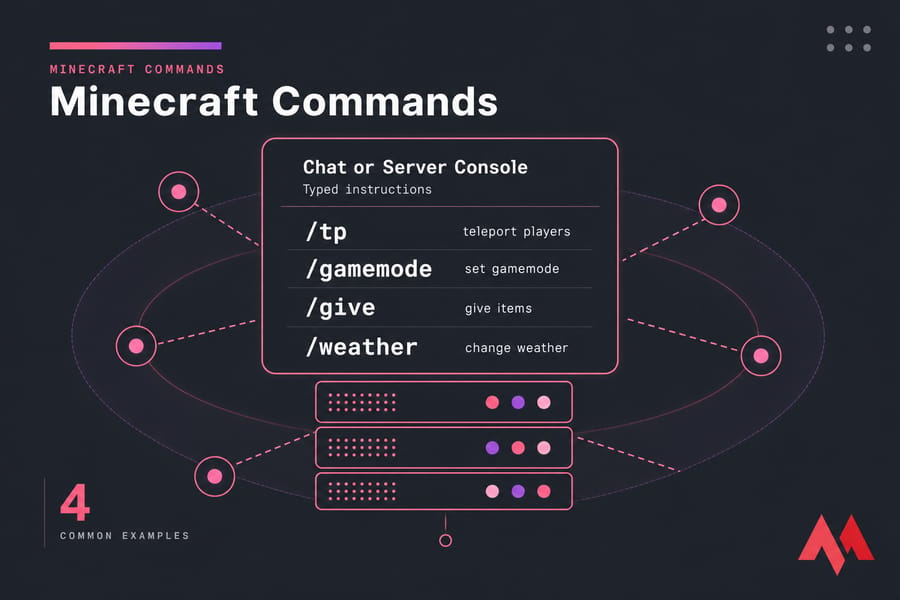
Minecraft commands are typed instructions you run in chat or the server console to make something happen fast think teleporting players, changing the weather, giving items, setting gamemode, or managing a multiplayer server without clicking through menus. This guide is a practical Minecraft command list tested for current versions, with notes for Java Edition, Bedrock Edition, and dedicated server admins.
🌐 Discover the Minecraft Hypixel IP Address: Connect to the Ultimate Gaming Experience 🎮
🎮 What Are Minecraft Commands?
Minecraft commands are typed instructions you run in chat or the server console to make something happen fast. Think teleporting players, changing the weather, giving items, setting gamemode, or managing a multiplayer server without clicking through menus. Player commands usually run in a single-player world with cheats enabled or on a server where you have permission. Minecraft server commands are a bit different — those often run from the server console or through operator permissions, and they can affect everyone.
⚙️ How to Enable Commands and Cheats in Minecraft
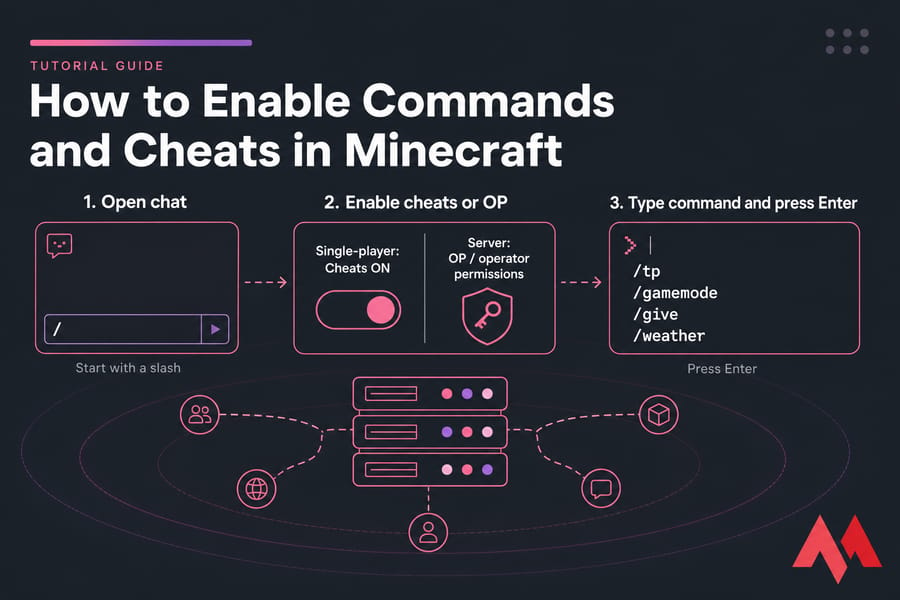
If commands don't work, this is usually why. Not syntax. Not a bug. Permissions.
Enable Cheats in Single-Player
In a single-player world, you need cheats enabled for most Minecraft cheats and slash commands. When creating a world, toggle cheats on. In an existing Java world, you can temporarily open to LAN and enable cheats there. After that, press /, type the command, and hit Enter. The player must enable the cheats while creating the game world, and if somehow they fail to do so, then they have to load the game in LAN and select the "Allow Cheats" option.
Note: The commands that we use in Minecraft are case-sensitive. Capital letters are not allowed.
Enable Commands on a Minecraft Server
On a multiplayer server, commands depend on your permission level. If you run your own box, you'll usually grant yourself OP with the console. This matters a lot if you host a Minecraft server with Minecraft server hosting or manage a larger survival world where moderation and backups actually matter.
Operator Permissions (OP) Explained
OP means operator. Operators can use admin-level Minecraft console commands like /ban, /whitelist, /save-all, and /stop. Regular players usually can't.
📝 Minecraft Command Syntax Explained
Most command failures come down to syntax. Once you understand the pattern, the whole system gets easier.
Required vs Optional Arguments
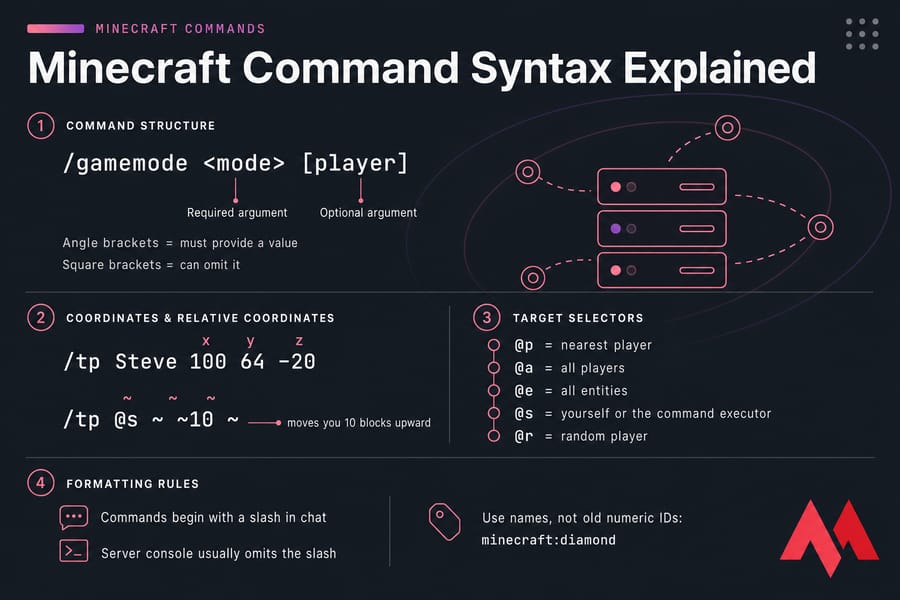
Several Minecraft commands use an argument — a single statement or sequence of statements that succeed a command. A command like /gamemode <mode> [player] has one required parameter and one optional parameter. Angle brackets mean you must provide a value. Square brackets mean you can omit it. For example, in /gamemode Survival, "gamemode" is the command and "Survival" is the argument commanding your game to run in Survival mode.
Coordinates and Relative Coordinates
Coordinates use the x y z format. Example: /tp Steve 100 64 -20. Relative coordinates use tildes, like ~ ~ ~, which means "from the current position." So /tp @s ~ ~10 ~ moves you 10 blocks upward.
Target Selectors: @p, @a, @e, @s, @r
The argument that we use in Minecraft Commands is sometimes also referred to as targets. These special types of targets indicate whom the command will be targeted:
@p— targets the player who is nearest to you@r— targets any random player in the game@a— targets every single player in the world@e— targets all the entities in the world that are active@s— targets the user (i.e., you)
For example, /gamemode survival @a will switch the game mode for every player on the same server to Survival Mode.
Command Formatting Rules
Commands begin with a slash in chat, like /time set day. In the server console, you usually omit the slash. Modern Minecraft commands use item and block names, not old numeric IDs, so use minecraft:diamond style names where needed. Version-specific syntax still exists, especially between Java vs Bedrock commands.
📋 Best Minecraft Commands by Use Case
If you just want the useful Minecraft commands, start here. This table is the quick cheat sheet.
| Command | Syntax | What It Does | Admin Required | Java/Bedrock | Example |
|---|---|---|---|---|---|
| Teleport | /tp <target> <destination> | Moves a player or entity | Usually yes | Both | /tp Steve Alex |
| Give | /give <player> <item> [amount] | Gives items | Yes | Both | /give Steve minecraft:diamond 10 |
| Gamemode | /gamemode <mode> [player] | Changes game mode | Yes | Both | /gamemode creative Steve |
| Time | /time set <value> | Changes time of day | Yes | Both | /time set day |
| Weather | /weather <clear|rain|thunder> | Changes weather | Yes | Both | /weather clear |
| Locate | /locate <structure> | Finds structures | No/varies | Both | /locate village |
Movement and Teleport Commands
The Minecraft teleport command is one of the most useful. Use /tp Steve Alex to move Steve to Alex, or /tp @s 200 70 150 to jump to coordinates. Great for admin support, group events, or getting unstuck when you get lost in the game world.
Inventory and Item Commands
The Minecraft give command uses /give <player> <item> [amount]. Example: /give Alex minecraft:bread 16. /enchant <player> <enchantment ID> [level] adds enchantments, though exact enchantment names and limits can vary by edition and version. Use names, not legacy numeric IDs. The maximum number of items in one stack is 64. Additionally, while you use the give command, items are not delivered into the inventory — they are directly dropped at your feet.
World and Weather Commands
/time set day changes the clock instantly. Set the time to "0" during the morning, "6000" during the afternoon, "12000" during the evening, and "18000" during the night. /weather clear removes rain. In Minecraft, you will find two weather features: one is a superficial feature, and the other is a critical game component. /difficulty hard changes challenge level. The available difficulty levels are: peaceful, easy, normal, and hard.
Player Management Commands
/gamemode survival Steve swaps a player's mode. 0 represents Survival, and 1 means Creative. /kill lets you destroy any character on the current game server. /tell or /msg sends private messages if you want to communicate privately with any player, and /team helps organize players in mini-games or events. /summon [creature or object name] delivers any in-game object or creature to your desired location. /testfor counts all entities and objects present in your world, though note this is obsolete in newer Java setups.
XP and Enchantment Commands
For XP, use /xp [add|set] <players> <amount> [points|levels] to add, set, remove, or check the XP of any player. Example: /xp add Steve 5 levels. /enchant <player> <enchantment ID> [level] helps you enchant items. Current syntax often uses /xp add <player> <amount> levels in modern versions — double-check your version if it fails. The /help [<command>] command displays all Minecraft commands and shows detailed information about them.
🛡️ Minecraft Server Admin Commands
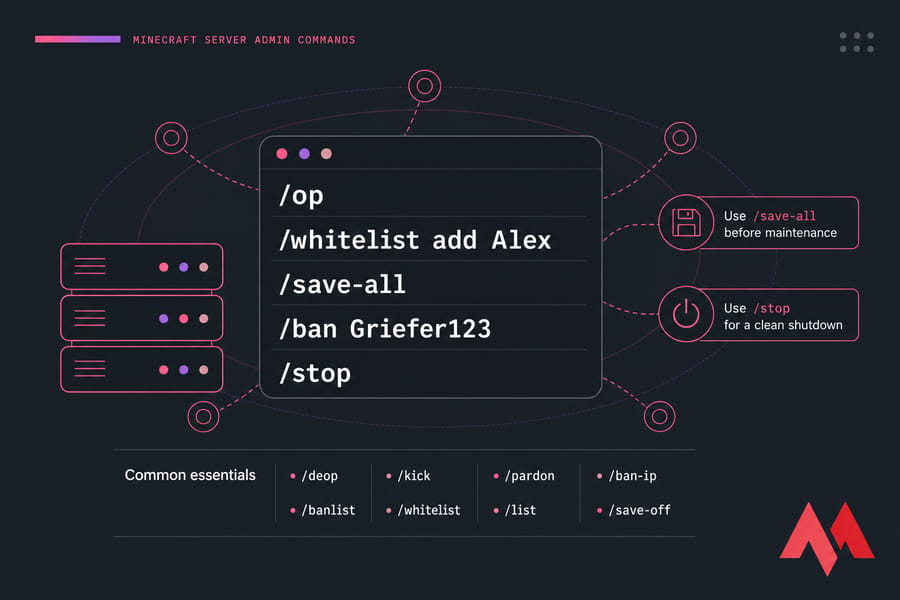
Here is a detailed list of all Minecraft server commands that prove beneficial for server owners, moderators, and anyone responsible for keeping a world healthy. These are less flashy than teleporting — but they matter more.
Player Management
- /op <player name>: Grants operator status to the player you mention on the server.
- /deop <player name>: Revokes the operator status of a player.
- /kick <player name> [reason]: Disconnects a particular player from the server entirely. You can write the reason if you wish.
- /ban <player name> [reason]: Blacklists the name of the player from the server. Note that this ban supersedes any whitelisting too.
- /pardon <player name>: Removes the player from the blacklist so they can establish a connection again.
- /ban-ip <ip-address | player name>: Blacklists an IP address to reject further connections from it.
- /pardon-ip: Removes an IP address from the IP blacklist, allowing the player with that IP to connect again.
- /banlist [ips]: Displays information about the banned IP addresses.
- /list: Displays all the names of the currently connected players in the game.
Whitelist Commands
- /whitelist add <player name>: Adds a player to the whitelist.
- /whitelist remove <player name>: Removes a player from the whitelist.
- /whitelist on | off: Enables or disables the whitelist server.
- /whitelist list: Displays the entire list of players in the whitelist.
- /whitelist reload: Reloads the entire list of player names in the white-list.txt file from disk. Used when the file has been modified outside of Minecraft.
World and Server Management
- /save-all: Forces the server to write the pending changes of your world to disk. Use before maintenance.
- /save-off: Disables the server writing to your world files. All changes temporarily queue up. Use only for controlled admin work.
- /save-on: Enables the server to write to the world files.
- /stop: Shuts down your server gracefully. Don't just close the process window — that's how worlds get corrupted.
If you're scaling beyond a casual realm, a Minecraft VPS hosting gives you more control over console access and performance. For larger communities, a Minecraft dedicated server provides full hardware isolation and predictable resources. And if you're building custom packs, this guide on how to make a modded Minecraft server is the next logical step.
🆚 Java vs Bedrock Command Differences
Java Edition and Bedrock Edition overlap a lot, but they are not identical. That's where many "Minecraft commands not working" headaches begin.
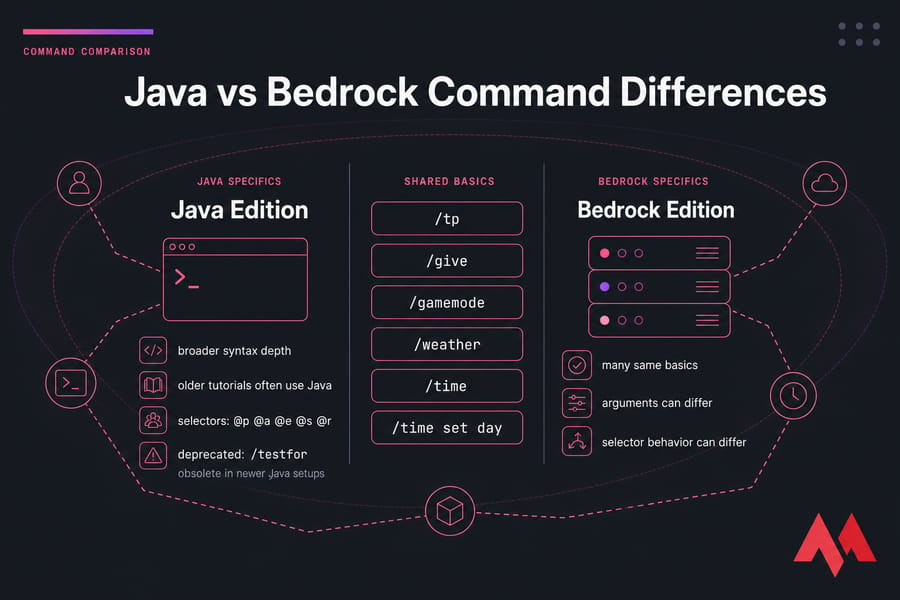
Java tends to have broader syntax depth and is the version most older command tutorials were written around. Bedrock supports many of the same basics — teleport, give, gamemode, weather, time — but arguments and selector behavior can differ. Deprecated Minecraft commands are another issue. For example, /testfor appears in old tutorials but isn't supported the same way in modern Java workflows. If you're updating an older world or plugin-heavy setup, read how to update a Minecraft server before assuming the command itself is broken.
⚠️ Common Minecraft Command Errors and Fixes
Unknown Command
You may be using an outdated guide, the wrong edition, or console syntax in chat. Check spelling and version notes first.
Insufficient Permissions
If cheats are disabled or you don't have OP, commands will fail. On servers, confirm your permission level before troubleshooting anything else.
Incorrect Target or Argument
Bad player names, invalid entity selectors, or old item IDs break commands fast. Use modern names and make sure the target exists.
Version-Specific Syntax Issues
Some syntax changed between 1.20 and 1.21-era documentation, and much older tutorials are worse. That's especially true for XP, summon, and deprecated commands.
For server-side diagnostics, it also helps to find your Minecraft server IP address, check the right instance, and verify you're editing the correct world. If you're hunting structures, this guide to find a Minecraft server seed can save time. And if you want to expand gameplay instead of just admin it, see the best Minecraft mods.
🌟 Minecraft Command Examples for Beginners
Start with these five. They cover most day-one needs:
/tp Steve Alex— teleport to another player/weather clear— stop rain/give Steve minecraft:diamond 10— give items/gamemode creative Steve— switch gamemode/locate village— find a structure
If you're deciding between local play and paid hosting, it's smart to compare Minecraft server pricing and understand how much a Minecraft server costs before inviting more players than your machine can handle.
🎯 Conclusion
If you initiate a command in the game, you must use a forward slash before typing the command. This helps the client to understand that the text after it is a command and not a message. Moreover, if you wish to use the commands from the server end, the commands should be used without the forward slash.
Therefore, if you are a frequent player of Minecraft, these commands would prove to be beneficial for you. We hope that the information in the article helps to solve all your ambiguities related to the Minecraft server commands. Commands get more valuable as your server grows once you're dealing with backups, mods, player moderation, and updates, the admin side starts to matter just as much as the fun side.
Keep playing! Keep exploring!