If we say that MikroTik is the “Swiss Army knife” of networking, it is not an exaggeration. The MikroTik Firewall is one of the most flexible and efficient tools for traffic management, earning its place among home users, small and medium businesses (SMBs), and enterprise infrastructures. For this reason, in this article from MONOVM, we will guide you step by step on how to configure the MikroTik firewall and understand both its default and advanced rules. Stay with us.
What Is the MikroTik Firewall?

The MikroTik firewall is a powerful tool for filtering data packets, built on the Linux Netfilter framework and integrated into the RouterOS operating system. It allows you to precisely control inbound, outbound, and transit traffic passing through different router interfaces with fine-grained accuracy.
The architecture of this firewall is designed around concepts such as chains, tables, and actions, enabling each packet to be inspected based on a wide range of criteria, including IP addresses, protocols, ports, and even Layer 7 (application-layer) content. By integrating NAT (Network Address Translation), Mangle (packet marking), and RAW (fast filtering before connection tracking), it forms a comprehensive security ecosystem.
Applications of the MikroTik Firewall
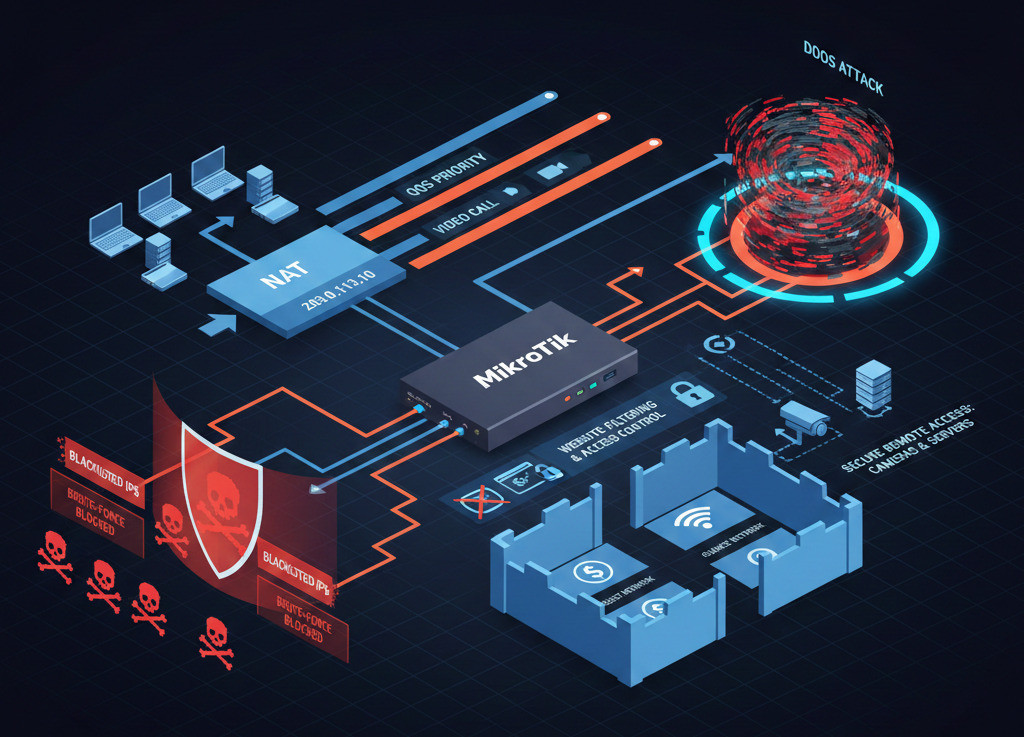
The MikroTik firewall is not just a simple “barrier”; rather, it functions more like an intelligent traffic management system with a variety of use cases, including:
- Preventing Brute Force Attacks: You can block repeated attempts by hackers to guess router passwords. The system detects suspicious IP addresses and automatically blacklists them for a period of time.
- Hiding the Internal Network (NAT): The firewall allows all company devices to be concealed behind a single secure public IP address. This protects user privacy and makes direct access to internal systems impossible.
- Intelligent Traffic Prioritization (QoS): You can identify and mark sensitive traffic such as online gaming or video calls so that even during heavy downloads, critical communications remain stable and low-latency.
- Filtering and Access Control: You can block access to unauthorized websites or large file downloads, and define precise restrictive rules for internet usage during specific hours.
- Mitigating Heavy DDoS Attacks: By using the Raw facility, MikroTik blocks flood attacks before they reach the main CPU, ensuring the router remains stable even under intense attack pressure.
- Segmentation of Internal Networks: Different organizational segments (such as guest and finance networks) can be fully isolated to prevent unauthorized access or the spread of malware to sensitive servers.
- Managing Remote Access: For secure external connections to internal cameras or servers, the firewall protects communication paths and allows only approved traffic to pass by opening specific ports.
Strengths and Limitations of the MikroTik Firewall
Technical analyses conducted in 2026 indicate that MikroTik outperforms many of its competitors across several key metrics, yet it still faces challenges in certain specific areas.
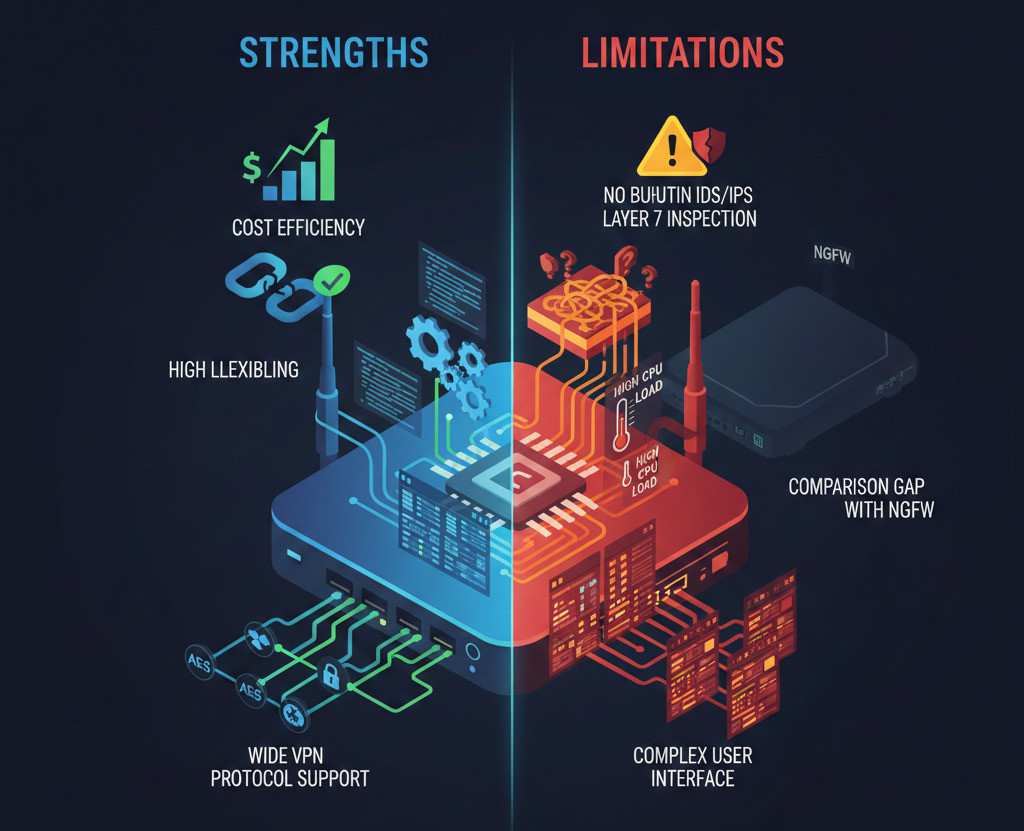
Strategic Strengths (Advantages)
The most important advantages of the MikroTik firewall that set it apart from competitors include:
- Cost Efficiency (Price–Performance): High processing power offered at a highly competitive price compared to alternative solutions.
- No Mandatory Licensing: No need for annual license renewals, resulting in a faster return on investment (ROI).
- Exceptional Flexibility: Extensive customization capabilities and an internal scripting system that enables dynamic responses to network events.
- Wide Range of Security Protocols: Broad support for various VPN protocols) from traditional models to modern implementations (allowing the creation of a secure gateway.
Given these advantages, if an organization’s security requirements are clearly defined and firewall rules are configured accordingly, MikroTik is “powerful enough” for the task.
Technical and Operational Limitations (Disadvantages)
Despite its notable strengths, its limitations must also be considered:
- Lack of Built-in Automated Systems (IDS/IPS): No native, signature-based intrusion detection and prevention system by default.
- Complexity at Layer 7: Deep Packet Inspection (DPI) requires manual and highly complex configurations.
- Hardware Load: Intensive Layer 7 processing can place a significant workload on the CPU.
- Unfriendly User Interface: The management interfaces (Winbox/WebFig) can be intimidating for newcomers and require a deep understanding of networking concepts.
In conclusion, in many scenarios MikroTik is a cost-effective and flexible option that, thanks to its powerful routing capabilities and features, can function effectively as a practical firewall solution.
MikroTik Firewall Setup (Step-by-Step Overview)
.jpg?1770109145668)
To set up a MikroTik firewall initially, a few simple steps can significantly improve your network security:
- Update RouterOS: Make sure the latest version of the operating system is installed. Newer versions are usually more optimized and secure.
- Change Default Passwords and Disable Unnecessary Services: Change the default admin account password and disable services that are not needed, such as Telnet, FTP, and HTTP, to reduce potential attack vectors.
- Create Input Rules for the Router Itself: In the input chain, allow only administrative access from specific addresses (for example, Winbox or SSH from a trusted network) and drop all other packets immediately.
- Apply Basic Rules: As in previous sections, place rules to allow established/related connections and drop invalid packets at the top of the chains. Then define other rules for allowing or blocking traffic as needed.
- Enable Logging and Monitor Regularly: Activate logging for important events, especially dropped packets, and review logs regularly to monitor network behavior.
Following these steps creates a strong foundational firewall. In the next stage, you can add more advanced rules, such as using Address Lists or traffic-specific conditions, to implement precise security policies tailored to your network.
To get started, You can learn How to Block Websites on MikroTik to control access and enforce network policies more effectively.
Core Concepts and How the MikroTik Firewall Works
As mentioned earlier, in MikroTik the flow of packets is managed based on chains and connection states. When a packet enters the router, its processing chain is first determined. For example, it goes to the Input chain if the destination is the router itself, or to the Forward chain if the packet is passing through the router. Then, its connection state, such as new, established, related, or invalid, is evaluated.
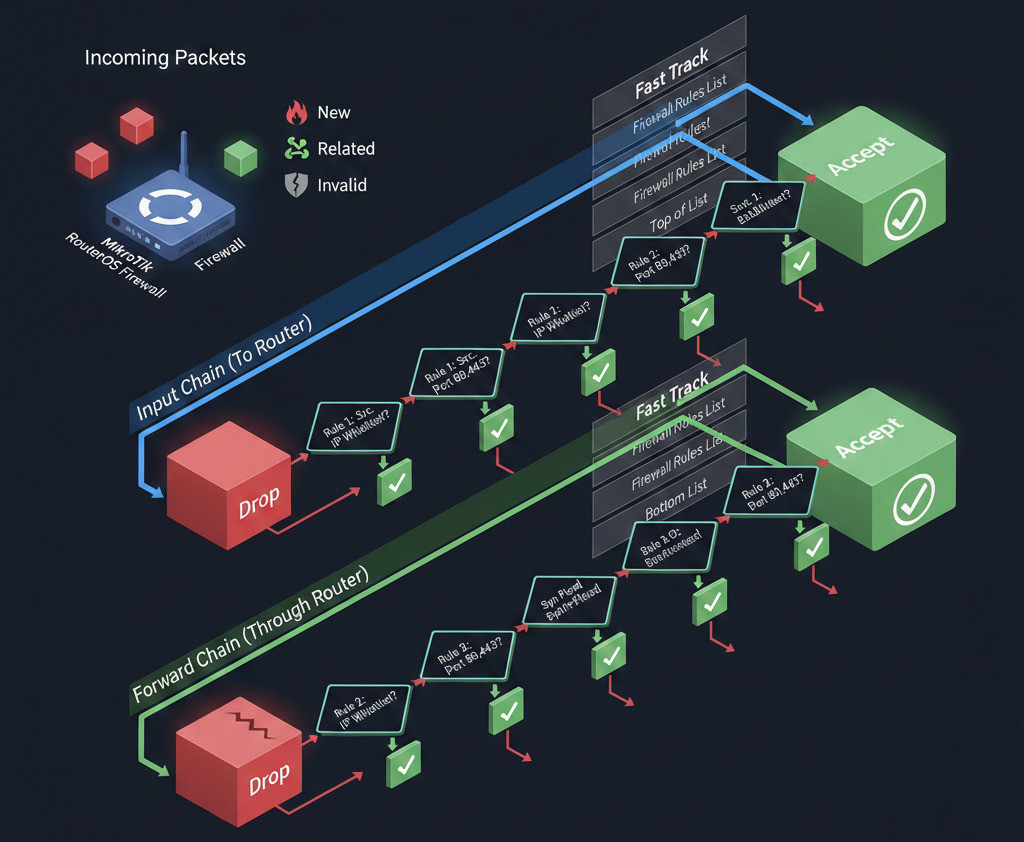
If the packet is new, the firewall rules attempt to find a matching rule for it. If the packet is part of an existing connection (established) or related to one (related), it is usually allowed to pass immediately. This typically happens at the very beginning by using fasttrack and accept rules that have already been processed. Invalid packets are usually dropped at the earliest stages.
An Example of How It Works
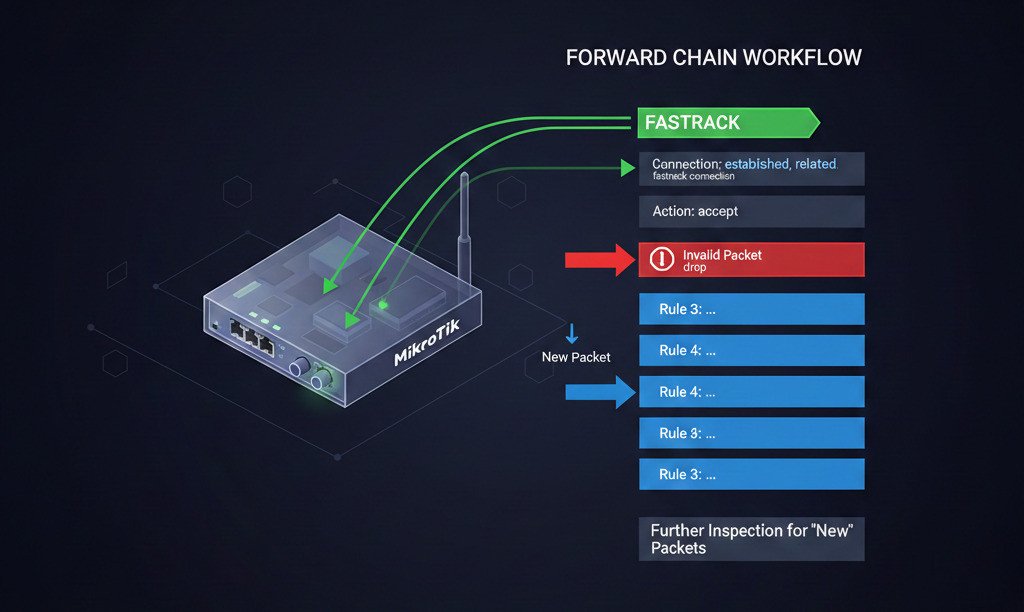
For example, a common set of rules at the beginning of the forward chain might look like this:
add chain=forward action=fasttrack-connection connection-state=established,related
add chain=forward action=accept connection-state=established,related,untracked
add chain=forward action=drop connection-state=invalid
These rules ensure that packets belonging to established or related connections are processed quickly using FastTrack, while invalid packets are dropped. After that, the remaining rules are applied to new packets. If no rule explicitly accepts a packet, it will be accepted by default.
For better understanding, note that address lists and specific protocols also play a role in the decision-making process, which will be discussed later. You can also check out our guide on MikroTik Port Forwarding to manage incoming traffic through your firewall more effectively.
Default MikroTik Firewall Rules
After the initial installation of RouterOS, MikroTik applies only a few default rules (defconf) whose purpose is to quickly establish a basic internet connection. For example, in RouterOS version 7.x, there are rules to accept established/related connections, drop invalid packets, allow ICMP, and accept loopback traffic.
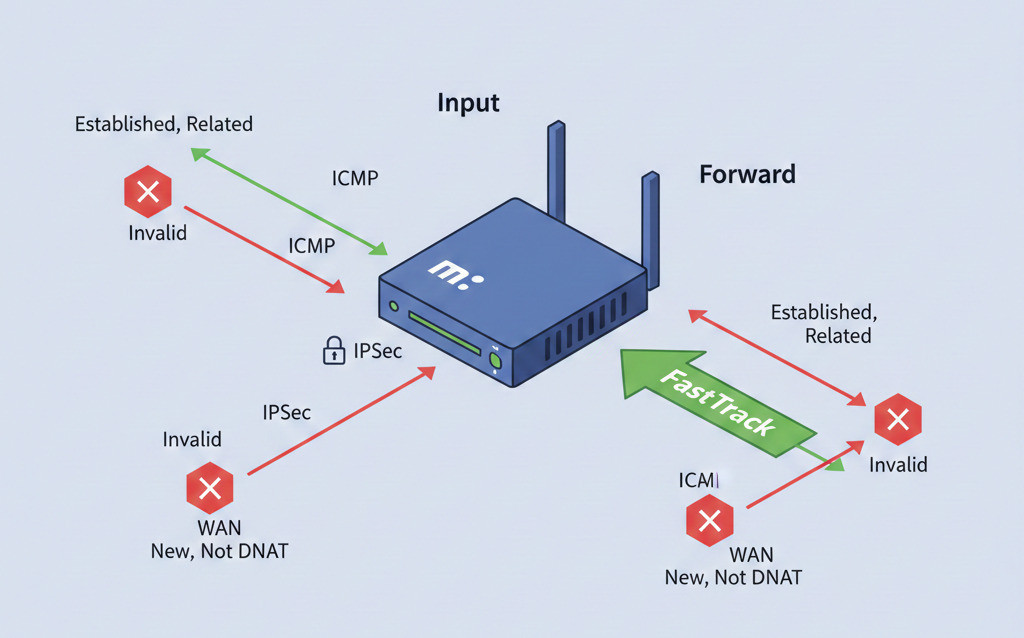
In the forward chain, IPSec traffic in both inbound and outbound directions is permitted, FastTrack is enabled for established connections, and finally invalid packets and new incoming traffic from the WAN that is not destination-NATed are dropped. As shown in the default script below, part of these rules looks like this:
filter add chain=input action=accept connection-state=established,related,untracked comment="defconf: accept established..."
filter add chain=input action=drop connection-state=invalid comment="defconf: drop invalid"
filter add chain=input action=accept protocol=icmp comment="defconf: accept ICMP"
...
filter add chain=forward action=fasttrack-connection connection-state=established,related comment="defconf: fasttrack"
filter add chain=forward action=accept connection-state=established,related,untracked comment="defconf: accept established..."
filter add chain=forward action=drop connection-state=invalid comment="defconf: drop invalid"
filter add chain=forward action=drop connection-state=new connection-nat-state=!dstnat in-interface-list=WAN comment="defconf: drop all from WAN not DSTNATed"
In most cases, users modify these default rules after the initial setup by using a reverse selection approach. This means changing the default policy from “accept everything” to “drop everything except what is required.”
Basic MikroTik Firewall Rules (Initial Setup)
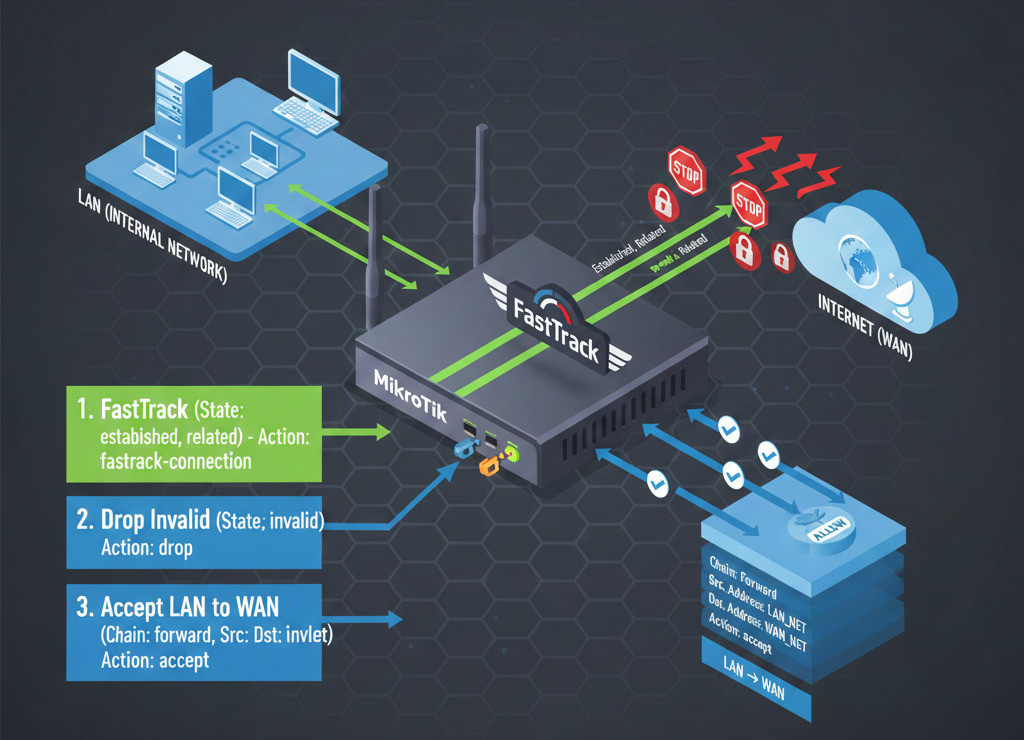
To start with a simple and secure firewall, a few basic rules are usually configured:
- Allow established and related connections: Using connection-state=established,related or by enabling FastTrack. This ensures that responses and flows related to existing connections are quickly accepted.
- Drop invalid connections: Packets in the invalid state are immediately discarded to prevent unnecessary resource consumption.
- Allow internal network traffic to the internet: LAN→WAN packets are typically allowed in the initial rules so that users can access the internet.
For example, a simple initial firewall setup in the forward chain might look like this:
add action=fasttrack-connection chain=forward connection-state=established,related
add action=accept chain=forward connection-state=established,related,untracked
add action=drop chain=forward connection-state=invalid
add action=accept chain=forward comment="internet traffic" in-interface-list=LAN out-interface-list=WAN
With these rules, packets related to active connections pass quickly using FastTrack, invalid new packets are discarded, and internal network traffic is allowed to access the internet. A final drop all rule should always be added at the end of the chains to block any remaining unwanted traffic.
Best Production-Ready MikroTik Firewall Rules
In real deployments, beyond basic rules, a well-organized set of rules is needed to secure the network. First, existing connections (connection-state=established,related) are accepted or FastTrack enabled. Next, specific rules allow required connections, block high-risk sources, or manage unwanted IPs via address-lists. Finally, a drop-all rule is added. The correct order, with general rules first, specific rules next, and blocking rules last, prevents unnecessary processing and ensures security.
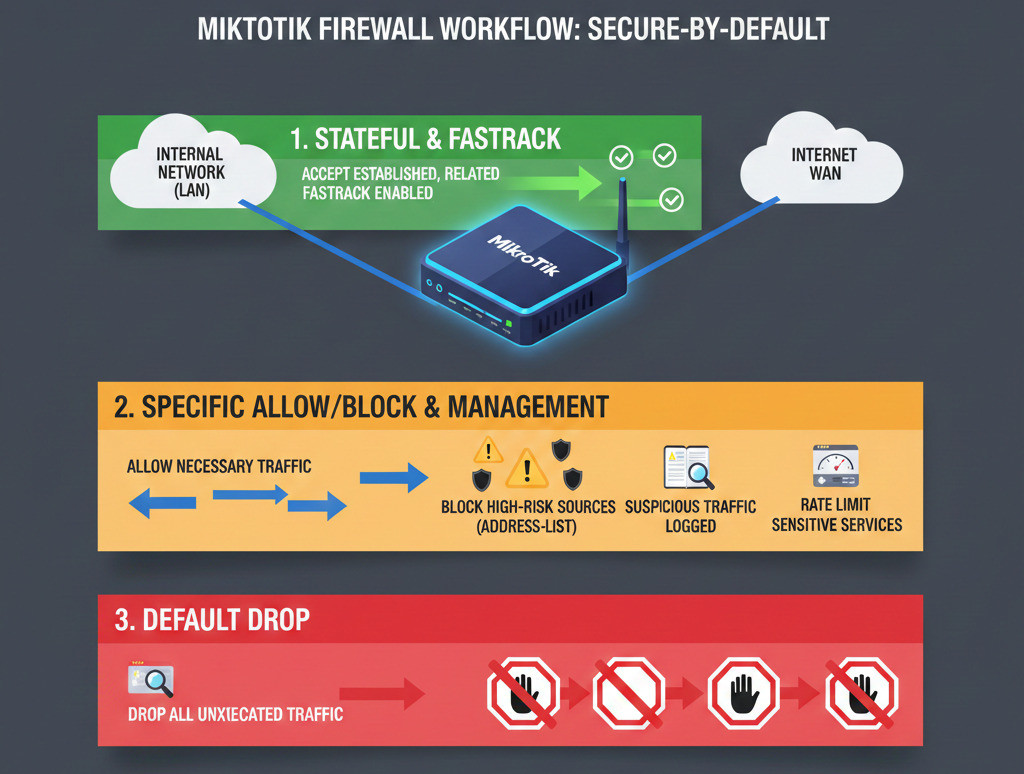
A simple checklist example can include the following:
- Add accept rules for traffic from the internal network (LAN) to the internet (WAN).
- Use address-lists and add-* actions to identify and prevent common attacks, such as adding scanning source IPs to a blacklist.
- Limit the rate or number of connections to sensitive services using matchers like limit or connection-limit.
- Enable logging for important events, for example, when suspicious packets are dropped, and review logs periodically.
This secure-by-default approach ensures that only necessary traffic is allowed, and any unexpected traffic is blocked.
Actions in MikroTik Firewall
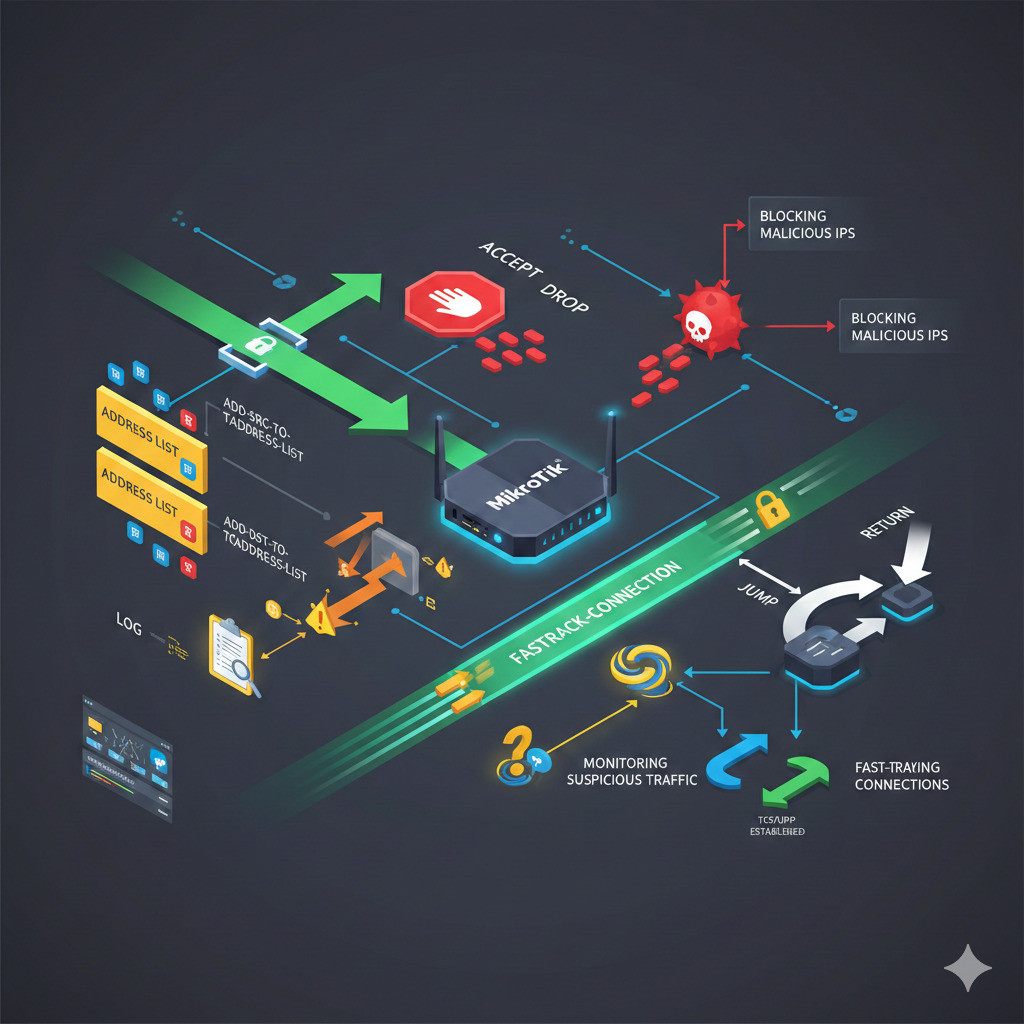
MikroTik provides various actions for firewall rules. The most important ones include:
- accept: Allows the packet to pass through the firewall.
- drop: Silently discards the packet without responding; the packet and its log disappear.
- reject: Similar to drop but sends an appropriate error message to the sender (e.g., ICMP unreachable or TCP reset).
- fasttrack-connection: A RouterOS-specific shortcut that forwards certain packets (usually existing TCP/UDP connections) at maximum speed without passing through the rest of the firewall rules. Usually, a corresponding accept rule is added after FastTrack.
- add-src-to-address-list / add-dst-to-address-list: Adds the source or destination IP of a packet to a dynamic address list for use in subsequent rules.
- log: Records an event for the packet, optionally with a prefix to identify the rule.
- return / jump: Exits a subchain or jumps to another rule subset for more complex management.
Each of these actions is useful in specific scenarios. For example, if you want to block IPs attempting port scans, you can use add-src-to-address-list to add them to a designated list and remove them automatically later with a timeout. For invalid or malicious packets, drop or reject can be used to control them, and log allows you to monitor their occurrences.
Address Lists in MikroTik Firewall
An Address List in MikroTik firewall is a feature that allows you to define a set of IP addresses and use them in various firewall rules. For example, you can place specific IPs in a blacklist or keep known safe IPs in a whitelist (Allow). When a firewall rule uses the address-list parameter, packets matching those addresses can be either allowed or blocked.
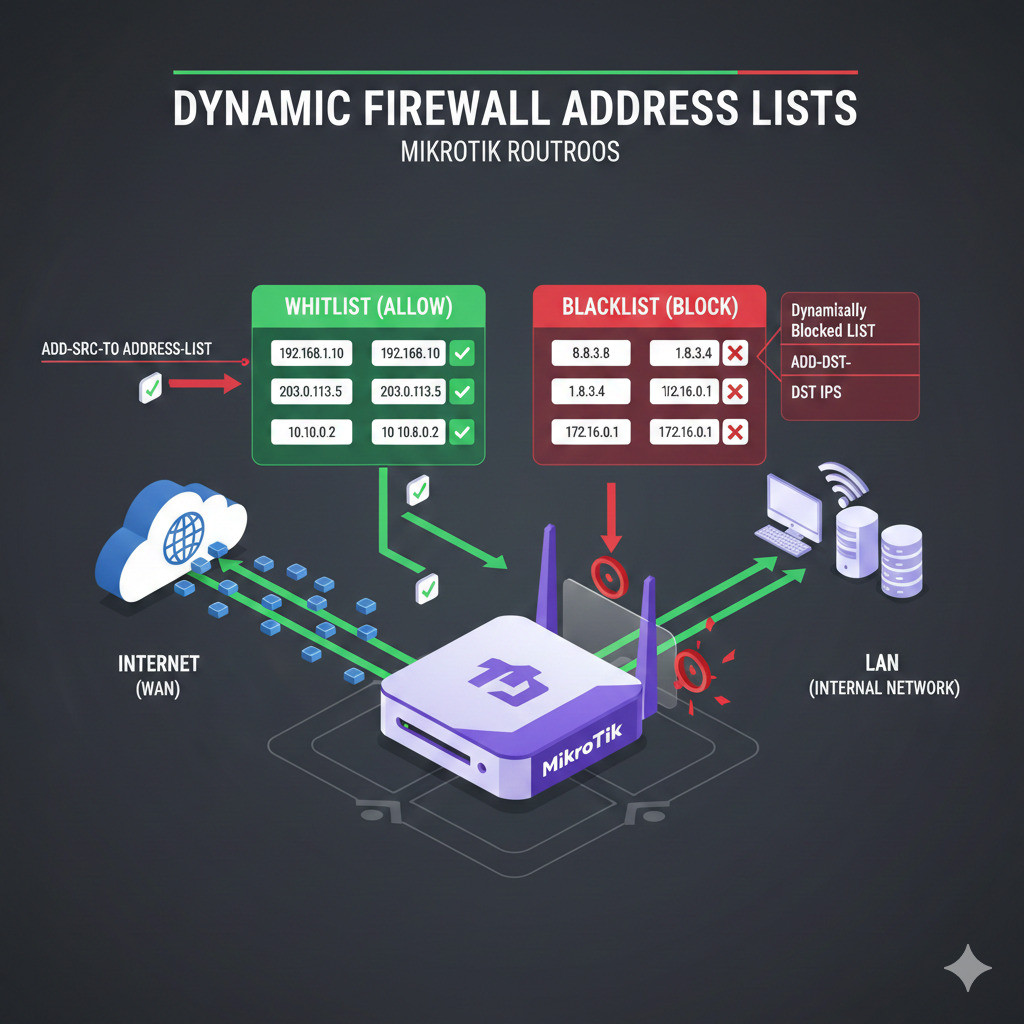
In addition, there are two special actions for automatically populating these lists:
- add-src-to-address-list: Adds the source IP of the packet to the specified list.
- add-dst-to-address-list: Adds the destination IP of the packet to the specified list.
These actions are typically used when you want to identify suspicious sources and temporarily block them. Once their activity decreases, they can automatically be allowed again.
You can also see a practical guide on How to Block IP address in MikroTik to manage unwanted traffic using address lists.
Scheduling and Automating Address Lists
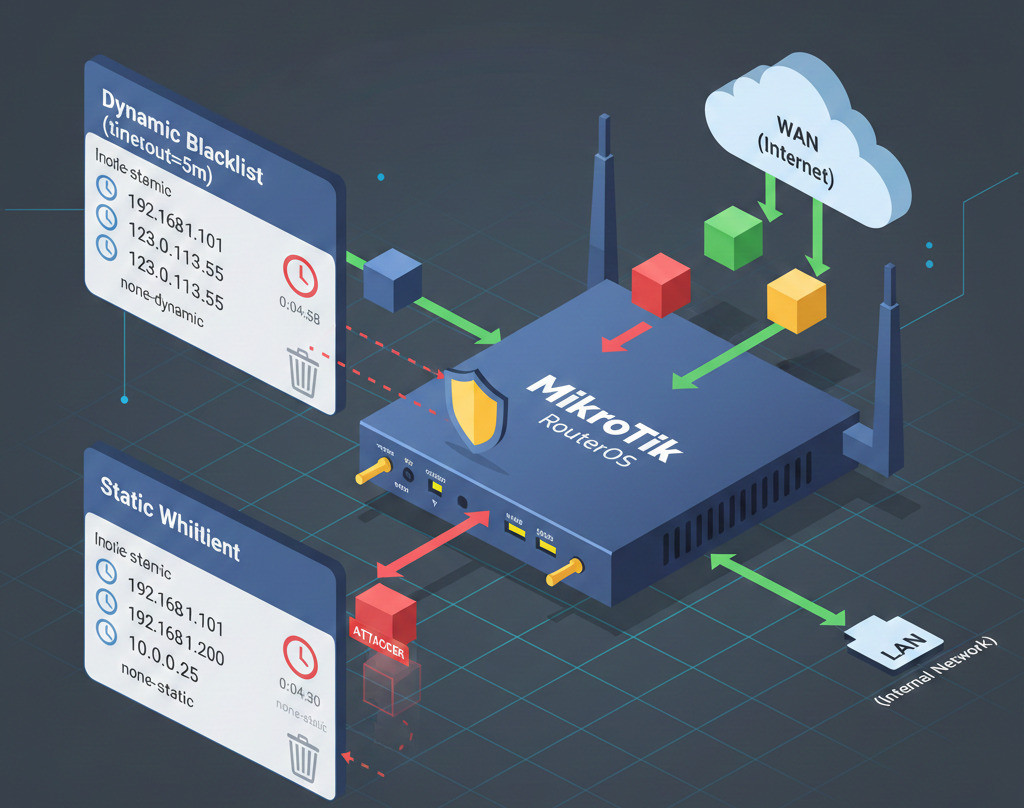
One of the advantages of MikroTik’s Address List is the ability to set a timeout (address-list-timeout) for each entry. This means you can specify how long an IP will remain in the list without activity.
- If set to none-dynamic, the entry remains until the device is rebooted.
- If set to none-static, the entry persists even during export/backup and must be removed manually.
Normally, a time period (e.g., minutes or hours) is used so that temporary IPs (like attackers or scanners) are automatically removed after some time.
Example: Automatic Address List Creation
Suppose you want to block devices performing port scans. You can create rules in the input chain that detect scan patterns (like specific TCP flags) and add those IPs to a new address list, e.g., port_scanners, using add-src-to-address-list. Then, a separate rule can block all IPs in this list. For example:
add chain=input action=add-src-to-address-list address-list=port_scanners address-list-timeout=2w comment="Port scanners to list"
add chain=input action=drop src-address-list=port_scanners comment="Drop port scanners"
This setup keeps the scanning IPs in the list and blocks them for two weeks. After the timeout expires, they are automatically removed from the list and regain access, unless they are detected scanning again.
Protect your network from unwanted scans by following our guide on How to block port scanner in MikroTik and keep your firewall secure.
MikroTik Firewall for VPNs
Securing VPN tunnels is a major concern in modern networks. MikroTik supports a variety of protocols and provides flexible solutions.
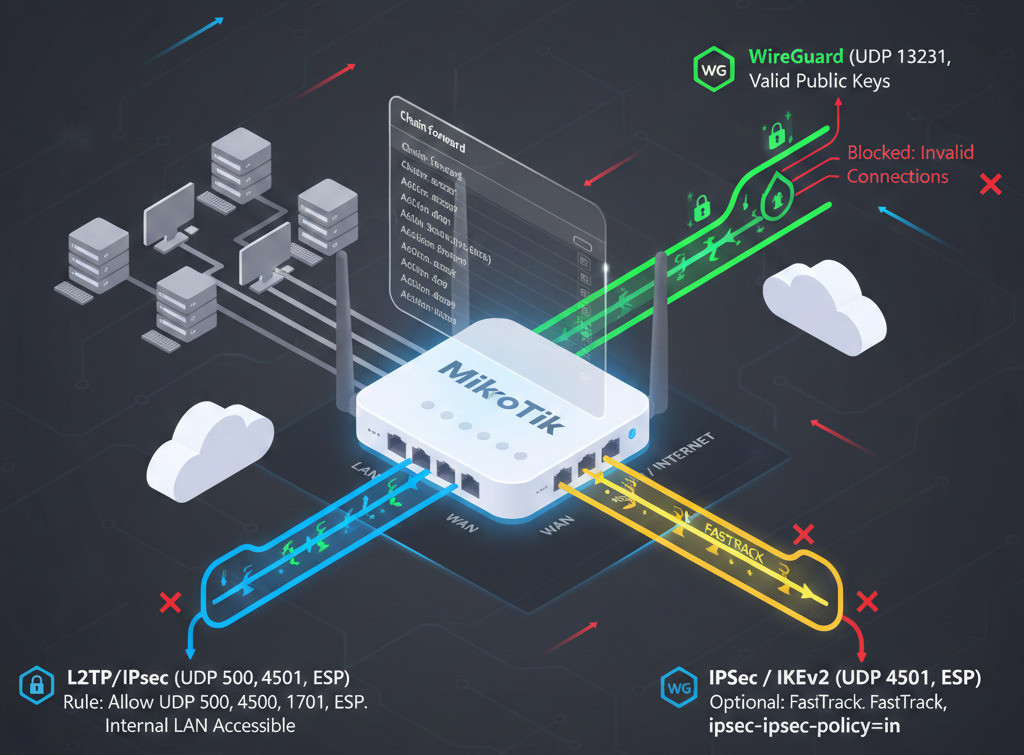
WireGuard
WireGuard is a lightweight and fast VPN. To allow traffic, UDP packets on the WireGuard port (default 13231) must be open:
add chain=input action=accept comment="allow WireGuard" dst-port=13231 protocol=udp
Add the WireGuard network address to the LAN list so that internal services, such as DNS, are accessible through the tunnel. Only valid public keys are allowed to connect, and all other packets are blocked.
L2TP/IPsec
For L2TP over IPSec, the following ports must be open: UDP 500 and 4500 (for IKE and NAT-T), ESP, and UDP 1701 (for L2TP):
add chain=input protocol=udp dst-port=500,4500 action=accept comment="L2TP/IPsec ports"
add chain=input protocol=ipsec-esp action=accept comment="IPsec ESP"
Also, VPN subnet addresses must be accepted in the input chain so that internal access to the router is possible.
IPSec / IKEv2
For pure IPSec or IKEv2 VPNs, open UDP 500, 4500, and ESP:
add chain=input dst-port=500,4500 protocol=udp action=accept comment="IPSec IKEv2"
add chain=input protocol=ipsec-esp action=accept comment="IPSec ESP"
Encrypted VPN traffic passes according to forward chain rules. Usually, a FastTrack and accept rule is sufficient, but using ipsec-policy=in,ipsec allows for more granular control of VPN traffic.
Ready to secure your network? Check out our step-by-step guide on MikroTik L2TP VPN setup to get your VPN running safely and efficiently.
Allow Rules in MikroTik Firewall
Sometimes it is necessary to allow specific traffic. For example, you may want to accept all traffic from a particular VPN network or an internal range. Be careful not to use a rule like accept all, as this effectively disables the firewall and compromises security. Instead, allow only the exact addresses, ports, and protocols required.
For instance, if all users in a specific internal range (e.g., a VLAN or VPN) need internet access, you can define a rule like this after initial FastTrack/accept rules:
add chain=forward action=accept comment="LAN to WAN" in-interface-list=LAN out-interface-list=WAN
This allows traffic from the internal network to the internet. Similarly, in the input chain, for a service like Winbox, allow only your own IP.
Whenever you need to open access, remember there is no automatic compensation, so it is better to add additional checks, such as limiting ports or IPs, to reduce risk. For example, if you want to allow WireGuard traffic, open its UDP port with the rules previously explained and ensure that unwanted traffic on the same port is properly filtered.
Additional Considerations, Firewall Backup, and MikroTik Hardware
Remember that there is no automatic compensation for misconfigurations, so it is best to perform extra checks, such as limiting ports or IPs, to reduce risk. For example, if you want to allow WireGuard traffic, open its UDP port with rules similar to those previously described, and make sure that unwanted traffic on the same port is properly filtered.
Exporting and Backing Up Firewall Rules
After configuring the firewall, you should always export and back up your configuration. Using the CLI, you can save a complete list of firewall settings with the following command:
/ip firewall export file=firewall_rules
Store the output file in a safe location. It is recommended to keep a version-controlled backup (for example, in Git) each time you make changes, so you can restore previous settings if needed. Additionally, if you are using MikroTik RouterBOARD devices, be sure to check and enable the Backup feature.
MikroTik Hardware and Firewall Models
MikroTik offers a wide range of hardware, from small home routers to high-performance CCR (Cloud Core Router) models. If traffic volume or hardware features (such as CPU type or NAT hardware) are important, note that CCR models have more powerful processors and can handle Firewall and VPN tasks at higher throughput.
For cloud or virtual environments, you can run RouterOS on a server or VPS. For example, monoVms MikroTik VPS provides a virtual machine pre-installed with MikroTik, ready to use immediately, with 24/7 support in global data centers. This solution is ideal for testing firewall setups or running lightweight environments.
Comparing MikroTik with Other Firewalls
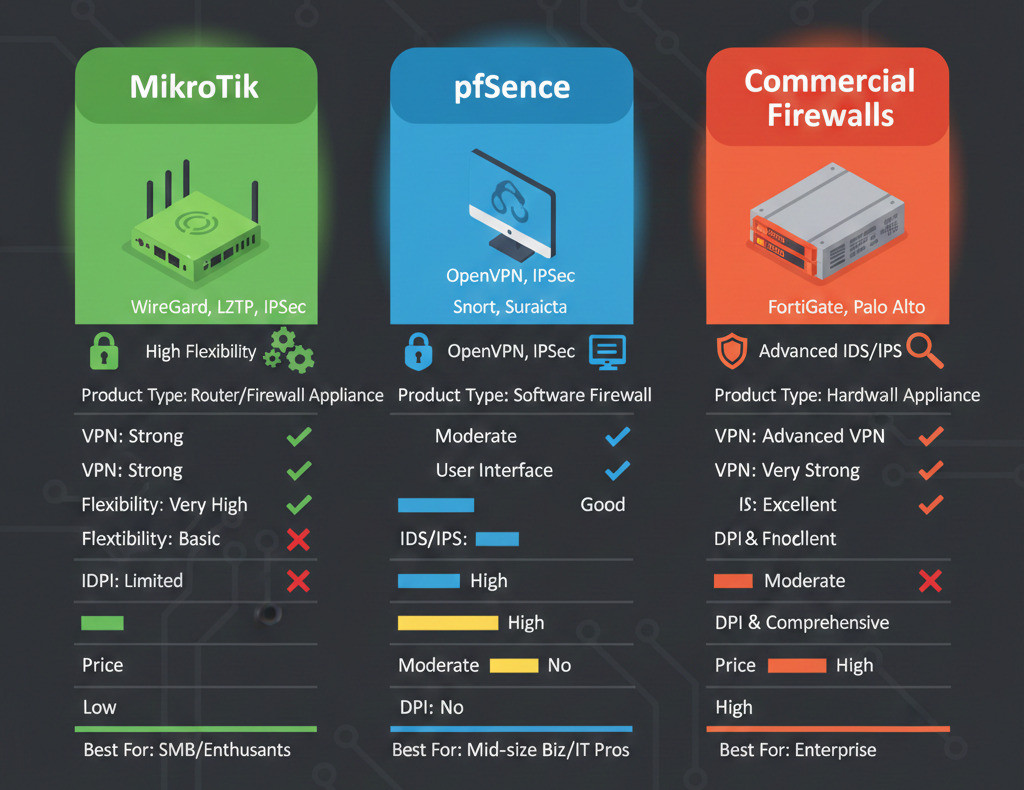
When choosing the best firewall, you need to consider your network priorities and requirements. Every firewall has its strengths and limitations, and the final decision depends on your goals.
|
Feature |
MikroTik |
pfSense |
Commercial Firewalls (FortiGate, Palo Alto) |
|
Product Type |
Router + Firewall |
Open-source software firewall |
High-end hardware firewall |
|
User Interface |
Professional, requires learning |
Graphical, user-friendly |
Professional graphical interface |
|
VPN Capability |
Strong (WireGuard, L2TP, IPSec) |
Moderate |
Very strong and advanced |
|
IDS/IPS |
Limited |
Snort, Suricata |
Advanced, hardware-based |
|
DPI & Content Filtering |
Limited |
Moderate |
Advanced and comprehensive |
|
Price |
Affordable |
Free / Low-cost |
High (license & hardware costs) |
|
Flexibility & Customization |
Very high |
High, software-limited |
Limited to device capabilities |
|
Best For |
Small to medium networks needing combined router & firewall |
Medium to large networks with IDS/IPS needs |
Large organizations with complex security requirements |
SO, If you want a compact solution with strong VPN capabilities and flexible traffic control, MikroTik is a suitable choice. If you need an advanced firewall with IDS/IPS and a user-friendly graphical interface for easy rule management, pfSense is a better option. Commercial solutions are ideal for large enterprises that require advanced DPI, organizational support, and comprehensive security.
Conclusion
As you have seen, the MikroTik firewall with its versatile features can greatly enhance your network security, provided that the rules are defined correctly. At the end, if you are looking for a reliable and ready-to-use firewall and network setup, we recommend using our MikroTik VPS services at MONOVM. These services are instantly deployable and, with 24/7 support and global data centers, allow you to quickly set up a MikroTik-based virtual network.

An experienced tech and developer blog writer, specializing in VPS hosting and server technologies. Fueled by a passion for innovation, I break down complex technical concepts into digestible content, simplifying tech for everyone.