Changing or resetting the root password in Ubuntu is one of those basic administrative tasks every user should know how to perform. The root account is locked by Ubuntu by default, and sudo is used for actions requiring privileged access, which often confuses the root password and its necessity.
The walkthrough provides the steps on how to change the root password, how to reset it if you have forgotten it, and what makes the root account different from a regular sudo user. Recovery mode procedures, security best practices, and troubleshooting steps will also be provided so that you will be able to not only manage root access but also keep your system secured.
If you’re new to the OS and want a quick overview of its structure, you can refer to What is Ubuntu article for a clear introduction.
🖥️ Understanding Root User vs Sudo User on Ubuntu
Understanding the difference between the root user and a sudo user helps you manage Ubuntu securely and avoid accidental system-wide changes. Ubuntu disables the root account by default and encourages users to perform administrative tasks through sudo, which adds an extra layer of safety. Knowing how each account works ensures you choose the right method when changing or resetting passwords.
|
Feature |
Root User |
Sudo User |
|
Default Status in Ubuntu |
Disabled by default |
Enabled when created during installation |
|
Privileges |
Full, unrestricted system access |
Temporary administrative access via sudo |
|
Password Requirement |
Root password must be manually set |
Uses the user’s own password for sudo commands |
|
Security Level |
High risk if misused |
Safer due to controlled privilege elevation |
|
Recommended Usage |
Advanced administration only |
Everyday administrative tasks |
Understanding this distinction helps you choose the safest and most appropriate way to manage system privileges.
🔐 How to Change the Root Password in Ubuntu?
Changing the root password in Ubuntu is straightforward, but the method you use depends on whether the account is already enabled. Ubuntu keeps the root account locked by default, so most users interact with administrative privileges through sudo. The steps below show how to update the root password safely while keeping your system secure.
Using the Command Line
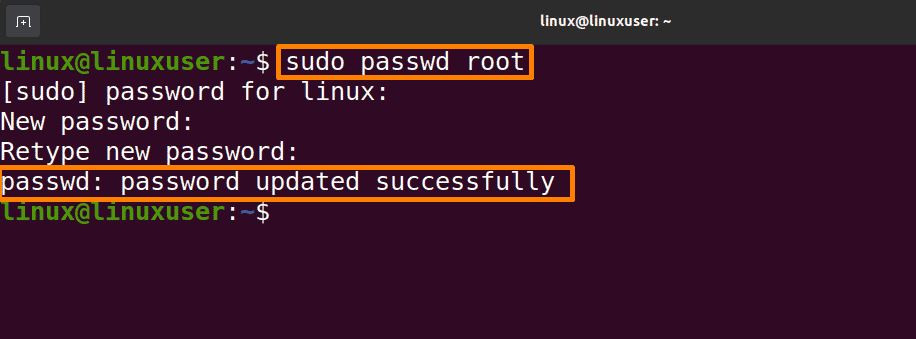
If the root account is enabled, you can update its password directly using the terminal. This method works only when you already have a sudo-capable user logged in.
- Run:
sudo passwd root - Enter your user password when prompted
- Type the new root password and confirm it
This quick process lets you update the root password safely while keeping full control over administrative access.
Changing Password for Sudo Users
If you want to modify the password of your sudo-enabled account instead of the root account, Ubuntu provides a simple command. Updating the sudo user password ensures you maintain secure access to administrative privileges.
- Run: passwd to change your own password
- Or run: sudo passwd username to change another user’s password
These methods give you complete control over password management while keeping Ubuntu’s security model intact.
🔄 How to Reset the Root Password if Forgotten?
If you’ve forgotten the root password on Ubuntu, you can still recover access using the system’s built-in recovery tools. Ubuntu provides a secure way to reset passwords through GRUB without reinstalling the OS or losing data. The steps below walk you through accessing recovery mode and setting a new root password safely.
Accessing Recovery Mode
To begin resetting the forgotten root password, you first need to boot into Ubuntu’s recovery environment. This mode provides privileged access that allows you to modify system-level settings.
- Restart your system
- Hold Shift (Legacy BIOS) or press Esc repeatedly (UEFI) to open the GRUB menu
- Select Advanced options for Ubuntu
- Choose a recovery mode entry from the list
Once you reach the recovery menu, you’re ready to move on to the password reset process.
Resetting Password Step-by-Step
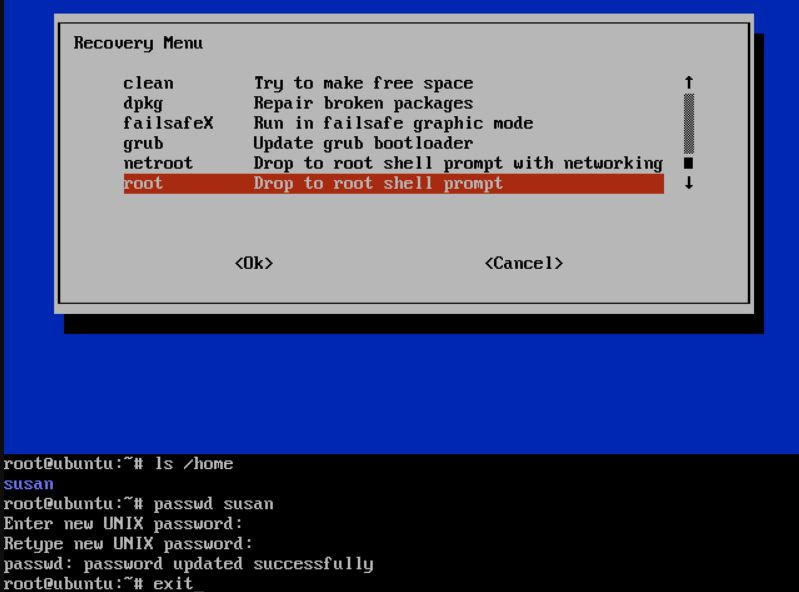
After entering recovery mode, the root shell gives you direct access to reset the forgotten password. It’s important to follow each step carefully to avoid permission-related issues.
- From the recovery menu, select Root – Drop to root shell prompt
- Remount the filesystem as writable: mount -o rw, remount /
- Set a new root password: passwd root
- Enter and confirm your new password
- Type exit and choose Resume normal boot
With these steps completed, your new root password is now active, and you can log in or use administrative commands normally.
🛡️ Security Best Practices for Root Password Management
Managing the root password responsibly is critical for protecting your Ubuntu system from unauthorized access. Since the root account has unrestricted control, even a single weak password can expose the entire system to risk. Following proper security practices ensures your Ubuntu installation remains safe, stable, and compliant with best practices.
- Use a strong password with a mix of uppercase, lowercase, numbers, and symbols.
- Avoid sharing the root password with multiple users; create individual sudo accounts instead.
- Disable root login if not needed, and rely on sudo for administrative actions.
- Change the password regularly, and especially after any security incident.
- Enable two-factor authentication for SSH or remote logins where possible.
- Keep your system updated to patch vulnerabilities that could expose root access.
- Monitor system logs for any unauthorized login attempts or privilege escalations.
A secure root password is your first line of defense against attacks and data breaches. By combining strong credentials with cautious system management, you maintain full control while minimizing risk.
For broader password-management methods across different distributions, refer to How to Change Linux Password.
Also, if you need to verify existing accounts before resetting any password, you can use the steps in list users and groups on Ubuntu.
⚙️ Troubleshooting Common Issues
Even with the right commands, you might encounter errors when changing or resetting the root password in Ubuntu. These problems usually occur due to permission issues, read-only filesystems, or misconfigured sudo privileges. The table below highlights some of the most common issues and how to fix them quickly.
|
Issue |
Cause |
Solution |
|
Authentication token manipulation error |
Filesystem mounted as read-only |
Remount with mount -o rw, remount / before running passwd |
|
Permission denied |
User lacks sudo privileges |
Use a sudo-enabled account or boot into recovery mode |
|
Command not found |
Typo or missing passwd package |
Run sudo apt install passwd to reinstall |
|
Password unchanged |
Did not confirm correctly |
Repeat sudo passwd root and ensure both entries match |
|
Unable to access GRUB menu |
Fast boot enabled |
Disable fast boot from BIOS or press Esc repeatedly during startup |
These quick fixes solve most password-related errors on Ubuntu systems. If problems persist, you can refer to guides like Enable Root Account in Ubuntu or Change User Password in Ubuntu for deeper troubleshooting.
🧩 Conclusion
Resetting or changing the root password on the Ubuntu operating system is one of the basic administrative tasks that ensures that only you have access to the system, thus keeping it secure. Knowing how the root and the required user accounts are managed by Ubuntu will help you to avoid issues like getting locked out accidentally and unauthorized access.
If you want a secure, ready-to-use environment for development or server management, consider getting an Ubuntu VPS from MonoVM to apply these methods on a reliable, high-performance platform.