
In case of connectivity problems on a CentOS server, one of the quickest ways to resolve the issue is to restart the network services, particularly in a VPS (Virtual Private Server) context when changes are made to the configuration or when there is a temporary service outage. The ability to restart the network properly in the CentOS systems is a considerable help for the system administrators and Linux users because they can avoid the hassle of doing amazingly reboots and yet still get access restored quickly and safely.
It does not matter if the setup is an old one or the latest; the knowledge of the right command for network restart in CentOS is essential, including how to restart the network on CentOS 7, using the CentOS NetworkManager restart methods, and troubleshooting the CentOS network restart issue, for maintaining uptime and stability.
This guide lays out all the authorized methods in a very straightforward manner, points out version-specific variations, and demonstrates how to restart the networking services without the risk of misconfiguration or unexpected downtime.
🔄 Why Restart Network on CentOS?
Restarting the network on CentOS is often the quickest and safest response to connectivity issues caused by configuration changes, DHCP failures, stalled interfaces, or NetworkManager glitches. When IP addresses fail to renew, DNS stops responding, or routing tables become inconsistent, a proper network restart in CentOS can reinitialize services without requiring a full system reboot. For administrators managing servers or VPS instances, knowing the correct CentOS network restart command reduces downtime, speeds up troubleshooting, and helps isolate whether a problem is network-related or system-level.
In practice, restarting the network is a standard first step to stabilize connections, apply new settings cleanly, and prepare the system for deeper diagnostics if issues persist.
If you are managing servers or VPS environments and want a deeper understanding of the operating system itself, refer to our guide on What is the CentOS to better understand how its networking stack and services are structured.
🔧 How to Restart Network on CentOS 6
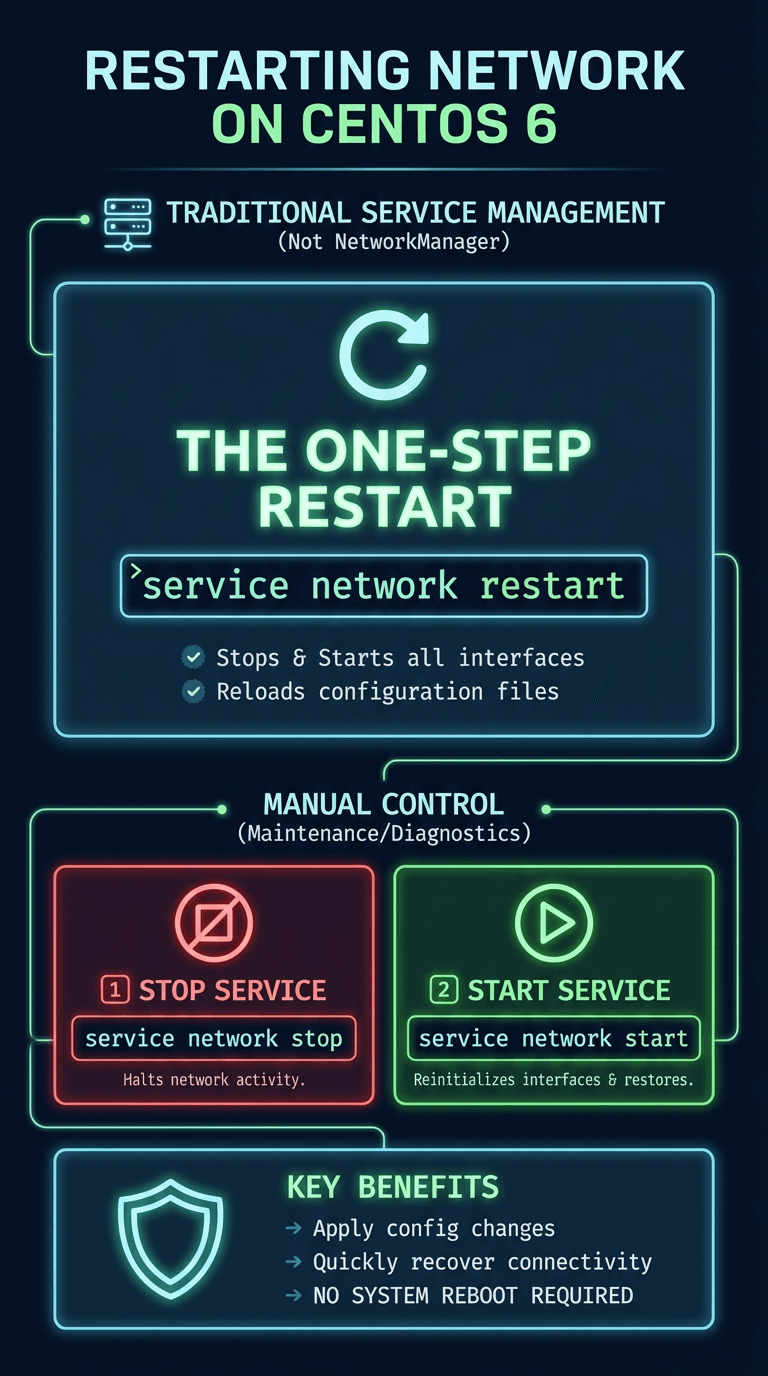
On CentOS 6, networking is managed by the traditional network service, not NetworkManager, so restarting connectivity relies on classic service commands. Using the correct CentOS network restart command ensures that configuration changes are applied properly without rebooting the system.
Use the main service command to restart networking completely:
service network restart
This stops and starts all network interfaces and reloads configuration files.
To stop the network service manually:
service network stop
This is useful when performing maintenance or diagnosing configuration conflicts.
To start the network service again:
service network start
This reinitializes interfaces and restores connectivity based on current settings.
By following these steps, you can safely restart the network on CentOS 6 and quickly recover from the most common connectivity issues without interrupting the entire system.
Since CentOS follows standard Linux networking principles, you can also review our broader Linux restart network guide to compare CentOS behavior with other Linux distributions.
🔁 How to Restart Network on CentOS 7 and 8
CentOS 7 and 8 introduced systemd and shifted network management to NetworkManager, changing how network services are controlled compared to older releases. Understanding these tools is essential for applying the correct restart network CentOS approach without disrupting active services or causing unnecessary downtime.
⚙️Using systemctl
The systemctl command is the primary method for managing services on CentOS 7 and 8, including networking components. It allows administrators to control the NetworkManager service directly using a standardized and reliable interface.
Restart the NetworkManager service completely:
systemctl restart NetworkManager
This reloads network configurations and reinitializes all managed interfaces.
Stop the NetworkManager service if troubleshooting is required:
systemctl stop NetworkManager
Useful when diagnosing conflicts or temporarily disabling network control.
Start the NetworkManager service again:
systemctl start NetworkManager
This restores network connectivity based on current configurations.
Using systemctl is the most stable and recommended CentOS network restart command for modern CentOS systems.
🌐 Using NetworkManager Commands
NetworkManager also provides command-line tools that allow more granular control over networking without fully restarting the service. These commands are ideal when you want a quick CentOS NetworkManager restart with minimal service interruption.
Turn off all networking managed by NetworkManager:
nmcli networking off
This immediately disables active network connections.
Turn networking back on to reinitialize connections:
nmcli networking on
This brings interfaces back online using saved profiles.
Restart a specific connection instead of the entire service:
nmcli connection down <connection-name> && nmcli connection up <connection-name>
Helpful for targeted troubleshooting.
Using nmcli provides fine-grained control and is often safer for remote systems when learning how to restart network on CentOS 7 without risking a full disconnection.
📡 Checking Network Status After Restart
After restarting network services, it’s critical to confirm that the system is online and all interfaces are functioning as expected. Verifying network status helps detect silent failures early and is an essential step when you restart network CentOS systems on servers or VPS instances.
|
Check Purpose |
Command |
What to Look For |
|
Check NetworkManager status |
systemctl status NetworkManager |
Status should show active (running) |
|
Verify network interfaces |
ip addr show |
Interfaces should be UP with assigned IP addresses |
|
Check the routing table |
ip route |
The default gateway should be present |
|
Test connectivity |
ping -c 4 8.8.8.8 |
Successful replies indicate network access |
|
Verify DNS resolution |
ping -c 4 google.com |
Confirms DNS is working correctly |
Checking Network Status Table
Running these checks ensures that the CentOS network restart command completes successfully and that the system is ready for normal operation without hidden connectivity issues.
🛠️ Troubleshooting Common Network Restart Issues
Sometimes a network restart does not restore connectivity as expected, especially after configuration changes or service conflicts. Knowing how to troubleshoot CentOS network restart problems helps you quickly identify whether the issue is related to NetworkManager, interface configuration, or system-level settings.
|
Issue |
Possible Cause |
Recommended Fix |
|
No internet after restart |
NetworkManager not running |
Run systemctl start NetworkManager |
|
Interface shows DOWN |
Interface disabled or misconfigured |
Use ip link set <interface> up |
|
IP address not assigned |
DHCP failure |
Restart connection with nmcli device reapply <interface> |
|
NetworkManager fails to start |
Corrupt configuration file |
Check logs with journalctl -u NetworkManager |
|
SSH connection drops |
Restarting active interface |
Use console access or restart a specific connection only |
Troubleshooting Table
Applying these targeted checks makes it easier to recover from failed CentOS NetworkManager restart attempts and restore stable connectivity without resorting to a full system reboot.
If restarting network services does not restore connectivity and the system becomes unstable, you may need to consider a controlled reboot, see our step-by-step guide on how to reboot CentOS safely.
✅ Best Practices for Restarting Network Services

Restarting network services on CentOS should always be done carefully, especially on production servers and remote VPS environments. Following best practices reduces the risk of accidental disconnections, misconfigurations, and extended downtime after a restart network CentOS operation.
- Always check which service manages your network before running a CentOS network restart command.
- Avoid restarting the primary network interface over SSH unless you have console access available.
- Use nmcli or connection-level restarts instead of full service restarts when possible.
- Verify network configuration files before restarting to prevent invalid settings from being applied.
- Check network status immediately after restart to confirm connectivity and routing.
By applying these precautions, administrators can restart networking services safely and consistently while maintaining system availability and control.
For quick access to essential networking and system commands, bookmark our CentOS command Cheat Sheet and use it as a reference during troubleshooting or maintenance tasks.
Conclusion
Rebooting the networking services in CentOS is one of the most common troubleshooting methods, and it allows the system administrators to resolve the network issues quickly without the need to shut down the entire system. If you understand the version behavior, choose the proper command for CentOS network restart and know when to use NetworkManager, systemctl, or old service tools, you can slowly get the network back without much downtime.
By constantly using verification steps, troubleshooting techniques, and best practices, you ensure that every restart network CentOS operation is orderly, predictable, and aligned with stable server administration.
If you are managing production workloads or planning to deploy a reliable server environment, choosing a stable CentOS VPS from MonoVM ensures full control over networking, services, and performance.


I'm fascinated by the IT world and how the 1's and 0's work. While I venture into the world of Technology, I try to share what I know in the simplest way with you. Not a fan of coffee, a travel addict, and a self-accredited 'master chef'.