The Wubi Installer simplifies the installation process of Ubuntu on Windows, so no partitioning or complicated setup is necessary. First made as a Windows-oriented Ubuntu installer, Wubi lets users try Linux safely by installing Ubuntu in the same way a regular Windows application is installed.
Though it was once a popular gateway for beginners to Linux, its compatibility has evolved over the years; it has become necessary to be aware of its current status, limitations, and Wubi alternatives. The new Wubi Ubuntu installation guide will present how Wubi operates, how to do it securely, and what to keep in mind if you face Wubi troubleshooting problems or opt for modern Ubuntu installation techniques.
🔽 History and Current Status of Wubi

The Wubi Installer (Windows-based Ubuntu Installer) was first introduced in 2008 as an official tool from Canonical to simplify Ubuntu installation for Windows users. It eliminated the need for disk partitioning or bootable drives by creating a virtual disk inside the Windows file system.
This made it possible to install Ubuntu on Windows with Wubi just like any standard software, with a simple setup wizard and easy uninstallation via the Windows Control Panel. Wubi quickly gained popularity among beginners who wanted to test Ubuntu without risk, bridging the gap between the two operating systems and helping thousands of users take their first step into the Linux ecosystem.
However, as Ubuntu and Windows evolved, Wubi became increasingly outdated. The official support for Wubi was discontinued after Ubuntu 12.04 due to compatibility and bootloader issues with modern Windows versions. While unofficial forks still exist, they are not officially maintained or guaranteed to work with Windows 10 or 11.
To learn more about Ubuntu’s features and ecosystem, refer to our detailed guide on What is Ubuntu.
🔽 Benefits and Limitations of Using Wubi
The Wubi Installer offers a simple way to test Ubuntu without altering disk partitions, making it appealing for beginners who want a low-risk setup. However, its outdated status and limited compatibility with modern Windows versions introduce several constraints that users should understand before relying on it.
|
Benefits |
Limitations |
|
Easy installation without partitioning |
Officially discontinued and no longer supported |
|
Safe to uninstall without affecting Windows |
Not reliable on Windows 10 or Windows 11 |
|
Great for beginners exploring Ubuntu |
Performance is slower due to virtual disk usage |
|
Let users test Ubuntu with minimal risk |
Higher chance of boot errors and corruption |
|
Simple dual-boot experience |
Limited troubleshooting resources and outdated documentation |
Wubi can still help users test Ubuntu quickly, but modern systems generally work better with updated methods such as WSL, virtualization, or full installation alternatives.
🛠️ Step-by-Step Guide to Installing Ubuntu Using Wubi
The Wubi Installer provides a straightforward way to install Ubuntu on Windows without modifying partitions, making it ideal for beginners. Although Wubi is no longer officially supported, the process is still helpful to understand for users exploring legacy installation methods.
- Download the Wubi Installer: Get the Wubi .exe file from a trusted source and ensure you have a stable internet connection for downloading Ubuntu.
- Run the Installer in Windows: Double-click the Wubi file to open the setup wizard and begin the installation process.
- Choose Installation Drive and Size: Select the Windows drive where Ubuntu will be installed and allocate at least 10–15 GB of space.
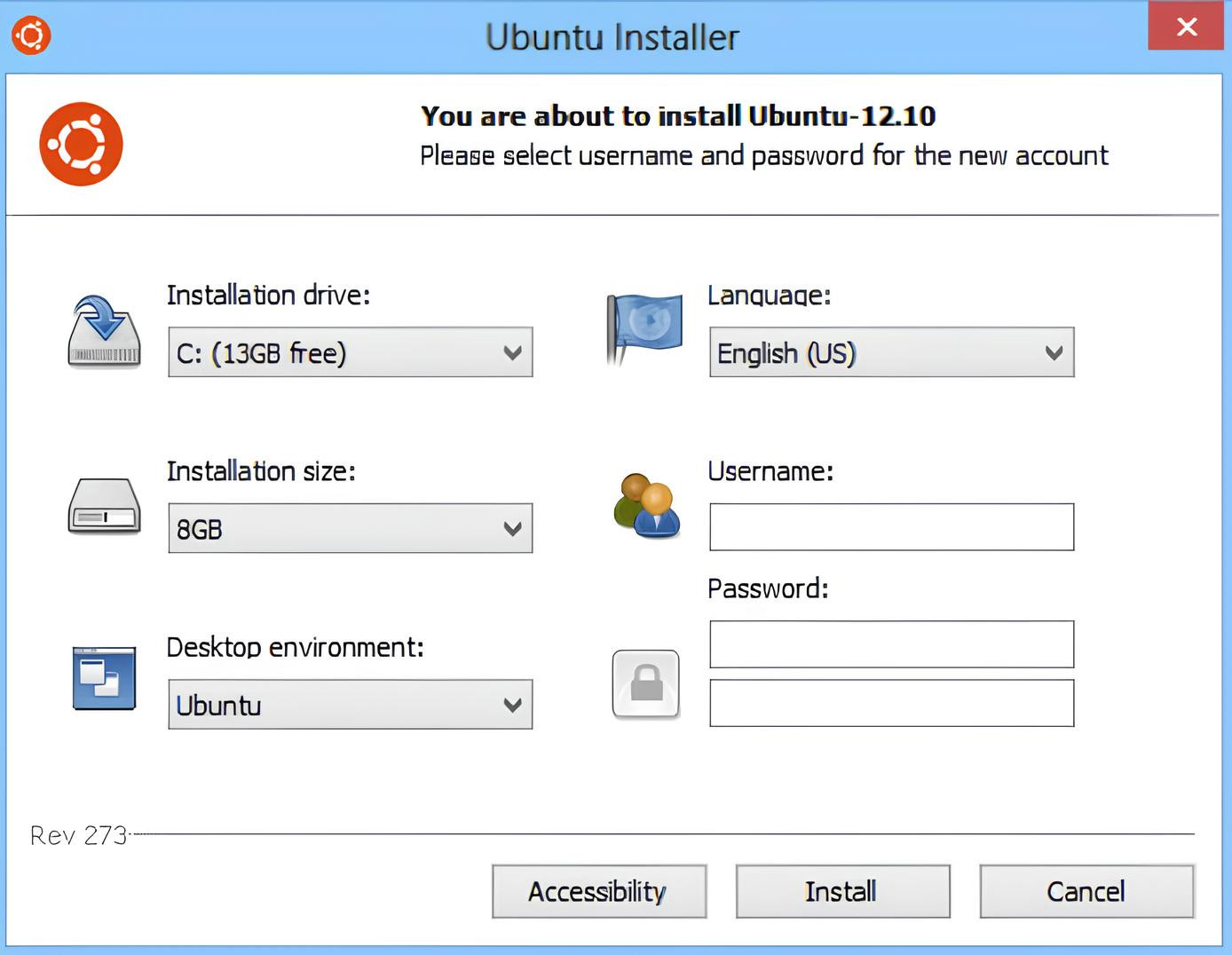
- Select Desktop Environment: Pick the Ubuntu flavor you want (Ubuntu, Kubuntu, Xubuntu, etc.) based on your preferred interface.
- Set Username and Password: Create your Ubuntu login credentials, which you’ll use each time you access the system.
- Begin Installation: Click Install and wait until all Ubuntu files are downloaded and configured inside Windows.
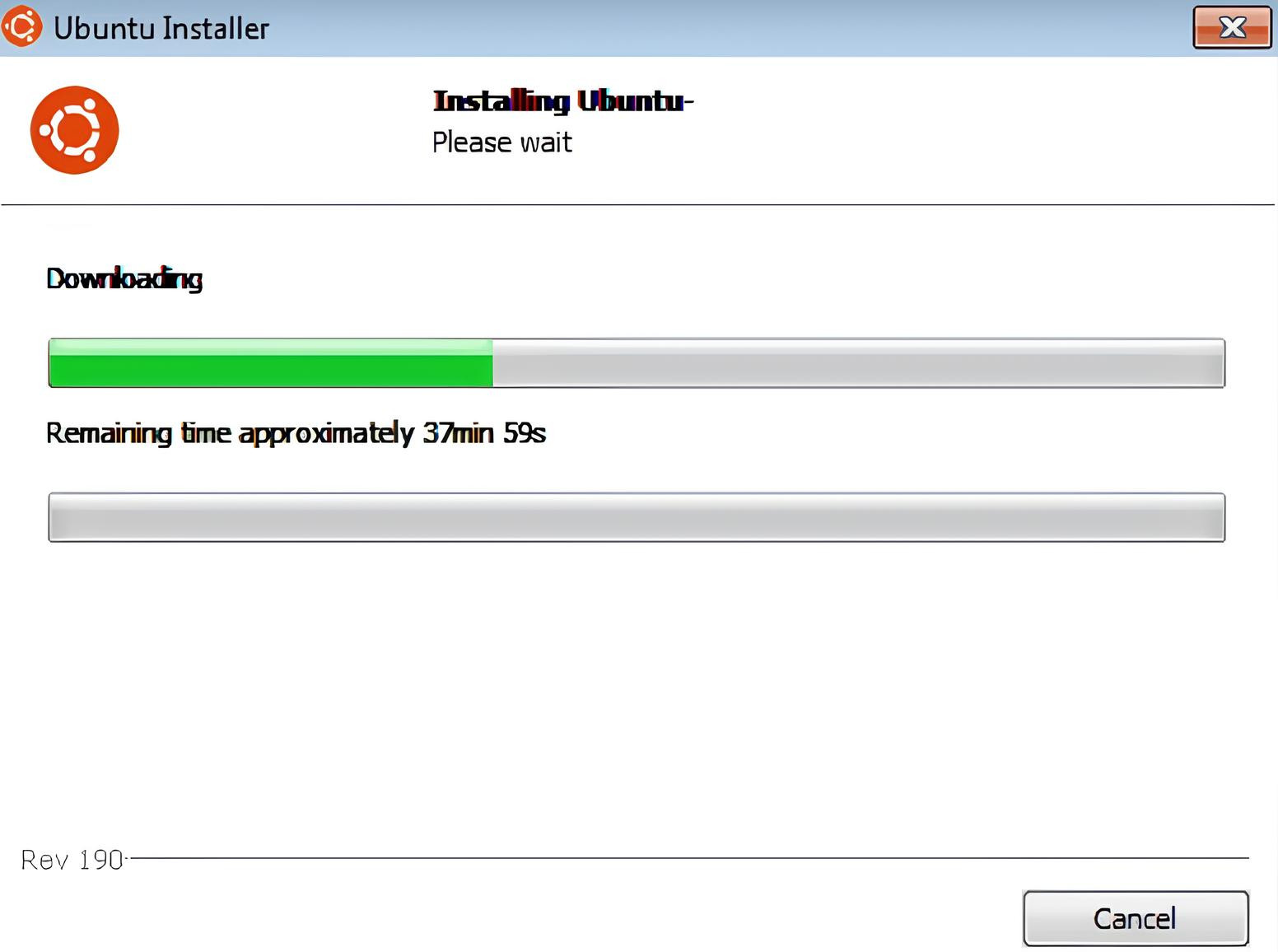
- Restart Your Computer: After installation completes, reboot your system when prompted.
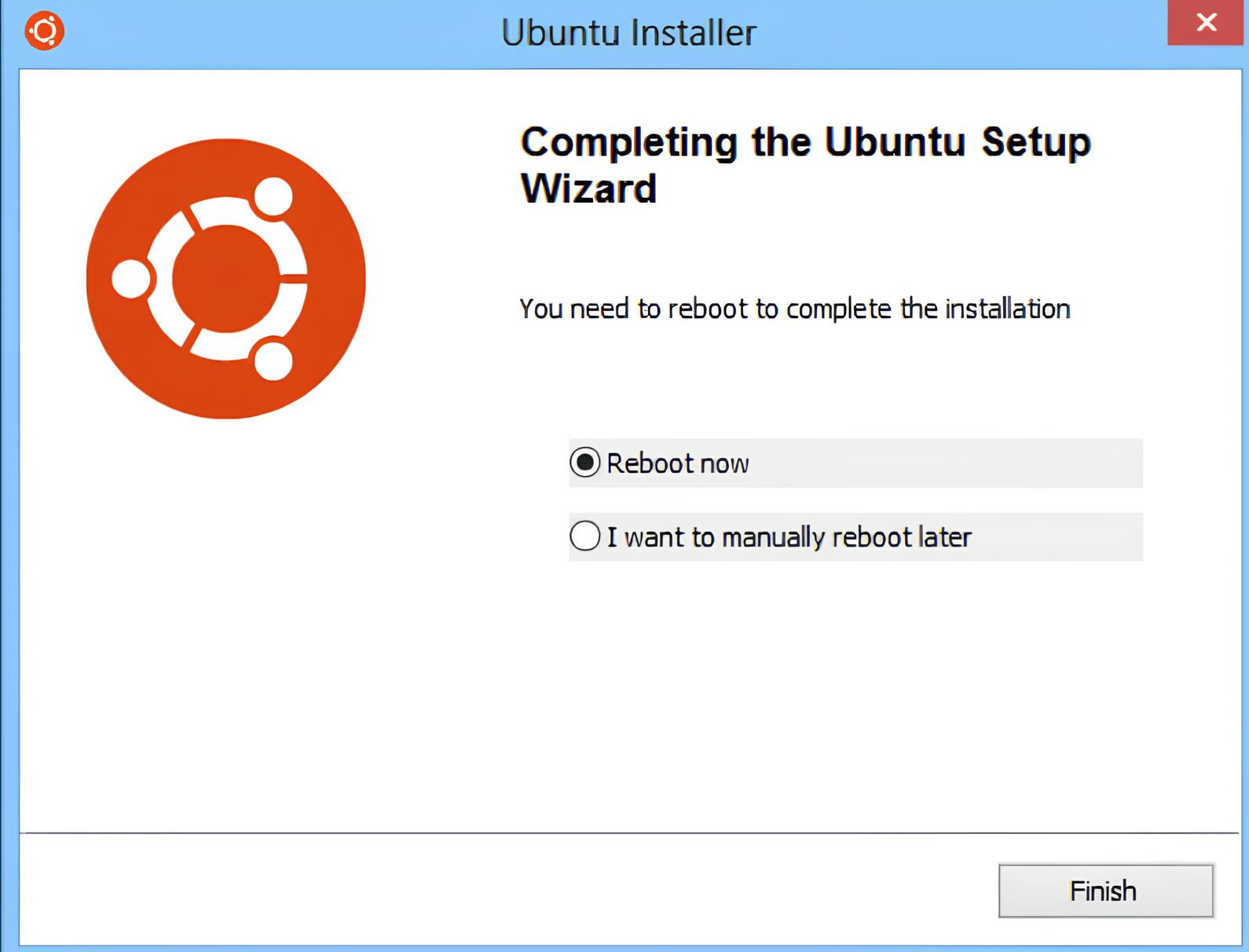
- Choose Ubuntu from the Boot Menu: On startup, select Ubuntu in the Windows Boot Manager to enter your new Linux environment.
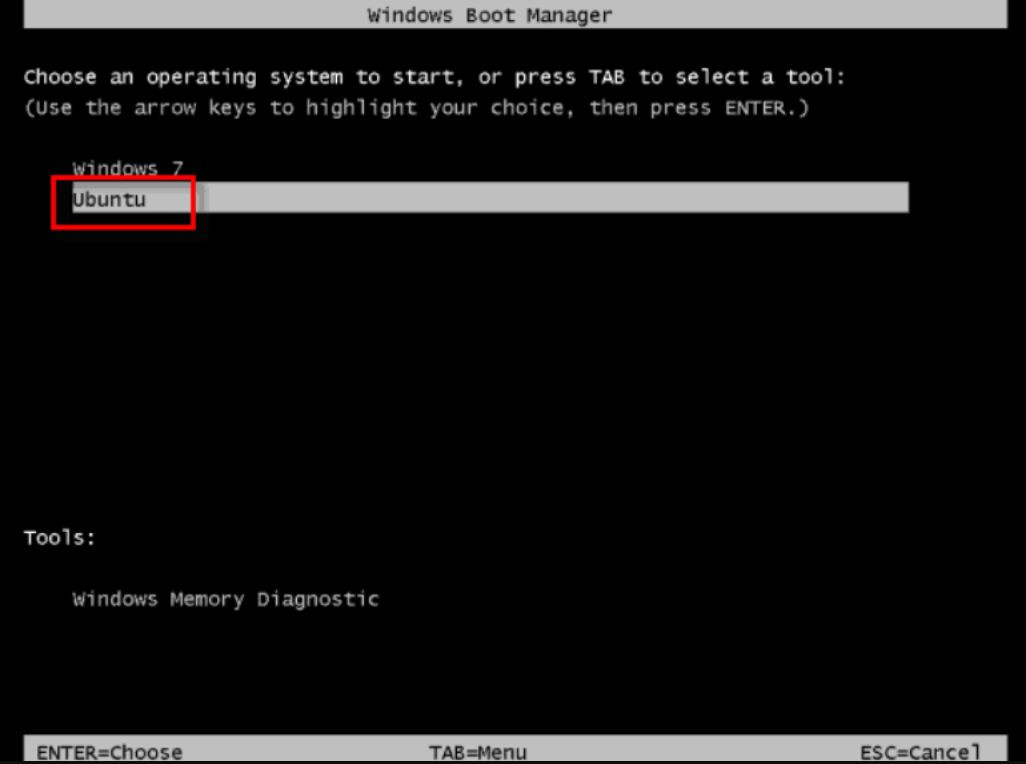
Even though Wubi simplifies Ubuntu setup, users on modern Windows versions should consider safer and newer installation options for a more stable experience. If you prefer installing Ubuntu using the standard and fully supported method, check out our complete guide: How to Install Ubuntu.
🗑️ How to Uninstall Wubi Safely
Uninstalling Ubuntu installed via the Wubi Installer is simple because it behaves like a regular Windows application. You can remove it directly from the Windows Control Panel without affecting your files or system configuration.
Just open Programs and Features, locate Ubuntu, and click Uninstall to launch the Wubi removal wizard. After the process completes, restart your computer to ensure all boot entries and temporary files are fully cleared.
If you plan to set up a fresh installation afterward, you can follow our guide on Reinstall Ubuntu for a clean and stable setup.
🔄 Alternatives to Wubi Installer for Ubuntu on Windows
Because the Wubi Installer is no longer officially supported, many users prefer modern and more reliable methods to install or run Ubuntu on Windows. These alternatives offer better stability, compatibility, and long-term support.
- Windows Subsystem for Linux (WSL): Run Ubuntu directly inside Windows with full command-line support and no reboot required.
- Virtualization Software (VirtualBox, VMware): Create a virtual machine to run Ubuntu safely alongside Windows with full desktop support.
- Traditional Dual-Boot Installation: Partition your hard drive and install Ubuntu natively for the best performance and full hardware access.
- Live USB Boot: Try Ubuntu without installation by booting from a USB drive, ideal for testing or troubleshooting.
- Cloud-Based Ubuntu (Ubuntu VPS): Use a remote Ubuntu environment for development or hosting; see Ubuntu VPS for fast, secure deployment.
These alternatives provide more stable and secure ways to explore Ubuntu compared to Wubi, especially on newer systems like Windows 10 and Windows 11.
For remote development, security testing, or hosting, explore MonoVM's fast and reliable Ubuntu VPS solutions.
🛑 Troubleshooting Common Wubi Issues
Even though the Wubi Installer was designed to simplify Ubuntu installation on Windows, users may still encounter errors due to outdated support or system incompatibilities. Understanding the most frequent problems can help you fix issues quickly and continue exploring Ubuntu without frustration.
🧩 Common Wubi Errors and How to Fix Them
|
Issue |
Cause |
Solution |
|
Installation fails due to low disk space |
Insufficient free space on the Windows drive |
Free up at least 10–15 GB before reinstalling Wubi |
|
Ubuntu download errors |
Network instability or server issues |
Check the internet connection or manually place the Ubuntu ISO next to the Wubi file |
|
Wubi freezes or hangs during installation |
System compatibility or file corruption |
Restart the system, re-run the installer, and verify system requirements |
|
Boot entry not appearing |
Windows Boot Manager issue |
Use BIOS boot menu or tools like EasyBCD to adjust boot entries |
|
Wubi not working on Windows 10/11 |
Wubi is deprecated and not fully supported |
Use alternatives like WSL or virtualization instead |
While Wubi troubleshooting can resolve some issues, users on modern Windows versions will generally achieve better results using updated Ubuntu installation methods.
Conclusion
The Wubi Installer was a major factor that provided a straightforward, risk-free way to install the operating system, making Ubuntu more user-friendly for Windows users. Although it still shows how to do a lightweight dual-boot, its limitations and lack of official support make modern options much more trustworthy nowadays.
If you are a first-time explorer of Ubuntu or seeking a long-term stable solution, then WSL, virtualization software, or a complete Ubuntu installation are the options that will deliver you performance and compatibility. When you use the right approach and keep up with the updated methods, you can get the benefit of the flexibility of Ubuntu without having to compromise on your Windows environment.


Hello, everyone, my name is Lisa. I'm a passionate electrical engineering student with a keen interest in technology. I'm fascinated by the intersection of engineering principles and technological advancements, and I'm eager to contribute to the field by applying my knowledge and skills to solve real-world problems.