Have you ever been woken up at 3am to an emergency call because your company's main server has crashed and the operating system won't boot? At that moment, while you're miles away from the server room, your only wish is that the server's power button was right next to your bed. Well, the good news is that this wish has been fulfilled with IPMI. But what is IPMI? In this article from Monovm, we're going to talk about the standard and see exactly how it works and how you can use it like a pro.
What is IPMI?
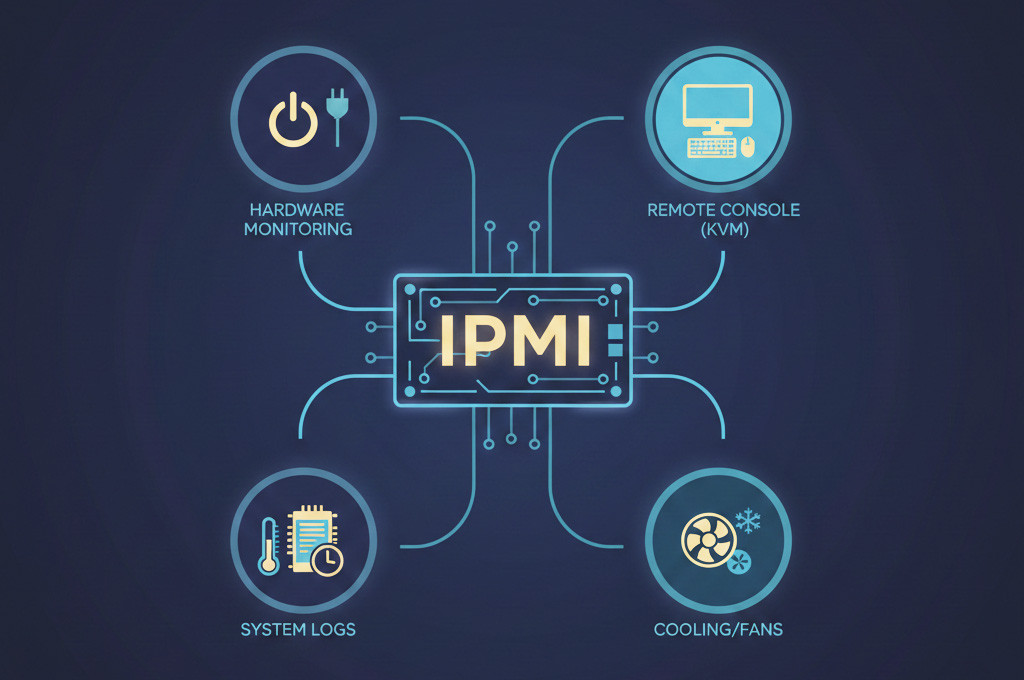
Let’s start simple: IPMI stands for Intelligent Platform Management Interface. But behind this long, mouthful of a name lies a simple and brilliant idea: “hardware control without relying on software.”
Imagine your server is powered off, the operating system has frozen, or even worse, the main hard drive has failed, and the system won’t boot. In normal conditions, no remote tool (like Remote Desktop or SSH) would work, because all of them depend on the operating system. IPMI, however, is independent. This protocol communicates directly with the hardware.
IPMI allows system administrators to monitor the health of a large number of servers without installing any monitoring software on the operating system. This capability makes IPMI a key component in bare-metal automation and efficient cloud infrastructure management.
What Does IPMI Actually Do? Key Features and Benefits
You might ask, “So what exactly can it do?” The short answer is: almost anything you could do if you were standing in front of the server rack. Let’s go through the most important capabilities:
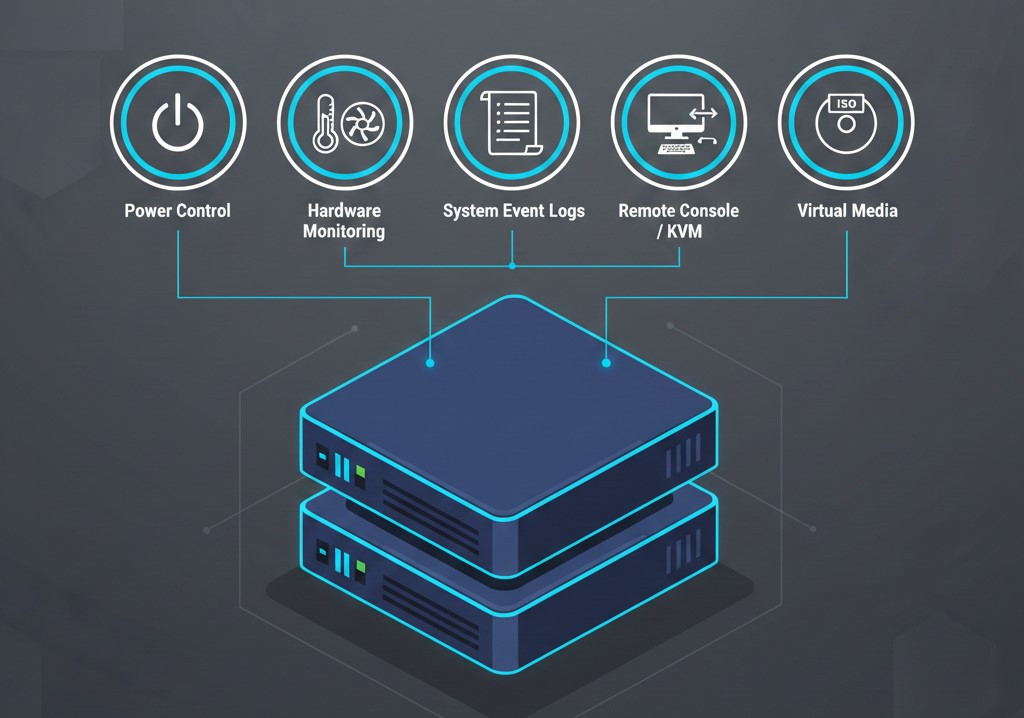
- Power Management (Power Control): This is the most popular feature. You can remotely power the server on or off, restart it, or perform a power cycle. Even if the operating system is completely frozen, IPMI sends a hard reset command directly to the motherboard.
- Hardware Health Monitoring: IPMI is your always-on set of eyes. It continuously monitors fan speeds, CPU temperature, power supply voltages, and the physical status of components. If the server temperature rises beyond safe limits, it alerts you before a real disaster happens.
- System Event Logging: All critical events such as sensor errors, temperature spikes, or power supply issues, are recorded in the System Event Log (SEL). Because the SEL is non-volatile, its data is preserved even after a power outage or system crash. These logs help you pinpoint the hardware root cause of a problem much more accurately.
- Remote Console (KVM over IP): This is a powerful feature. You can see the server’s display and control the keyboard and mouse exactly as they are, even in the BIOS environment or during Windows/Linux installation, all from your web browser.
- Virtual Media: You can remotely attach ISO images or disks to the server for operating system installation, just as if you had physically connected a CD/DVD drive. This makes installing a new OS or running bootable diagnostic tools much easier.
In general, IPMI’s capabilities go far beyond managing a single server and have evolved into a strategic platform for data centers. Its non-intrusive, agentless approach to data collection makes it ideal for managing large-scale infrastructure.
IPMI Architecture and Components
To work professionally with IPMI, you need to understand what’s happening under the hood. The IPMI architecture is built around a highly intelligent hardware component.
Baseboard Management Controller (BMC)
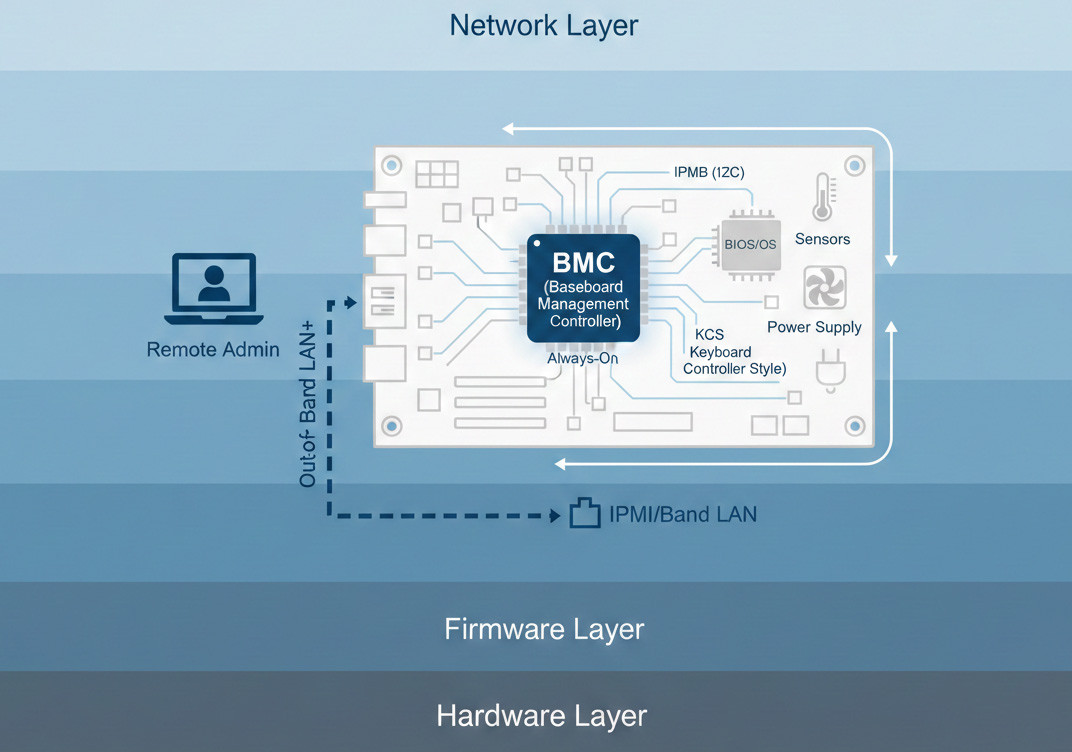
The BMC, or Baseboard Management Controller, is a dedicated microcontroller embedded directly on the server motherboard. It is essentially a small, standalone computer with its own processor, memory, and network interface.
A key point about the BMC is that it remains powered even when the server is off or the operating system has failed, as it draws power from the motherboard’s standby voltage. This allows the BMC to continuously monitor the server’s hardware and sensors like a permanent guardian, remaining accessible at all times.
Internal Communication Paths
To access other server components such as sensors, memory, and power supply, the BMC uses specific internal communication interfaces. The IPMB interface, based on the I2C protocol, allows the BMC to communicate with peripheral controllers and read or log sensor data. Meanwhile, the KCS interface enables communication between the BMC and the BIOS or operating system, allowing IPMI messages to be sent from within the system.
External (Out-of-Band) Communication Paths
Remote access to IPMI is typically done over a local area network (LAN).
This out-of-band connection uses the RMCP protocol or its more secure version, RMCP+, introduced in IPMI 2.0.
IPMI messages are transmitted as UDP datagrams over port 623.
This setup allows you to manage the server even without access to the operating system.
The Nature of IPMI Protocol and Network Layers
IPMI is not a single protocol that can be neatly classified within a specific OSI layer. Some assume that because IPMI traffic uses UDP, it must be a layer 7 (Application Layer) protocol. In reality, IPMI performs much more complex functions.
For example, IPMI management involves bridged requests, which operate similarly to layer 2 functions in the OSI model, while also interacting directly with hardware at the lowest level through interfaces like KCS. Understanding this multi-layered, complex architecture explains why troubleshooting and automating IPMI can be more challenging compared to newer protocols, such as HTTP/REST-based Redfish.
How to Access and Use IPMI?
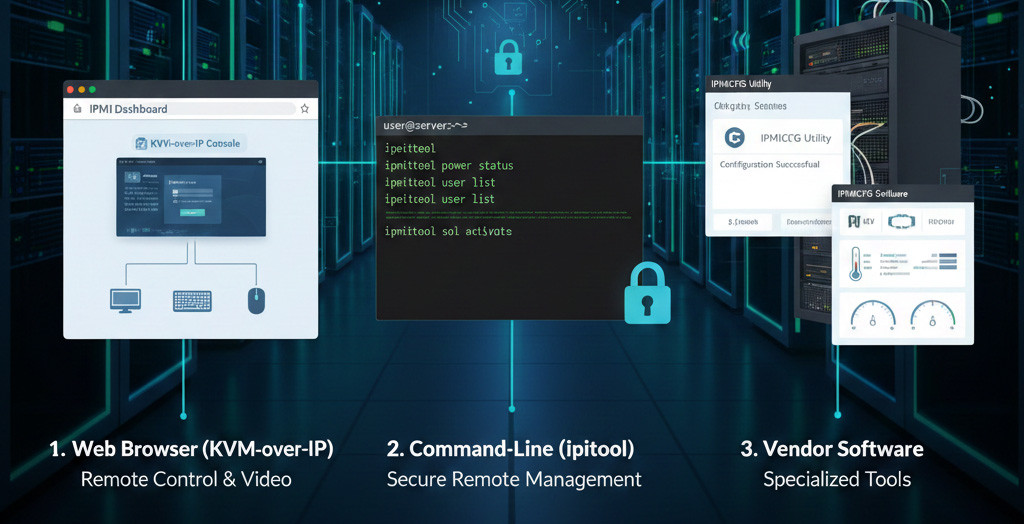
To use IPMI effectively, you have three main ways to access it, each designed for specific purposes. As a system administrator, you should become proficient with all three.
Web GUI
The easiest way to get started with IPMI is through its web interface. Simply enter the server’s management IP address in your browser. The web interface usually provides one of the most important features: KVM-over-IP (Keyboard, Video, Mouse over IP). This allows you to see exactly what you would see if you were sitting in front of the server.
Although many modern BMCs have moved to HTML5-based KVM consoles, a significant number of older servers still require Java plugins to run the KVM console. This dependency can cause various issues and often requires manual Java updates or browser security adjustments.
Command-Line Interface (CLI) – ipmitool
The most powerful and flexible tool for remote management and automation is the CLI. In the Linux ecosystem, ipmitool is the most commonly used software to interact with your server’s BMC. Connection and Usage:
For out-of-band access, you need to specify the lanplus interface, which provides enhanced security in IPMI 2.0:
ipmitool -I lanplus -H <IP_BMC> -U <User> -P <Password> <Command>
A key point: entering passwords directly in the command line (as shown above) stores them in the shell history, which is a major security risk. It is always better to use methods that avoid storing passwords in the shell, or disable the history temporarily by running unset HISTFILE before executing the command.
Vendor-Specific Tools
Different manufacturers provide their own CLI and GUI tools that go beyond the standard IPMI and manage OEM-specific configurations. For example, Supermicro offers tools like IPMICFG and IPMIView. These tools are often essential for advanced BMC configuration and firmware updates.
Common Commands and Operations
Here is a list of the most important ipmitool commands every system administrator should know:
|
IPMI Command |
Function |
Example Usage |
|
chassis power status |
Check the current power state (on or off) of the server chassis |
ipmitool chassis power status |
|
chassis power on/off |
Power the server on or off |
ipmitool chassis power on |
|
chassis power cycle |
Perform a hardware power reset (turn off and on) |
ipmitool chassis power cycle |
|
sdr list |
List the status of all hardware sensors (temperature, voltage, fan) |
ipmitool sdr list |
|
sel list |
View the System Event Log (SEL) |
ipmitool sel list |
|
chassis bootdev |
Set the device the server should use for the next boot (e.g., cdrom or pxe) |
ipmitool chassis bootdev cdrom |
You should also know that commands like chassis power cycle are very powerful. Executing them incorrectly can result in data loss. For a step-by-step practical guide, read How to Manage Dedicated Server with IPMI and take full control of your server with confidence.
Security Considerations with IPMI
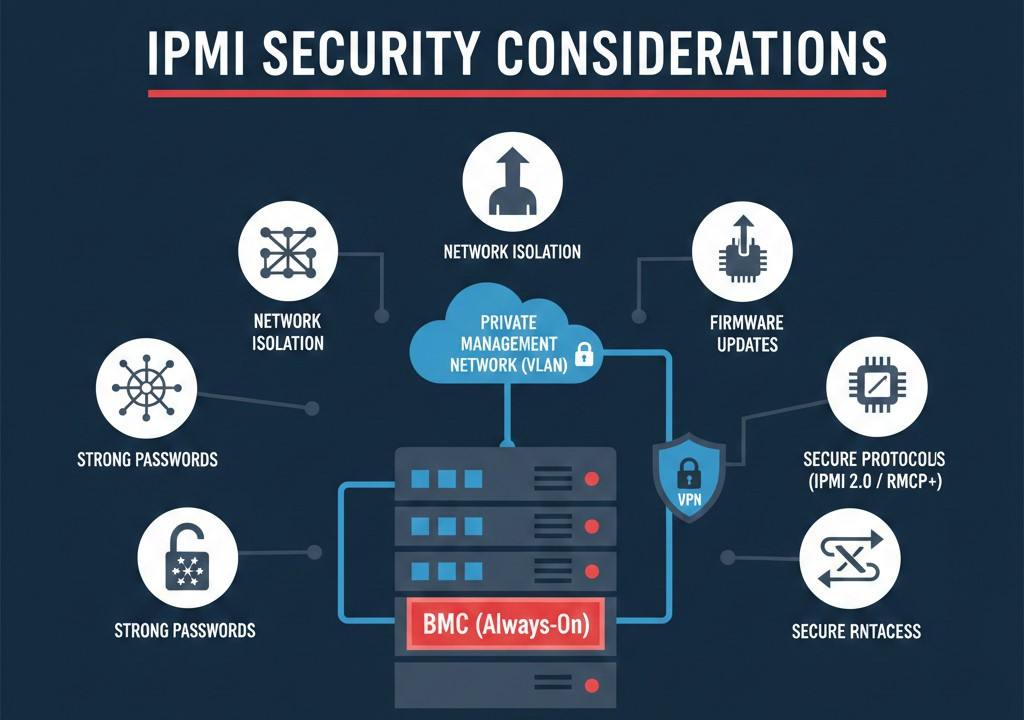
IPMI’s independent and always-available nature is a double-edged sword. On one hand, system administrators can drastically reduce MTTR by troubleshooting and recovering systems remotely. On the other hand, the BMC is always powered on, and if an attacker gains access to it, they obtain full control over the server’s hardware without being stopped by the operating system’s firewall or security mechanisms.
Therefore, while IPMI provides great convenience and reliability, applying the highest level of security is absolutely essential, including the following measures:
1. Network Isolation:
Never, and I emphasize never, expose the IPMI port directly to the public internet. It should reside on a private management network (Management VLAN) and be accessible only through a VPN.
2. Change Default Passwords:
The very first thing you should do after purchasing a server is change the default admin password. Vendor default credentials are easily found online.
3. Firmware Updates:
Security vulnerabilities are discovered in BMCs. Make sure the server firmware is always kept up to date.
4. Disable Anonymous Users:
Ensure that the Anonymous Login feature is disabled in the IPMI settings.
5. Enable Secure Protocols:
Use newer IPMI versions, such as IPMI 2.0 with RMCP+ authentication, and disable legacy protocols to prevent attacks like cipher 0 from bypassing authentication.
As a final recommendation, regularly review BMC logs to detect failed login attempts or any suspicious activity. Keep in mind that common tools such as Metasploit have been used in the past to exploit IPMI vulnerabilities.
Comparing IPMI with Other Remote Management Interfaces
You might ask, “Why not just use SSH or Remote Desktop?” Let’s compare:
|
Feature / Tool |
IPMI |
HP iLO |
Dell iDRAC |
Redfish |
SSH |
|
Technology Type |
Open hardware standard |
HP proprietary interface |
Dell proprietary interface |
Modern API-based standard |
Software communication protocol |
|
OS Dependency |
❌ None (fully independent) |
❌ None |
❌ None |
❌ None |
✅ Yes |
|
Access Level |
Hardware (Low Level) |
Hardware |
Hardware |
Hardware |
Operating system |
|
BIOS / UEFI Access |
✅ Yes |
✅ Yes |
✅ Yes |
✅ Yes |
❌ No |
|
Remote OS Installation |
✅ Possible |
✅ Possible |
✅ Possible |
✅ Possible |
❌ Impossible |
|
Power On a Shut-down Server |
✅ Yes |
✅ Yes |
✅ Yes |
✅ Yes |
❌ No |
|
Hardware Reset |
✅ Yes |
✅ Yes |
✅ Yes |
✅ Yes |
⚠️ Limited |
|
Graphical Console (KVM) |
Limited / vendor-dependent |
Full |
Full |
Implementation-dependent |
❌ No |
|
Management Tools |
ipmitool / Web UI |
Web UI + CLI |
Web UI + racadm |
REST API |
CLI |
|
Default Security Level |
Medium (requires configuration) |
High |
High |
High |
Depends on settings |
|
Suitable Scenario |
General server management |
HP datacenters |
Dell datacenters |
Automation and DevOps |
Daily OS management |
In practice, IPMI does not replace popular tools like SSH; it complements them. You use SSH for daily tasks, but when SSH is unavailable, IPMI is the lifeline. However, Redfish can be seen as a potential replacement for IPMI, as the future of server management is moving toward automated and modern environments.
Troubleshooting IPMI Issues
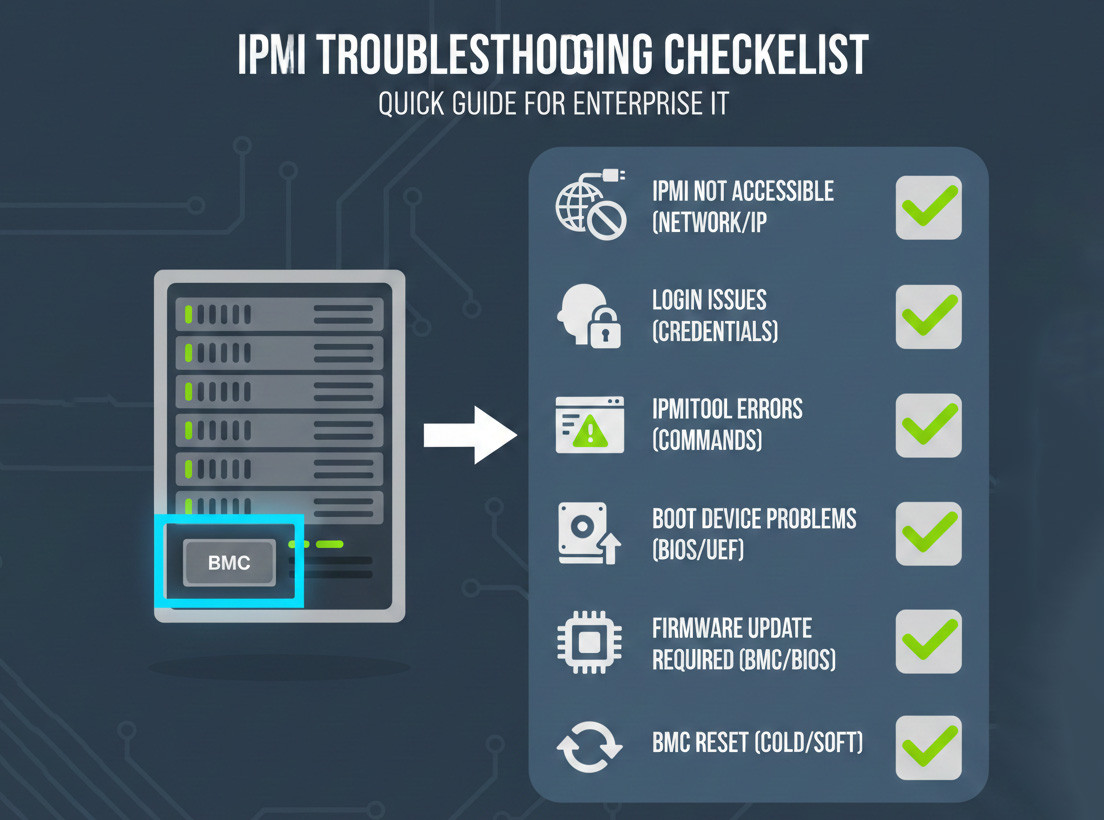
While working with IPMI, you may encounter some common problems. Knowing how to troubleshoot these problems will help you maintain system reliability.
1. No Access to IPMI:
If the web interface or CLI tool does not respond, make sure the server is powered on and the BMC network settings are correct. If you are using DHCP, the IP address may have changed or the BMC might not be connected to the network.
2. Login Issues (Username/Password):
If you’ve forgotten the password or the BMC is locked after multiple failed attempts, you may need to reboot it or reset the BMC to factory settings using the motherboard jumpers or buttons.
3. ipmitool Commands Not Executing:
Check that you are using the correct protocol (such as lanplus) and that the network port (UDP 623) is open in the firewall. In some cases, enabling RMCP+ on the BMC is required.
4. Boot Device Problems:
If the server does not boot from the intended device, reconfigure the ipmitool chassis bootdev command and ensure that the target device is properly connected to the server.
5. Firmware Updates:
If none of the above solutions resolve the issue, check the BMC firmware version and update it, if necessary, as bugs in the current firmware could cause connectivity problems.
Finally, if the BMC exhibits unexpected behavior or configuration errors (for example, new password settings are not applied), performing a BMC reset often resolves many internal issues.
Real-World Use Cases and Case Studies
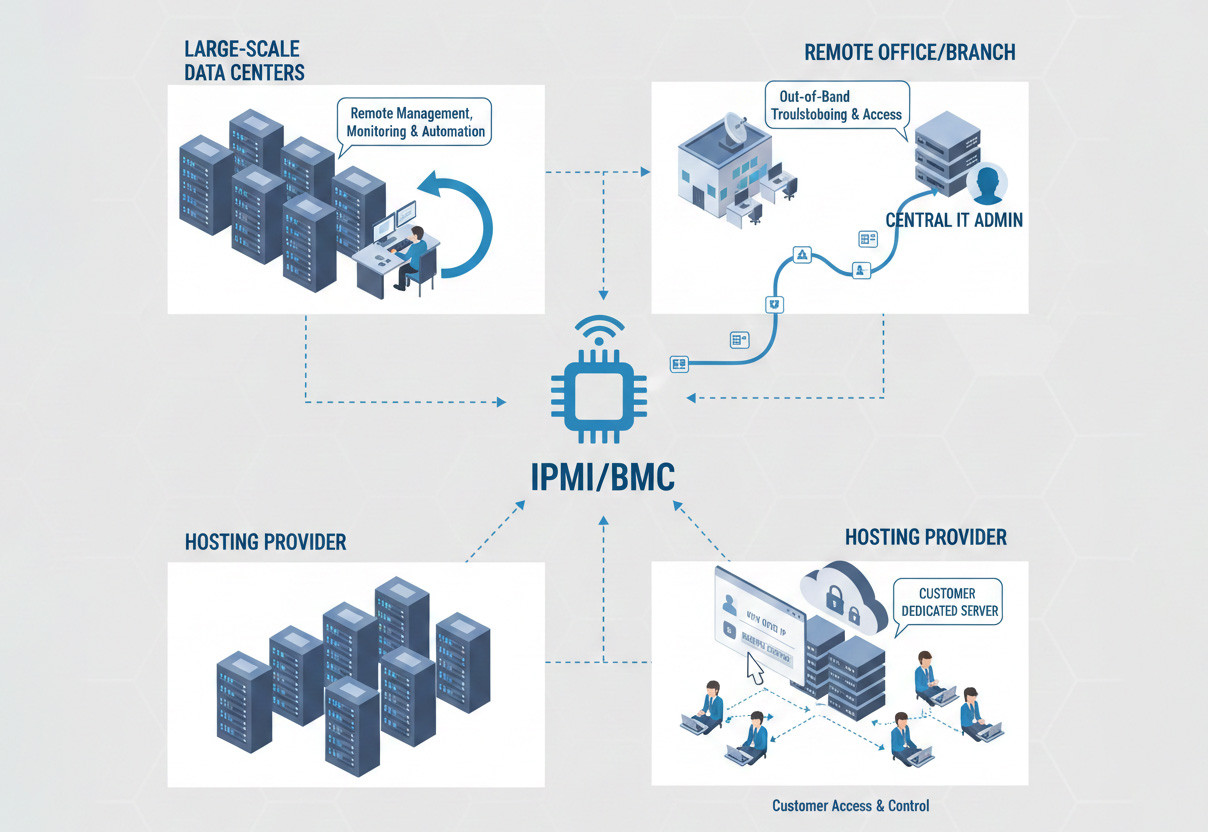
In practice, IPMI is the backbone of large-scale infrastructure management operations. Let’s see where this technology is applied:
1. Large-Scale Data Centers:
Imagine managing 2,000 servers. Updating the firmware or monitoring the temperature of all these machines without IPMI would require an army of technicians. With IPMI, this can be done using just a few simple scripts.
2. Remote Office/Branch Office (ROBO):
Consider a company with a branch in a small town that has a file server but no on-site IT staff. If the server encounters a problem, the central admin from the main office in Tehran can resolve it or reinstall the operating system via IPMI, without needing to travel.
3. Hosting Companies:
When you rent a dedicated server, the hosting company provides IPMI (or KVM) access so you can manage the server yourself. This gives customers independence and reduces support tickets.
These examples demonstrate that IPMI serves as a strategic data resource for proactive operations and large-scale automation.
Manage Smarter with IPMI
IPMI defines the boundary between an anxious administrator who is forced to go to the data center in the middle of the night and a professional administrator who resolves the issue with a few clicks and goes back to sleep. If you have not been using the advanced capabilities of IPMI until now, we strongly recommend that you start doing so immediately. Ultimately, if you plan to take advantage of IPMI features on a dedicated server, you can rely on MONOVM dedicated servers. Buy dedicated server, gain full control over the hardware and implement security and management configurations according to your specific needs.


I’m Oliver k. I have MS degree in Computer Engineering. For nearly 5 years that I have been working on web programing and also in last 2 years I have worked on windows and Linux VPS. This is my honor to share my experiences with a new community.