In our interconnected digital world, security is no longer optional it is the foundation of trust. Every interaction between users and websites involves the exchange of data, some of which is highly sensitive. This is exactly where SSL (Secure Sockets Layer) becomes essential.
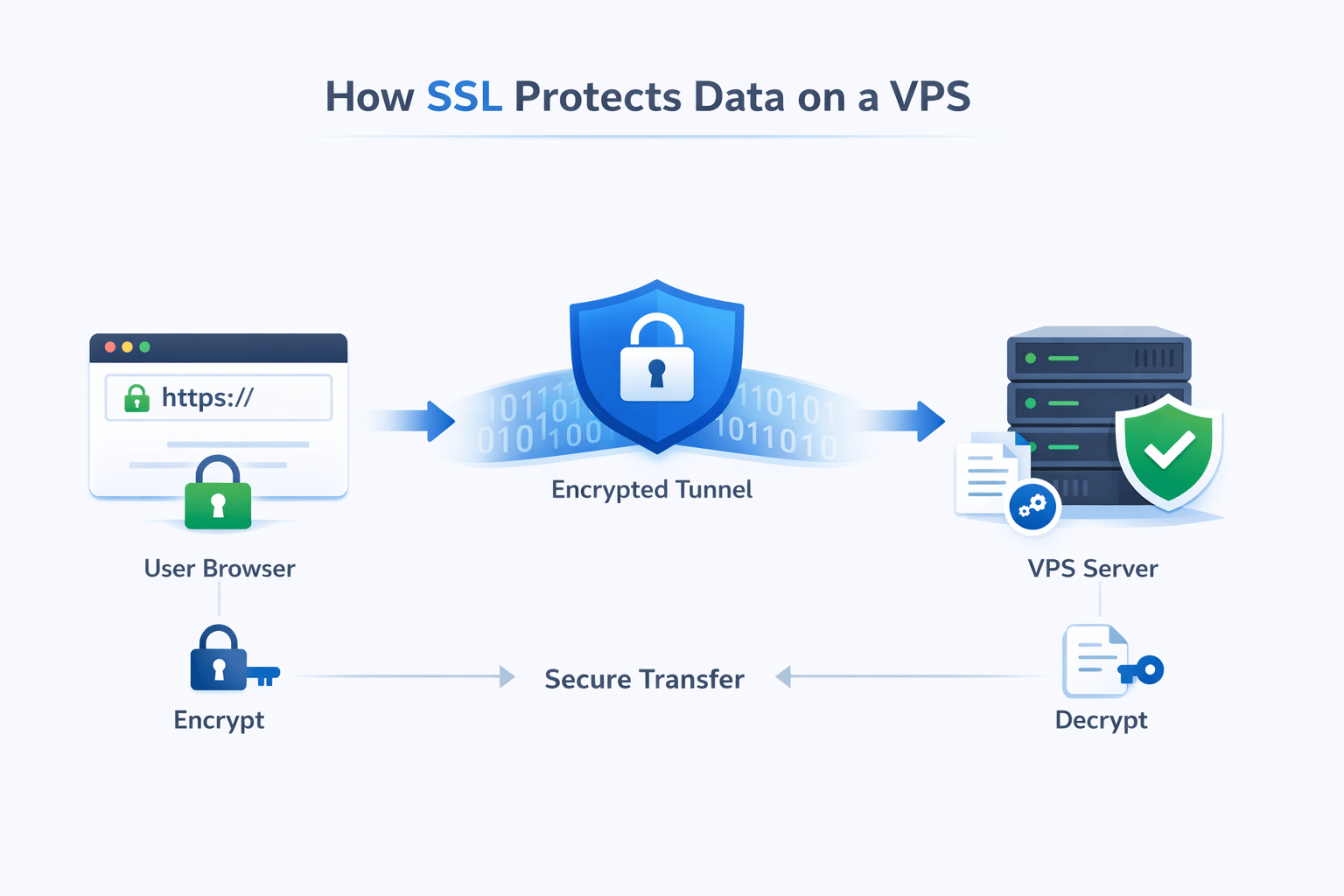
SSL is a cryptographic protocol that encrypts data exchanged between a user’s web browser and a web server. This encryption ensures that sensitive information such as login credentials, payment details, and personal data remains protected from cybercriminals and unauthorized interception.
When you install SSL on a VPS (Virtual Private Server), you are not just adding a security feature—you are creating a secure, trustworthy environment for your users. SSL acts as a digital guardian, protecting data integrity, preventing man-in-the-middle attacks, improving SEO rankings, and reassuring visitors that your website is safe to use.
For a deeper technical explanation, we recommend reading What is SSL and to understand modern encryption standards, see TLS vs SSL.
What Is SSL and Why It Matters on a VPS
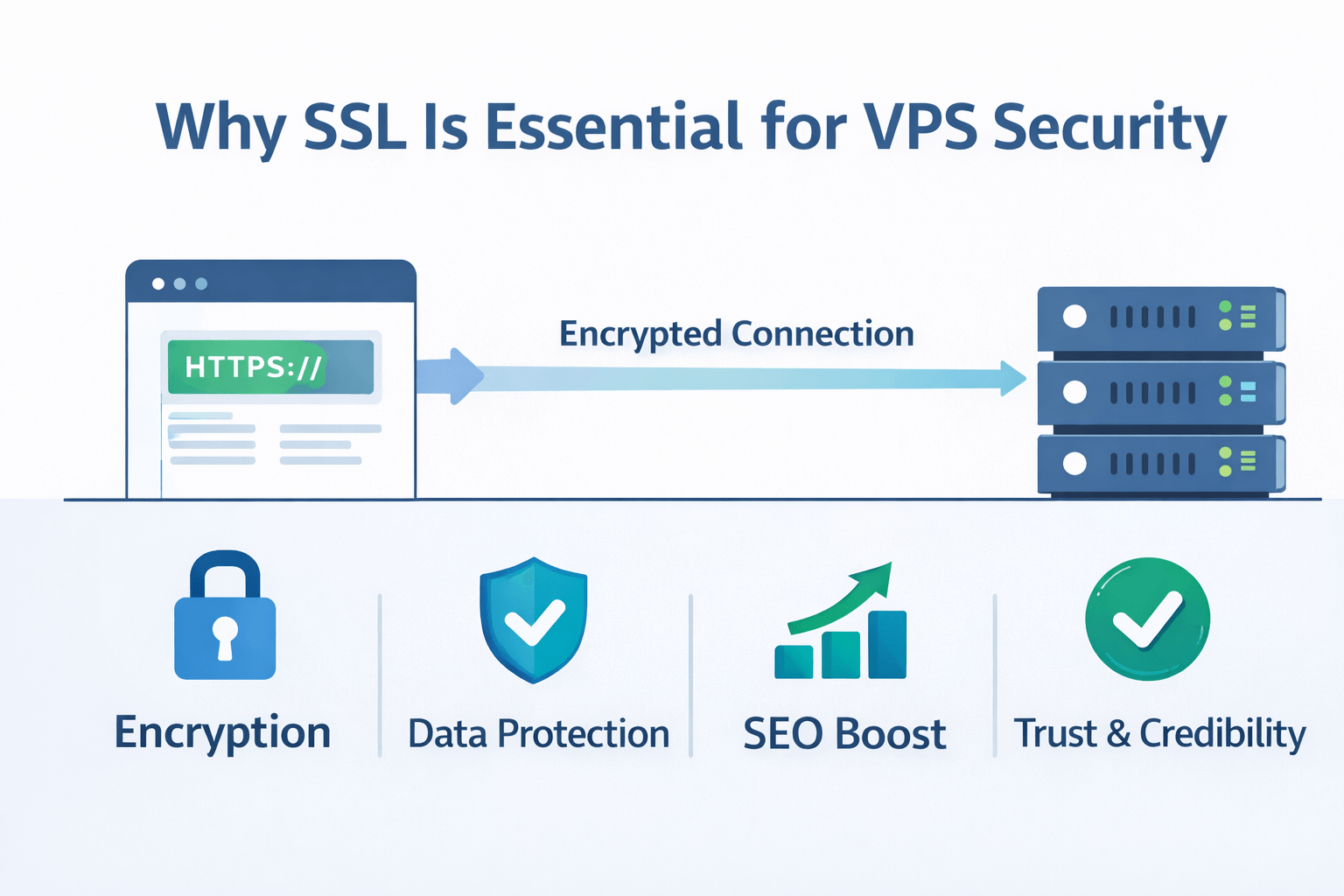
SSL (Secure Sockets Layer), now technically implemented as TLS (Transport Layer Security), is a security protocol that encrypts data exchanged between a user’s browser and a server. When SSL is enabled, all information transmitted—such as login credentials, payment details, personal data, and API requests—is protected from interception and manipulation.
In a VPS (Virtual Private Server) environment, SSL is especially important because VPS servers commonly host production websites, SaaS platforms, enterprise applications, and databases containing sensitive customer information. Unlike shared hosting, a VPS gives you greater control and responsibility over security, making SSL a foundational requirement rather than an optional feature.
Why SSL Is Critical for VPS-Hosted Websites
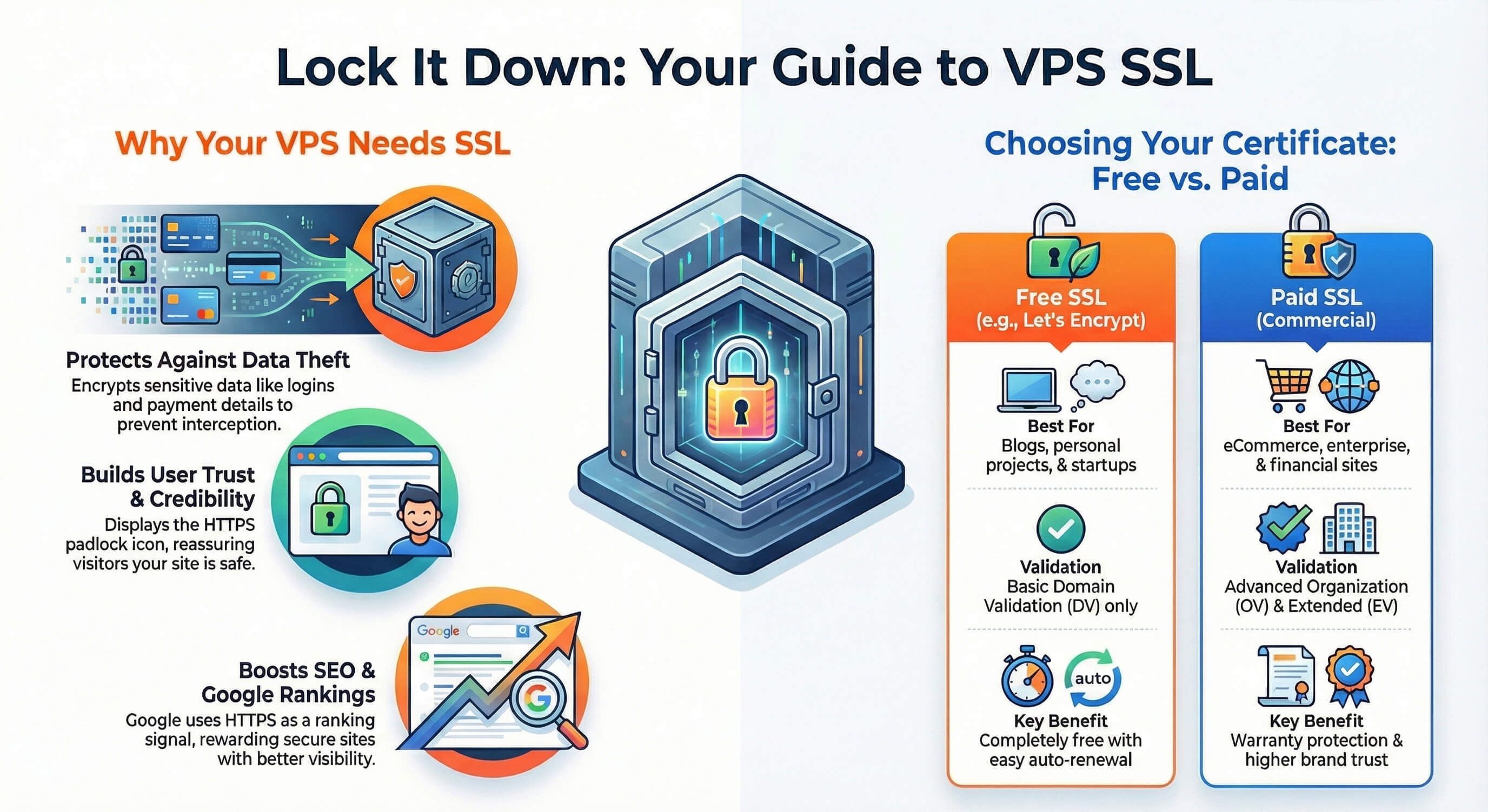
1. Encrypted Communication
SSL encrypts all data exchanged between the server and visitors’ browsers. This prevents attackers from reading or stealing sensitive information, even if they manage to intercept the traffic. Encryption is essential for login systems, contact forms, payment pages, and APIs running on a VPS.
2. Protection Against Data Theft and Tampering
Without SSL, data is transmitted in plain text, making it vulnerable to man-in-the-middle (MITM) attacks. SSL ensures data integrity by preventing attackers from modifying content in transit—protecting users from injected malware, fake redirects, or altered transactions.
3. Increased User Trust and Credibility
Websites secured with SSL display the HTTPS protocol and padlock icon in the browser address bar. This visual trust indicator reassures users that the site is safe. On a VPS hosting business or commercial services, trust directly impacts conversions, sign-ups, and customer retention.
4. Better SEO and Higher Google Rankings
Google officially uses HTTPS as a ranking factor. Websites running on a VPS with SSL enabled are more likely to rank higher in search results than unsecured sites. SSL also improves user engagement metrics, such as bounce rate and session duration, which further supports SEO performance.
5. Compliance with Modern Security Standards
Many regulations and industry standards such as GDPR, PCI-DSS, and general data protection best practices require encryption of data in transit. Running SSL on a VPS helps ensure compliance and reduces legal and operational risks.
Consequences of Not Using SSL on a VPS
Without SSL, modern browsers label websites as “Not Secure,” often displaying warning messages that discourage visitors from continuing. This can lead to:
- Loss of user trust
- Reduced traffic and conversions
- Higher bounce rates
- Potential exposure of sensitive data
For VPS-hosted websites and applications, SSL is no longer optional—it is a fundamental security requirement that protects both your infrastructure and your users.
Preparing Your VPS to Install SSL
Before installing an SSL certificate on your VPS, it’s important to ensure that your server environment is correctly prepared. SSL installation depends on several technical prerequisites, and missing any of them can cause errors, failed validation, or broken HTTPS access. Proper preparation ensures a smooth, secure, and reliable SSL deployment.
1. Root or Sudo Access to Your VPS
Installing SSL certificates requires administrative privileges. You must have root access or a user account with sudo permissions to:
- Install required packages (such as Certbot or OpenSSL)
- Modify web server configuration files
- Reload or restart web services
Without sufficient permissions, SSL installation and configuration will not be possible.
2. A Running Web Server
Your VPS must have a fully functional web server installed and running. Commonly supported web servers include:
- Apache
- Nginx
- LiteSpeed
The SSL certificate is installed directly on the web server, which handles encrypted HTTPS traffic. Ensure the web server is active, listening on port 80 (HTTP), and correctly serving your website before proceeding.
3. Registered and Pointed Domain Name
SSL certificates are issued for fully qualified domain names (FQDNs), not IP addresses. Make sure:
- Your domain or subdomain is properly registered
- The domain’s A record points to your VPS’s public IP address
- DNS propagation has completed
SSL validation will fail if the domain does not correctly resolve to your server.
4. Access to DNS Records
Most SSL providers require domain ownership verification, which is often done through DNS records. You must have access to your domain’s DNS management panel to:
- Add TXT records for DNS-based validation
- Modify A or CNAME records if required
- Verify domain control during certificate issuance or renewal
This access is critical, especially when using wildcard SSL certificates.
5. Server Accessibility (SSH Access)
You need secure access to your VPS—typically via SSH—to:
- Install SSL-related tools and dependencies
- Configure certificate paths
- Enable HTTPS virtual hosts
- Restart or reload web services
Ensure your VPS firewall allows SSH connections and that your credentials are working correctly.
6. Proper Web Server Configuration
Your website must already be accessible over HTTP before enabling SSL. SSL does not fix broken websites—it simply encrypts traffic. Confirm that:
- The site loads correctly on http://yourdomain.com
- Virtual host or server block configurations are valid
- No existing configuration errors are present
Once HTTP is working correctly, SSL can be layered on top to enable secure HTTPS access.
Free vs Paid SSL Certificates – Which One Should You Choose?
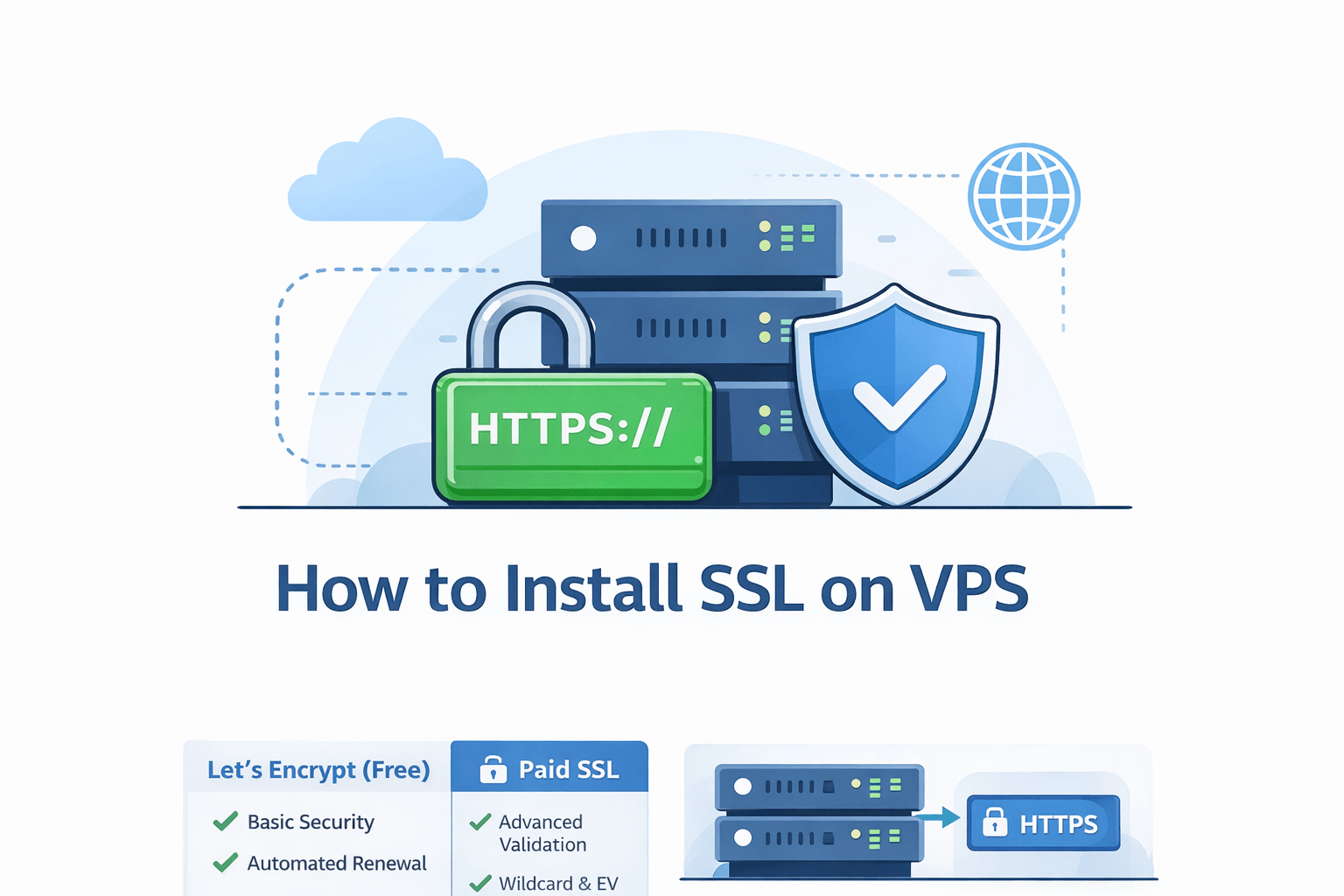
Before installing SSL on your VPS, it’s important to choose the right type of certificate based on your website’s purpose, traffic level, and security requirements. SSL certificates generally fall into two categories: free SSL and paid (commercial) SSL. Each option serves different use cases and offers distinct benefits.
Free SSL (Let’s Encrypt)
Let’s Encrypt is a widely trusted, open-source certificate authority that provides free SSL certificates. It is an excellent choice for personal projects, blogs, startups, and small to medium-sized websites.
Advantages
- Completely free with no licensing costs
- Trusted by all major browsers, ensuring universal compatibility
- Quick and easy installation using tools like Certbot
- Automatic renewal, reducing maintenance and the risk of expiration
Limitations
- 90-day validity period, requiring frequent renewals (though automated)
- Domain Validation (DV) only, meaning no business or identity verification
- No warranty or liability protection
- Limited suitability for high-risk or compliance-heavy environments
Let’s Encrypt is ideal if you want strong encryption without cost and are comfortable with automated renewals.
Paid SSL Certificates
Paid SSL certificates are issued by commercial certificate authorities and are designed for businesses, enterprises, and eCommerce platforms where trust, compliance, and brand reputation are critical.
Advantages
- Advanced validation options, including:
- OV (Organization Validation) for verified businesses
- EV (Extended Validation) for maximum trust and brand credibility
- Wildcard and multi-domain support, ideal for complex VPS deployments
- Warranty coverage, offering financial protection in case of certificate-related issues
- Higher brand trust, especially important for online payments and sensitive user data
Limitations
- Requires purchase and periodic renewal
- Manual installation and configuration in most cases
- Higher cost compared to free alternatives
Paid SSL certificates are the preferred choice for online stores, financial platforms, corporate websites, and any service handling sensitive customer data.
Which SSL Certificate Should You Choose?
- Choose Free SSL (Let’s Encrypt) if you run a blog, portfolio site, development project, or small business website and want secure HTTPS with minimal cost.
- Choose Paid SSL if you operate an eCommerce store, enterprise application, SaaS platform, or any website where customer trust, legal compliance, and brand reputation are essential.
If you need enterprise-grade security, you can Buy SSL Certification directly from MonoVM to ensure advanced validation, warranty protection, and professional support.
Installing SSL on VPS Using Let’s Encrypt (Certbot)
Let’s Encrypt is the most popular and trusted way to install a free SSL certificate on a VPS. It provides strong encryption, is supported by all major browsers, and works seamlessly with automation tools like Certbot.
Below are platform-specific instructions for installing SSL using Certbot.
Installing SSL on Apache (Ubuntu / Debian)
Prerequisites
Before proceeding, ensure that:
- Your VPS is running Ubuntu or Debian
- Apache is installed and running
- Your domain points to your VPS IP address
- You have root or sudo access
- Port 80 (HTTP) and 443 (HTTPS) are open in the firewall
Step 1: Update Your System
Always start by updating system packages:
sudo apt update && sudo apt upgrade -y
Step 2: Install Certbot and Apache Plugin
Install Certbot along with the Apache integration plugin:
sudo apt install certbot python3-certbot-apache -y
This plugin allows Certbot to automatically configure Apache for SSL.
Step 3: Verify Apache Configuration
Make sure your Apache virtual host is correctly configured and your site is accessible via HTTP:
http://yourdomain.com
Apache must recognize your domain correctly for SSL installation to succeed.
Step 4: Obtain and Install SSL Certificate
Run Certbot for Apache:
sudo certbot --apache
You will be prompted to:
- Enter your email address
- Agree to the Let’s Encrypt terms
- Select the domain(s) you want to secure
- Choose whether to redirect HTTP traffic to HTTPS (recommended)
Certbot will automatically:
- Generate the SSL certificate
- Configure Apache SSL virtual hosts
- Enable HTTPS
Step 5: Restart Apache
Once installation is complete, restart Apache to apply changes:
sudo systemctl restart apache2
Step 6: Verify SSL Installation
Visit your website using HTTPS:
You should see a padlock icon, confirming that SSL is active.
Step 7: Enable Automatic Renewal
Let’s Encrypt certificates are valid for 90 days, but Certbot sets up automatic renewal by default.
Test renewal with:
sudo certbot renew --dry-run
If no errors appear, automatic renewal is working correctly.
Installing SSL on Nginx (Ubuntu / Debian)
Nginx is a lightweight, high-performance web server commonly used on VPS environments. Let’s Encrypt with Certbot provides an easy and free way to enable HTTPS on Nginx-based servers.
Prerequisites
Before starting, make sure:
- Your VPS is running Ubuntu or Debian
- Nginx is installed and running
- Your domain points to your VPS public IP
- You have root or sudo access
- Ports 80 (HTTP) and 443 (HTTPS) are open
Step 1: Update System Packages
Update your server to avoid dependency issues:
sudo apt update && sudo apt upgrade -y
Step 2: Install Certbot and Nginx Plugin
Install Certbot along with its Nginx plugin:
sudo apt install certbot python3-certbot-nginx -y
This plugin allows Certbot to automatically detect and modify Nginx server blocks.
Step 3: Verify Nginx Configuration
Confirm that your website is accessible over HTTP:
Also test Nginx configuration for errors:
sudo nginx -t
SSL installation will fail if Nginx has configuration issues.
Step 4: Obtain and Install SSL Certificate
Run Certbot for Nginx:
sudo certbot --nginx
You will be prompted to:
- Enter your email address
- Accept Let’s Encrypt terms
- Choose the domain(s) to secure
- Enable automatic HTTP to HTTPS redirection (recommended)
Certbot will:
- Generate the SSL certificate
- Update Nginx configuration
- Enable HTTPS automatically
Step 5: Reload Nginx
Apply the new SSL configuration:
sudo systemctl reload nginx
Step 6: Verify HTTPS
Open your website in a browser:
https://yourdomain.com
A padlock icon confirms successful SSL installation.
Step 7: Enable and Test Auto-Renewal
Let’s Encrypt certificates expire every 90 days, but Certbot installs a renewal timer automatically.
Test renewal with:
sudo certbot renew --dry-run
If the test completes without errors, your SSL will renew automatically.
Installing SSL on CentOS (Apache or Nginx)
sudo dnf install epel-release
sudo dnf install certbot
Run:
sudo certbot
Follow the on-screen instructions to complete the SSL installation.
Manual SSL Installation on VPS (Commercial SSL)
If you purchased a paid SSL certificate, you’ll need to install it manually.
Generating CSR and Private Key
openssl req -new -newkey rsa:2048 -nodes -keyout domain.key -out domain.csr
Submit the CSR to your SSL provider.
Uploading and Installing Certificate Files
- Upload .crt, .key, and CA bundle files to /etc/ssl/
- Configure Apache or Nginx to reference these files
- Restart your web server
Testing and Troubleshooting SSL on VPS
Browser Testing
Visit your website using https://. A padlock icon confirms SSL is active.
Online SSL Testing Tools
Use tools like SSL Labs to analyze certificate health and configuration.
Common SSL Issues
- Mixed Content Warnings: Ensure all assets load via HTTPS
- Certificate Chain Errors: Verify CA bundle installation
- Port Issues: Confirm port 443 is open
- Incorrect File Paths: Double-check SSL configuration files
Renewing SSL Certificates on VPS
- Let’s Encrypt: Automatic renewal via Certbot
- Paid SSL: Manual renewal before expiration
Check expiration date:
openssl x509 -enddate -noout -in domain.crt
SSL Best Practices for VPS
Installing SSL on your VPS is only the first step. To maximize security, performance, and trust, you should follow industry-proven SSL best practices. These measures help protect sensitive data, prevent common attacks, and ensure long-term reliability of your HTTPS configuration.
1. Enable HTTPS Redirection
Always redirect all HTTP traffic to HTTPS to prevent users from accessing unencrypted versions of your website.
Why it matters:
- Prevents downgrade attacks
- Ensures all data is encrypted
- Improves SEO consistency
Best practice is a 301 permanent redirect at the web server level.
- Use Strong Encryption Ciphers
Configure your web server to use modern, secure TLS protocols and strong cipher suites.
Recommended settings:
- Enable TLS 1.2 and TLS 1.3
- Disable SSLv2, SSLv3, and TLS 1.0/1.1
- Prefer ECDHE key exchange with AES-GCM or ChaCha20
Strong ciphers reduce the risk of cryptographic attacks and improve browser compatibility.
3. Implement HSTS (HTTP Strict Transport Security)
HSTS forces browsers to always use HTTPS when accessing your website.
Benefits:
- Prevents SSL stripping attacks
- Protects users on public Wi-Fi
- Improves overall HTTPS enforcement
Example policy:
- Start with a short duration (e.g., 30 days)
- Gradually increase to 6–12 months once verified
Enable HSTS only after confirming HTTPS works flawlessly.
4. Backup SSL Certificate and Key Files
Always keep secure backups of:
- SSL certificate files
- Private keys
- Full certificate chains
Why this is critical:
- Enables fast recovery during server migration
- Prevents downtime after accidental deletion
- Simplifies disaster recovery
Store backups encrypted and offline whenever possible.
5. Monitor Certificate Health and Expiration
Expired SSL certificates cause browser warnings and service disruption.
Best practices:
- Enable automatic renewal (Let’s Encrypt)
- Set expiration alerts (email or monitoring tools)
- Regularly test renewal processes
Monitoring ensures uninterrupted HTTPS availability.
6. Apply Security Headers
SSL works best when combined with modern HTTP security headers.
Recommended headers include:
- Content-Security-Policy (CSP)
- X-Frame-Options
- X-Content-Type-Options
- Referrer-Policy
- Permissions-Policy
These headers reduce risks such as XSS, clickjacking, and data leakage.
Final Thoughts
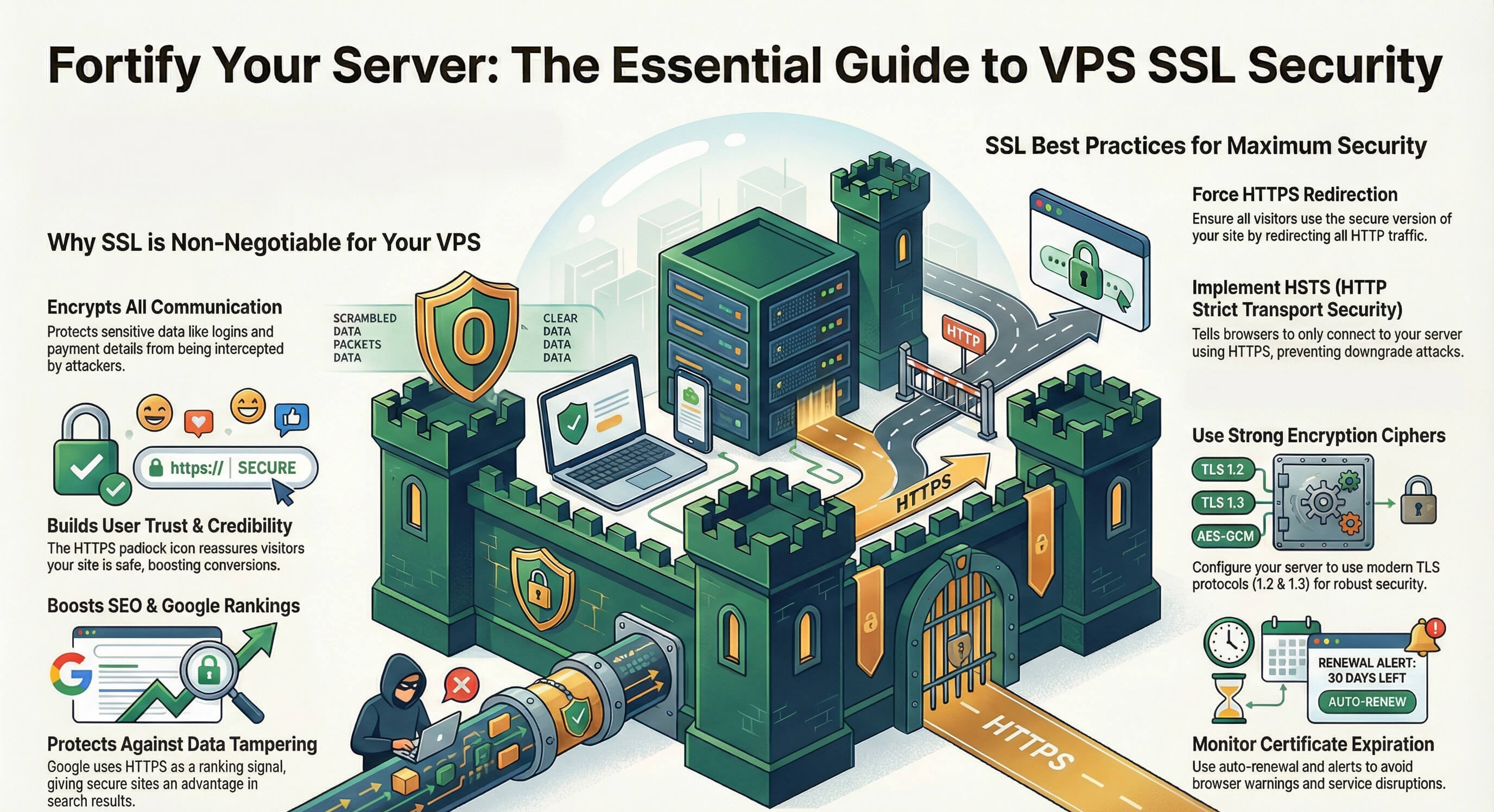
Installing SSL on a VPS is no longer optional it is a fundamental requirement for securing your website, protecting user data, and building long-term trust with visitors. Whether you choose a free Let’s Encrypt certificate or a commercial SSL solution, enabling HTTPS ensures encrypted communication, improved SEO, and compliance with modern security standards.
A properly secured VPS not only protects your users from data theft and tampering but also strengthens your brand credibility and reliability in an increasingly security-conscious online environment.
Take action today: secure your VPS with SSL, enforce HTTPS, and deliver a safe, trusted browsing experience your users expect.


Hello, everyone, my name is Lisa. I'm a passionate electrical engineering student with a keen interest in technology. I'm fascinated by the intersection of engineering principles and technological advancements, and I'm eager to contribute to the field by applying my knowledge and skills to solve real-world problems.