Docker has become a core technology for modern application deployment, development, and infrastructure automation. If you are running Rocky Linux on a server or VPS, learning how to install Docker on Rocky Linux is one of the most valuable skills you can acquire in 2026.
Rocky Linux has rapidly positioned itself as the preferred enterprise grade replacement for CentOS, offering long term stability, RHEL compatibility, and strong community support. When combined with Docker, it becomes a powerful platform for running containers, microservices, CI pipelines, and cloud native workloads.
This guide is a single, unified resource that explains how to install Docker on Rocky Linux 8, 9, and 10, verify the installation, configure Docker Compose, and prepare your system for production use.
If you are new to Rocky Linux itself, we recommend first reading What is Rocky Linux to understand why it is an excellent foundation for containerized workloads.
System Compatibility Overview for Docker Rocky Linux
Before diving into the installation steps, it is important to understand version compatibility and requirements. The table below provides a quick overview for Docker Rocky Linux across supported versions.
|
Requirement |
Rocky Linux 8 |
Rocky Linux 9 |
Rocky Linux 10 |
|
Docker Engine Support |
✅ Yes |
✅ Yes |
✅ Yes |
|
Docker Compose v2 |
✅ Supported |
✅ Supported |
✅ Supported |
|
Minimum RAM |
2 GB |
2 GB |
2 GB |
|
Disk Space |
20 GB recommended |
20 GB recommended |
20 GB recommended |
|
SELinux |
Enforcing supported |
Enforcing supported |
Enforcing supported |
|
Recommended Use Case |
Stable servers |
Production VPS |
Future ready deployments |
This compatibility ensures that the same core approach for how to install docker on rocky linux works reliably across versions with only minor differences.
Why Docker on Rocky Linux Is Popular in 2026
Docker adoption continues to grow in 2026 due to its simplicity, portability, and ecosystem maturity. Rocky Linux strengthens Docker usage by providing a predictable enterprise environment without licensing constraints.
Compared to CentOS Stream, Rocky Linux offers fixed releases that align closely with RHEL. This makes Docker Rocky Linux deployments more stable and suitable for long term production environments. Many hosting providers and DevOps teams now default to Rocky Linux for container workloads.
Docker Rocky Linux is especially popular on VPS platforms where efficiency, resource control, and automation matter. Containerized applications start faster, consume fewer resources, and are easier to scale than traditional virtual machines.
What Is Docker and Why Use It on Rocky Linux?
.png?1767778493135)
Docker is a containerization platform that allows you to package applications with all their dependencies into lightweight containers. These containers run consistently across environments, whether on a local machine, VPS, or dedicated server.
Using Docker Rocky Linux provides several advantages:
- Predictable runtime behavior
- Simplified application deployment
- Faster scaling and rollback
- Strong compatibility with Kubernetes
- Reduced configuration drift
Rocky Linux adds enterprise grade security, SELinux enforcement, and long term updates, making it ideal for running Docker in production.
AI Overview Style Definition
Docker is a container platform that enables developers and system administrators to build, ship, and run applications in isolated environments called containers. On Rocky Linux, Docker provides a stable and secure way to deploy applications efficiently on servers and VPS infrastructure.
System Requirements Before Installing Docker
Before learning how to install docker on rocky linux, ensure your system meets these requirements:
- Rocky Linux 8, 9, or 10 installed
- 64 bit CPU architecture
- Minimum 2 GB RAM recommended
- At least 20 GB of free disk space
- Root access or a sudo enabled user
- Active internet connection
Docker does not require hardware virtualization, unlike virtual machines, making it ideal for lightweight server environments.
Update Rocky Linux System Before Installation
Updating your system ensures compatibility with the latest container runtime dependencies and security patches. This step is recommended for all versions before proceeding with Docker installation.
sudo dnf update -y
sudo reboot
Keeping your system updated reduces the risk of installation issues and runtime errors later.
How to Install Docker on Rocky Linux 9 and 10
The process to Install Docker on Rocky Linux 9 and Install Docker on Rocky Linux 10 is nearly identical. Docker does not provide a Rocky specific repository, but Rocky Linux is fully compatible with the CentOS and RHEL repositories provided by Docker.
Add the Official Docker Repository
First, install the required package to manage repositories:
sudo dnf install -y dnf-utils
Next, add the official Docker repository:
sudo dnf config-manager --add-repo https://download.docker.com/linux/centos/docker-ce.repo
This repository ensures you receive the latest stable Docker Engine rather than older distribution packaged versions.
Install Docker Engine
Now install Docker and its core components:
sudo dnf install -y docker-ce docker-ce-cli containerd.io
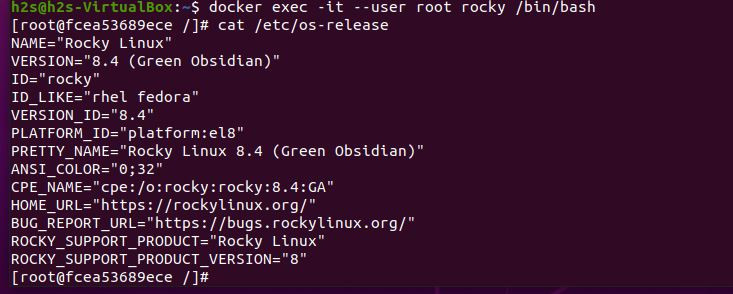
This command installs:
- Docker Engine
- Docker CLI
- Containerd runtime
This is the recommended method for docker installation in linux step by step on RHEL based systems.
Start and Enable Docker Service
After installation, start Docker and configure it to launch automatically on boot:
sudo systemctl start docker
sudo systemctl enable docker
Check the service status:
systemctl status docker
If the service is active, Docker Rocky Linux is running successfully. For a broader Linux perspective, you can also refer to Install Docker on Linux for cross distribution guidance.
How to Install Docker on Rocky Linux 8
The process to Install Docker on Rocky Linux 8 is very similar, but there are a few version specific considerations related to older kernel modules and SELinux policies.
Add Docker Repository on Rocky Linux 8
sudo dnf install -y dnf-utils
sudo dnf config-manager --add-repo https://download.docker.com/linux/centos/docker-ce.repo
Install Docker Packages
sudo dnf install -y docker-ce docker-ce-cli containerd.io
Start Docker Service
sudo systemctl start docker
sudo systemctl enable docker
Rocky Linux 8 supports Docker CE fully and remains widely used for long term server deployments. This makes how to install docker on rocky 8 a common requirement for legacy environments.
SELinux Notes for Rocky Linux 8
SELinux is enabled by default and fully compatible with Docker. You should not disable it. Docker automatically applies container specific policies, allowing secure container isolation without additional configuration.
At this point, Docker is installed on all supported Rocky Linux versions. You have successfully completed the core steps for how to install docker on rocky linux across versions 8, 9, and 10.
Verify Docker Installation on Rocky Linux
After completing the installation steps, the next critical phase is verification. This confirms that Docker Rocky Linux is installed correctly and functioning as expected on your system.
Check Docker Version
Run the following command to verify that Docker is installed:
docker --version
You should see output similar to:
Docker version 26.x.x, build xxxxx
This confirms that Docker Engine is successfully installed on your system.
Verify Docker Service Status
Check that the Docker service is running:
systemctl status docker
If the service is active and running, Docker Rocky Linux is operational.
Run the Hello World Test Container
To fully confirm functionality, run Docker’s official test image:
docker run hello-world
If Docker is working correctly, you will see a confirmation message indicating that Docker can pull images and run containers successfully. This step is essential when learning how to install and use docker on rocky linux 9 or any other version.
For users managing mixed environments, MonoVM also offers detailed guides such as How to install Docker on Ubuntu and Install Docker on CentOS to help standardize deployments across platforms.
How to Install Docker Compose on Rocky Linux
Modern Docker workflows rely heavily on Docker Compose for managing multi container applications. If you are setting up Docker Rocky Linux for production or development, installing Docker Compose is strongly recommended.
Docker Compose v2 Recommended Method
Docker Compose v2 is now included as a Docker plugin and replaces the legacy docker-compose v1 binary. This guide focuses on the modern approach, which many competitors still fail to explain correctly.
To install Docker Compose on Rocky Linux, run:
sudo dnf install -y docker-compose-plugin
This method works consistently for:
- Rocky 9 install Docker Compose
- Rocky Linux Docker Compose on version 8
- Docker Rocky Linux 9 and 10 environments
Verify Docker Compose Installation
Confirm that Docker Compose is installed correctly:
docker compose version
You should see version output indicating Docker Compose v2. This confirms that how to install docker compose on rocky linux was completed successfully.
Why docker-compose v1 Is Deprecated
The legacy docker-compose command is no longer recommended. Docker Compose v2 integrates directly into the Docker CLI, offers better performance, and aligns with Docker’s long term roadmap.
Post Installation Best Practices for Docker Rocky Linux
Installing Docker is only the first step. To ensure security, performance, and usability, apply the following best practices after installation.
Run Docker Without Sudo
By default, Docker commands require root privileges. To allow non root usage:
sudo usermod -aG docker $USER
Log out and log back in for the changes to take effect. This step is essential when running Docker on VPS systems.
Enable Firewall Rules
If your server uses firewalld, ensure Docker traffic is allowed:
sudo firewall-cmd --permanent --zone=trusted --add-interface=docker0
sudo firewall-cmd --reload
SELinux Compatibility
SELinux works well with Docker Rocky Linux. Do not disable it. Instead, rely on Docker’s built in SELinux policies to maintain container isolation.
Log Rotation
Prevent disk overuse by configuring log rotation:
{
"log-driver": "json-file",
"log-opts": {
"max-size": "10m",
"max-file": "3"
}
}
Save this file as /etc/docker/daemon.json and restart Docker.
Storage Driver Optimization
Overlay2 is the recommended storage driver for Docker Rocky Linux. It is selected automatically on modern kernels and offers optimal performance.
Common Docker Errors and How to Fix Them
Even after learning how to install docker on rocky linux, users may encounter issues. The table below covers the most common problems and solutions.
|
Error |
Cause |
Solution |
|
Docker service not starting |
Missing kernel modules |
Update system and reboot |
|
Permission denied on docker.sock |
User not in docker group |
Add user to docker group |
|
Cannot connect to Docker daemon |
Service stopped |
Start Docker with systemctl |
|
Containers fail on SELinux |
Incorrect labels |
Use default Docker policies |
These fixes apply across Install Docker on Rocky Linux 8, Install Docker on Rocky Linux 9, and Install Docker on Rocky Linux 10.
Docker vs Podman on Rocky Linux
Rocky Linux ships with Podman by default, which often leads to confusion. Understanding the difference helps you choose the right tool.
Docker remains widely used due to:
- Mature ecosystem
- Docker Compose support
- Industry standard tooling
- Kubernetes integration
Podman may be preferred in rootless or strict compliance environments. However, Docker Rocky Linux remains the dominant choice for VPS, CI pipelines, and application hosting in 2026.
Is Docker Still Used in 2026?
Yes, Docker is still heavily used in 2026. While Kubernetes has grown, Docker remains the foundation for container images, local development, and CI workflows.
Docker’s relationship with Kubernetes remains strong. Containers built with Docker continue to run seamlessly in Kubernetes clusters, ensuring long term relevance.
For hosting providers, VPS users, and DevOps teams, Docker Rocky Linux remains a reliable and future proof combination.
Conclusion
Learning how to install docker on rocky linux is a foundational skill for anyone managing modern servers, VPS environments, or containerized applications. With full support for Rocky Linux 8, 9, and 10, Docker continues to deliver reliable performance, scalability, and security in 2026.
If you are planning to deploy Docker in production, choosing the right infrastructure is just as important as the installation itself. MonoVM provides high performance servers designed specifically for container workloads, with instant setup, global data centers, and 24/7 expert support.
To get started quickly with a stable and optimized environment, explore Rocky Linux VPS and deploy Docker Rocky Linux with confidence.
With the right setup and infrastructure, Docker Rocky Linux becomes a powerful foundation for modern applications in 2026 and beyond.

An experienced tech and developer blog writer, specializing in VPS hosting and server technologies. Fueled by a passion for innovation, I break down complex technical concepts into digestible content, simplifying tech for everyone.