
Disabling ping in Linux means configuring your server so that it does not respond to ICMP echo requests. In practical terms, this prevents the system from replying when someone uses tools like ping to check whether the host is reachable. Administrators often implement this as a small hardening step, particularly on public-facing servers.
The primary goal is to reduce surface-level reconnaissance. During automated scans or network sweeps, attackers commonly rely on ICMP echo responses for host discovery quickly identifying which systems are online before attempting further probing. By suppressing these responses, you limit the amount of information your server passively reveals and reduce unnecessary or noisy traffic.
Ping uses ICMP echo requests and replies to test connectivity between systems. If you’re not fully familiar with how it works, read our detailed guide on the Linux ping command before disabling it.
That said, disabling ping is not a “cloak of invisibility.” Determined attackers can still detect a host through other methods, such as TCP-based probes or service-specific requests. Instead, think of it as one minor layer in a broader defense-in-depth strategy. On its own, it won’t stop targeted attacks—but combined with proper firewall rules, service hardening, monitoring, and rate limiting, it can make automated reconnaissance slightly less efficient and less informative.
What “Disable Ping” Actually Means
Ping relies on ICMP (Internet Control Message Protocol), a foundational protocol used by network devices to exchange control and diagnostic information. When someone runs ping your-server, their system sends ICMP echo-request packets to your host. If your server is configured to allow it, it responds with ICMP echo-reply packets, confirming reachability and measuring round-trip time.
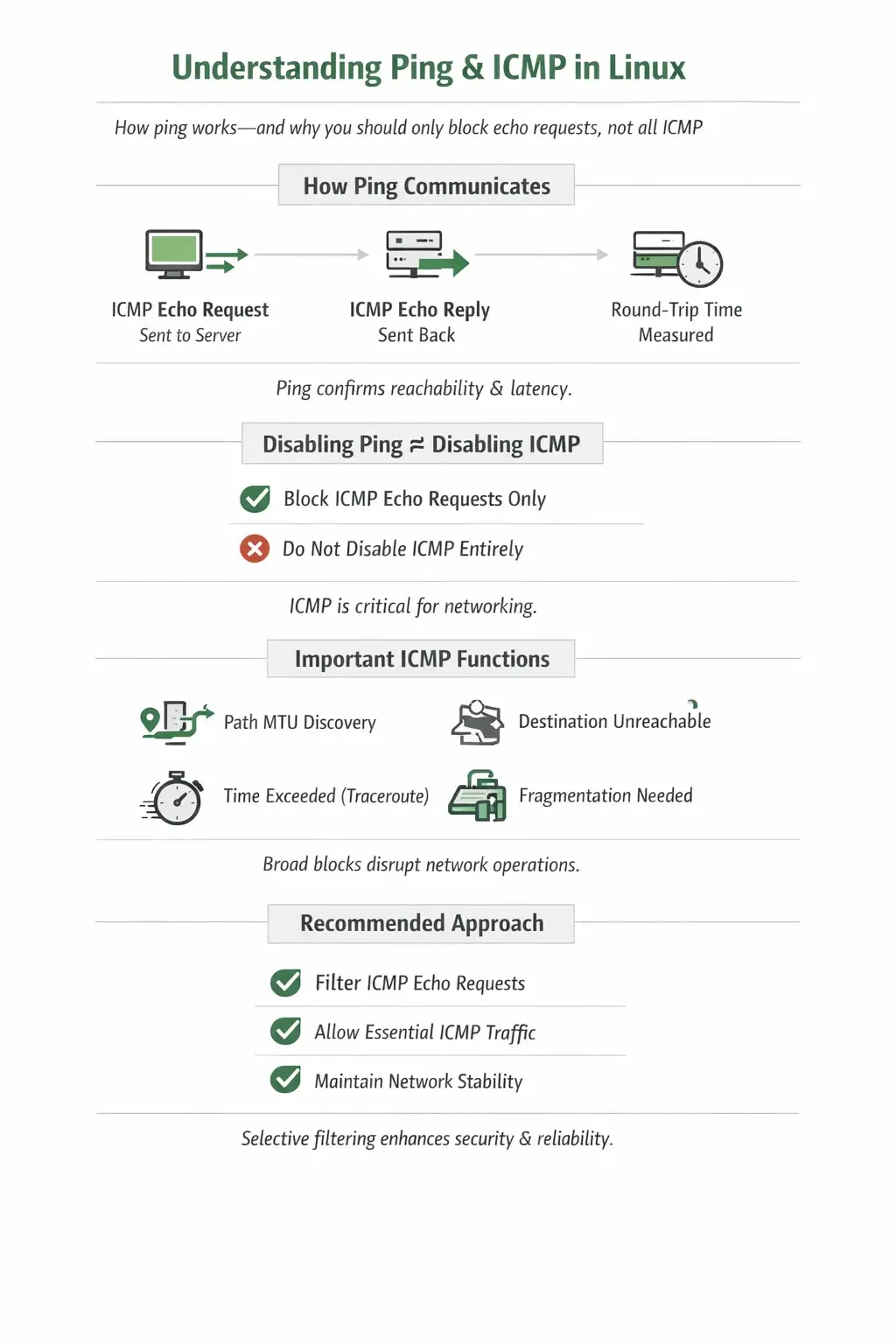
When administrators talk about “disabling ping,” they are typically referring to blocking or ignoring ICMP echo requests only, not disabling ICMP entirely. That distinction is critical. ICMP is not just for ping it plays an essential role in normal network operation.
Other ICMP message types support:
- Path MTU discovery (ensuring packets aren’t too large for the network path)
- Destination unreachable messages (indicating routing or firewall issues)
- Time exceeded (TTL expired) messages used by tools like traceroute
- Fragmentation-needed notifications
If ICMP is blocked too broadly, it can lead to subtle and difficult-to-diagnose networking problems—such as slow connections, broken VPN tunnels, or applications that hang without obvious errors. These issues often stem from disrupted Path MTU discovery or suppressed error reporting.
For that reason, best practice is to selectively filter ICMP echo requests rather than disable ICMP entirely. This preserves critical network functionality while still limiting basic host discovery via ping.
Should You Disable Ping?
Disabling ping can make sense in certain security postures—particularly where minimizing surface visibility is part of a broader hardening strategy. In tightly controlled perimeter environments, reducing basic host discoverability can slightly limit automated reconnaissance and cut down on low-effort scanning noise.
However, this choice is not without trade-offs. Many operational workflows quietly assume that ICMP echo is available. Blocking it can interfere with monitoring systems, delay troubleshooting, and create confusion when diagnosing connectivity issues. What seems like a minor hardening tweak can sometimes introduce friction for operations teams.
Common Use Cases for Blocking Ping
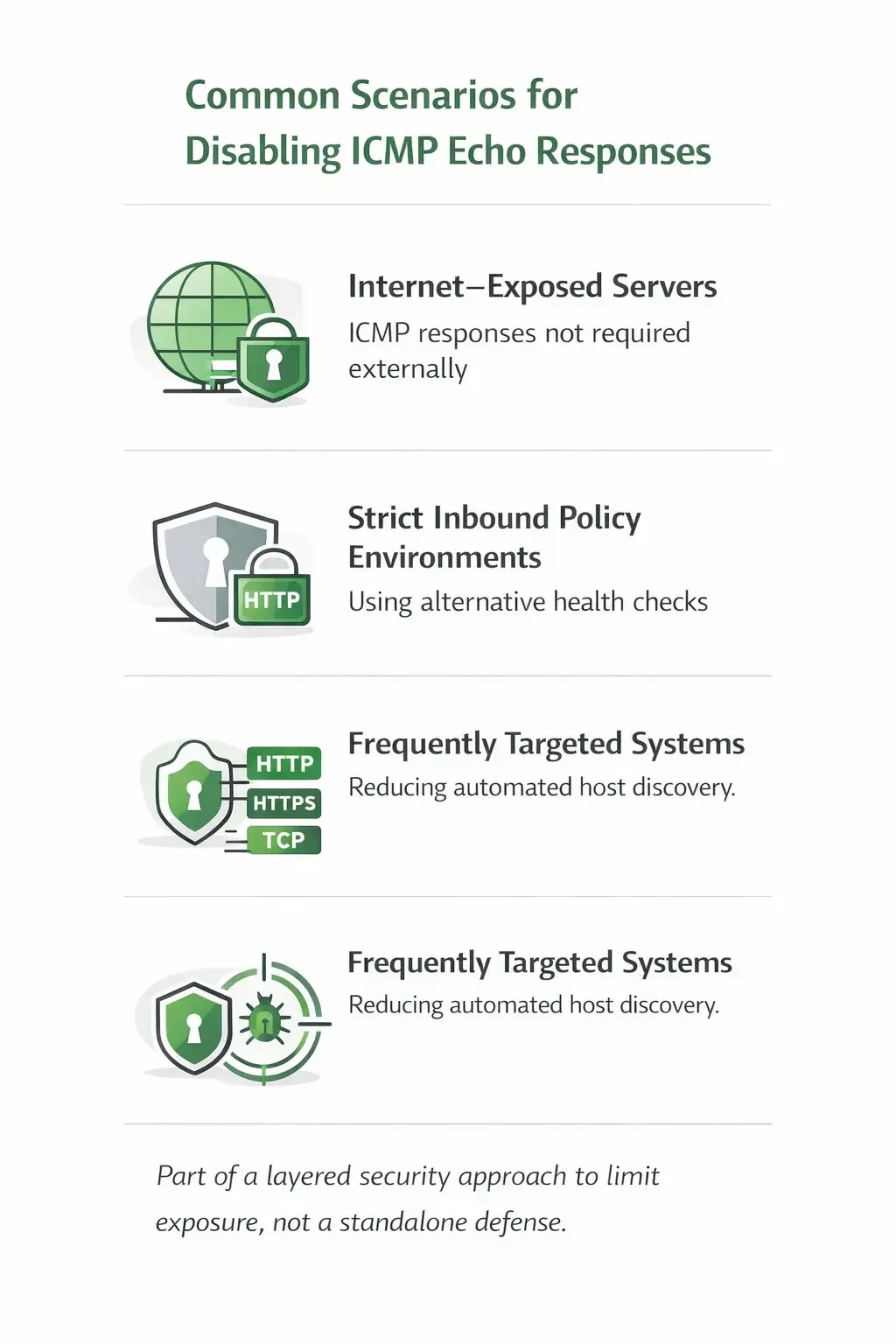
You’ll often see ICMP echo disabled in environments such as:
- Internet-exposed servers where ICMP responses are not required externally
- Strict inbound policy environments that rely on alternative health checks (e.g., HTTP, HTTPS, or TCP-based probes)
- Systems frequently targeted by scanning or nuisance traffic, where reducing automated host discovery is desirable
In these cases, disabling echo responses is usually part of a layered security approach rather than a standalone defense.
Situations Where Keeping Ping Enabled Makes Sense
On the other hand, allowing ICMP echo can be operationally valuable when:
- You depend on ICMP-based monitoring for uptime or latency checks
- Your team performs frequent remote troubleshooting
- You manage internal networks where ping is a standard and trusted diagnostic tool
In internal or enterprise environments, ping often provides fast, low-overhead visibility into connectivity problems—sometimes saving significant time during incident response.
Practical Takeaway
Disabling ping is a contextual decision. In high-exposure, tightly restricted environments, it may align well with security objectives. In operationally intensive or internally focused networks, the diagnostic benefits of keeping it enabled often outweigh the marginal reduction in visibility.
As with most security controls, the key is balance: understand what you gain, what you lose, and how it fits into your overall defense and monitoring strategy.
Quick Reference Table: Best Method by Goal
|
Goal |
Best Method |
Persists Reboot |
Most Suitable For |
|
Fast temporary block |
sysctl -w net.ipv4.icmp_echo_ignore_all=1 |
No |
Quick testing, incident response |
|
Firewall-level control |
iptables / nftables / firewalld / UFW |
Yes (if saved) |
Production policies, auditability |
|
Distro-native approach |
firewalld (RHEL-like) or UFW (Ubuntu) |
Yes |
Teams standardizing across hosts |
Method 1: Disable Ping Temporarily (Kernel-Level via sysctl)
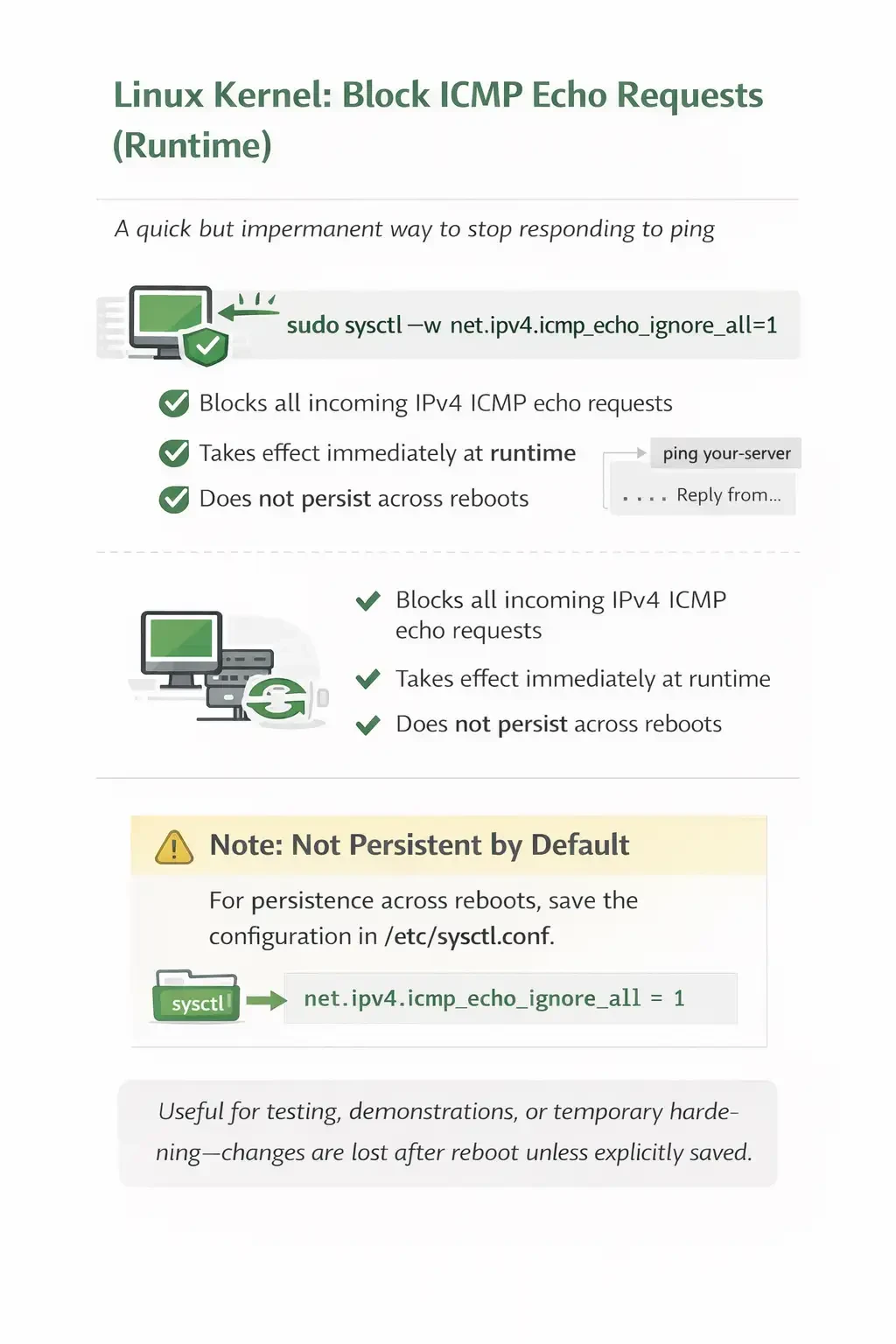
This approach instructs the Linux kernel to immediately ignore all incoming IPv4 ICMP echo requests. As soon as the setting is applied, the system stops responding to ping without requiring a service restart or firewall reload. It’s a quick and effective way to validate behavior in real time—useful for testing, demonstrations, or temporary hardening.
However, this change is typically applied at runtime (for example, via /proc or sysctl) and does not persist across reboots by default. Once the system restarts, the kernel reverts to its standard configuration unless the setting has been explicitly saved in a persistent configuration file (such as /etc/sysctl.conf or a file under /etc/sysctl.d/).
In short, it’s the fastest way to prove the behavior change—but if you intend it to be permanent, you must persist the configuration.
Disable Ping (Temporary)
To temporarily disable ping on a Linux system, you can instruct the kernel to ignore all incoming IPv4 ICMP echo requests. This change takes effect immediately but will not survive a reboot.
.webp?1771670129003)
sudo sysctl -w net.ipv4.icmp_echo_ignore_all=1
Verify Ping Is Disabled
After applying the temporary setting, you can confirm it in two ways:
sysctl net.ipv4.icmp_echo_ignore_all
Expected output:
net.ipv4.icmp_echo_ignore_all = 1
Re-enable Ping (Temporary)
If you previously disabled ping using the kernel parameter, you can re-enable it immediately by setting the value back to 0.
Run:
sudo sysctl -w net.ipv4.icmp_echo_ignore_all=0
Method 2: Disable Ping Permanently (Persist sysctl)
On most modern distros, the cleanest approach is a dedicated file in /etc/sysctl.d/ so you don’t clutter /etc/sysctl.conf.
.webp?1771670164013)
Recommended: create a dedicated sysctl.d file
echo "net.ipv4.icmp_echo_ignore_all = 1" | sudo tee /etc/sysctl.d/99-disable-ping.conf
sudo sysctl --system
Alternative: edit /etc/sysctl.conf
Add this line:
net.ipv4.icmp_echo_ignore_all = 1
Apply:
sudo sysctl -p
Re-enable permanently
Either delete the line / file, or set it to 0:
echo "net.ipv4.icmp_echo_ignore_all = 0" | sudo tee /etc/sysctl.d/99-disable-ping.conf
sudo sysctl --system
Method 3: Block Ping at the Firewall (iptables)
.webp?1771670189802)
Blocking ping at the firewall layer is often preferred in production environments because it is explicit, policy-driven, and auditable. Instead of modifying kernel behavior globally, you define a clear traffic rule that controls how ICMP echo requests are handled.
This approach drops ICMP echo-request packets only, without interfering with other important ICMP message types (such as fragmentation-needed or destination-unreachable).
Block Echo Requests (Runtime Only)
.webp?1771670273242)
To drop IPv4 ICMP echo requests immediately:
sudo iptables -A INPUT -p icmp --icmp-type echo-request -j DROP
Verify the Rule
sudo iptables -L INPUT -n --line-numbers
You should see a rule referencing:
icmp echo-request
Then test from another machine:
ping your-server-ip
You should observe 100% packet loss.
Remove the Rule (If Needed)
If the rule is the last one added:
sudo iptables -D INPUT -p icmp --icmp-type echo-request -j DROP
Or delete it by line number:
sudo iptables -D INPUT <rule-number>
Method 4: Block Ping Using firewalld (CentOS / RHEL / AlmaLinux / Rocky)
If your system uses firewalld, blocking ping at the firewall layer is clean and persistent.
Block echo-request permanently
sudo firewall-cmd --permanent --add-icmp-block=echo-request
sudo firewall-cmd --reload
Verify
sudo firewall-cmd --list-icmp-blocks
Re-enable
sudo firewall-cmd --permanent --remove-icmp-block=echo-request
sudo firewall-cmd --reload
On RHEL-based systems like CentOS, ping is commonly used for quick network diagnostics. If you’re working specifically on CentOS, review How to Use the Ping Command in CentOS before applying firewall changes.
Method 5: Block Ping Using UFW (Ubuntu)
UFW doesn’t provide a simple “deny ping” command in the same style as allow/deny ports, because ICMP is handled in the underlying rules.
A practical approach is to modify UFW’s base rules so echo-request is dropped.
Edit the UFW base rules
Open:
sudo nano /etc/ufw/before.rules
Find the ICMP echo-request accept rule (commonly present in the ufw-before-input chain) and change ACCEPT to DROP. Then reload UFW:
sudo ufw reload
To revert, set it back to ACCEPT and reload again.
Distro and Firewall Stack Map
|
Distro Family |
Common Default Firewall Tool |
Recommended Approach |
|
Ubuntu / Debian |
UFW (often), nftables underneath |
sysctl for simple disable, UFW for policy |
|
CentOS / RHEL / AlmaLinux / Rocky |
firewalld |
firewalld ICMP block |
|
Minimal/server builds |
varies |
sysctl + chosen firewall stack |
|
Mixed legacy setups |
iptables directly |
iptables rule + persistent save |
How to Test and Confirm Ping Is Disabled
From another machine on the network:
ping -c 3 <SERVER_IP>
If ping is blocked, you’ll typically see timeouts (no replies). For more visibility on the server side, you can watch ICMP arrive:
sudo tcpdump -n -i any icmp
If packets arrive but no replies are sent, your block is working as intended.
Troubleshooting: When Ping Still Works (or Something Breaks)
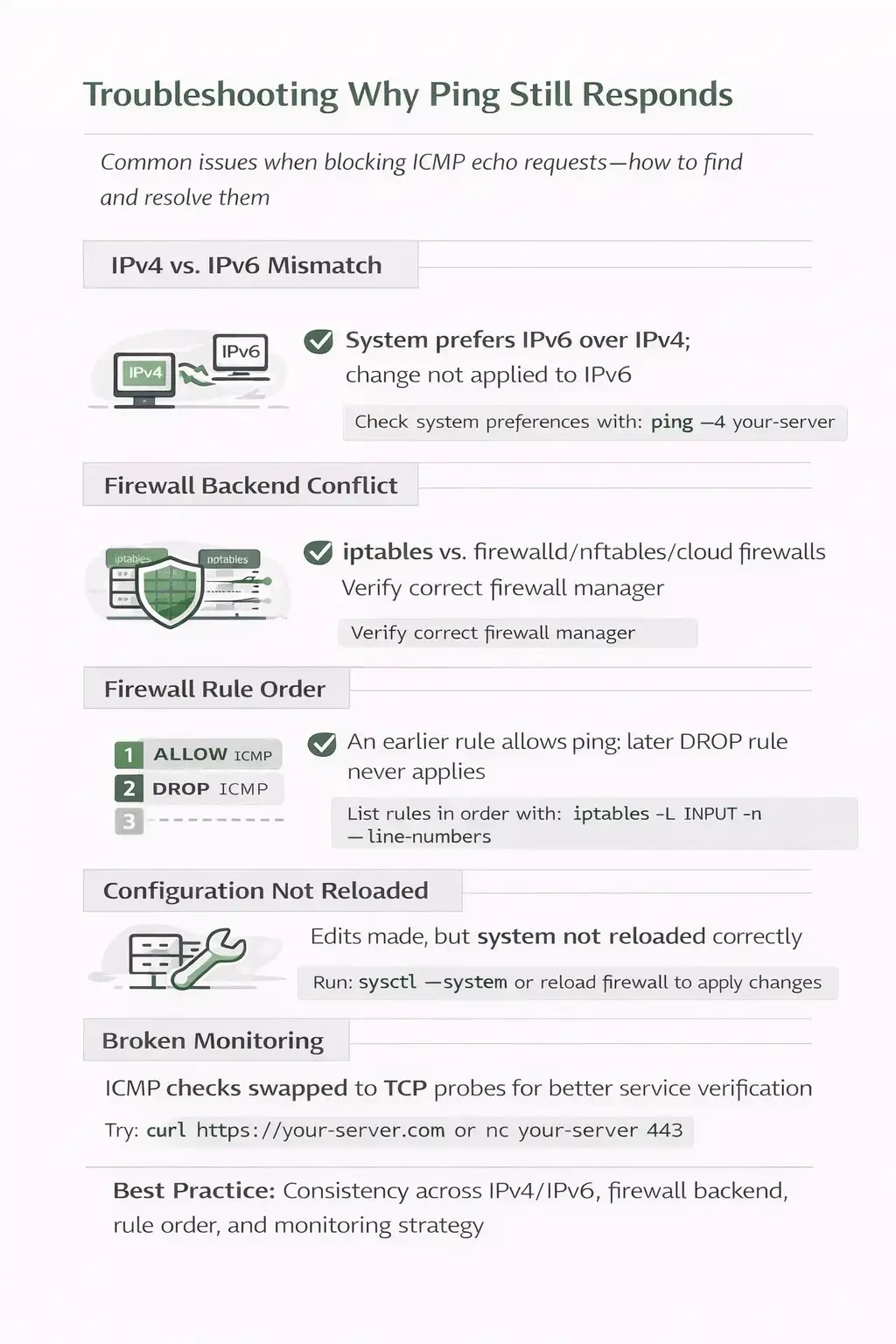
If ping continues to respond after you have applied changes, the issue is usually related to configuration scope or enforcement. A very common cause is an IPv4 versus IPv6 mismatch. You may have disabled IPv4 echo requests using net.ipv4.icmp_echo_ignore_all=1, but your test may be reaching the server over IPv6. Many modern systems prefer IPv6 by default, so ping can still succeed unless ICMPv6 is addressed separately.
If you’re unfamiliar with commands like sysctl, iptables, or tcpdump, refer to our Basic Linux Commands guide for a quick refresher.
Another frequent cause is a firewall backend mismatch. You might have added rules using iptables, while the system is actually managed by firewalld, nftables, or even a cloud-provider firewall. On many modern distributions, iptables commands are translated to nftables behind the scenes, and rule conflicts or inactive rule sets can cause unexpected behavior.
Rule ordering is also critical when working with iptables. Firewall rules are processed from top to bottom. If an earlier rule allows ICMP echo requests, any later DROP rule will never be evaluated. Checking rule order with iptables -L INPUT -n --line-numbers often reveals this issue.
Configuration reload problems are another common source of confusion. Editing a file under /etc/sysctl.d/ or adjusting firewall configuration does not automatically apply changes. You must run sysctl --system, reload the firewall service, or reboot the system as appropriate. Runtime and persistent configurations are separate, and overlooking that distinction frequently leads to inconsistent results.
If monitoring breaks after disabling ping, the better solution is usually to adjust the monitoring method rather than re-enabling ICMP. ICMP echo only confirms that the network stack responds; it does not verify that your application is functioning. Switching to TCP checks, such as testing connectivity to ports 443 or 80, or using HTTP-based health checks, provides more meaningful insight into actual service availability.
Disabling ping is straightforward technically, but consistency across IPv4 and IPv6 settings, firewall enforcement, and monitoring strategy is what ultimately determines whether the change behaves as expected.
Conclusion
Disabling ping in Linux is technically simple, but the correct approach depends on your operational goal. A temporary block is useful for testing or short-term hardening. A persistent kernel-level change makes sense when you want the system itself to ignore echo requests across reboots. An explicit firewall rule is often preferable when you want a clearly defined, auditable security policy that fits into a broader traffic management strategy.
In most production environments, a firewall-native method is the cleaner choice. On RHEL-based systems, that typically means managing ICMP through firewalld. On Ubuntu and Debian systems, UFW provides a structured and maintainable way to control echo requests. These tools integrate with the system’s active firewall backend and make policy intent easier to review and standardize. If your requirement is simply to ignore echo requests consistently across restarts without introducing policy complexity, a dedicated configuration file under /etc/sysctl.d/ provides a minimal and predictable solution.
For hardened infrastructure, consistency matters more than the specific method. Standardizing firewall policies per environment, documenting rule intent, and ensuring alignment between IPv4, IPv6, and monitoring expectations prevents subtle operational issues. When running on a secure Linux VPS or dedicated server where you have full root control, you can enforce predictable networking behavior and maintain clean separation between kernel tuning and firewall policy, which is especially important in controlled or security-focused deployments.
For secure, production-ready environments where you can fully control firewall policies and kernel parameters, deploy your configuration on a high-performance Linux VPS built for stability and reliability.
People Are Also Reading:


I'm fascinated by the IT world and how the 1's and 0's work. While I venture into the world of Technology, I try to share what I know in the simplest way with you. Not a fan of coffee, a travel addict, and a self-accredited 'master chef'.