Let’s skip the introductions. You’re here because you want to check the Node.js version. This article from MonoVM is written exactly to address that need. In this guide, you’ll learn how to check the Node.js version Windows, Linux and mac. and more importantly, how to interpret the version numbers themselves. So, stay with us until the end of the article.
Why Check Your Node.js Version?
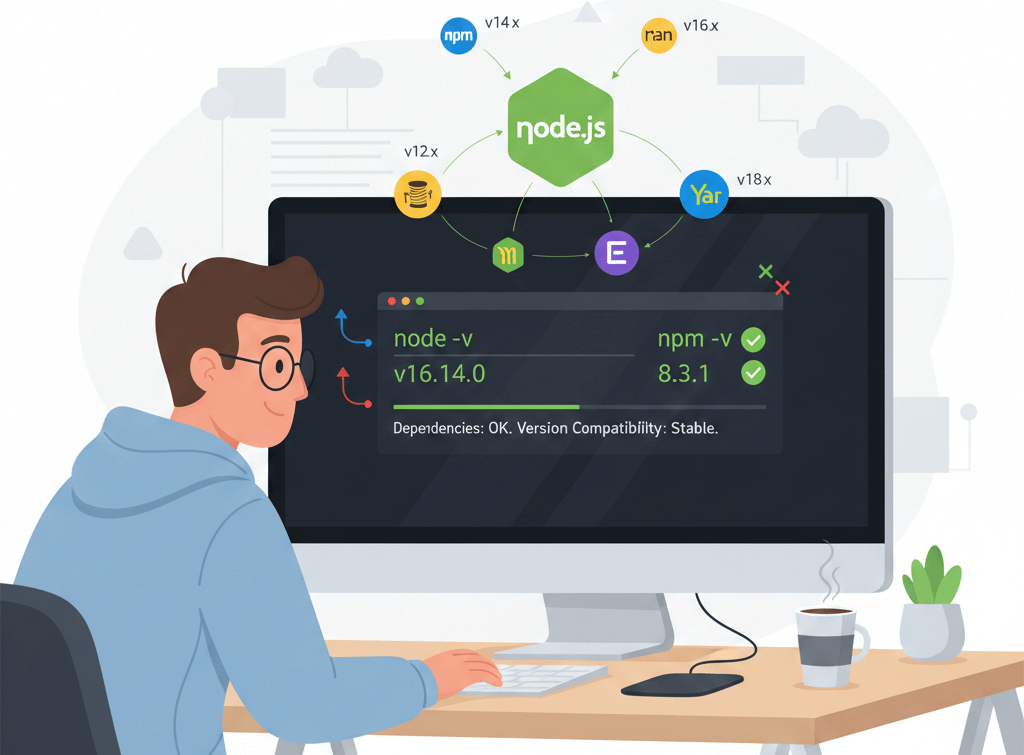
Checking your Node.js version is all about being accurate with what your runtime environment is based on before you start working and what you can reasonably get from it.
- That is because some libraries and frameworks are only compatible with certain versions of Node.js, and if you happen to use the wrong version, you will likely get errors.
- It is necessary for you to have your Node.js version updated if you want to be able to use new features or if you wish to have better performance.
- Conflicts between Node.js and npm versions can result in difficulties when trying to install packages or run CLI tools.
- When you are involved in multiple projects, each requiring a different version of Node.js, being aware of which version is currently active, thereby, helps you to prevent conflicts and errors.
In case you are a newbie with Node.js and would like to grasp the central features and usages of it prior to getting into the details, then What is Node.js will be an appropriate guide to facilitate your learning process.
Node.js Versioning Structure
A professional developer would consider just knowing a version number as insufficient. Such a developer would want to know deeply what the number actually means and the lifecycle that is associated with it. Node.js adopts a time-based release model, and accordingly, it is insightful to know that the even–odd rule and Long-Term Support (LTS) phases are two factors that help one to make software architecture decisions which are logical.
Understanding Semantic Versioning (SemVer) in Node.js
%20in%20Node%20js.png?1765870634804)
Node.js applies Semantic Versioning which is a system of versioning where the versions are identified by three numbers X.Y.Z:
- X (Major): This refers to the changes that are major and may potentially break the existing code. If one wants to upgrade the code from a major version to another (e.g., moving code from Node 20 to Node 22), he/she is required to do code review and testing carefully.
- Y (Minor): These changes bring new features without impacting the existing features.
- Z (Patch): in the case of bugs, the patch versions offer fixes and are minor security issues that are compatible with the previous versions.
This versioning system is designed in such a way that helps you have a better comprehension of the current state of Node.js on your computer.
Even vs. Odd Major Versions
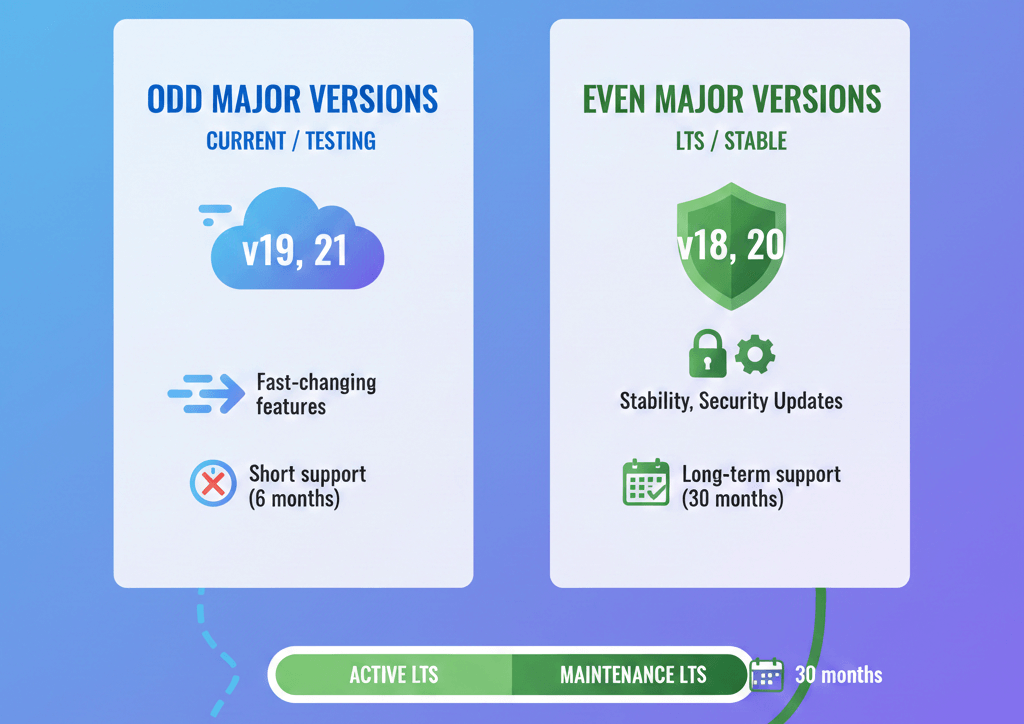
Among distinctions in Node.js releases that are related to the major version number the most important one is whether that number is even or odd:
- Currently (Odd) Releases: The versions of 19 or 21 are examples of such kind of software. These versions are being developed further, supported only for about six months, and can be used only for testing new features but not for production purposes.
- Long-Term Support (LTS) Releases: After six months, the major versions with an even number, e.g., 18 or 20, will be eligible for the Long-Term Support. Their primary goal is to be stable and secure and, thus, they are the only ones to be recommended for production projects.
The support a version receives after entering the LTS phase is about 30 months: First 18 months make the Active LTS period when the version is regularly updated and bug fixes are done. The last 12 months are called Maintenance LTS, during which time, in fact, only security fixes will be released and the migration planning should be done.
The following table briefly describes the statuses of the Node.js releases:
|
Release Type |
Major Number |
Active Support Duration |
Total LTS Duration |
Production Recommendation |
|
Current |
Odd |
6 months |
— |
Not suitable |
|
Active LTS |
Even |
18 months |
30 months |
Strongly recommended |
|
Maintenance LTS |
Even |
12 months |
30 months |
Migration planning needed |
If you have not yet installed Node.js and want instructions on how to install it, or you are simply not sure about the installation process, then you may want to consider How to Install Node.js which will take you through the installation step by step.
Checking Versions via the Command Line
The least complicated and most direct method to find out the version of Node.js and its associated tools is to employ the command line. This elementary procedure is identical for all operating systems and thus helps to maintain the same level of consistency in your development environment.
Using node -v or node --version
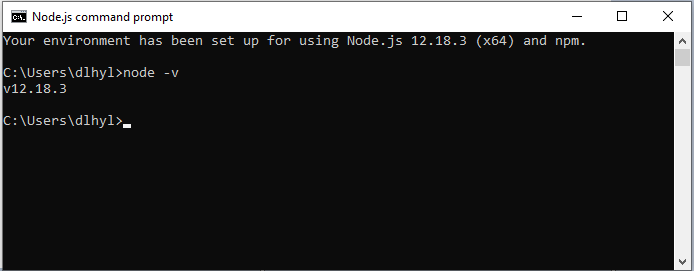
To figure out the Node.js version that is currently active in your terminal session, you may employ either the short or the long flag. Both invocations produce exactly the same result:
node -v
# or
node --version
After running this command, you’ll see an output like v20.11.0. The leading v indicates “version.”
Checking the NPM Version

Typically, NPM which stands for Node Package Manager is installed by default with Node.js, however, it is still important to make sure that the version of your package manager is compatible and up to date as well. Having NPM in an old version can make the installation process extremely slow and result in a different way of locking project dependencies (via package-lock.json).
A user can find out which version of NPM is installed in the system by running either of the following commands:
npm -v
// or
npm --version
What is the purpose of checking NPM?
Each version of Node.js is linked to a specific stable and bundled version of NPM. In any case, NPM is a completely independent project and it is updated much more frequently. Most of the times, newer versions of NPM are equipped with better dependency resolution algorithms and faster installation performance. Even though updating Node.js will also update NPM to the bundled version, you still have the option of upgrading NPM separately if you are willing to use the newest features.
Checking Versions of Alternative Package Managers
If you use alternative package managers in your projects (such as Yarn or pnpm), you can check their versions using the --version flag as well:
yarn --version
pnpm --version
One positive aspect of the Node.js ecosystem is that it’s designed to behave consistently across different environments. Commands like node -v and npm -v work the same way in common shells. whether it’s Bash or Zsh on Linux and macOS, or PowerShell and Command Prompt on Windows.
Checking Node.js Version Programmatically
In advanced and large-scale projects, especially when building developer tools, you may need the application itself to detect the active Node.js version at runtime. This capability is essential for implementing conditional compatibility checks or ensuring that the code runs in a specific environment.
Using the Global process.version Variable
The global process object in Node.js provides critical information about the current process. The simplest way to access the Node.js version from within JavaScript code is by using the process.version property:
// check-version.js
const fullVersionString = process.version;
console.log('Node.js Version:', fullVersionString);
// Example output: v20.11.0
Implementing Compatibility Logic
Developers can parse the output string of process.version, which includes the leading v, to extract the major version number. This allows you to execute logic that only applies to specific Node.js versions:
// Checking compatibility with a new API
const majorVersion = parseInt(process.version.slice(1));
if (majorVersion >= 24) {
console.log('Running Node.js 24 or newer, using latest features.');
// Logic for Node 24
} else {
console.log('Running an older Node.js version, falling back to older APIs.');
// Backward compatibility logic
}
This technique ensures that your code remains flexible across different environments in which your project may run.
NPM Environment Variables
If your scripts are executed via npm run, NPM automatically exposes information such as the project version as operating system environment variables. This is the fastest way to access the project version without performing any file operations:
console.log(
'Project Version defined in package.json:',
process.env.npm_package_version
);
Reading the File Directly
In other cases, such as build tools or early-stage configuration scripts, you may need to read the package.json file directly. The most modern and clean approach is to let Node.js load the JSON file directly as a module:
// In CJS (CommonJS) environments
const { version } = require('./package.json');
console.log(`Project Version: ${version}`);
// In ESM (ES Modules) environments
// import { version } from './package.json' assert { type: 'json' };
Using nvm to Manage and Check Node.js Versions
If you work with multiple versions of Node.js or need to switch between them frequently, the nvm tool (Node Version Manager) can be extremely useful. nvm allows you to install multiple Node.js versions and change the active version whenever you need.
After installing nvm (which is typically used on macOS and Linux; on Windows you can use nvm-windows), you can list the Node.js versions installed on your system with the following command:
nvm ls
This command lists all installed versions and marks the currently active one with an arrow (->). For example, the output might look like this:
$ nvm ls
v12.22.1
-> v14.17.0
system
default -> 14.17.0 (-> v14.17.0)
node -> stable (-> v14.17.0) (default)
In this example, v14.17.0 is the active version (indicated by ->). If you run nvm current, it will display only the currently active version number:
$ nvm current
v14.17.0
With nvm, you can install and activate a different Node.js version whenever needed. For example:
nvm install 16 # Install Node.js version 16
nvm use 16 # Use Node.js version 16
After doing this, running node -v will show version 16. If you want to update to the latest Node.js version, simply run:
nvm install node
One major thing that you should always remember is that the nvm is generally a developmental environment tool, for example, your local machine. It is also not frequently used on production servers. In case of development environments and multi-projects scenarios, nvm is a very efficient tool which simply your multiple Node.js version management.
Alternative: FNM is a sleek and quick new NVM alternative which is built in Rust. As it is run as a compiled binary, it is far more performant and can work on Windows without the need for a separate version. Its usage is very similar to NVM and can help in installing, using, and listing Node.js versions by issuing the commands like fnm install, fnm use, and fnm ls respectively.
Troubleshooting Common Issues

While verifying the version of your Node.js, you may encounter errors that are typical. We ought to examine these errors one by one together with their correction methods:
1. Error: 'node' is not recognized as an internal or external command (Windows)
It is common that this message indicates that Node.js has not been installed or its path is not in the system PATH. Make sure that Node.js is installed, restart your computer if necessary, and check that PATH contains C:\Program Files\nodejs\ .
2. The node command is not working on Linux
On a few older Linux versions, Node.js is referred to as nodejs instead of node. If node -v fails, try:
nodejs -v
In case it is successful, make a symbolic link:
sudo ln -s /usr/bin/nodejs /usr/bin/node
3. The versions of Node.js and npm differ
If only one of them is old, some packages may fail. In general, upgrading Node.js to the latest LTS version also brings npm up-to-date.
4. Several Node.js versions installed and the wrong one is active
Check the active version by using nvm ls or nvm current. If you don’t have nvm, check Node.js installation directories (e.g. C:\Program Files\nodejs\) and remove old versions if necessary.
Most problems with Node.js versions can be fixed by checking, updating, or reinstalling Node.js with the help of the above commands.
How to Update Node.js After Checking Your Version
After checking your current Node.js version, you might find that the installed version is outdated and needs to be updated. There are several ways to update Node.js, depending on your operating system and tools:
Updating with NVM
One of the most powerful features of NVM during an update is its ability to automatically transfer global packages (such as nodemon, pm2, or typescript) from the old version to the new one.
First, identify your previous version (for example, 20) and then install the new version:
# Install the new LTS version (e.g., 24) and transfer global packages from version 20
nvm install 24 --reinstall-packages-from=20
This command not only installs the new version but also intelligently reinstalls all your global tools in the new environment, saving you time and effort.
After installation, activate the new version and verify the active Node.js and NPM versions using the basic commands:
nvm use 24
node -v # Should show the new version (v24.x.x)
npm -v # Should show the NPM version compatible with v24
If you always want to install the latest LTS version, you can use:
nvm install --lts
Updating NPM Independently
As mentioned earlier, sometimes you may want to use the latest version of NPM even if your Node.js version is an active LTS. NPM can be updated independently.
To update NPM to the latest version, run the following command. Note that on macOS or Linux, you may need sudo depending on your installation:
npm install -g npm
After updating, be sure to check the new version with npm -v. This ensures that your package management processes run with the latest performance and security improvements.
If you encounter any issues during the update or need a more detailed guide on updating Node.js, I recommend reading the article How to Update Node.js, which explains the steps in detail.
Conclusion
In the fast-paced world of web development, staying updated with the latest tools and technologies is crucial. Node.js, with its versatile capabilities and active community, is a prime example of such a tool. Checking your Node.js version is a fundamental practice that ensures you're harnessing the full power of this runtime environment.
By keeping your Node.js version up to date, you're not only benefiting from bug fixes and performance enhancements but also ensuring that your applications and projects remain compatible with the latest features. This proactive approach can save you time and effort in the long run, preventing compatibility issues and streamlining your development workflow.