
Linux users know the power of flexibility, customization, and open-source freedom. Yet, when it comes to choosing among the many linux web browsers, the decision can affect everything—from privacy and performance to compatibility and extensions.
Whether you’re a beginner exploring Ubuntu for the first time, a system administrator managing multiple Linux servers, or a developer running browser tests in containers, picking the best browser for linux matters. Different browsers offer different strengths: some excel in privacy, some in low RAM usage, and others in customizability or speed.
Now let’s dive into the definitive linux browser comparison for 2025.
Overview of Popular Linux Web Browsers (2025)
Before we go deeper, here’s a quick feature comparison table to give you a visual overview. This table helps you quickly compare performance, privacy features, and extension support across top linux web browsers.
Linux Browser Comparison Table (2025)
|
Browser |
Best For |
Privacy Level |
RAM Usage |
Extension Support |
Notable Features |
|
Firefox |
General users, privacy |
★★★★★ |
Medium |
Strong |
Open-source, strict privacy tools |
|
Google Chrome |
Speed, compatibility |
★★★☆☆ |
High |
Excellent |
Google sync, large extension store |
|
Chromium |
Open-source Chrome alternative |
★★★★☆ |
Medium |
High |
Lightweight, customizable |
|
Brave |
Privacy-first users |
★★★★★ |
Medium |
Good |
Ad-blocking by default, BAT rewards |
|
Opera |
Features and productivity |
★★★★☆ |
Medium |
Good |
Built-in VPN, sidebar apps |
|
GNOME Web (Epiphany) |
Simplicity, low-resource systems |
★★★☆☆ |
Low |
Limited |
GNOME-native, minimal UI |
|
Falkon |
Lightweight KDE users |
★★★☆☆ |
Low |
Limited |
Built-in ad blocker |
|
Vivaldi |
Power users, customization |
★★★★☆ |
Medium-High |
Excellent |
Highly customizable interface |
|
Nyxt |
Keyboard-focused users |
★★★★☆ |
Very Low |
Limited |
Lisp-like configuration, Emacs/Vim style |
|
Microsoft Edge |
Enterprise users, syncing |
★★★☆☆ |
Medium-High |
Excellent |
Microsoft ecosystem, Chromium-based |
If you're curious about browsers that consume the least memory, you can also read our detailed analysis Which Web Browser Uses the Least RAM.
Feature Comparison of Top Linux Browsers
Each web browser approaches Linux differently. Some integrate deeply with desktop environments, while others focus on privacy or lightweight performance.
Below is a deeper breakdown of what makes each browser stand out on Linux systems.
Firefox
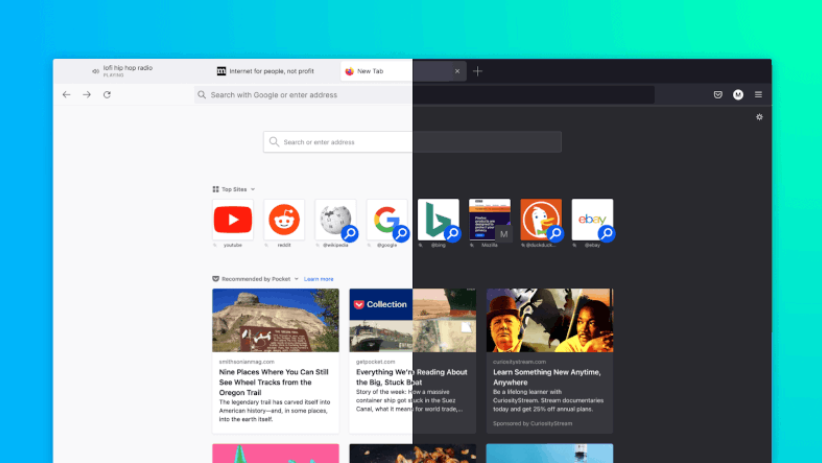
Firefox remains one of the most trusted linux web browsers due to its commitment to open-source principles, privacy, and consistent performance. Its strict privacy protections and customization options make it one of the best choices for Linux.
Pros:
- Excellent privacy controls
- Large extension library
- Consistent performance
- Great for privacy browser linux audiences
Best For: General users, privacy-focused users, power users.
Google Chrome
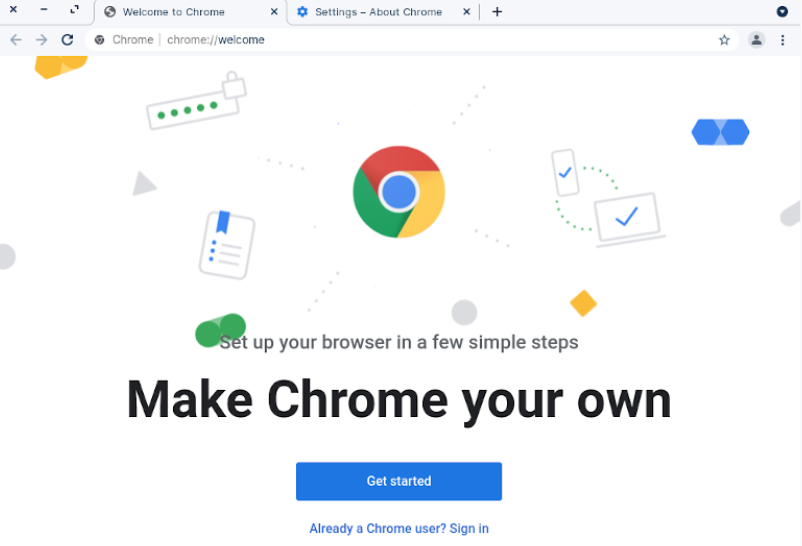
Chrome remains extremely popular due to its speed and large extension ecosystem. Though not open source, its performance remains unmatched for many users.
Pros:
- Fastest JavaScript engine
- Large extension marketplace
- Best compatibility with modern web apps
Cons:
- High RAM usage on older machines.
Chromium

Chromium is the backbone of Chrome, Brave, Vivaldi, and Edge. Lightweight, open-source, and flexible, it’s perfect for those who want Chrome without Google.
Pros:
- Fully open source
- Faster and lighter than Chrome
- Fewer background services
Cons:
- Requires manual installation of some codecs.
Brave
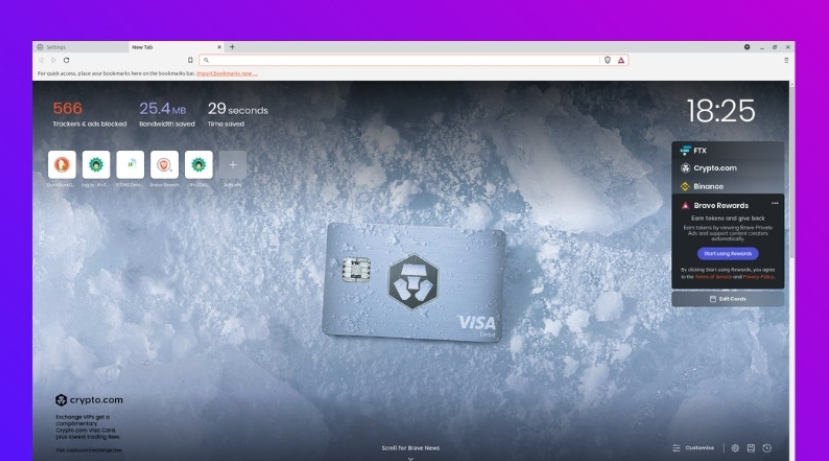
A leading privacy browser linux option, Brave blocks ads and trackers by default while delivering strong performance.
Pros:
- Built-in ad blocker
- Automatic HTTPS upgrades
- Earn BAT tokens
- Very strong privacy defaults
If your priority is privacy, Brave is one of the best browser for linux in 2025.
Opera
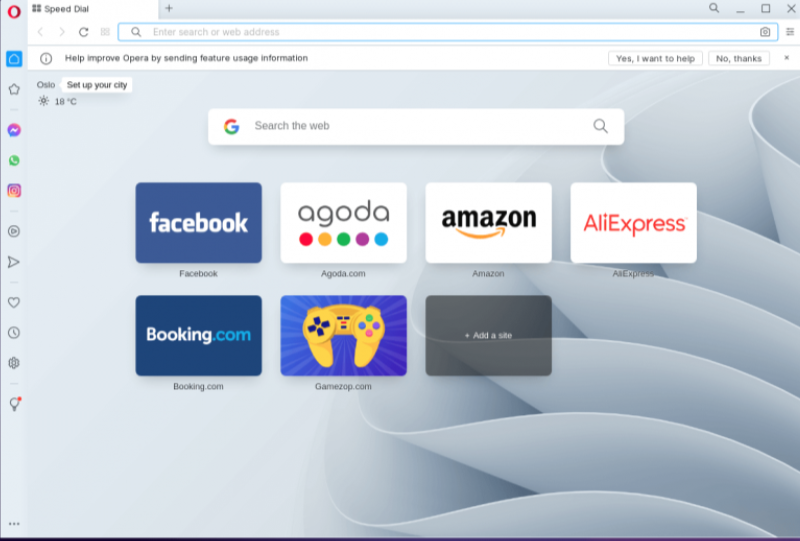
Opera blends performance with unique features such as a sidebar, built-in VPN, and social apps integration.
Pros:
- Free VPN
- Productivity-focused design
- Good performance
GNOME Web (Epiphany)
.png?1765004469507)
Simple, lightweight, and deeply integrated into GNOME environments. Perfect for low-resource systems or casual browsing.
Pros:
- Extremely lightweight
- Minimalist user interface
- WebKit-based rendering
Falkon
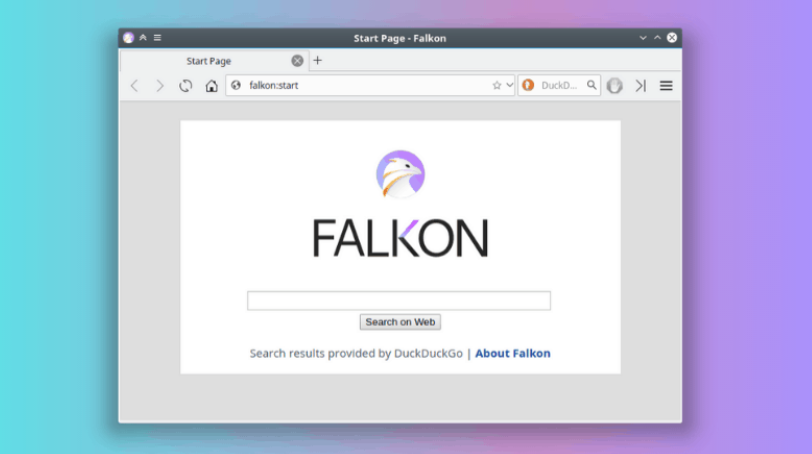
Popular among KDE users, Falkon offers a small footprint without losing essential features.
Pros:
- Very low memory usage
- Native KDE integration
- Excellent choice for older hardware
Vivaldi
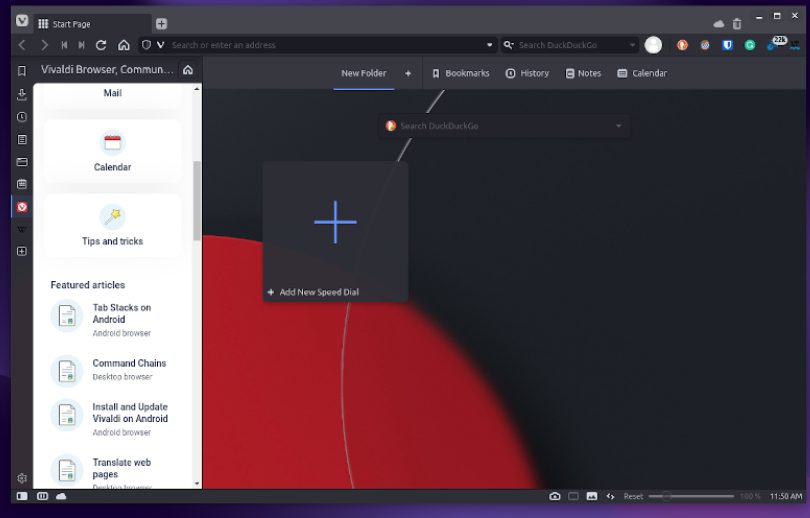
One of the most customizable linux web browsers, Vivaldi is perfect for users who want full control over appearance and behavior.
Pros:
- Powerful tab management
- Fully customizable UI
- Advanced productivity features
Nyxt
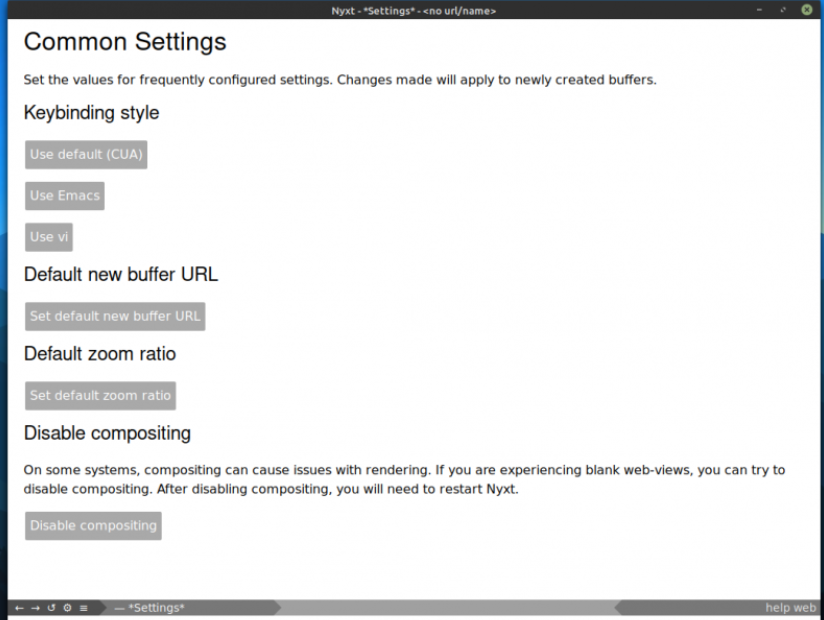
A unique, keyboard-driven browser inspired by Emacs/Vim navigation. Highly programmable using Lisp-like commands.
Pros:
- Extremely low RAM usage
- Lightning-fast navigation
- Keyboard-heavy workflow
Best For: Advanced Linux users, programmers, and automation-heavy workflows.
If you’re unfamiliar with how browsers work at their core, you may want to check out our guide “What is a Web Browser” to understand the fundamentals before continuing.
Performance & Resource Usage Benchmarks (2025)
Different browsers behave differently across systems. These general benchmarks give you a reliable sense of how these linux web browsers perform.
|
Browser |
RAM Usage (5 tabs) |
CPU Load (Average) |
Launch Speed |
Best Use Case |
|
Firefox |
Medium |
Low |
Fast |
Privacy + performance |
|
Chrome |
High |
Medium |
Fast |
Productivity, extensions |
|
Chromium |
Medium |
Low |
Very Fast |
Lightweight Chrome alternative |
|
Brave |
Medium |
Low |
Fast |
Privacy-first users |
|
Falkon |
Low |
Very Low |
Very Fast |
Weak hardware |
|
Epiphany |
Very Low |
Very Low |
Fast |
GNOME systems |
|
Vivaldi |
Medium-High |
Medium |
Medium |
Power features |
|
Nyxt |
Very Low |
Very Low |
Instant |
Keyboard-driven power users |
|
Edge |
Medium-High |
Medium |
Fast |
Enterprise & sync users |
Privacy and Security Features
Privacy remains a top priority for Linux users, especially those using Linux for cybersecurity, server management, or development work. Let's compare privacy strengths:
Strongest Privacy Browsers on Linux
- Brave – default ad/tracker blocking, fingerprint protection.
- Firefox – strict privacy mode, Enhanced Tracking Protection, container tabs.
- Tor Browser (not included above but worth mentioning) – anonymity over privacy.
Moderate Privacy
- Chromium – depends on configuration.
- Vivaldi – good defaults but not as strict as Brave.
Lower Privacy
- Chrome – telemetry and Google account linking.
- Edge – Microsoft tracking concerns.
If you're exploring privacy tools, our guide on Different Types of Web Browser is a great resource.
Installation Guide: How to Install Each Browser on Major Linux Distros
These step-by-step instructions help you install browser Linux packages across the four most widely used Linux distros: Ubuntu, Debian, Fedora, and Arch Linux.
1. Install Firefox on Linux
Firefox comes preinstalled on most Linux systems, but the following steps help reinstall, update, or verify it.
Ubuntu / Debian
Update repositories:
sudo apt update
Install Firefox:
sudo apt install firefox
Verify installation:
firefox --version
Fedora
Fedora ships with Firefox by default.
Install or reinstall:
sudo dnf install firefox
Arch Linux
sudo pacman -S firefox
2. Install Google Chrome on Linux
Google Chrome is not open-source, and therefore not included in default Linux repositories.
Ubuntu / Debian (.deb)
- Download Chrome package:
wget https://dl.google.com/linux/direct/google-chrome-stable_current_amd64.deb
- Install Chrome + dependencies:
sudo apt update
sudo apt install ./google-chrome-stable_current_amd64.deb
- Verify installation:
google-chrome --version
Fedora (.rpm)
Chrome supports RPM-based systems natively.
sudo dnf install https://dl.google.com/linux/direct/google-chrome-stable_current_x86_64.rpm
Verify:
google-chrome --version
Arch Linux
Chrome isn’t available in official Arch repos.
Users install it via AUR (mentioned as a note):
yay -S google-chrome
3. Install Chromium on Linux
Method 1: Install via Terminal
Ubuntu / Debian:
sudo apt update
sudo apt install -y chromium-browser
Fedora:
sudo dnf install chromium
Arch Linux:
sudo pacman -S chromium
After installation, launch Chromium from applications menu.
Method 2: Install via GUI (Ubuntu / Debian)
1. Open Software Center.
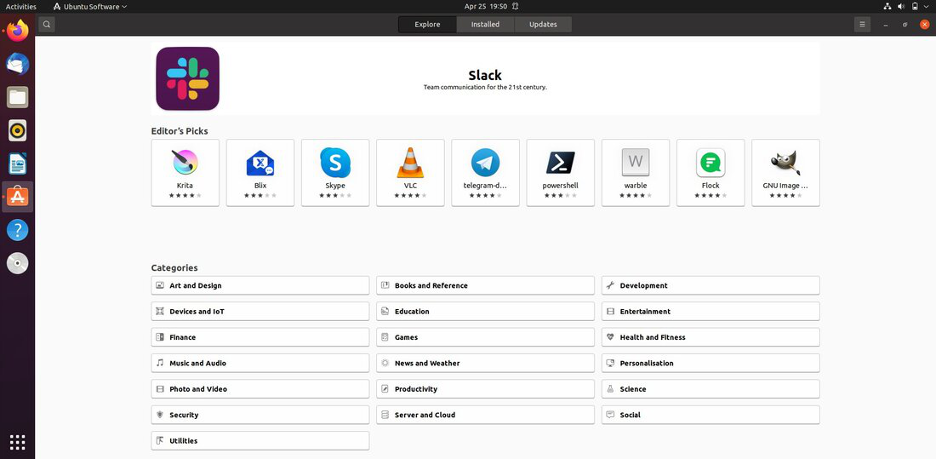
2. Search for “Chromium Browser”.
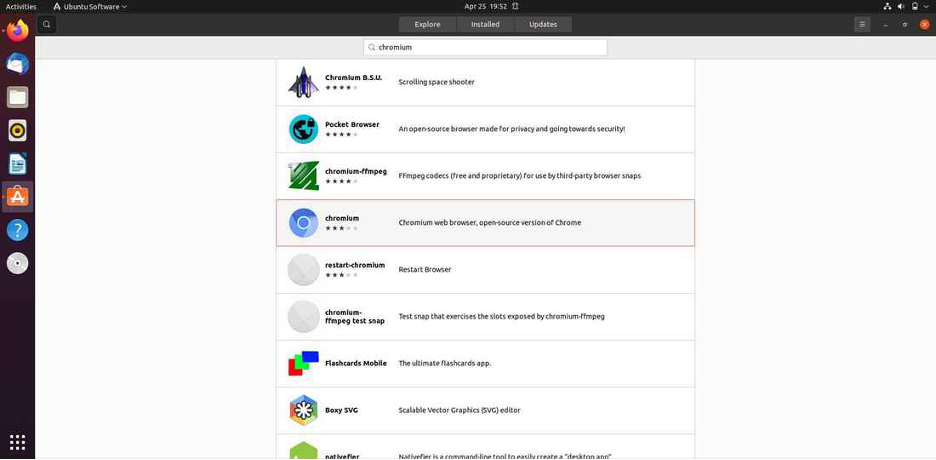
3. Click on it, then click Install.
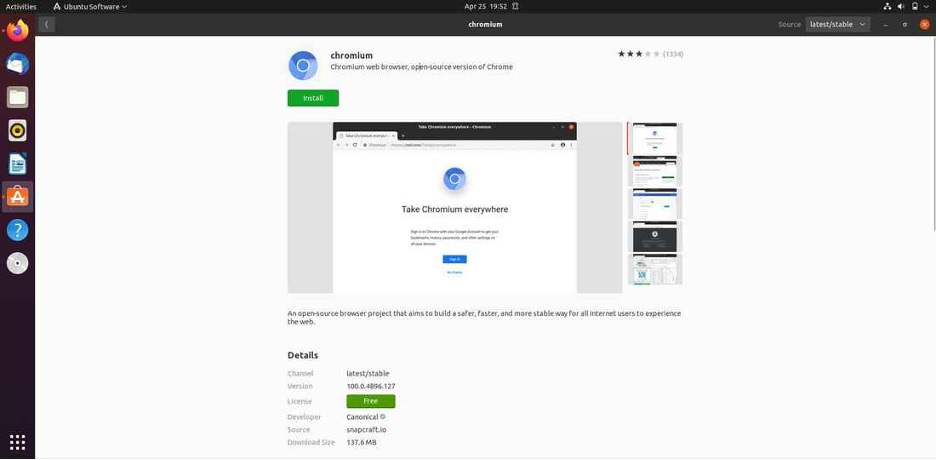
4. After installation, launch from your applications menu.
4. Install Brave Browser on Linux
Brave is popular for privacy browser linux users thanks to built-in Shields and tracker blocking.
Ubuntu / Debian
Brave requires adding its official repository.
- Install prerequisites:
sudo apt install curl
- Add Brave signing key:
sudo curl -fsSLo /usr/share/keyrings/brave-browser.gpg https://brave-browser-apt-release.s3.brave.com/brave-browser-archive-keyring.gpg
- Add Brave repo:
echo "deb [signed-by=/usr/share/keyrings/brave-browser.gpg] https://brave-browser-apt-release.s3.brave.com/ stable main" | sudo tee /etc/apt/sources.list.d/brave-browser-release.list
- Install Brave:
sudo apt update
sudo apt install brave-browser
Run Brave:
brave-browser
Fedora
sudo dnf install brave-browser
Arch Linux
sudo pacman -S brave
5. Install Opera Browser on Linux
Opera includes built-in VPN support, making it attractive for privacy-focused users.
Method 1: Install via Terminal / Official Repositories
Ubuntu / Debian:
sudo apt update
sudo apt install opera-stable
Fedora:
sudo dnf install opera
Arch Linux:
sudo pacman -S opera
Method 2: Install via GUI (Ubuntu / Debian)
- Open Software Center.
- Search for “Opera”.
- Click Install in the Opera entry.
- Once done, open Opera from the applications menu.
6. Install GNOME Web (Epiphany)
GNOME Web is the lightweight browser optimized for the GNOME desktop environment.
Ubuntu / Debian
sudo apt update
sudo apt install epiphany-browser
Fedora
sudo dnf install epiphany
Arch Linux
sudo pacman -S epiphany
7. Install Falkon on Linux (Lightweight QT Browser)
Falkon is ideal for systems with low RAM or older CPUs.
Ubuntu / Debian
sudo apt update
sudo apt install falkon
Fedora
sudo dnf install falkon
Arch Linux
sudo pacman -S falkon
8. Install Vivaldi Browser on Linux
Vivaldi is a highly customizable browser popular among power users.
Method 1: Install via Terminal / Official Packages
Ubuntu / Debian (.deb):
Download Vivaldi:
wget https://downloads.vivaldi.com/stable/vivaldi-stable_amd64.deb
Install the package:
sudo apt install ./vivaldi-stable_amd64.deb
Fedora (.rpm):
sudo dnf install https://downloads.vivaldi.com/stable/vivaldi-stable.x86_64.rpm
Arch Linux:
sudo pacman -S vivaldi
Method 2: Install via GUI — Ubuntu / Debian
Download the .deb file from Vivaldi’s official website.
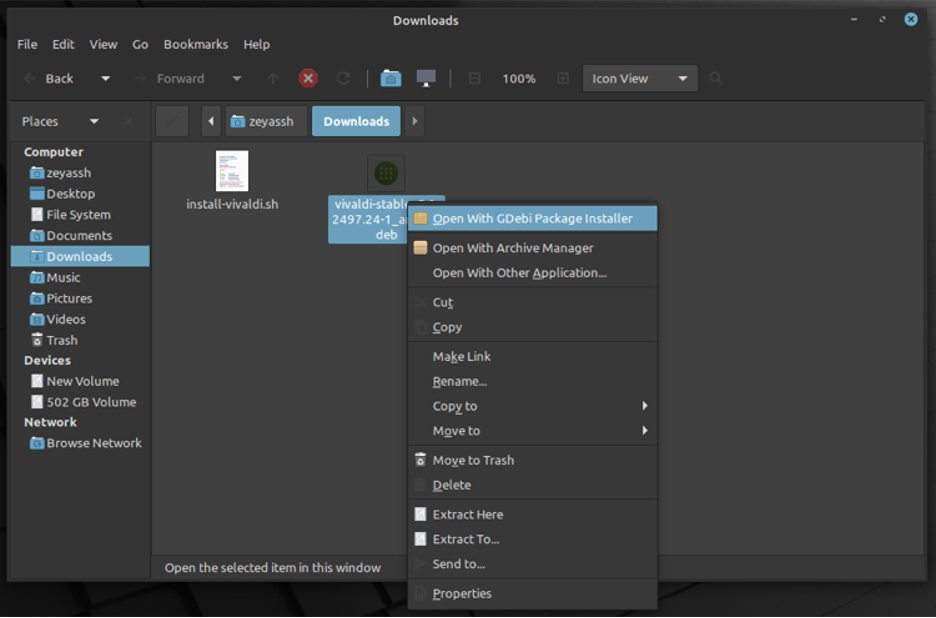
Open your file manager, double-click the .deb file.
In the package installer, click Install, and provide your password.
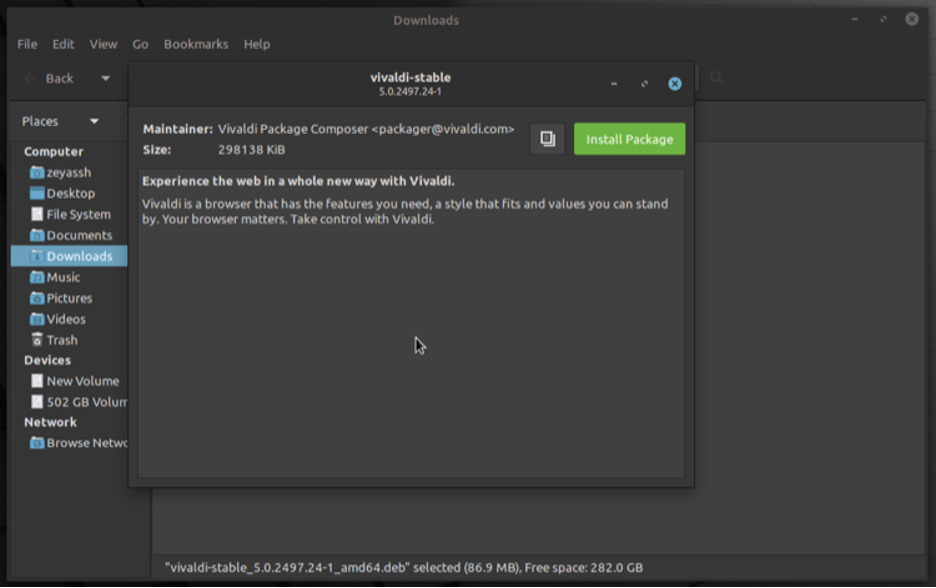
After installation, find Vivaldi in your applications menu and launch it.
9. Install Nyxt Browser on Linux
Nyxt is a keyboard-driven, Lisp-powered browser for advanced technical users.
Ubuntu / Debian / Fedora / Arch (Flatpak universal install)
flatpak install flathub network.nyxt.Nyxt
If your setup involves running workloads on servers, it’s useful to understand browser behavior in server environments too.
👉 Learn more in: What is Linux Server
Recommended Browser Extensions for Linux Users
These extensions work across many linux web browsers and enhance privacy, productivity, and security.
Top Linux Extension Recommendations
- uBlock Origin – best ad blocker
- Privacy Badger – tracker blocker
- Bitwarden – password manager
- Dark Reader – dark mode for any site
- Tridactyl – Vim-style keyboard control (Firefox)
These align perfectly with the needs of privacy browser linux users.
User Scenarios: Best Browser for Different Needs
Below are real-world recommendations to help you identify the best browser for linux depending on your workflow.
Best for Privacy:
Brave, Firefox, Tor Browser
Best for Low Resource Systems:
Falkon, Epiphany, Nyxt
Best for Developers:
Firefox, Chrome, Chromium
Best for Heavy Multitasking:
Vivaldi, Chrome
Best for Cloud Work + Microsoft Services:
Microsoft Edge
Best for Ubuntu Users:
Check our detailed guide: 👉 Best Web Browsers for Ubuntu
Conclusion
Choosing the right browser from the vast selection of linux web browsers depends entirely on your needs—privacy, performance, customization, or low resource usage. The power and flexibility of Linux give you the freedom to try any browser and tailor it to your workflow.
Whether you're looking for the best browser for linux, deep-dive comparisons through a linux browser comparison, or instructions on how to install browser linux, this guide provides everything you need to make an informed choice in 2025.
And if you're running your environment on virtual machines, consider checking out our Linux VPS solutions for a more scalable setup. 👉 Explore Linux VPS
Enjoy exploring, customizing, and optimizing your Linux browsing experience your perfect browser is waiting.


Hello, everyone, my name is Lisa. I'm a passionate electrical engineering student with a keen interest in technology. I'm fascinated by the intersection of engineering principles and technological advancements, and I'm eager to contribute to the field by applying my knowledge and skills to solve real-world problems.