Learning how to install Oracle VM VirtualBox is still one of the easiest ways to run multiple operating systems on a single computer. Developers use it for testing, students rely on it for labs, and security learners run tools like Kali Linux without touching their main system.
In this updated 2026 guide, you’ll learn how to install Oracle VM VirtualBox on Windows, macOS, and Ubuntu the right way. We’ll also explain licensing clearly, fix common errors, and show when VirtualBox is not the best choice.
This guide avoids the biggest mistakes competitors make, especially the confusion between Oracle VM VirtualBox and Oracle VM Server.
What Is Oracle VM? (VirtualBox vs Oracle VM Server)
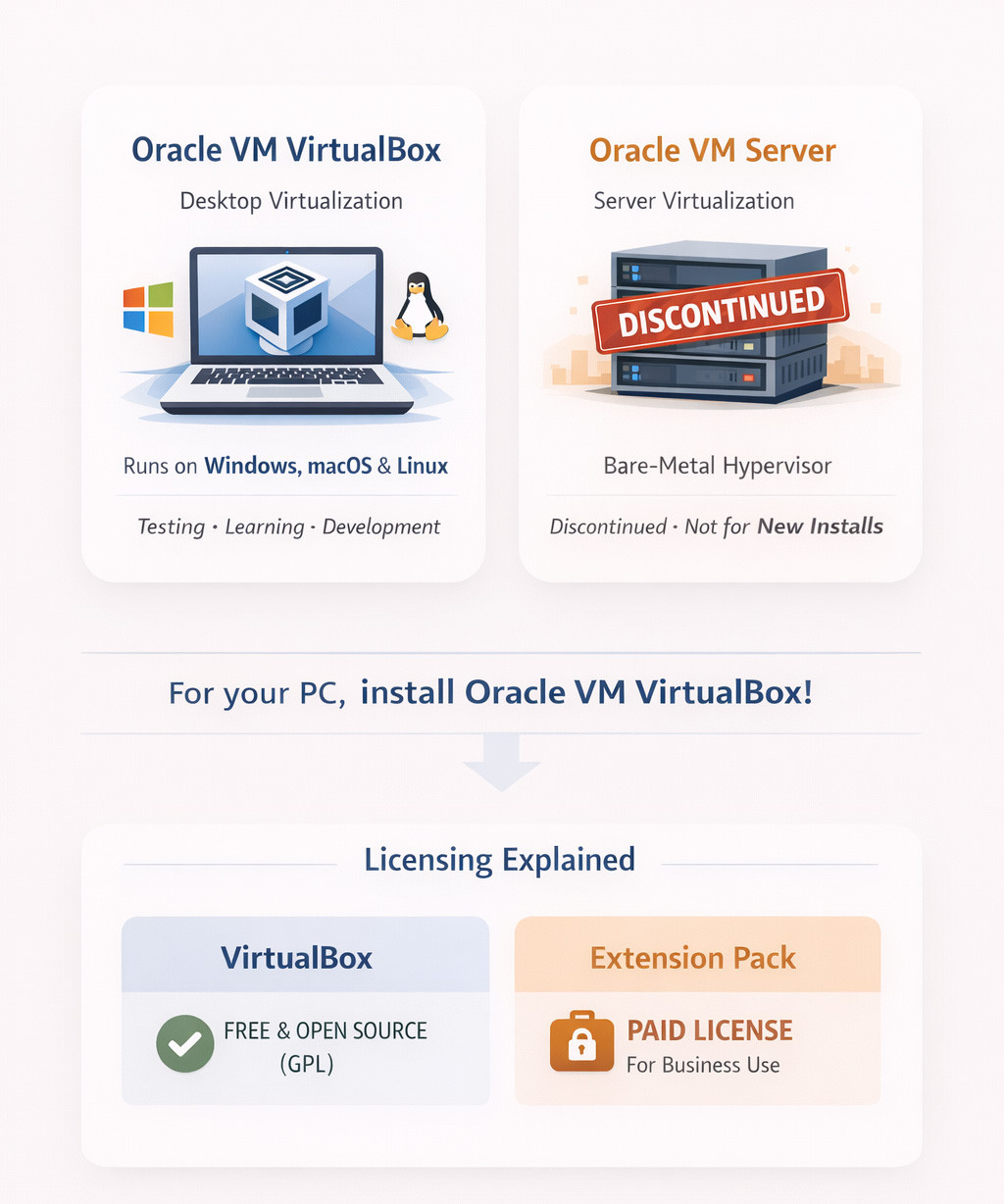
The phrase “install Oracle VM” often causes confusion because Oracle has released more than one virtualization product with similar names, but very different use cases.
Oracle VM VirtualBox is a desktop virtualization application that runs on top of an existing operating system like Windows, macOS, or Linux. It’s commonly used for testing software, learning new operating systems, running labs, or general development work. For most people using a laptop or desktop computer, this is the product they actually want.
Oracle VM Server, in contrast, was a bare-metal, server-side hypervisor designed to be installed directly on physical hardware. Oracle has officially discontinued this product, and it is no longer supported. Because of this, it should not be used for new installations, even though some older guides still mention it.
If your goal is to run virtual machines on your personal computer, you should install Oracle VM VirtualBox, not Oracle VM Server.
Licensing explained simply:
Oracle VM VirtualBox itself is free and open source under the GPL license. However, the Extension Pack uses a different license. It is free for personal and educational use, but commercial and business use requires a paid license from Oracle. This detail is important and often skipped in other guides, even though it can matter for compliance.
If you want a beginner-friendly explanation of virtualization, check What Is VM before continuing.
System Requirements & Prerequisites
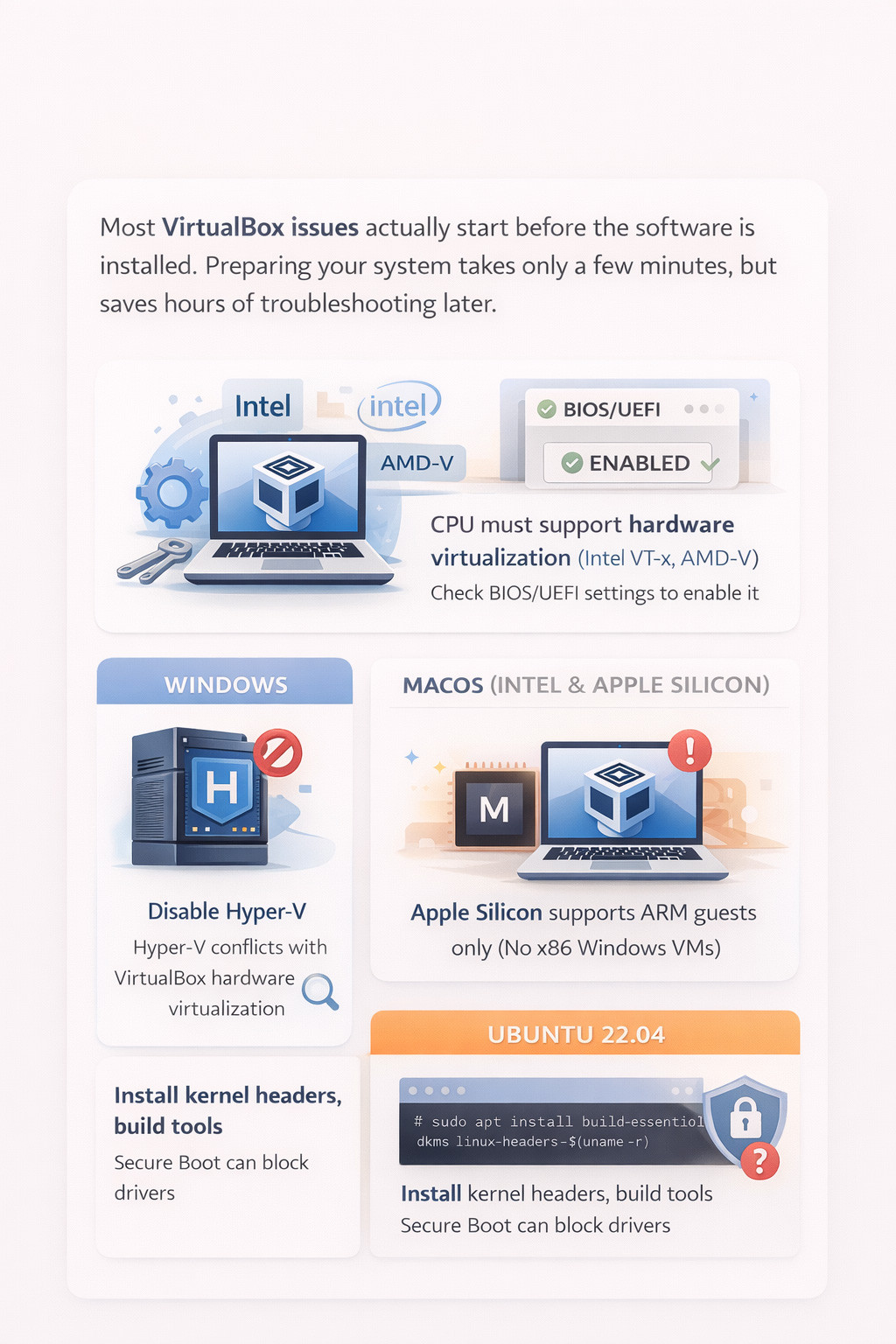
Most VirtualBox installation issues actually happen before the software is even installed. Taking a few minutes to prepare your system properly can save you a lot of time and frustration later.
First, your CPU must support hardware virtualization. Intel refers to this feature as VT-x, while AMD calls it AMD-V. Even if your processor supports virtualization, it is often disabled by default in the BIOS or UEFI, so it’s worth checking and enabling it manually.
On Windows systems, Hyper-V is a common source of problems. When Hyper-V is enabled, it prevents VirtualBox from accessing the hardware virtualization features it needs, which can lead to startup failures, performance issues, or random crashes. Disabling Hyper-V is required for VirtualBox to work reliably.
On macOS, behavior depends on the hardware. Intel-based Macs generally run VirtualBox without major issues. Apple Silicon (M1, M2, M3 and M4) Macs can run VirtualBox, but only with ARM-based guest operating systems. Traditional x86 Windows virtual machines are not supported on Apple Silicon.
For Ubuntu 22.04, some extra preparation is needed. You must install the correct kernel headers and build tools so VirtualBox can compile its kernel modules. In addition, Secure Boot may block VirtualBox drivers unless it is disabled or properly configured, which is a frequent cause of installation failures.
Downloading Oracle VM VirtualBox Safely
To avoid malware or broken installers, always download VirtualBox from official sources.
When downloading, choose the installer that matches your operating system exactly. VirtualBox installers are not interchangeable between platforms.
|
Host OS |
Installer Type |
|
Windows 10 / 11 |
EXE installer |
|
macOS |
DMG installer |
|
Ubuntu 22.04 |
DEB or APT |
|
Linux (generic) |
RUN file |
You must also download the Extension Pack that matches your VirtualBox version. Mismatched versions are a common cause of USB and network failures.
How to Install Oracle VM VirtualBox on Windows (10 & 11)
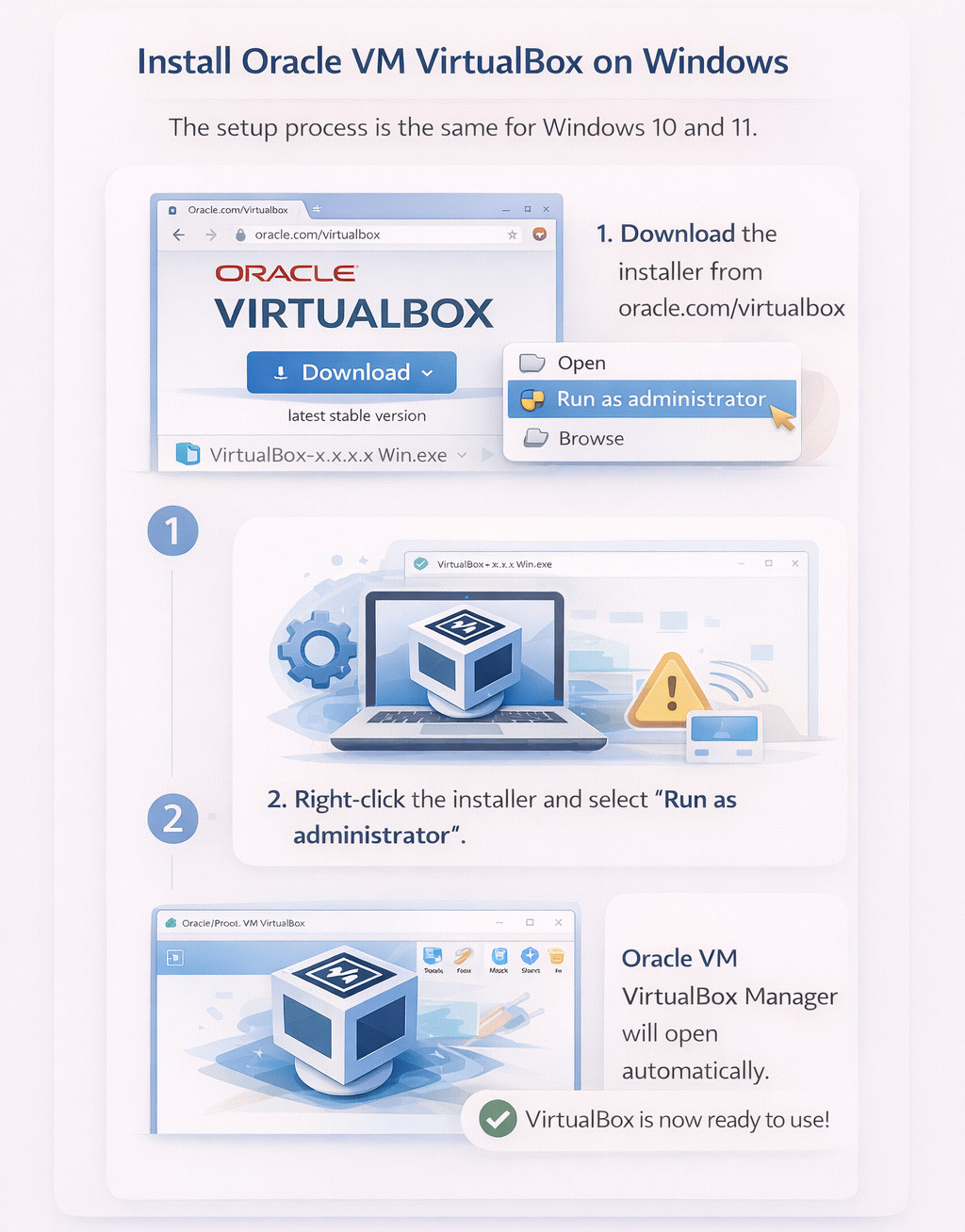
The process for installing Oracle VM VirtualBox on Windows 10 and Windows 11 is nearly identical, so a single set of steps applies to both operating systems.
Start by downloading the VirtualBox installer from Oracle’s official website. Once the download is complete, right-click the installer and select “Run as administrator.” This ensures the setup process has the permissions it needs to install drivers and system components correctly. The installation wizard will guide you through each step, and for most users, the default settings are recommended and require no changes.
During the installation, Windows may display warnings about temporary network interruptions. This is normal and expected. VirtualBox installs virtual network adapters as part of its networking features, which can briefly disconnect your active network connection while the drivers are being configured.
You will also be asked to approve the installation of Oracle device drivers. These drivers are essential for VirtualBox to access hardware virtualization and networking features. If you deny or skip these prompts, VirtualBox may appear to install successfully but will fail to run virtual machines correctly.
Once the installation finishes, Oracle VM VirtualBox Manager launches automatically. At this point, VirtualBox is fully installed and ready to use, allowing you to create, configure, and run virtual machines on your system.
How to Install Oracle VM VirtualBox on macOS
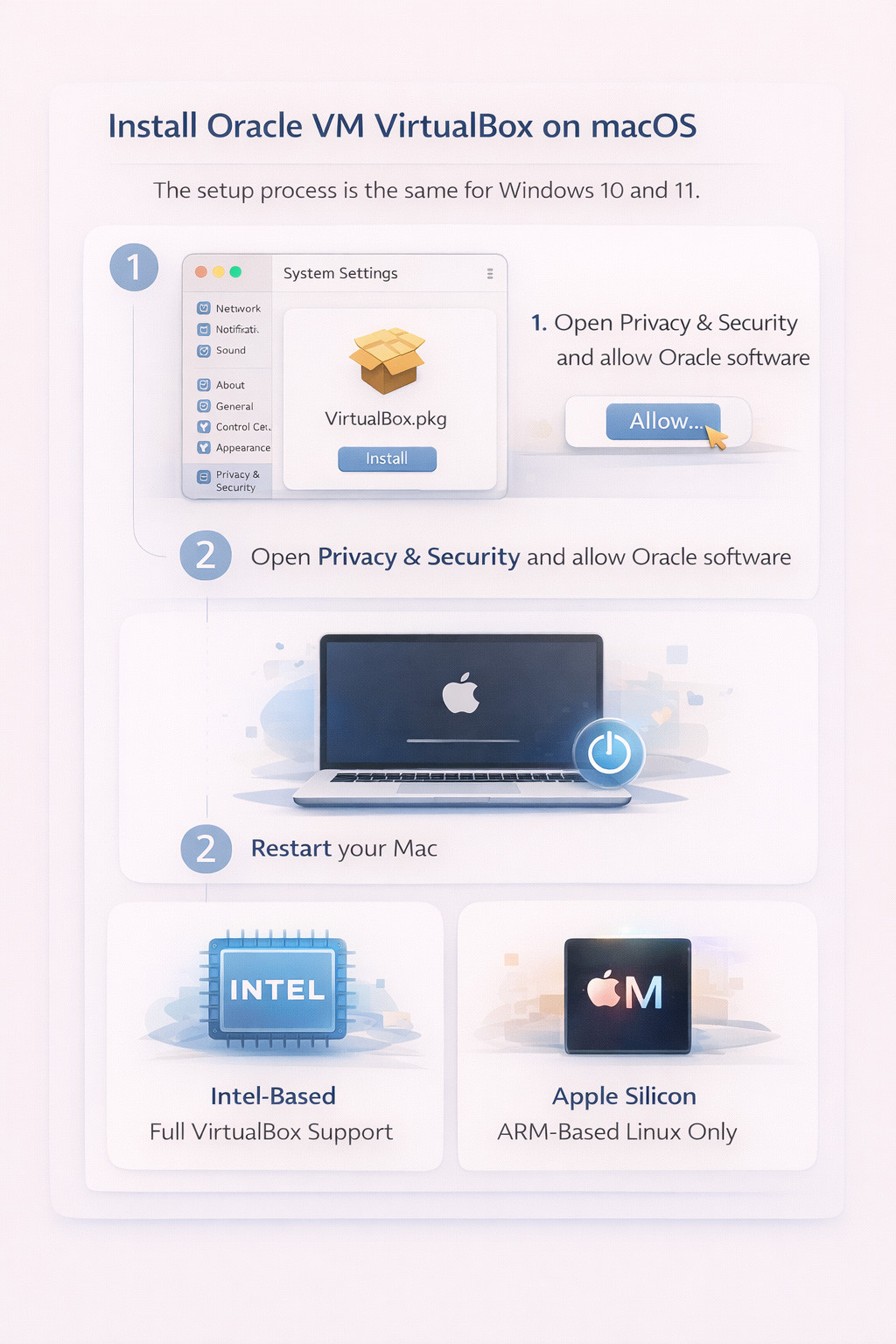
Installing Oracle VM VirtualBox on macOS involves one additional security step compared to other operating systems.
After running the installer, macOS may block Oracle system extensions. This is expected behavior and part of Apple’s security model. When this happens, open System Settings, navigate to Privacy & Security, and allow software from Oracle. Until this approval is granted, VirtualBox will not function correctly.
Once the system extensions are approved, restart your Mac to complete the installation. The restart is required so macOS can load the VirtualBox drivers properly.
Compatibility depends on your Mac’s hardware. Intel-based Macs provide full VirtualBox support and can run a wide variety of guest operating systems. Apple Silicon Macs (M1, M2, M3 and M4) are more limited and support only ARM-based Linux guests. As a result, traditional Windows virtual machines are not supported, which restricts use cases such as Windows testing and legacy application development.
How to Install Oracle VM VirtualBox on Ubuntu 22.04
Many users search for “how to install Oracle VM VirtualBox on Ubuntu 22.04” or simply “install Oracle VM on Ubuntu”, but the process has a few important details that are easy to miss.
The most reliable way to install VirtualBox on Ubuntu is by using Oracle’s official APT repository. This method ensures proper dependency handling and makes future updates smooth and automatic, unlike manual package installs that often break after kernel updates.
It’s also important that your kernel headers match your currently running kernel. VirtualBox relies on kernel modules, and if the headers are missing or mismatched, those modules cannot be compiled, causing the installation to fail.
Another common issue is Secure Boot. When Secure Boot is enabled, Ubuntu may block VirtualBox kernel modules from loading. To resolve this, you must either enroll a module signing key during installation or disable Secure Boot entirely. If this step is skipped, VirtualBox may install successfully but fail to start.
Installing Oracle VM Guest Additions
VirtualBox Guest Additions are essential for both usability and performance. Running a virtual machine without them often feels slow, awkward, and incomplete.
Without Guest Additions installed, screen resolution is limited, mouse movement may feel clunky or disconnected, and features like shared folders simply won’t work. These issues are common and often mistaken for VirtualBox bugs.
Installing Guest Additions significantly improves the experience. They enhance graphics performance, enable clipboard sharing, improve mouse and keyboard integration, and make the virtual machine feel far more responsive. In practice, every virtual machine should have Guest Additions installed.
To install them, start the virtual machine, open the Devices menu, and choose Insert Guest Additions CD Image. Then run the installer inside the guest operating system and reboot the VM when the installation finishes.
For Linux guests, kernel headers and build tools are required so the drivers can be compiled. Windows guests use a standard installer and typically require no additional setup.
To understand Oracle’s modern virtualization direction, it helps to start with Oracle Linux, which forms the foundation of Oracle Linux KVM and Oracle Cloud Infrastructure.
For a deeper overview of how this platform works and why Oracle chose it, see Understanding Oracle Linux.
Installing the Extension Pack (Licensing Matters)
The Oracle VM VirtualBox Extension Pack adds several advanced features that are not included in the base installation. These include USB 2.0 and USB 3.0 support, remote desktop access (RDP), disk encryption, and PXE booting for network-based setups. For many users, especially those working with USB devices or remote access, the Extension Pack is essential.
Installing the Extension Pack is straightforward and only takes a moment, but its licensing terms should not be overlooked. While personal and educational users can use it for free, businesses and commercial environments are required to purchase a license from Oracle. This applies even if the software is used internally and not redistributed.
Ignoring this distinction is common, but it can lead to legal, compliance, and audit risks for organizations. Anyone using VirtualBox in a professional setting should review the licensing terms carefully and ensure they are properly covered.
Common Installation Problems & Fixes
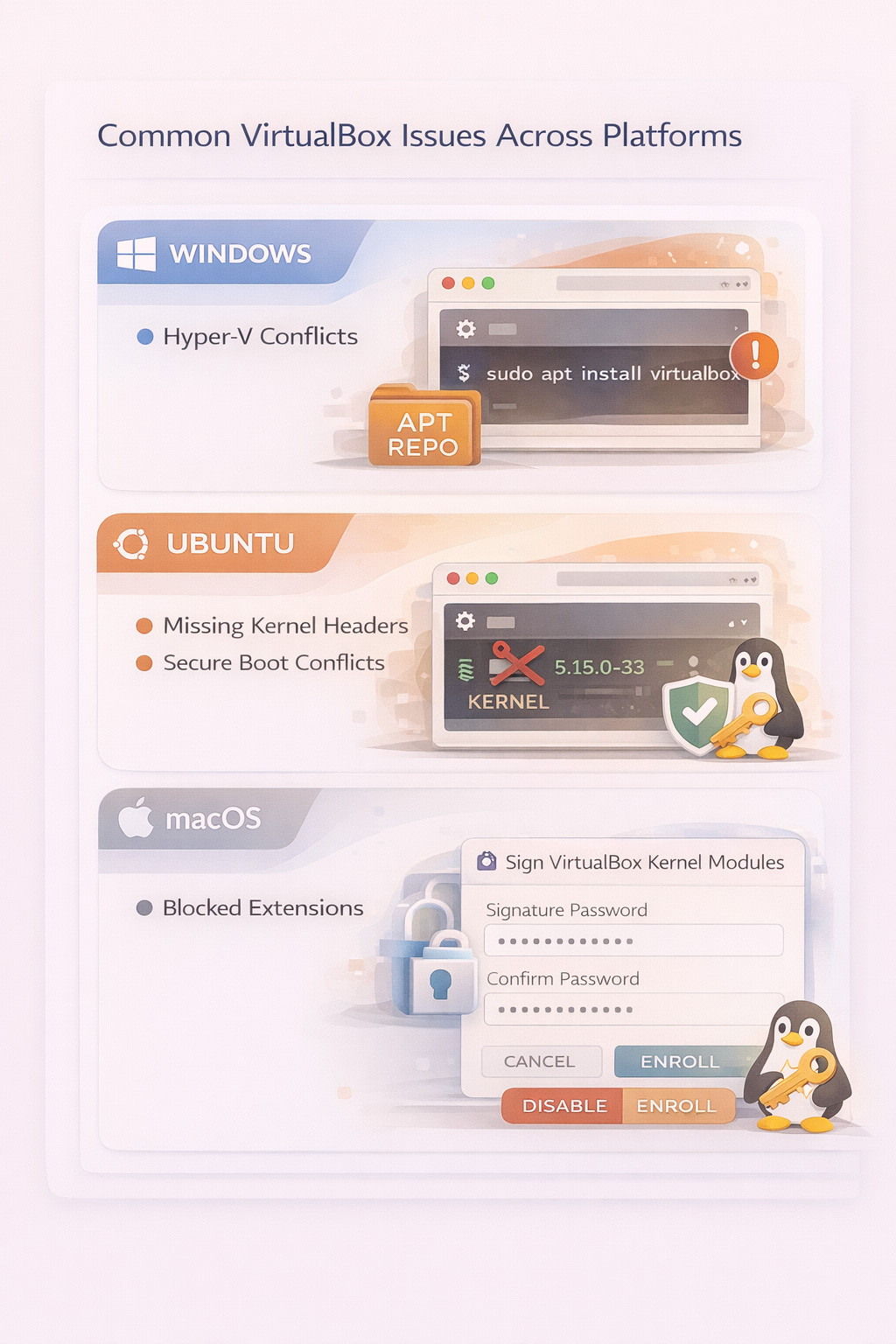
Most VirtualBox issues are platform-specific and usually come down to a small number of common causes.
On Windows, conflicts with Hyper-V are by far the most frequent problem. When Hyper-V is enabled, VirtualBox cannot access hardware virtualization, which leads to startup errors or poor performance.
On Ubuntu, installation failures are most often caused by missing kernel headers or Secure Boot blocking VirtualBox kernel modules. These issues typically appear after installation, when VirtualBox fails to load its drivers.
On macOS, the most common issue is blocked system extensions. If Oracle’s extensions are not approved in the security settings, VirtualBox will not start at all.
While these problems can be frustrating, they are normal and well-understood. Once you know what’s causing them, they are usually quick to fix.
Oracle VM VirtualBox vs Cloud Virtual Machines
Oracle VM VirtualBox is an excellent tool for local testing, learning, and development. It’s ideal for experimenting with operating systems, building labs, and running isolated environments on a personal computer.
However, VirtualBox is not designed for production workloads. It lacks the scalability, high availability, and management features required for production-grade virtualization. For serious server or enterprise use, dedicated hypervisors or cloud platforms are a better fit.
Used in the right context, VirtualBox is reliable, powerful, and extremely useful—but it shines most in non-production environments.
|
Feature |
VirtualBox |
Cloud VM |
|
Local testing |
Yes |
Limited |
|
Scalability |
Low |
High |
|
Reliability |
Host-dependent |
High |
|
Public access |
No |
Yes |
Host OS → Hypervisor → Guest OS
This extra layer means VirtualBox is easy to use and flexible, but it also adds overhead. For local testing and development, that trade-off is usually fine.
When uptime, performance, or scalability really matter, cloud virtual machines or dedicated hypervisors are the better choice. They’re designed for long-running workloads, higher reliability, and growth beyond a single machine.
If you’re ready to scale beyond local testing, MonoVm’s Oracle VPS offers instant deployment, global locations, and 24/7 expert support.
Oracle VM Server Installation
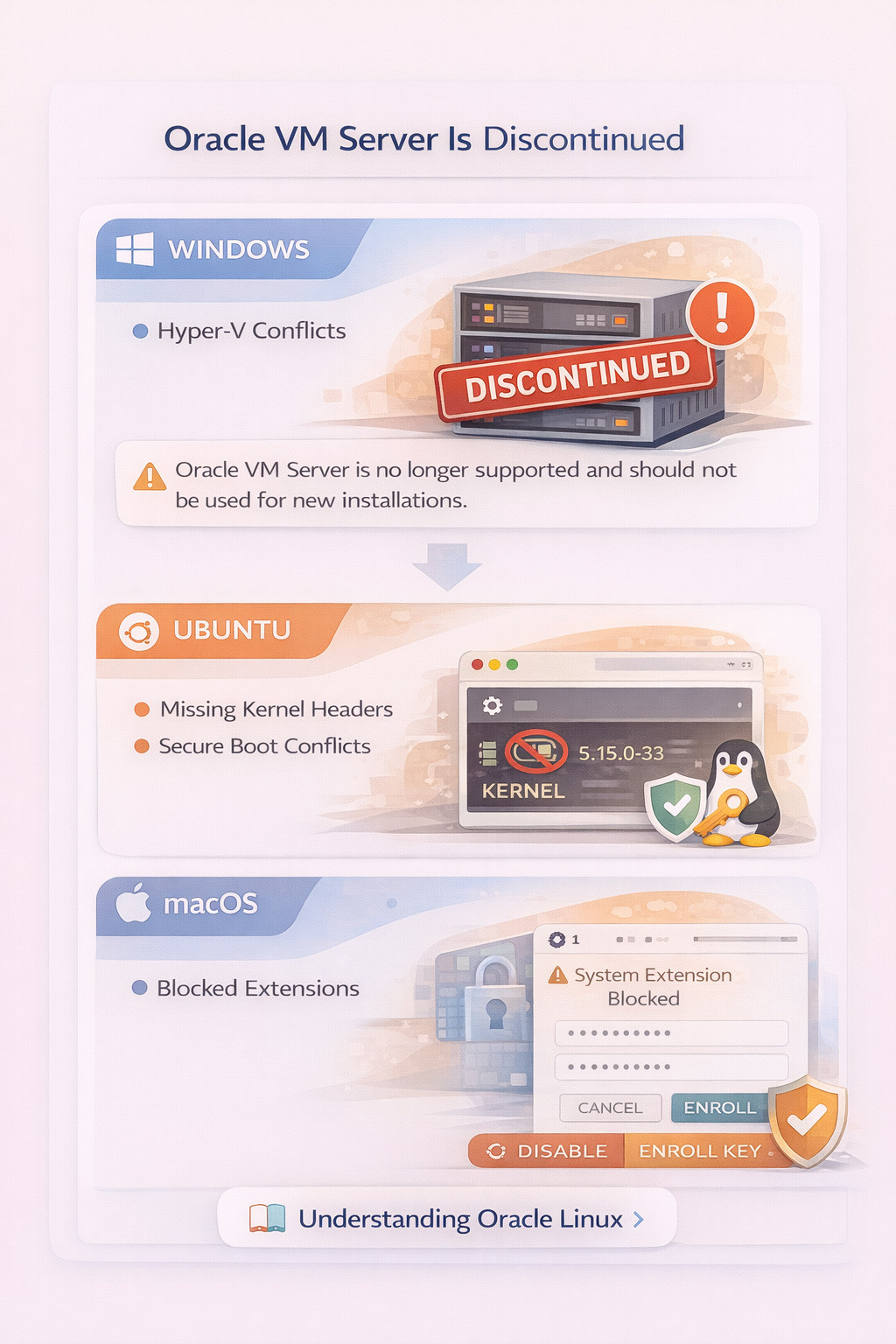
Searches for “Oracle VM Server installation step by step” are still very common, largely because older documentation, tutorials, and forum posts remain online. However, Oracle VM Server has been officially discontinued and is no longer supported. It should not be used for new installations or production environments.
Oracle has shifted its virtualization strategy away from Oracle VM Server and now focuses on KVM-based virtualization as part of Oracle Linux and its cloud infrastructure. Specifically, Oracle promotes Oracle Linux KVM, which is built on the upstream Linux Kernel-based Virtual Machine (KVM) technology and is actively maintained and supported.
This change aligns Oracle with modern virtualization standards used across the industry, offering better performance, long-term support, and tighter integration with enterprise and cloud environments. As a result, Oracle VM Server documentation is now largely historical and should only be referenced for legacy systems.
If you want to understand Oracle’s current approach to Linux and virtualization, the best place to start is Oracle Linux, which serves as the foundation for Oracle Linux KVM and Oracle Cloud Infrastructure. For a broader overview of this platform and how it fits into Oracle’s ecosystem, see Understanding Oracle Linux.
Conclusion
You now know how to install Oracle VM VirtualBox on Windows, macOS, and Ubuntu while avoiding common setup mistakes that impact stability and performance. With the right preparation and platform-specific steps, VirtualBox runs reliably and smoothly.
VirtualBox is ideal for testing, learning, and development. However, it is not intended for production systems, where uptime, scalability, and long-term reliability are required. In those cases, cloud virtual machines or dedicated hypervisors are the better option.
Used for its intended purpose, VirtualBox is a powerful and dependable tool.
If you need reliability, scalability, and global availability, upgrading to a cloud solution makes sense. MonoVm’s Oracle VPS delivers fast setup, strong performance, and round-the-clock support making it a practical next step when local virtualization reaches its limits.

An experienced tech and developer blog writer, specializing in VPS hosting and server technologies. Fueled by a passion for innovation, I break down complex technical concepts into digestible content, simplifying tech for everyone.