![How to Rename a File in Linux [Beginner + Advanced Tips]](/wp-content/uploads/2023/10/How-to-Rename-a-File-in-Linux 60-main.webp)
Linux users develop their first practical skills when they learn how to rename files on their system. The system remains organized and efficient through proper file naming, which you need for your various tasks, including project file organization, server log cleanup, backup management, and deployment asset preparation.
Users need to understand file renaming in Linux systems because it impacts their automation processes, their system operations, and their application functions when they use the terminal interface. Users who want to rename files need to learn both the Linux mv command for quick changes and the Linux rename command for complex patterns, which lets them maintain accurate file systems that remain error-free through all their desktop, server, and Linux VPS operations.
🖥️ Method 1: Rename a File Using mv
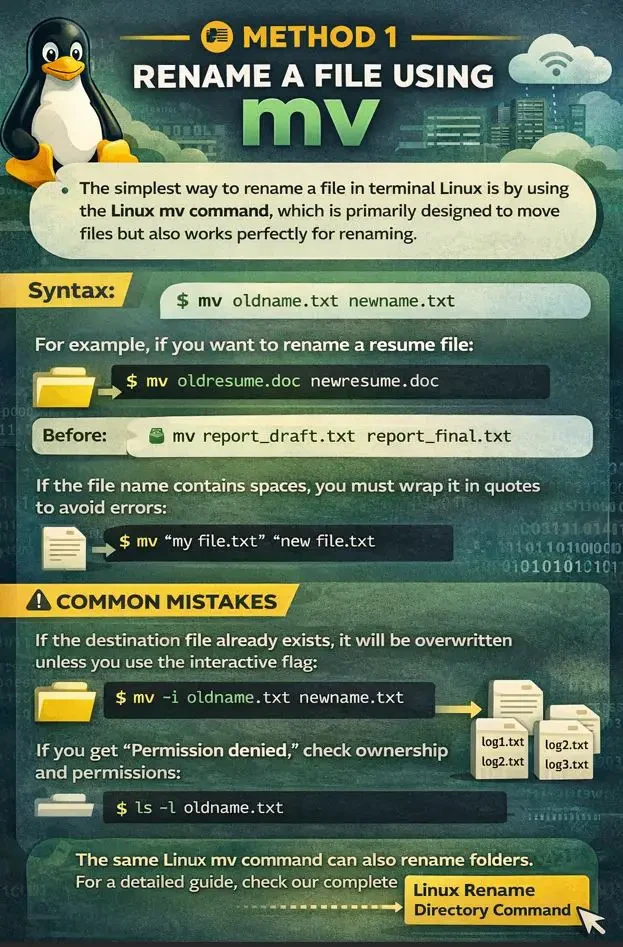
The simplest way to rename a file in terminal Linux is by using the Linux mv command, which is primarily designed to move files but also works perfectly for renaming.
mv oldname.txt newname.txt
For example, if you want to rename a resume file:
mv oldresume.doc newresume.doc
Before:
report_draft.txt
Command:
mv report_draft.txt report_final.txt
After:
report_final.txt
If the file name contains spaces, you must wrap it in quotes to avoid errors:
mv "my file.txt" "new file.txt"
Common Mistakes
If the destination file already exists, it will be overwritten unless you use the interactive flag:
mv -i oldname.txt newname.txt
If you get “Permission denied,” check ownership and permissions:
ls -l oldname.txt
The same Linux mv command can also rename folders. For a detailed guide, check our complete Linux Rename Directory Command tutorial.
📦 Method 2: Batch Rename Using rename
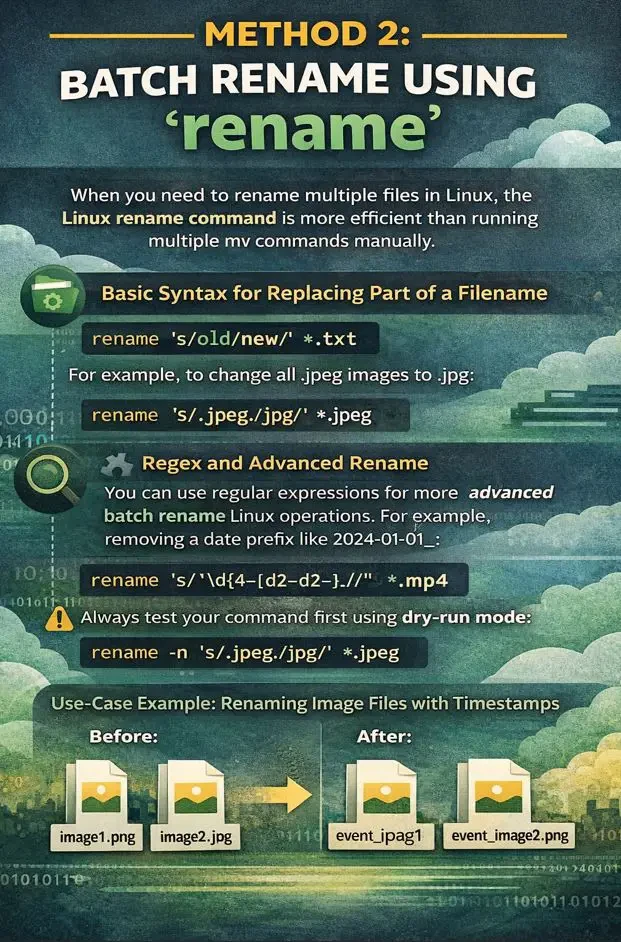
When you need to rename multiple files Linux, the Linux rename command is more efficient than running multiple mv commands manually.
Basic syntax for replacing part of a filename:
rename 's/old/new/' *.txt
For example, to change all .jpeg images to .jpg:
rename 's/.jpeg/.jpg/' *.jpeg
Regex and Advanced Rename
You can use regular expressions for more advanced batch rename Linux operations. For example, removing a date prefix like 2024-01-01_:
rename 's/^\d{4}-\d{2}-\d{2}_//' *.mp4
Always test your command first using dry-run mode:
rename -n 's/.jpeg/.jpg/' *.jpeg
Use-Case Example: Renaming Image Files with Timestamps
To add a prefix like event_ to all PNG images:
rename 's/^/event_/' *.png
Before:
image1.png
image2.png
After:
event_image1.png
event_image2.png
Since renaming relies on the same functionality as moving files, you can explore the full breakdown of the Linux Move File command for a deeper understanding.
🗂️ Method 3: Rename Files Using GUI (e.g., Nautilus)
If you prefer a graphical method instead of using rename file terminal Linux, file managers like Nautilus (Ubuntu) or Dolphin (KDE) allow easy renaming.
To rename a single file in Nautilus:
- Right-click the file.
- Select Rename.
- Type the new name and press Enter.
For bulk renaming:
- Select multiple files.
- Right-click and choose Rename.
- Choose format options (e.g., add prefix, numbering).
In some environments, you can also press:
F2
This opens the rename field instantly.
GUI renaming is best for beginners or when working on a desktop system where visual confirmation is preferred over command-line precision.
⚖️ Comparison: mv vs rename vs GUI
Choosing the right method to rename files in Linux depends on your experience level, the number of files involved, and the complexity of the renaming task.
While the Linux mv command is perfect for quick single changes, the Linux rename command is built for structured batch rename Linux operations, and GUI tools offer simplicity for desktop users.
|
Method |
Best For |
Pros |
Cons |
|
mv (Linux mv command) |
Renaming a single file or making simple changes |
Simple syntax, available on all Linux systems, no installation required |
Not efficient for renaming multiple files in Linux without loops |
|
rename (Linux rename command) |
Batch rename Linux tasks with patterns or regex |
Powerful regex support, ideal for renaming multiple files on Linux, fast for large sets |
May require installation, regex mistakes can cause unintended changes |
|
GUI (Nautilus/Dolphin) |
Desktop users and beginners |
Visual interface, low risk, easy multi-file rename with numbering |
Not suitable for servers, slower for large-scale automation |
For most users learning how to rename file in Linux, start with mv, move to rename for automation, and use GUI tools when working in a desktop environment. If you're new to the terminal, reviewing essential Basic Linux Commands will help you better understand file operations and system navigation.
🧩 Scripting File Renames with Bash
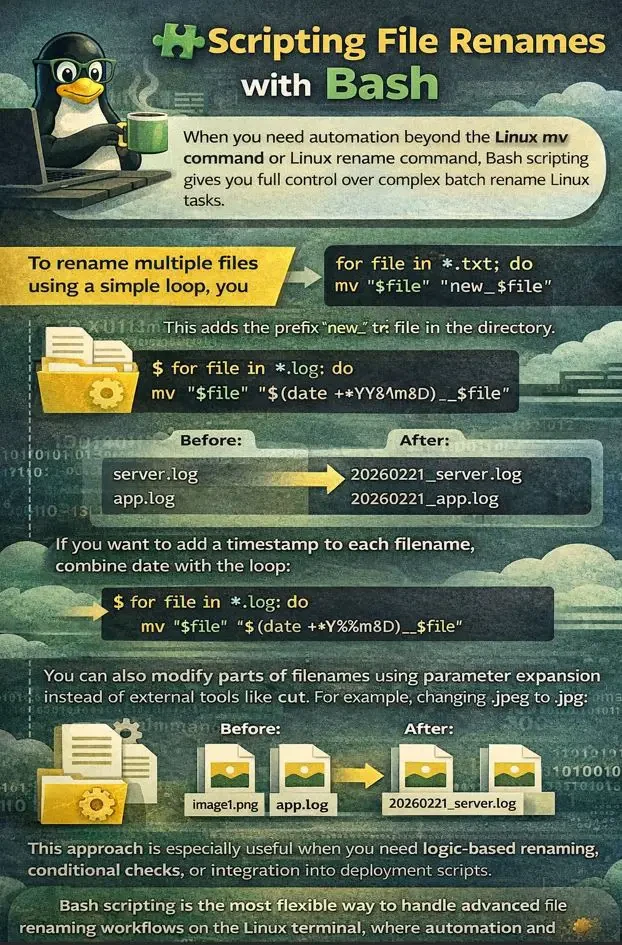
When you need automation beyond the Linux mv command or Linux rename command, Bash scripting gives you full control over complex batch rename Linux tasks.
To rename multiple files Linux using a simple loop, you can iterate through matching files:
for file in *.txt; do
mv "$file" "new_$file"
This adds the prefix new_ to every .txt file in the directory.
If you want to add a timestamp to each filename, combine date with the loop:
for file in *.log; do
mv "$file" "$(date +%Y%m%d)_$file"
Before:
server.log
app.log
After:
20260221_server.log
20260221_app.log
You can also modify parts of filenames using parameter expansion instead of external tools like cut. For example, changing .jpeg to .jpg:
for file in *.jpeg; do
mv "$file" "${file%.jpeg}.jpg"
This approach is especially useful when you need logic-based renaming, conditional checks, or integration into deployment scripts.
Bash scripting is the most flexible way to handle advanced file renaming workflows on the Linux terminal, where automation and repeatability matter.
🛠️ Troubleshooting Common Errors
Even when you understand how to rename file in Linux, small mistakes in syntax, permissions, or patterns can cause commands to fail.
|
Error Message |
Cause |
Fix |
|
mv: cannot stat 'file.txt': No such file or directory |
File does not exist, orthe name is misspelled |
Check filename with ls and verify correct path: ls -l |
|
Permission denied |
You don’t have write permission for the file or directory |
Use ls -l to check permissions or run with sudo if appropriate: sudo mv old new |
|
rename: no files renamed |
The regex pattern does not match any filenames |
Test pattern with dry-run mode: rename -n 's/old/new/' * |
|
Files overwritten unexpectedly |
Destination file already exists |
Use interactive flag: mv -i old new |
|
Issues with spaces in filenames |
Missing quotes around filenames |
Wrap names in quotes: mv "old file.txt" "new file.txt." |
Before performing large-scale batch rename Linux operations, consider creating a backup using our guide on Copy File in Linux to prevent accidental data loss.
📌 Linux File Rename Cheat Sheet
If you want a quick reference for how to rename file in Linux, this cheat sheet summarizes the most commonly used commands and patterns.
- mv old.txt new.txt
Purpose: Rename a single file using the Linux mv command
Example: mv report.txt report_final.txt - mv -i old.txt new.txt
Purpose: Rename with overwrite confirmation
Example: mv -i data.txt archive.txt - rename 's/.jpeg/.jpg/' *.jpeg
Purpose: Rename multiple files Linux by changing extensions
Example: Convert all .jpeg files to .jpg - rename -n 's/old/new/' *
Purpose: Dry run before executing batch rename Linux
Example: Preview filename changes safely - For f in *.txt; do mv "$f" "new_$f"; done
Purpose: Rename multiple files Linux using a Bash loop
Example: Add prefix to all .txt files - mv "old file.txt" "new file.txt"
Purpose: Rename file terminal Linux when the filename contains spaces
Example: Safely rename files with whitespace
This quick-reference guide makes it easy to apply the right command instantly.
Conclusion
Linux file organization, automation processes, and system administration tasks become easier when you master the process of file renaming in Linux. The Linux system offers essential tools to all users because it provides two different file renaming methods, which include the simple Linux mv command and the advanced Linux rename command that allows users to perform bulk file renaming operations.
Using terminal Linux for file renaming or choosing a graphical interface requires you to evaluate which method works best because both methods will help you complete tasks faster while decreasing errors and enabling you to handle files between servers and desktop systems.
If you're managing production environments or automation scripts, running these commands on a reliable Linux VPS from MonoVM ensures stability and full root-level control.